Hello there!

Need Help? We are right here!

Support Icon
miniOrange Email Support
success

Thanks for your Enquiry. Our team will soon reach out to you.

If you don't hear from us within 24 hours, please feel free to send a follow-up email to info@xecurify.com

Search Results:

×

Manage Groups


What is a Group in miniOrange IDP?

A group is a collection of several users. Groups are used to map an application to a set of users. Groups can be used for the following purposes in miniOrange :

  • To differentiate users based on their roles or departments.
  • To allow access to an application to a specific set of users.
  • To enable 2FA for a specific set of users.

The DEFAULT Group:

The DEFAULT group is automatically created when you complete the configuration for admin. All users under your admin account are part of the DEFAULT group. Each newly created user is assigned to the default group automatically.

A Default group can be used to enable access to an application for all of the users or if you want to enable MFA for all users.
1. How to create a Group:

  • Log into the miniOrange admin dashboard using your miniOrange credentials.
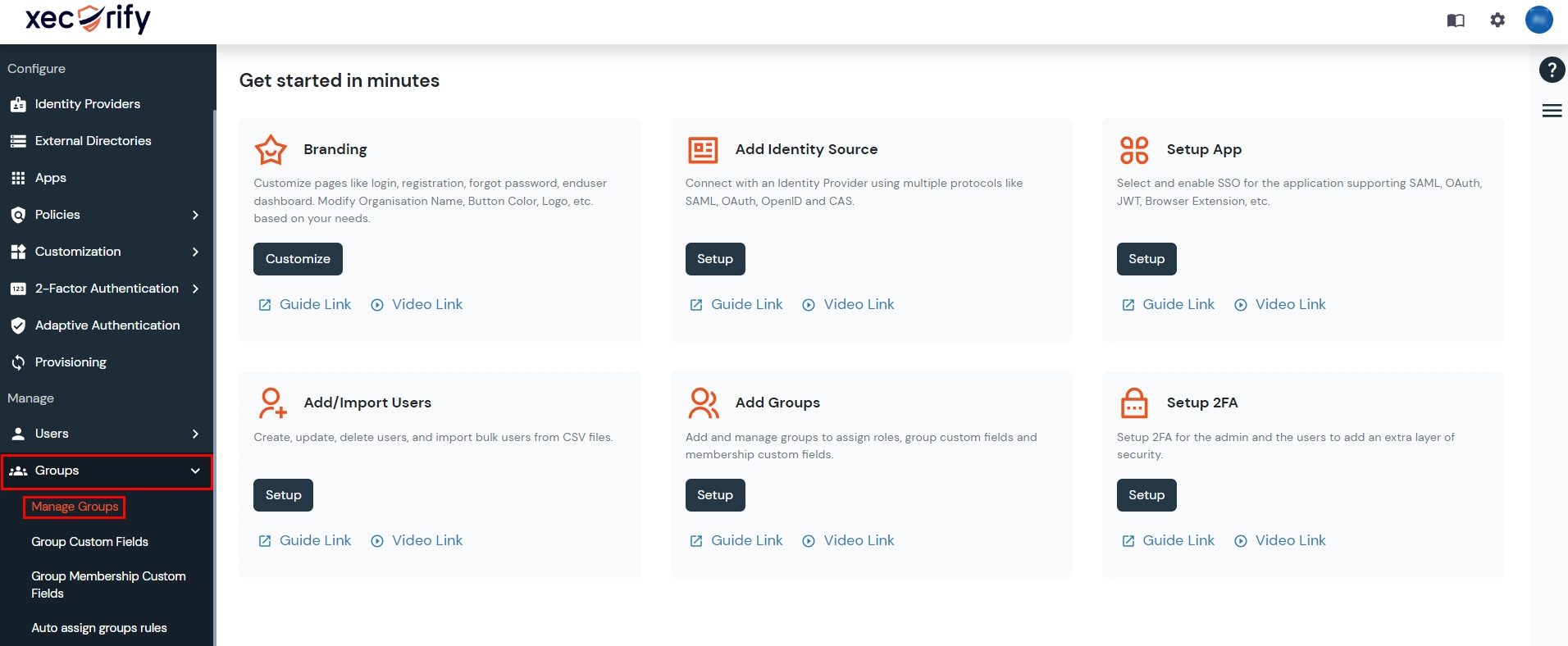
  • Go to Groups >> Manage Groups from the left menu.
  • miniOrange Identity Platform Admin Handbook: Groups >> Manage Groups menu

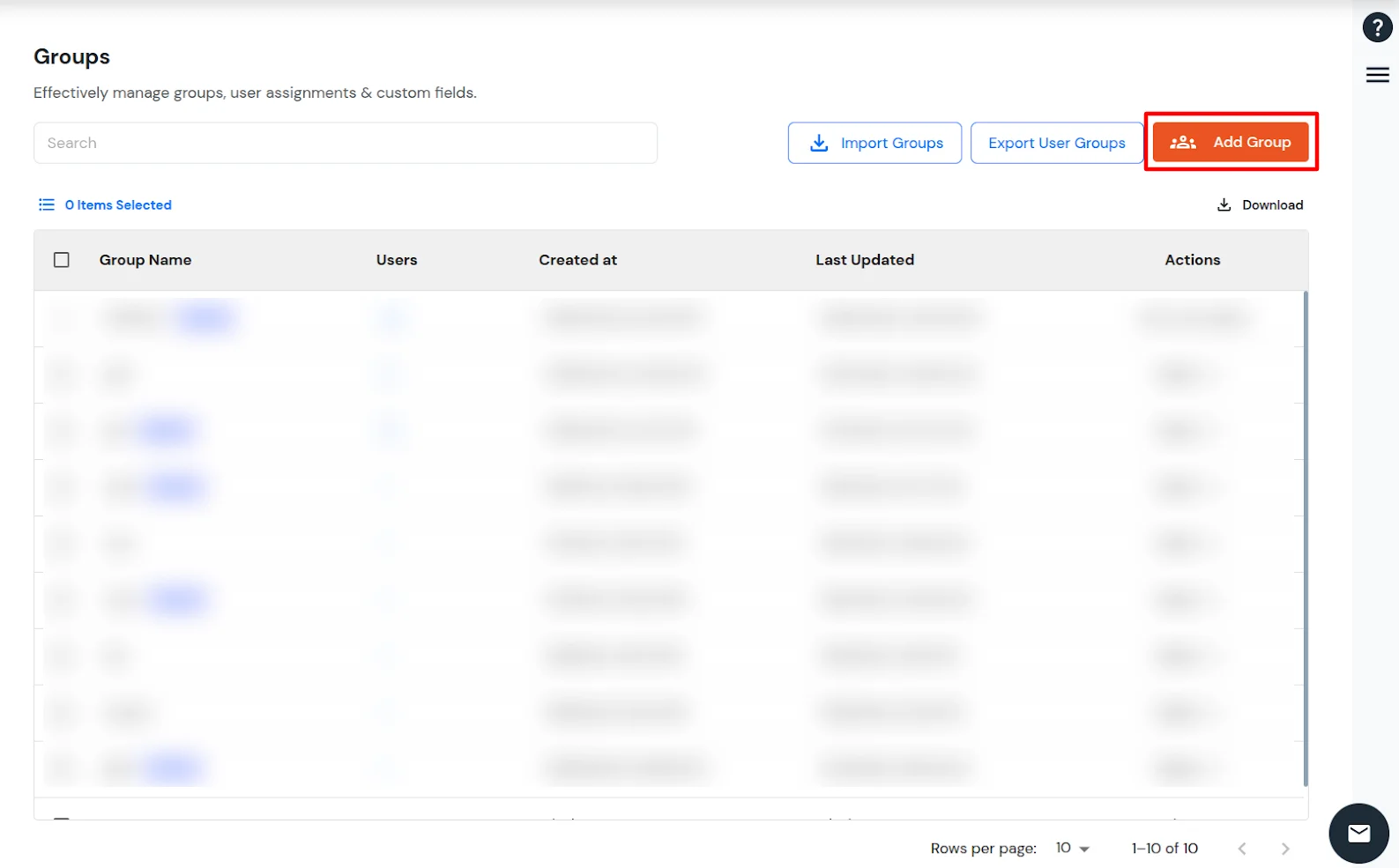
  • Click on Add Group on the top right corner of the page.
  • miniOrange Identity Platform Admin Handbook: Add Group button

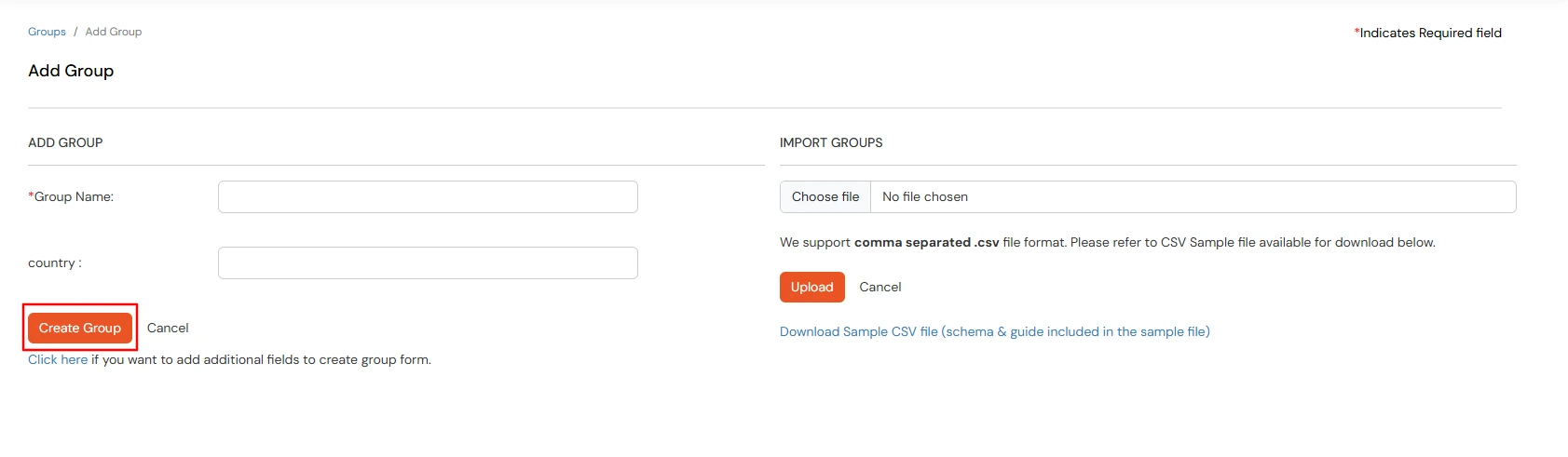
  • In the Add Group modal, enter a Group Name (Required) and fill in any group custom fields (Optional).
  • Click Save to create the group.
  • Add Group modal with Group Name and custom fields, Save button to create the group

  • You will be redirected to the Groups List page, where the newly created group will appear.
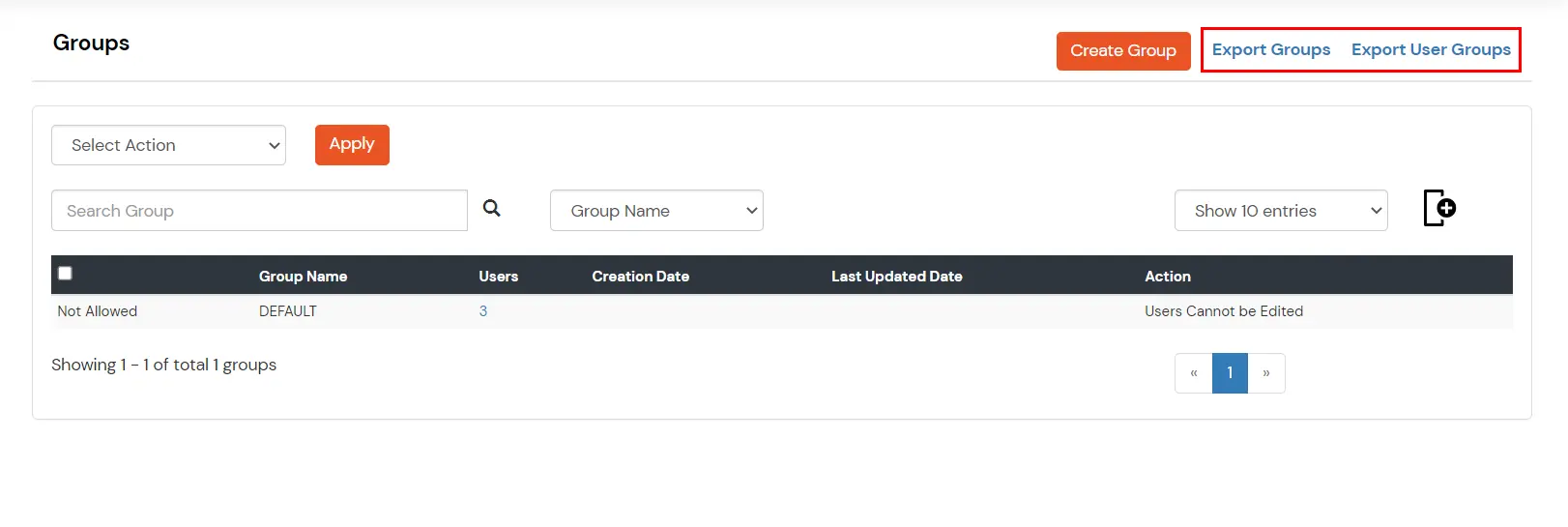
  • Other Group Management Options:
    Import Groups Creates and downloads a CSV containing a list of all Groups under your account.
    Export User Groups Creates and downloads a CSV containing the User Group Mappings for all users. This exports the list of users under your account along with the groups of which the user is a member of.
  • miniOrange Identity Platform Admin Handbook: Import Groups, Export User Groups


2. How to Edit a Group:

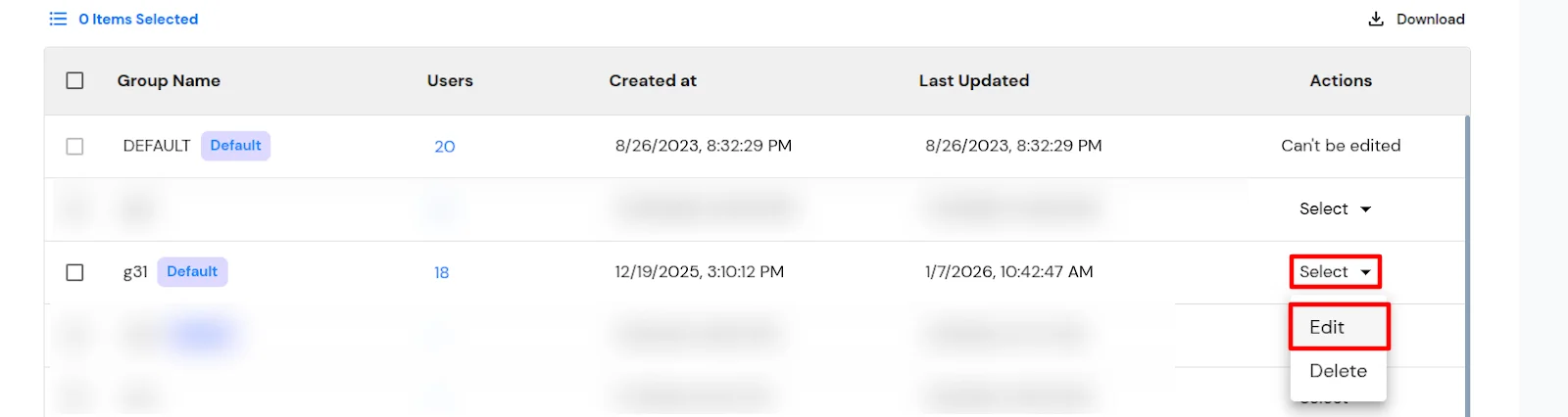
  • Click Edit in the Actions column for the group you want to modify.
  • miniOrange Identity Platform Admin Handbook: Edit action for group

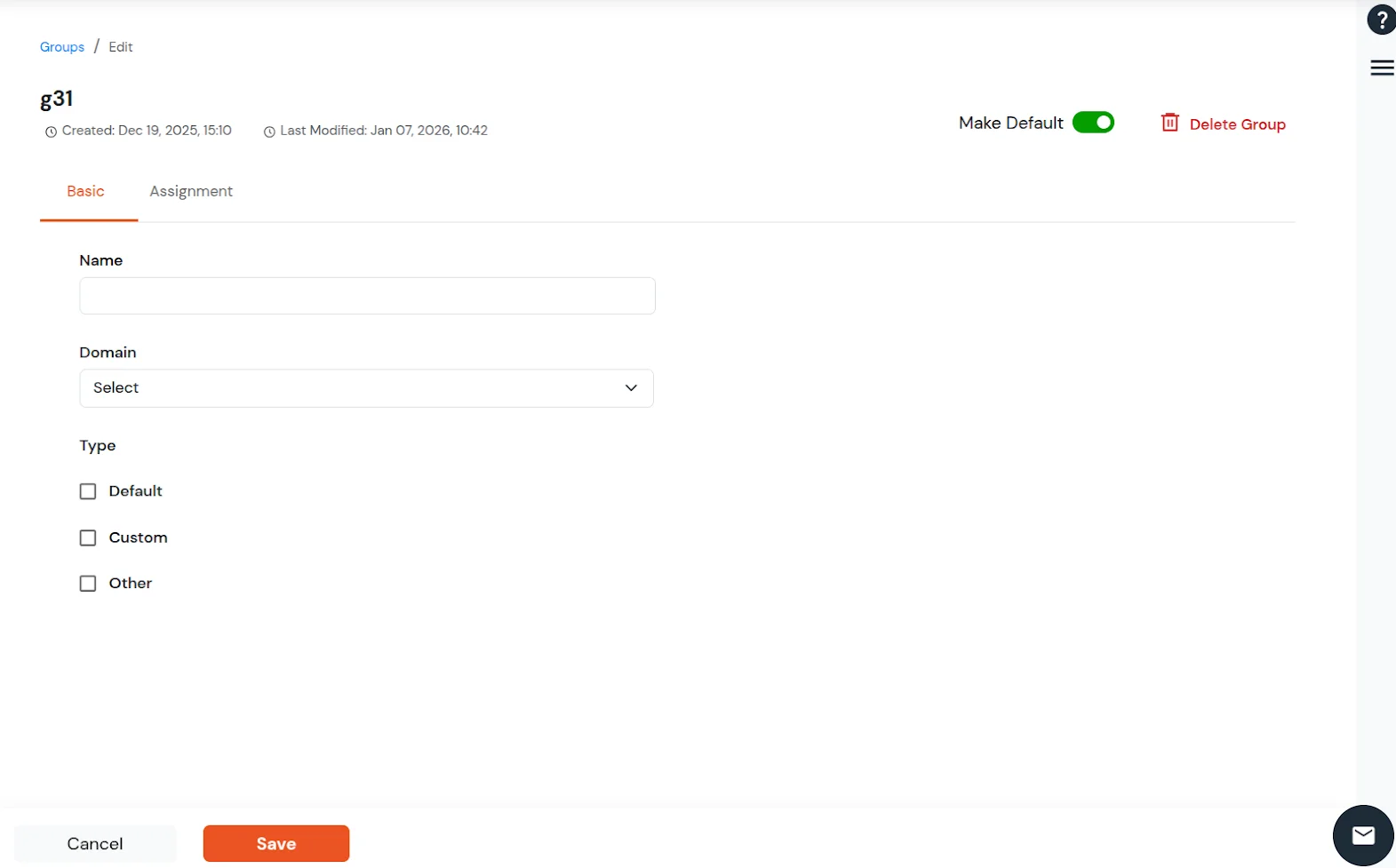
  • On the Edit Groups page, you will see the tabs Basic and Assignment.
  • You can edit the group custom field values in the Basic tab. Click Save to apply changes.
  • miniOrange Identity Platform Admin Handbook: Basic tab, edit group, Save


3. How to view members of the Group:

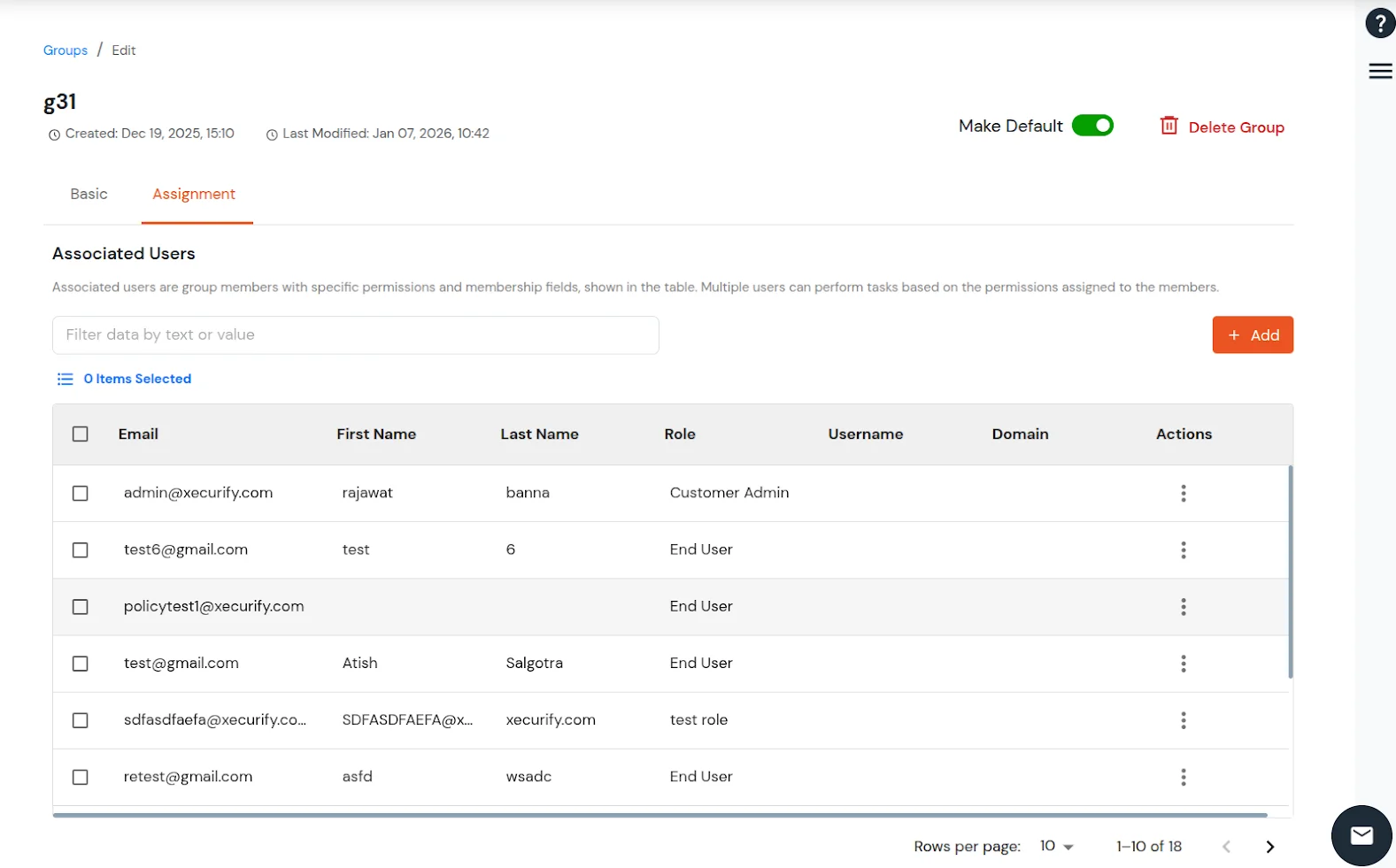
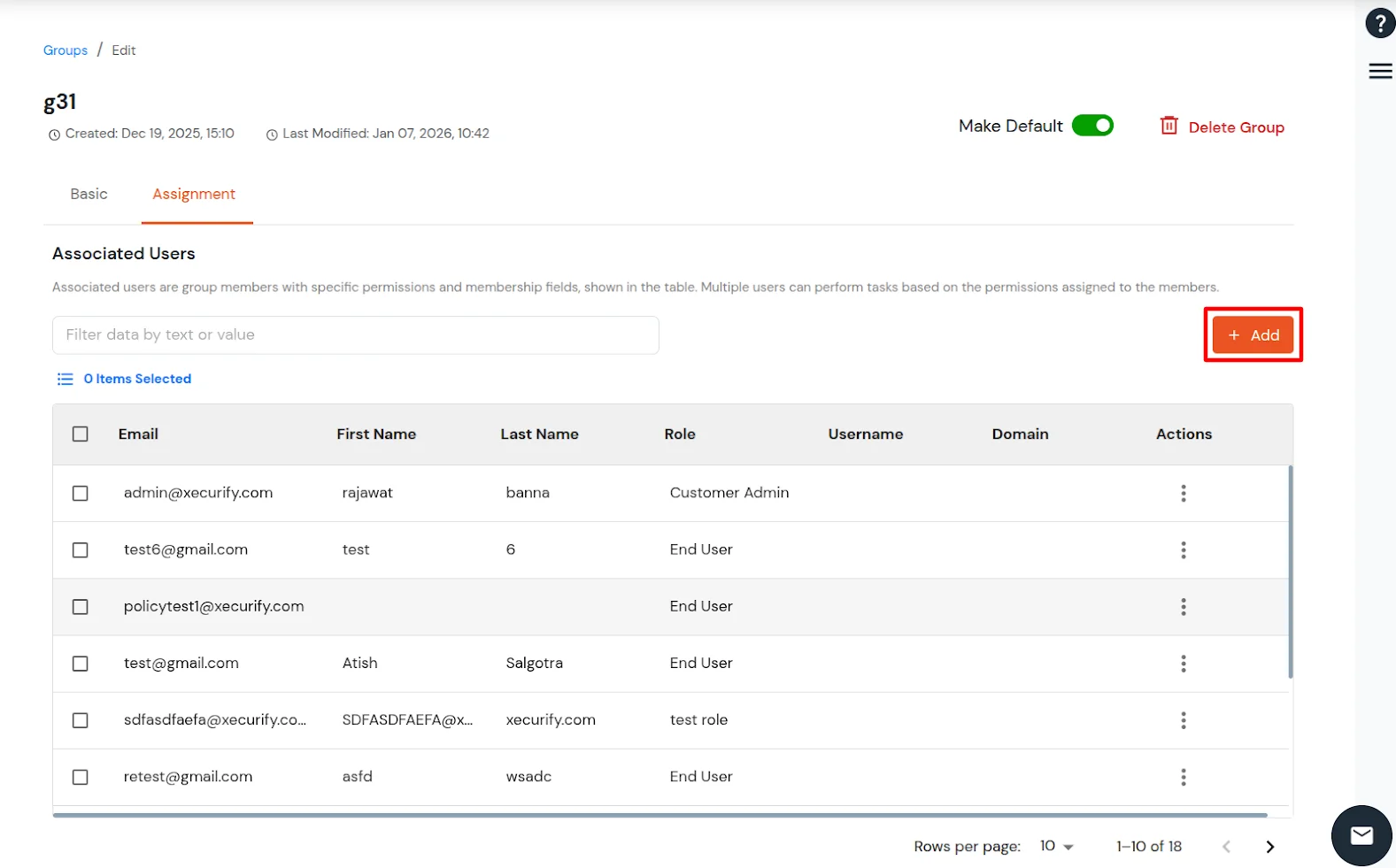
  • In the Assignment tab, you can view all associated users (group members) along with their assigned permissions and membership fields. This section helps you understand which users belong to the group and what actions they are allowed to perform.
  • miniOrange Identity Platform Admin Handbook: Assignment tab, group members


4. How to Add Users to a Group:

  • Click on Add at the top-right corner above the users table.
  • miniOrange Identity Platform Admin Handbook: Add button for users

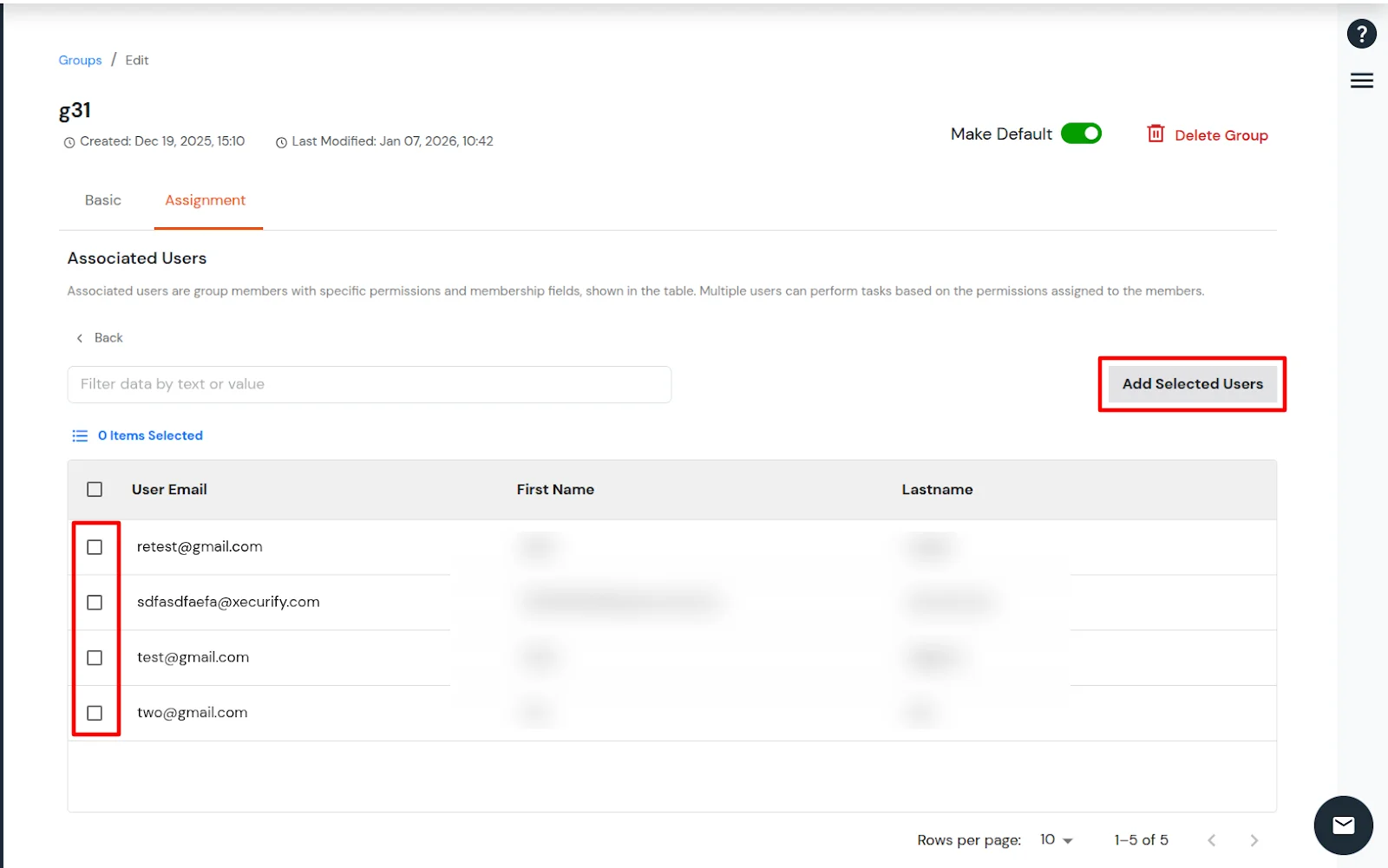
  • A list of users not currently assigned to the group is displayed.
  • Select the required users using the checkboxes.
  • Click Add Selected Users to assign them to the group.
  • miniOrange Identity Platform Admin Handbook: Check users, Add Selected Users


5. How to Remove a User from a Group:

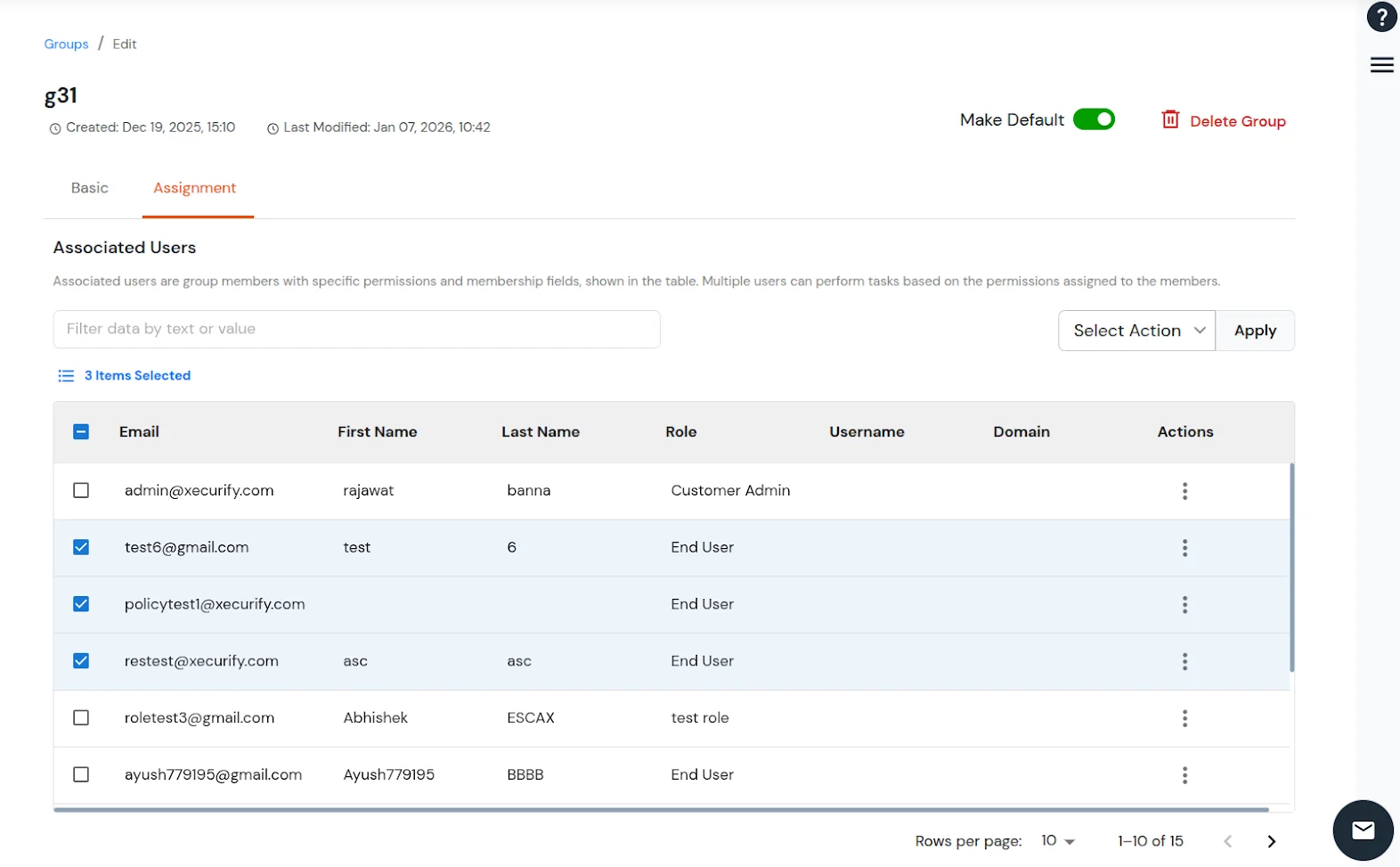
  • In the Assignment tab, select the checkboxes for the users you want to remove.
  • miniOrange Identity Platform Admin Handbook: Check users to remove

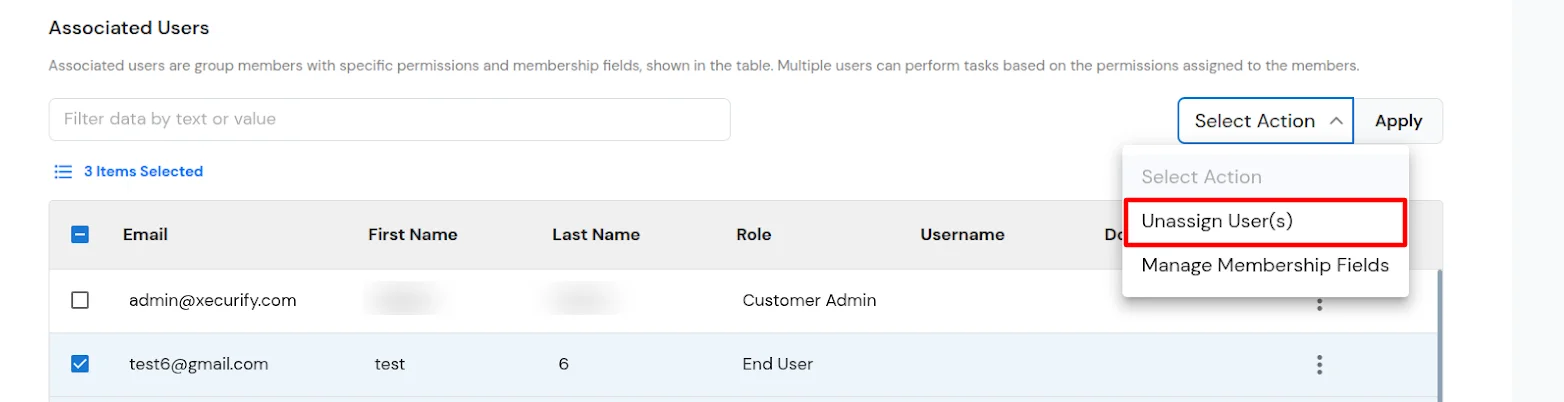
  • From the Action dropdown at the top-right corner above the table, select Unassign Users.
  • Click Apply.
  • miniOrange Identity Platform Admin Handbook: Unassign Users, Apply

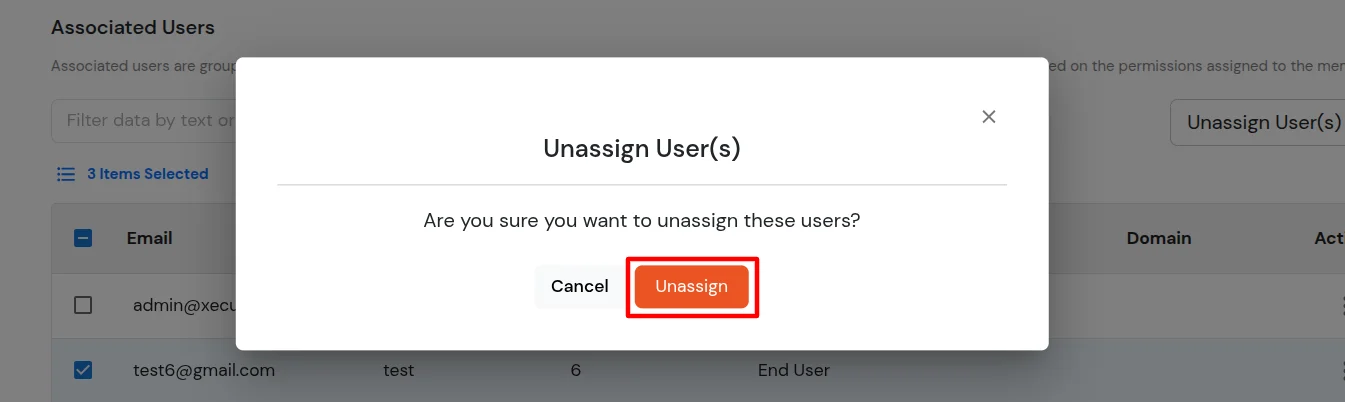
  • In the confirmation dialog, click Unassign to remove the selected users from the group.
  • miniOrange Identity Platform Admin Handbook: Confirm Unassign


6. How to Delete a Group:

6.1. Delete a Single Group:

  • Click Delete at the top-right corner of the Edit Group page.
  • Confirm the deletion when prompted.
  • miniOrange Identity Platform Admin Handbook: Delete single group

6.2. Delete Multiple Groups:

  • Select the checkboxes for the groups you want to delete.
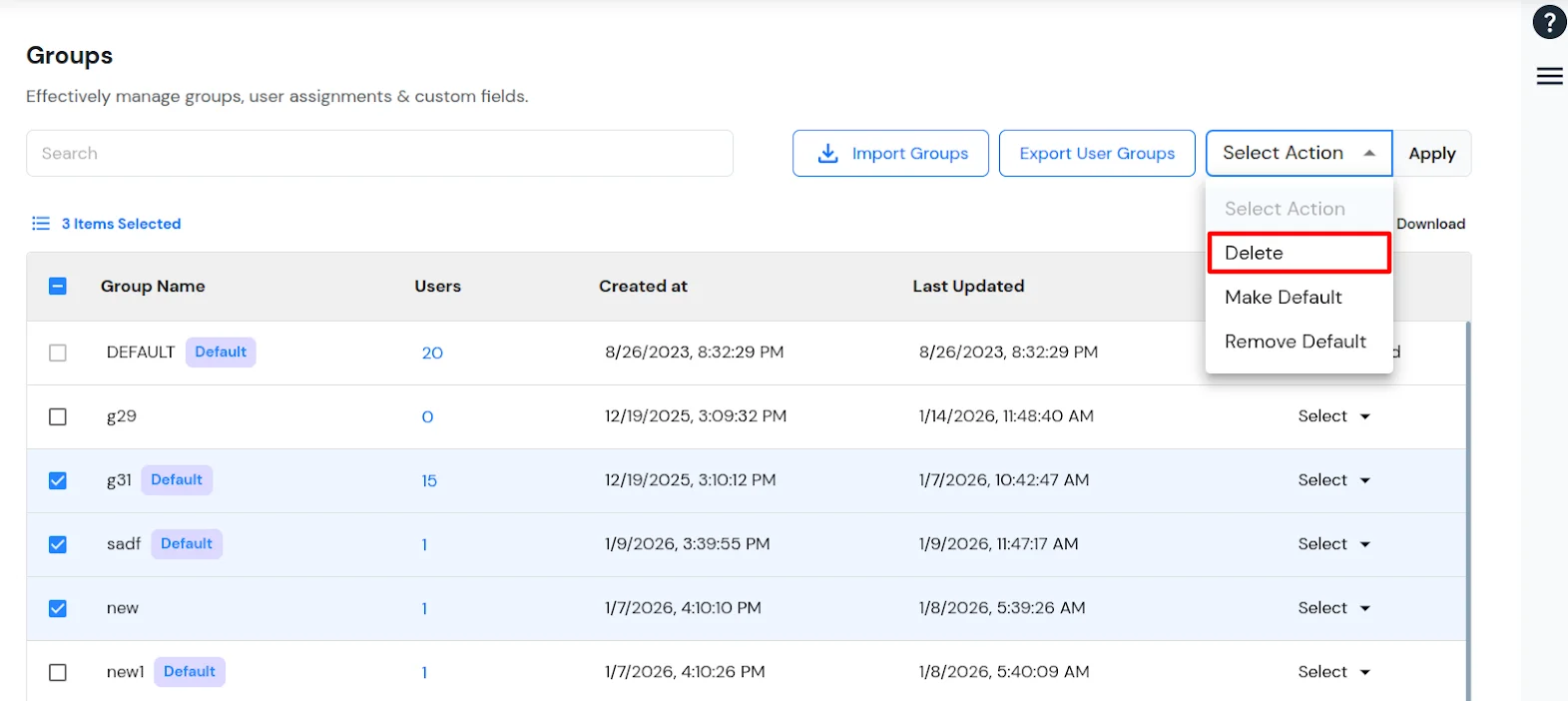
  • Choose Delete from the Action dropdown above the table.
  • Click Apply to delete the selected groups.
  • miniOrange Identity Platform Admin Handbook: Delete action, Apply

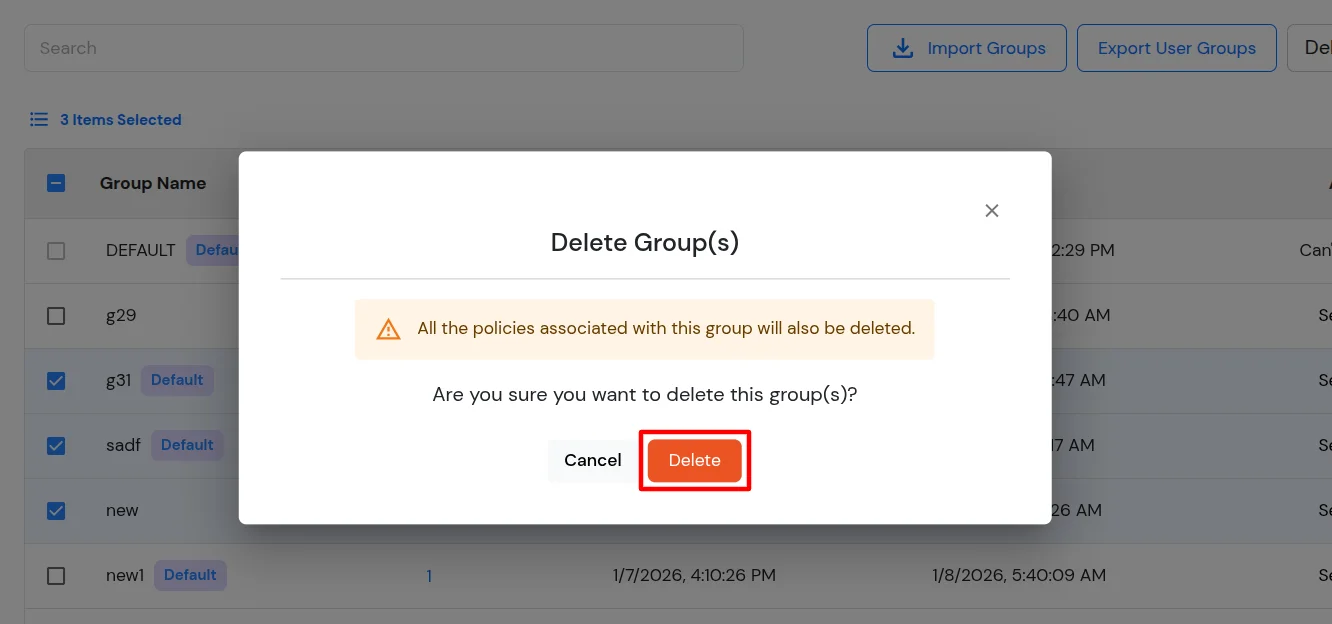
  • Click on the Delete button to delete the selected groups.
  • miniOrange Identity Platform Admin Handbook: Confirm delete groups


7. How To Make a Group Default:

7.1. Set a Single Group as Default:

  • Use the Make Default toggle at the top-right corner of the Edit Group page to set or remove the group as default.
  • miniOrange Identity Platform Admin Handbook: Make Default toggle


7.2. Set Multiple Groups as Default:

  • Select the groups using the checkboxes.
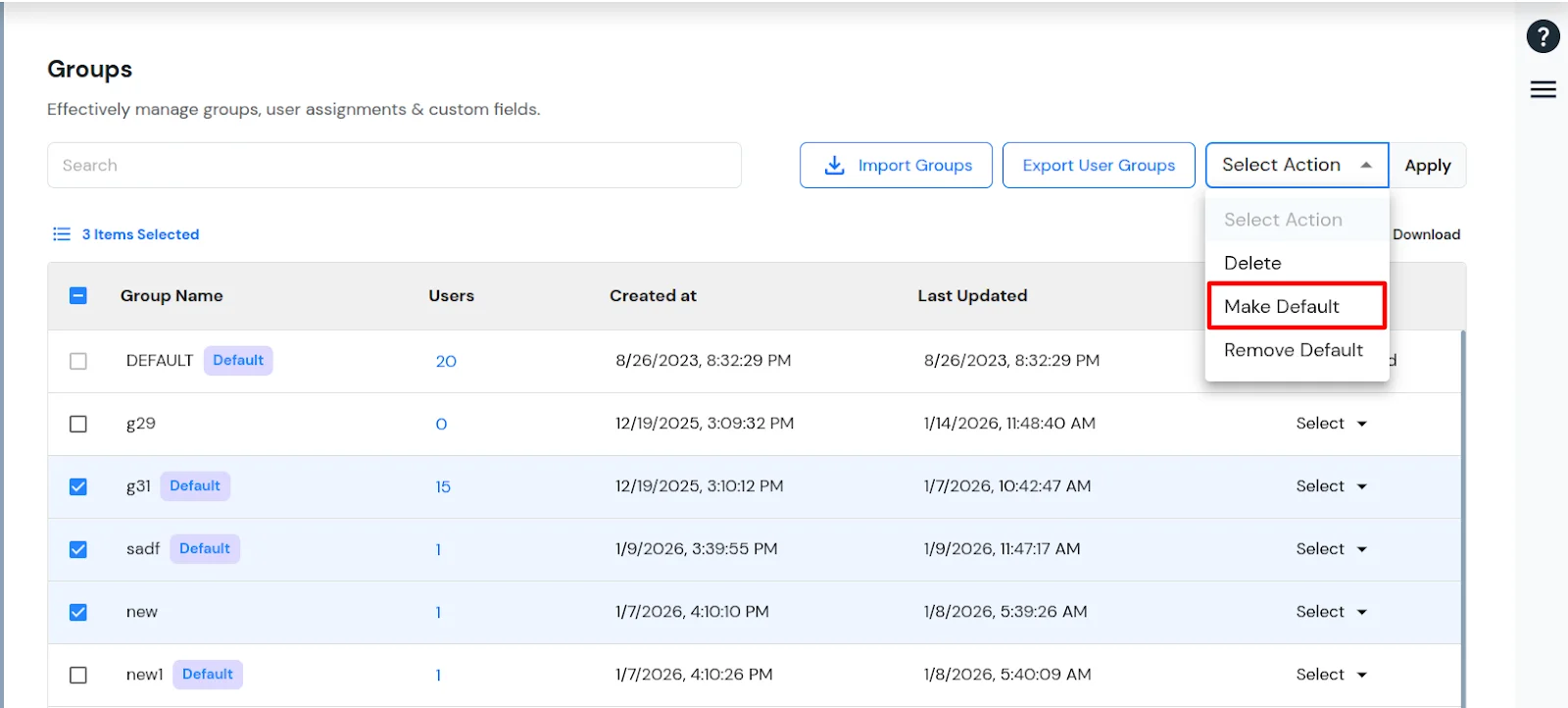
  • Choose Make Default from the Action dropdown.
  • Click Apply.
  • miniOrange Identity Platform Admin Handbook: Make Default, Apply

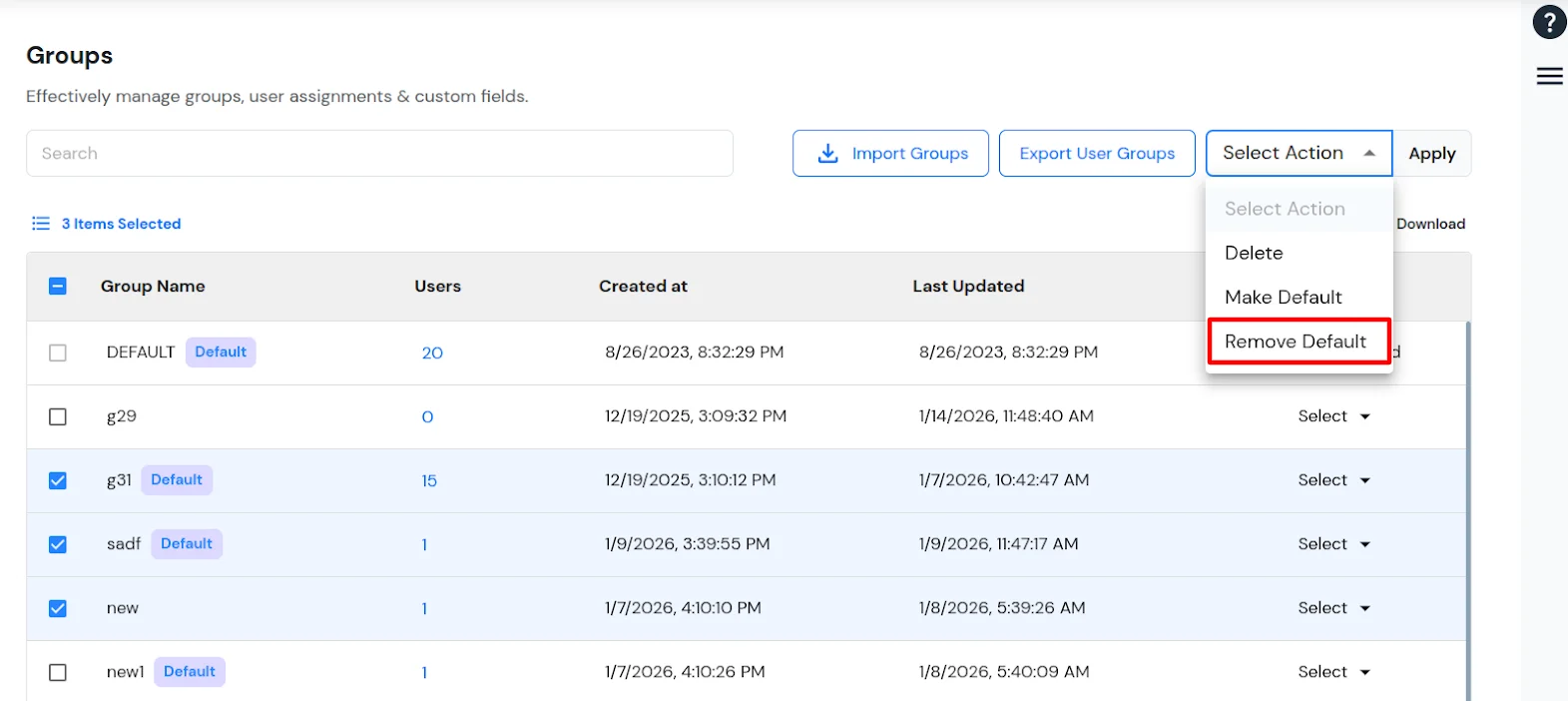
7.3. Remove Default from Multiple Groups:

  • Select the Default groups.
  • Choose Remove Default from the Action dropdown.
  • Click Apply.
  • miniOrange Identity Platform Admin Handbook: Remove Default, Apply


8. How to manage membership fields for the members of the group:

  • Click Edit for the required group.
  • miniOrange Identity Platform Admin Handbook: Edit action for group

  • Go to the Assignment tab.
  • miniOrange Identity Platform Admin Handbook: Assignment tab, group members

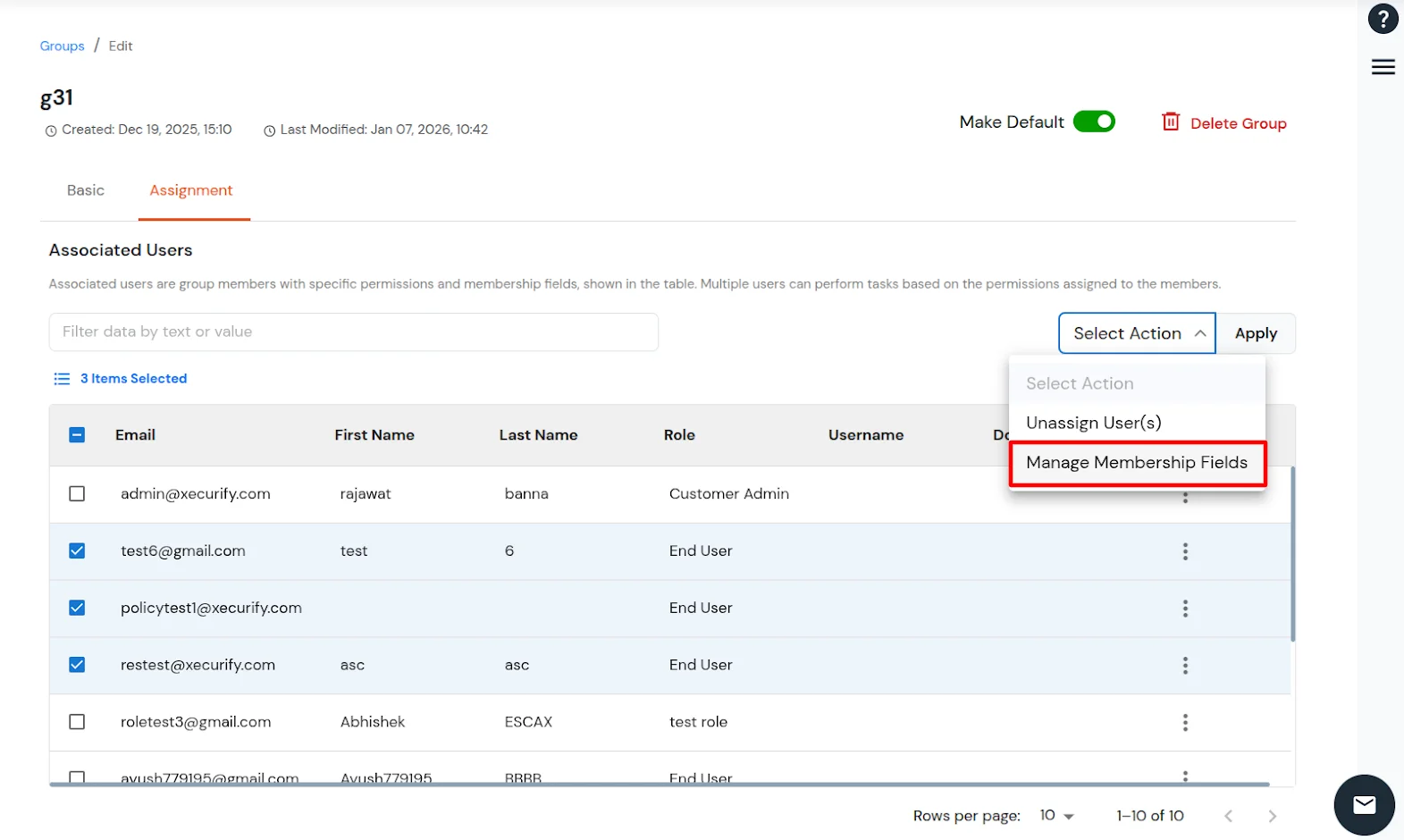
  • Select the users whose membership fields you want to update.
  • From the Action dropdown, select Manage Membership Fields and click Apply.
  • Action dropdown with Manage Membership Fields selected, Apply button

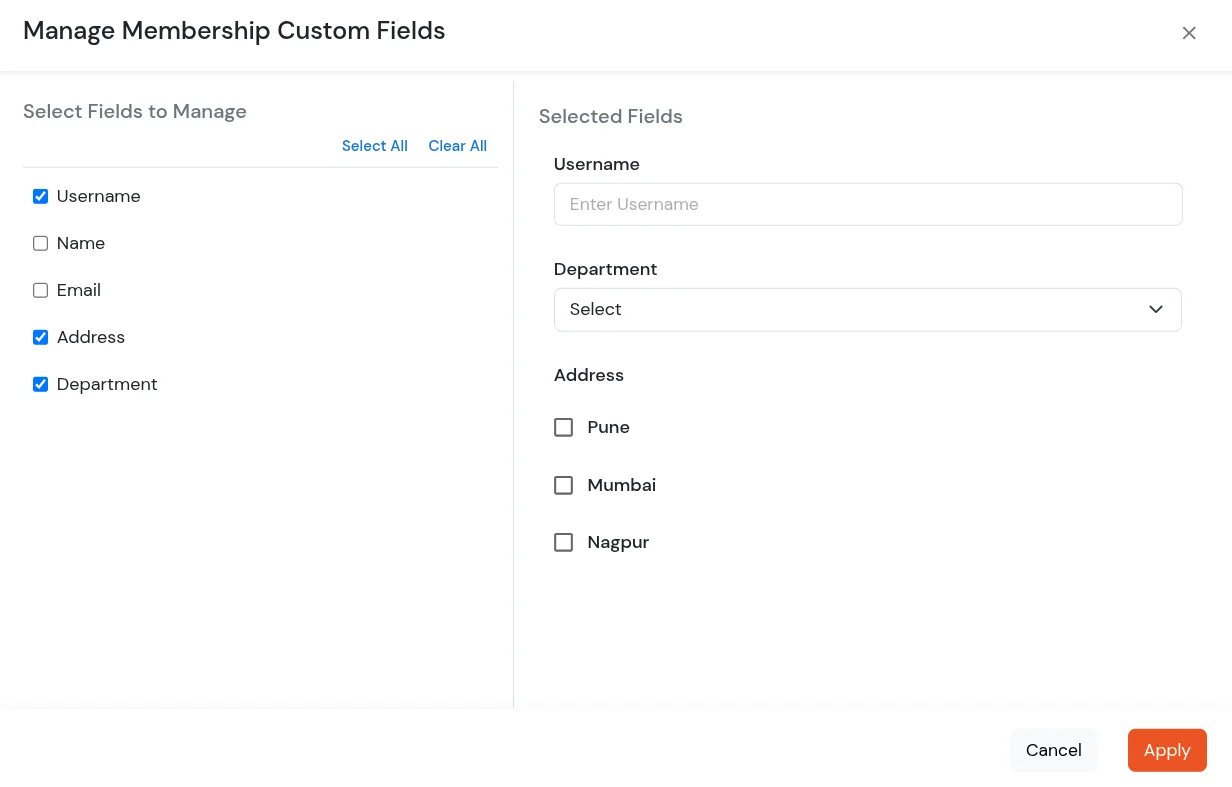
  • In the Manage Membership Custom Fields modal:
    • Select the membership fields you want to update.
    • Modify the field values as required.
    • miniOrange Identity Platform Admin Handbook: Membership fields modal, Apply

  • Click Apply to save the changes for the selected users.