Hello there!

Need Help? We are right here!

Support Icon
miniOrange Email Support
success

Thanks for your Enquiry. Our team will soon reach out to you.

If you don't hear from us within 24 hours, please feel free to send a follow-up email to info@xecurify.com

Search Results:

×

How to edit a Policy


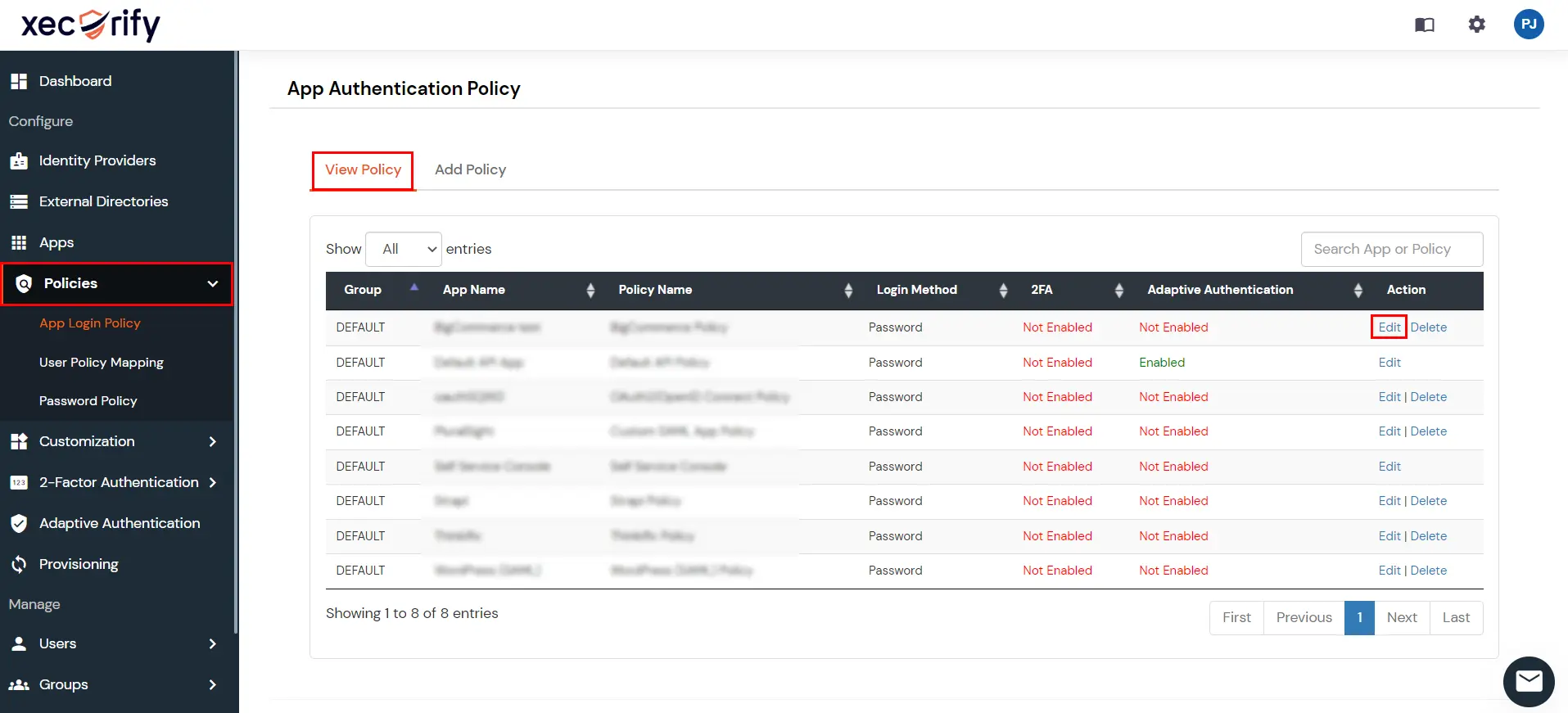
  • Go to Policies and select App Login Policy from the side menu.
  • From the policies list, click on the edit link against the login policy that you want to edit.
  • miniOrange Identity Platform Admin Handbook: Edit policy link

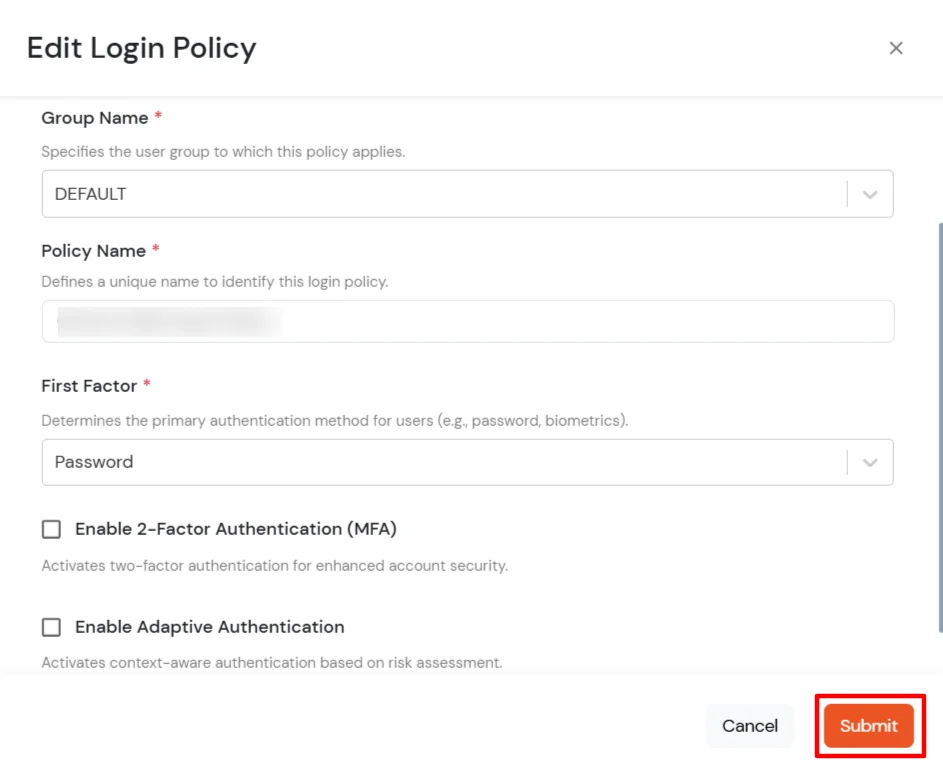
  • A modal will open for you to update the Login Policy details. You can edit the following options:
  • miniOrange Identity Platform Admin Handbook: Edit Login Policy modal


    Application Name The application name is added to which you want edits.
    Group Name Select the group you want to make changes to.
    Policy Name Enter the policy name you want to make changes to.
    First Factor Select which login method you want to allow from the following:
    • Password: Users authenticate using their password.
    • Password-less: Users authenticate without a password using, e.g., Biometric or OTP.
    2-Factor Authentication (MFA) Enable this option if you want to incorporate MFA on top of the user authentication.

    Note: Can be only used with a Password as the login method.

    Adaptive Authentication Enable this option if you want to place Adaptive Authentication on top of the user authentication. The type of Adaptive Authentication and the Adaptive Authentication Policy has to be configured in this case.

    Note: Either MFA or Adaptive Authentication can be enabled in a policy and not both.

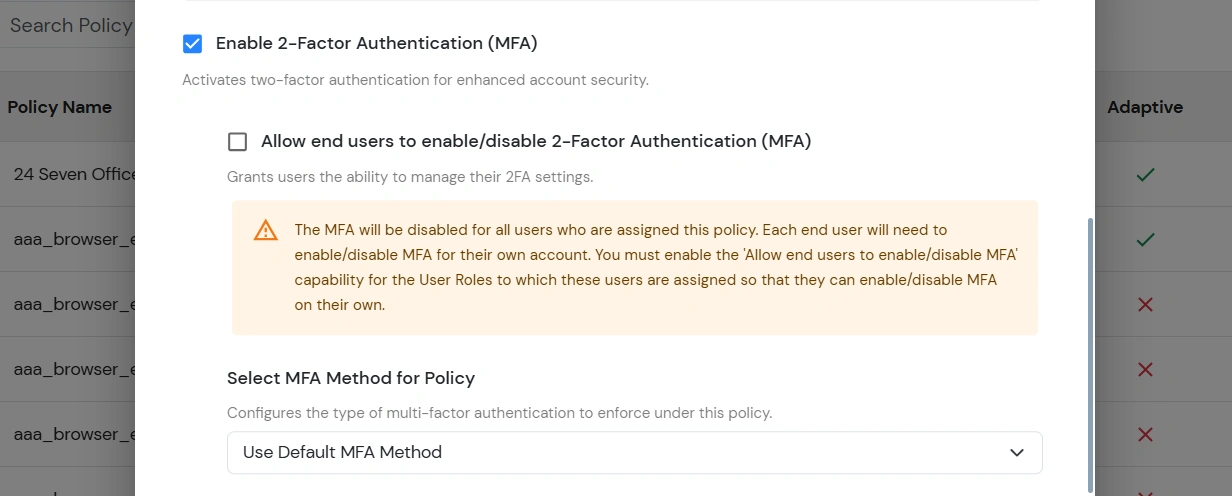
  • Also, select the MFA Method, if you have enabled 2-factor Authentication.
  • miniOrange Identity Platform Admin Handbook: Select MFA Method

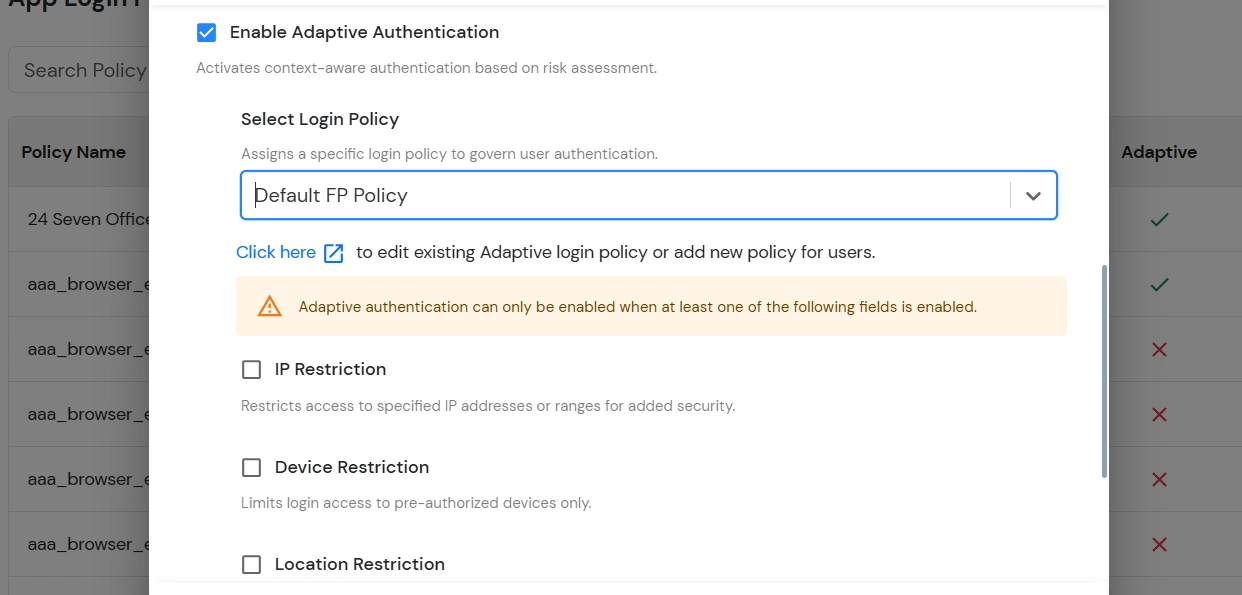
  • If you have added Adaptive Authentication, select the restriction you want to implement.
  • miniOrange Identity Platform Admin Handbook: Select Adaptive Authentication restriction

  • Click on Submit to update the policy with changes.