Group Custom Fields
Group Custom Fields Mapping
Group Custom Fields section is used to define and categorize the distinct properties of a group. For instance, if the users belong to a specific country, the custom fields, such as country, currency, and GST, allow for a detailed and tailored description of each group. This feature enables a more detailed and organized approach in managing various groups with specific attributes, enhancing the overall clarity and functionality of managing the groups.
How to add custom attributes to Groups:
- Navigate to Groups >> Group Custom Fields.
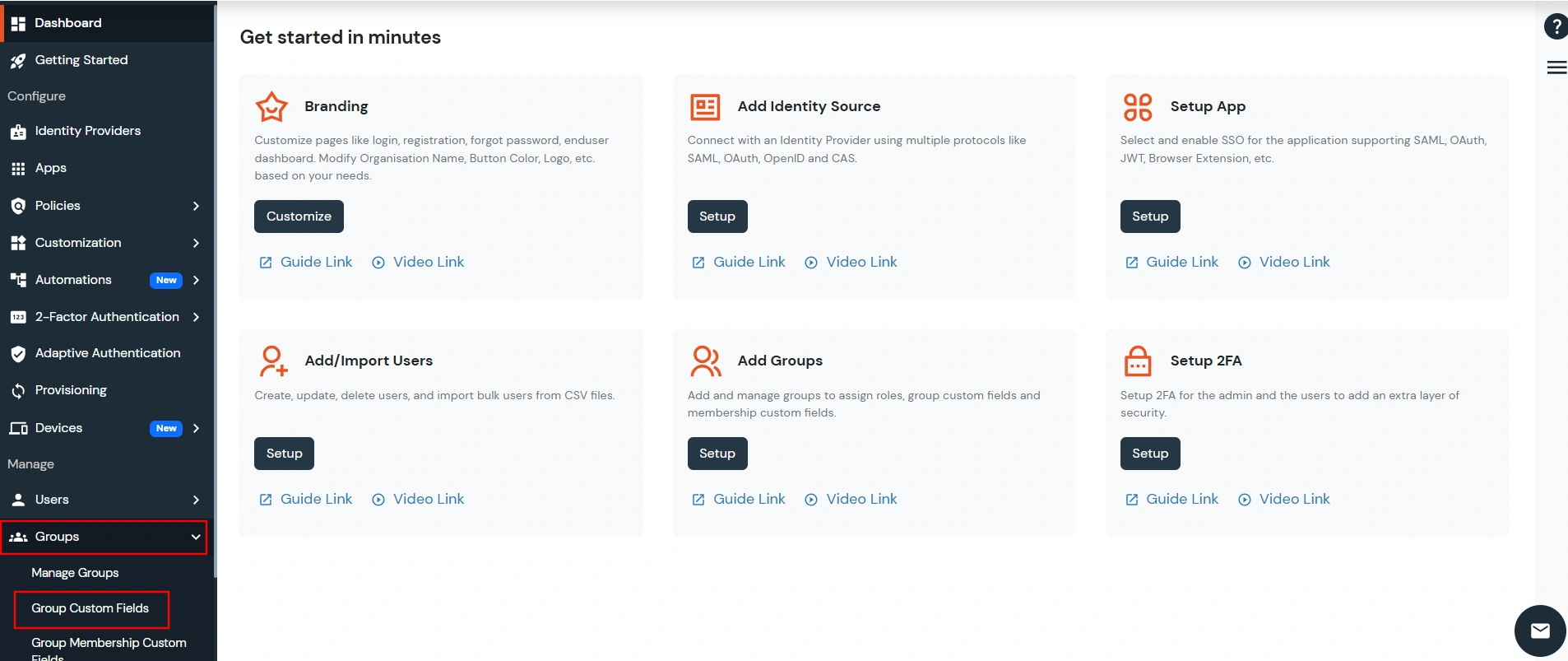
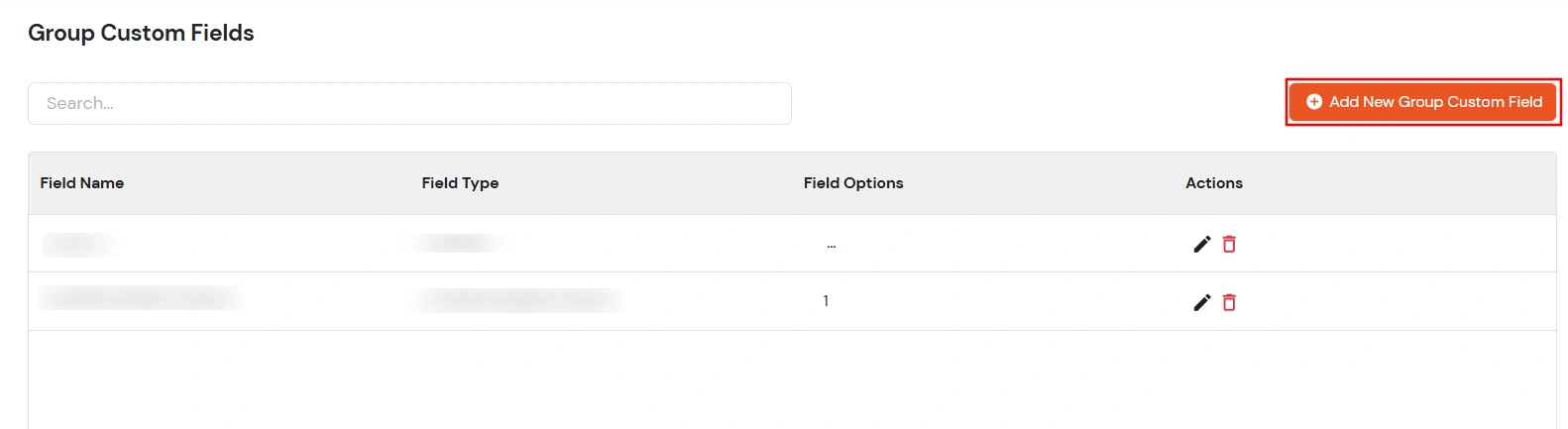
- Click Add New Group Custom Field to open the Add Group Custom Field modal.
- To add a new group custom field:
- Enter a Label/Name for the custom field.
- Select the Field Type (Text Box, Dropdown, or Checkbox) based on your requirement.
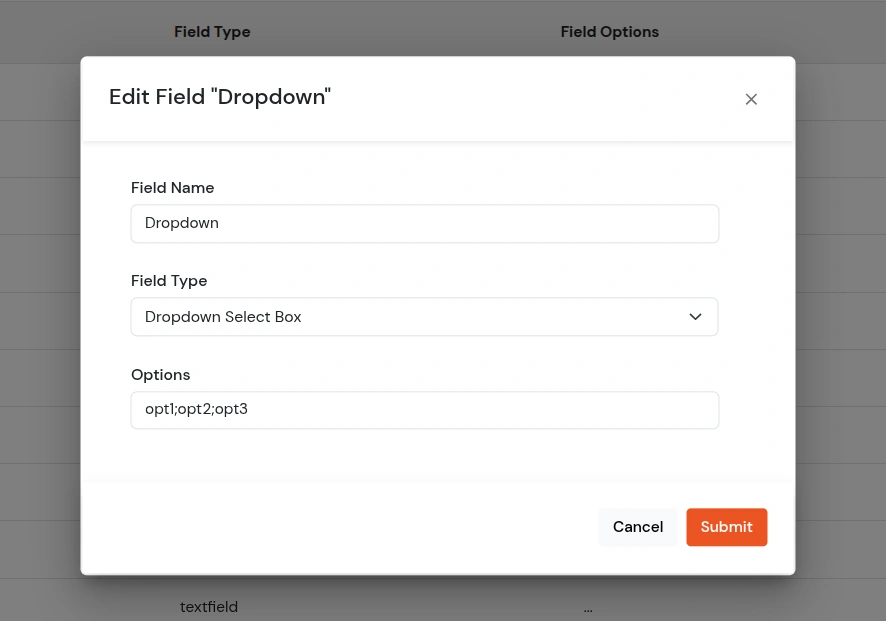
- For Dropdown or Checkbox fields, enter the required Field Options, separating multiple options with a semicolon (;).
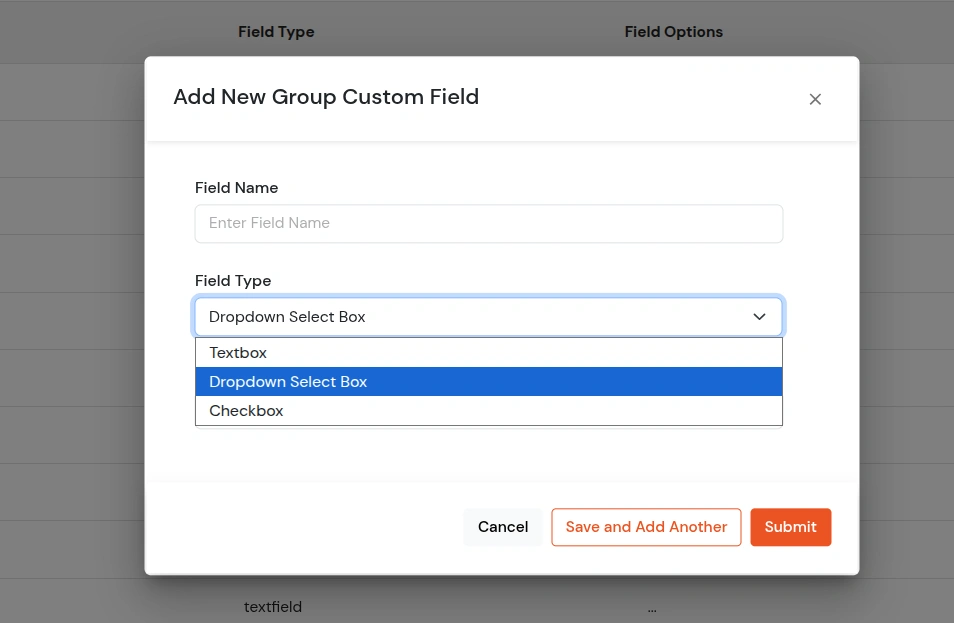
- Click Save and Add Another to continue adding more groups custom fields.
- Click on Submit to finish. Once saved, the newly added groups custom fields will appear in the list here:
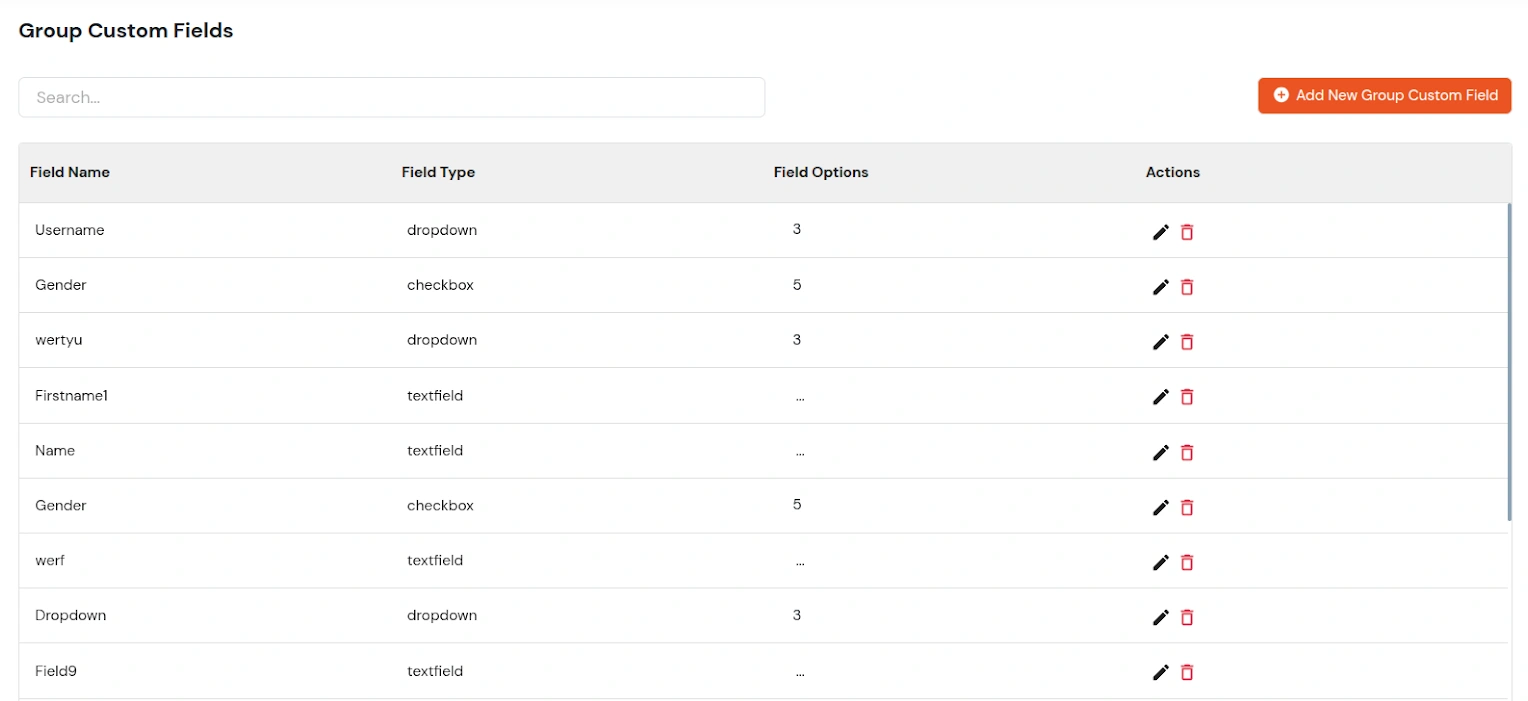
- To edit an existing group custom field, click the Edit icon in the Actions column.

- Update the label, field type, or field options (for dropdown or checkbox fields) as required.
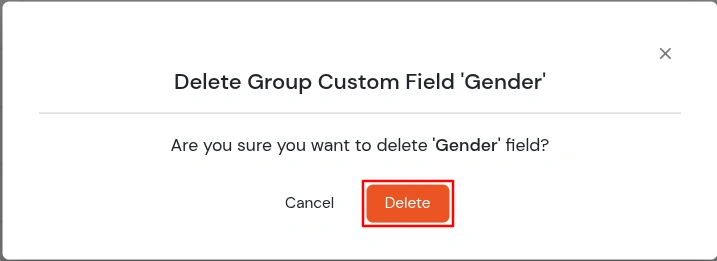
- To delete a group custom field, click the Delete icon in the Actions column.

- A confirmation dialog will appear; click Delete to confirm and remove the field.