Hello there!

Need Help? We are right here!

Support Icon
miniOrange Email Support
success

Thanks for your Enquiry. Our team will soon reach out to you.

If you don't hear from us within 24 hours, please feel free to send a follow-up email to info@xecurify.com

Search Results:

×

User Devices Report


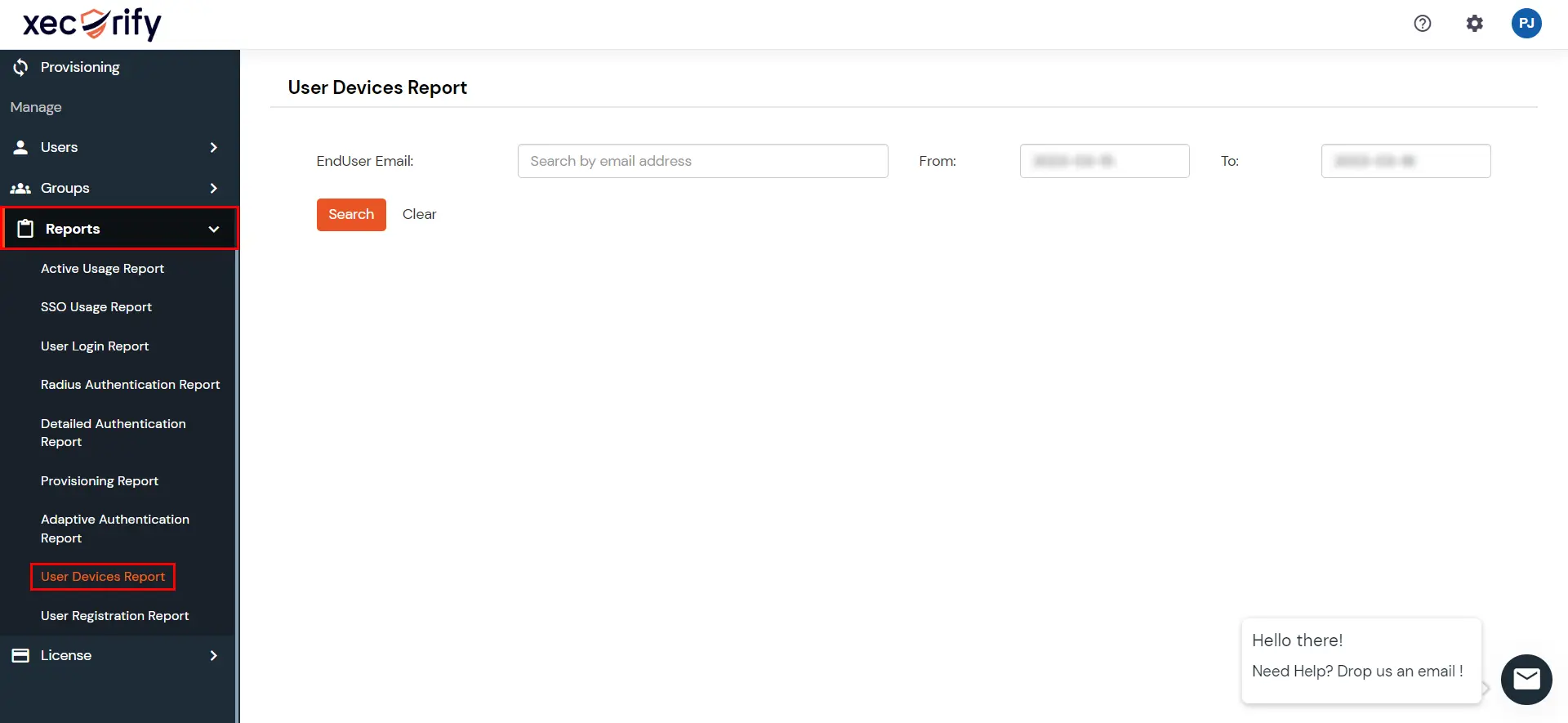
  • This report shows the registered device profiles for end users. The admin can check registered devices for a specific user or for all users using this report. They can also delete a registered device for a user.
  • Go to Reports >> search for User Devices Report and click on it.
  • miniOrange Identity Platform Admin Handbook: User Devices Report

  • You can filter the report using any of the following fields:
    Filter Description
    Enduser Email Email address or username of the end user.
    From and To Date Start and end dates for the report.
  • miniOrange Identity Platform Admin Handbook: User Devices Report filters

  • Click on Search to view results. Leave Enduser Email blank to include all users within the selected date range.
  • Click on Clear to reset the filters.
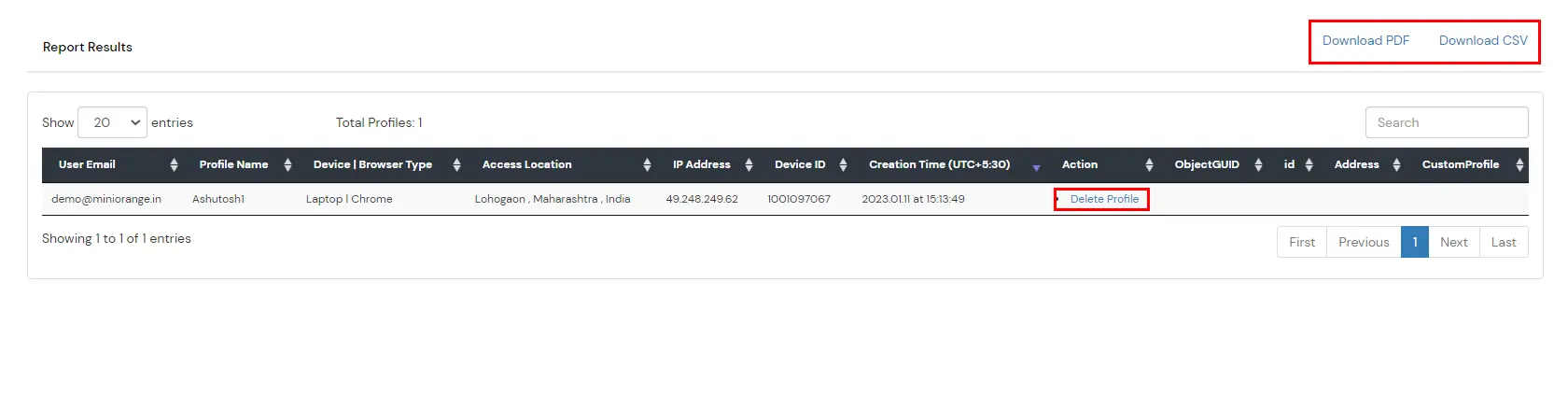
  • In the Report Result, this shows the user's email address along with the registered profile name, location and IP details and the unique fingerprint against that registered profile.
  • miniOrange Identity Platform Admin Handbook: Report

  • You can click on the Delete Profile option against an entry to delete the profile.
  • You can also export the report in PDF or CSV format by clicking on the respective buttons present at the top-right of the reports section.