Hello there!
Need Help? We are right here!

Need Help? We are right here!
Search Results:
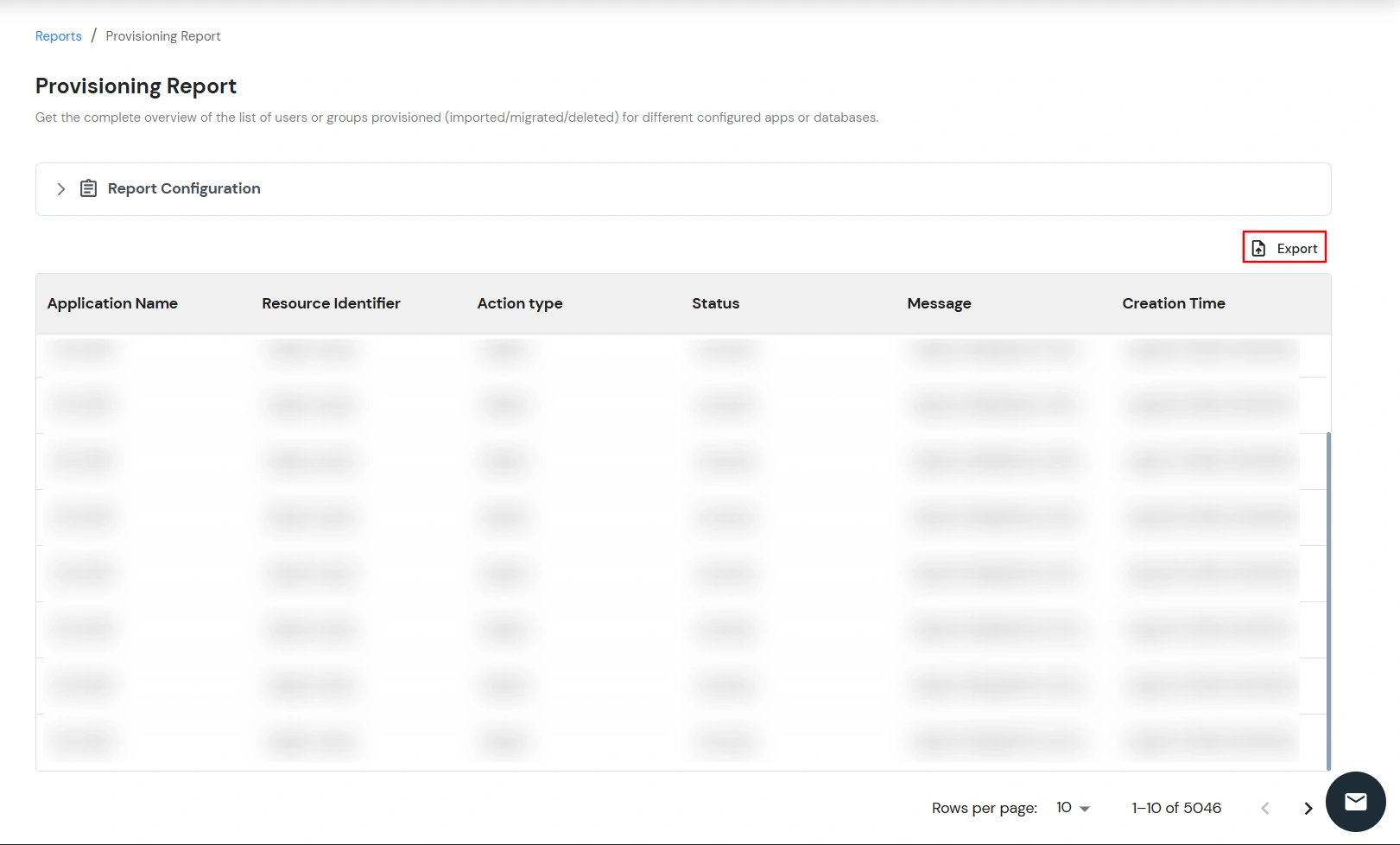
×The Provisioning Report provides administrators with a centralized view of provisioning activities performed across configured applications and databases. It helps administrators monitor user and group provisioning operations, analyze their outcomes, and export provisioning records for reporting and auditing purposes.
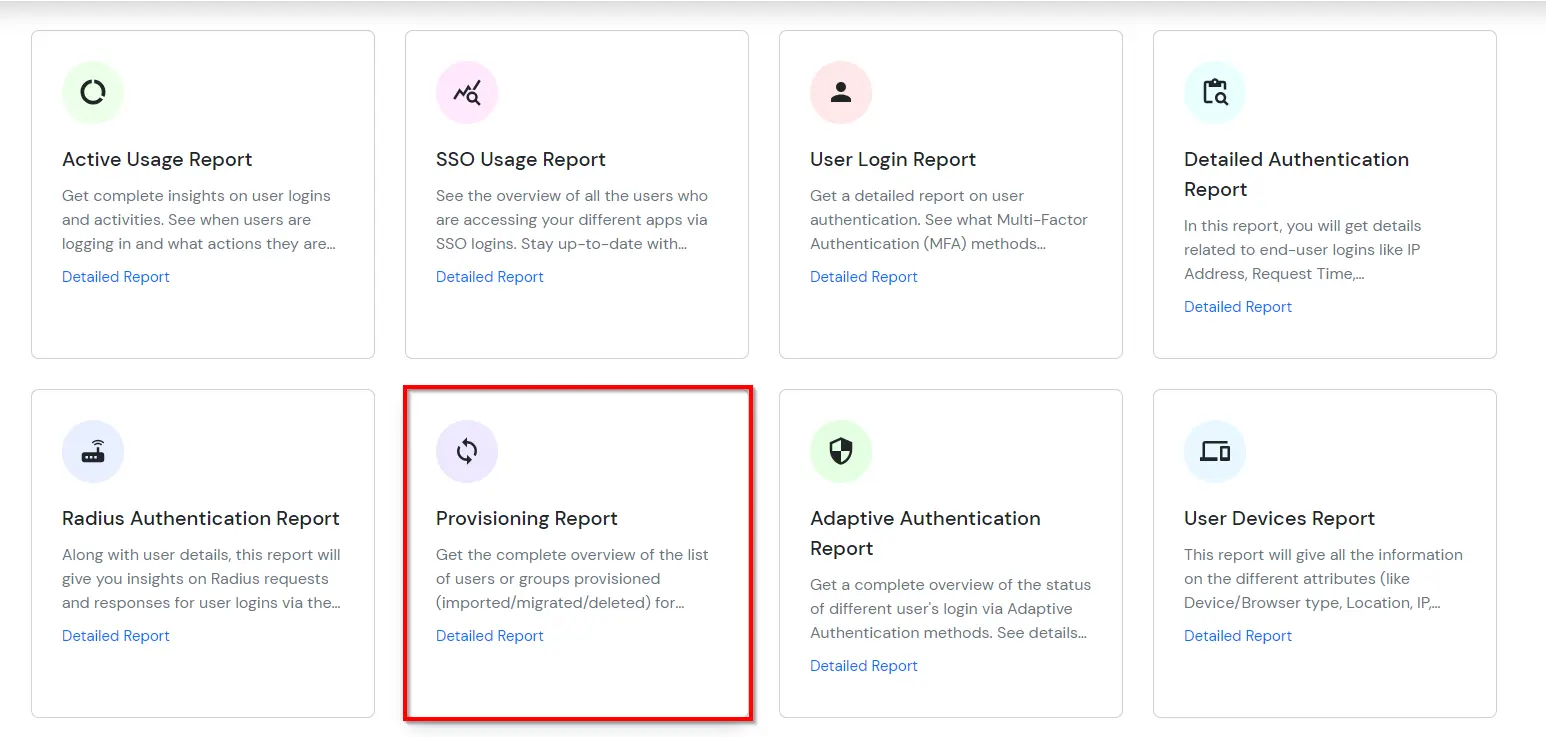
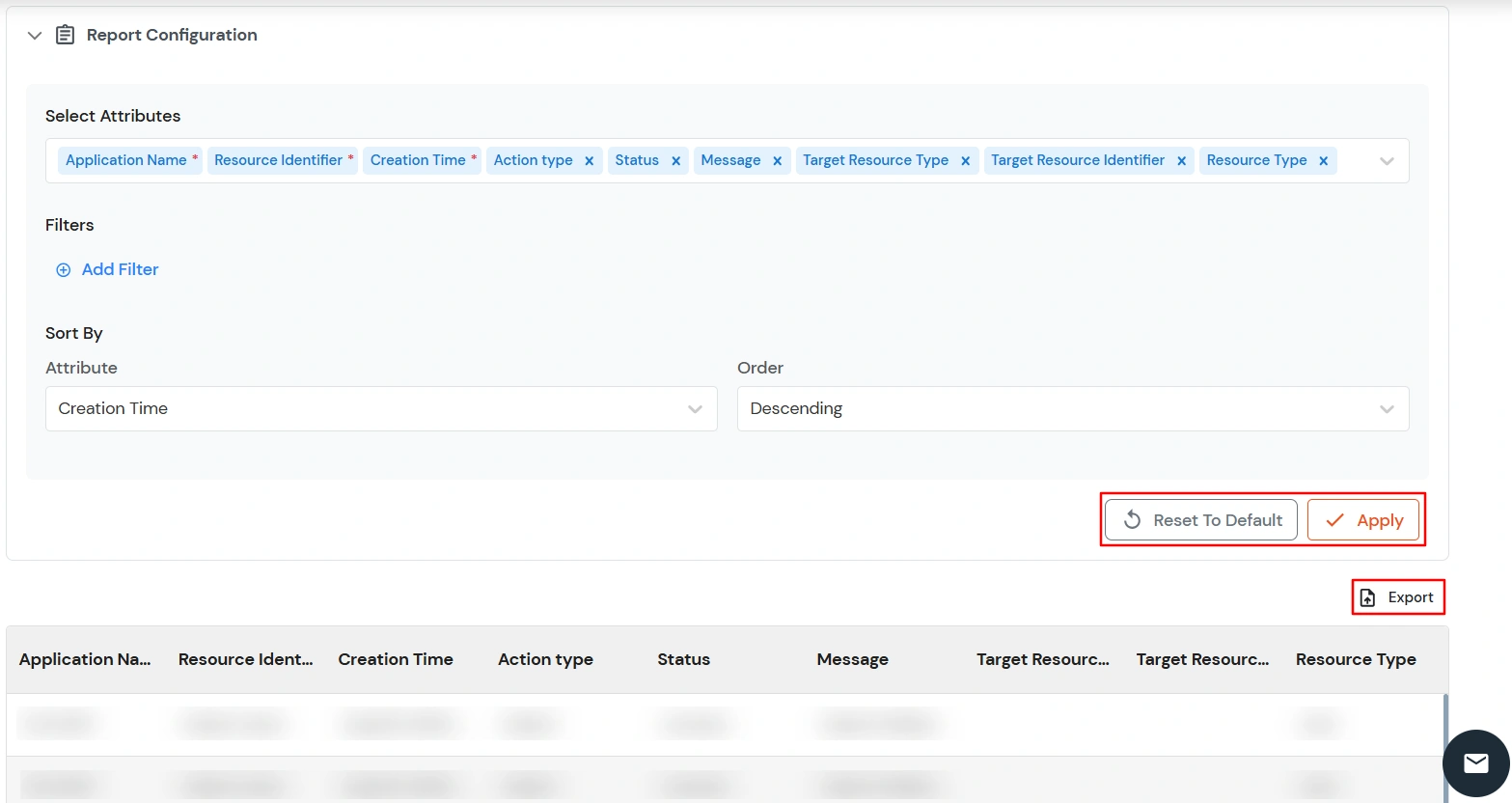
The Provisioning Report page displays the available provisioning records. You can customize the report by selecting the attributes to display, applying filters, and configuring the sorting order.
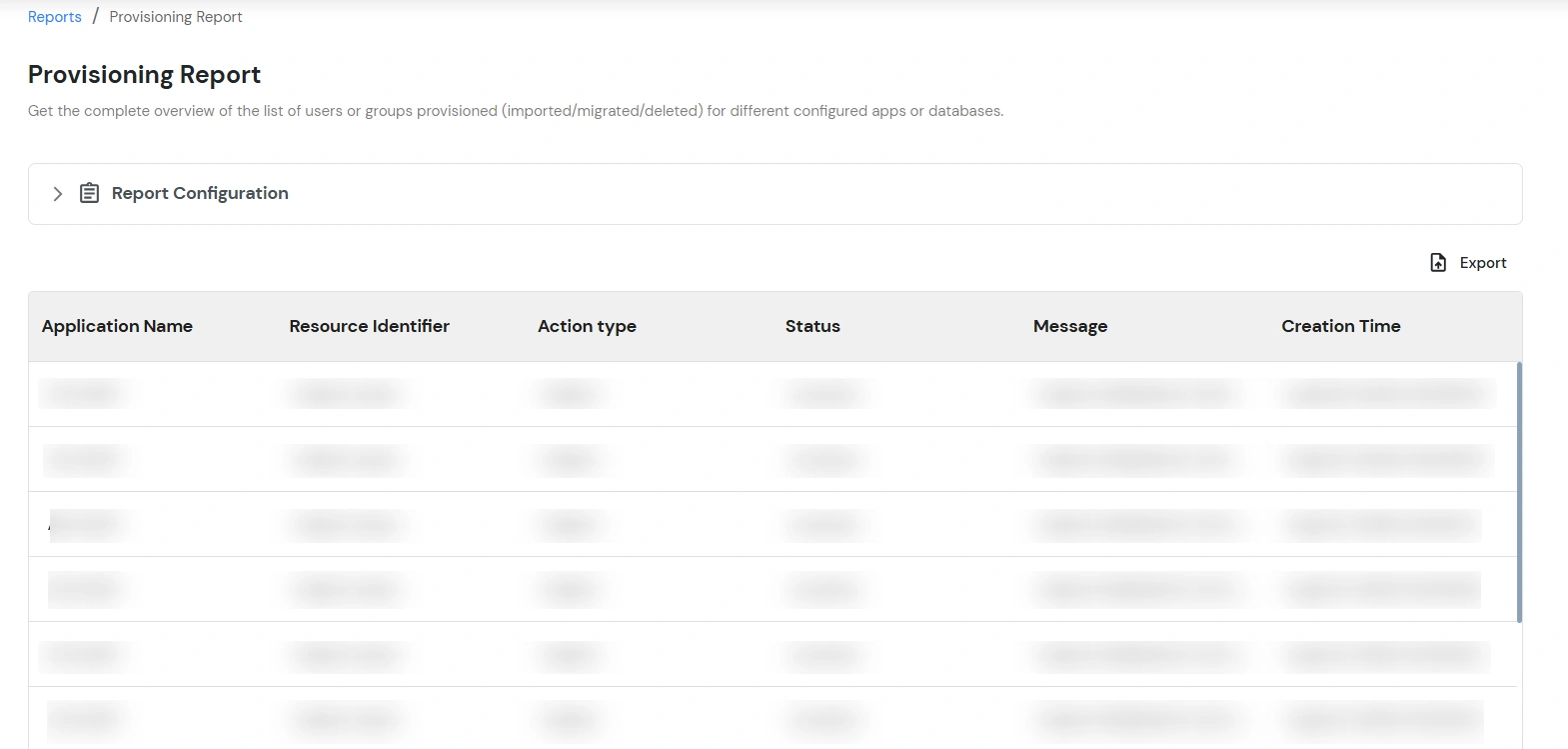
The Report Configuration section allows you to customize the provisioning report according to your requirements. You can select the attributes to display, filter provisioning records, and define the order in which the results are displayed.
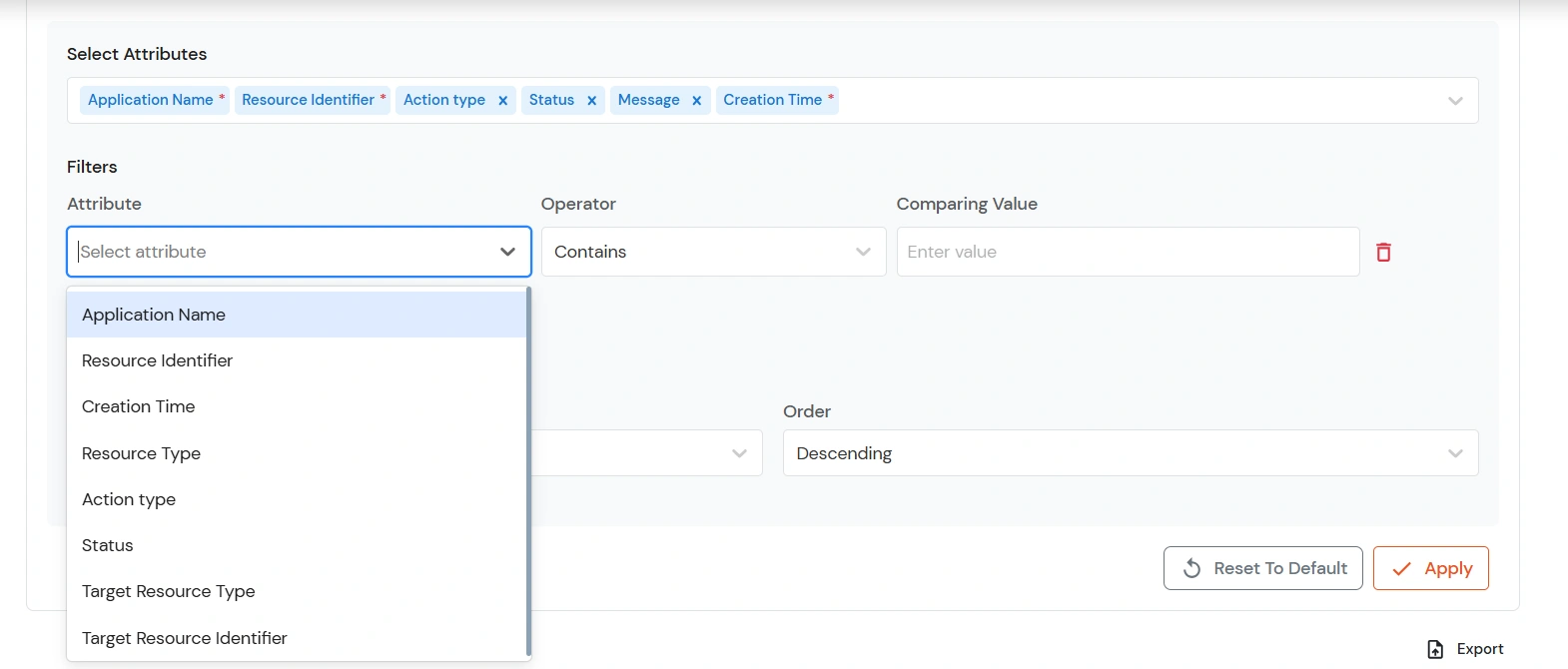
The Select Attributes option allows you to choose the information that should be displayed in the provisioning report. The available attributes include:
| Attribute | Description |
|---|---|
| Application Name | Displays the name of the application associated with the provisioning operation. |
| Resource Identifier | Displays the identifier of the resource involved in the provisioning operation. |
| Resource Type | Displays the type of resource involved in the provisioning operation. |
| Action Type | Displays the provisioning action performed. |
| Status | Displays the status of the provisioning operation. |
| Message | Displays additional information about the provisioning operation. |
| Creation Time | Displays the time when the provisioning record was created. |
| Target Resource Type | Displays the type of the target resource involved in the provisioning operation. |
| Target Resource Identifier | Displays the unique identifier of the target resource associated with the provisioning activity. |
[Note: The Target Resource Type and Target Resource Identifier attributes are newly added and provide additional visibility into provisioning operations involving target resources.]
| Field | Description |
|---|---|
| Attribute | Select the attribute you want to filter. |
| Operator | Select the comparison operator, such as Contains. |
| Comparing Value | Enter the value to search for. |
| Logical Condition | Use AND or OR to combine multiple filter conditions. |
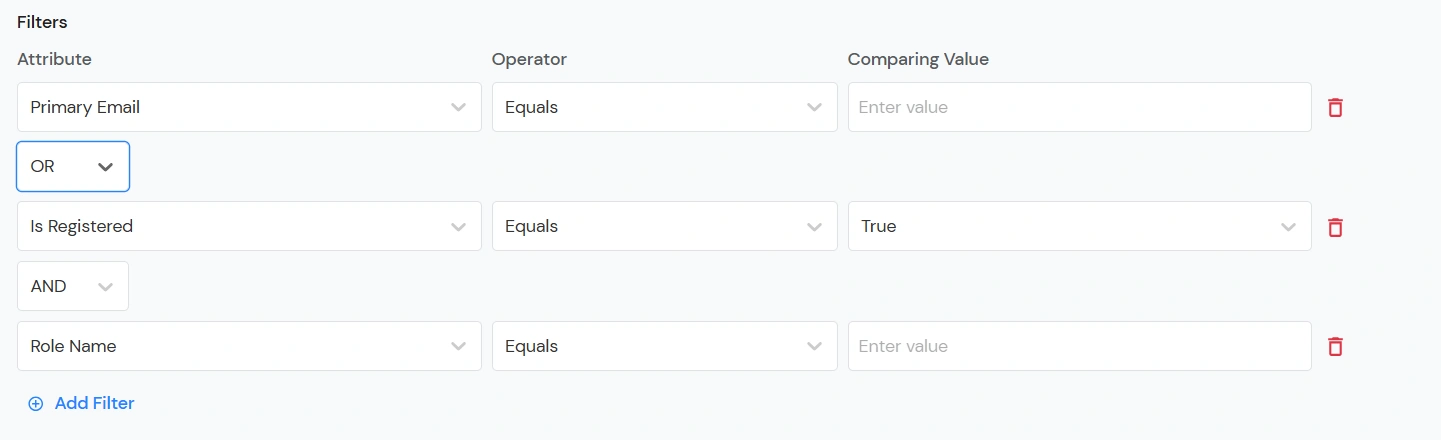
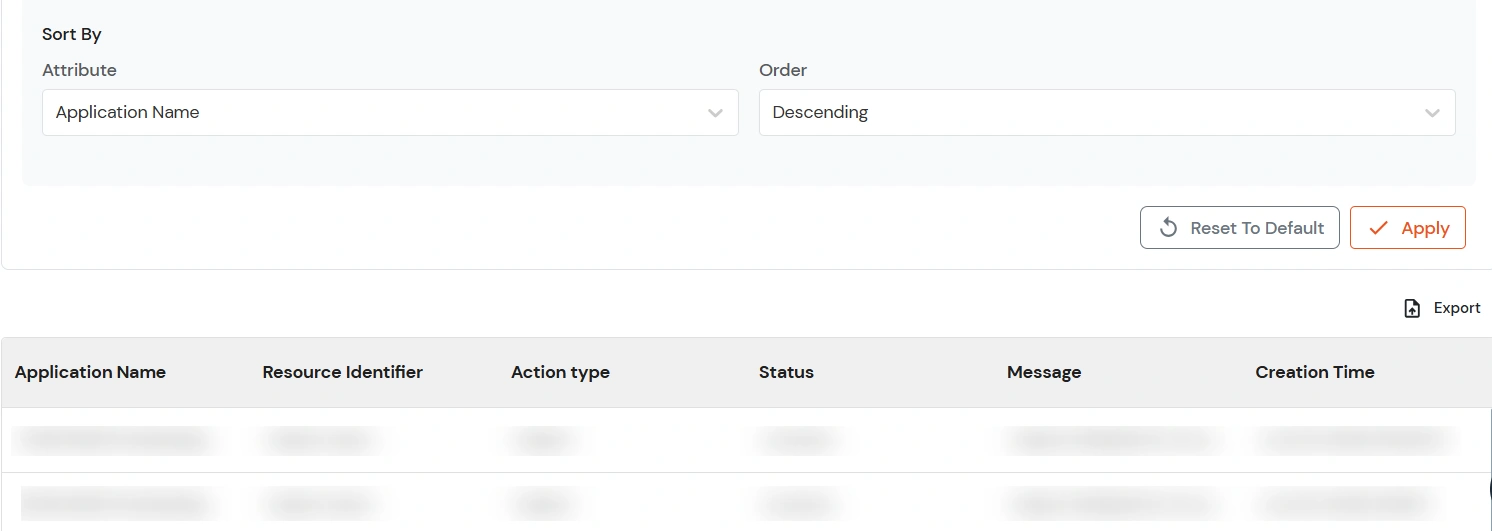
You can sort the provisioning report results based on a selected attribute. Administrators can configure the following:
By default, the report is sorted by Creation Time in Descending order.
The following actions are available within the report:
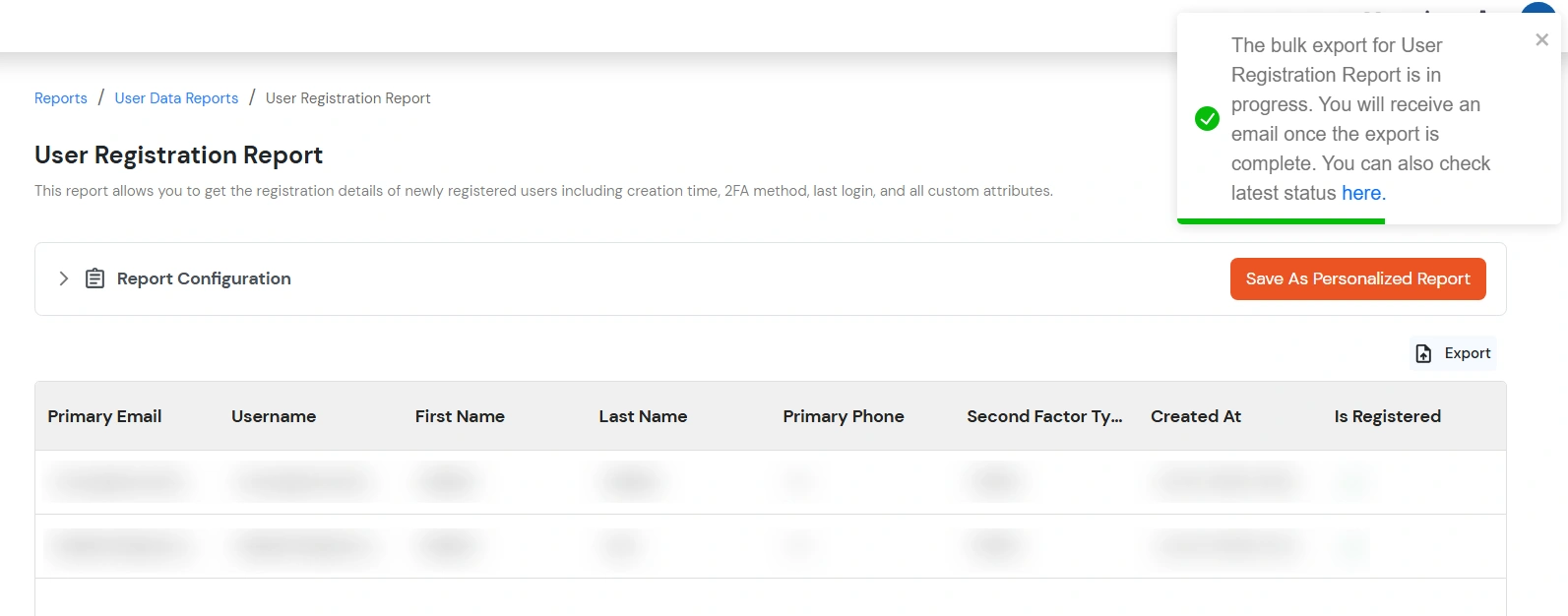
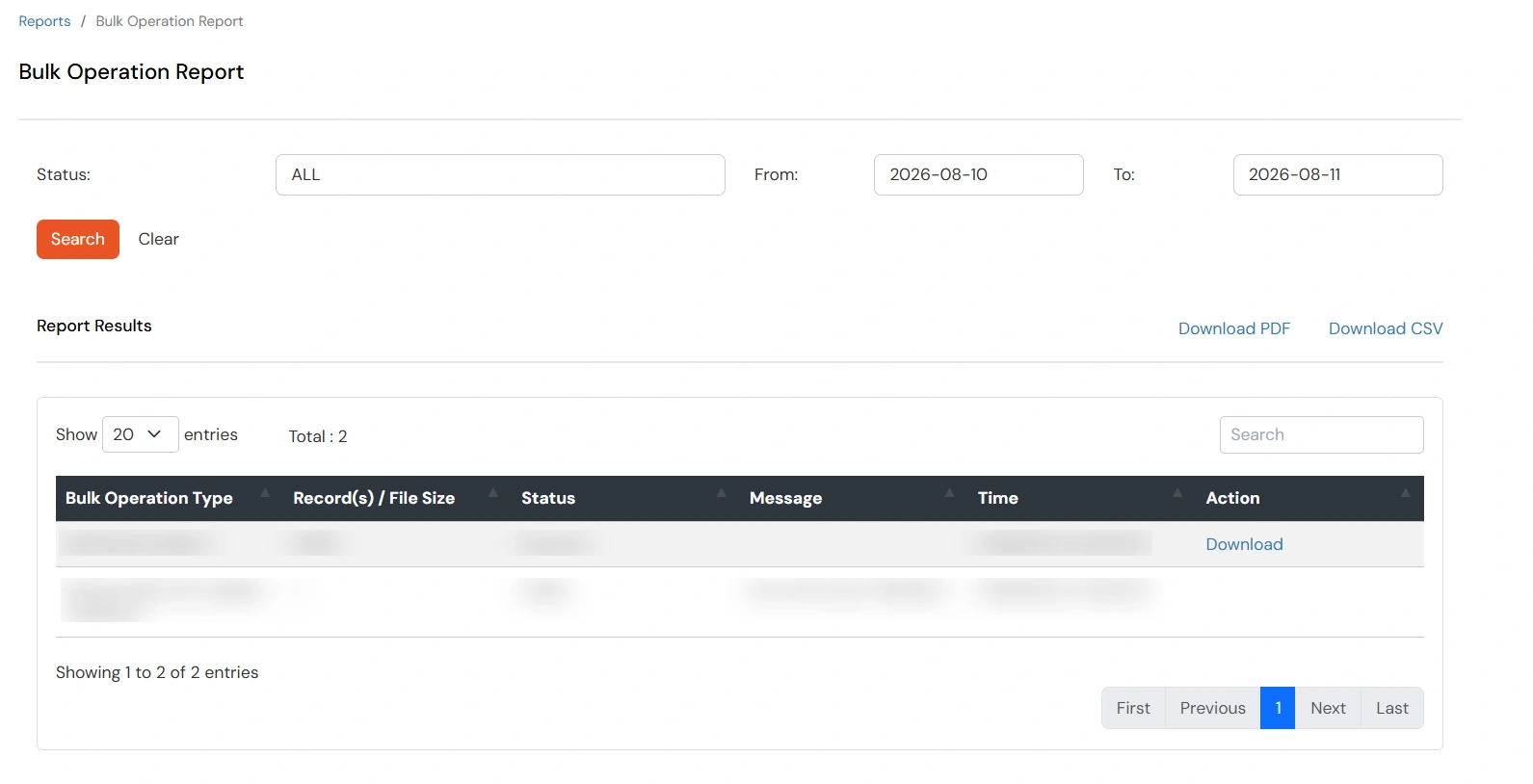
[Note: If you do not click the link in the export confirmation toast, you can manually navigate to the Bulk Operation Report page to access and download the requested report.]
The generated report displays provisioning audit records based on the selected attributes, filters, and sorting configuration.
Depending on your configuration, the report can include information such as:
The displayed data reflects the attributes selected, filters applied, and sorting order configured in the Report Configuration section.
