Configure Group Membership Custom Fields
User Specific Group Custom Attributes Mapping
The Group Membership Field proves to be a valuable tool in assigning specific attributes to individual members within a group. For instance, by utilizing a membership field such as "Role" with values like "Admin" or "User," distinct roles can be effortlessly assigned to all or selected members within the group. This functionality allows for streamlined and organized management of group members, ensuring that each member is designated with a defined role, contributing to a more structured and purposeful group dynamic.
How to add custom attributes to Users in Groups:
- Navigate to Groups >> Group Custom Fields.
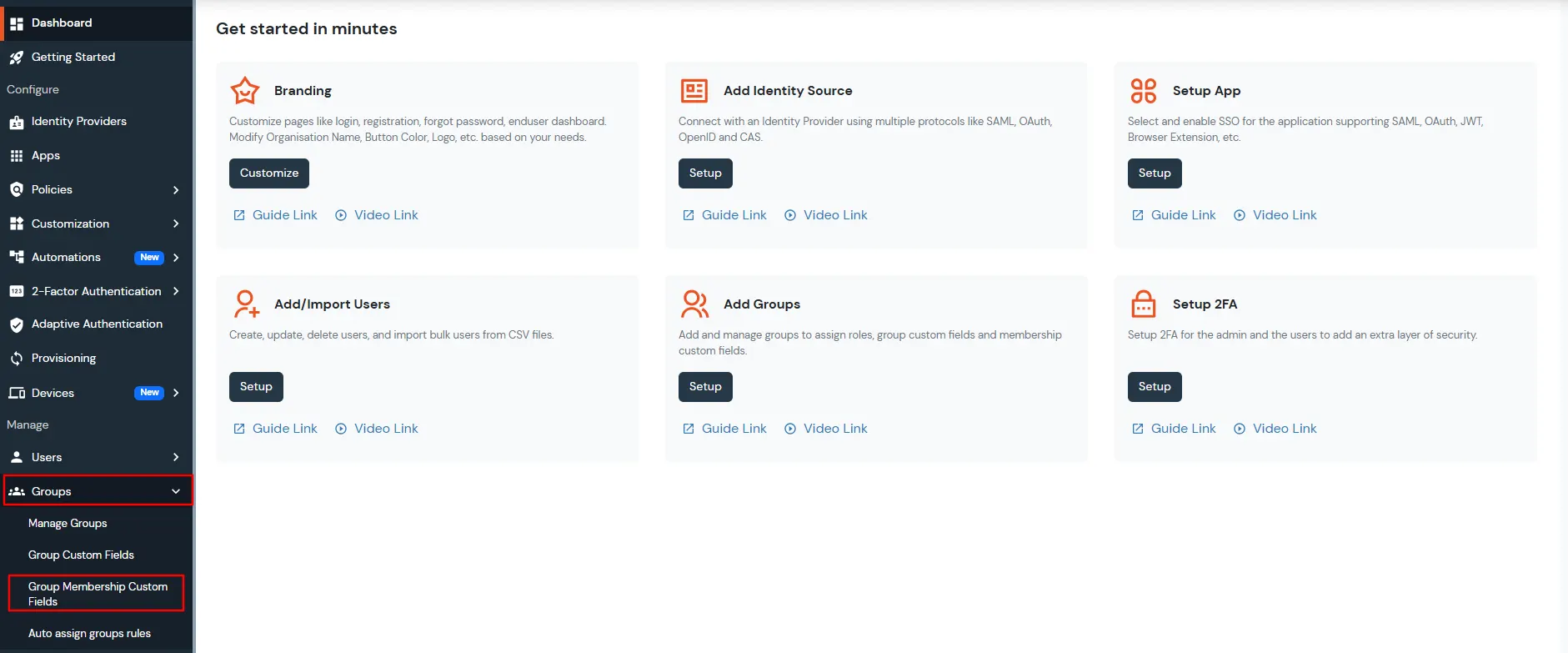
- Click Add Field to open the Group Membership Fields modal.

- To add new membership custom field:
- Enter a Label/Name for the custom field.
- Select the Field Type (Text Box, Dropdown, or Checkbox) based on your requirement.
- For Dropdown or Checkbox fields, enter the required Field Options, separating multiple options with a semicolon (;).
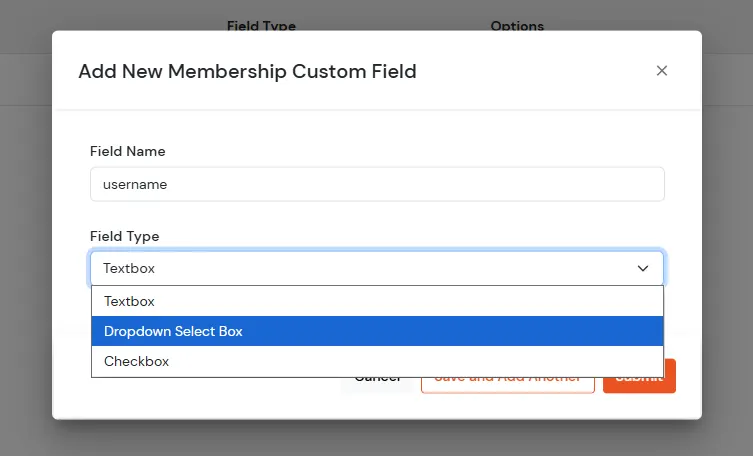
- Click Save and Add Another to continue adding more membership custom fields.
- After clicking Submit, the added membership custom fields will be successfully saved and shown in the list.
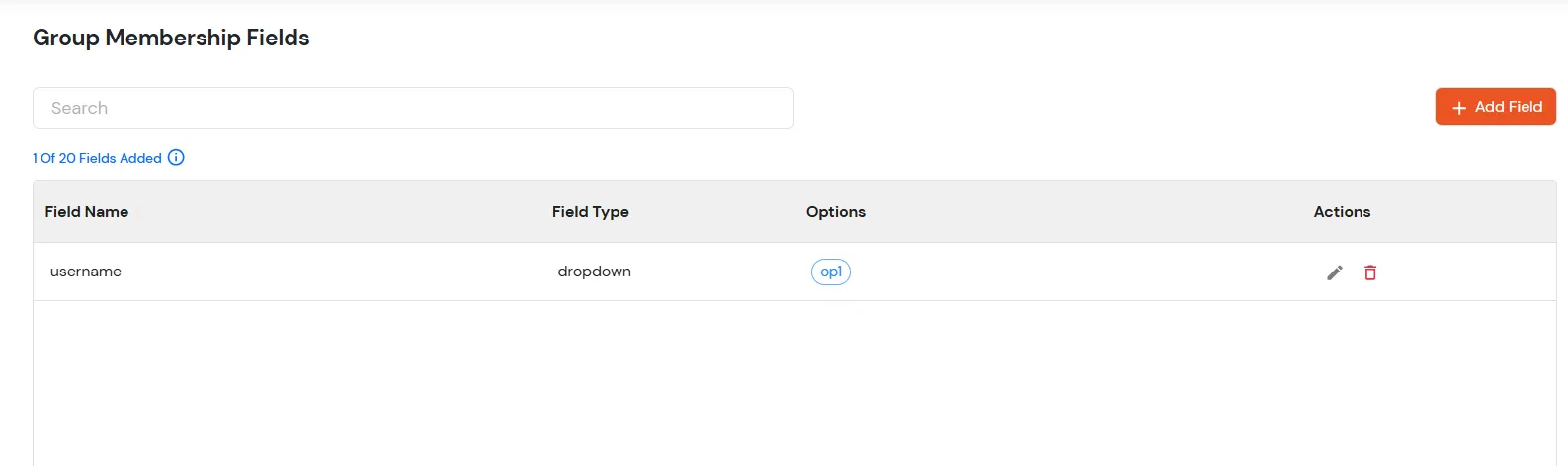
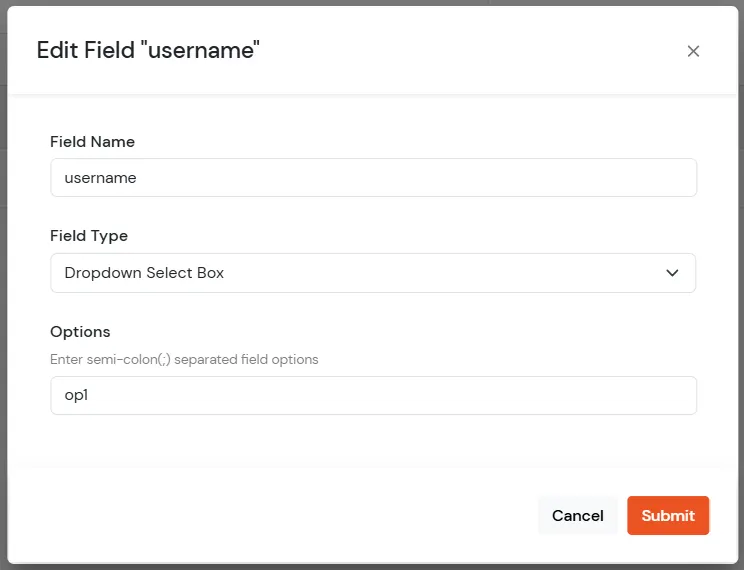
- To edit an existing membership custom field, click the Edit icon in the Actions column.

- Update the label, field type, or field options (for dropdown or checkbox fields) as required.
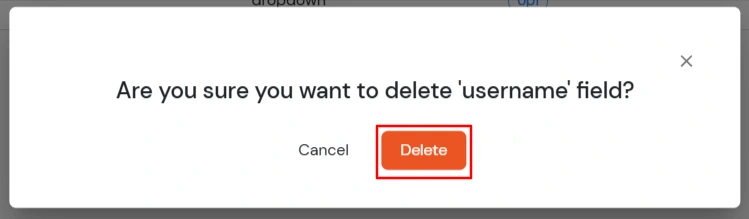
- To delete a membership custom field, click the Delete icon in the Actions column.

- A confirmation dialog will appear; click Delete to confirm and remove the field.