Hello there!

Need Help? We are right here!

Support Icon
miniOrange Email Support
success

Thanks for your Enquiry. Our team will soon reach out to you.

If you don't hear from us within 24 hours, please feel free to send a follow-up email to info@xecurify.com

Search Results:

×

How to create a New Policy


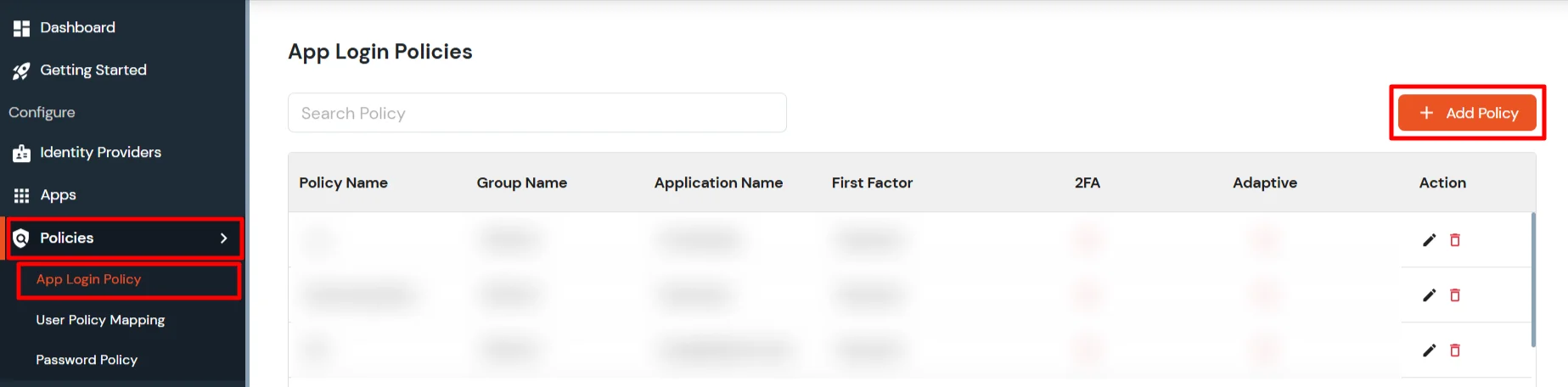
  • Log in to the Admin Dashboard with relevant credentials. Tap on the Policies menu and select the App login policy option.
  • Click on the Add Policy tab to add a new policy.
  • Go to Policies and App login policy

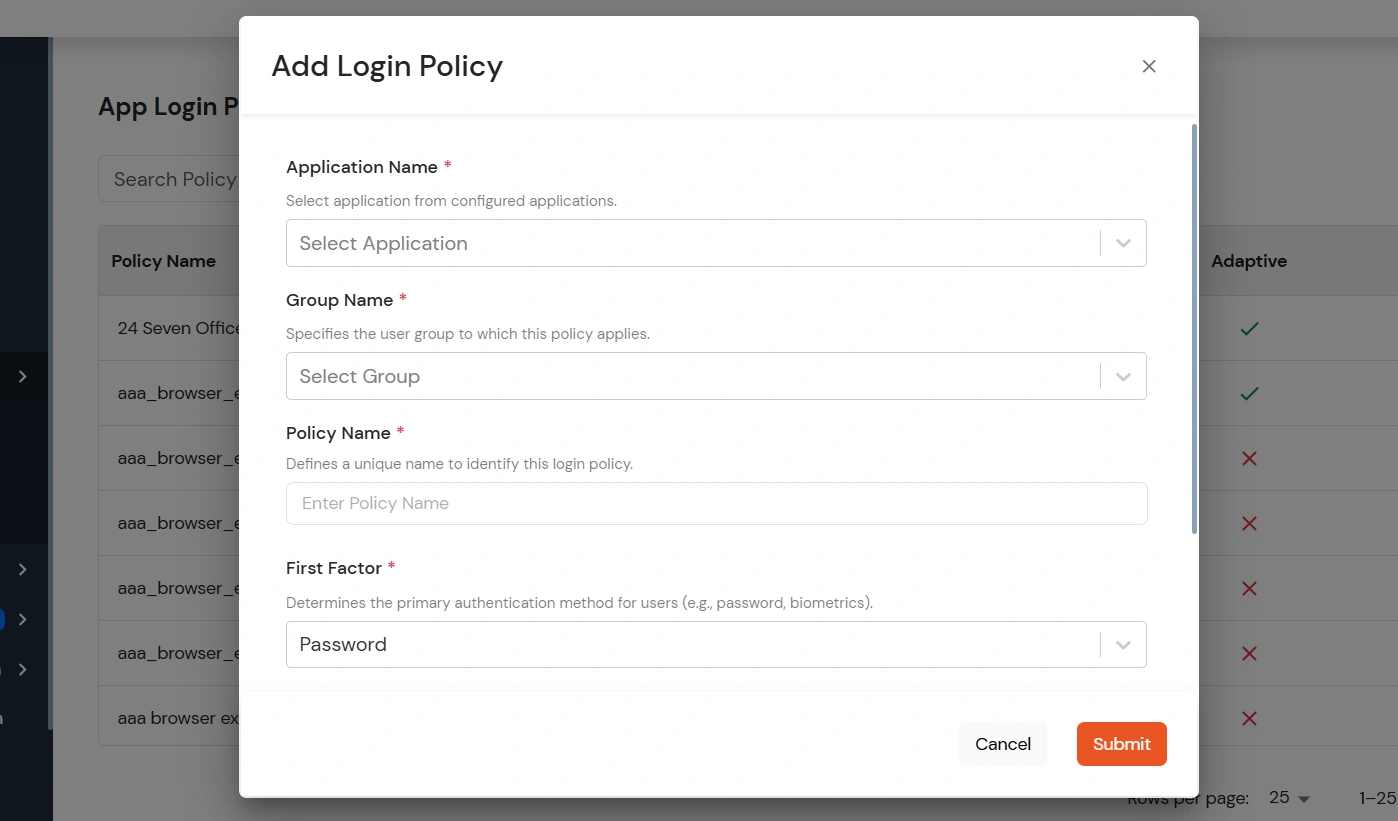
  • On the Add Login Policy modal, configure the required details as mentioned in the table below. The following are mandatory details when creating a new policy.
    Application Name The application for which you want to add the policy.
    Group Name The group with which you want to bind the application.
    Policy Name A unique name for the policy so it can be identified from the list of policies.
    First Factor The authentication method for users. You can choose
    • Password: Users are prompted for authentication with their username/email and password.
    • Password-less: Users authenticate without a password using methods such as Biometric or OTP.
  • New policy modal with policy details

  • Following are optional details that you can enable as per requirements or leave disabled.
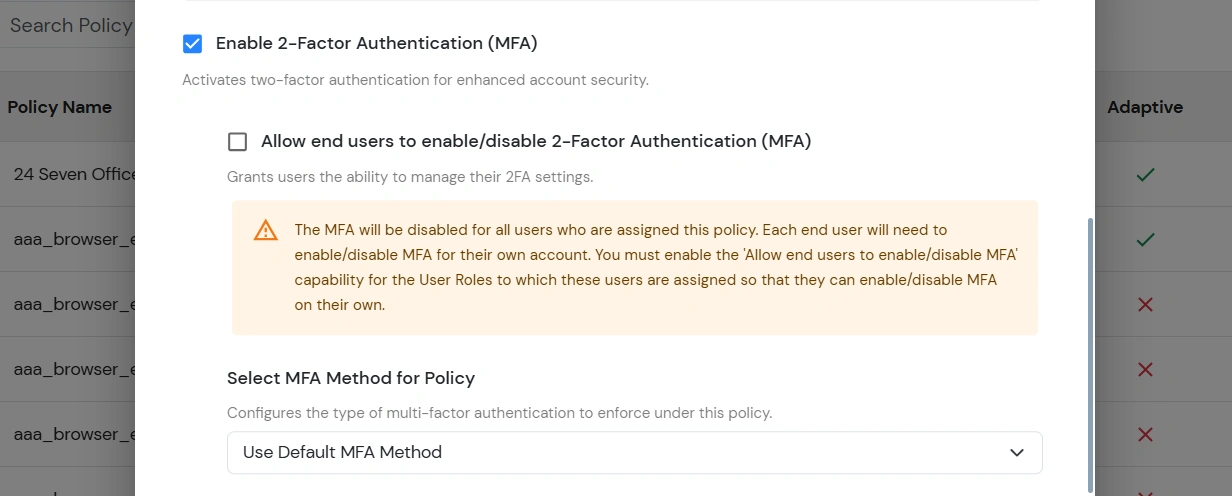
    2-Factor Authentication (MFA) Enable this option if you want to enable MFA on top of the user authentication.

    Note: Can only be used with Password as the login method.

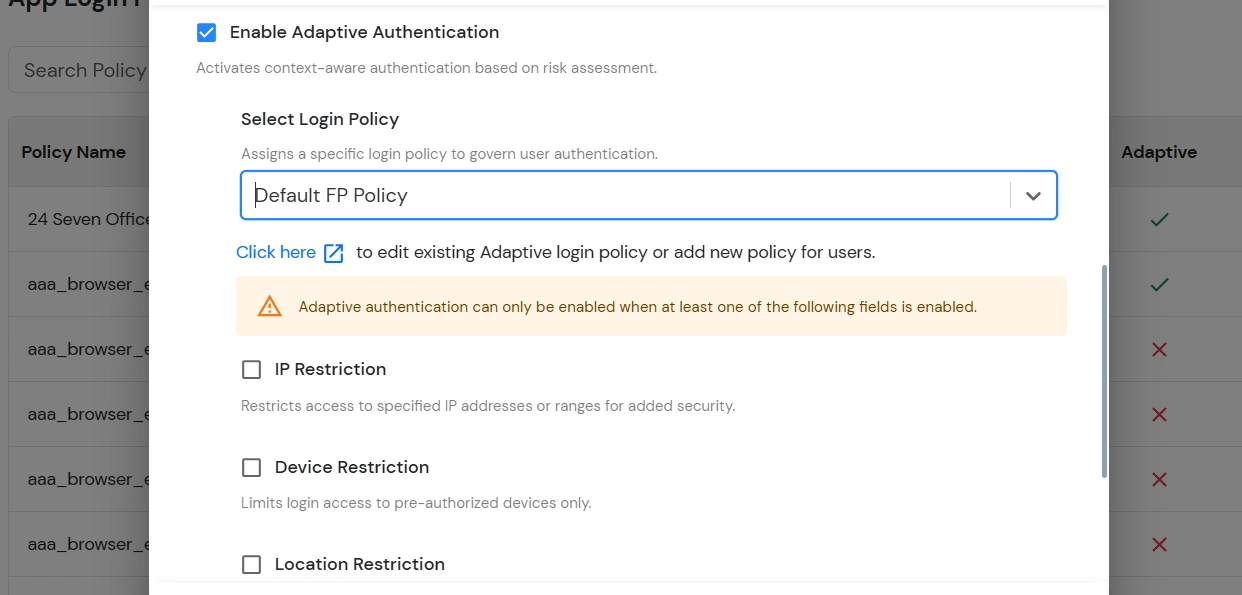
    Adaptive Authentication Enable this option if you want to enable Adaptive Authentication on top of the user authentication. The type of Adaptive Authentication and the Adaptive Authentication Policy must be configured in this case.

    Note: Either MFA or Adaptive Authentication can be enabled in a policy, but not both.

  • Enable 2FA authentication for new policy

    Enable adaptive authentication

  • Click on Submit to save the newly added policy.