This report shows the details related to the user onboarding section where you can check which users have completed the registration and which users have still not completed the registration.
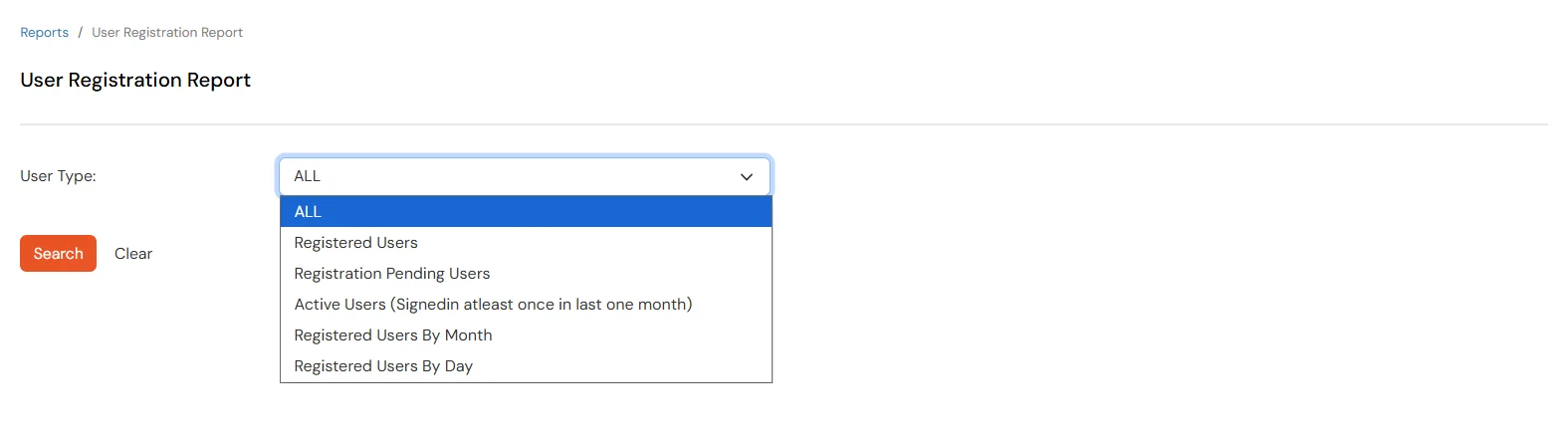
You can check different types of sub-reports by clicking on the report type dropdown and selecting the type of report you want to check.
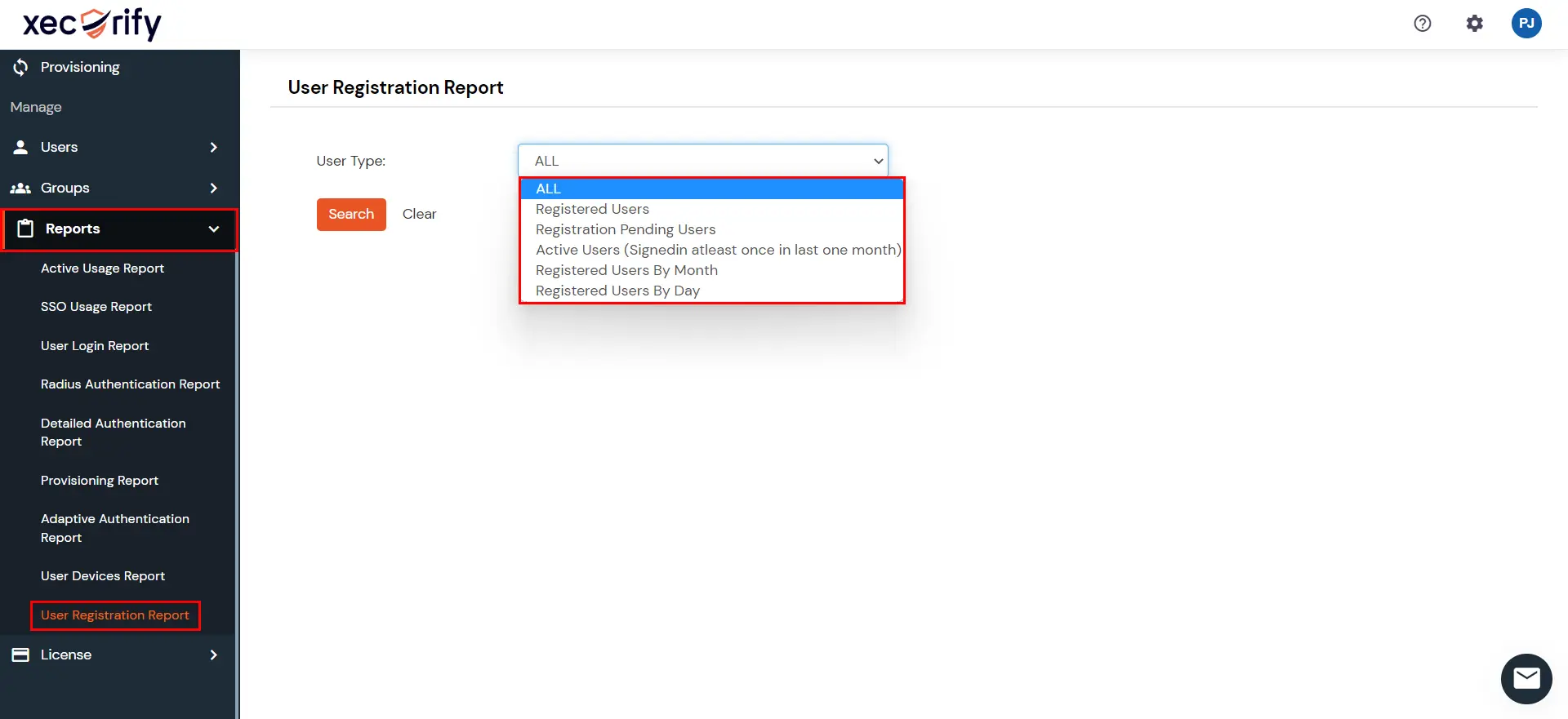
Go to Reports >> search for User Registration Report and click on it.
You can filter the report using the following field:
Filter
Description
User Type
Select the report type from the dropdown:
ALL — Details of all registered and unregistered users
Registered Users — Details of all registered users
Registration Pending Users — Details of users who have not completed registration
Active Users — Users who signed in at least once in the last month
Registered Users By Month — Users who registered in a selected year and month
Registered Users By Day — Users who registered on a selected day
Click on Search to view results for the selected user type.
Click on Clear to reset the filters.
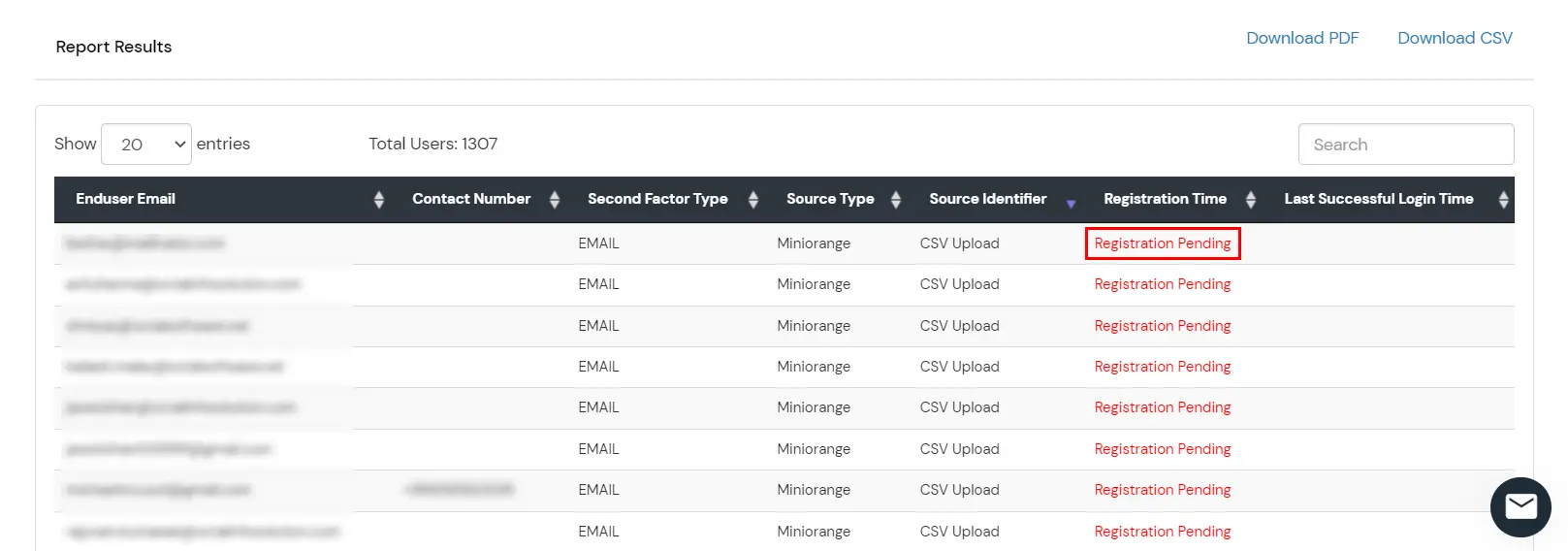
In the Report Result, based on the type of result you selected, you will get information about the users and their registration details.
You can also export the report in PDF or CSV format by clicking on the respective buttons present at the top-right of the reports section.