Hello there!

Need Help? We are right here!

Support Icon
miniOrange Email Support
success

Thanks for your Enquiry. Our team will soon reach out to you.

If you don't hear from us within 24 hours, please feel free to send a follow-up email to info@xecurify.com

Search Results:

×

Detailed Authentication Report


  • This report provides a detailed breakdown of authentications performed by end users within the selected time period, including authentication type, request time, authentication time, authentication status, and other related details.
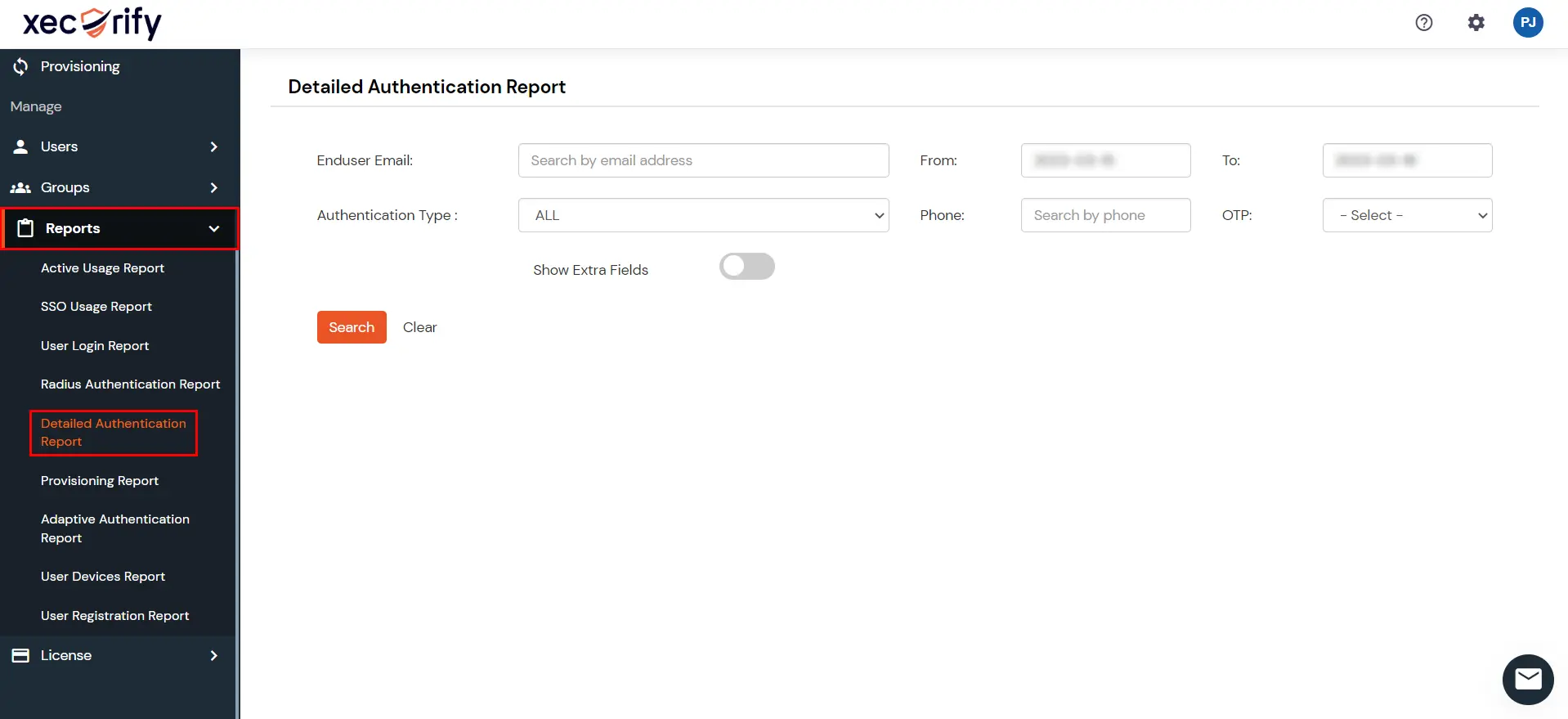
  • Go to Reports >> search for Detailed Authentication Report and click on it.
  • miniOrange Identity Platform Admin Handbook: Detailed Authentication Report

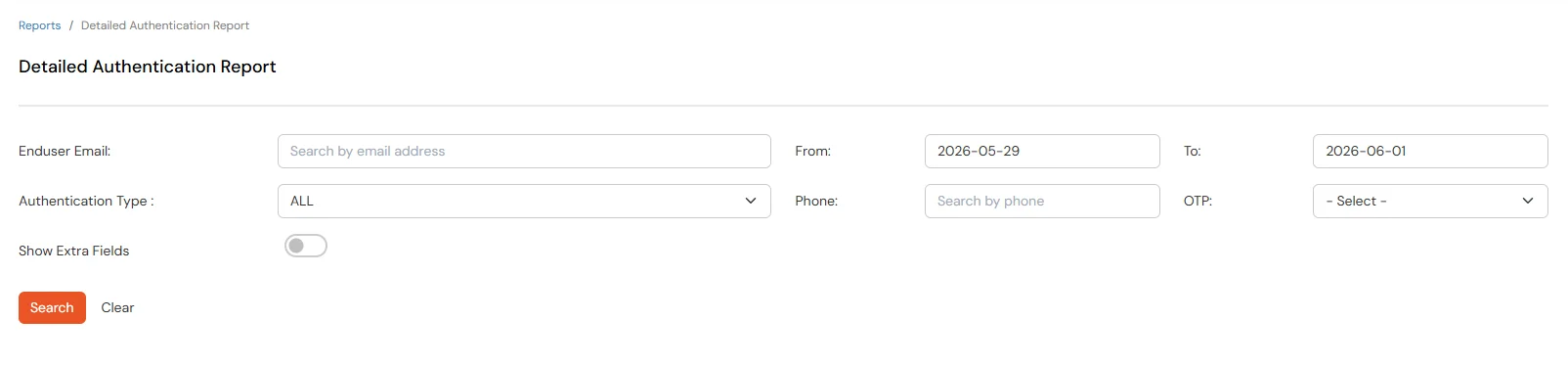
  • You can filter the report using any of the following fields:
    Filter Description
    End User Email Email address of the end user
    From and To Date Start and end dates for the report
    Authentication Type Filter by authentication method. Select ALL or choose a specific type such as Password, OTP over SMS, OTP over Email, Google Authenticator, Microsoft Authenticator, FIDO2 (Biometric) and many more from the dropdown.
    Phone Phone number associated with the user
    OTP Filter by OTP status. Select SUCCESSFUL or FAILED, or skip this filter to include all OTP results.
    Show Extra Fields Toggle to show additional fields in the report.
  • miniOrange Identity Platform Admin Handbook: Detailed Authentication Report filters

  • Click on Search to view results. Leave End User Email blank to include all users within the selected date range.
  • Click on Clear to reset the filters.
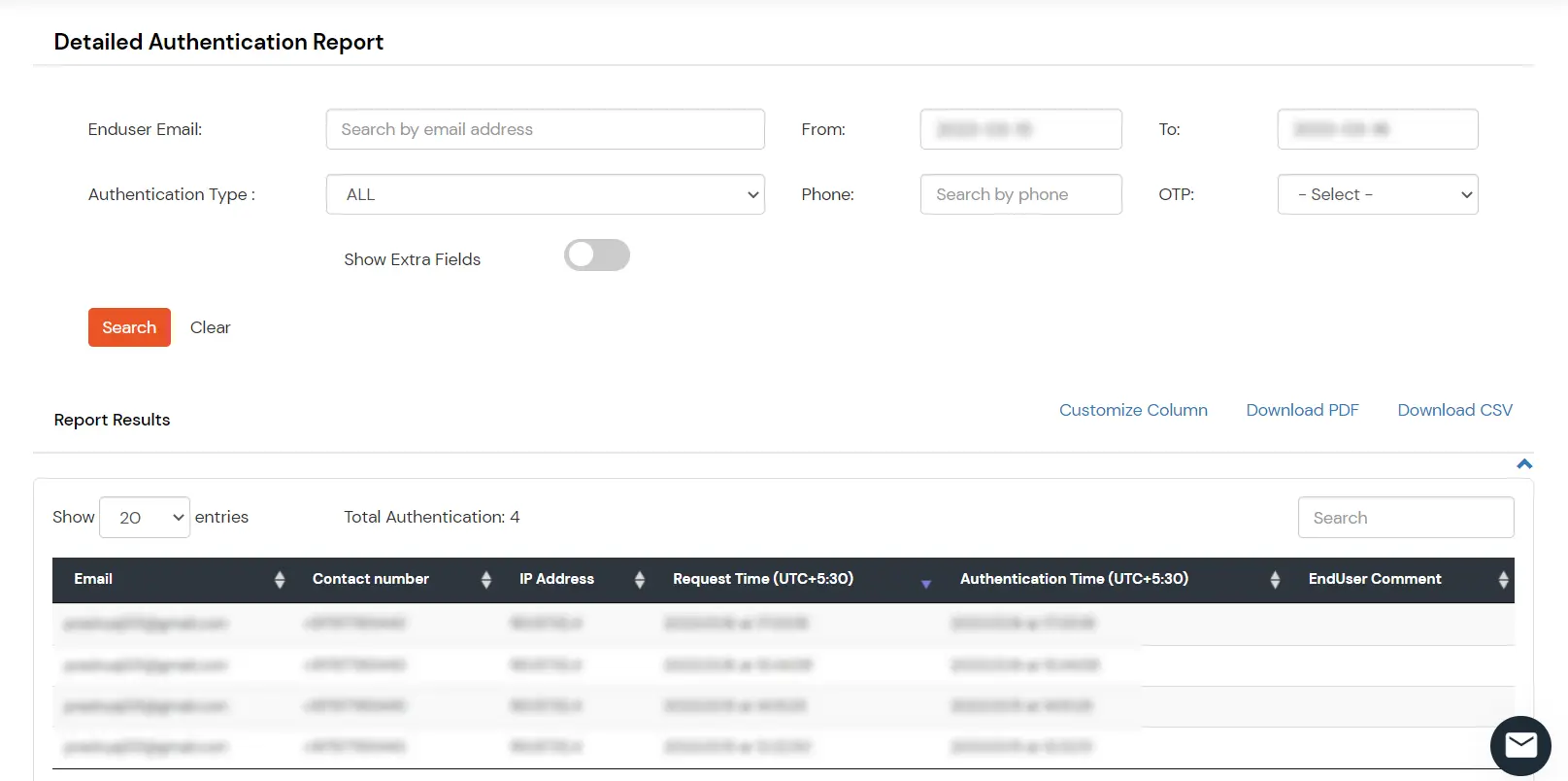
  • The report displays each user's email, method, contact number, IP address, request time, authentication time, and authentication status.
  • miniOrange Identity Platform Admin Handbook: Detailed Authentication Report results

  • Enable Show Extra Fields or click the + button at the top of the results table to view additional attributes.
  • You can also export the report in PDF or CSV format by clicking Download PDF or Download CSV at the top-right of the reports section.