Hello there!
Need Help? We are right here!

Need Help? We are right here!
Search Results:
×Passwords, used for everything from finances to communication, have evolved from simple to complex combinations of characters. However, even the strongest passwords and management systems are vulnerable to phishing and data breaches. If passwords alone are insufficient, how do we secure accounts?
This is where 2FA becomes essential. It adds a second layer of identity verification, combining something you know (username and password) with something you have (phone or fingerprint). This dual approach drastically enhances security, rendering stolen passwords useless to attackers.
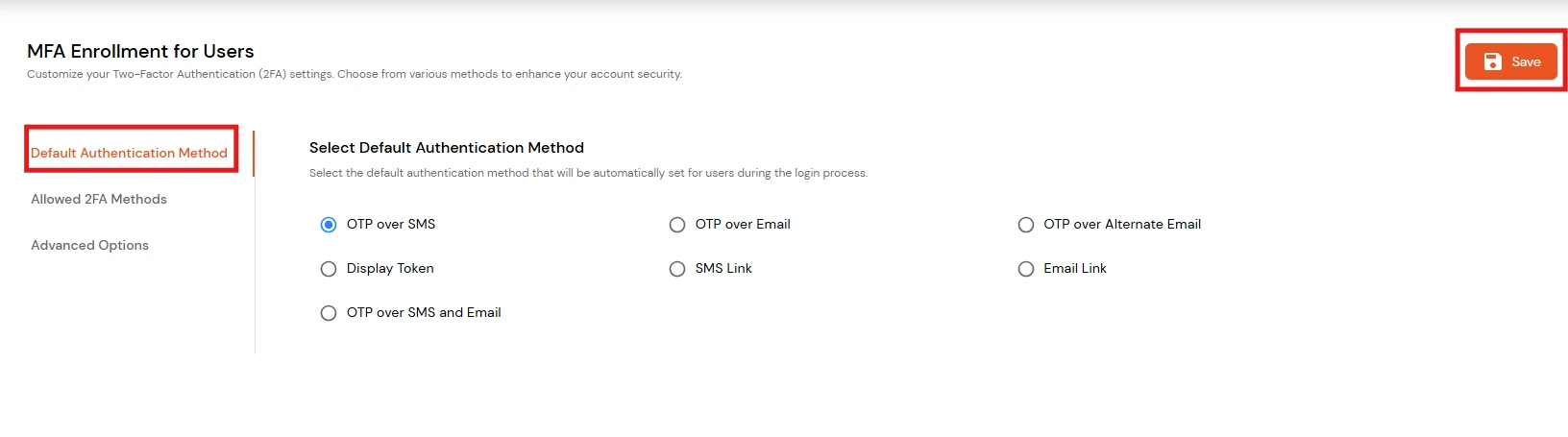
To configure two-factor authentication (2FA) for users, you need to select one of the methods from the "default Authentication methods" section.
Authentication methods include OTP over SMS, OTP over email & OTP over both SMS and email. You can choose Authentication methods for your end-users in the following way:
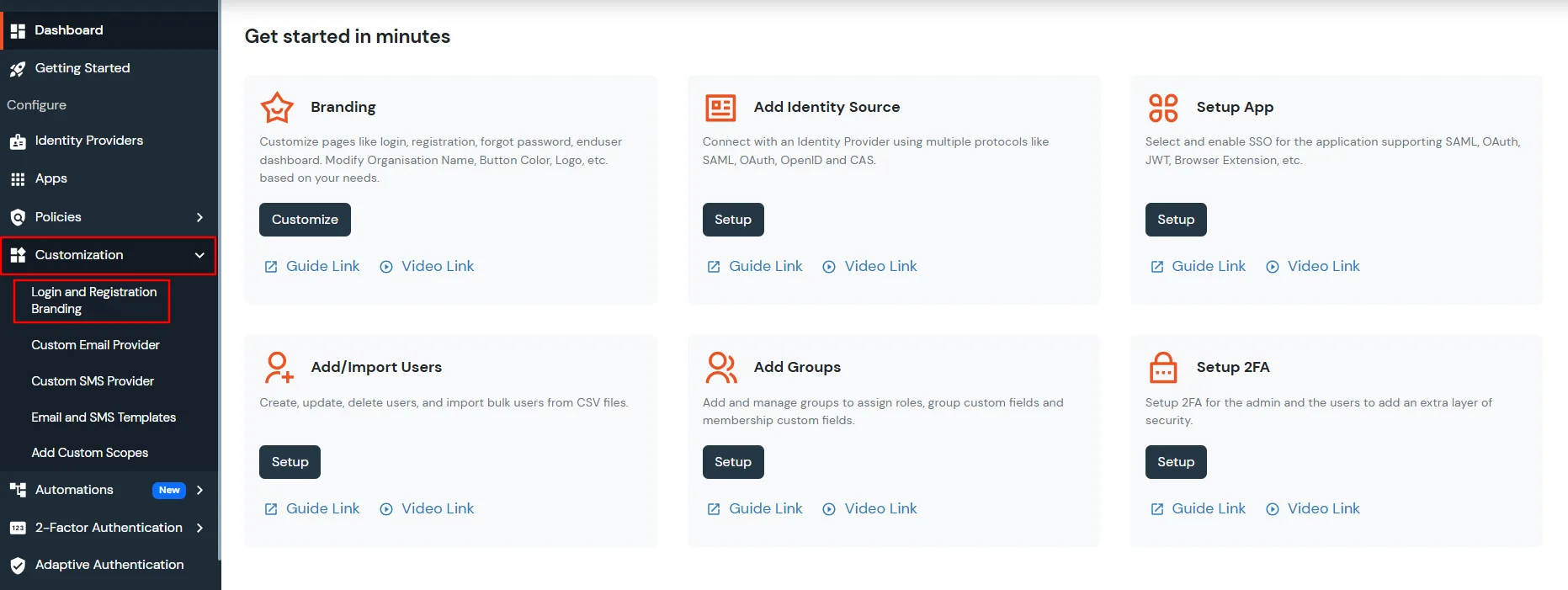
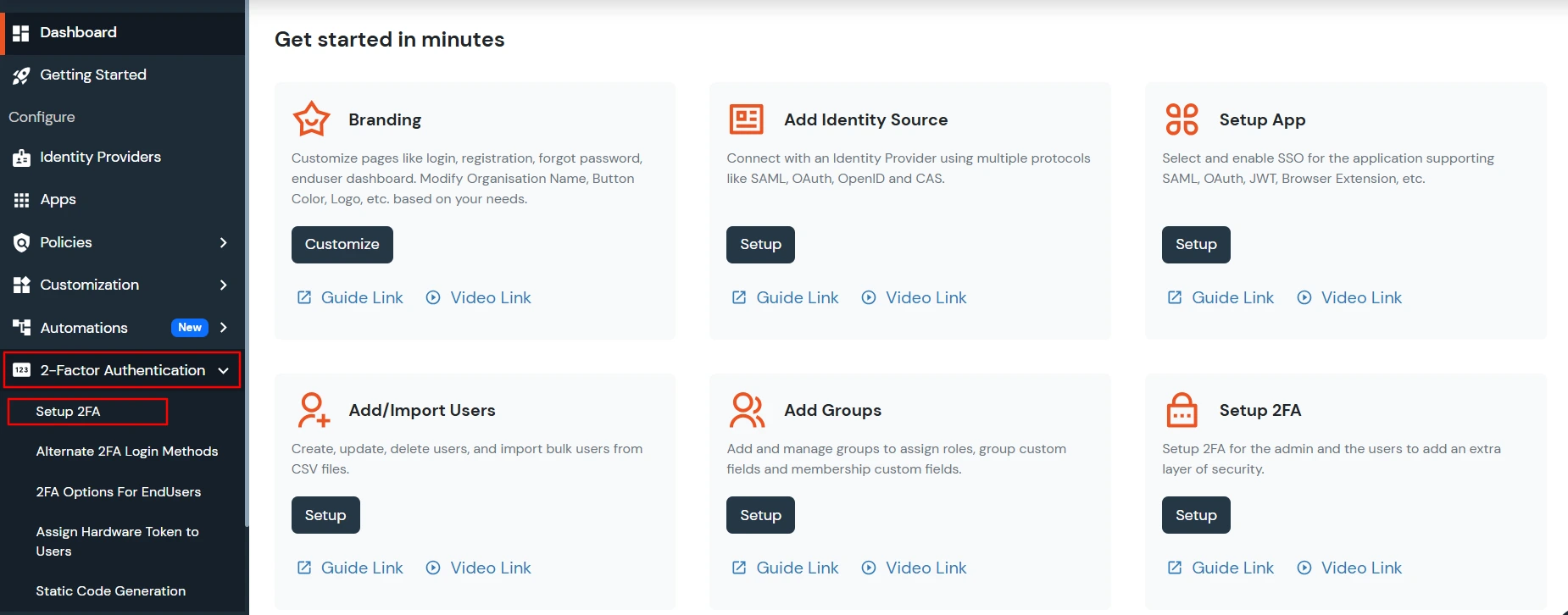
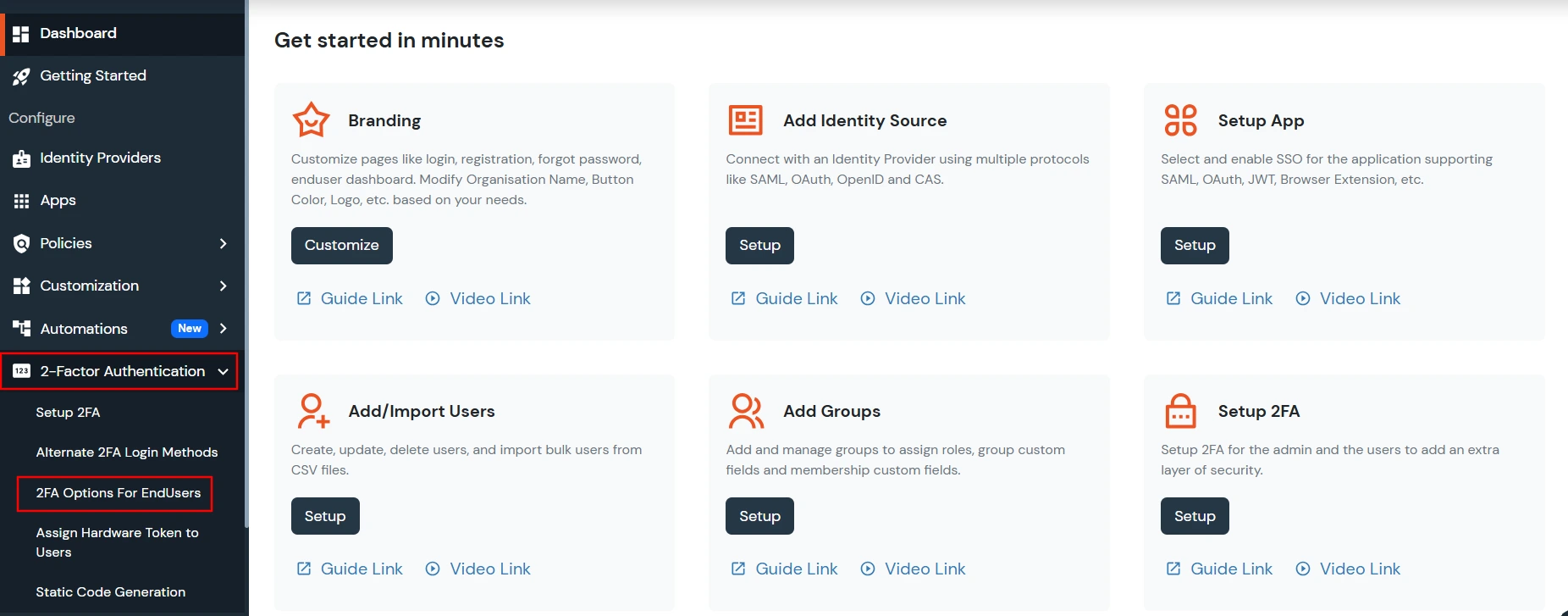
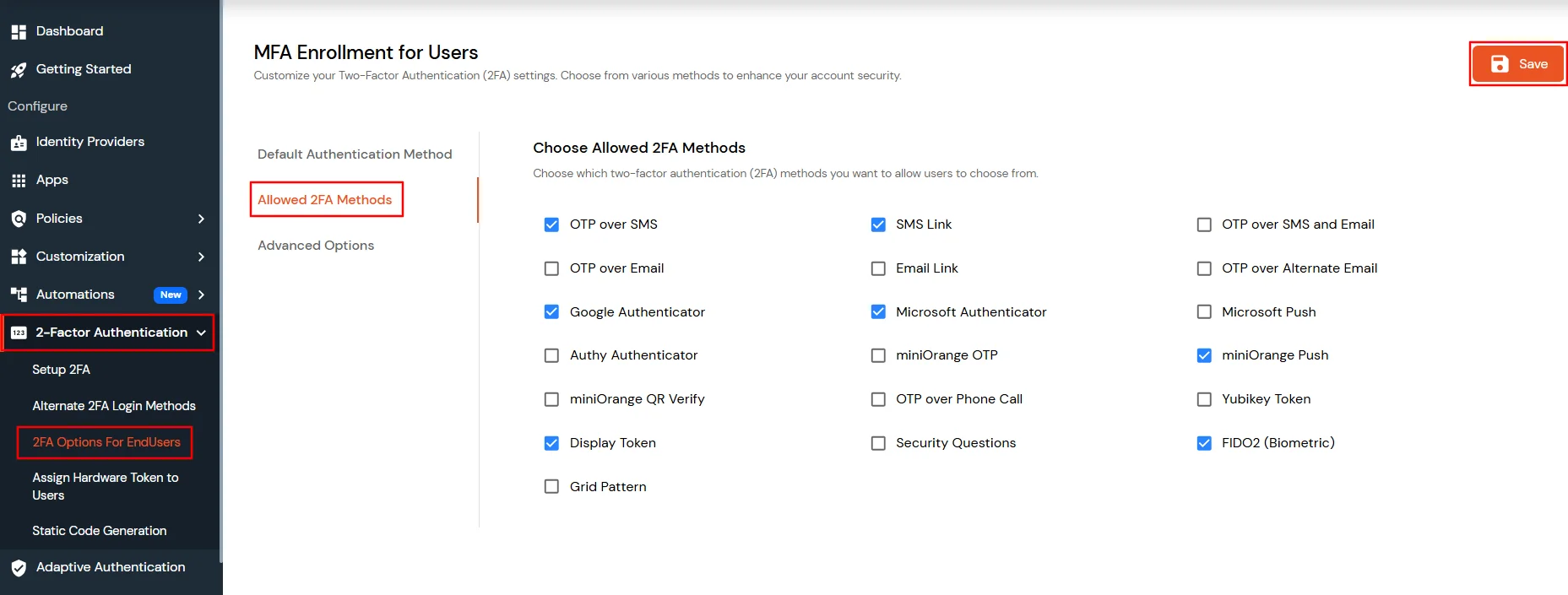
Log into the miniOrange Admin Console and select 2FA Options for EndUsers from the 2-Factor Authentication tab.
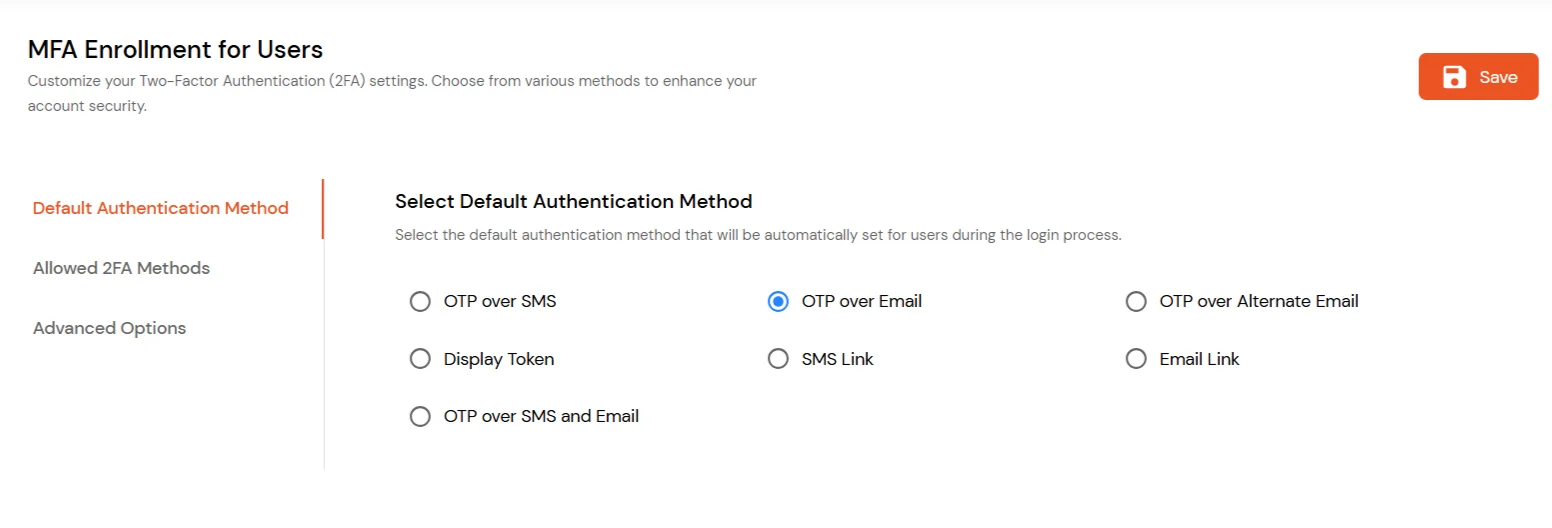
With this method, you can select the default 2FA for end users.

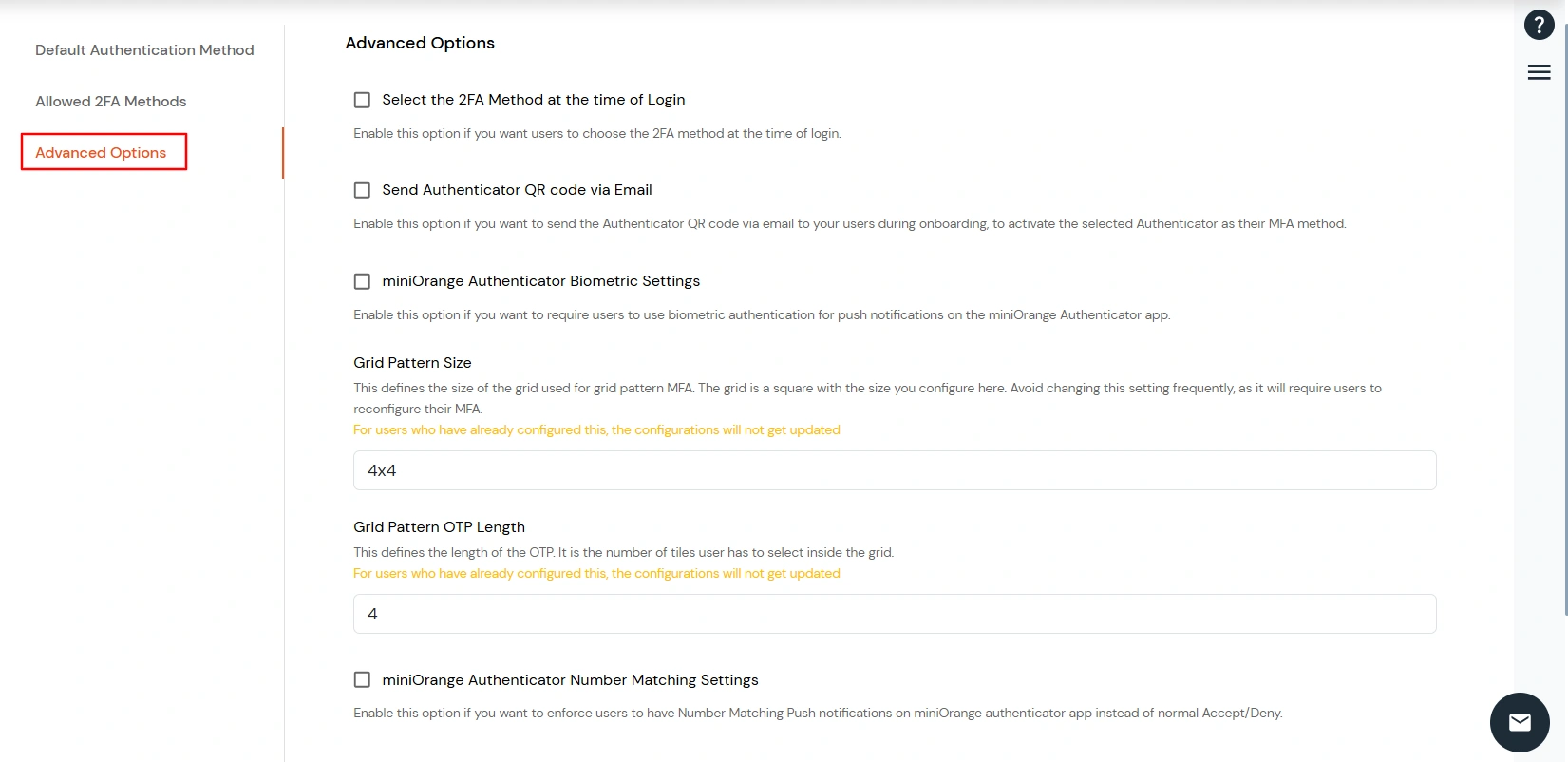

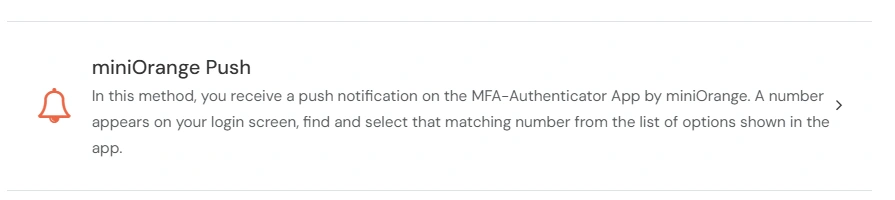
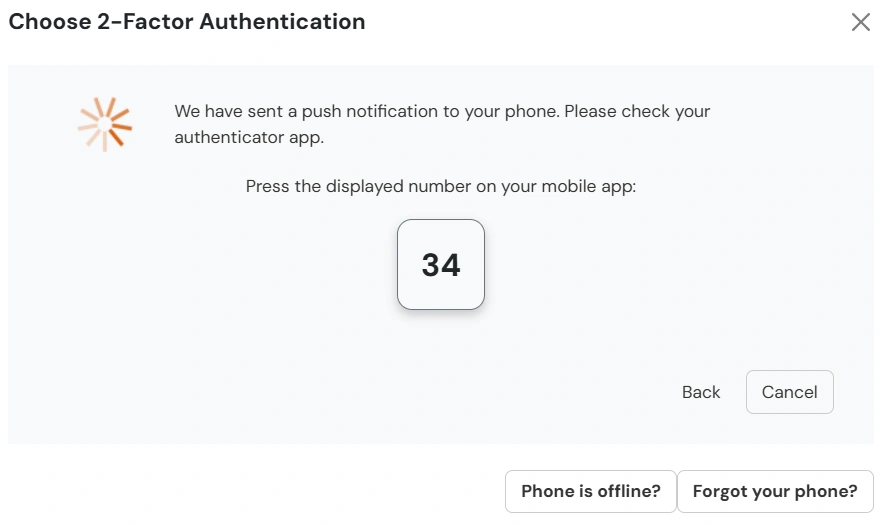
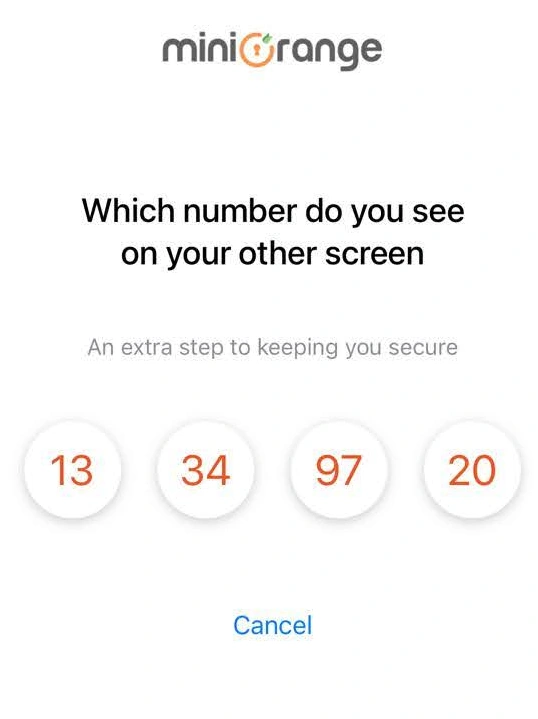
Number Matching MFA displays a random number on the login screen and sends a push notification to the miniOrange Authenticator app. The user must confirm the same number to approve the login; incorrect or timed-out responses are rejected. This prevents accidental approvals and protects against MFA fatigue attacks.
Configuration:

Authentication: