Hello there!

Need Help? We are right here!

Support Icon
miniOrange Email Support
success

Thanks for your Enquiry. Our team will soon reach out to you.

If you don't hear from us within 24 hours, please feel free to send a follow-up email to info@xecurify.com

Search Results:

×

Managing Username Aliases


Managing Username Aliases enables administrators to associate multiple usernames or email addresses with a single unique user identity. This ensures that end users can authenticate across different applications using their respective usernames while maintaining the same MFA methods and license allocation. Administrators can also configure Alias Labels to organize and identify aliases efficiently, providing greater flexibility and consistency in identity management.
How to enable or use the Username Alias feature

  • Log in to your Xecurify account as admin.
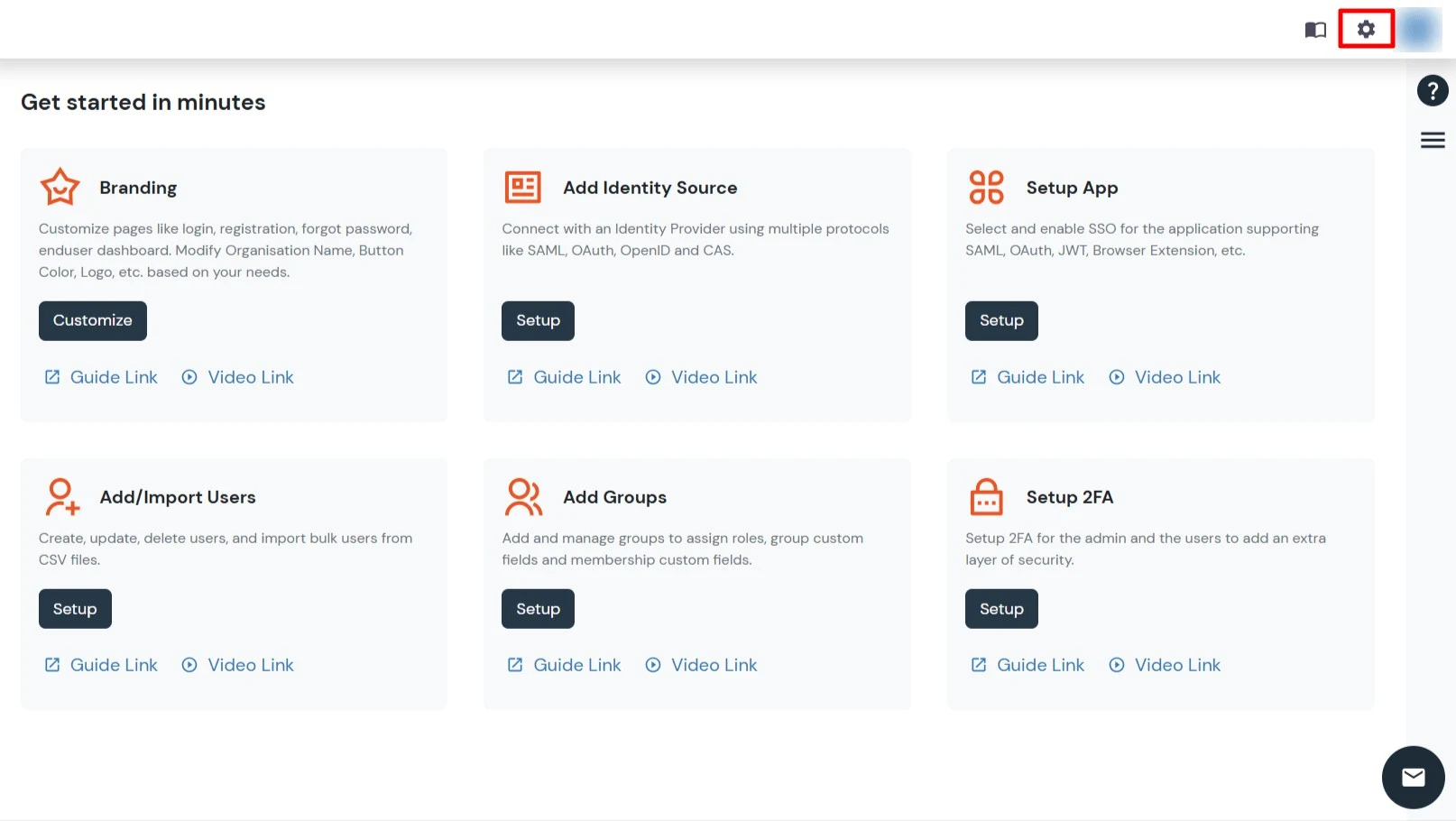
  • Click the gear icon () in the top-right corner to open Settings.
  • miniOrange Admin Handbook: Dashboard

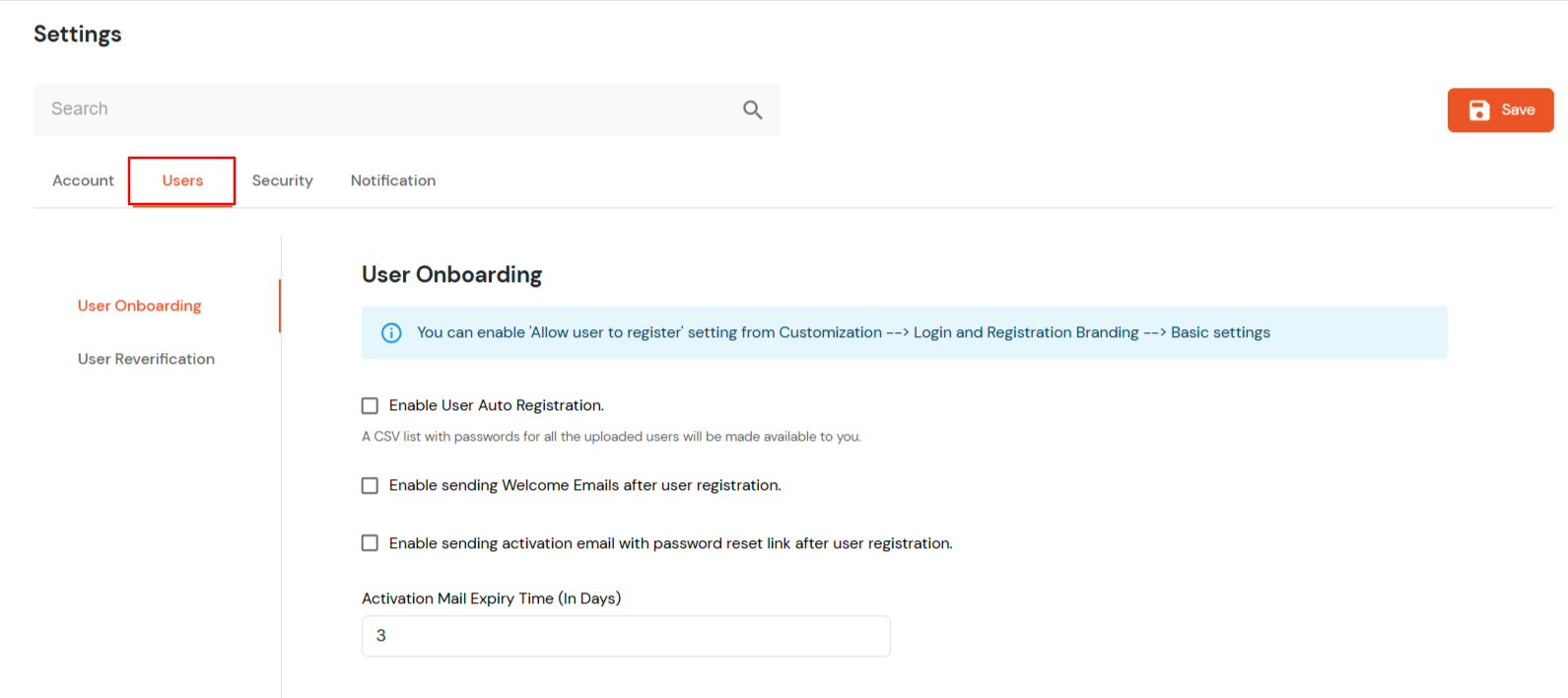
  • In the Settings menu, click on Users and scroll down to the Enable Username Alias checkbox.
  • miniOrange Admin Handbook: User Dashboard

    miniOrange Admin Handbook: User Dashboard

  • Click on Save.
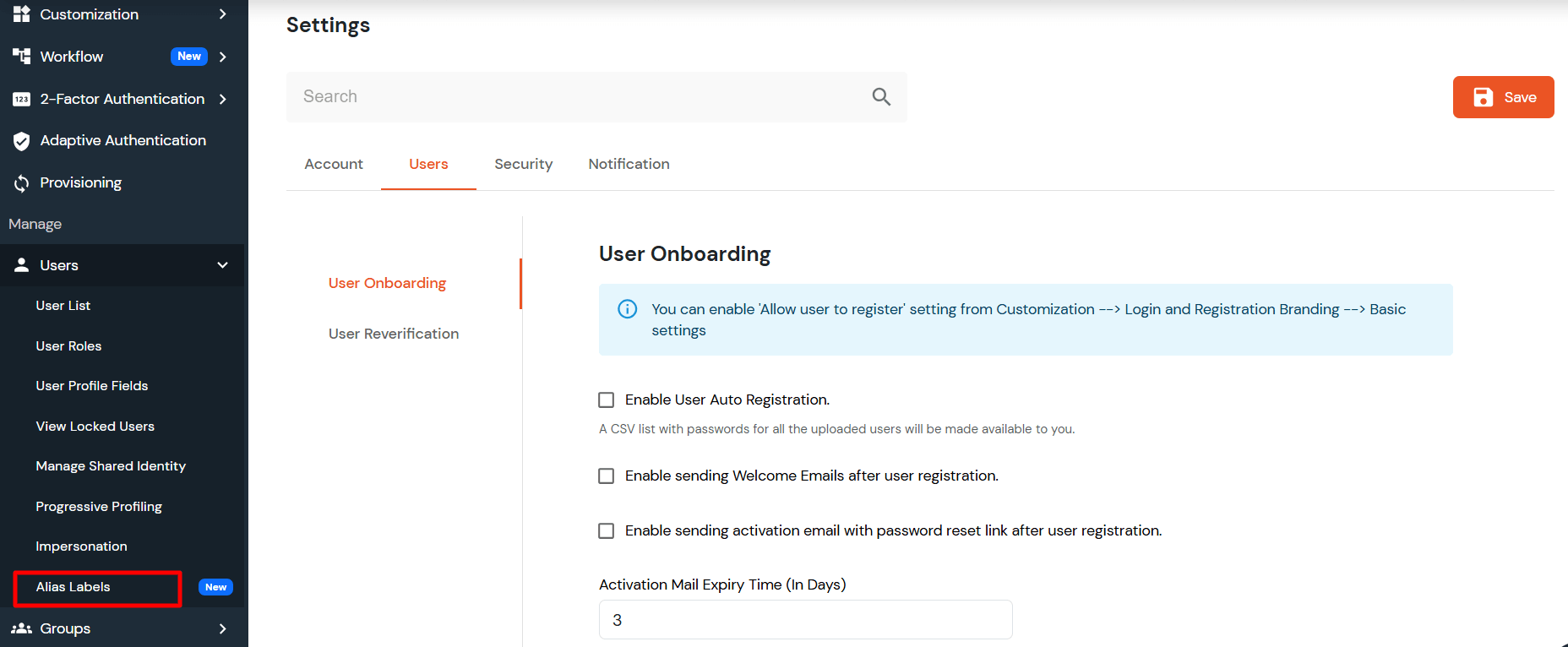
  • From the left sidebar, go to Users > Alias Labels.
  • miniOrange Admin Handbook: Manage Alias

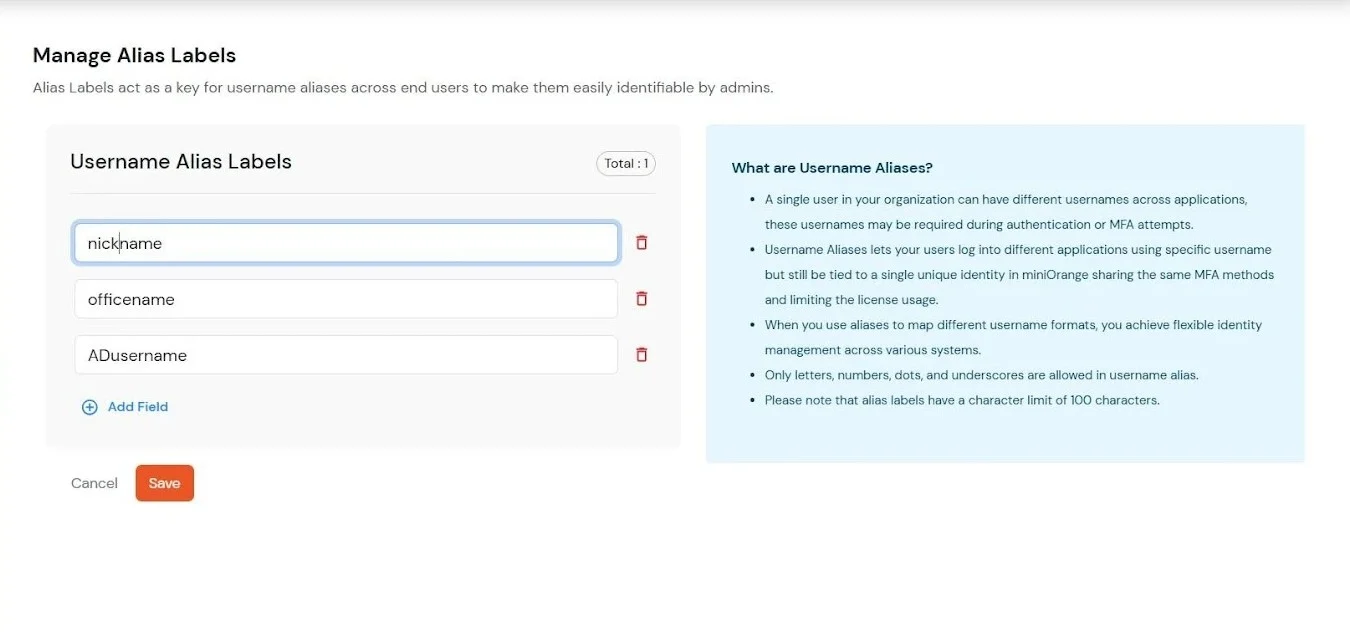
  • Add alias labels based on your requirements.
  • miniOrange Admin Handbook: Manage Alias Labels

  • Click on Save.
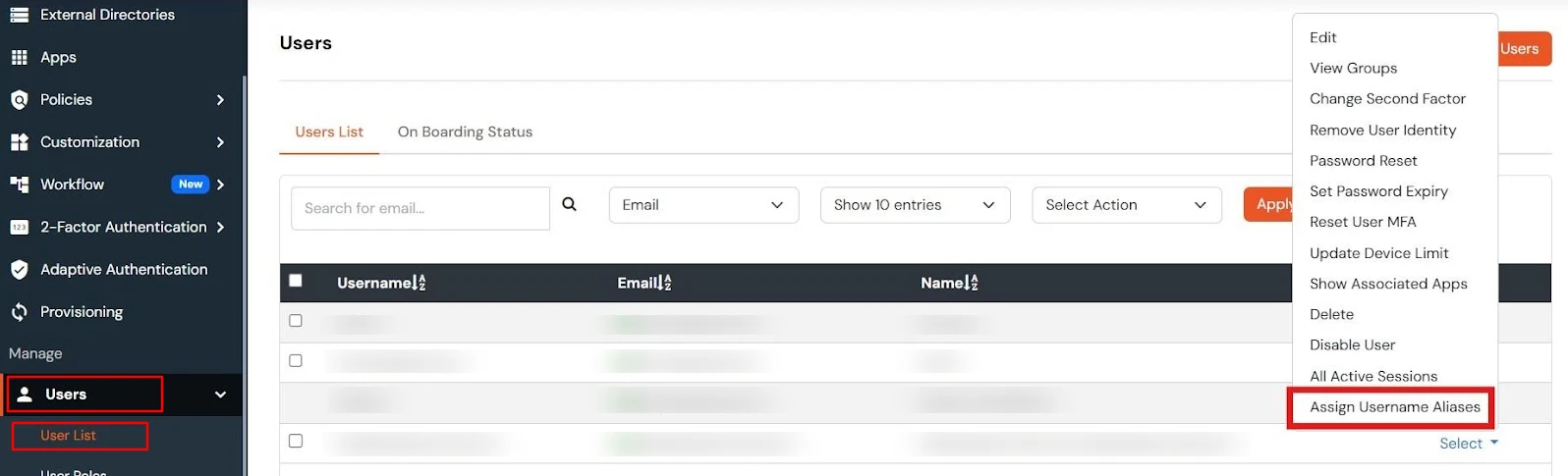
  • Go to the User List, click on Select next to any user, and choose Assign Username Aliases.
  • miniOrange Admin Handbook: User List

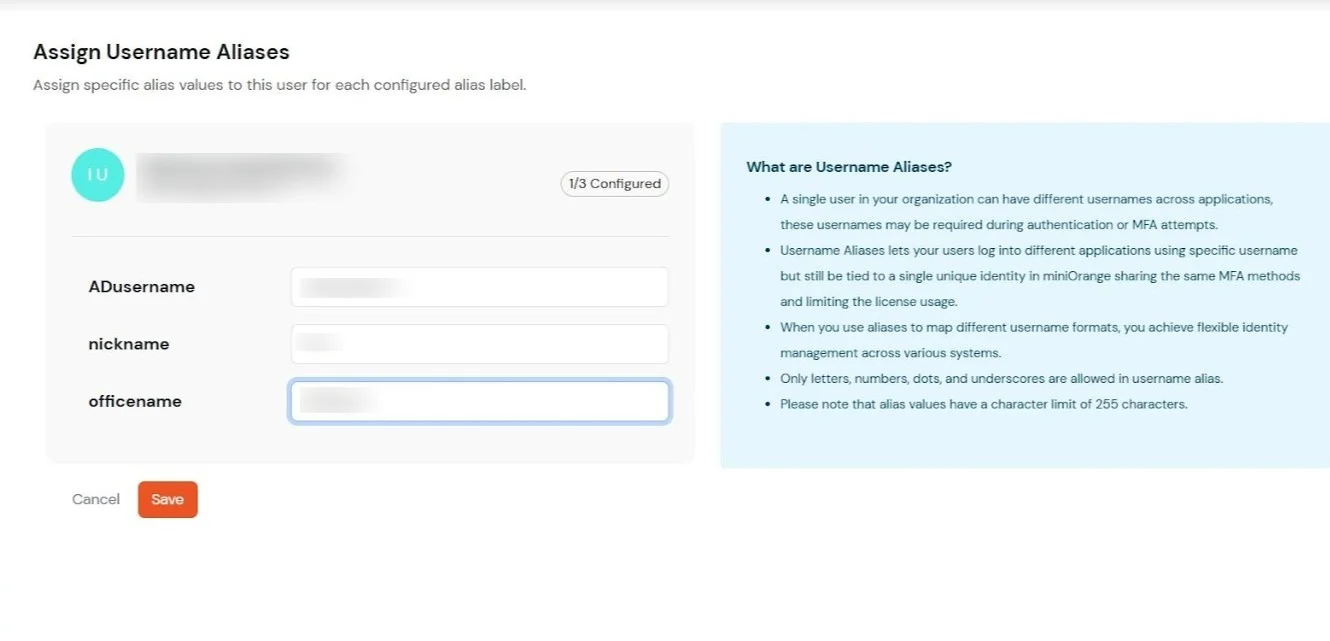
  • Add username aliases for the selected user.
  • miniOrange Admin Handbook:Add Username

  • Click on Save.
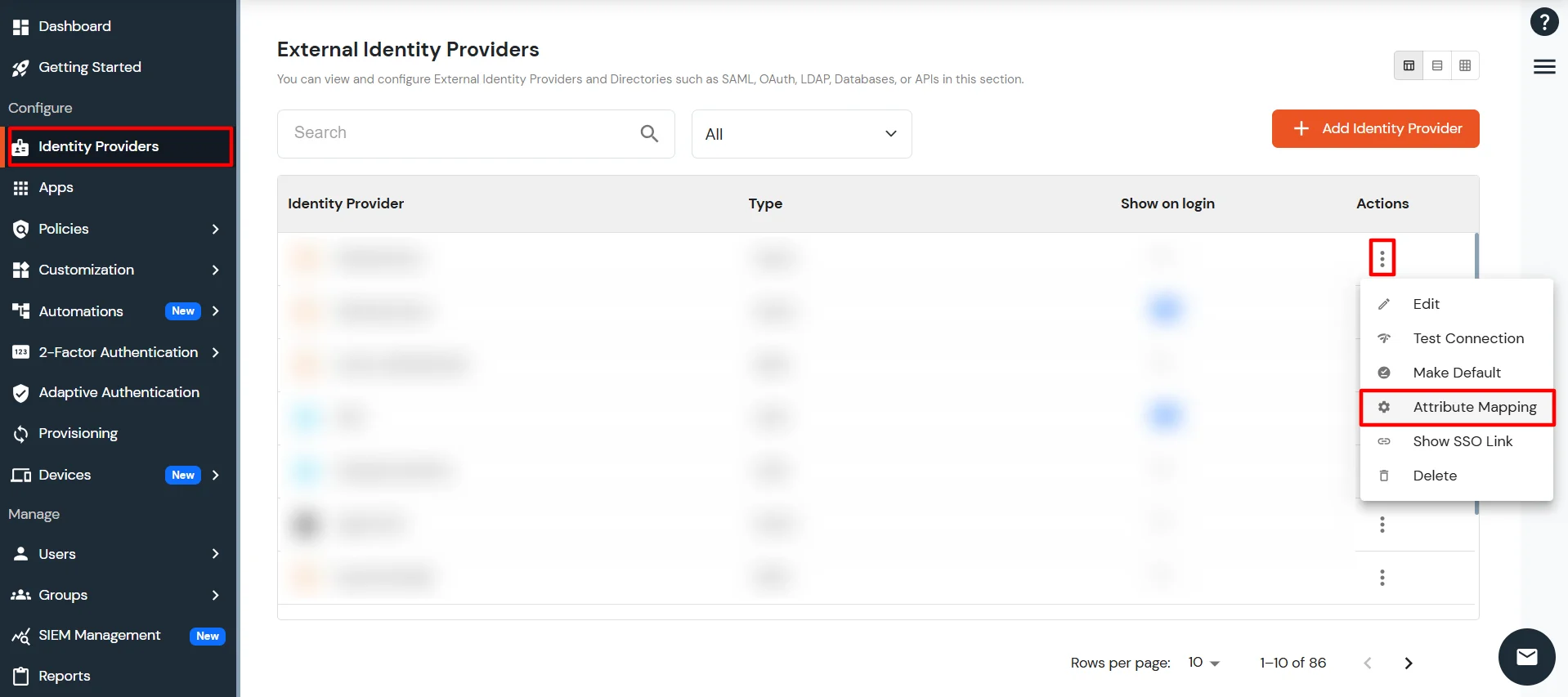
  • To use this with JIT Mapping, click to Identity Providers in the left navigation. Go to Attribute Mapping from the menu (add three dots icon) next to your IDP. Enter the username alias value.
  • miniOrange Admin Handbook: Click on Identity Providers then next to your IDP click on Attribute Mapping

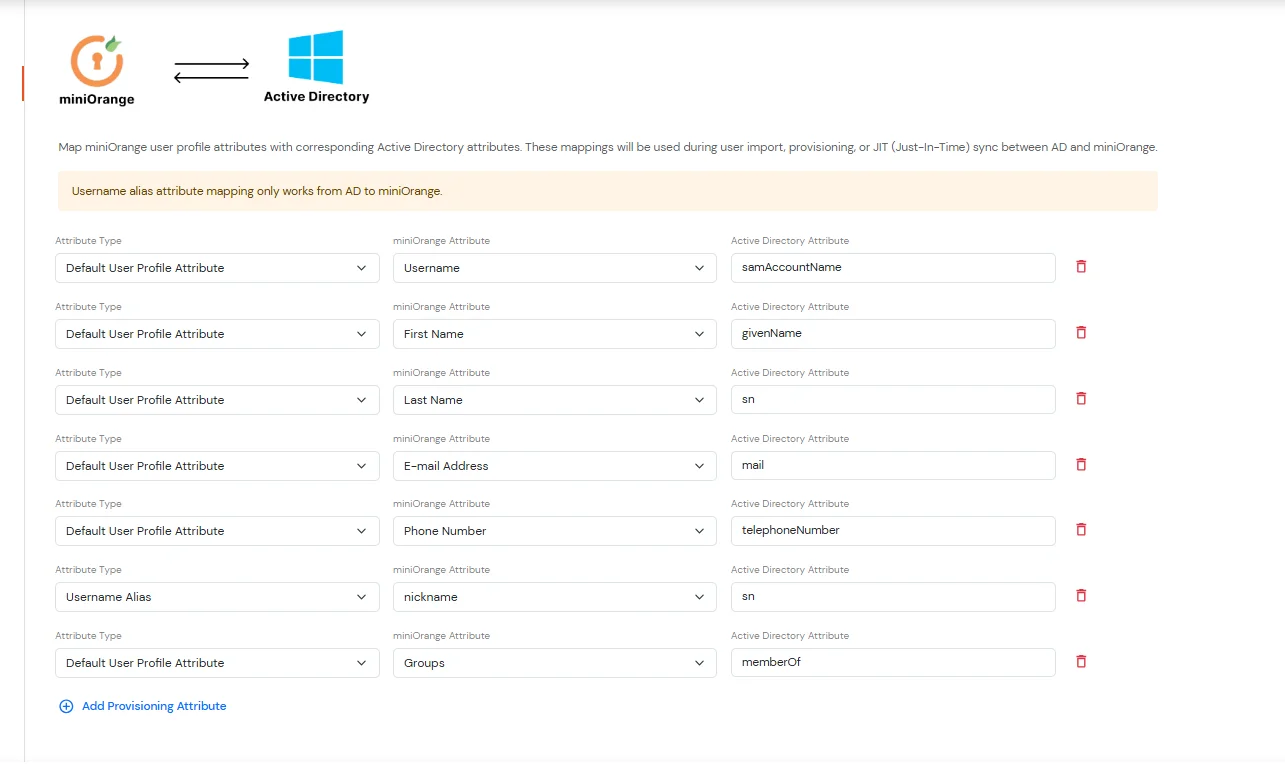
    miniOrange Admin Handbook: IDP Directory Attribute Mapping

  • To import a username alias from Active Directory, add an Attribute Mapping in the Active Directory configuration.
    • Navigate to Active Directory → Attributes → Provisioning Attributes from the left menu.
    • Select Username Alias as the attribute type for provisioning.
    • Choose the alias label that you want to provision as the miniOrange attribute and enter the corresponding Active Directory attribute value.
    • Click Save to apply the Active Directory attribute mapping configuration.
    • Navigate to the Import section of the Active Directory application.
    • Select the users for whom the username alias should be provisioned and click Import.
    • The username alias is successfully provisioned for the imported users in miniOrange.
  • miniOrange Admin Handbook: Import Username Alias from Active Directory

  • To use this feature with the MFA API, refer to the following documentation:
  •  MFA API Guide

  • Use the username alias value in place of the standard username in your API calls.