Hello there!
Need Help? We are right here!

Need Help? We are right here!
Search Results:
×The Custom SMS Provider Configuration page allows administrators to configure and integrate their own SMS gateway provider or use the default miniOrange SMS gateway server. This page enables organizations to send SMS notifications such as OTPs, alerts, and authentication via text messages using a custom or the default provider.
Administrators can define provider-specific configurations such as authentication credentials and request parameters. The page also provides functionality to test the SMS provider configuration. The implementation uses React for UI development, Material UI (MUI) for UI components, and Axios API communication and state handling.
You can contact idpsupport@xecurify.com for adding your own gateway or if you need help with any SMS Gateway integration.
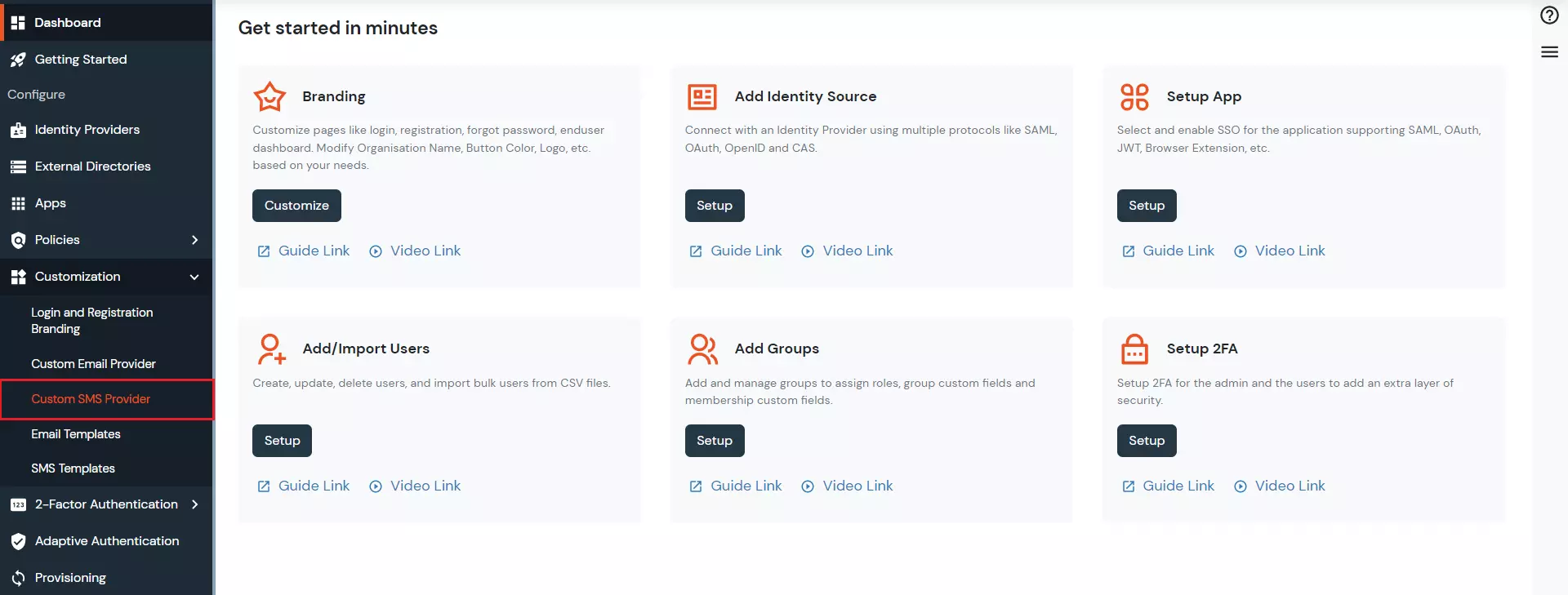
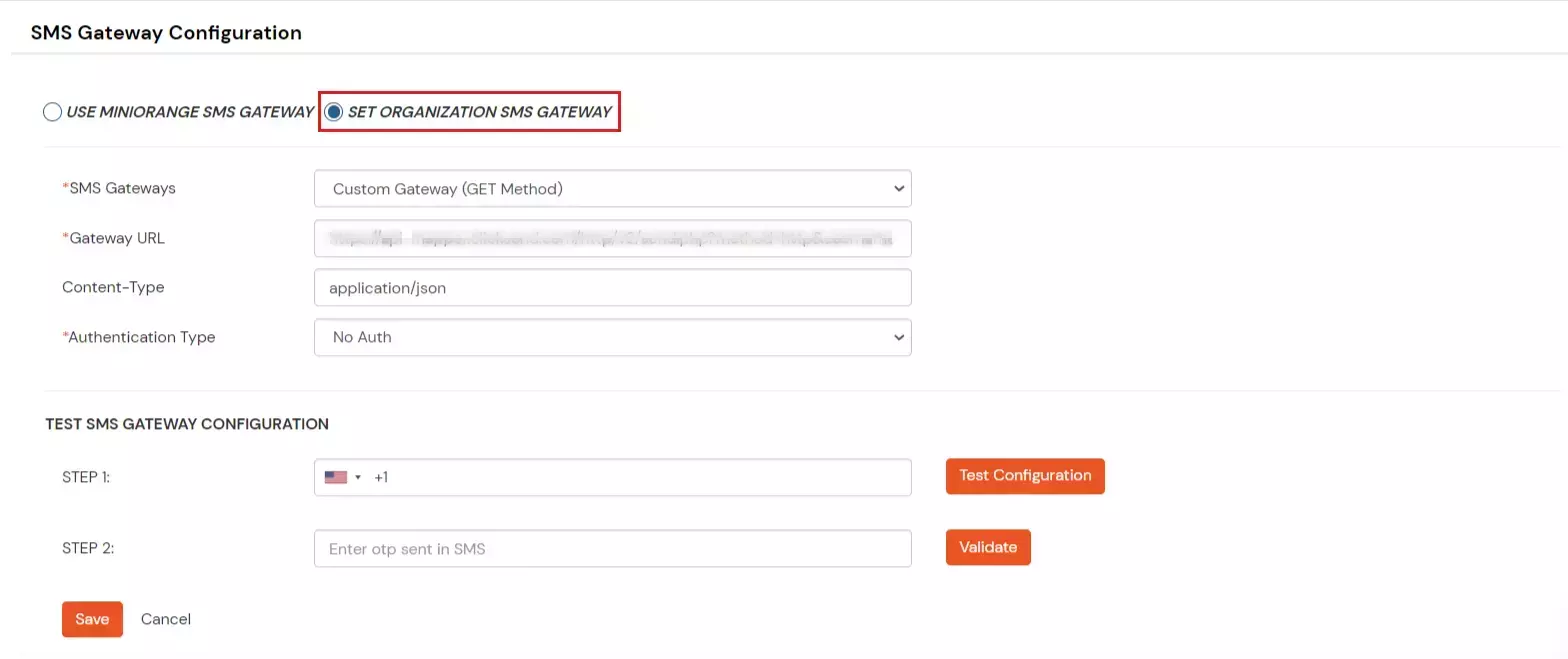
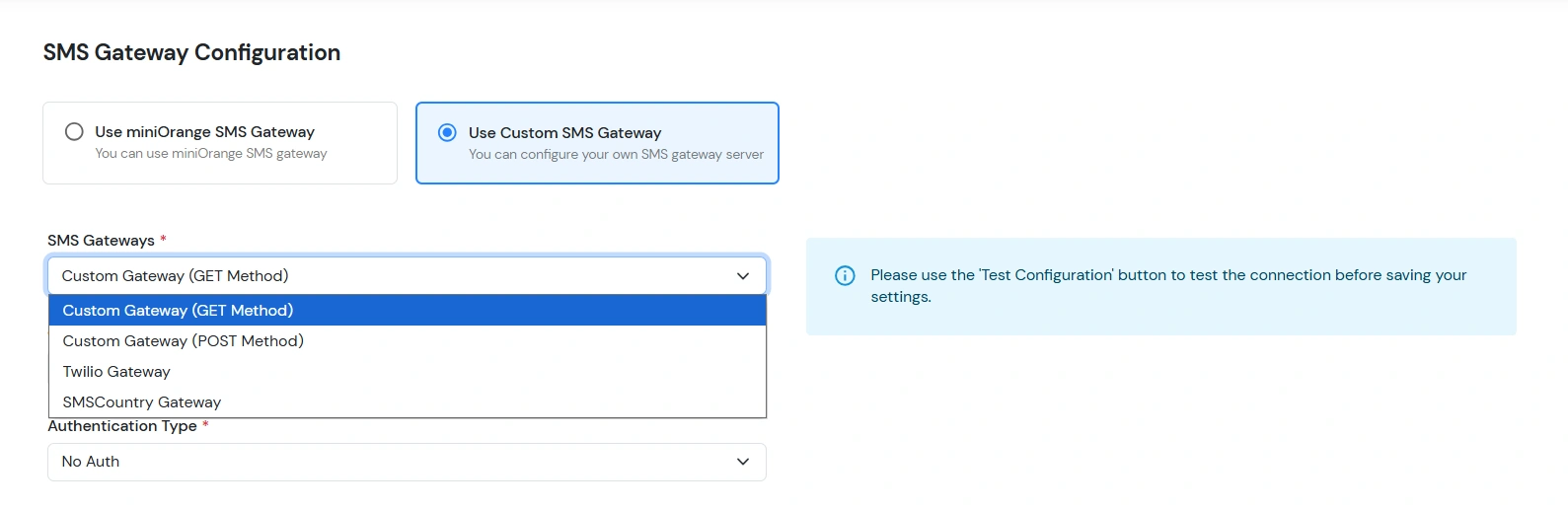
HTTP API with GET Method enables users to send account information in query parameters to their SMS Gateway Providers. Note that the query string (name/value pairs) is sent in the URL of a GET request. A few examples of providers using the GET method include msg91, Clicksend, and BulkGate.
Note: The query string (name/value pairs) is sent in the URL of a GET request. A few examples of providers using the GET method include MSG91, Clicksend, and BulkGate.
To configure your SMS gateway using GET method, follow the steps below.
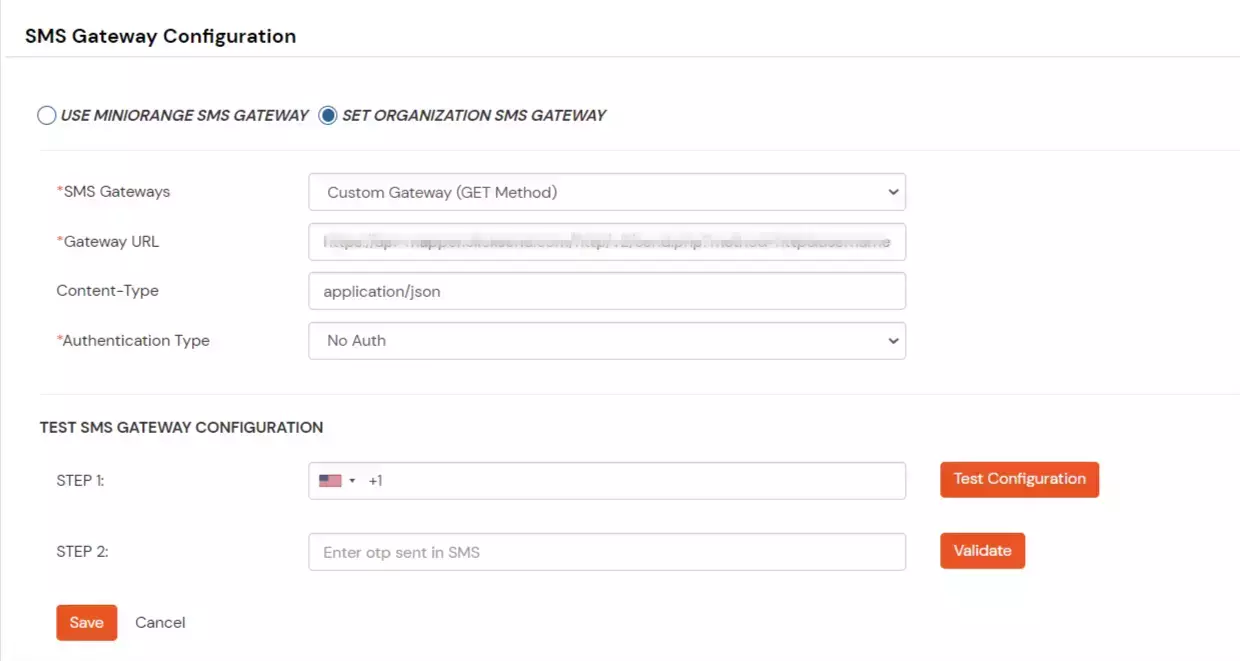
| Parameter | Description |
|---|---|
| URL | https://api-mapper.clicksend.com/http/v2/send.php?method=http&username=YOURUSERNAME&key=YOURAPIKEY&to=##phone##&message=##message## |
| Authentication Type | No Auth |
HTTP API with POST method is used to send data to a server to create/update a resource.
The data sent to the server with POST is stored in the request body of the HTTP request and sent to SMS Gateway Server.
Eg: POST /rest.messagebird.com/api/messages
Host: localhost
name1=value1&name2=value2
A few examples of providers using the POST method include Alibaba, Plivo, and MessageBird.
To configure your SMS gateway using POST method, follow the steps below.

| Parameter | Description |
|---|---|
| URL | https://rest.messagebird.com/api/messages |
| Content-type | application/json , application/x-www-form-urlencoded, and text/plain |
| Authentication Type | No Auth |
| Parameter | Description |
|---|---|
| Gateway Parameter for SMS Body | ##message## |
| Gateway Parameter for Recipient's Phone Number | ##phone## |
| Gateway Parameter Key | Gateway Parameter Value |

| Parameter | Description |
|---|---|
| URL | https://rest.messagebird.com/api/messages |
| Content-type | application/json , application/x-www-form-urlencoded, and text/plain |
| Authentication Type | No Auth |
| User Name | Enter your username |
| Password | Enter a password |
| Parameter | Description |
|---|---|
| Gateway Parameter for SMS Body | ##message## |
| Gateway Parameter for Recipient's Phone Number | ##phone## |
| Gateway Parameter Key | Gateway Parameter Value |
Twilio Communications APIs enable voice, messaging, and video conversations within web and mobile apps. This facilitates developers making easy communications between different apps.
Twilio can be used to send SMS, make Voice Calls and more, across the customer journey. All you need to do is integrate its API with miniOrange. Click here to know more:
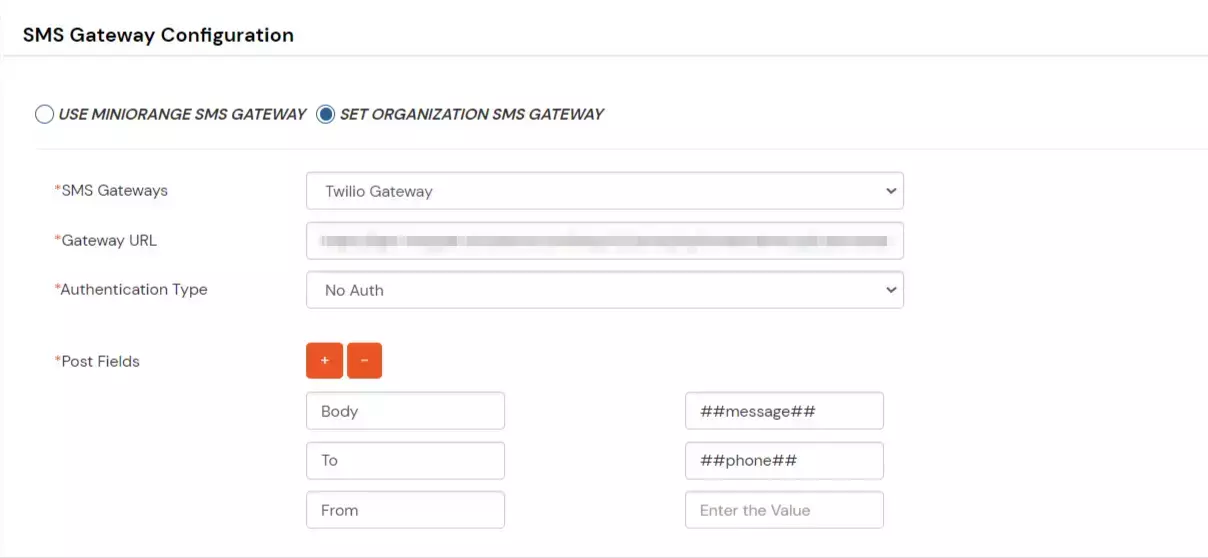
To configure your SMS gateway using Twilio Gateway, follow the steps below.
| Parameter | Description |
|---|---|
| Gateway URL | https://api.twilio.com/2010-04-01/Accounts/YOURACCOUNTSID/Messages.json |
| Authentication Type | Basic Auth |
| Username | ACCOUNTSID |
| Password | AUTHTOKEN |
| Parameter | Description |
|---|---|
| Body | ##message## |
| To | ##phone## |
| From | Enter the temporary phone number provided by the Twilio Gateway |
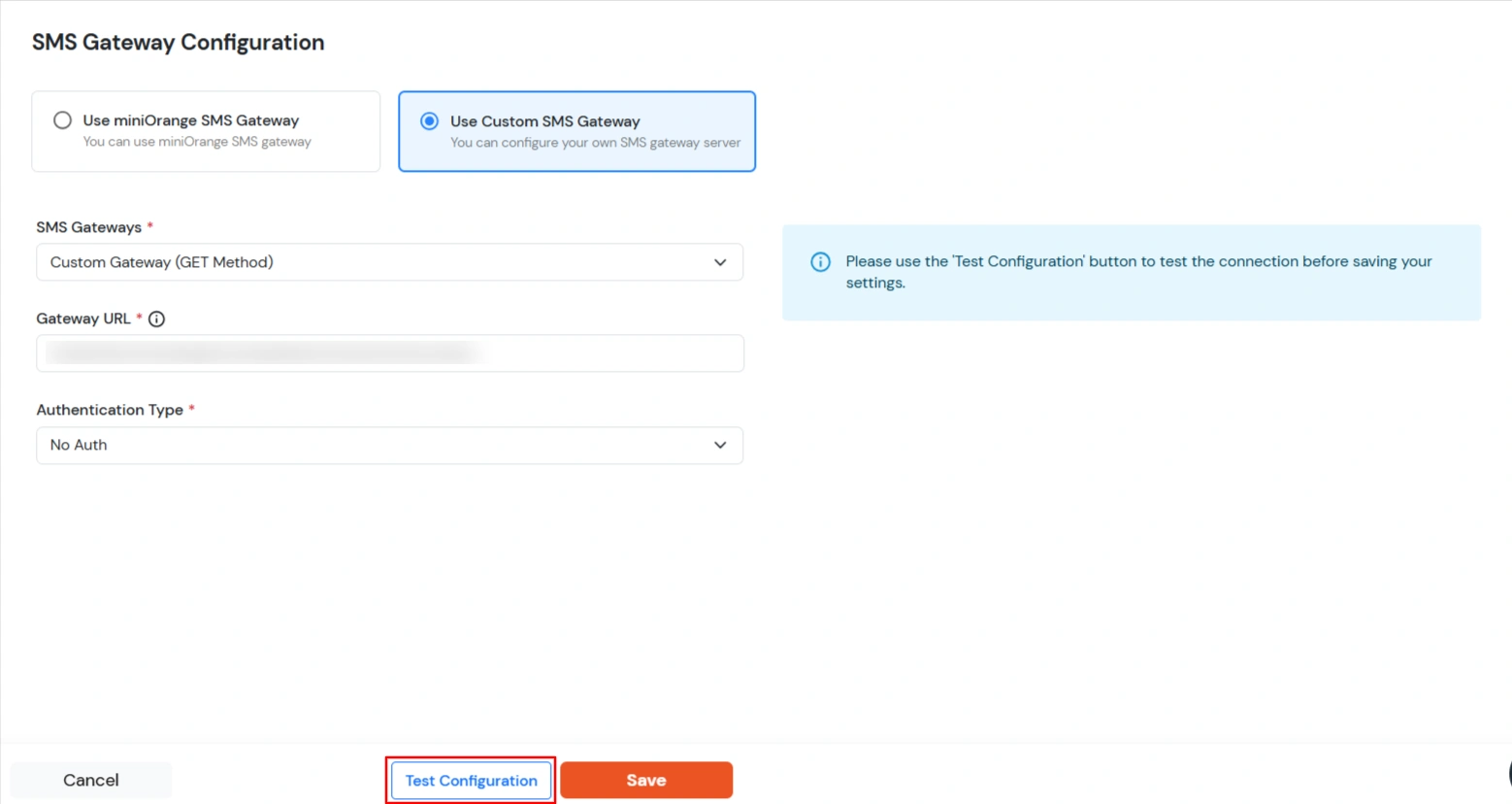
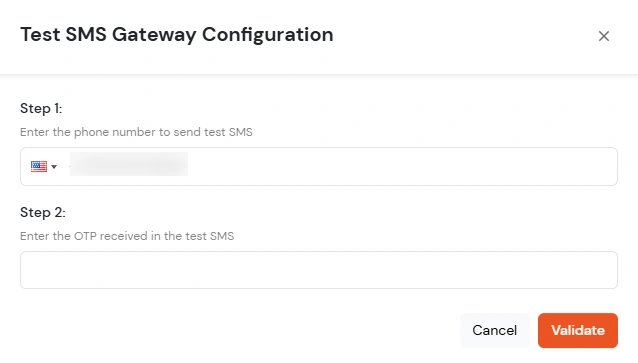
You can test your SMS Gateway with the following steps.

If you have any further queries. Please contact us at idpsupport@xecurify.com
