Hello there!
Need Help? We are right here!

Need Help? We are right here!
Search Results:
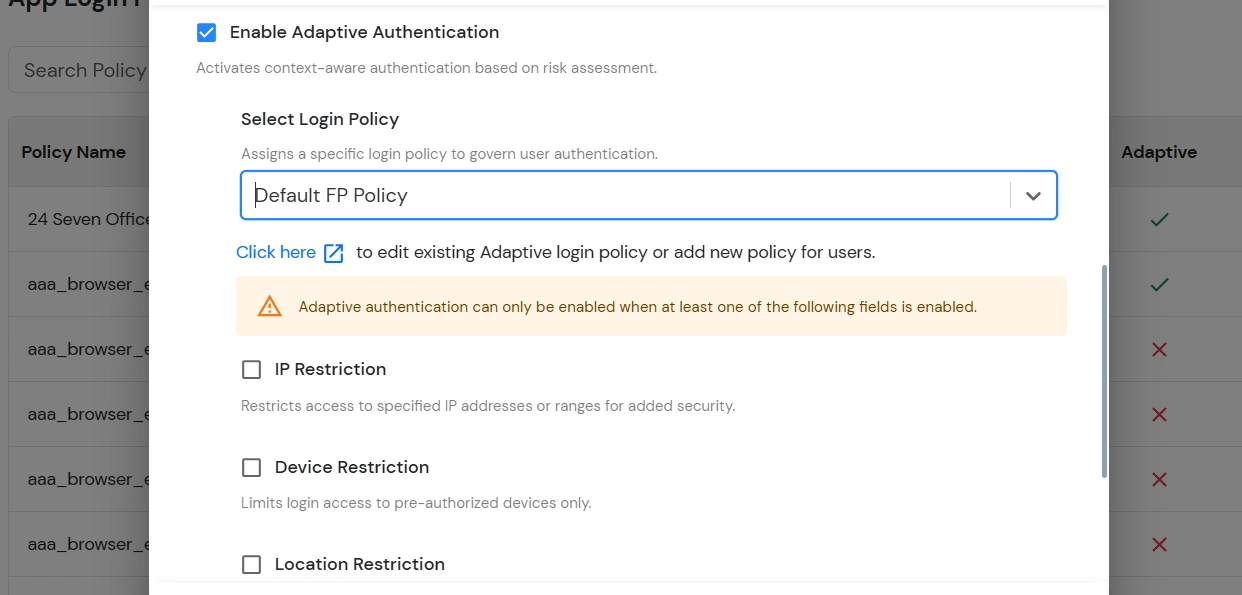
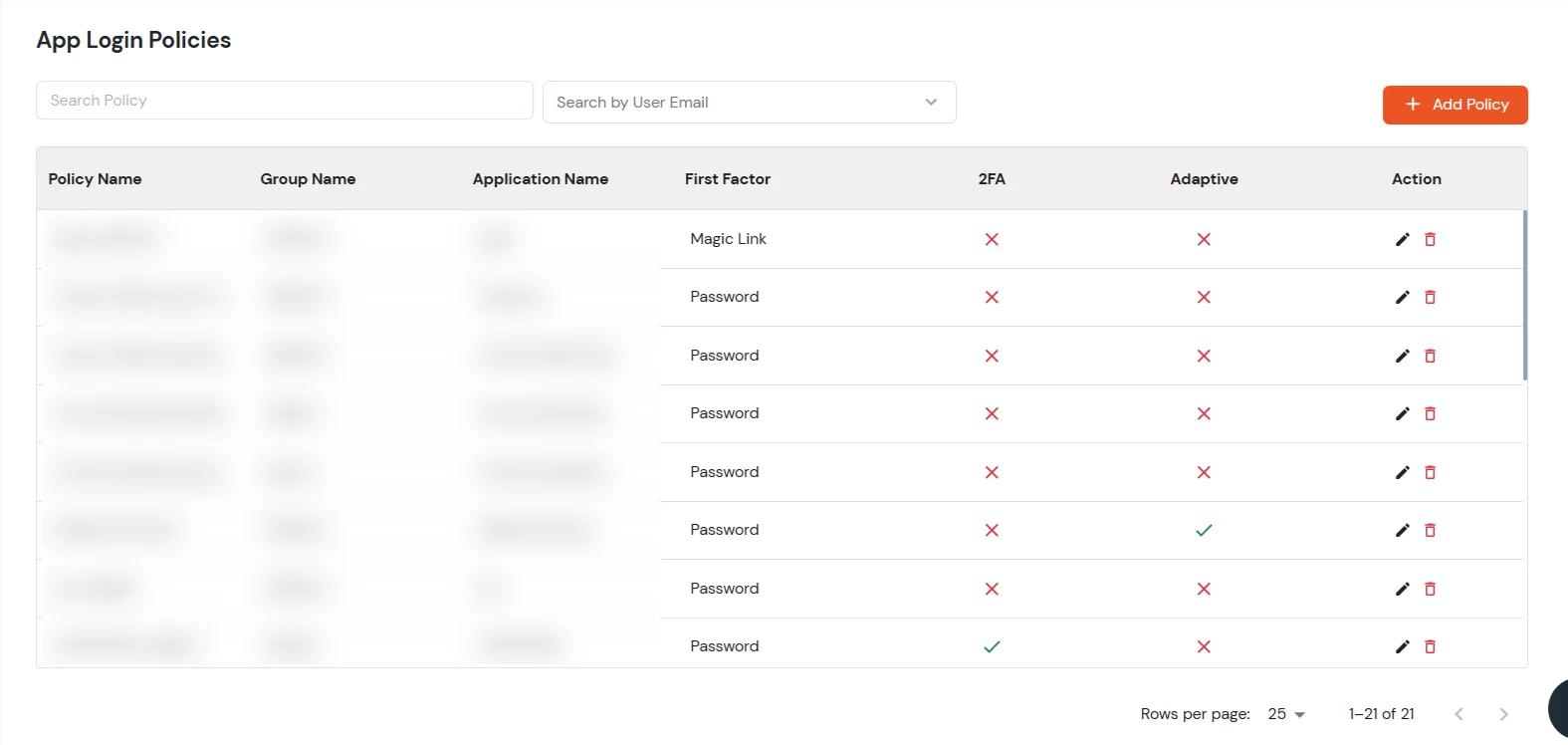
×App Login Policies allow administrators to control how users access applications within miniOrange by defining authentication methods, access conditions, and security restrictions. These policies can be configured to enforce specific login requirements such as passwordless authentication, MFA, Magic Link login, device-based restrictions, and IP-based access controls. Administrators can assign policies to specific users, groups, or applications to ensure secure and controlled access based on organizational security requirements.
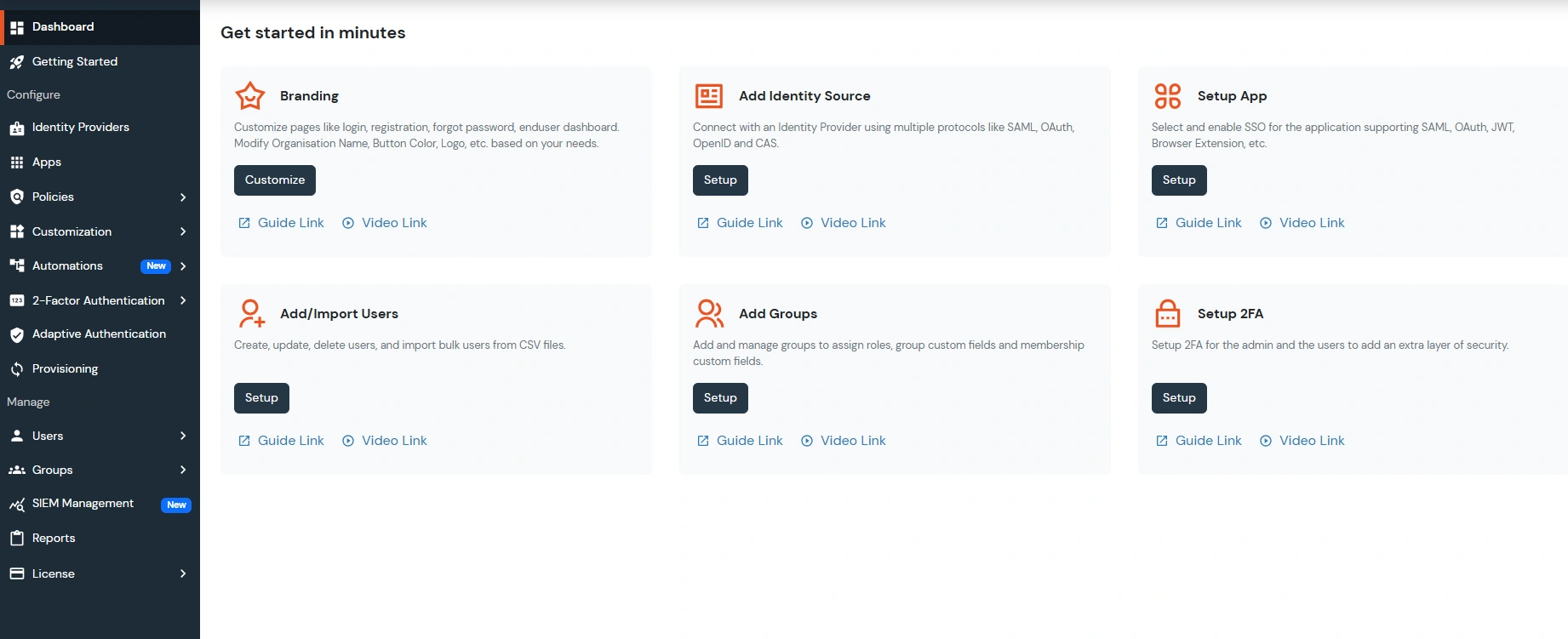
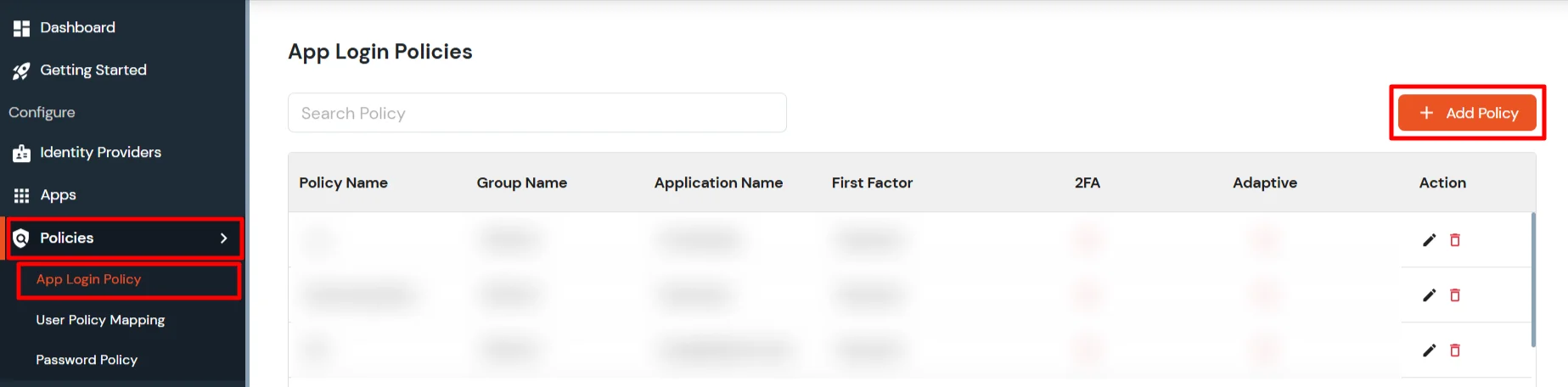
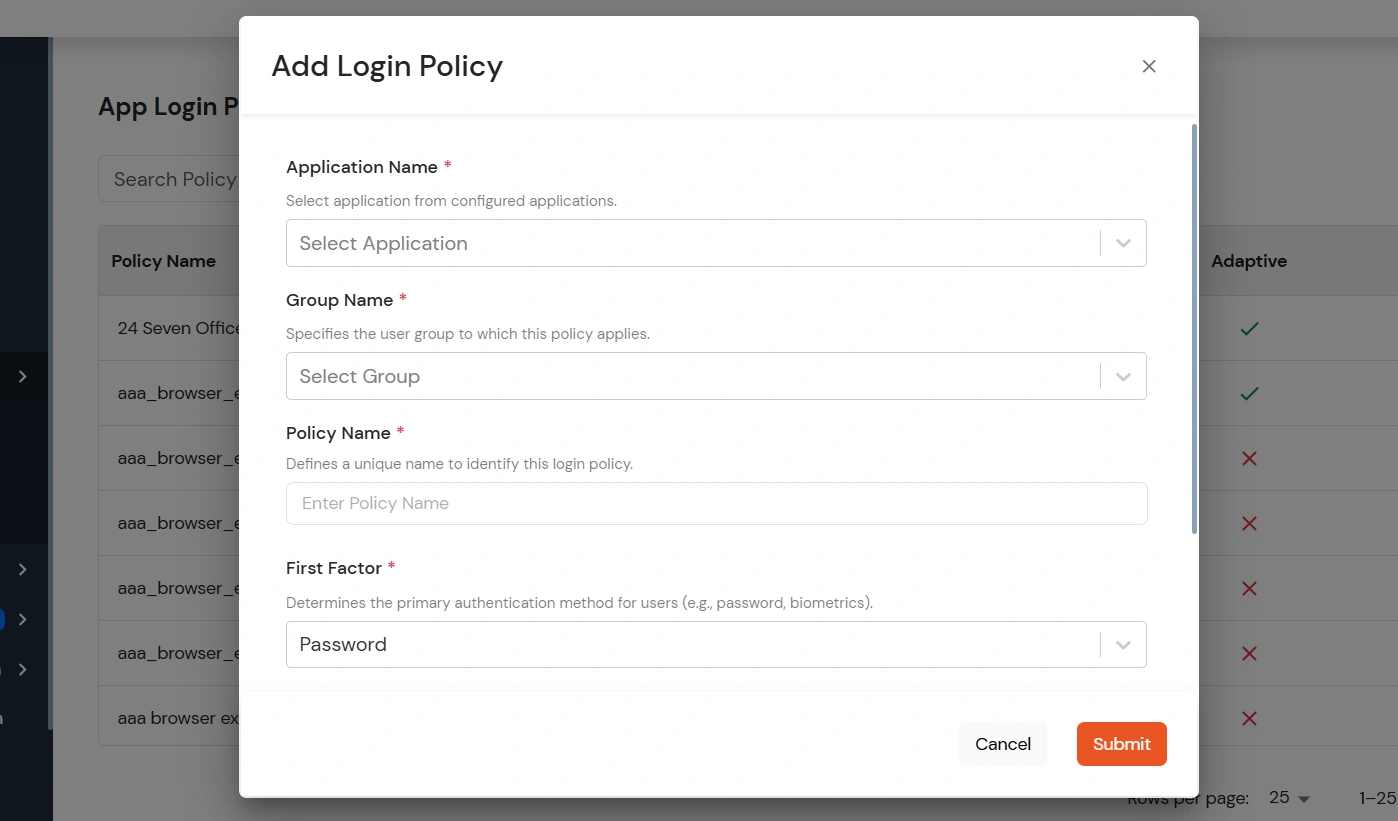
Follow the steps below to create a new App Login Policy:
| Application Name | Select the application from the list of configured applications to which the login policy should be applied. |
| Group Name | Select the user group for which the assigned application login policy will be enforced. |
| Policy Name | A unique name for the policy so it can be identified from the list of policies. |
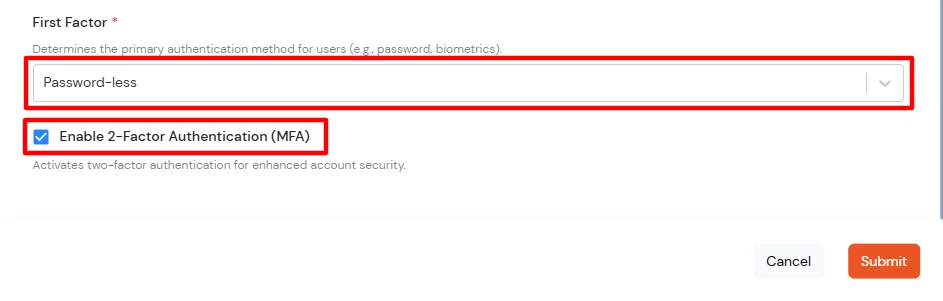
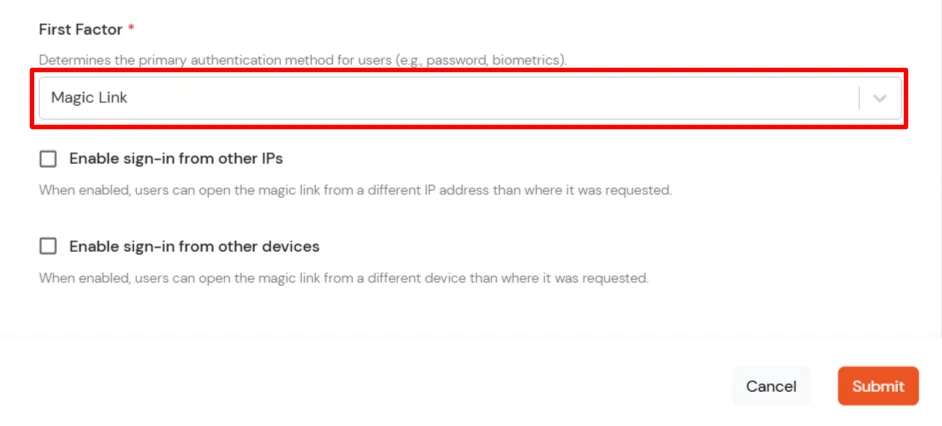
| First Factor | The authentication method for users. You can choose
|
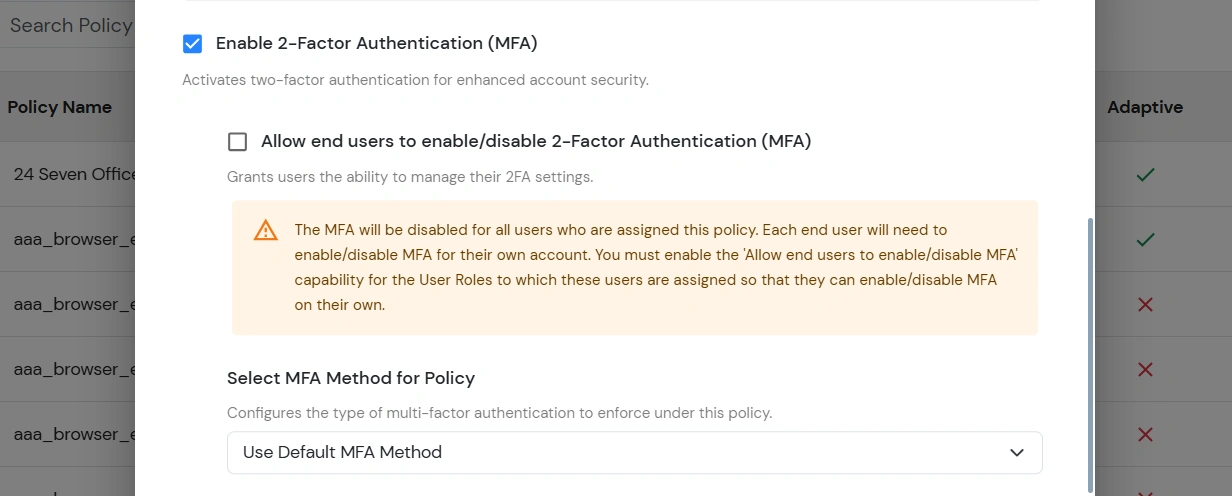
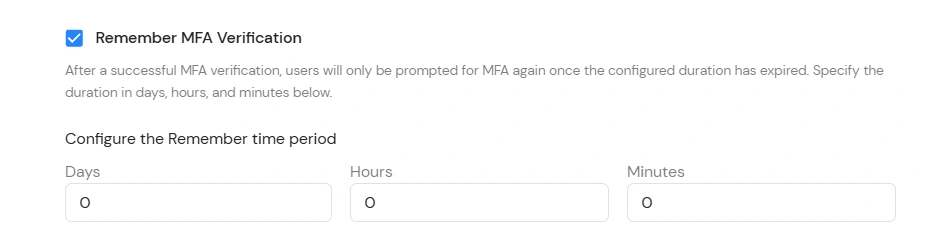
Note: Remember MFA Verification is not available when Adaptive Authentication is enabled.
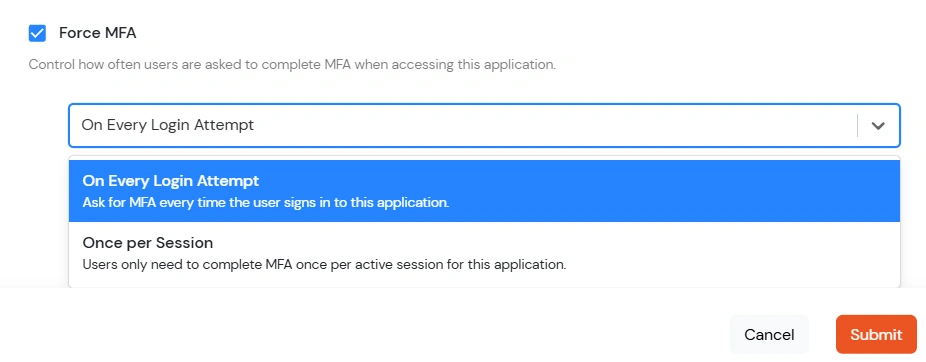
| On Every Login Attempt |
|
| Once per Session |
|
Note: When Force MFA is enabled with Adaptive Authentication, no additional Force MFA options are available.
Note:
Remember MFA Verification and Force MFA cannot be enabled simultaneously. Enable only one option for a policy.
Remember MFA Verification and Force MFA are not available for Passwordless applications.
To edit the existing policy, follow these steps:
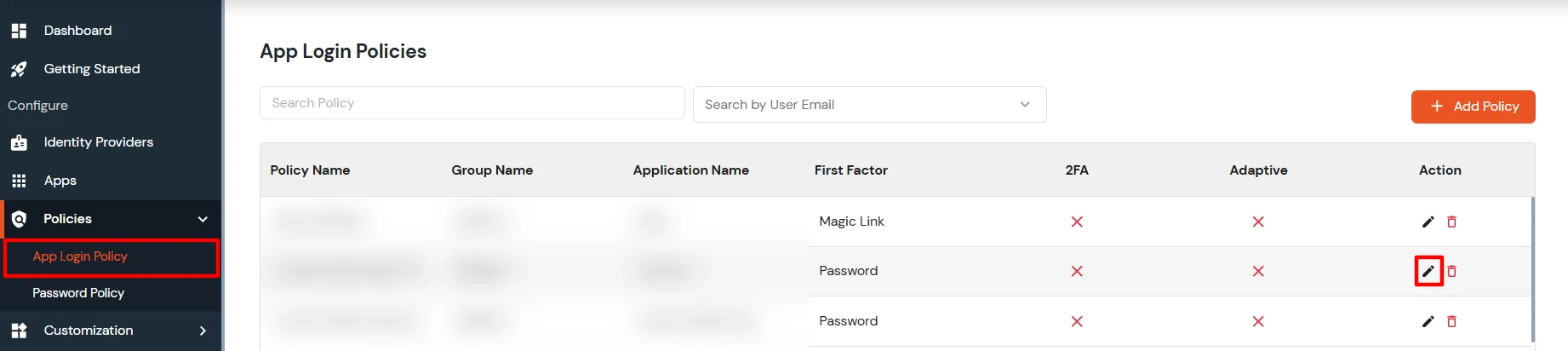
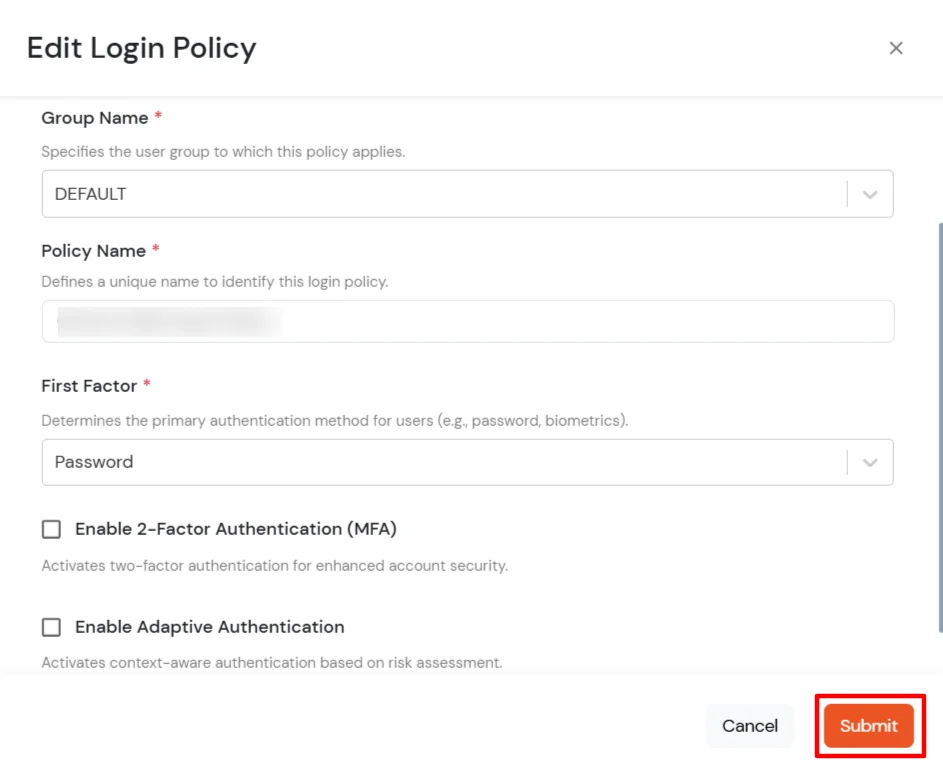
Create a user group with only the users who should access the application, assign them to the group, then follow How to create a New Policy to add a policy for that application and group. Remove the app’s default policy if it exists whenever broad access should no longer apply.
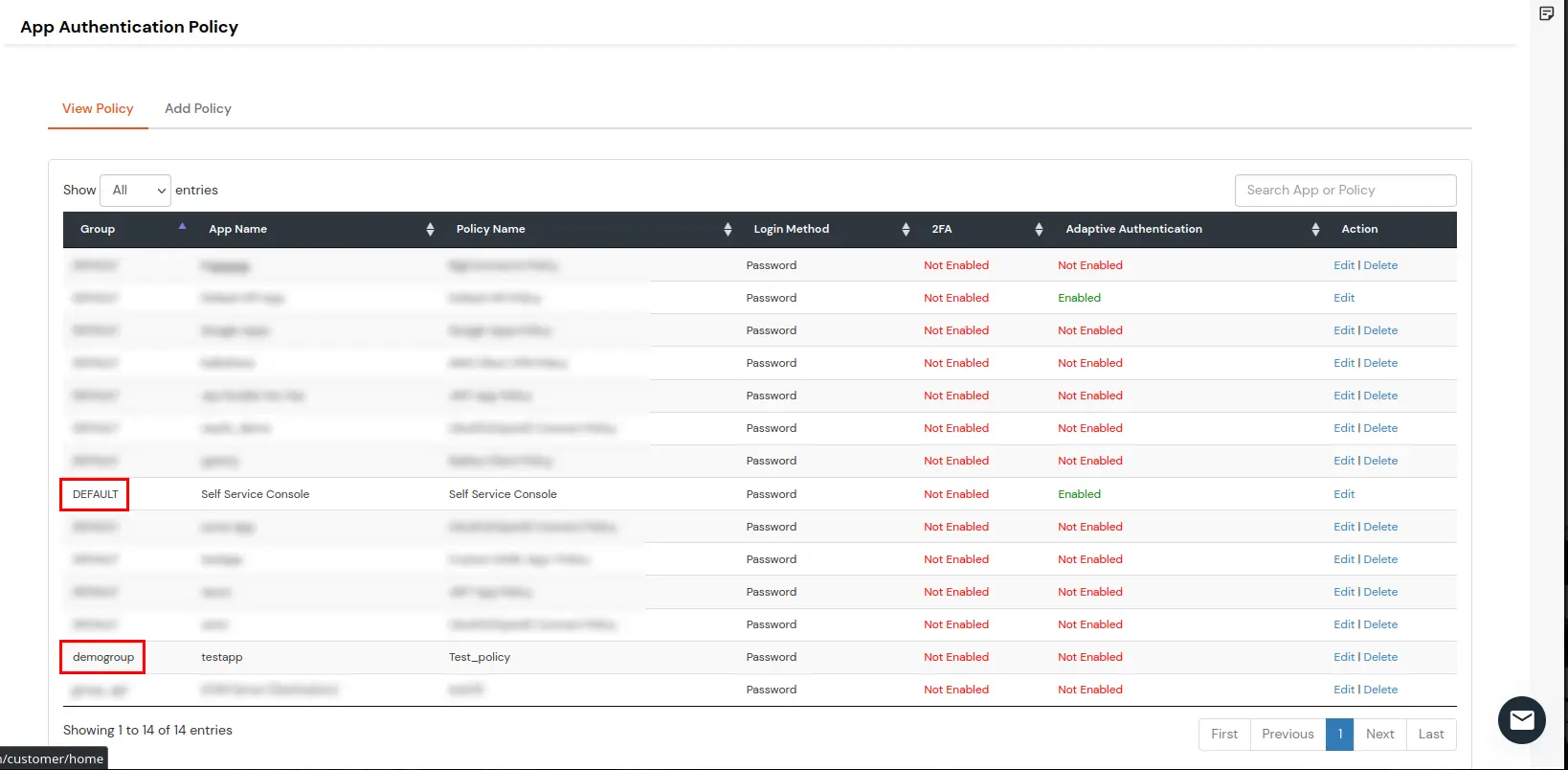
In the example below, Self Service Console uses a DEFAULT group policy so all users keep access, while testapp has only a demogroup policy—only that group can use the app.
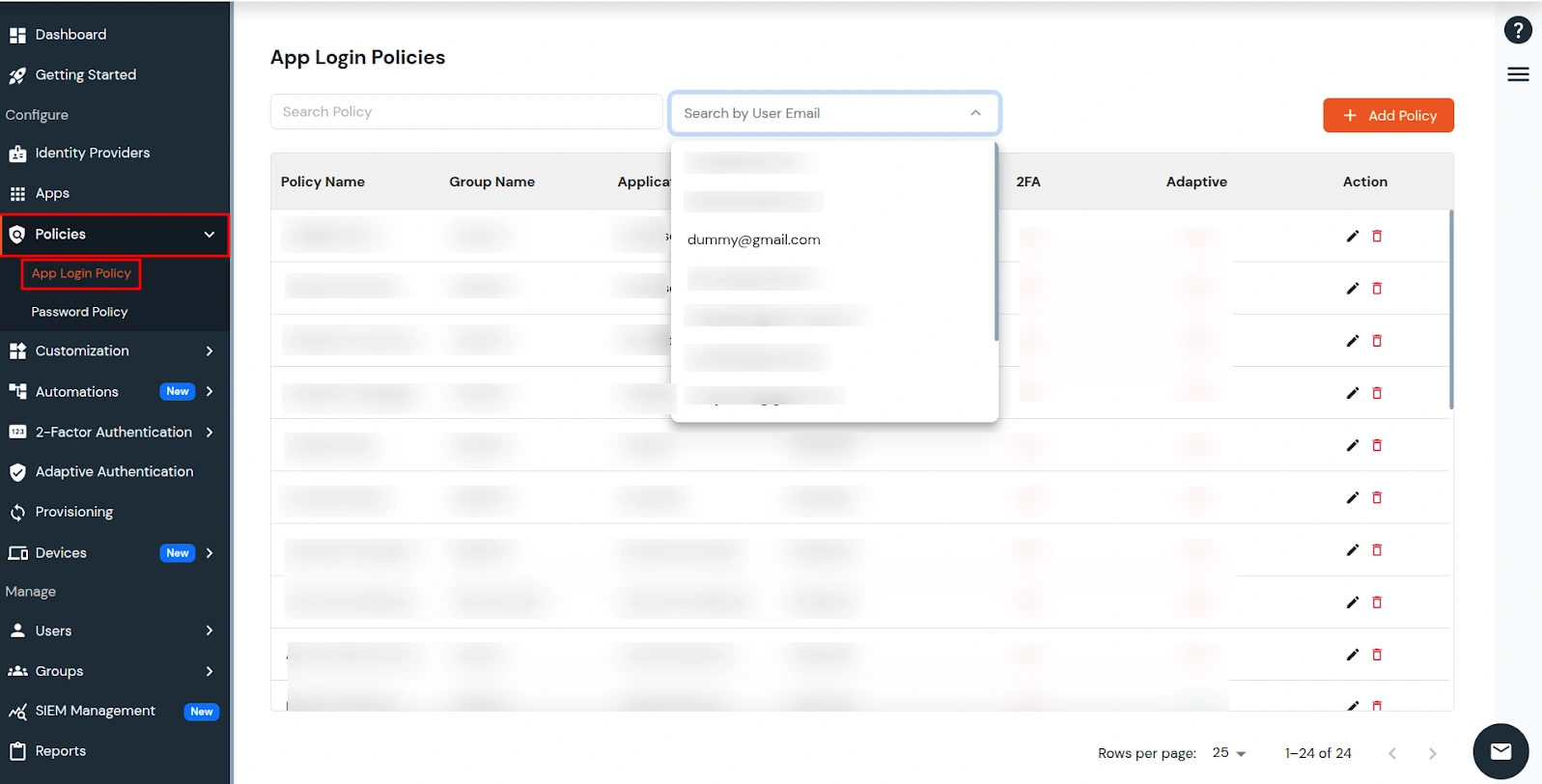
View all policies assigned to a specific user from the App Login Policies page. At the top of the list you will see Search Policy on the left and Search by User Email on the right.
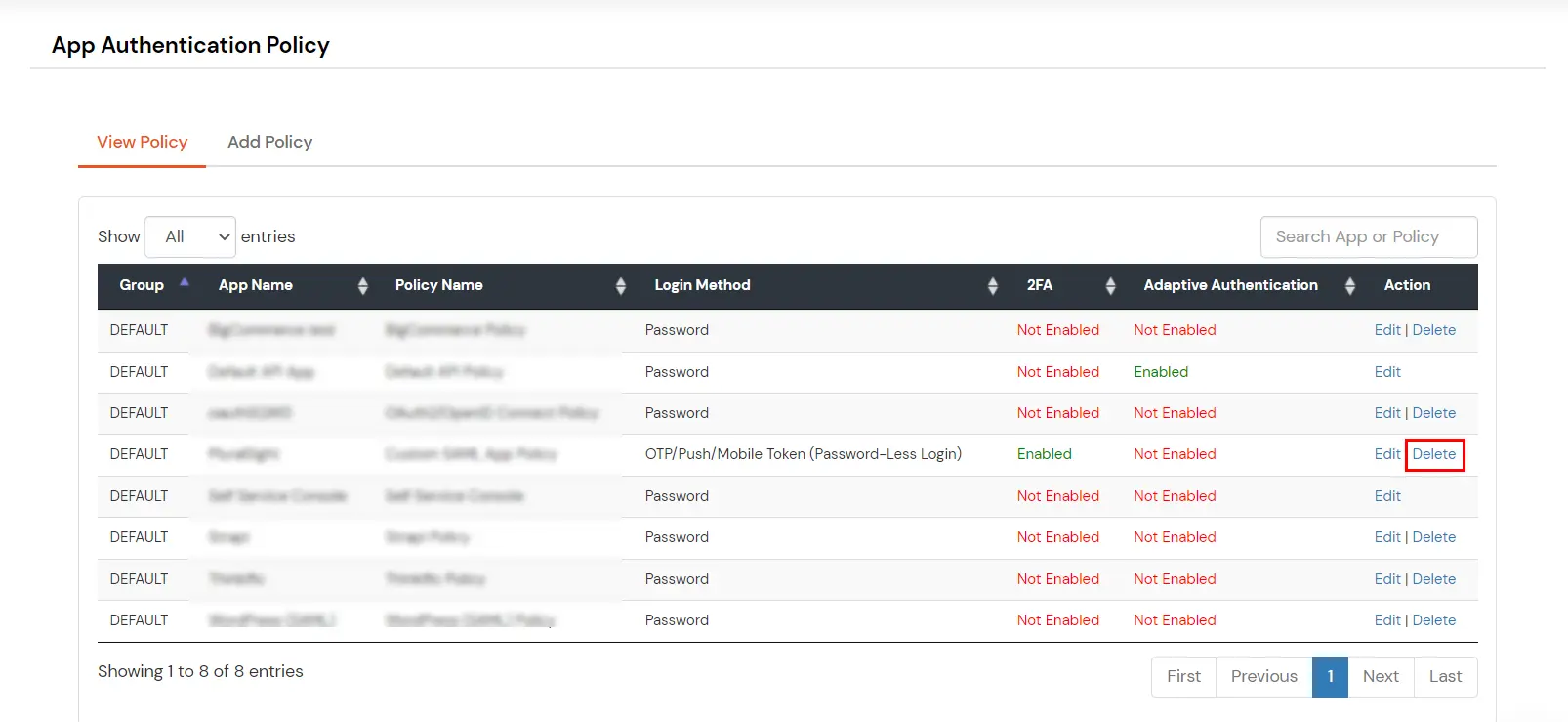
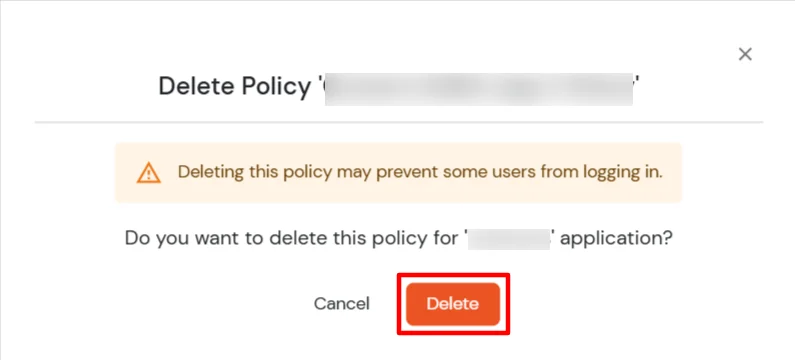
To delete a policy, follow these steps: