Hello there!
Need Help? We are right here!

Need Help? We are right here!
Search Results:
×
PeopleSoft, developed by Oracle, is a suite of business applications for human resource management, financials, supply chain management, and other core business functions. Adding MFA to PeopleSoft applications helps organizations protect against unauthorized access, thereby enhancing the security of their data and systems.
PeopleSoft Multi-Factor Authentication (MFA) refers to a security enhancement for PeopleSoft applications that requires users to provide two or more verification factors to gain access to a resource, such as an application or online account. This is an extra layer of security designed to ensure that you're the only person who can access your account, even if someone else knows your password.
Multi-Factor Authentication typically involves a combination of something you know (like a password or PIN), something you have (such as a smartphone app to approve authentication requests or a security token), and something you are (like a fingerprint or other biometric method). By requiring two or more of these authentication methods, PeopleSoft MFA makes it significantly harder for unauthorized users to access sensitive information and systems.
miniOrange offers 1 hour free help through a consultation call with our System Engineers to Install or Setup PeopleSoft SSO SAML solution in your environment with 30 days free trial. For this, you need to just send us an email at idpsupport@xecurify.com to book a slot and we'll help you setting it up in no time.
miniOrange provides 15+ authentication methods and solutions for various use cases. Organizations can set up specific authentication and configuration options in addition to security, including
miniOrange provides user authentication from various external sources, which can be Directories (like ADFS, Microsoft Active Directory, OpenLDAP, AWS etc), Identity Providers (like Microsoft Entra ID, Okta, AWS), and many more. You can configure your existing directory/user store or add users in miniOrange.

miniOrange
Authenticator App



Google
Authenticator App

Authy 2-Factor
Authentication App

Microsoft
Authenticator App
1. Applications involved in the deployment
2. Port Configuration
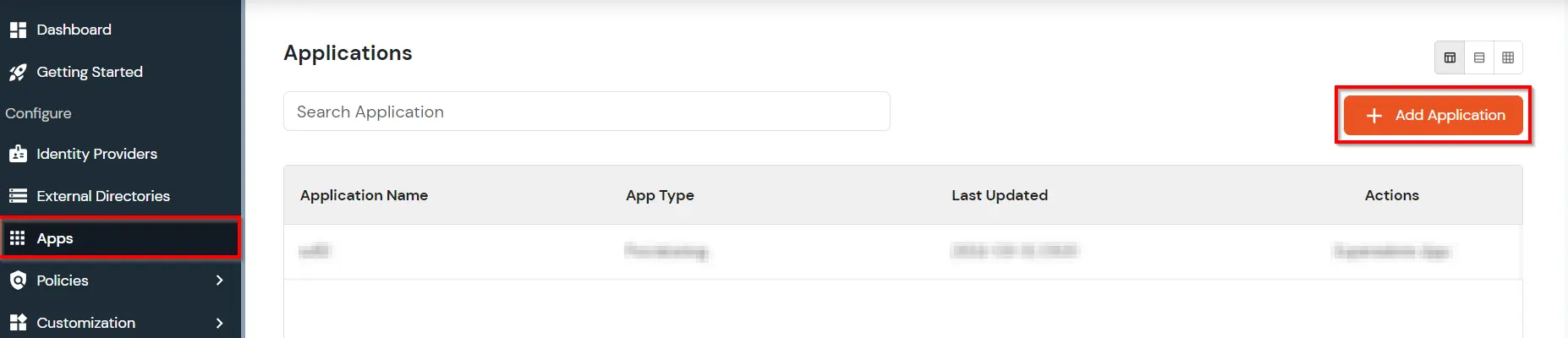
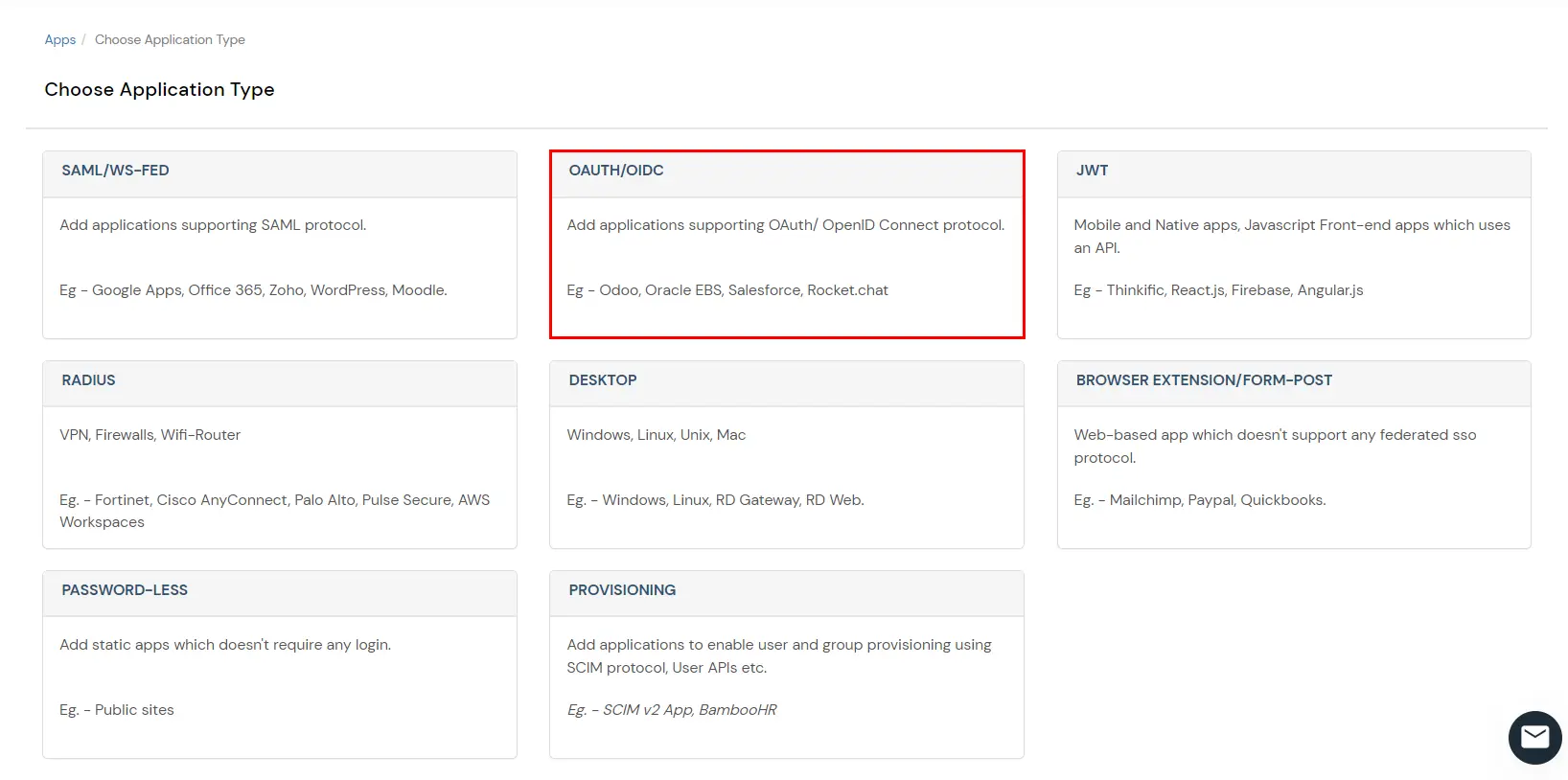
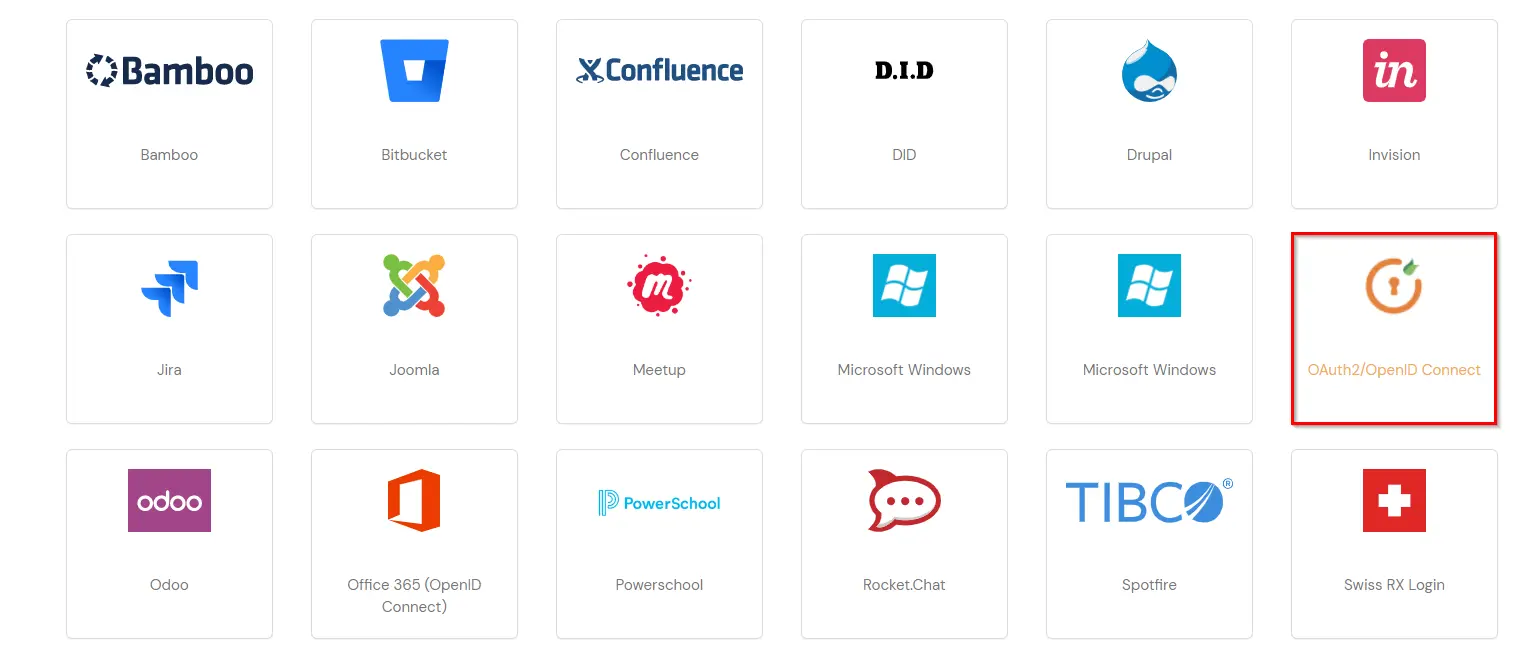
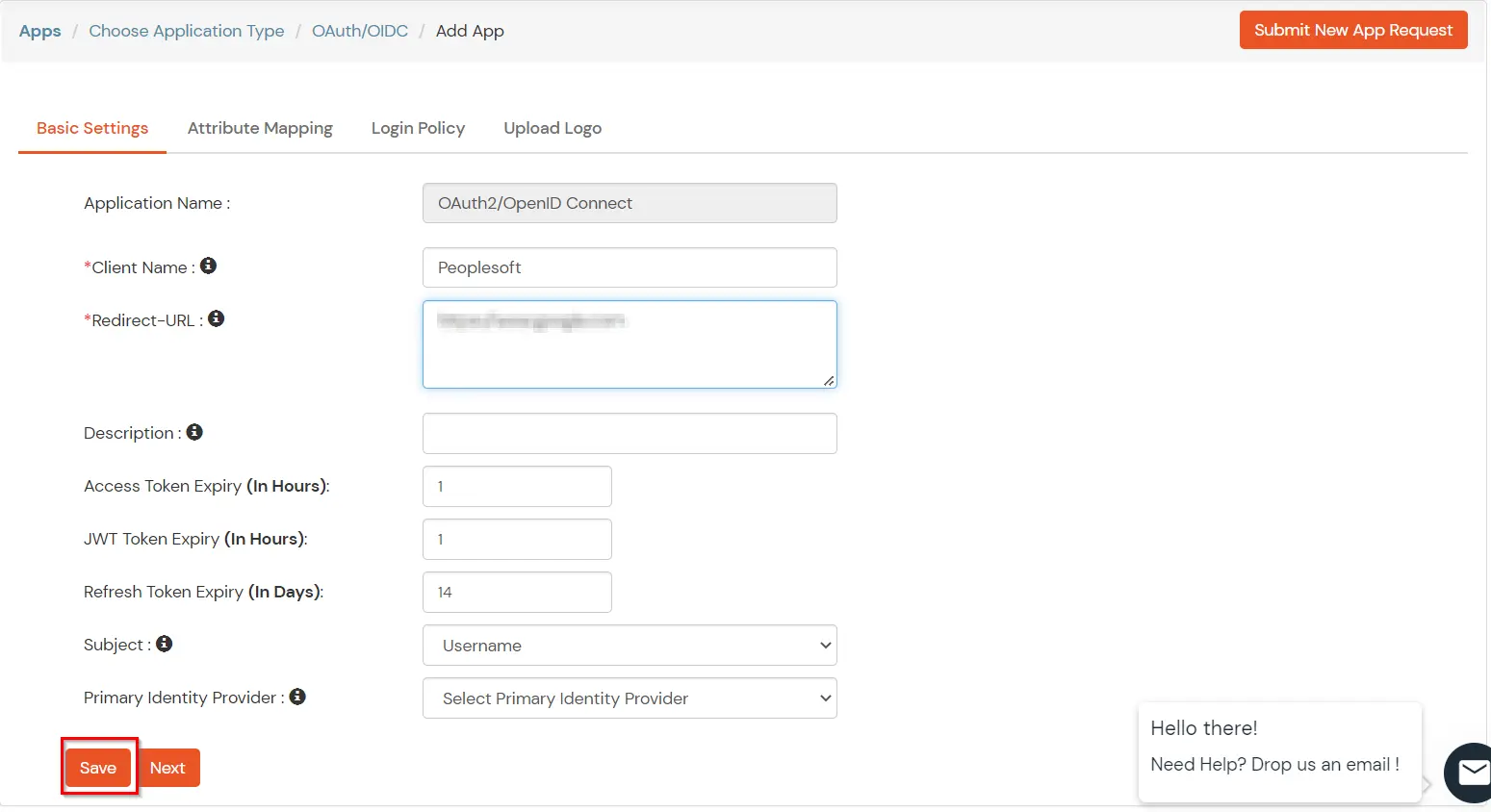
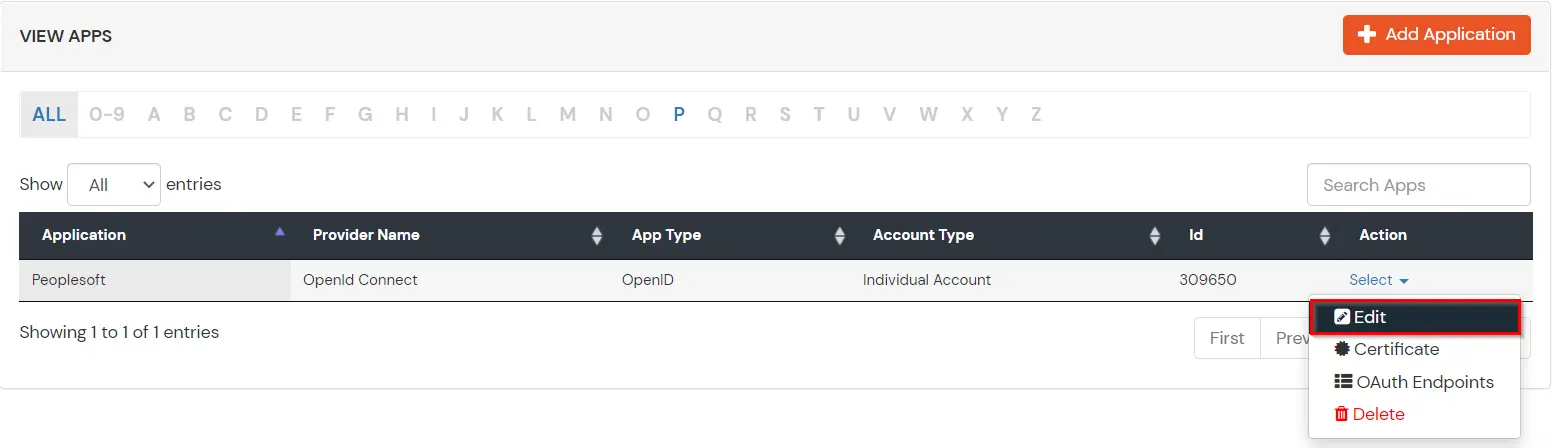
You can edit Application by using the following steps:
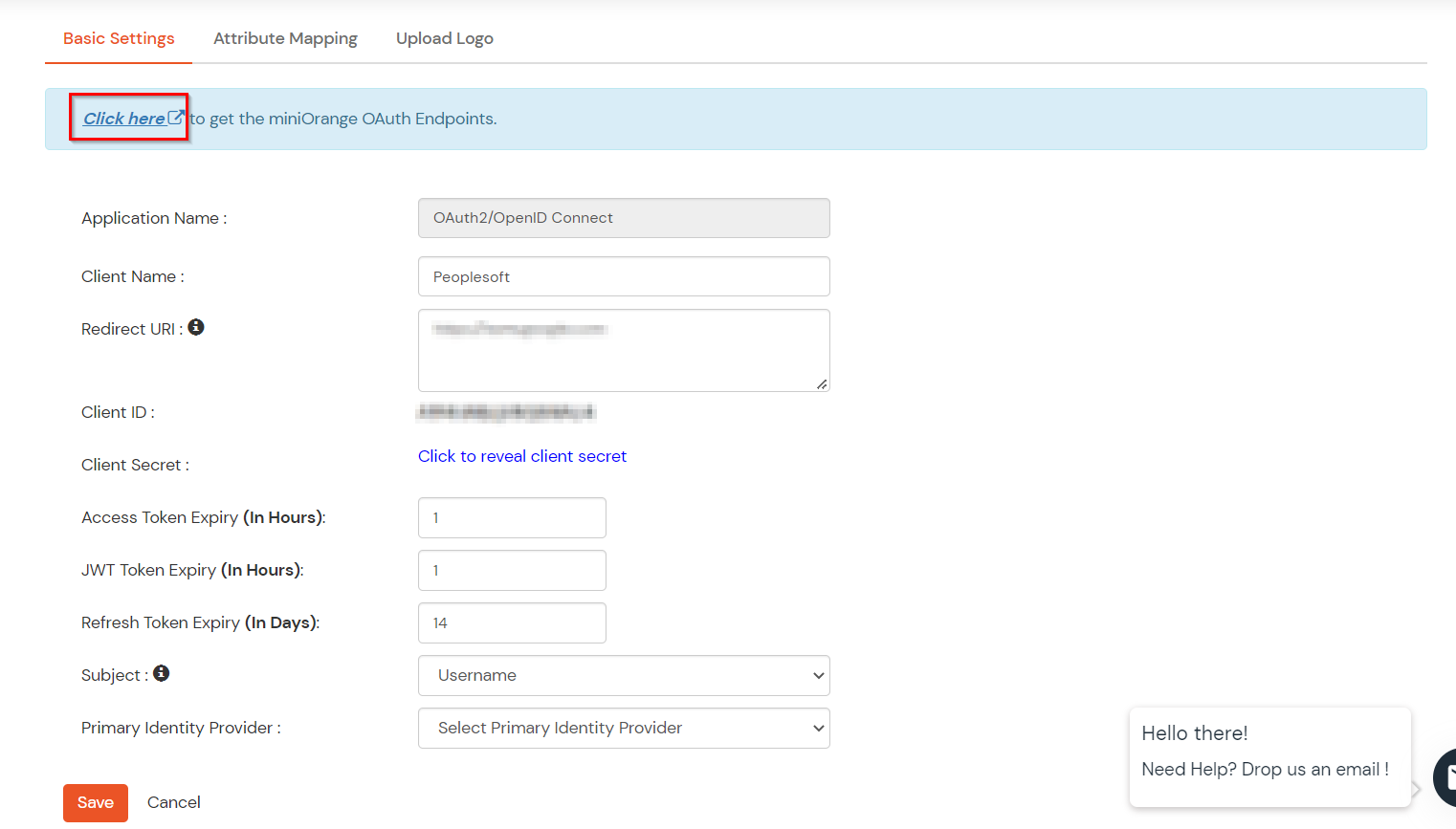
| Authorization Endpoint: | https://test.miniorange.in/moas/idp/openidsso (Note: Use this endpoint only if you want to use miniorange as oauth identity server.) https://test.miniorange.in/moas/broker/login/oauth/260174 (Note: Use this enpoint only if you are configuring any Identity Provider in Identity Providers Menu and not using miniorange as IDP.) |
| Token Endpoint: | https://test.miniorange.in/moas/rest/oauth/token |
| User Info Endpoint: | https://test.miniorange.in/moas/rest/oauth/getuserinfo |
| Introspection Endpoint: | https://test.miniorange.in/moas/rest/oauth/introspect |
| Revoke Endpoint: | https://test.miniorange.in/moas/rest/oauth/revoke |
| OpenID Single Logout Endpoint: | https://test.miniorange.in/moas/idp/oidc/logout?post_logout_redirect_uri=<YOUR-APP-LOGOUT-URL> |
| email: | View email address of the user |
| profile: | View profile attributes of the user account |
| openid: | Retrieve JWT token for OpenID Connect |
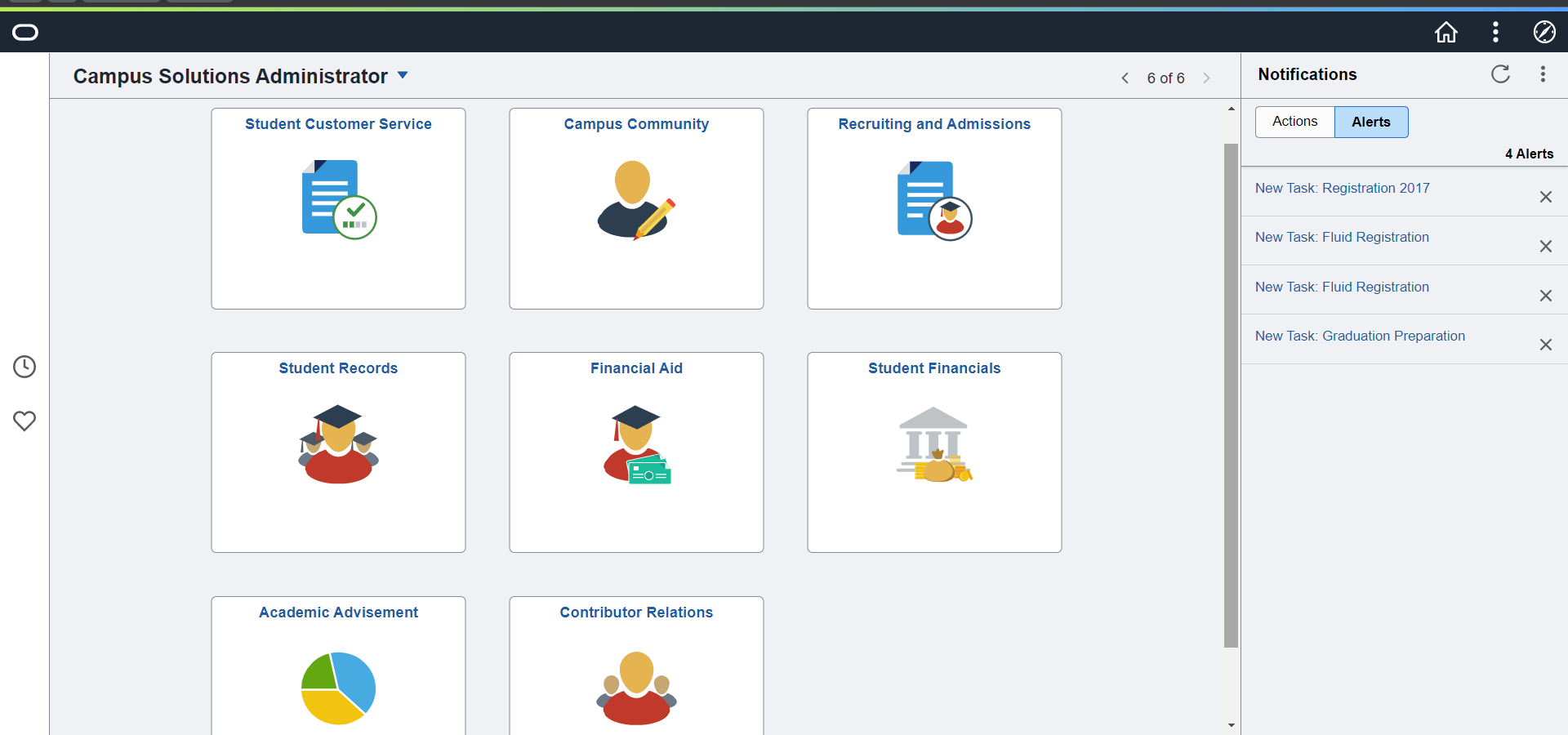
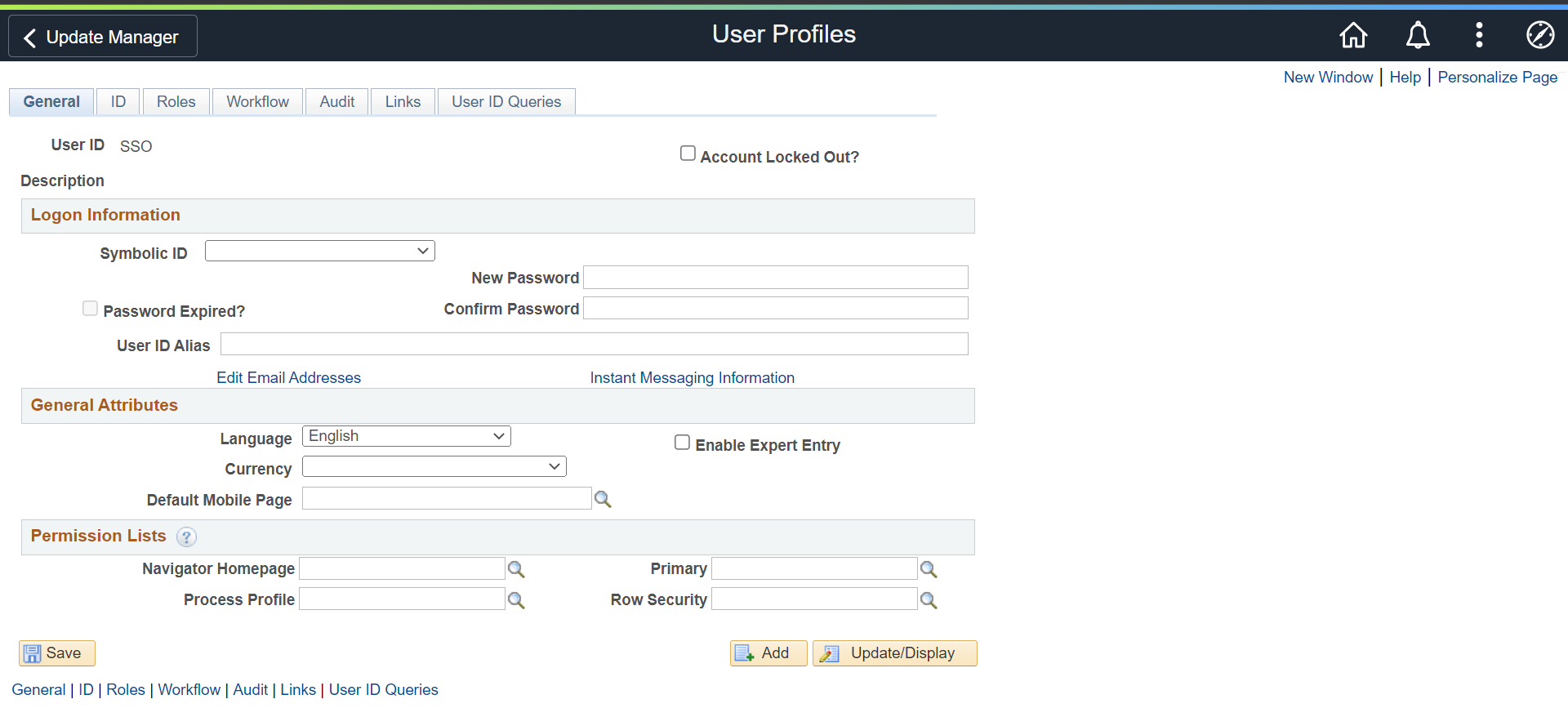
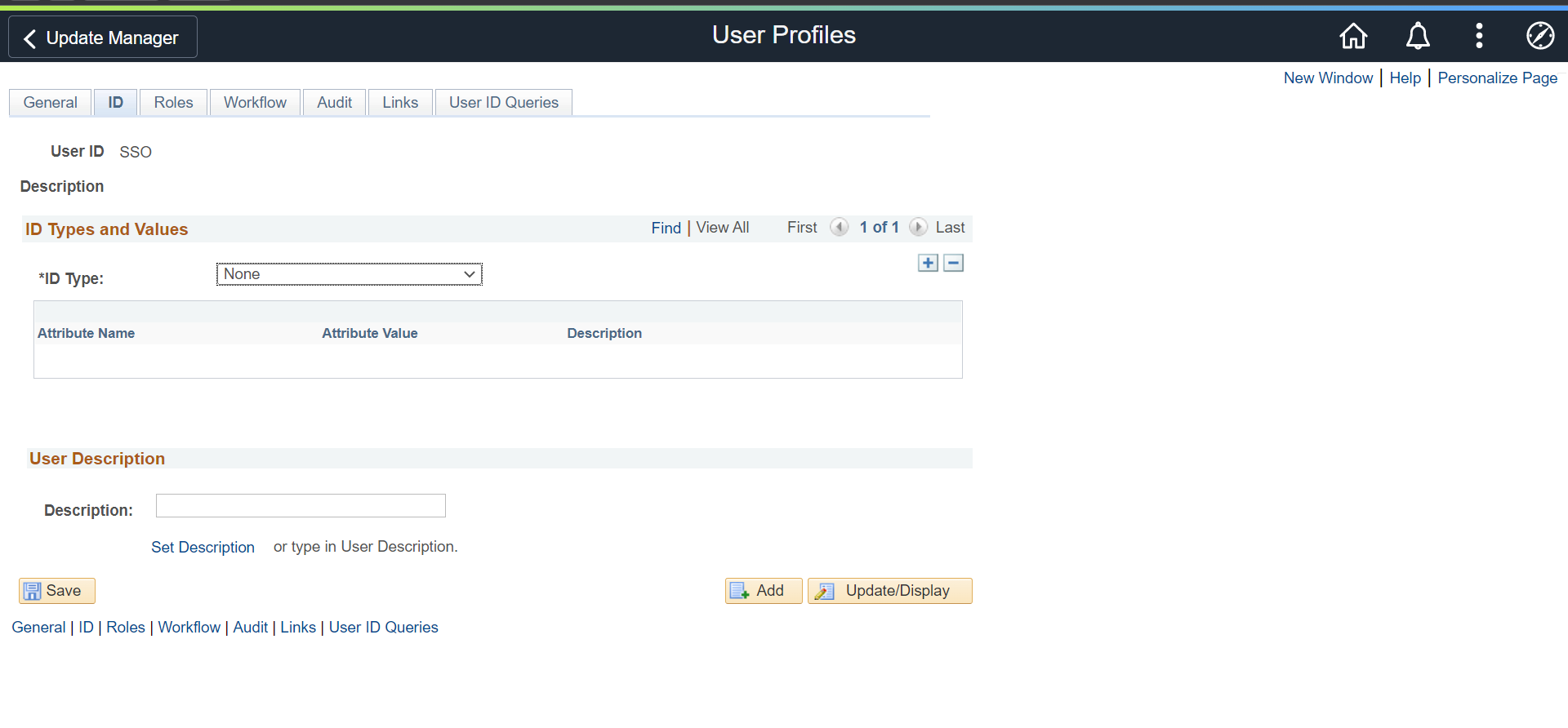
| User ID | SSO |
| Symbolic ID | Blank |
| ID Type | None |
| Role | PeopleSoft User |
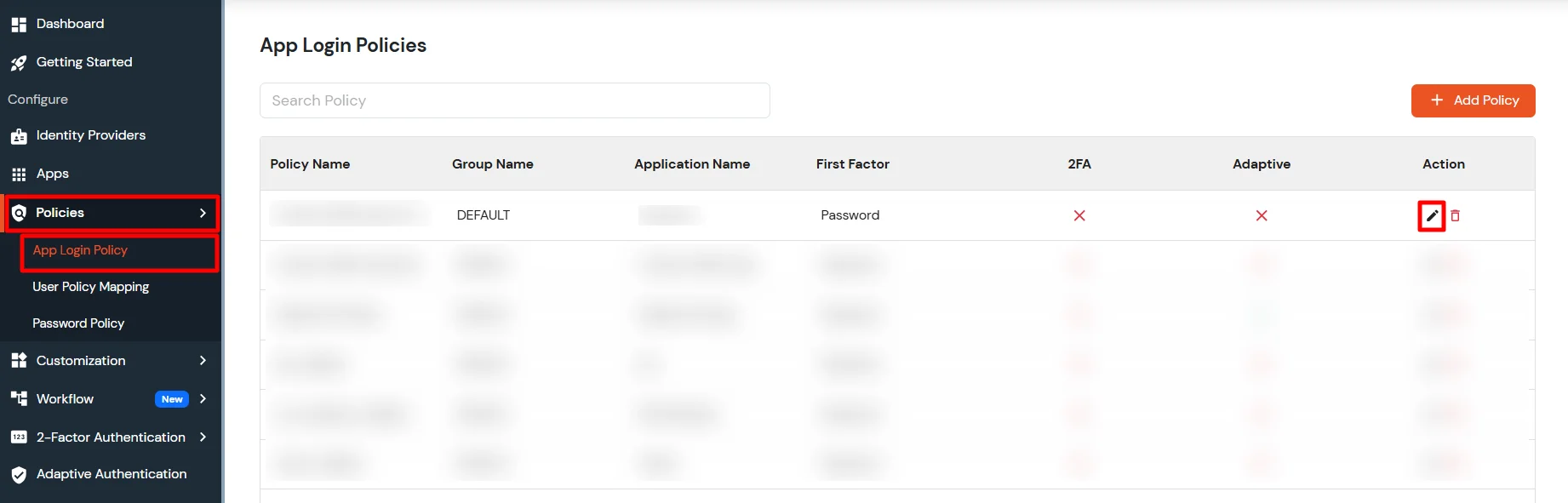
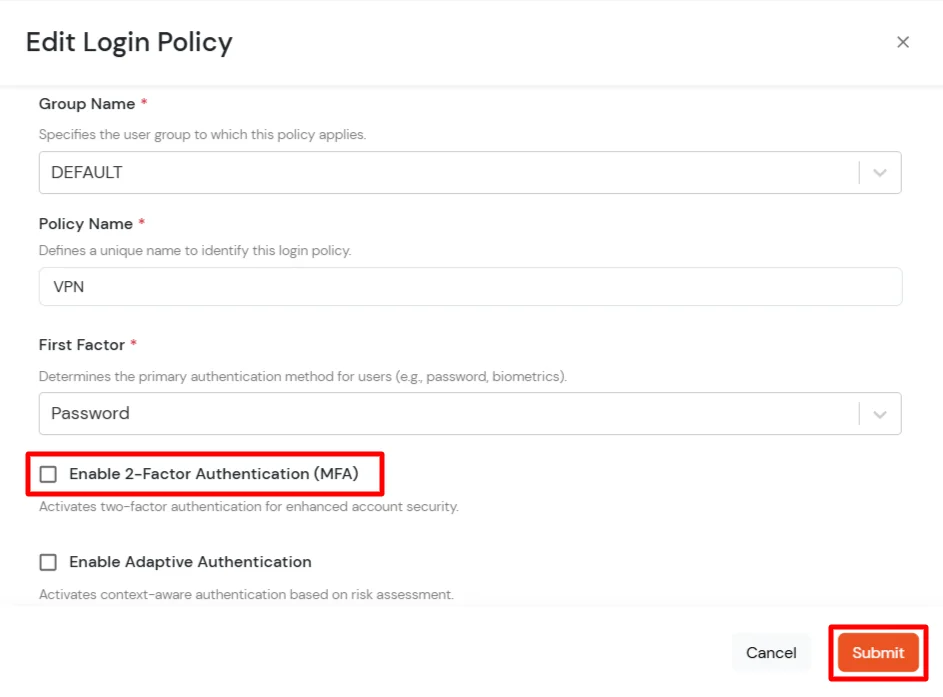
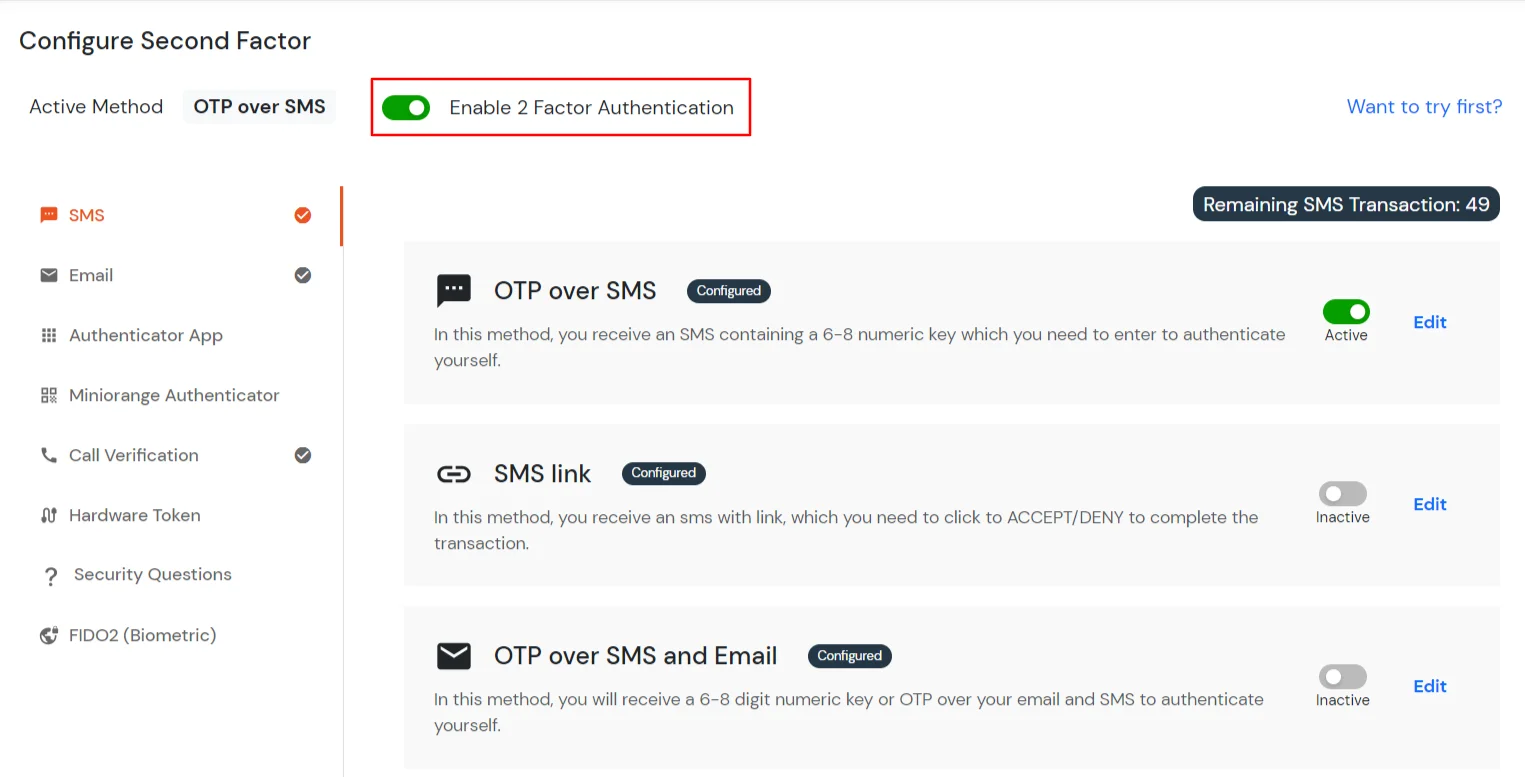
3.1: Enable 2FA for Users of PeopleSoft app
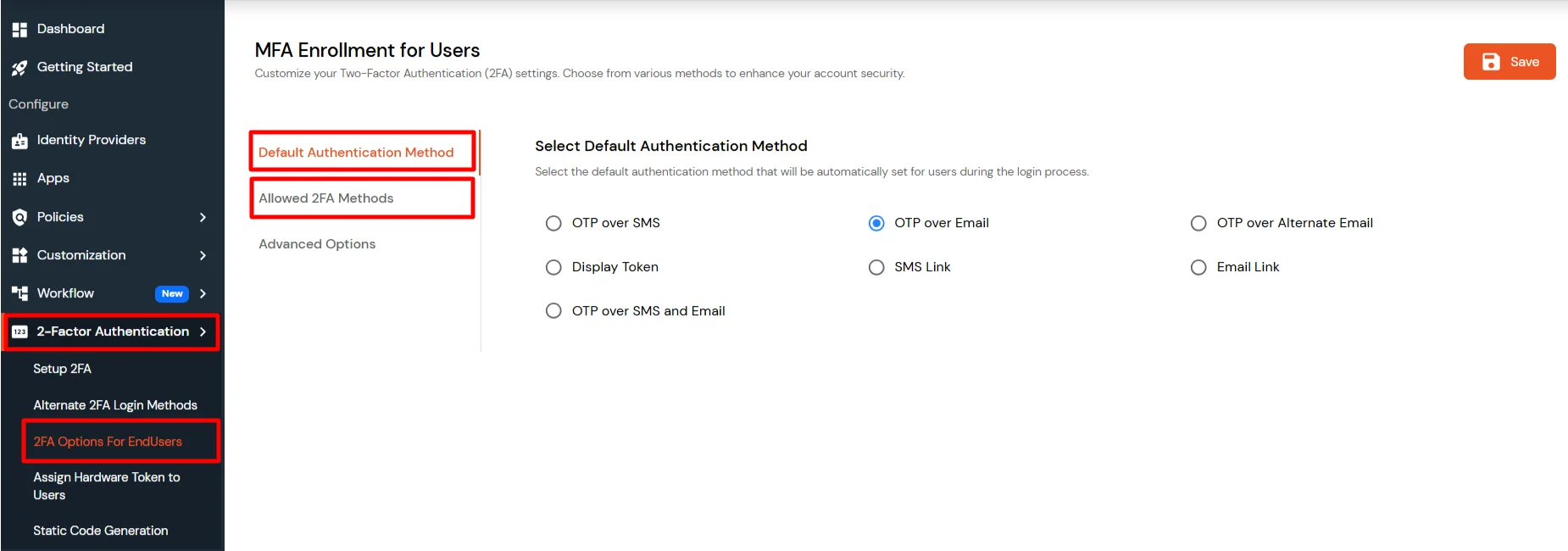
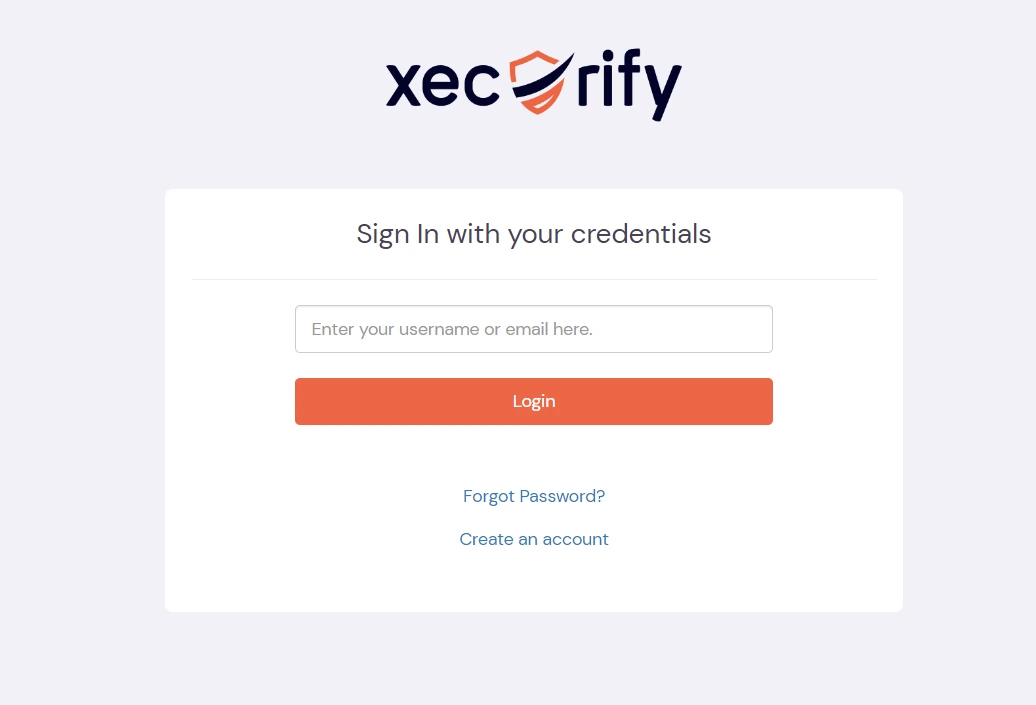
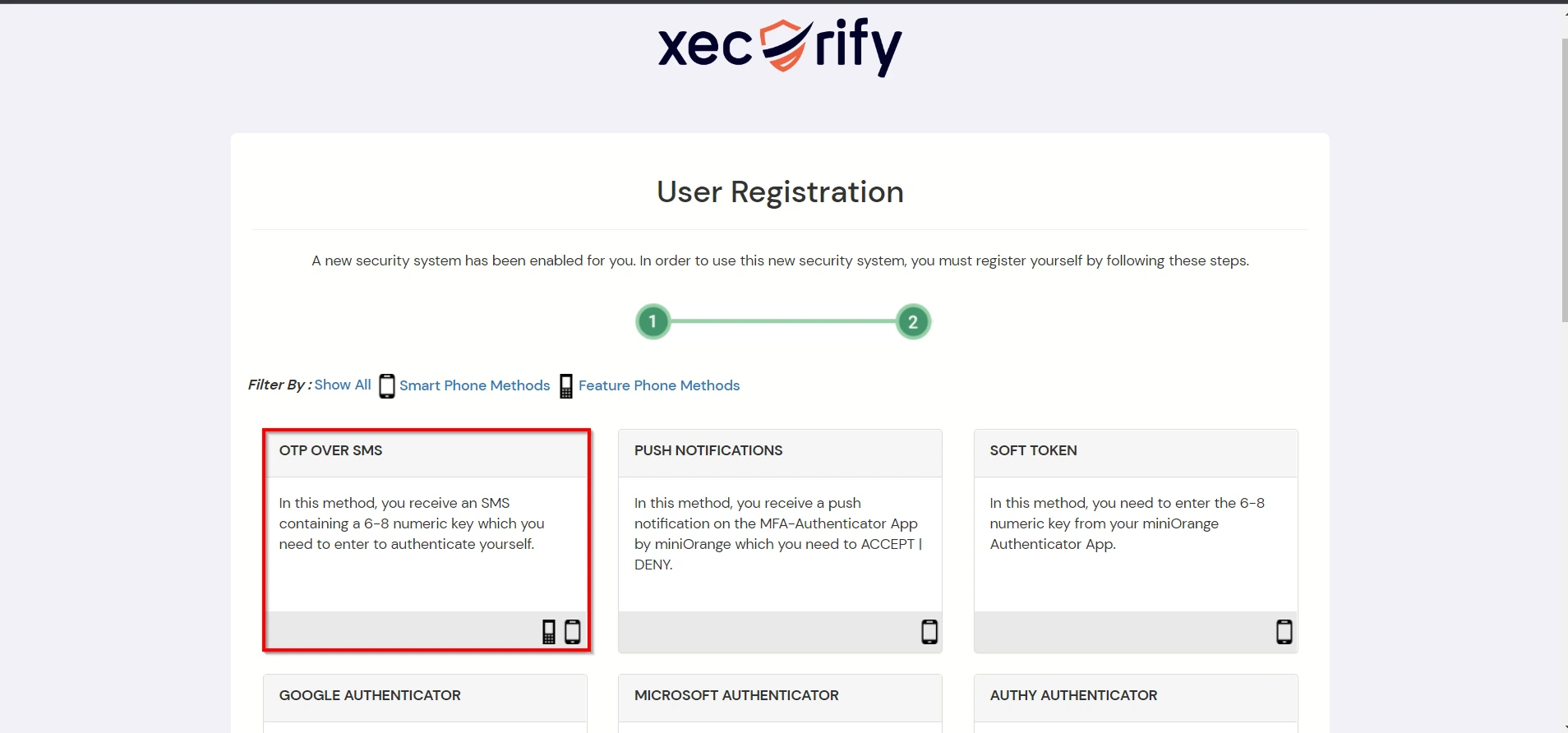
3.2: Configure 2FA for your Endusers
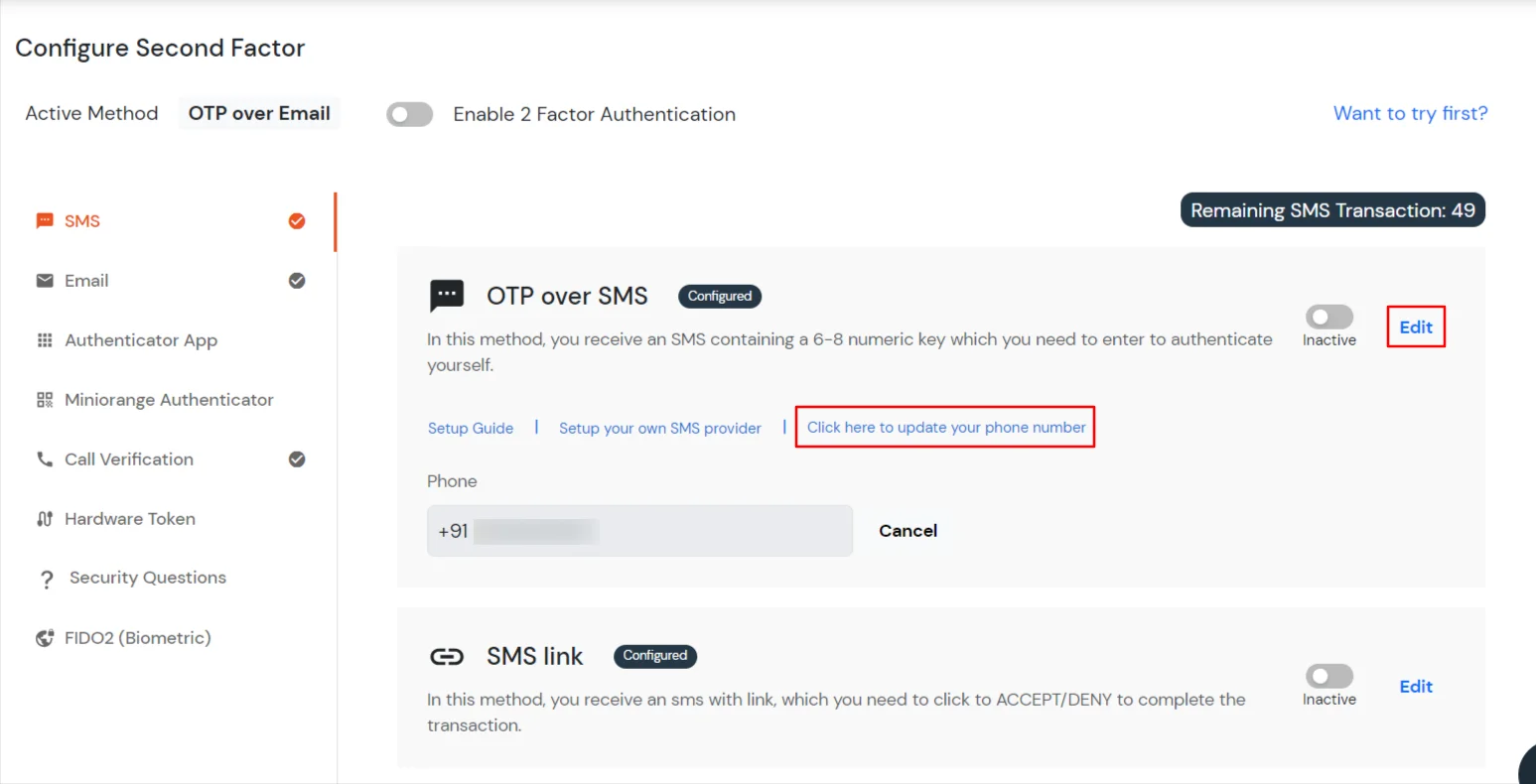
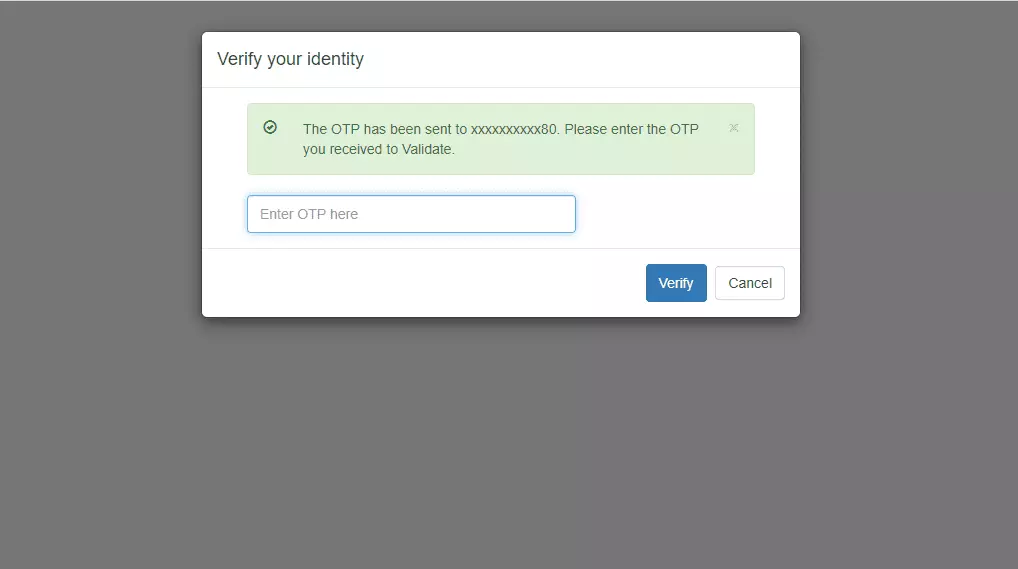
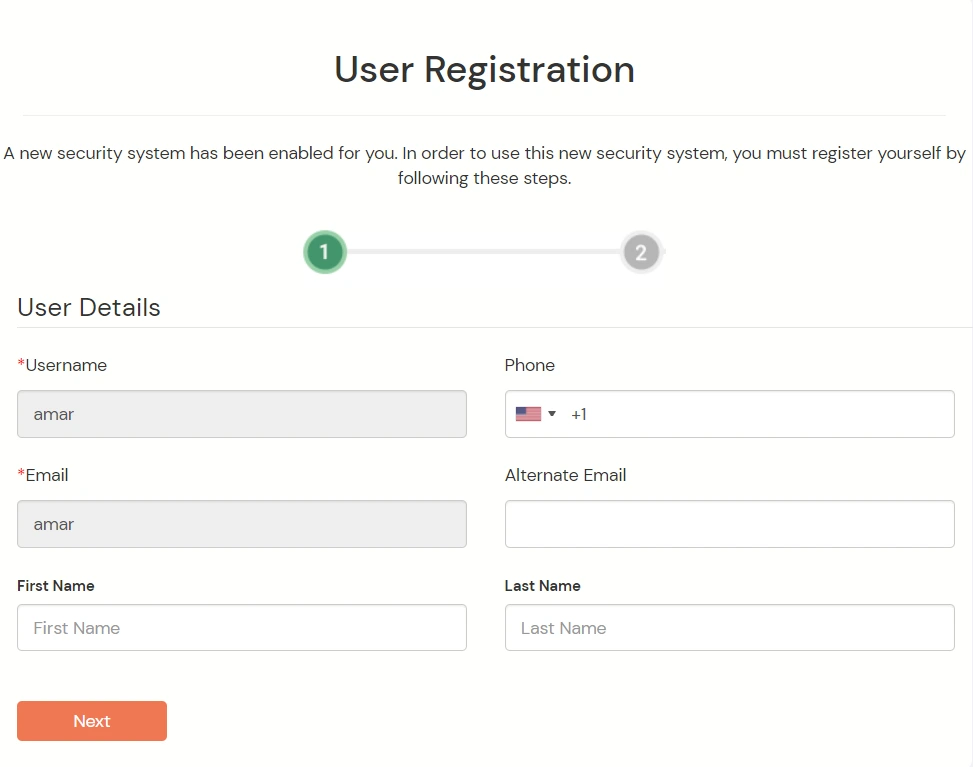
3.3: Enduser 2FA Setup
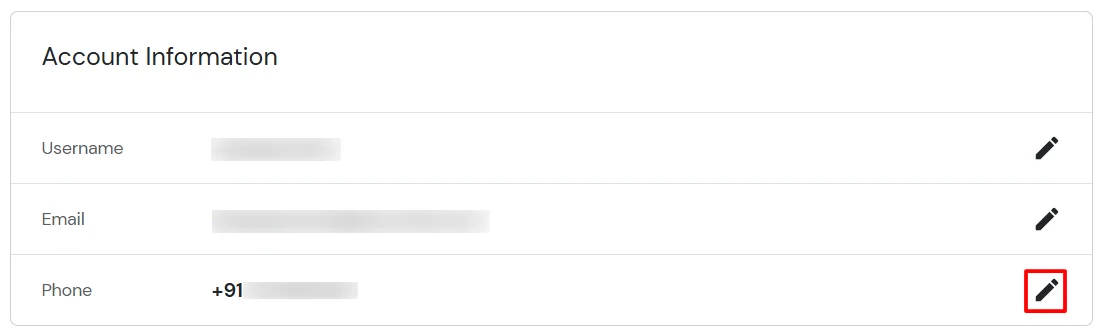
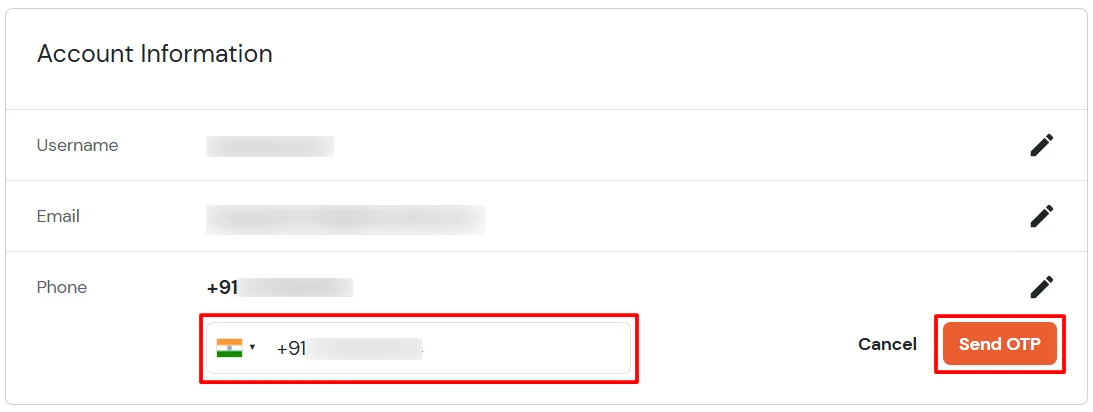
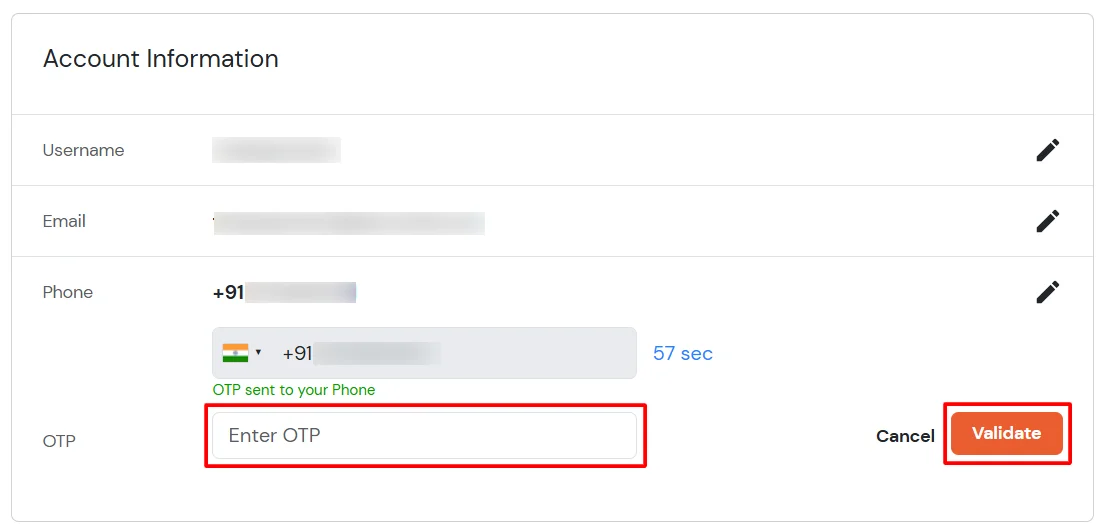
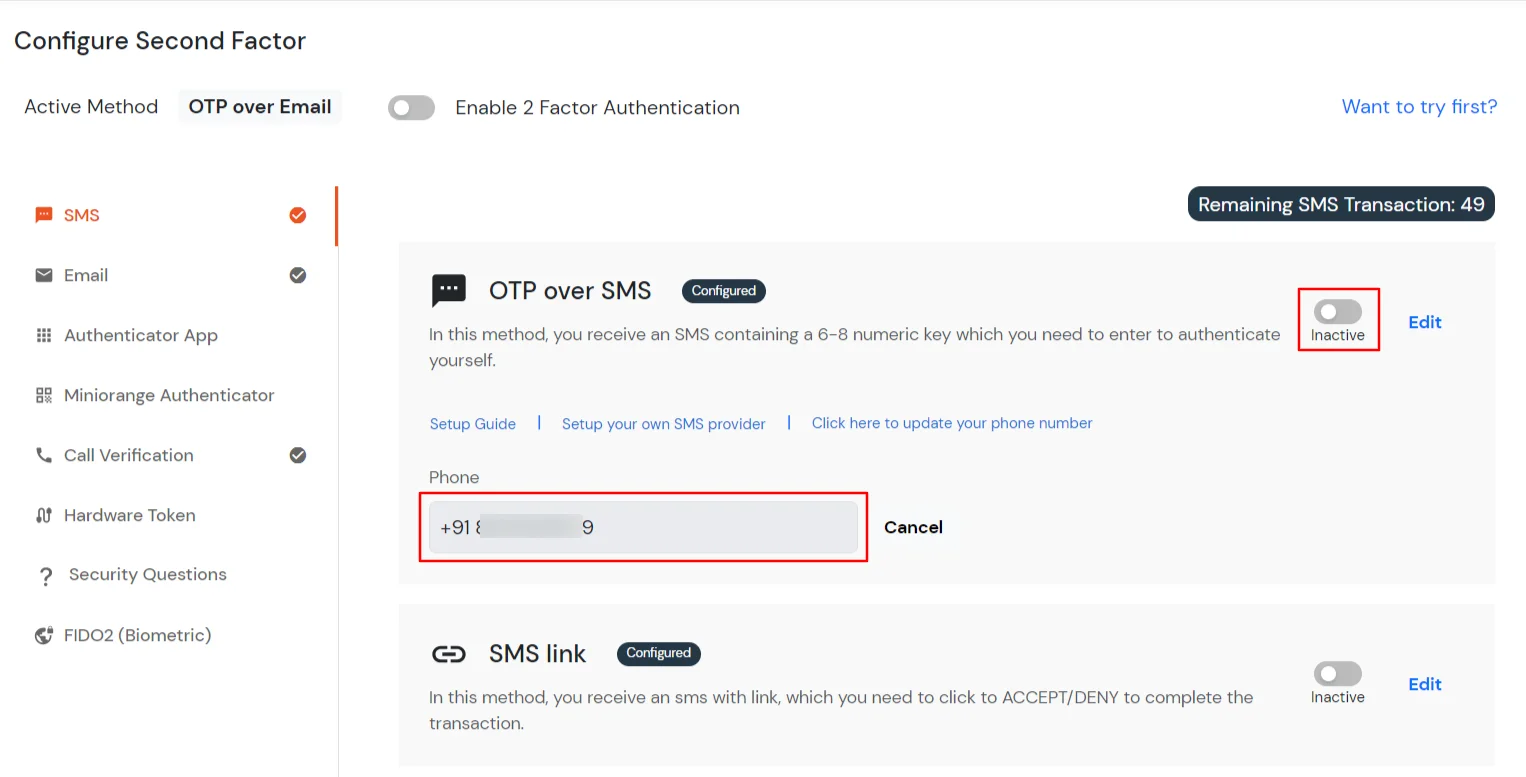
Contact us or email us at idpsupport@xecurify.com and we'll help you setting it up in no time.
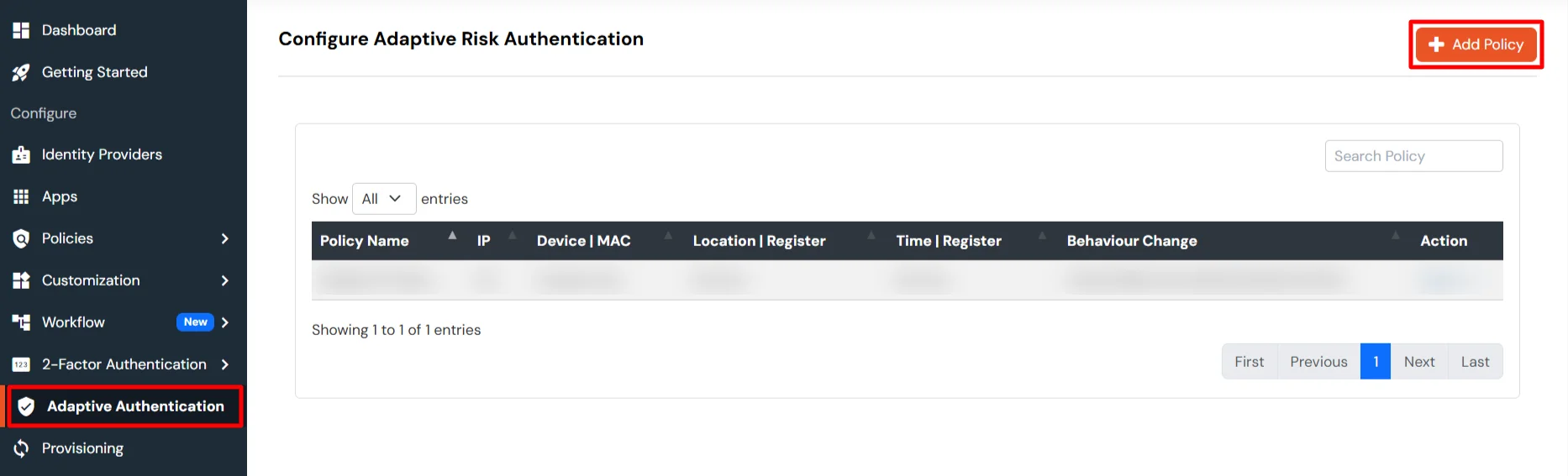
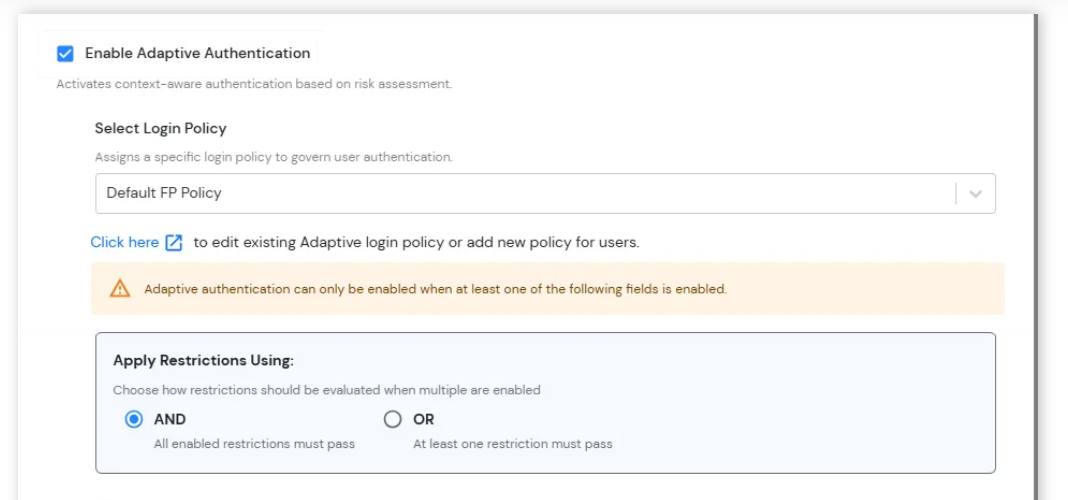
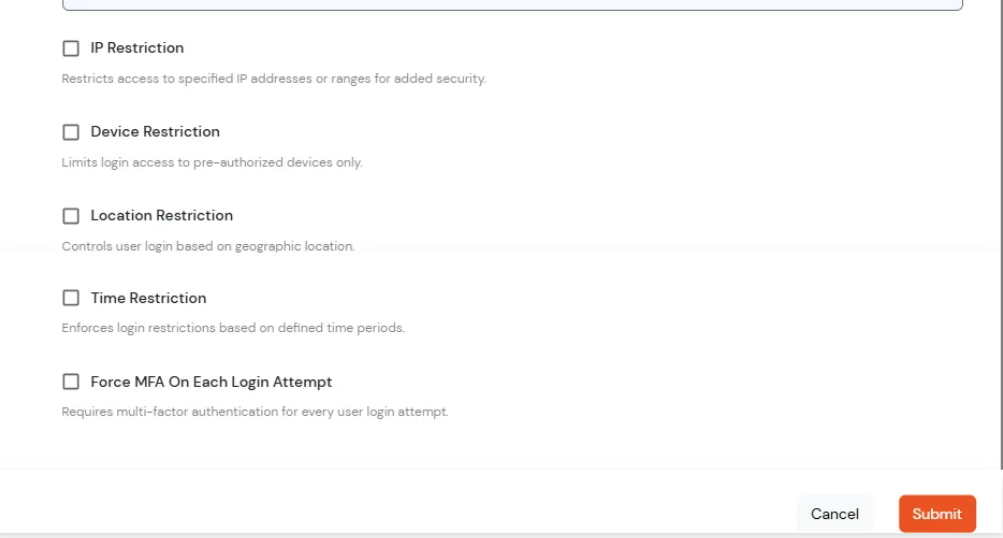
Adaptive Authentication for PeopleSoft enables administrators to enforce context-aware access policies by evaluating user login conditions such as IP address, device, location and login time. Based on the configured policy, users can be allowed access, challenged with additional verification or denied access. Administrators can also configure email alerts, customize user-facing error messages, review policy settings before deployment and assign adaptive authentication policies to application login policies to strengthen security and prevent unauthorized access.
[Note: The Adaptive Authentication section has been moved from the left navigation menu. You can now access and manage adaptive authentication policies by navigating to Policies >> Adaptive Access Policy.]
A. Restricting access to PeopleSoft with IP Based Access Restriction
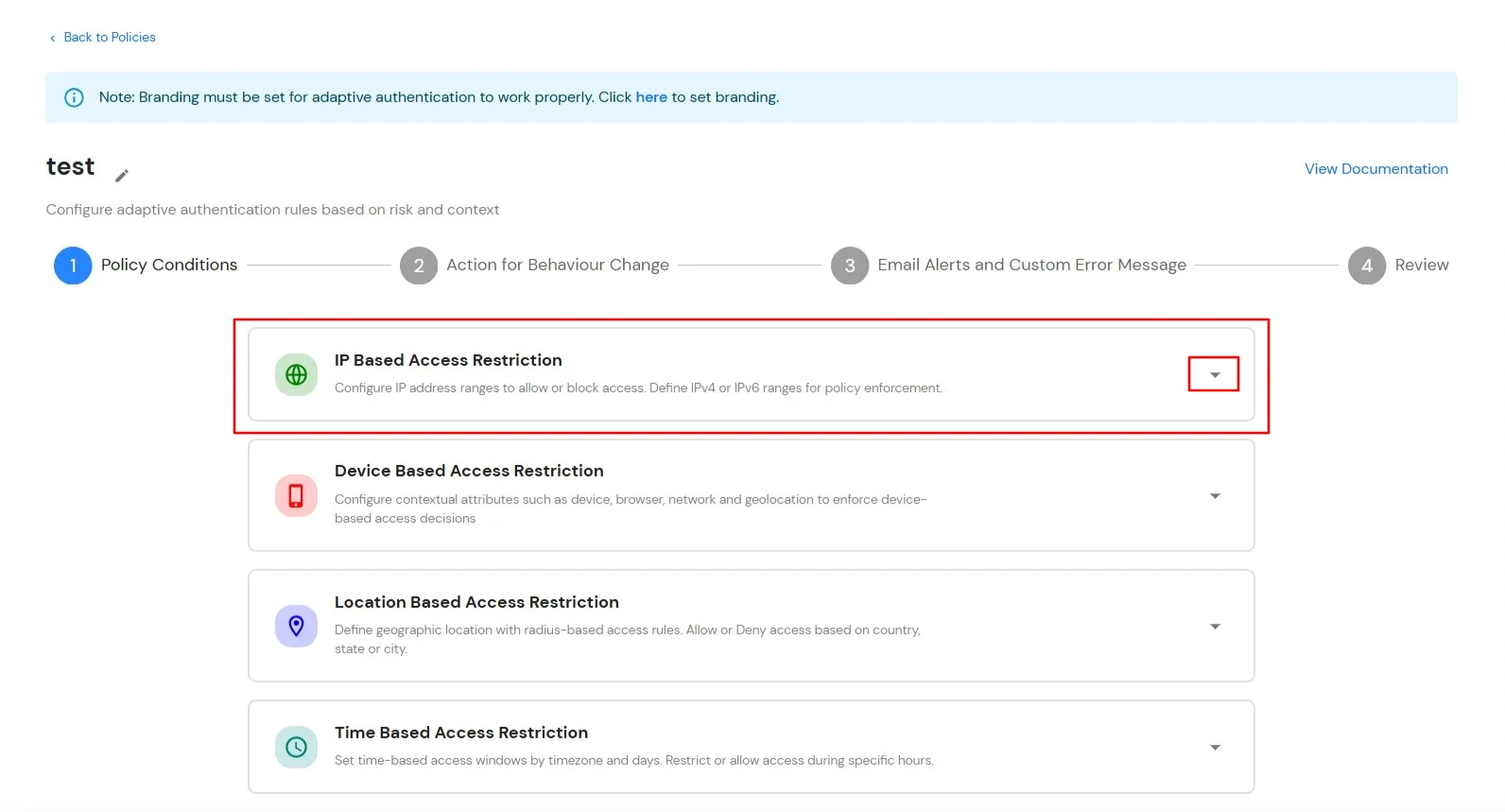
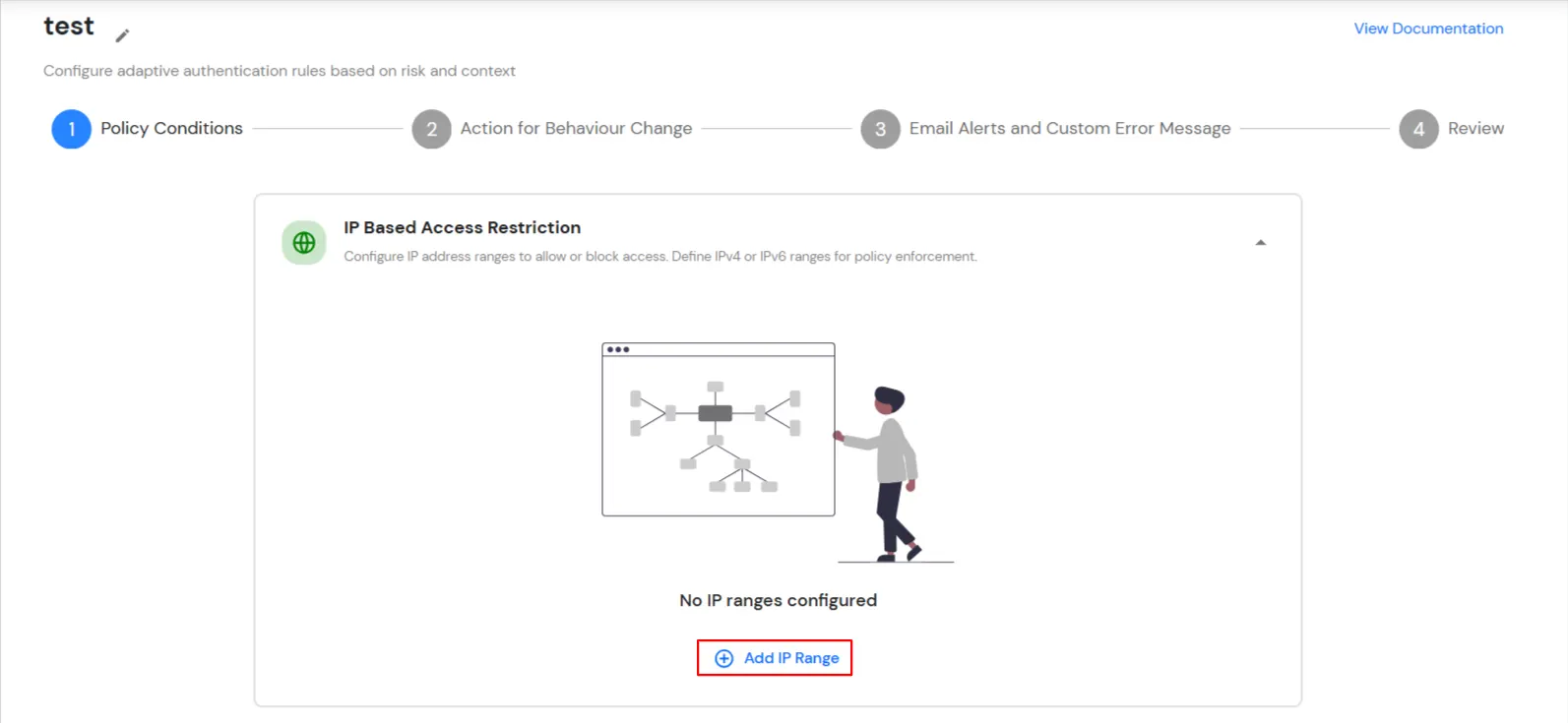
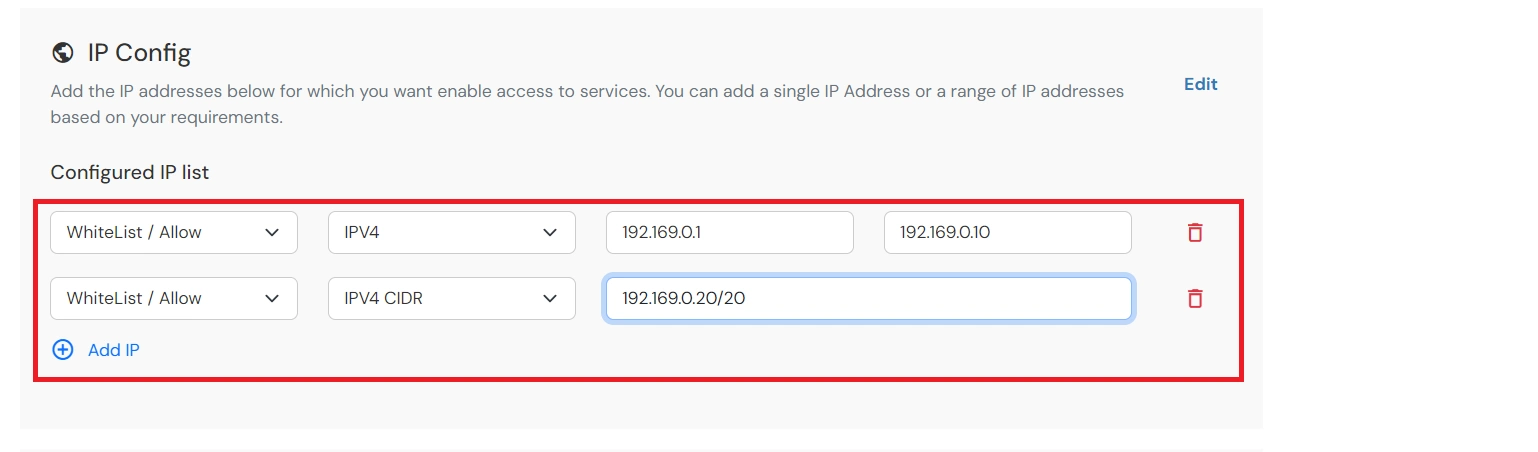
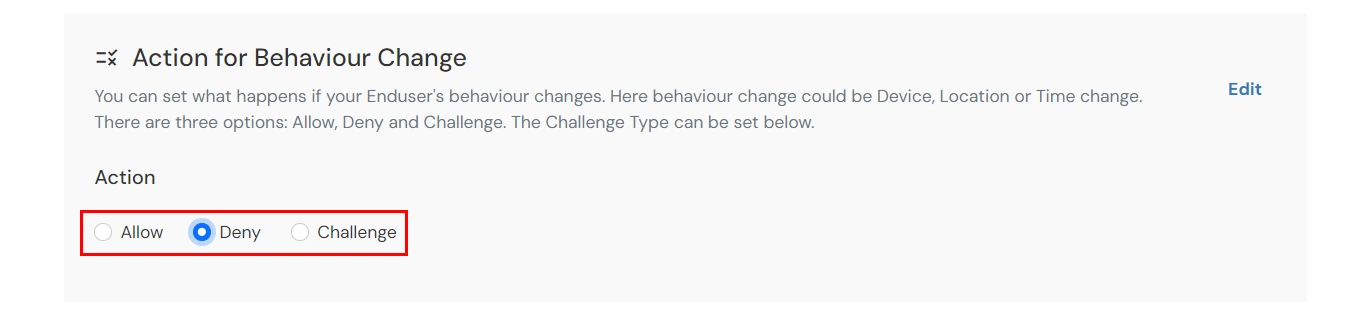
IP Based Access Restriction allows administrators to control user access based on the source IP address of the login request. Administrators can configure trusted or restricted IP addresses and IP ranges and define the action to be taken when a user's IP address matches the configured criteria. During authentication, the user's IP address is evaluated against the configured policy and access is either Allowed, Denied or Challenged based on the selected configuration.
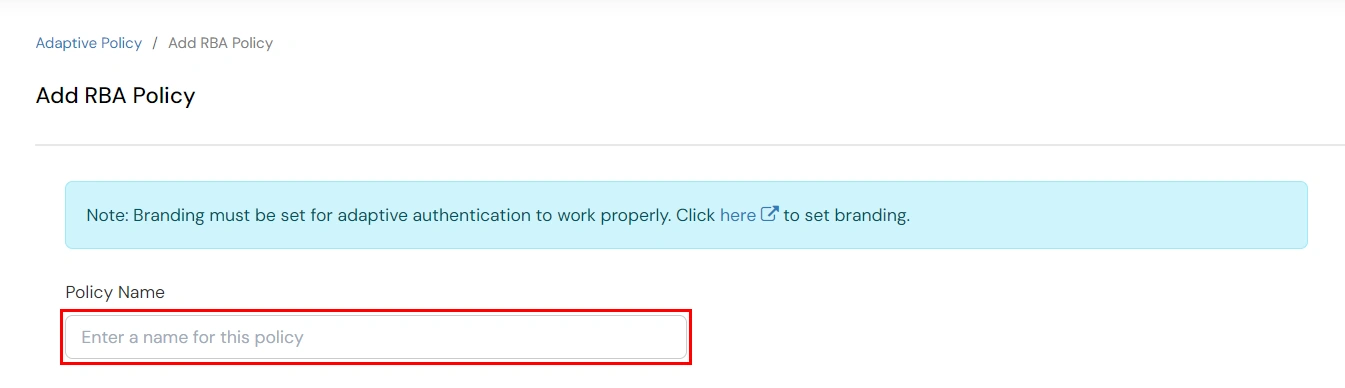
You can configure Adaptive Authentication with IP Based Restriction in following way :
| Attribute (Option) | Description |
|---|---|
| Allow | Allow users to authenticate and use services if Adaptive authentication condition is true. |
| Deny | Deny user authentications and access to services if Adaptive authentication condition is true. |
| Challenge | Challenge users with one of the three methods mentioned below for verifying user authenticity. |
| Attribute | Description |
|---|---|
| User second Factor | The User needs to authenticate using the second factor he has opted or assigned for such as
|
| KBA (Knowledge-based authentication) | The System will ask the user for 2 of 3 questions he has configured in his Self-Service Console. Only after the right answer to both questions is the user allowed to proceed further. |
| OTP over Alternate Email | User will receive an OTP on the alternate email they have configured through the Self Service Console. Once the user provides the correct OTP, they are allowed to proceed further. |
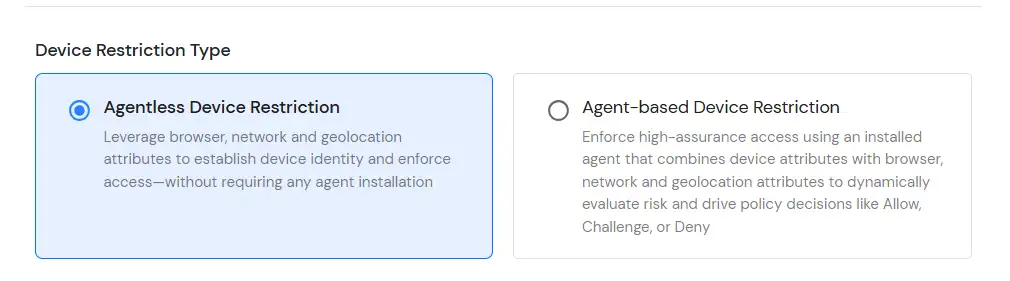
B. Restricting access to PeopleSoft with Device Based Access Restriction
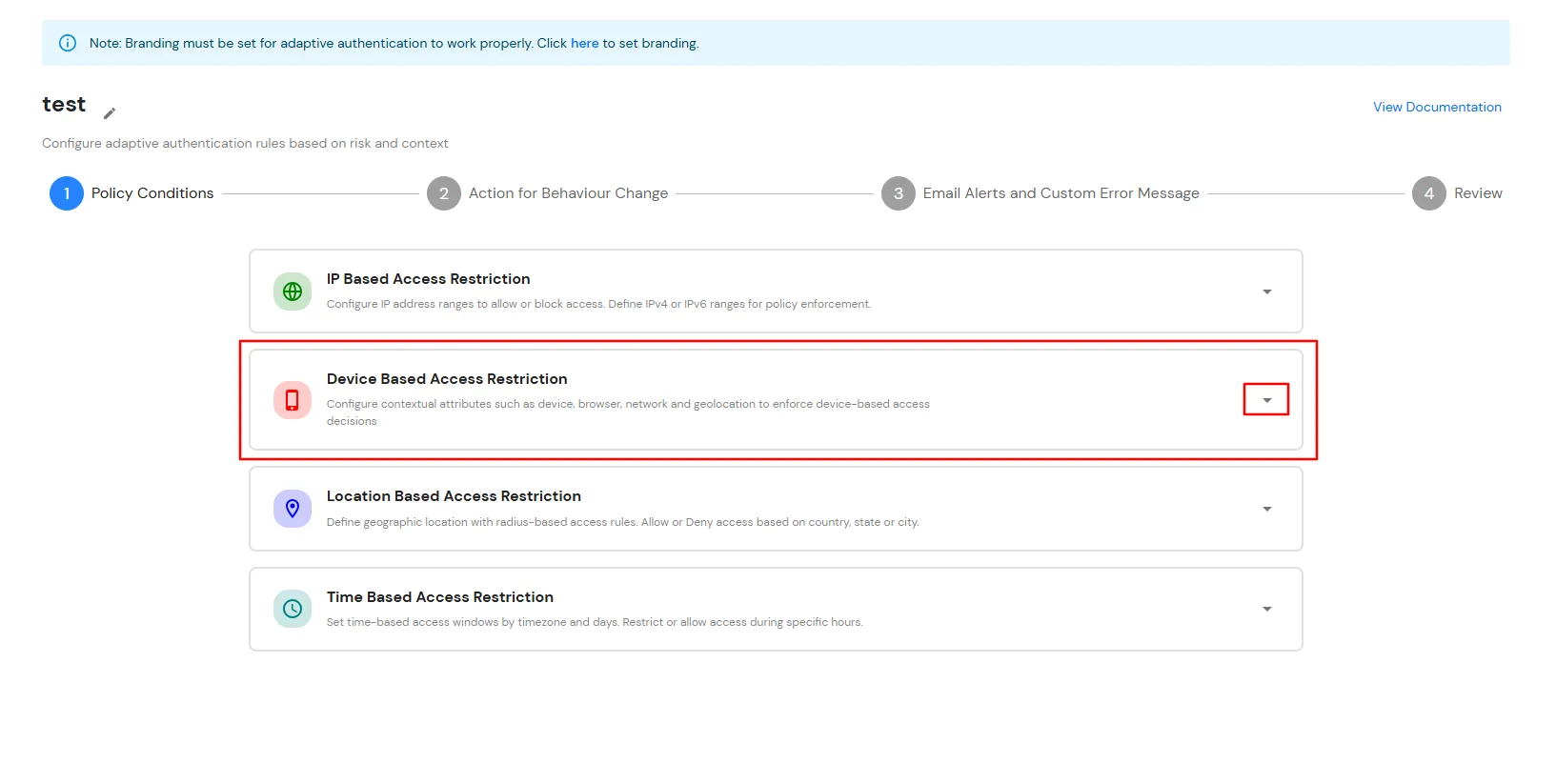
Device Based Access Restriction allows administrators to control user access based on trusted and registered devices. By leveraging device identification and verification mechanisms, administrators can define policies that evaluate the device used during authentication. When a user attempts to log in, the device is assessed against the configured policy and the appropriate action: Allow, Challenge or Deny is applied based on the configured conditions.
You can configure Adaptive Authentication with Device Based Restriction in following way :

C. Restricting access to PeopleSoft with Location Based Access Restriction
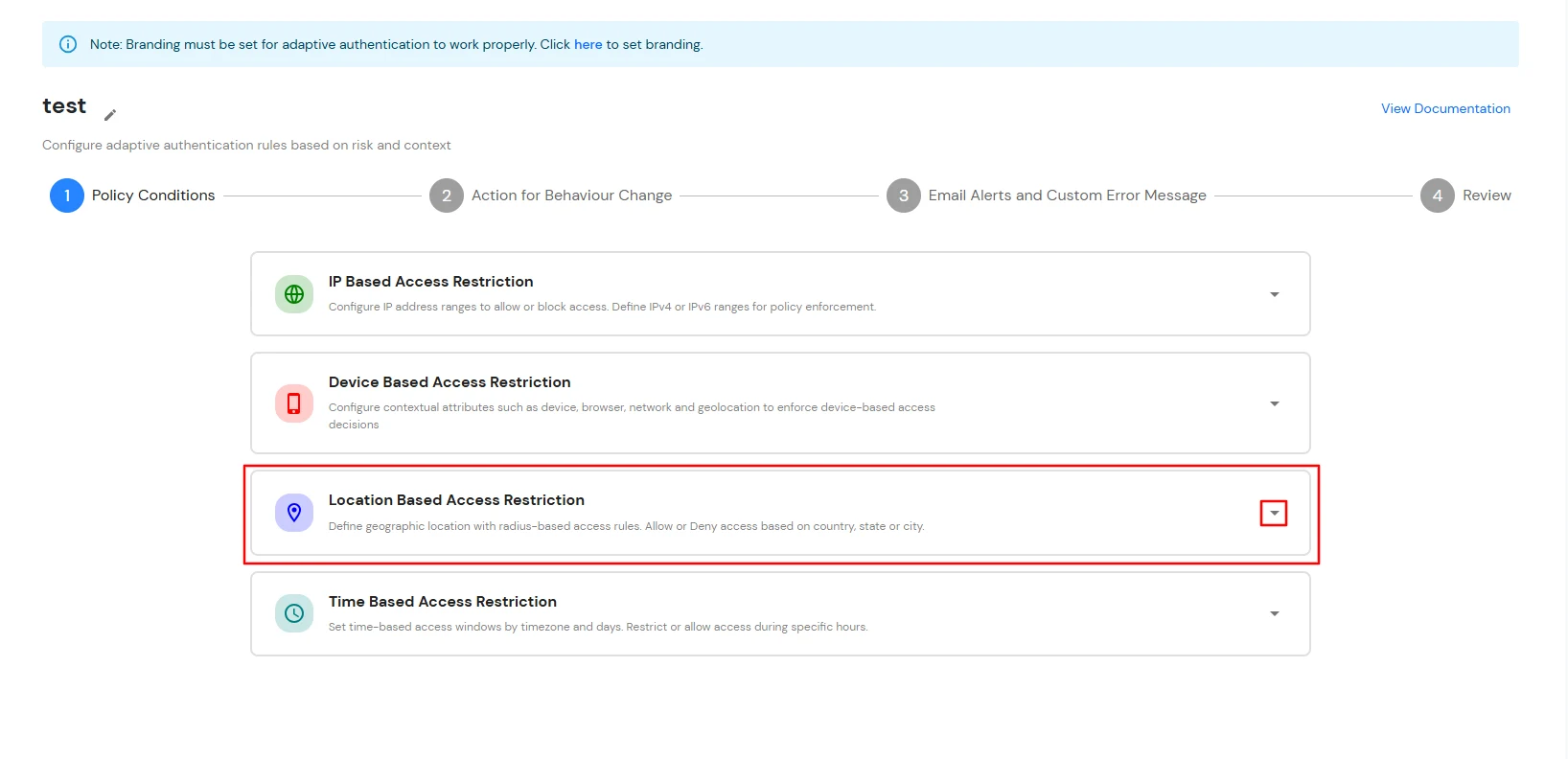
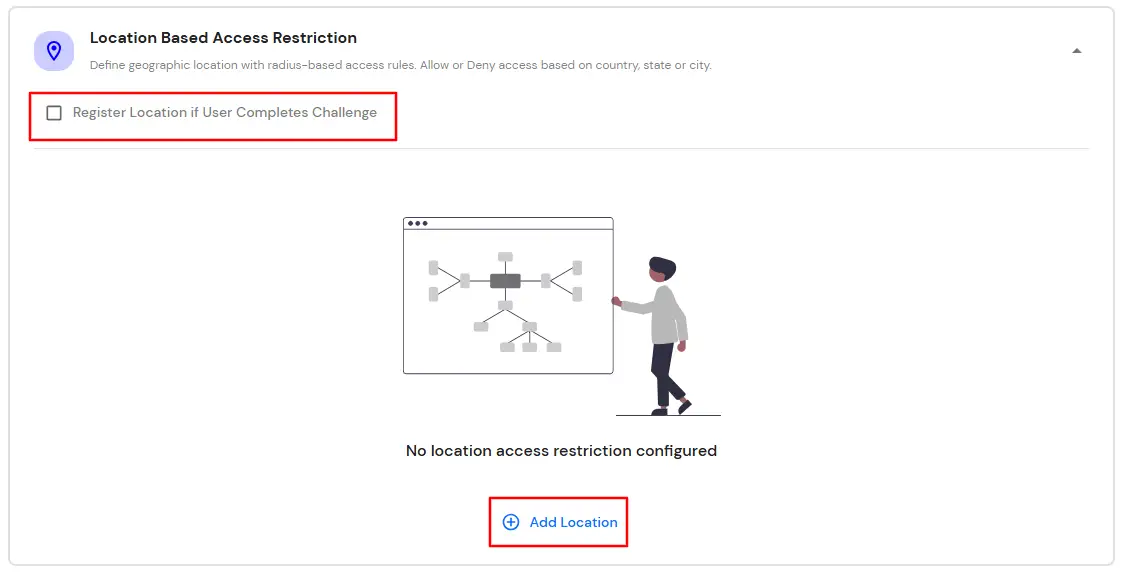
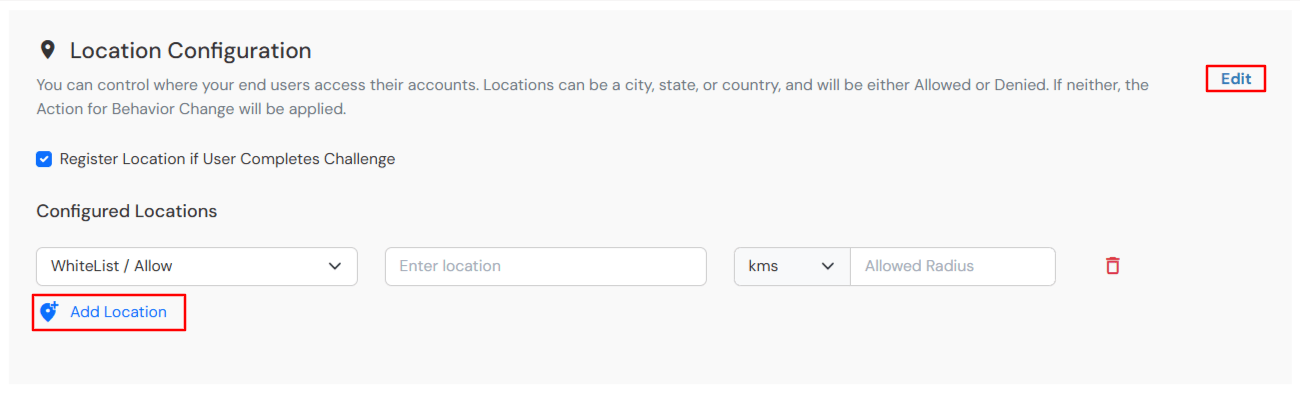
In location restrictions, admin configures a list of locations where they want to allow end-users to either login or deny based on the condition set by the admin. When a user tries to login with adaptive authentication enabled, their Location Attributes, such as (Latitude, Longitude and Country Code) are verified against the Location list configured by the admin. Based on this user will be either allowed, challenged or denied.
You can configure Adaptive Authentication with Location Based Restriction in following way :
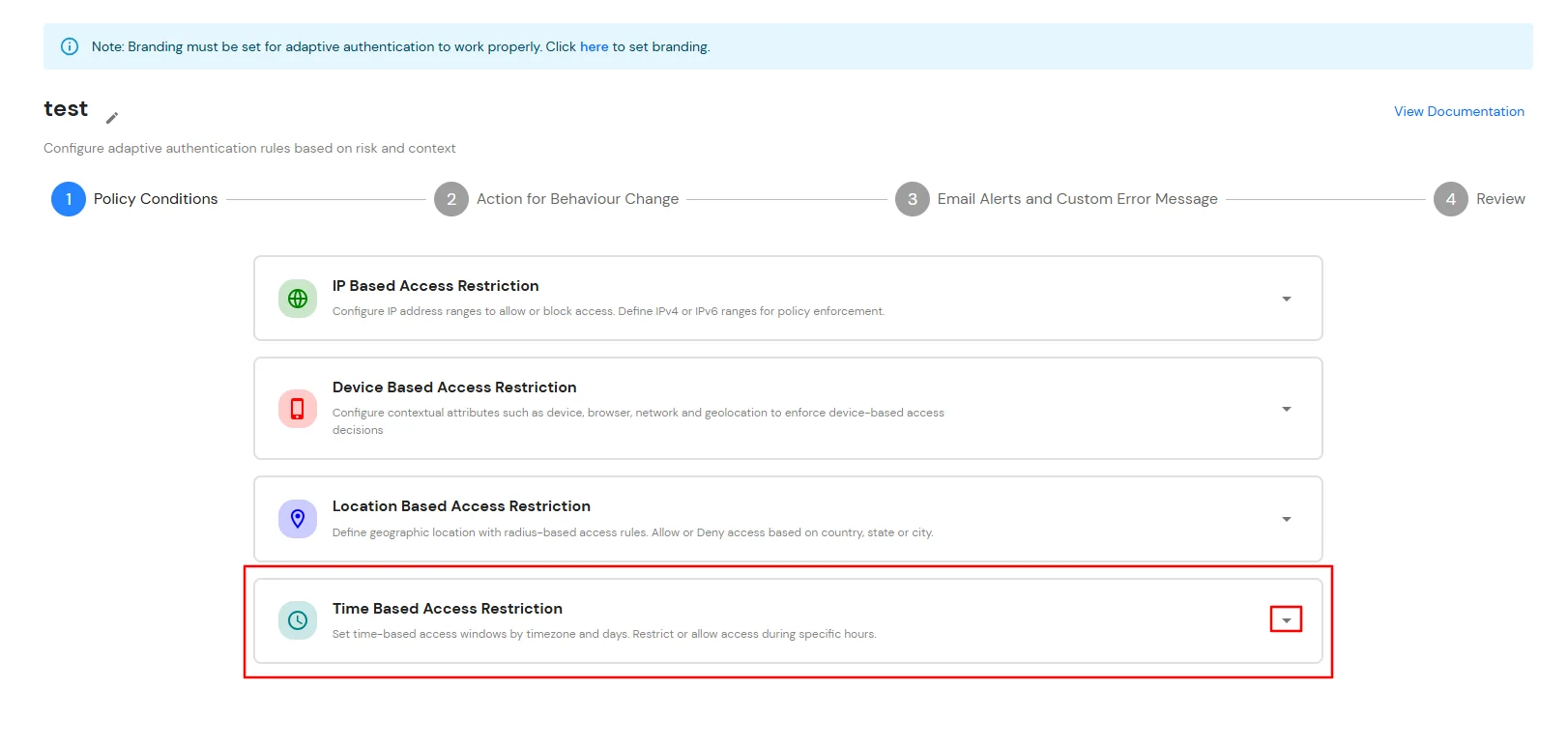
D. Restricting access to PeopleSoft with Time Based Access Restriction
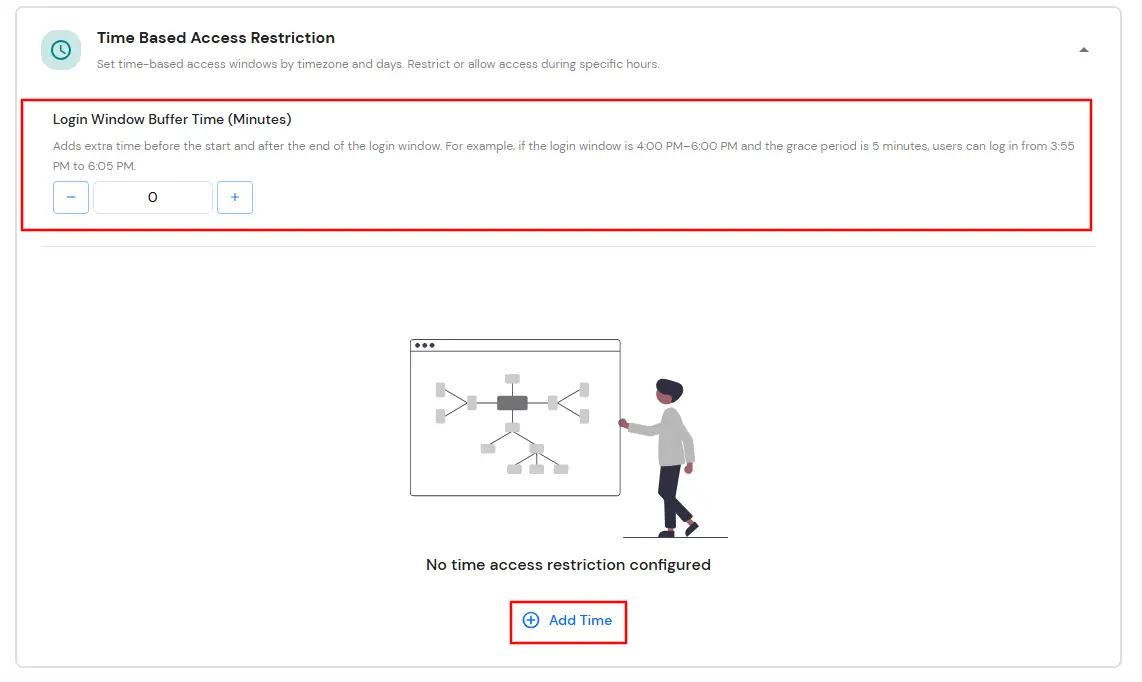
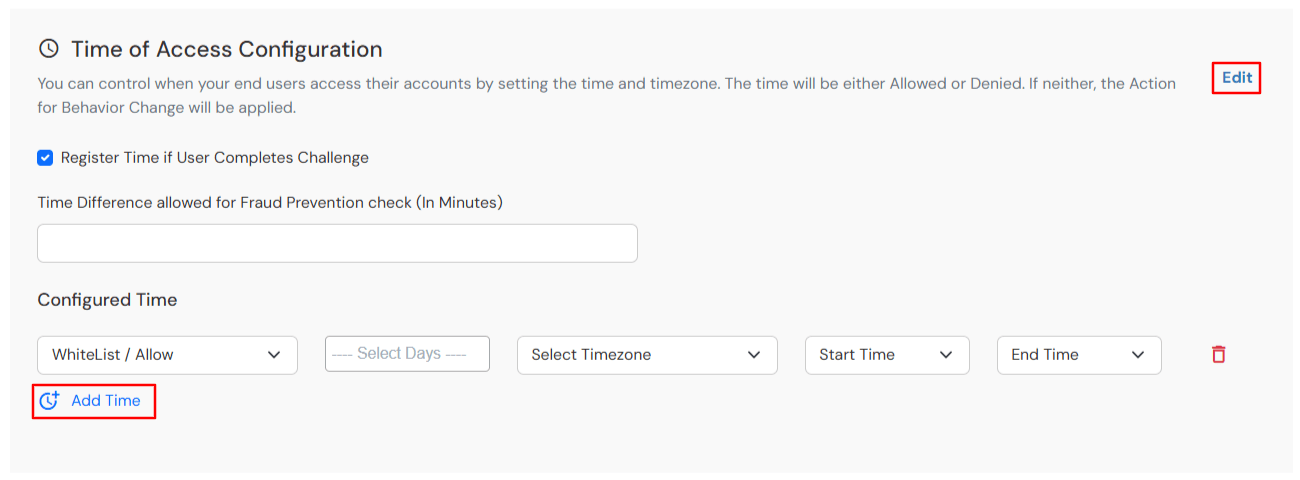
In time restriction, admin configures a time zone with Start and End Times for that timezone and users are either allowed, denied or challenged based on the condition in the policy. When an end-user tries to login with the adaptive authentication enabled, their time zone-related attributes such as Time-Zone and Current System Time, are verified against the list configured by the admin and based on the configuration, the user is either allowed, denied or challenged.
You can configure Adaptive Authentication with Time Based Restriction in following way :
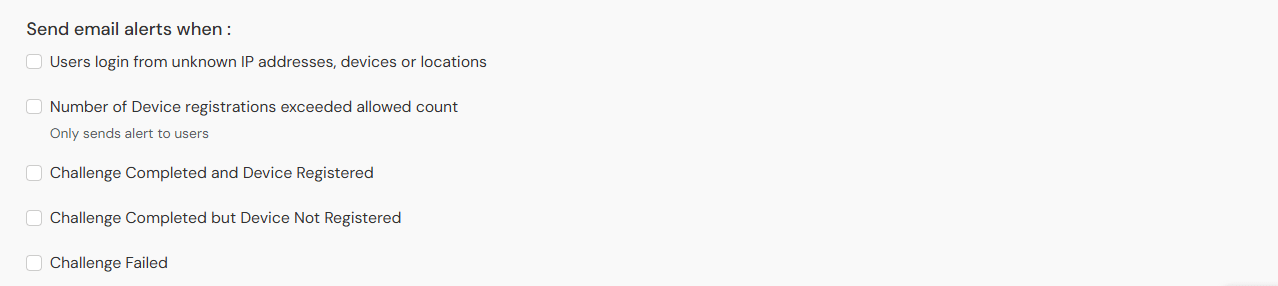
E. Email Alerts and Custom Email Message
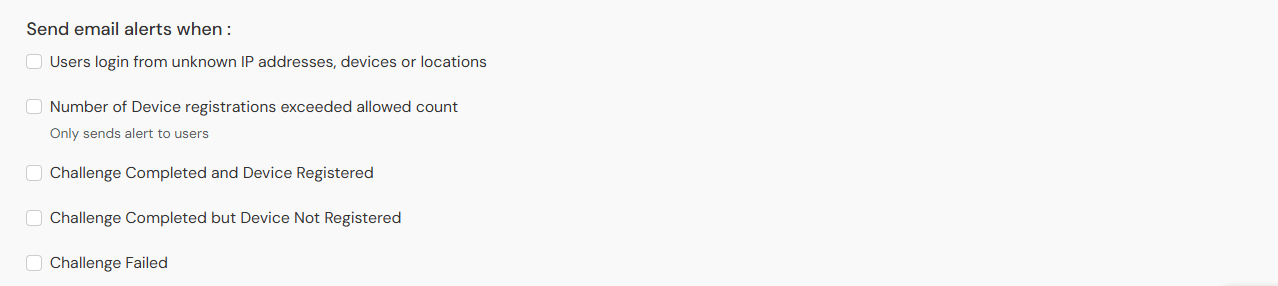
This section handles the notifications and alerts related to Adaptive Access Policy. It provides the following options:

| Option | Description |
|---|---|
| Users login from unknown IP addresses, devices or locations | Enabling this option allows you to login from unknown IP addresses or devices and even locations. |
| Challenge Completed and Device Registered | Enabling this option allows you to send an email alert when an end-user completes a challenge and registers a device. |
| Challenge Completed but Device Not Registered | Enabling this option allows you to send an email alert when an end-user completes a challenge but do not registers the device. |
| Challenge Failed | Enabling this option allows you to send an email alert when an end-user fails to complete the challenge. |

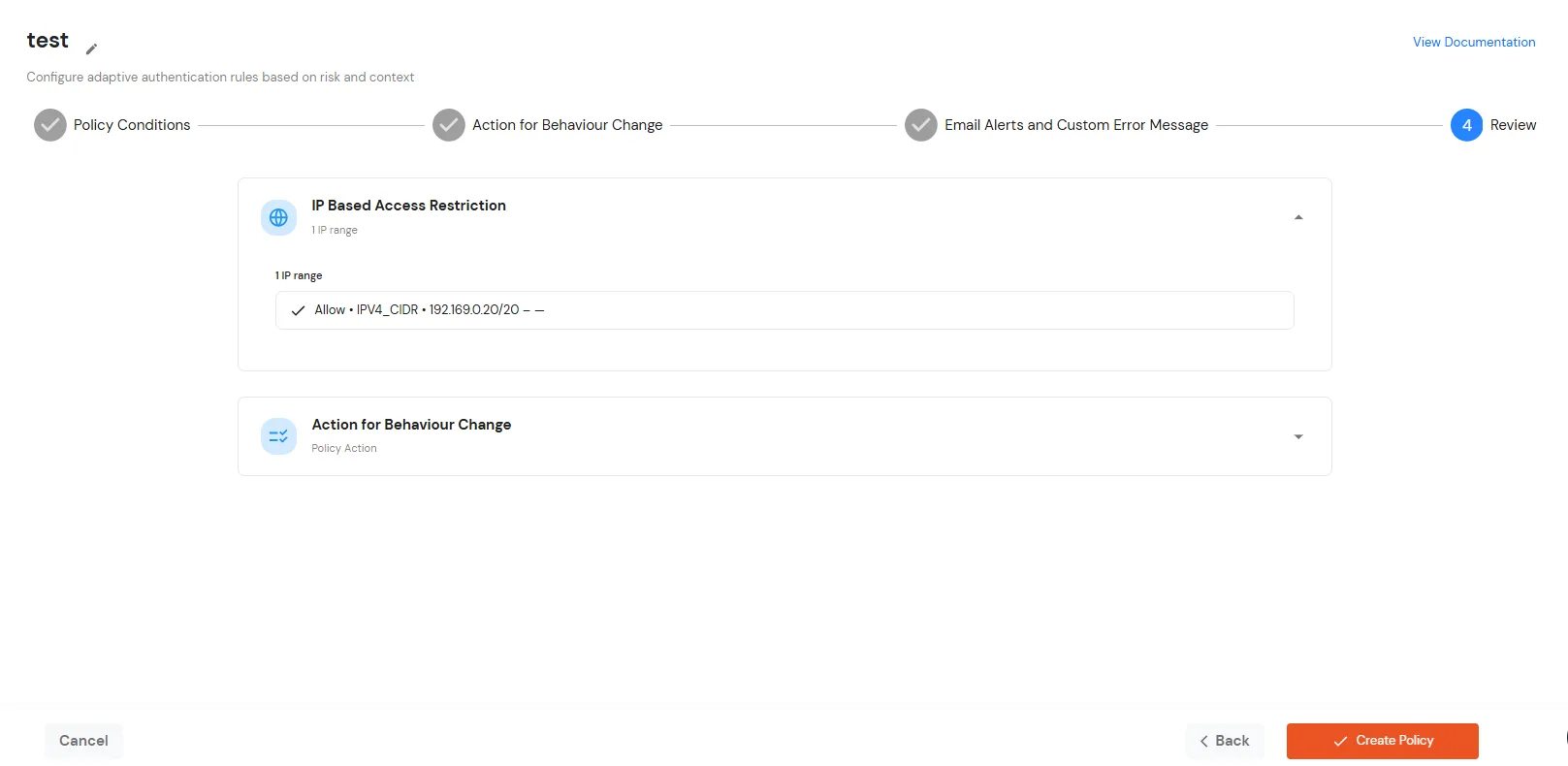
F. Review
Review the configured policy conditions, behavior change actions, email alert settings and custom error messages before creating the adaptive authentication policy. This step provides a consolidated view of all configured settings, allowing you to verify the policy configuration and make any necessary changes before saving.
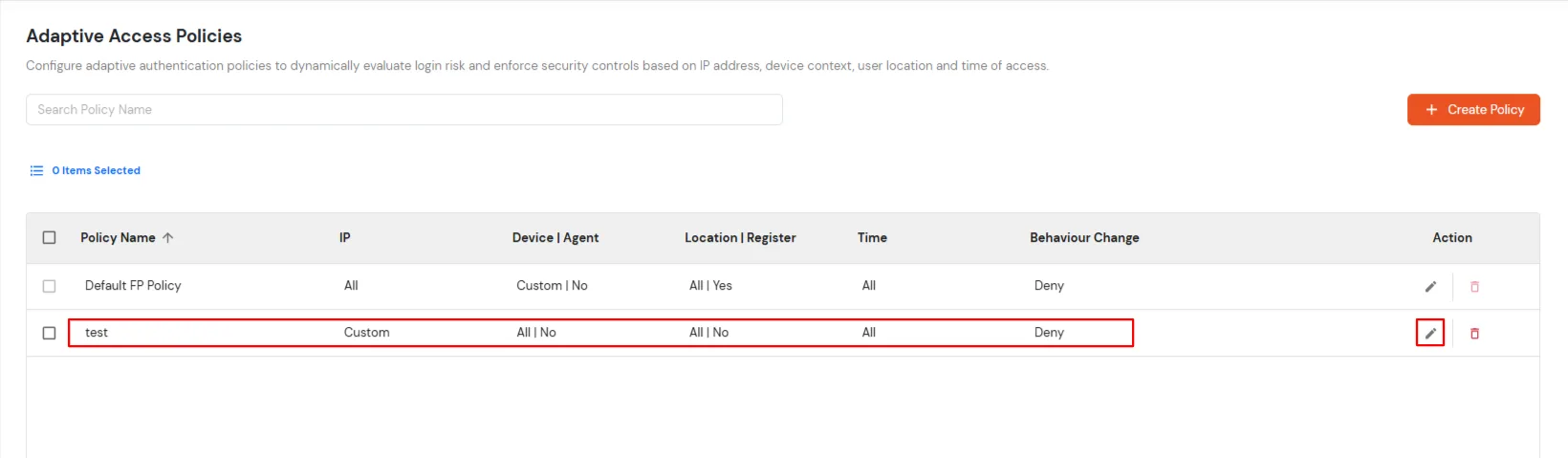
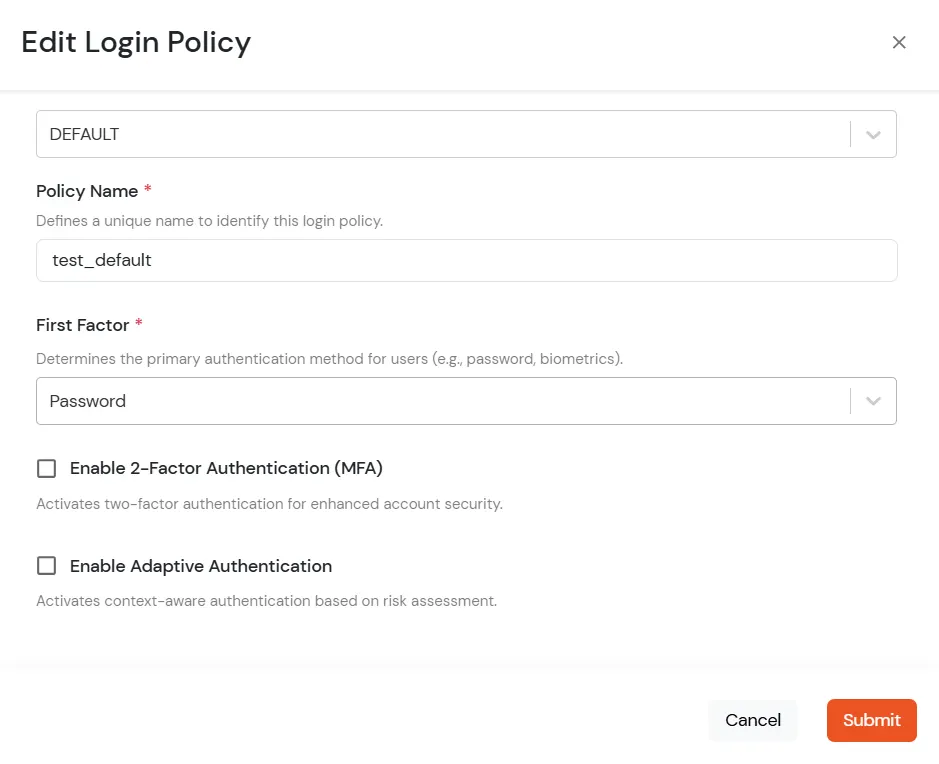
Note: Oracle and Java are registered trademarks of Oracle and/or its affiliates. miniOrange is a separate entity.