Hello there!

Need Help? We are right here!

Support Icon
miniOrange Email Support
success

Thanks for your Enquiry. Our team will soon reach out to you.

If you don't hear from us within 24 hours, please feel free to send a follow-up email to info@xecurify.com

Search Results:

×

Configure PeopleSoft Single Sign-On (SSO) with miniOrange


PeopleSoft Single Sign-On

PeopleSoft SSO is a feature that enables easy and seamless Single Sign-On into your PeopleSoft application instance authenticating against any of your existing identity source (Microsoft Entra ID, LDAP, or any IDP).

As we have officially been recognized as a Global Modernized Oracle Partner Network (OPN) Partner, you can rest assured that all of our integrations on the Oracle Stack fulfill the highest competencies set by Oracle for their trusted advisors like miniOrange.


"miniOrange PeopleSoft SSO connector enables Single Sign-On (SSO) between PeopleSoft and any IDPs without the need to purchase and install Oracle Access Manager (OAM) and Oracle Internet Directory (OID) license."


PeopleSoft SSO connector enables the Single Sign-On (SSO) integration between any Oracle application and IDPs (Identity Providers) like miniOrange, ADFS, Active Directory, Microsoft Entra ID, Google, Okta, Onelogin, Ping Idenity, Centrify and many more. It also provide SSO support for web applications which do not provide support for federated Single Sign-On (SSO) protocol such as SAML or OAuth 2.0. SSO connector gives you the flexibility of extending your existing SSO integration to Oracle PeopleSoft as well. This is possible due to its capability to act as a broker between multiple IdP's & your configured applications. This states that you can perform seamless SSO integration for PeopleSoft with your existing authentication platform.


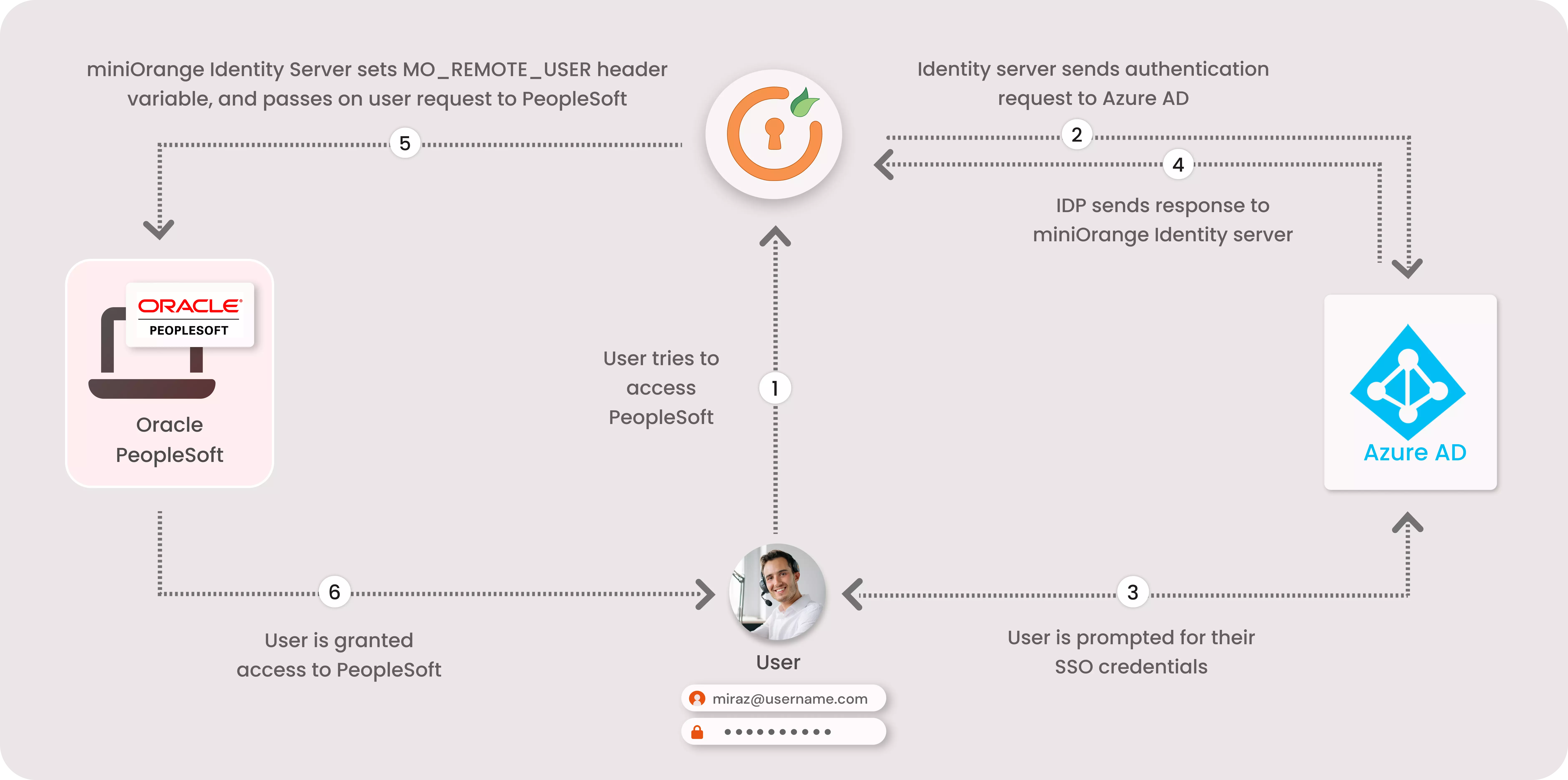
PeopleSoft SSO (Single Sign-On) Solution : Authentication Flow


PeopleSoft SSO

Oracle PeopleSoft SSO (Single Sign-On) Solution : Authentication Flow


SSO PeopleSoft

Connect with External Source of Users


miniOrange provides user authentication from various external sources, which can be Directories (like ADFS, Microsoft Active Directory, OpenLDAP, AWS etc), Identity Providers (like Microsoft Entra ID, Okta, AWS), and many more. You can configure your existing directory/user store or add users in miniOrange.


Get Free Installation Help - Book a Slot


miniOrange offers 1 hour free help through a consultation call with our System Engineers to Install or Setup PeopleSoft SSO SAML solution in your environment with 30 days free trial. For this, you need to just send us an email at idpsupport@xecurify.com to book a slot and we'll help you setting it up in no time.


Prerequisites

1. Applications involved in the deployment

  • PeopleSoft 9.2+
    • This is the application into which users will login via SSO.
    • Admin access of PeopleSoft EnterpriseOne Server Manager Management console will be required.
  • miniOrange Identity Server(Only for On-Premise)
    • On-Premise Identity Server which will redirect users to Azure Active Directory for authentication & set an authentication cookie.

2. Port Configuration

  • miniOrange Proxy Server
    • Ports 443/8443- HTTPS - should be accessible from end-users' machines (for reverse proxy URL).
  • PeopleSoft EnterpriseOne Server
    • HTTP/HTTPS ports used for accessing the PeopleSoft Applications should be accessible from the miniOrange Proxy Server.

Follow the Step-by-Step Guide given below for PeopleSoft SSO (Single Sign-On)

1. Configure PeopleSoft in miniOrange


  • Login into miniOrange Admin Console.
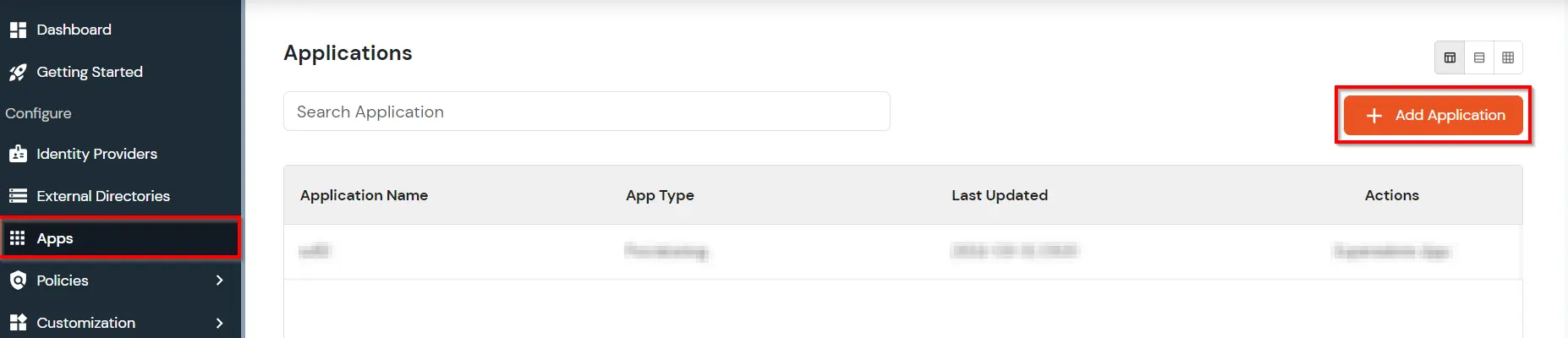
  • Go to Apps and click on Add Applicaton button.
  • PeopleSoft Single Sign-On (SSO) add app

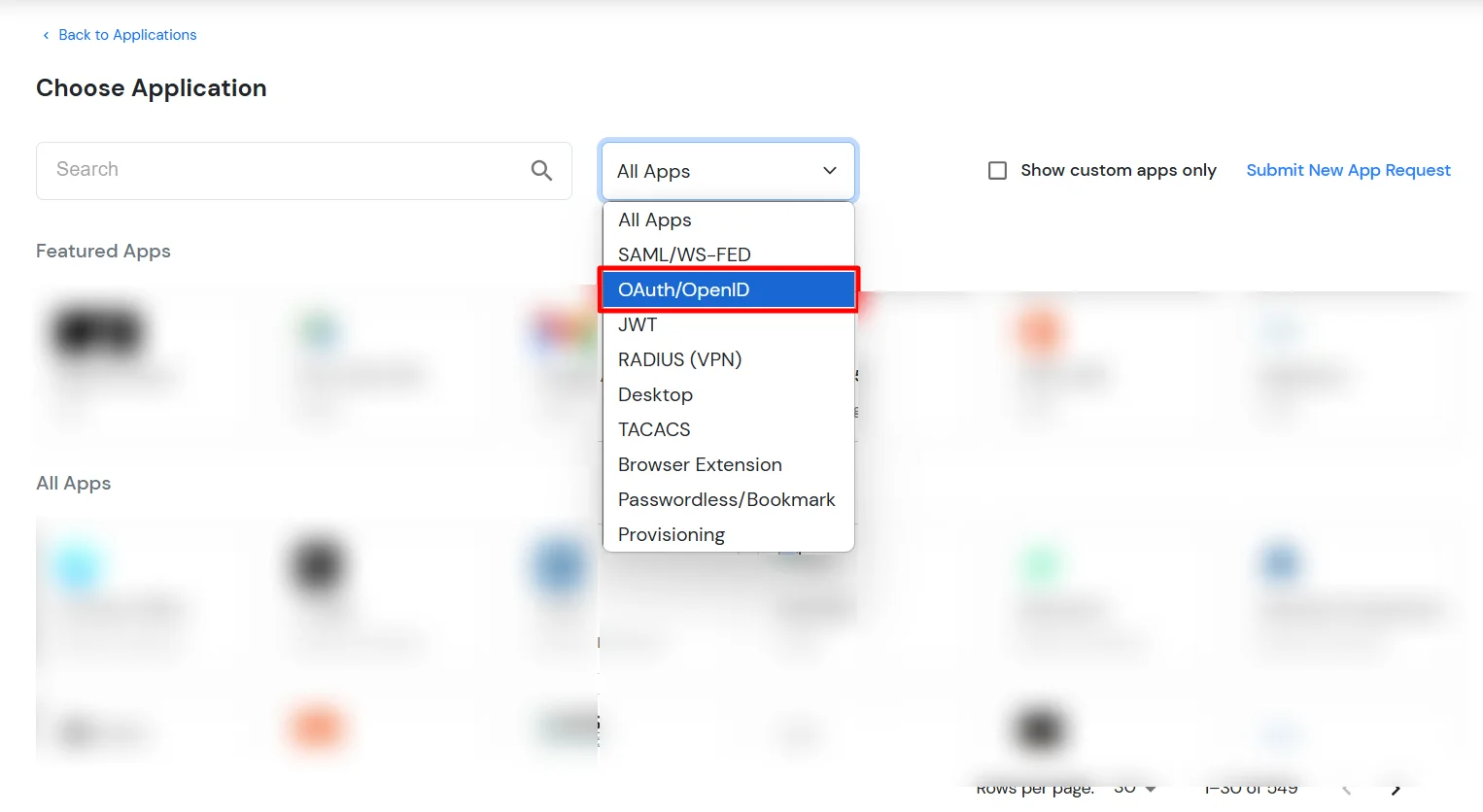
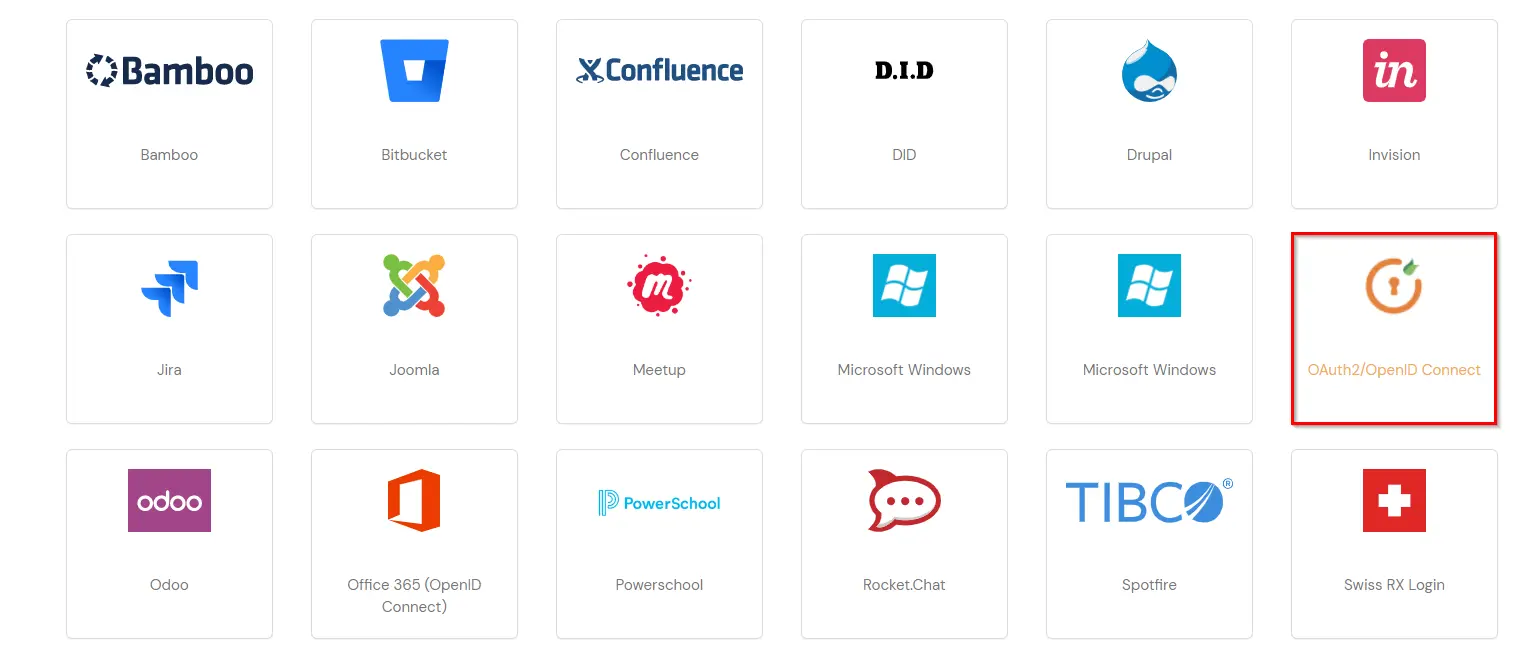
  • In Choose Application Type click on Create App button in OAUTH/OIDC application type.
  •  Single Sign-On (SSO)for PeopleSoft select OAuth/OIDC application type

  • Search for PeopleSoft in the list, if you don't find PeopleSoft in the list then, search for OAuth2/OpenID Connect and you can set up your application via OAuth2/OpenID Connect App.
  • PeopleSoft Single Sign-On (SSO) manage apps

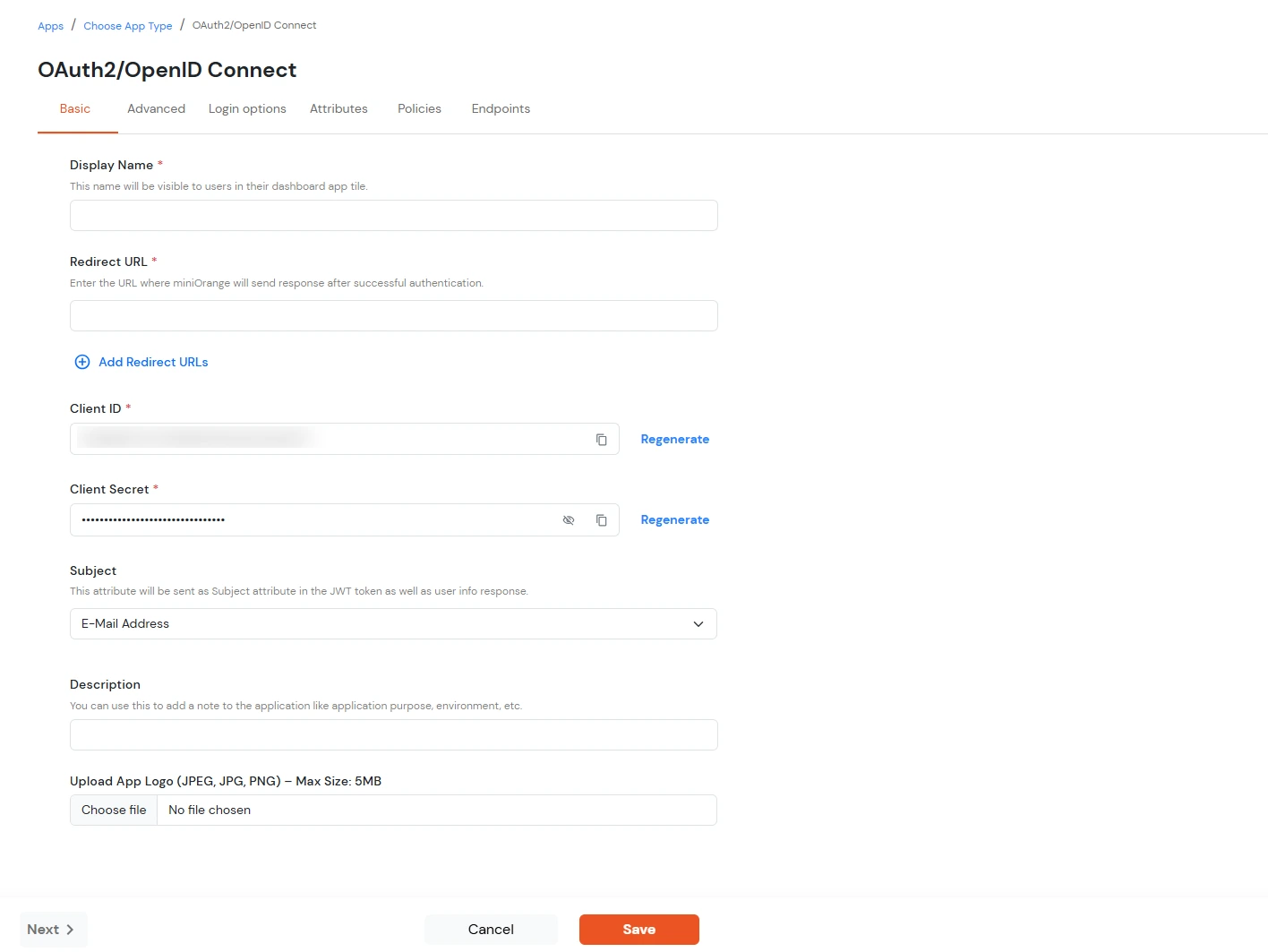
  • Enter the Client Name of your app.
  • Copy the Redirect-URL from miniOrange SSO connector.
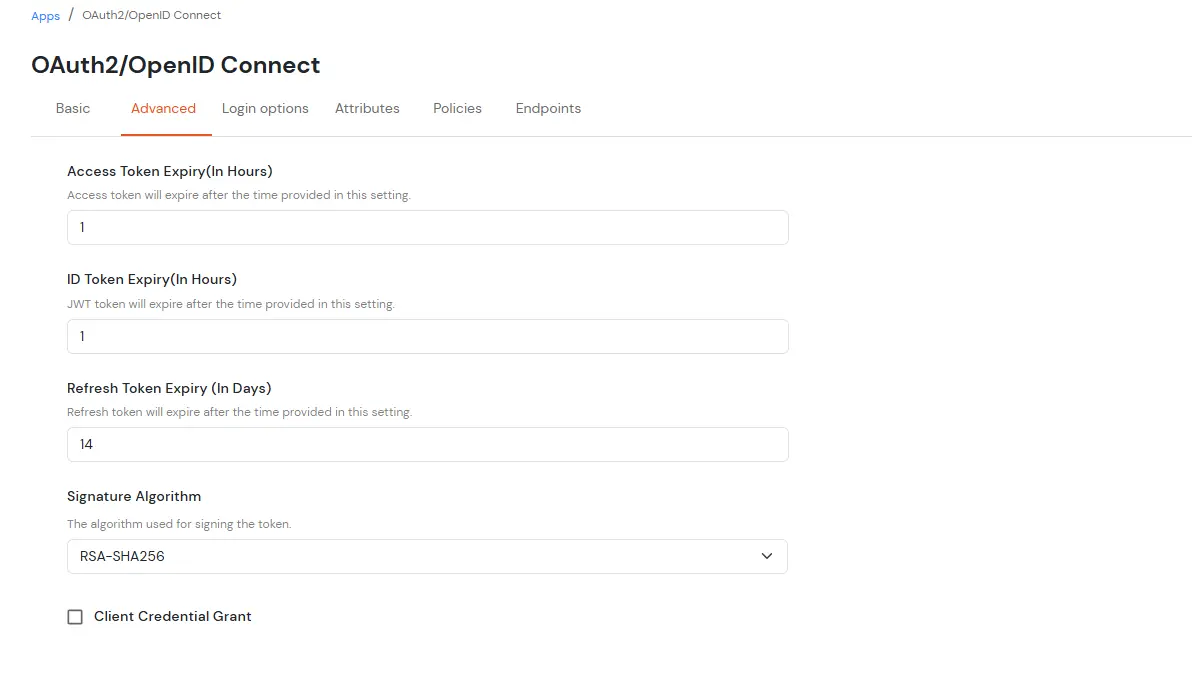
  • Adjust time validity for the tokens.
  • Then, click on Save.
  •  Single Sign-On (SSO) for PeopleSoft save configuration

  • To get the Client id,Client secret, OAuth endpoints and scope, you need to edit the application which you have created in the previous steps.
  • You can edit Application by using the following steps:

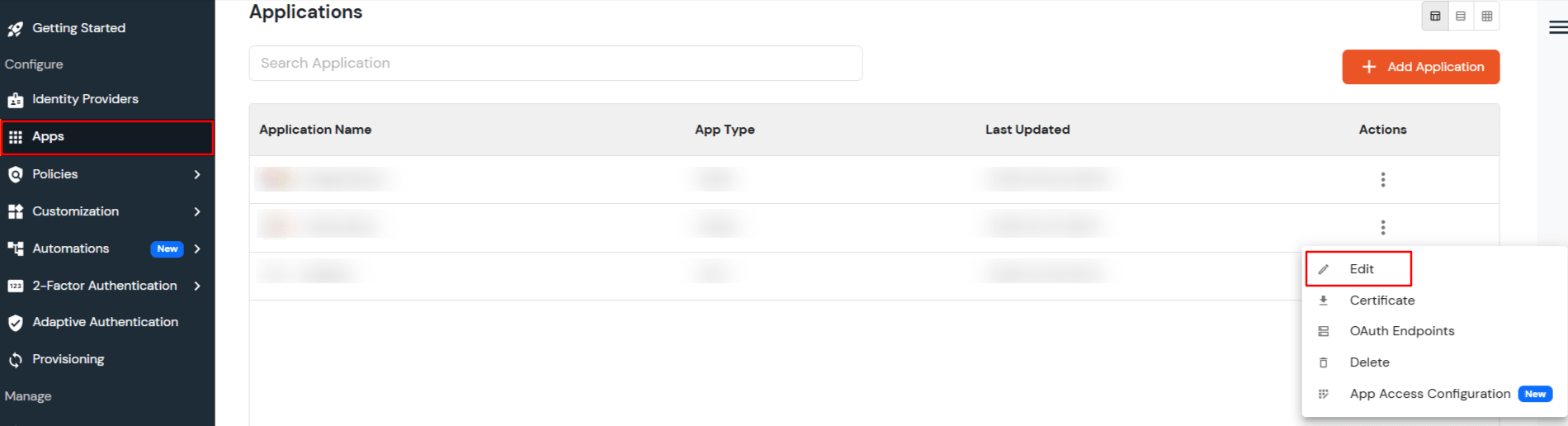
  • Go to Apps.
  • Search for your app and Click on the edit in Action menu against your app.
  •  Single Sign-On (SSO) for PeopleSoft edit application

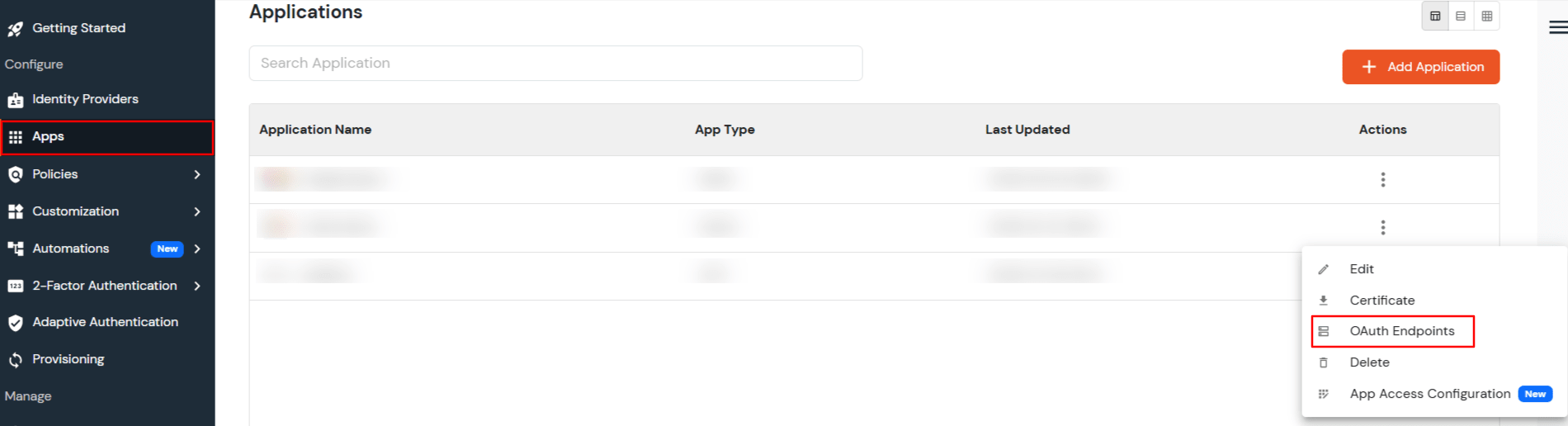
  • Click on Click here to get the miniOrange endpoints.
  •  Single Sign-On (SSO)for PeopleSoft edit application

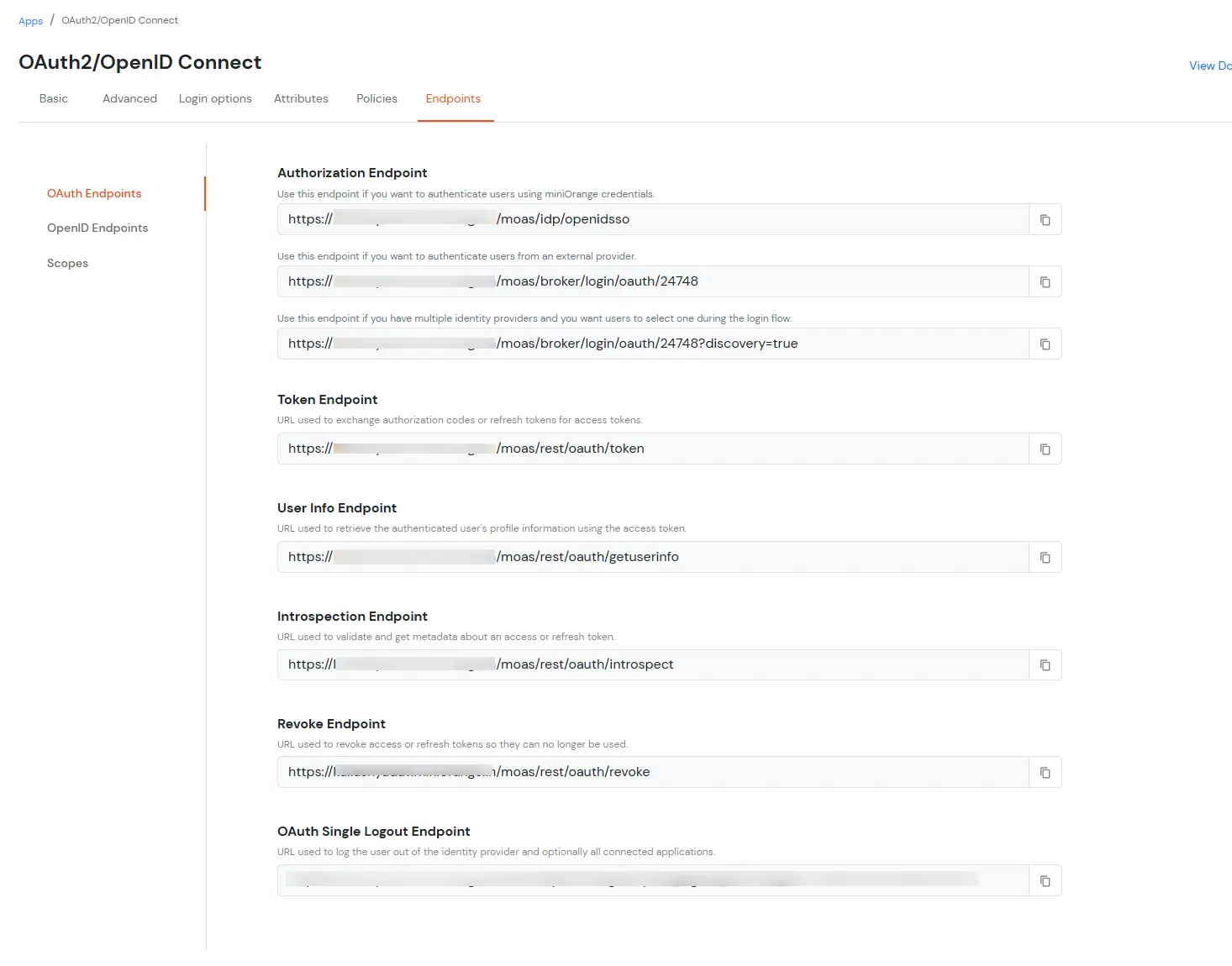
  • Note down all the parameters (Client id,Client secret,OAuth endpoints and scopes). You will need this info while configuring PeopleSoft with miniOrange.
  • OAuth endpoints:

    Authorization Endpoint: https://test.miniorange.in/moas/idp/openidsso
    (Note: Use this endpoint only if you want to use miniorange as oauth identity server.)
    https://test.miniorange.in/moas/broker/login/oauth/260174
    (Note: Use this enpoint only if you are configuring any Identity Provider in Identity Providers Menu and not using miniorange as IDP.)
    Token Endpoint: https://test.miniorange.in/moas/rest/oauth/token
    User Info Endpoint: https://test.miniorange.in/moas/rest/oauth/getuserinfo
    Introspection Endpoint: https://test.miniorange.in/moas/rest/oauth/introspect
    Revoke Endpoint: https://test.miniorange.in/moas/rest/oauth/revoke
    OpenID Single Logout Endpoint: https://test.miniorange.in/moas/idp/oidc/logout?post_logout_redirect_uri=<YOUR-APP-LOGOUT-URL>

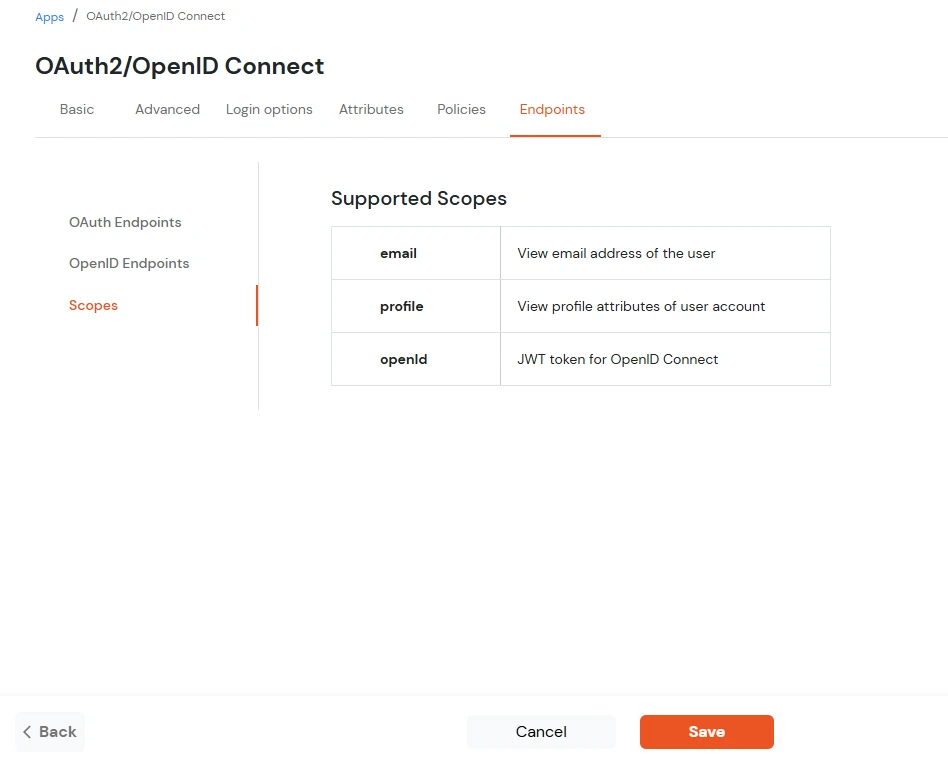
    OAuth Scopes:

    email: View email address of the user
    profile: View profile attributes of the user account
    openid: Retrieve JWT token for OpenID Connect

  • Once the prerequisites are in place, the miniOrange Identity Server will be installed on the miniOrange Application Server.
  • The miniOrange Identity Server consists of 2 components - a reverse proxy, and the Identity Server.
  • You can find the steps for deploying the miniOrange Identity Server here.

2. PeopleSoft SSO Configuration

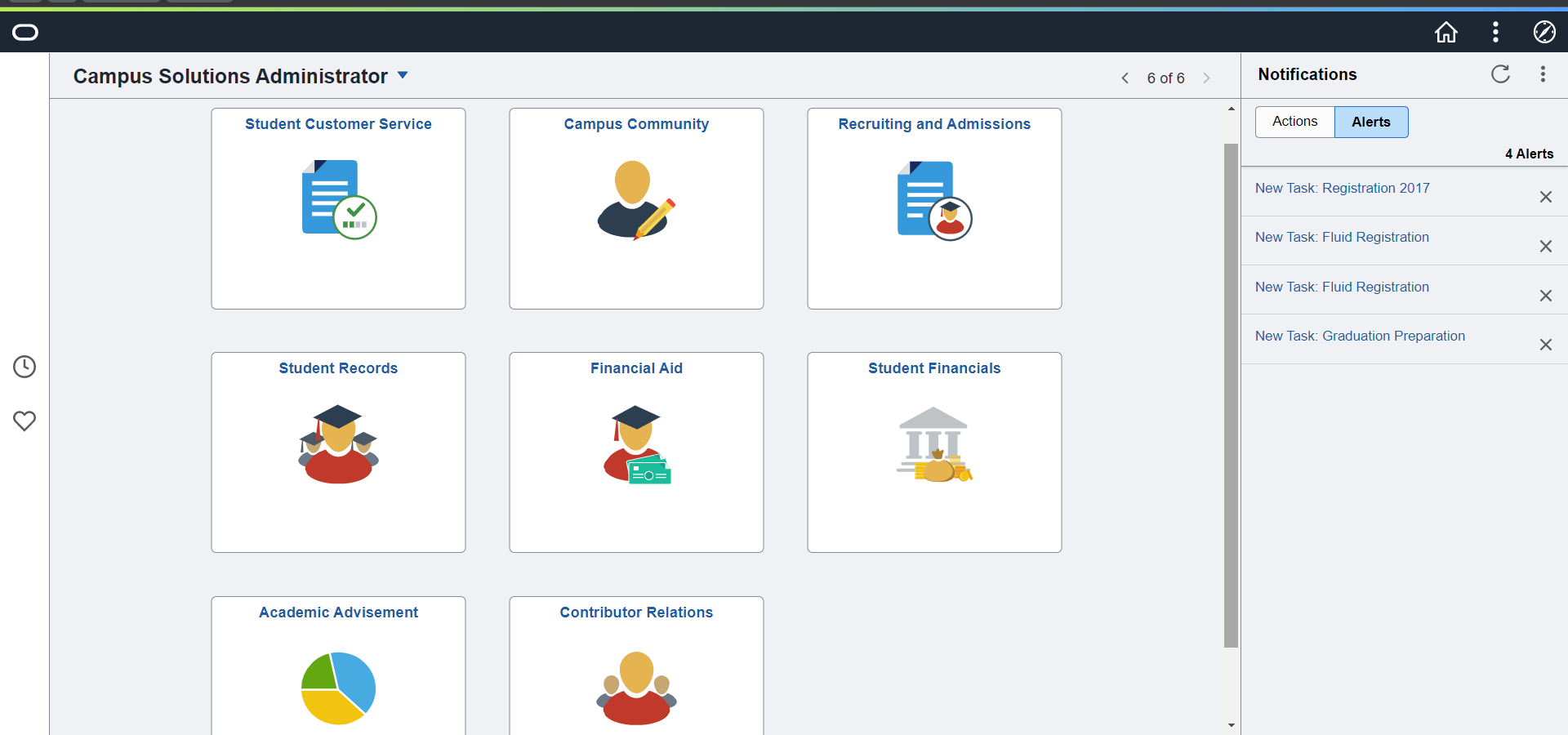
  • Logon to PeopleSoft Console using Admin credentials.
  • PeopleSoft SSO (Single Sign-On) Console

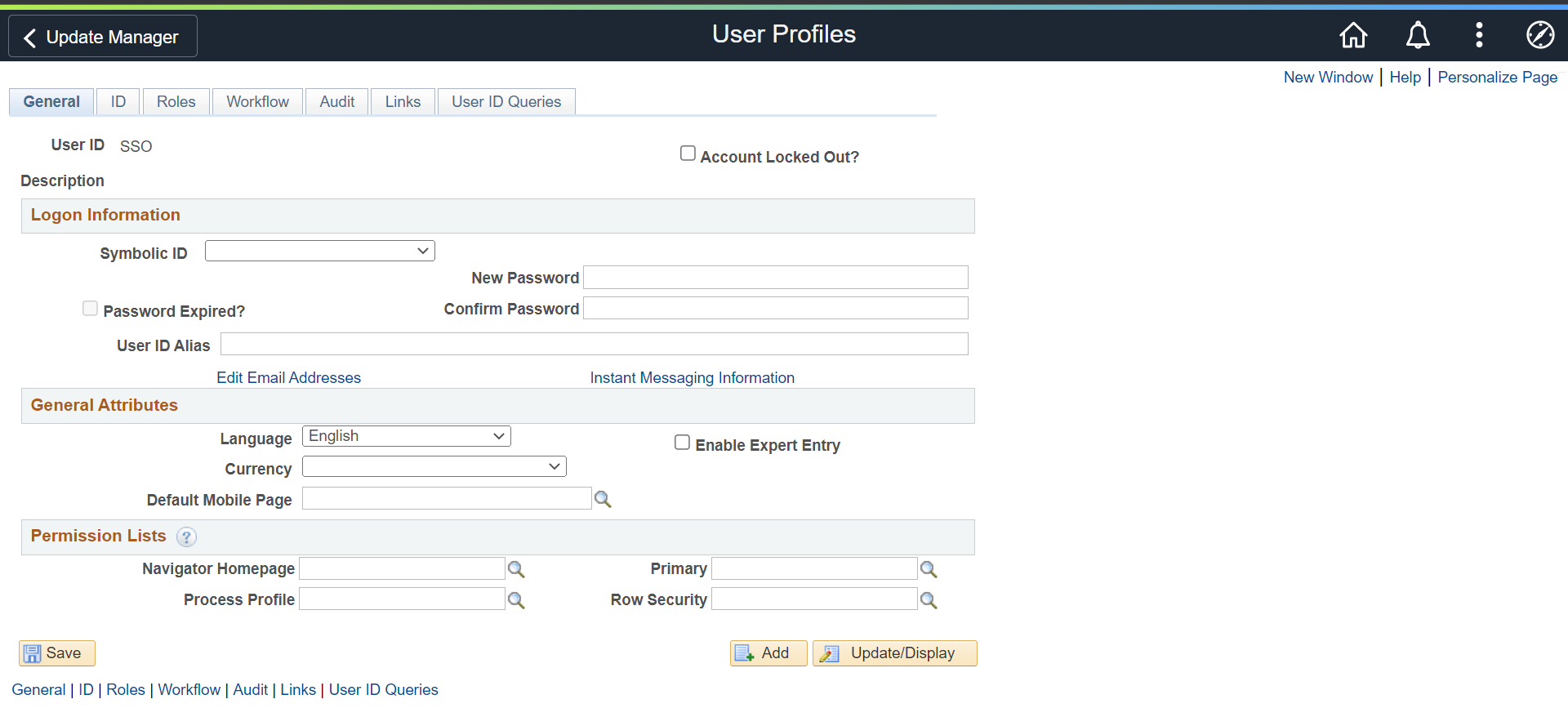
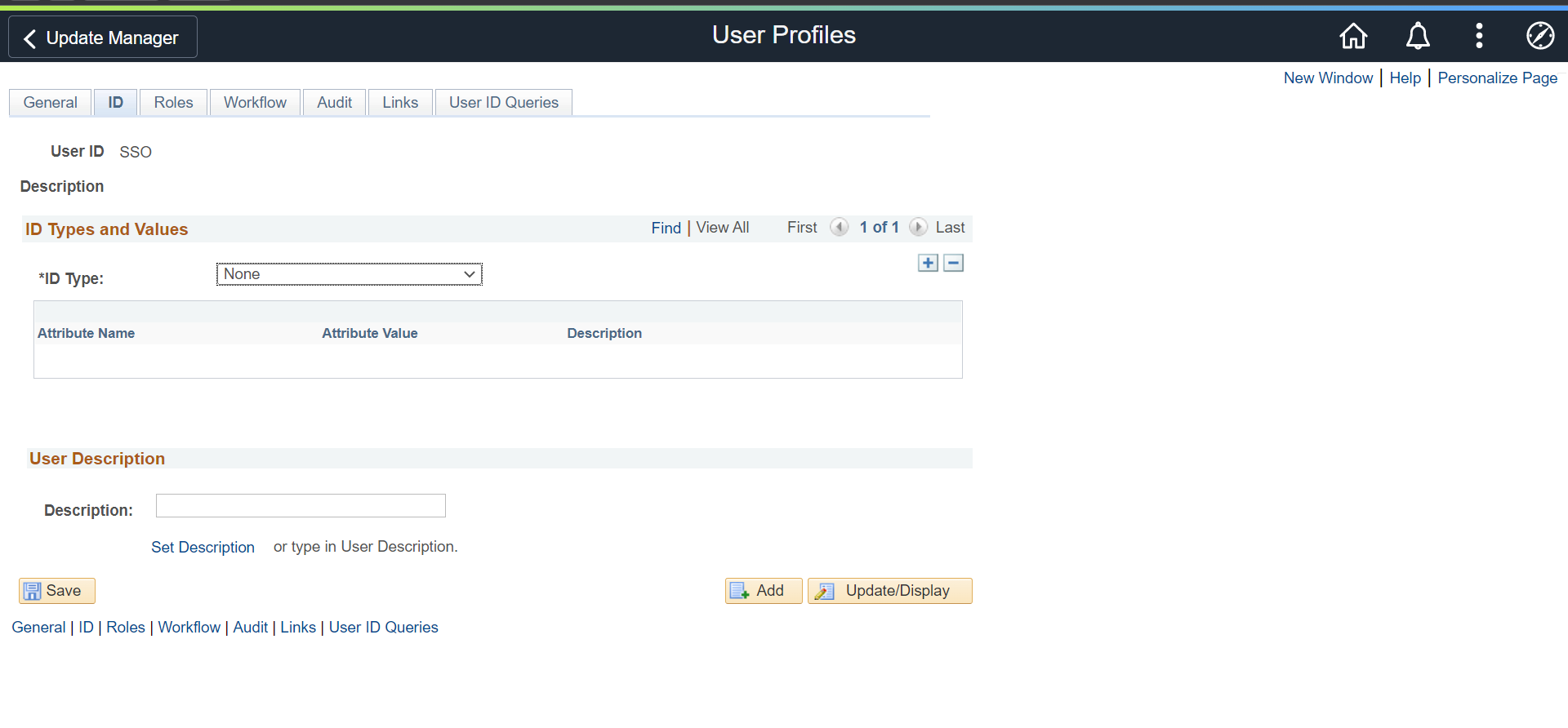
  • Navigate to PeopleTools >> Security >> User Profiles >> User Profiles to create a new user profile.
  • Enter the following details:
  • User ID SSO
    Symbolic ID Blank
    ID Type None
    Role PeopleSoft User
    PeopleSoft SSO (Single Sign-On): User Profiles

    PeopleSoft SSO (Single Sign-On): User Profile ID type

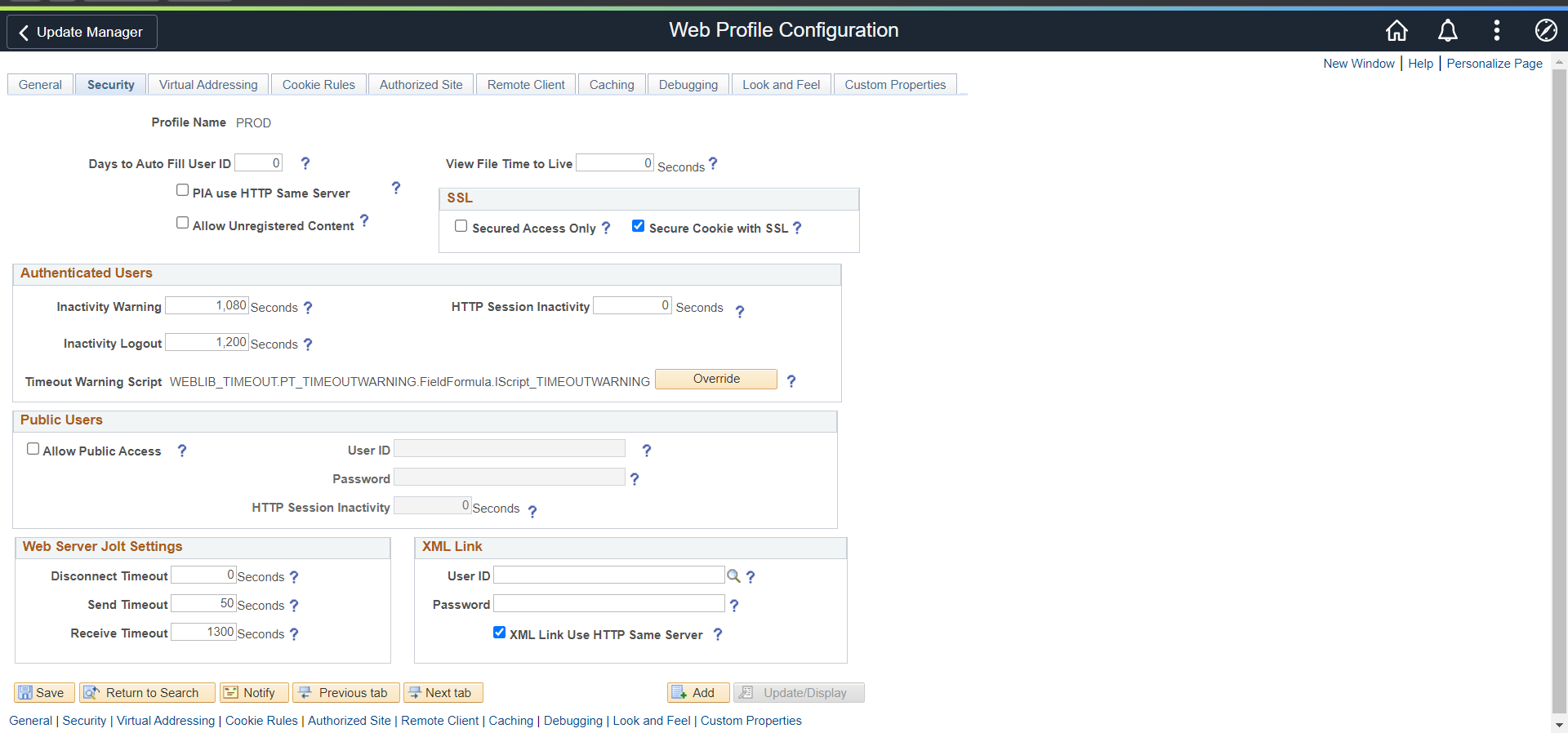
  • Edit the current Web Profile to configure SSO user for the Public Access
  • Go to PeopleTools >> Web Profile >> Web Profile Configuration >> Search >> PROD >> Security.
  • Enter the User ID and password which was created earlier and click on Save.
  • PeopleSoft SSO (Single Sign-On): Web Profile Configuration

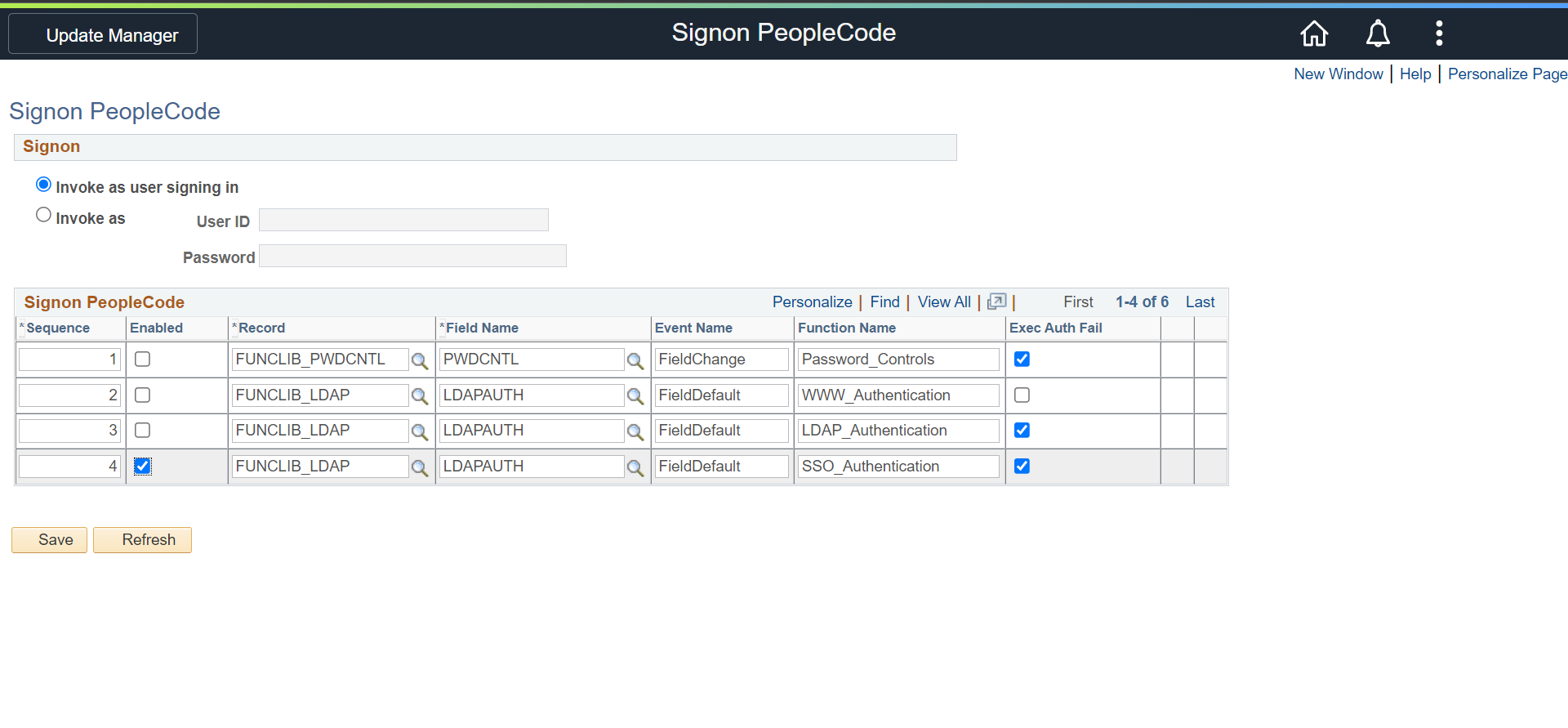
  • Edit Signon PeopleCode to enable miniOrange Authentication.
  • Go to PeopleTools >> Security >> Security Objects >> Signon PeopleCode.
  • Create a line with SSO_Authentication
  • PeopleSoft SSO: SignOn Peoplecode

  • In Application Designer, Click Open and Select ‘Record’, and Open FUNCLIB_LDAP
  • Go to Open >> Select LDAPAUTH, then Right Click and now click on the View PeopleCode.
  • Update PeopleCode of LDAPAUTH for getWWWAuthConfig() function to update defaultUserID to SSO

3. Test SSO Configuration

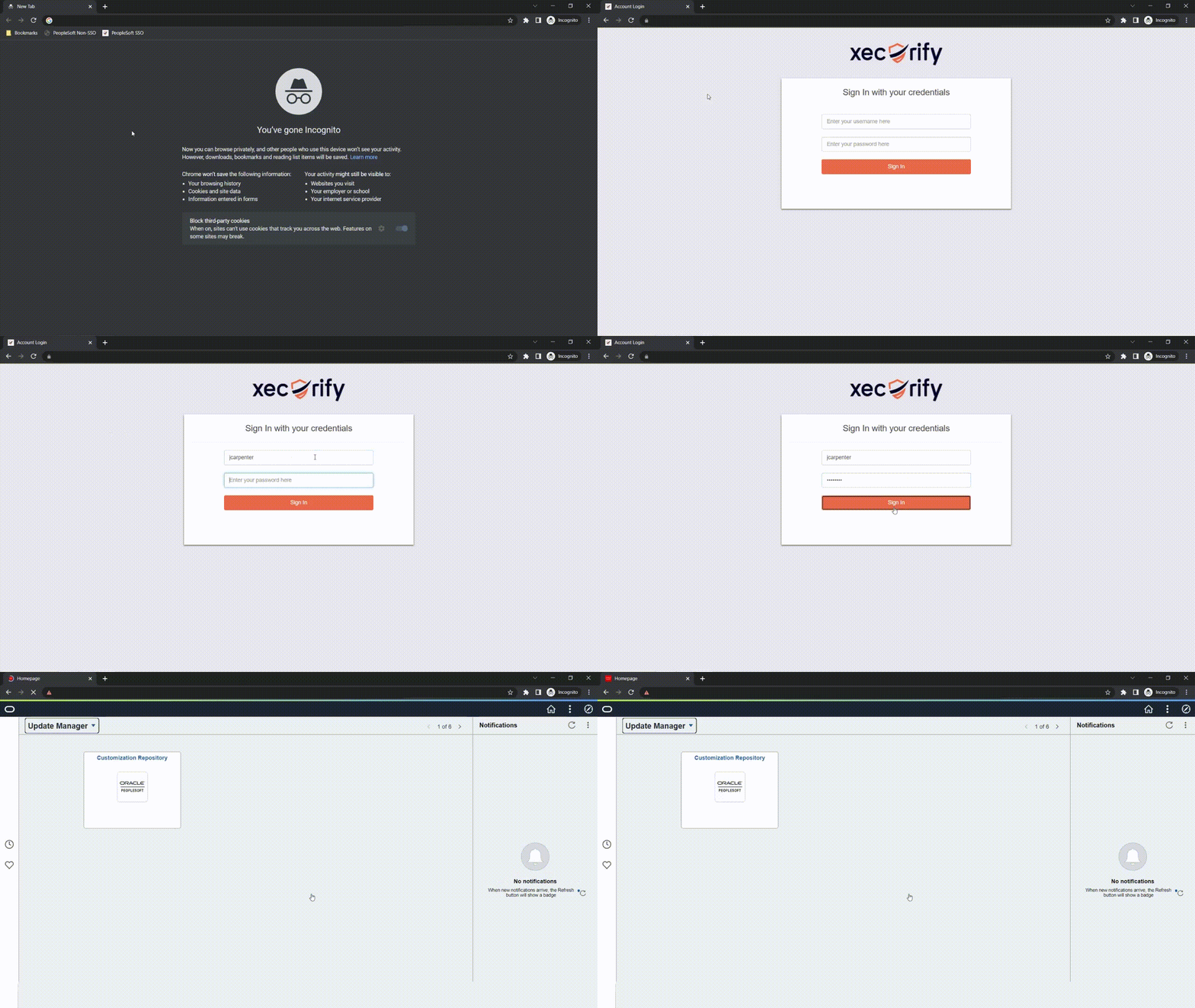
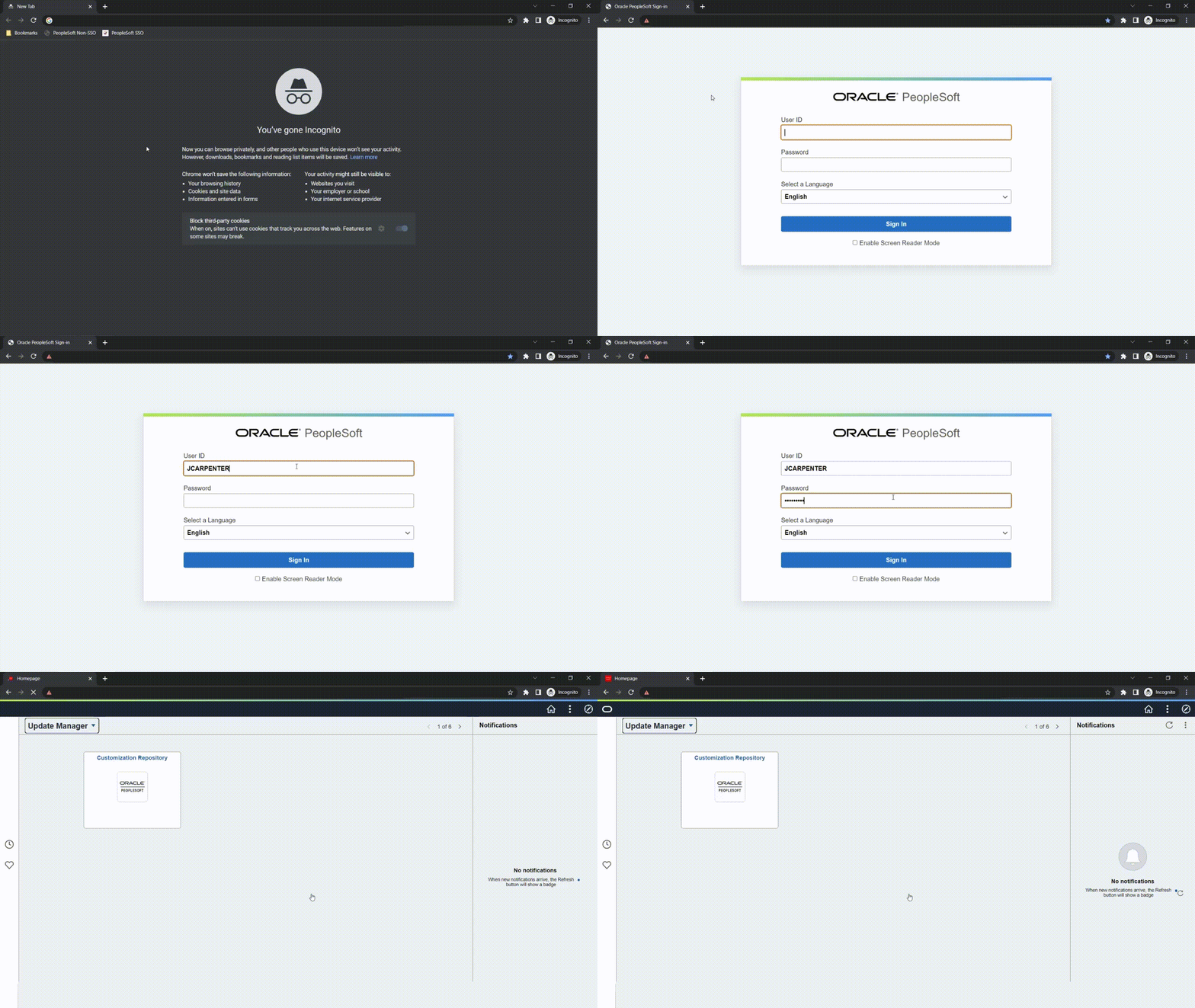
  • Non SSO login flow:
  • PeopleSoft SSO (Single Sign-On): Non SSO Login flow

  • SSO login flow:
  • PeopleSoft SSO (Single Sign-On): SSO Login flow

4. Configure Your User Directory (Optional)

miniOrange provides user authentication from various external sources, which can be Directories (like ADFS, Microsoft Active Directory, Microsoft Entra ID, OpenLDAP, Google, AWS Cognito etc), Identity Providers (like Okta, Shibboleth, Ping, OneLogin, KeyCloak), Databases (like MySQL, Maria DB, PostgreSQL) and many more. You can configure your existing directory/user store or add users in miniOrange.


  • To add your users in miniOrange there are 2 ways:
  • 1. Create User in miniOrange

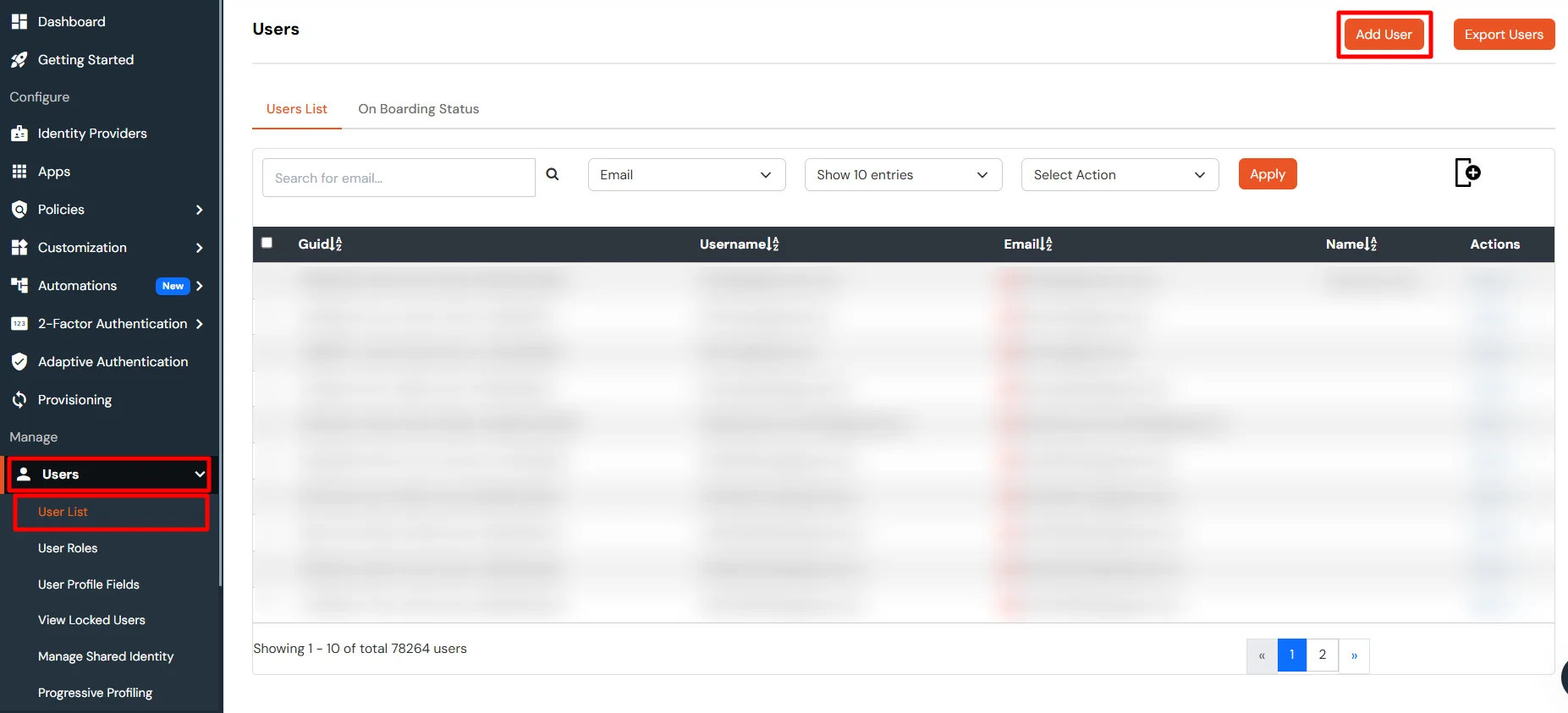
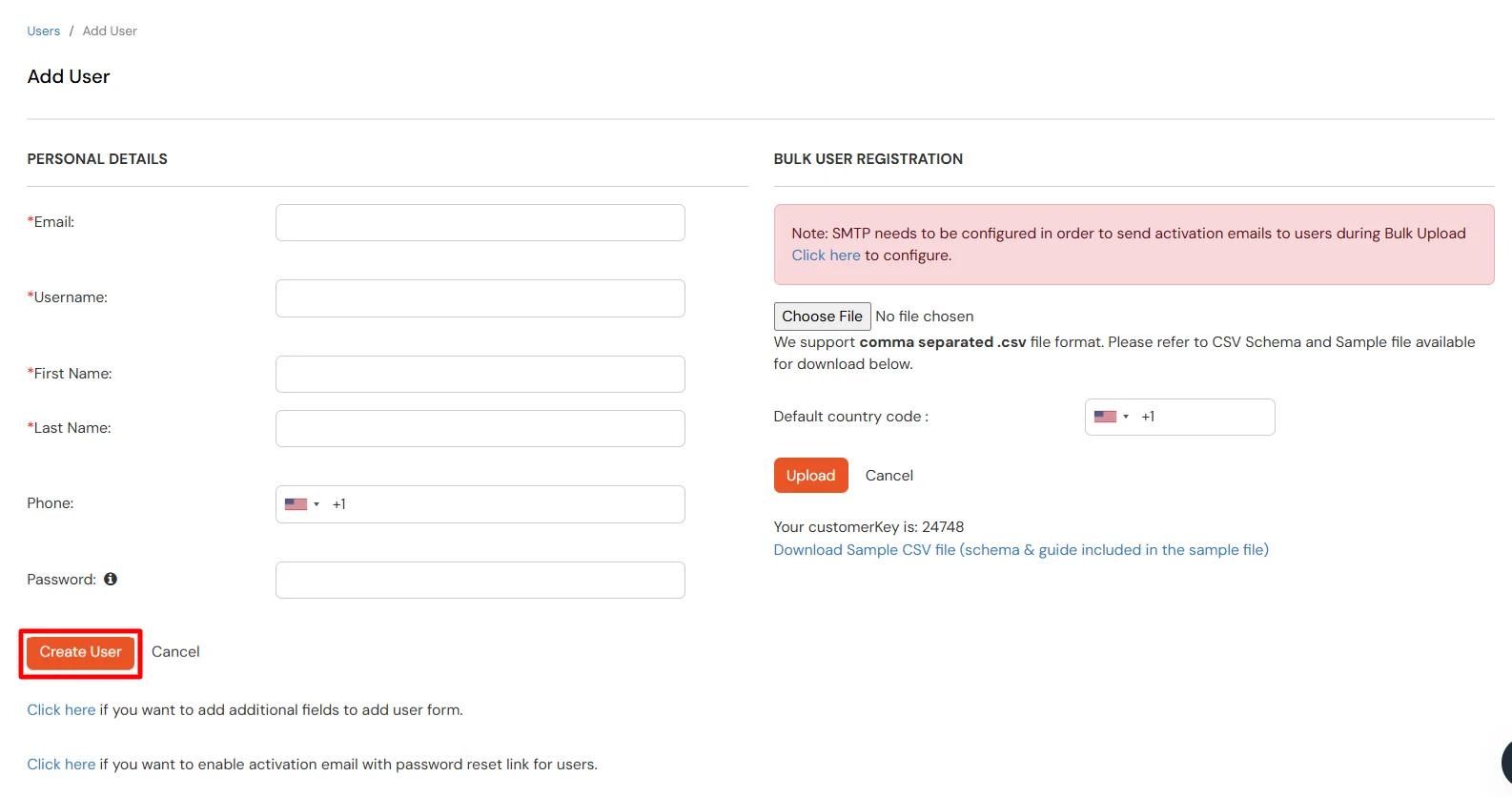
    • Click on Users >> Add User.
    • PeopleSoft SSO (Single Sign-On): Add user in miniOrange

    • Here, fill the user details without the password and then click on the Create User button.
    • PeopleSoft SSO: Add user details

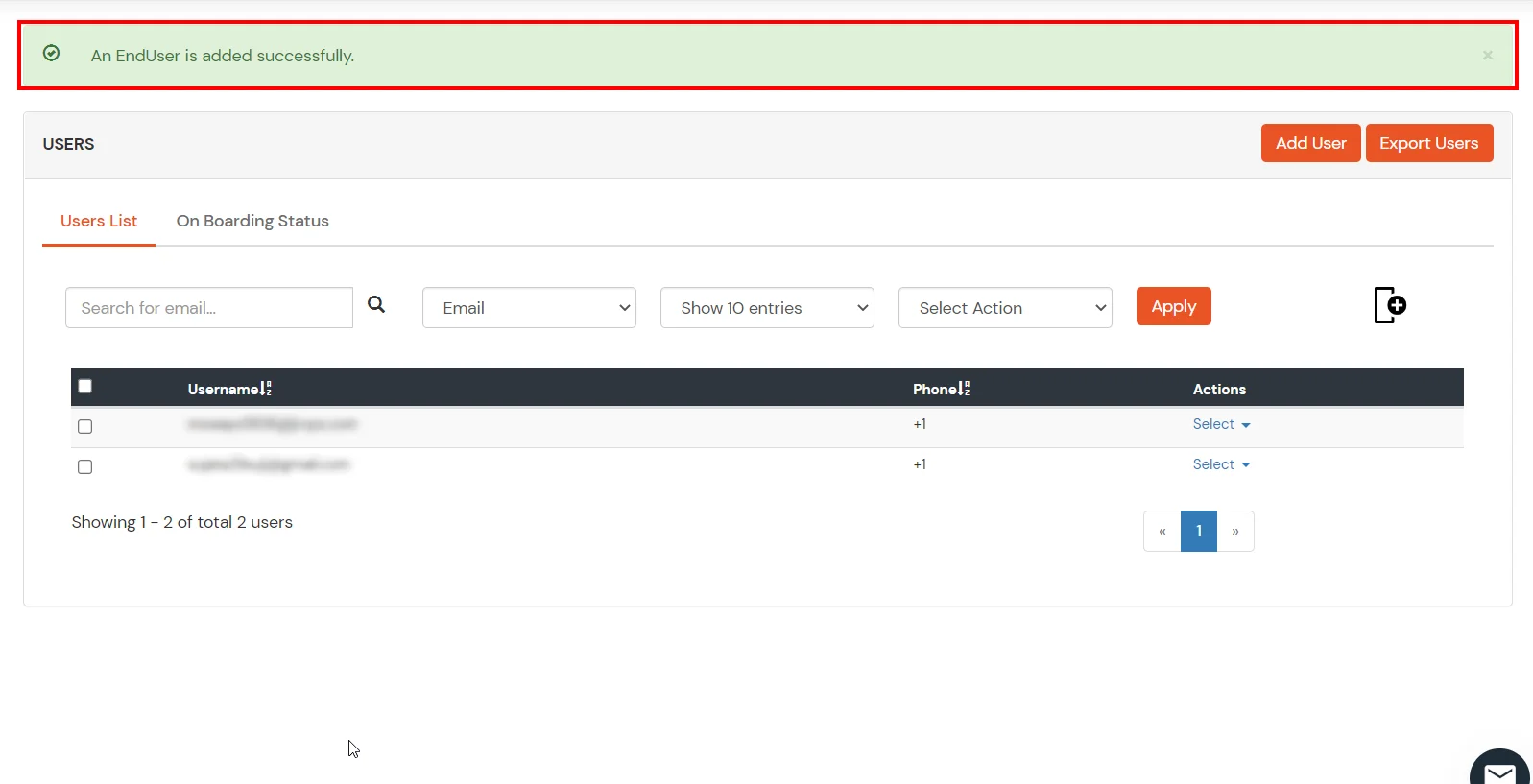
    • After successful user creation a notification message "An end user is added successfully" will be displayed at the top of the dashboard.
    • PeopleSoft SSO (Single Sign-On): Add user details

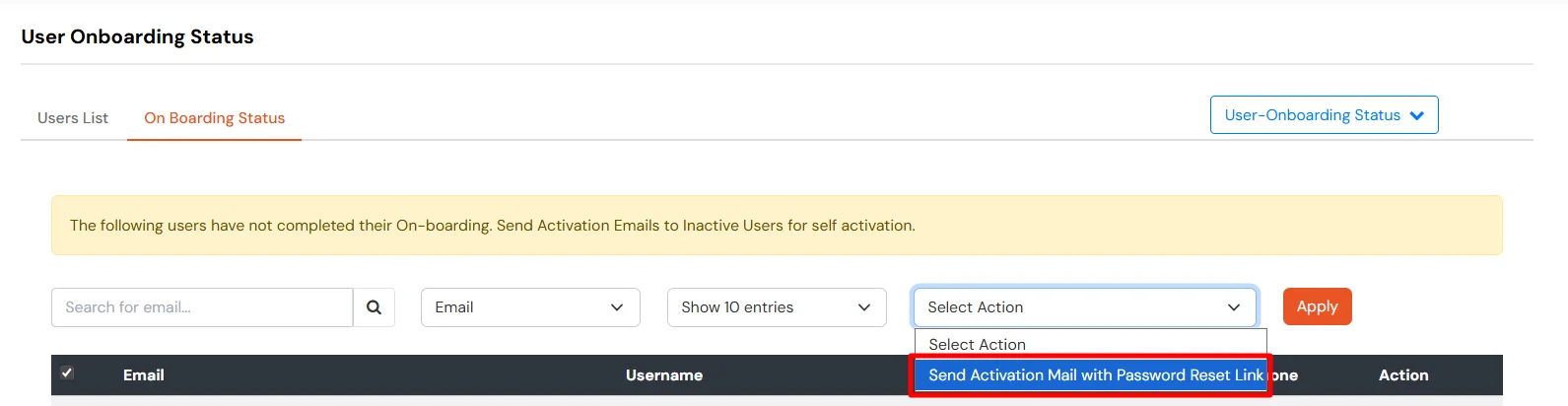
    • Click on Onboarding Status tab. Check the email, with the registered e-mail id and select action Send Activation Mail with Password Reset Link from Select Action dropdown list and then click on Apply button.
    • PeopleSoft SSO: Select email action

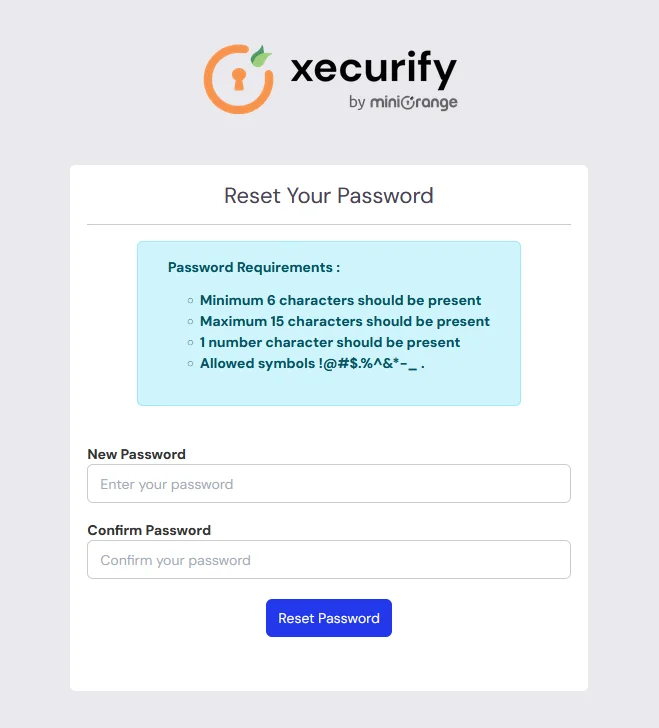
    • Now, Open your email id. Open the mail you get from miniOrange and then click on the link to set your account password.
    • On the next screen, enter the password and confirm password and then click on the Single Sign-On (SSO) reset password button.
    • Oracle PeopleSoft SSO (Single Sign-On): Reset user password
    • Now, you can log in into miniOrange account by entering your credentials.

    2. Bulk Upload Users in miniOrange via Uploading CSV File.
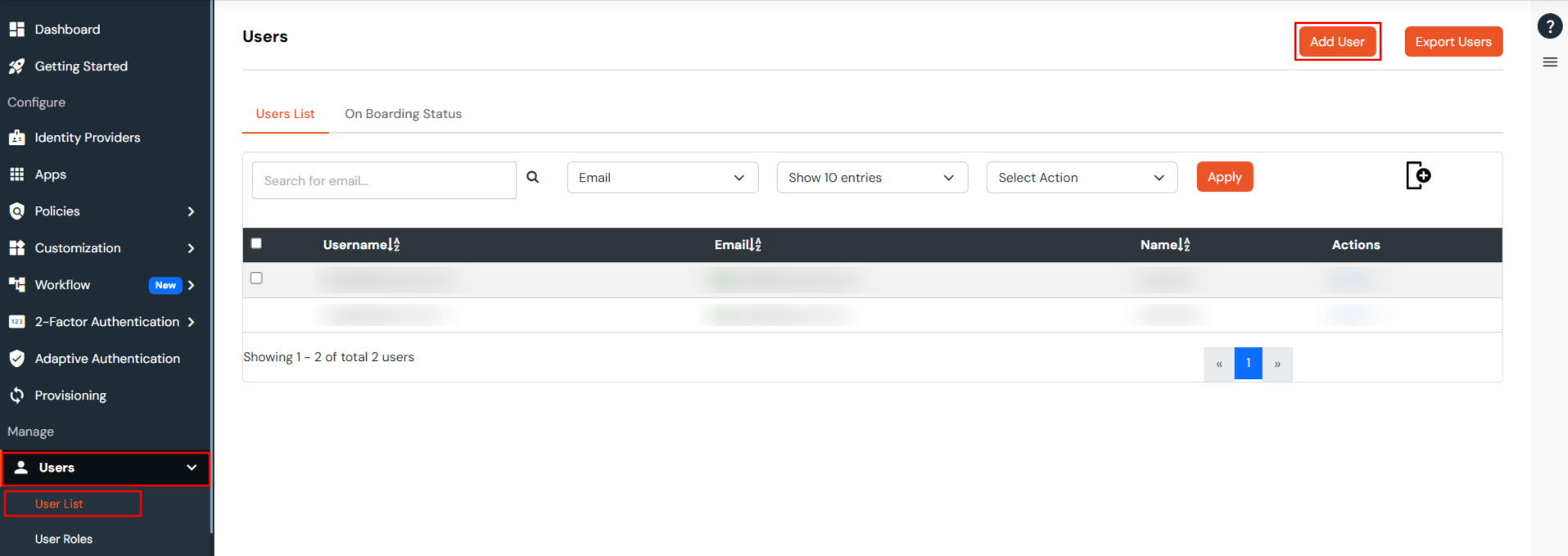
    • Navigate to Users >> User List. Click on Add User button.
    • Oracle PeopleSoft SSO: Add users via bulk upload

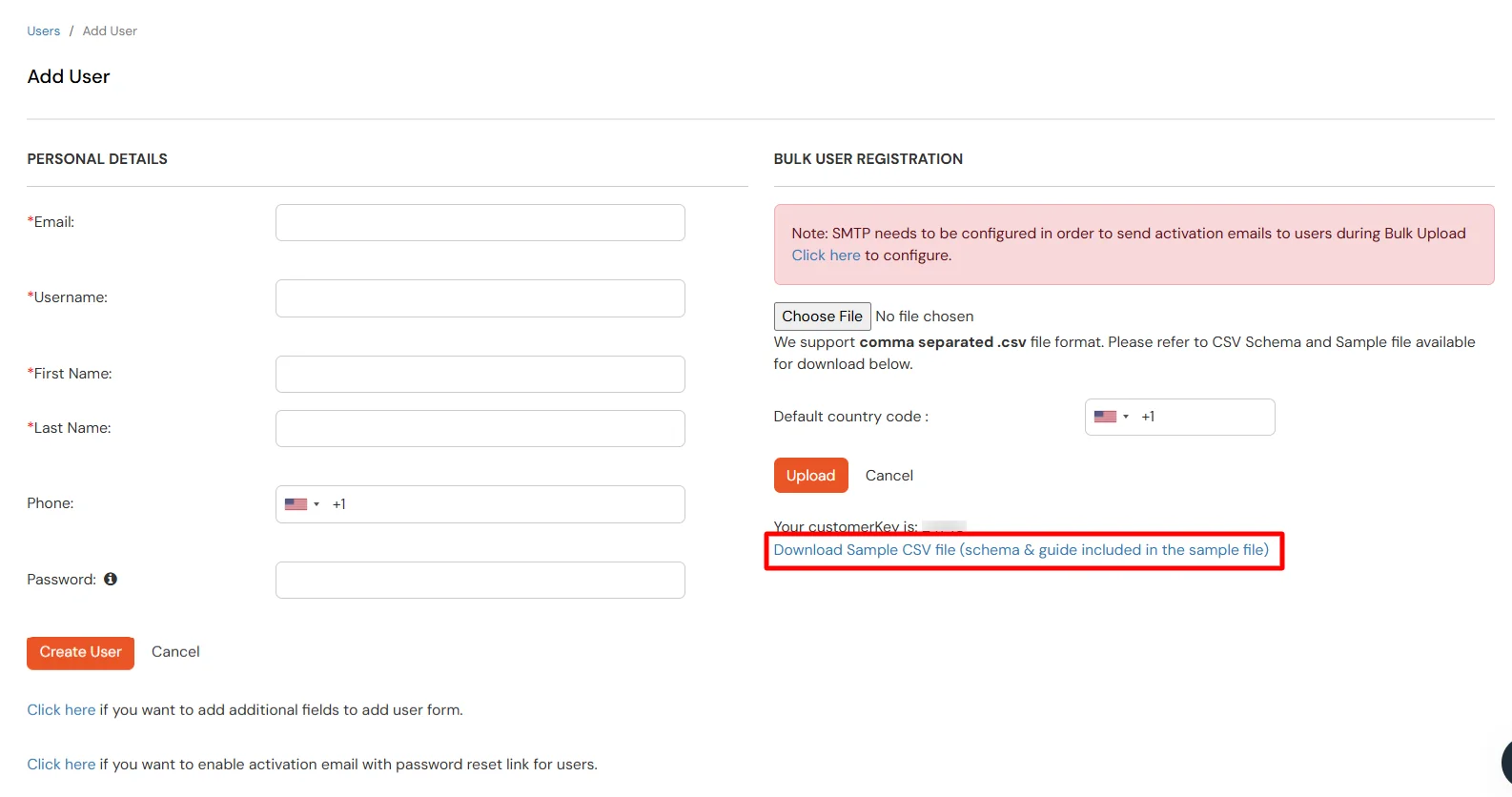
    • In Bulk User Registration Download sample csv format from our console and edit this csv file according to the instructions.
    • Oracle PeopleSoft SSO: Download sample csv file

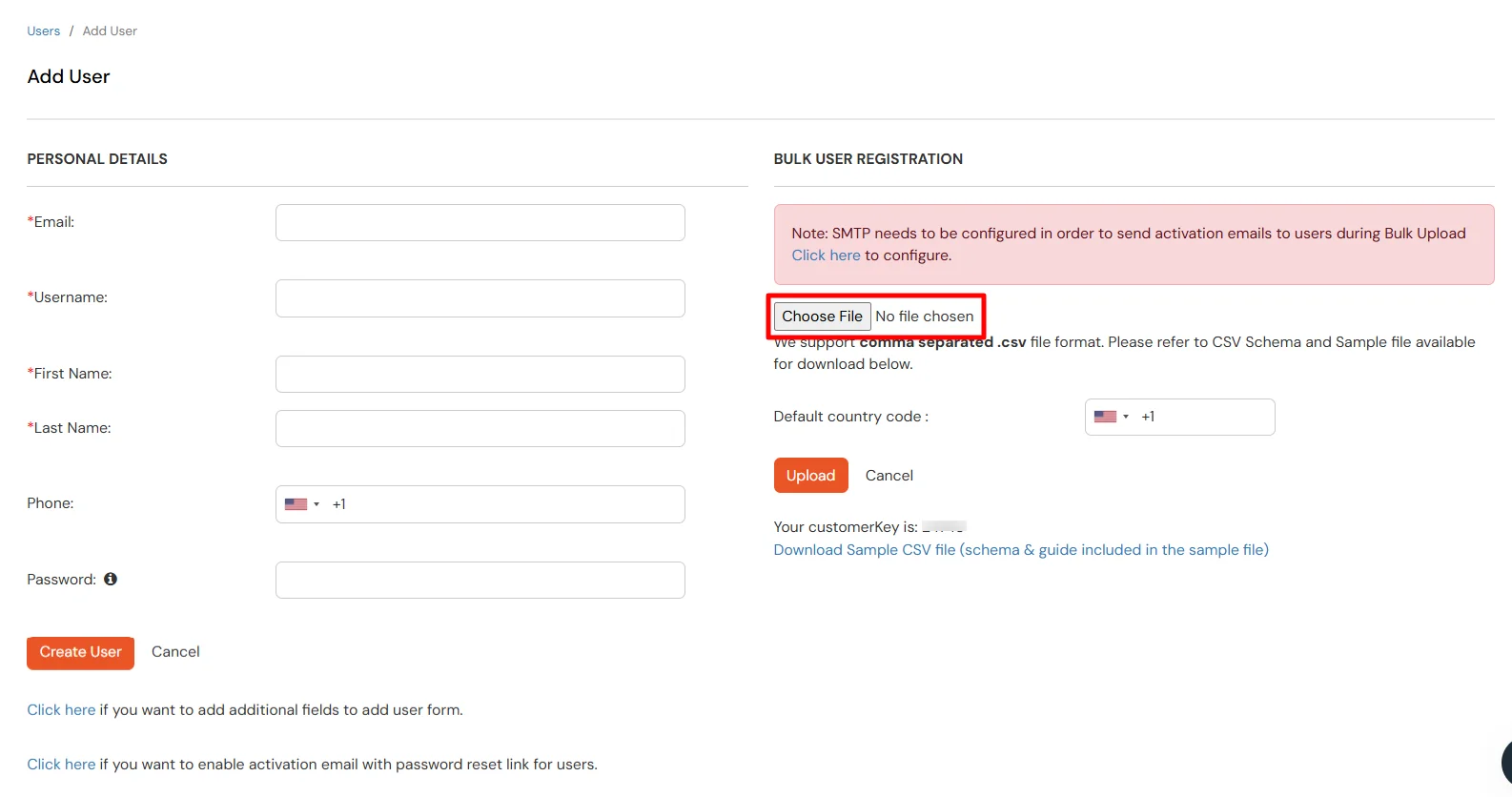
    • To bulk upload users, choose the file make sure it is in comma separated .csv file format then click on Upload.
    • Oracle PeopleSoft SSO: Bulk upload user

    • After uploading the csv file successfully, you will see a success message with a link.
    • Click on that link you will see list of users to send activation mail. Select users to send activation mail and click on Send Activation Mail. An activation mail will be sent to the selected users.
  • Click on Identity Providers >> Add Identity Provider in the left menu of the dashboard.
  • Oracle PeopleSoft SSO: Configure AD as External Directory

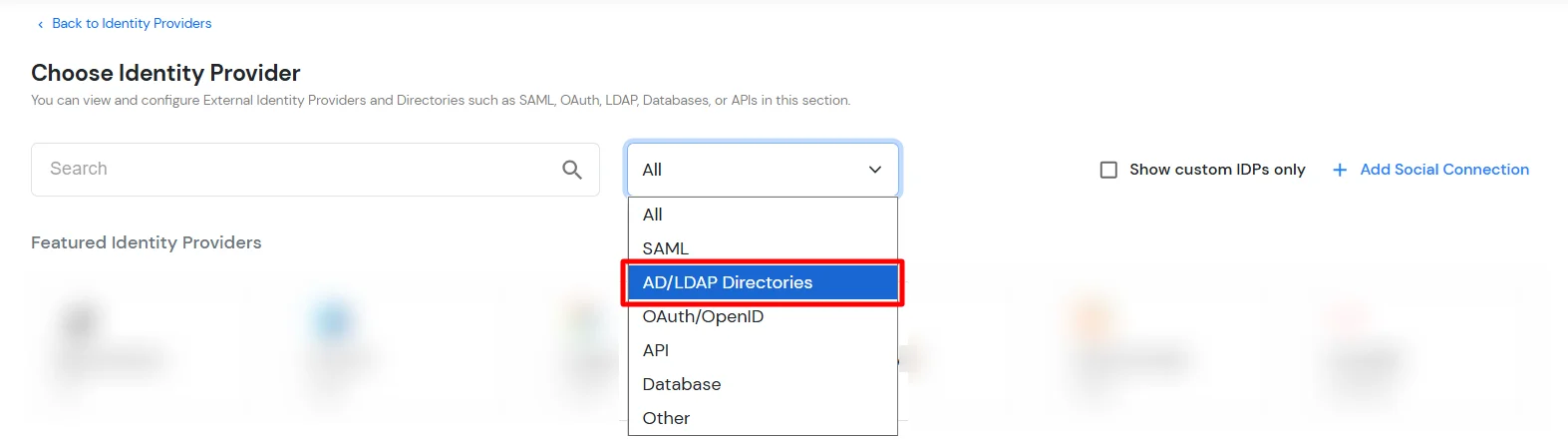
  • In Choose Identity Provider, select AD/LDAP Directories from the dropdown.
  • Oracle PeopleSoft SSO: Select AD/LDAP Directory from dropdown

  • Then search for AD/LDAP and click it.
  • Oracle PeopleSoft SSO: Search AD/LDAP

  • STORE LDAP CONFIGURATION IN MINIORANGE: Choose this option if you want to keep your configuration in miniOrange. If the active directory is behind a firewall, you will need to open the firewall to allow incoming requests to your AD.
  • STORE LDAP CONFIGURATION ON PREMISE: Choose this option if you want to keep your configuration in your premise and only allow access to AD inside premises. You will have to download and install miniOrange gateway on your premise.
  • Oracle PeopleSoft SSO: Select ad/ldap user store type

  • Enter LDAP Display Name and LDAP Identifier name.
  • Select Directory Type as Active Directory.
  • Enter the LDAP Server URL or IP Address against the LDAP Server URL field.
  • Click on the Test Connection button to verify if you have made a successful connection with your LDAP server.
  • Oracle PeopleSoft SSO: Configure LDAP server URL Connection

  • In Active Directory, go to the properties of user containers/OU's and search for the Distinguished Name attribute. The bind account should have minimum required read privileges in Active Directory to allow directory lookups. If the use case involves provisioning (such as creating, updating, or deleting users or groups), the account must also be granted appropriate write permissions.
  • Oracle PeopleSoft SSO: Configure user bind account domain name

  • Enter the valid Bind account Password.
  • Click on the Test Bind Account Credentials button to verify your LDAP Bind credentials for LDAP connection.
  • Oracle PeopleSoft SSO: Check bind account credentials

  • Search Base is the location in the directory where the search for a user begins. You will get this from the same place you got your Distinguished name.
  • Oracle PeopleSoft SSO: Configure user search base

  • Select a suitable Search filter from the drop-down menu. If you use User in Single Group Filter or User in Multiple Group Filter, replace the <group-dn> in the search filter with the distinguished name of the group in which your users are present. To use custom Search Filter select "Write your Custom Filter" option and customize it accordingly.
  • Oracle PeopleSoft SSO: Select user search filter

  • Click on the Next button, or go to the Login Options tab.
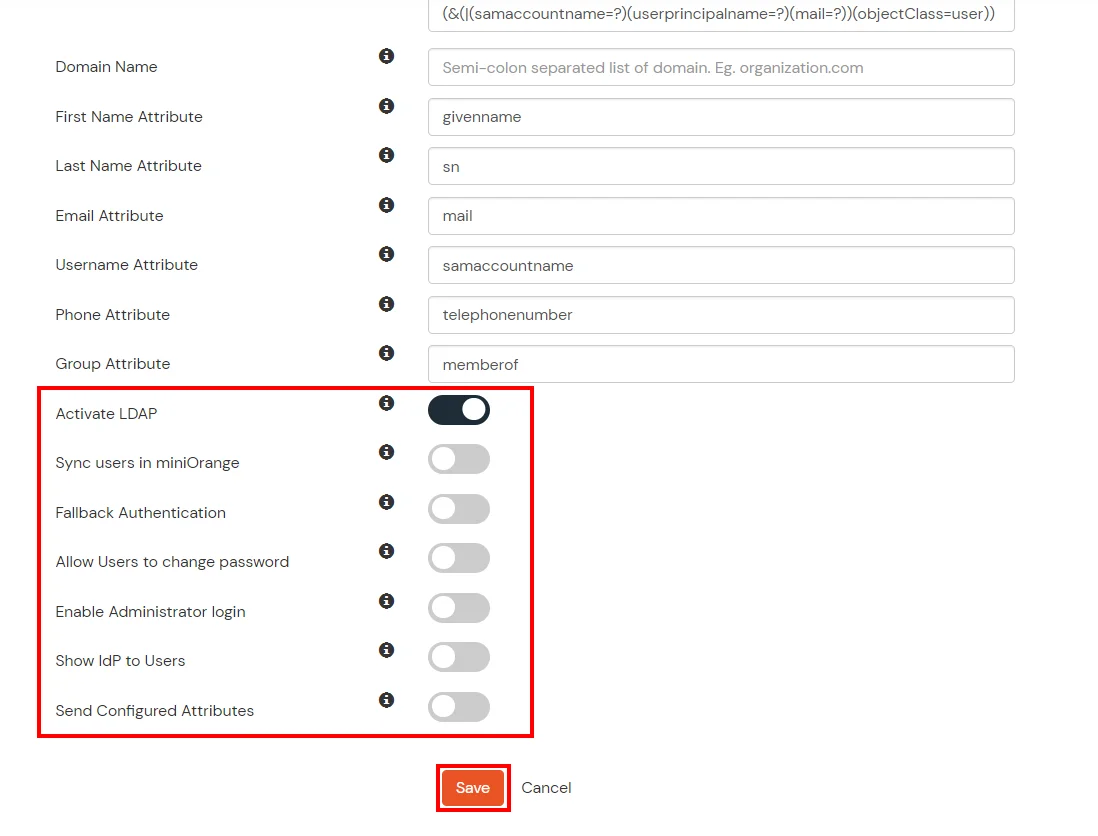
  • You can also configure following options while setting up AD. Enable Activate LDAP in order to authenticate users from AD/LDAP. Click on the Next button to add user store.
  • Oracle PeopleSoft SSO: Activate LDAP options

    Here's the list of the attributes and what it does when we enable it. You can enable/disable accordingly.

    Attribute Description
    Activate LDAP All user authentications will be done with LDAP credentials if you Activate it
    Fallback Authentication If LDAP credentials fail then user will be authenticated through miniOrange
    Enable administrator login On enabling this, your miniOrange Administrator login authenticates using your LDAP server
    Show IdP to users If you enable this option, this IdP will be visible to users
    Sync users in miniOrange Users will be created in miniOrange after authentication with LDAP

  • Click on the Next button, or go to the Attributes tab.

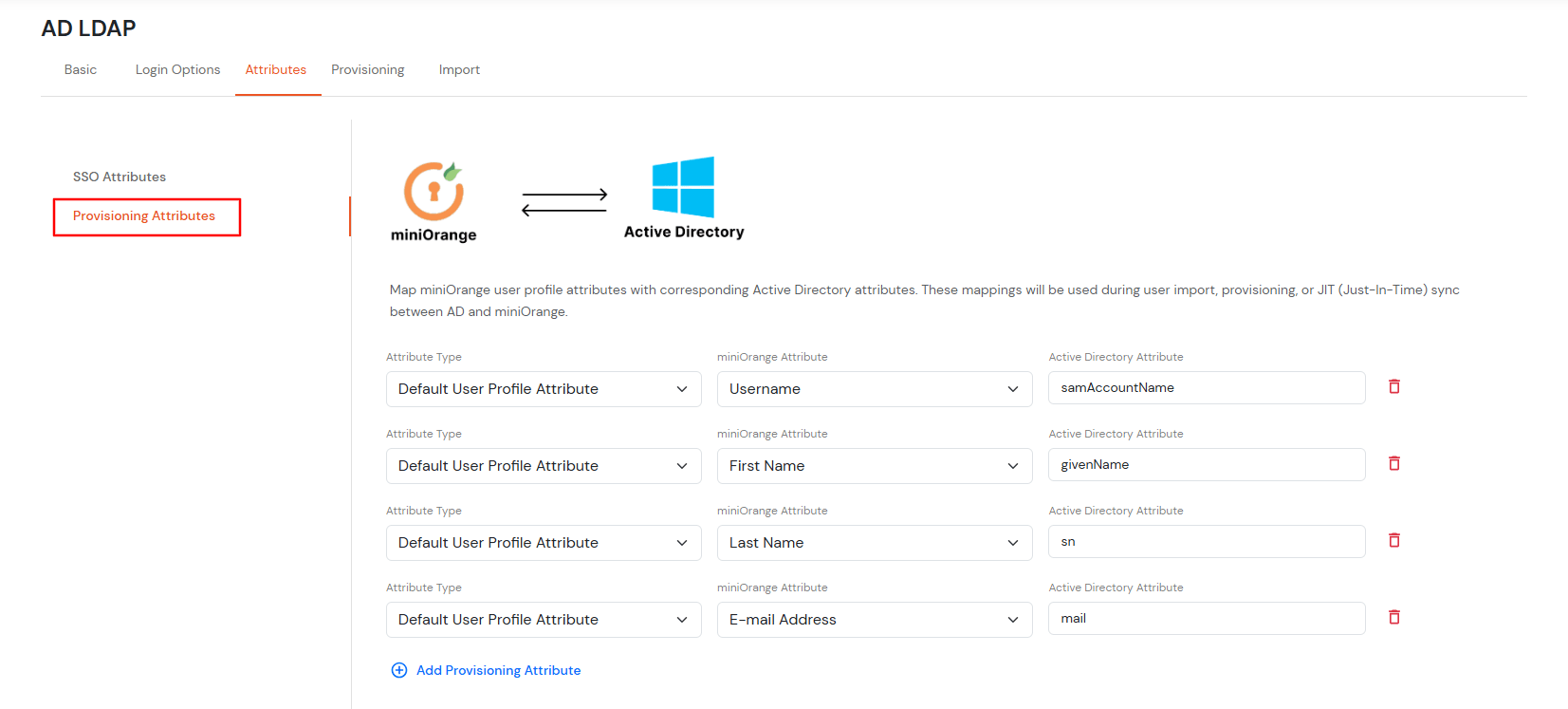
Attributes Mapping from AD

  • By default userName, firstName, lastName, email are configured. Scroll down and click on Save button. To fetch additional attributes from Active Directory, enable Send Configured Attributes. On the left side, enter the name that you wish to release to the applications. On the right side, enter the attribute name from Active Directory. E.g., if you wish to fetch company attribute from Active Directory, and send it as organization to configured applications, enter the following:

    Attribute Name sent to SP = organization
    Attribute Name from IDP = company

  • Oracle PeopleSoft SSO: Enable Send Configured Attributes

    Oracle PeopleSoft SSO: Attributes Mapping from AD

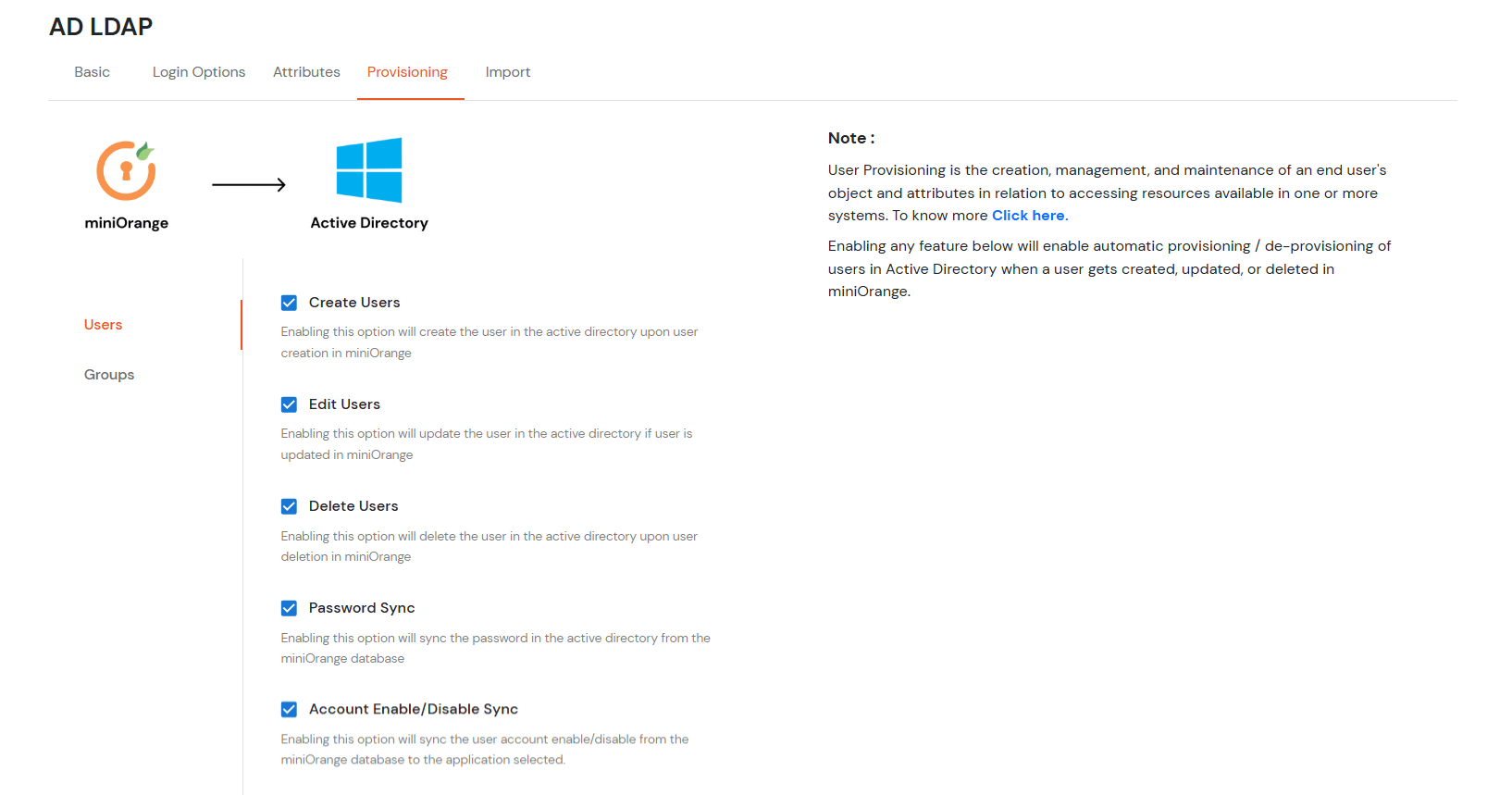
  • Click on the Next button, or go to the Provisioning tab.

User Import and Provisioning from AD

  • If you want to set up provisioning, click here for detailed information. We will skip this step for now.
  • Oracle PeopleSoft SSO: Skip Provisioning for now

Test Connections

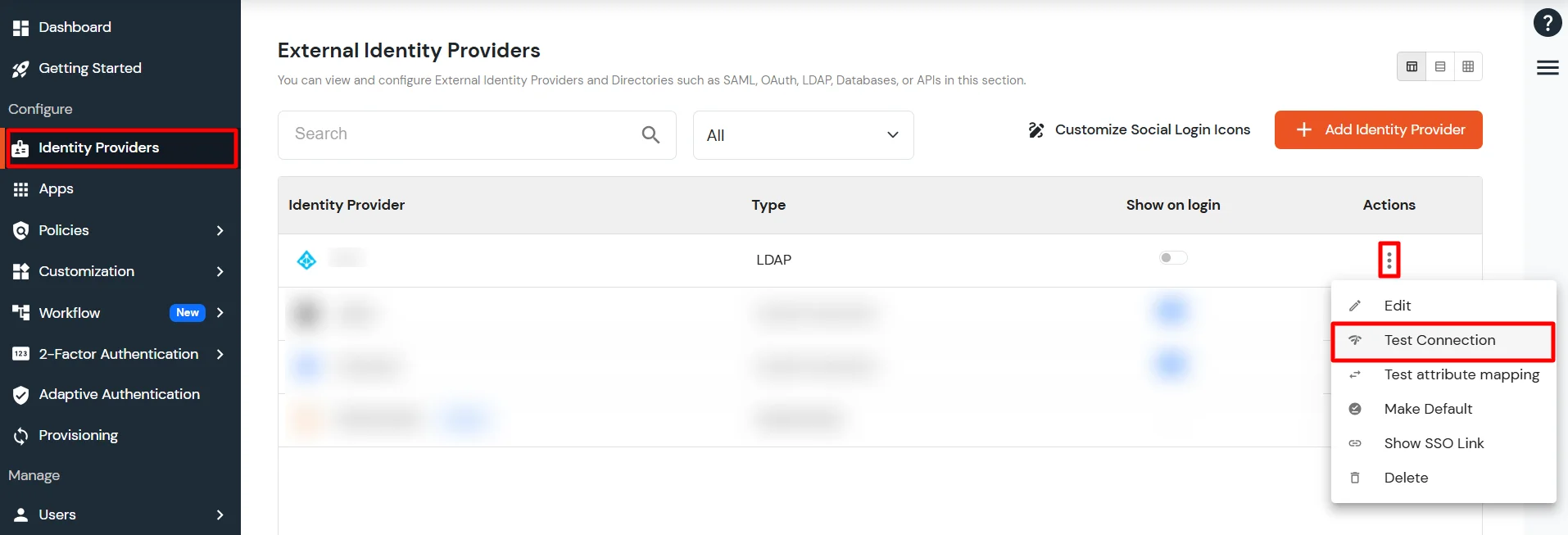
  • You will see a list of directories under Identity Providers. From the dropdown, select AD/LDAP Directories, search for your configured directory, click the three dots next to it, and select Test Connection.
  • Oracle PeopleSoft SSO: Test AD/Ldap connection

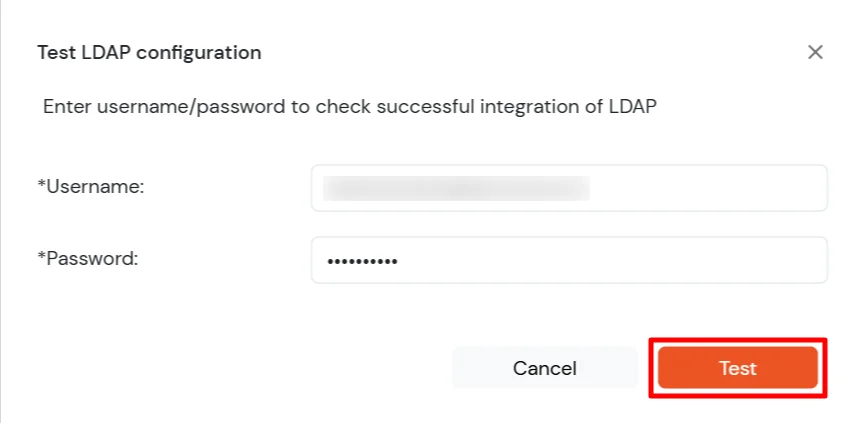
  • A pop-up appears prompting you to enter a username and password to verify your LDAP configuration.
  • Oracle PeopleSoft SSO: Enter username and password to test LDAP connection

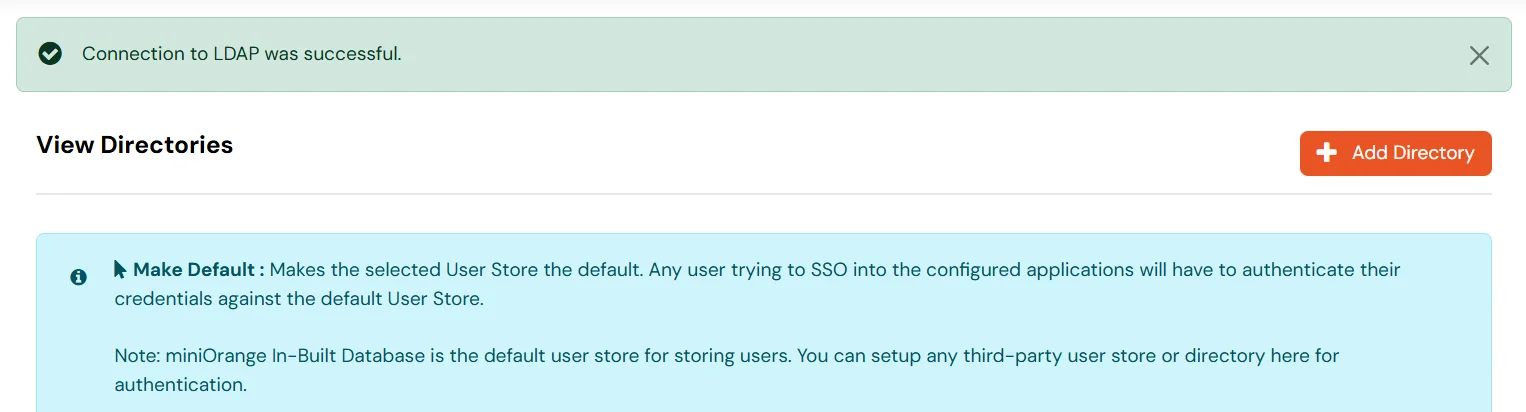
  • On Successful connection with LDAP Server, a success message is shown.
  • Oracle PeopleSoft SSO: Successful connection with LDAP Server

Test Attribute Mapping

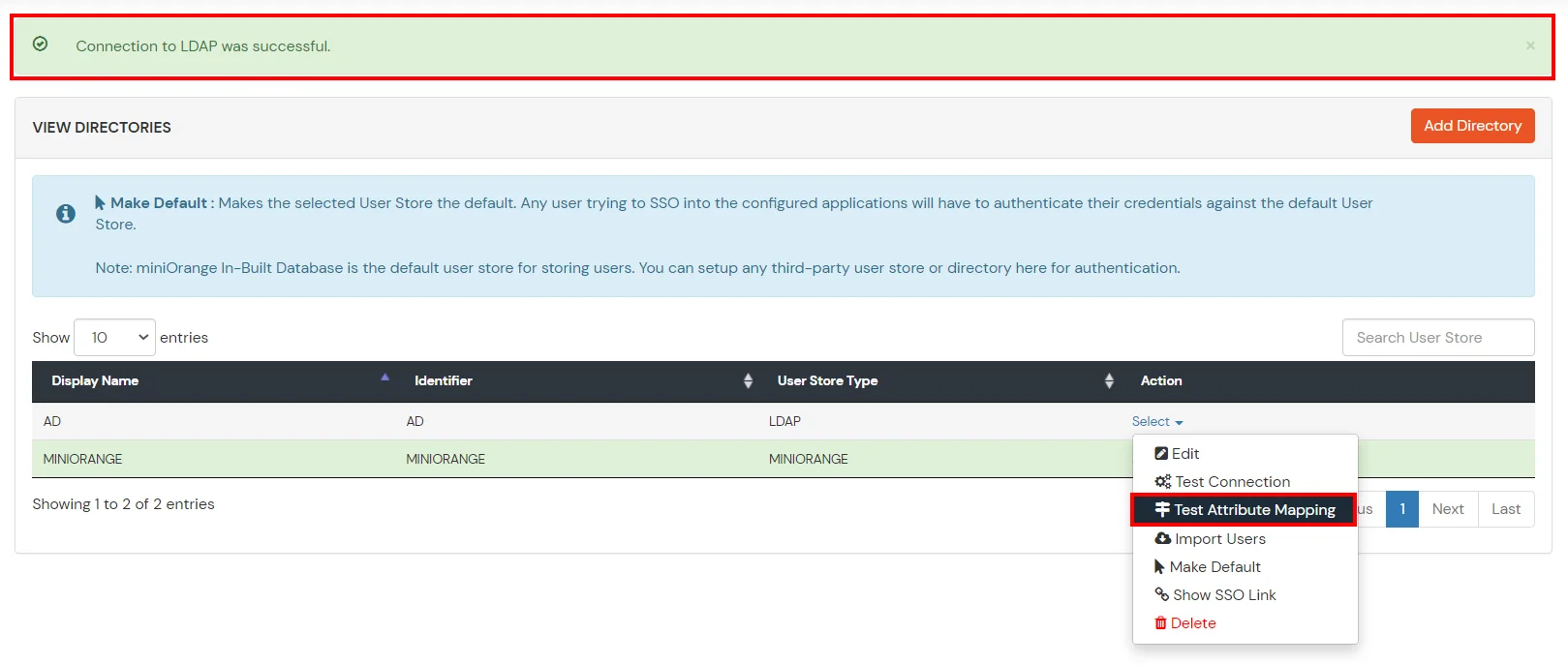
  • You will see a list of directories under Identity Providers. From the dropdown, select AD/LDAP Directories, search for your configured directory, click the three dots next to it, and select Test Attribute Mapping.
  • Oracle PeopleSoft SSO: In External Directories, click Select, and then Test Attribute Mapping

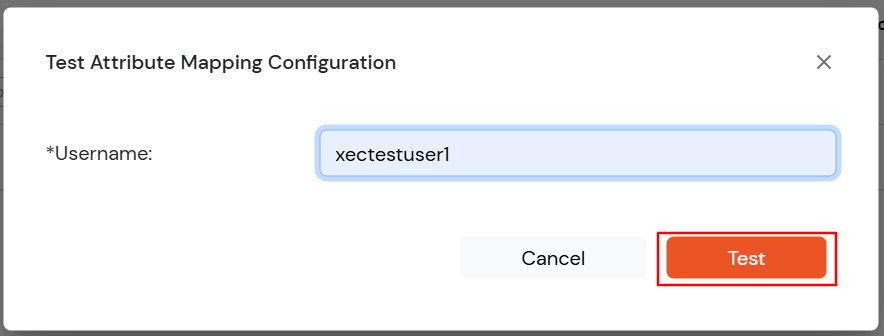
  • A pop‑up appears to enter a username and click Test.
  • Oracle PeopleSoft SSO: Enter username to test Attribute Mapping configuration

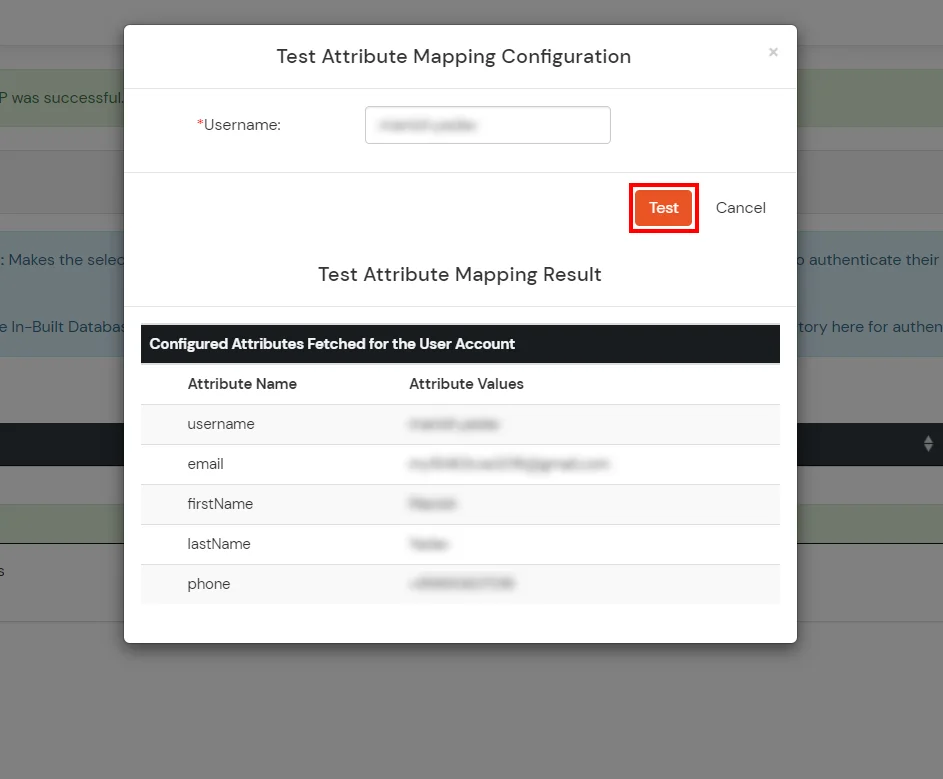
  • The Test Attribute Mapping Result will be displayed.
  • Oracle PeopleSoft SSO: Fetch mapped attributes for user

Set up AD as External Directory configuration is complete.


Note: Refer our guide to setup LDAP on windows server.

miniOrange integrates with various external user sources such as directories, identity providers, and etc.

Not able to find your IdP or Need help setting it up?


Contact us or email us at idpsupport@xecurify.com and we'll help you setting it up in no time.


Contact Us to get the miniOrange Oracle PeopleSoft SAML SSO (Single sign-on) Connector module


5. Adaptive Authentication with PeopleSoft [This will be released soon]

Adaptive Authentication for PeopleSoft enables administrators to enforce context-aware access policies by evaluating user login conditions such as IP address, device, location and login time. Based on the configured policy, users can be allowed access, challenged with additional verification or denied access. Administrators can also configure email alerts, customize user-facing error messages, review policy settings before deployment and assign adaptive authentication policies to application login policies to strengthen security and prevent unauthorized access.

[Note: The Adaptive Authentication section has been moved from the left navigation menu. You can now access and manage adaptive authentication policies by navigating to Policies >> Adaptive Access Policy.]

A. Restricting access to PeopleSoft with IP Based Access Restriction

    IP Based Access Restriction allows administrators to control user access based on the source IP address of the login request. Administrators can configure trusted or restricted IP addresses and IP ranges and define the action to be taken when a user's IP address matches the configured criteria. During authentication, the user's IP address is evaluated against the configured policy and access is either Allowed, Denied or Challenged based on the selected configuration.

    You can configure Adaptive Authentication with IP Based Restriction in following way :
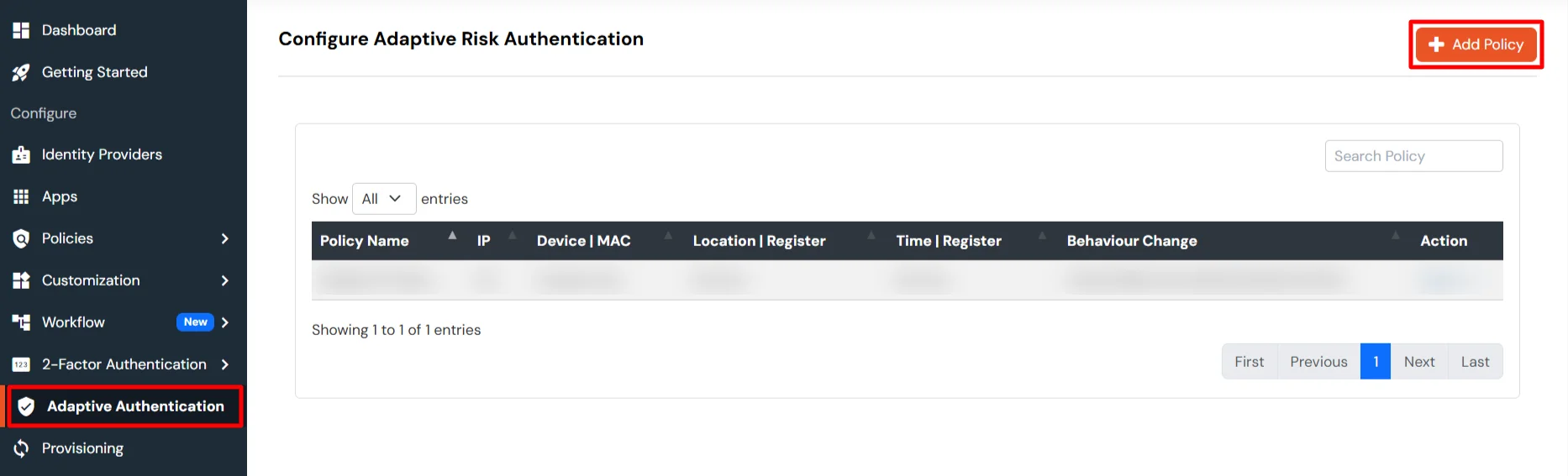
  • Login to Self Service Console >> Policies >> Adaptive Access Policy section from the left side menu.
  • Adaptive Authentication Policy

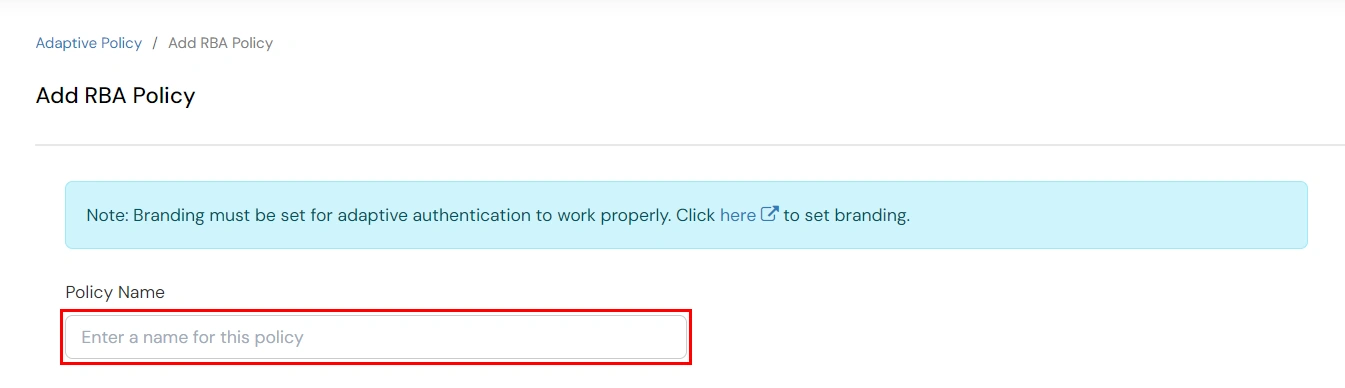
  • Click on the Create Policy button on the upper right. Add a suitable policy name and click on Create Policy.
  • Add RBA Policy Name

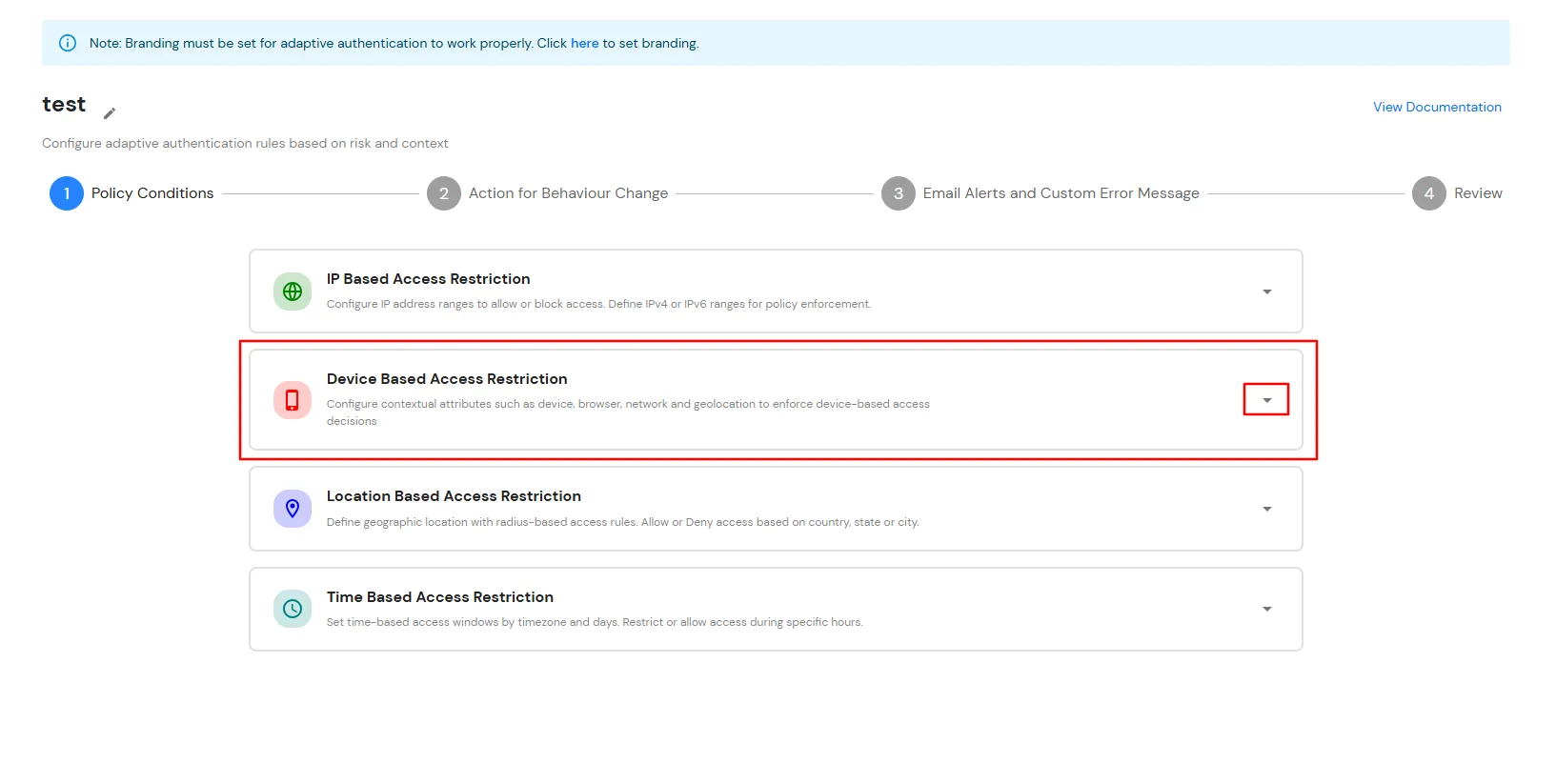
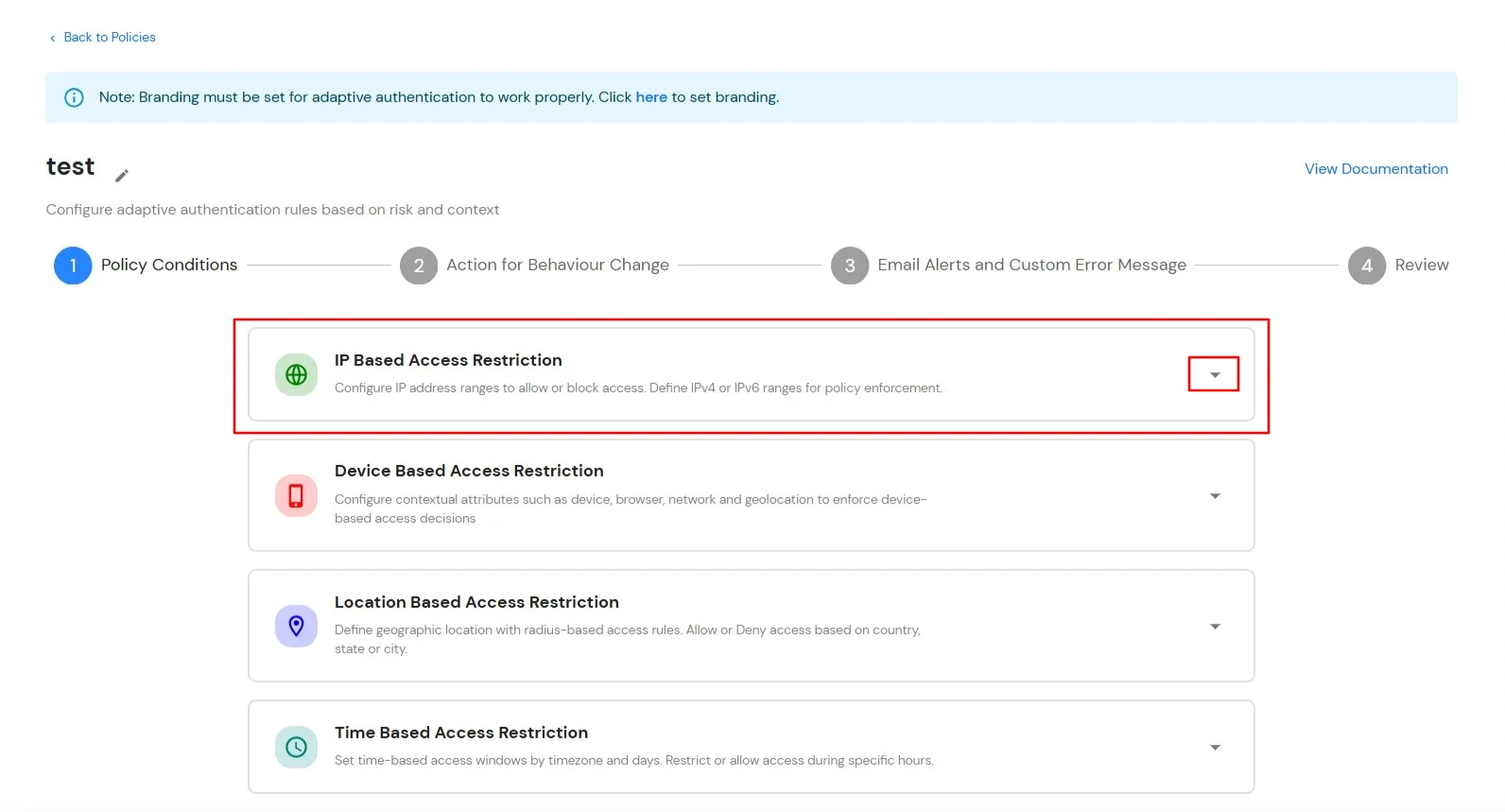
  • Expand the IP Based Access Restriction section by clicking on the dropdown icon to configure IP-based access rules.
  • Policy Conditions

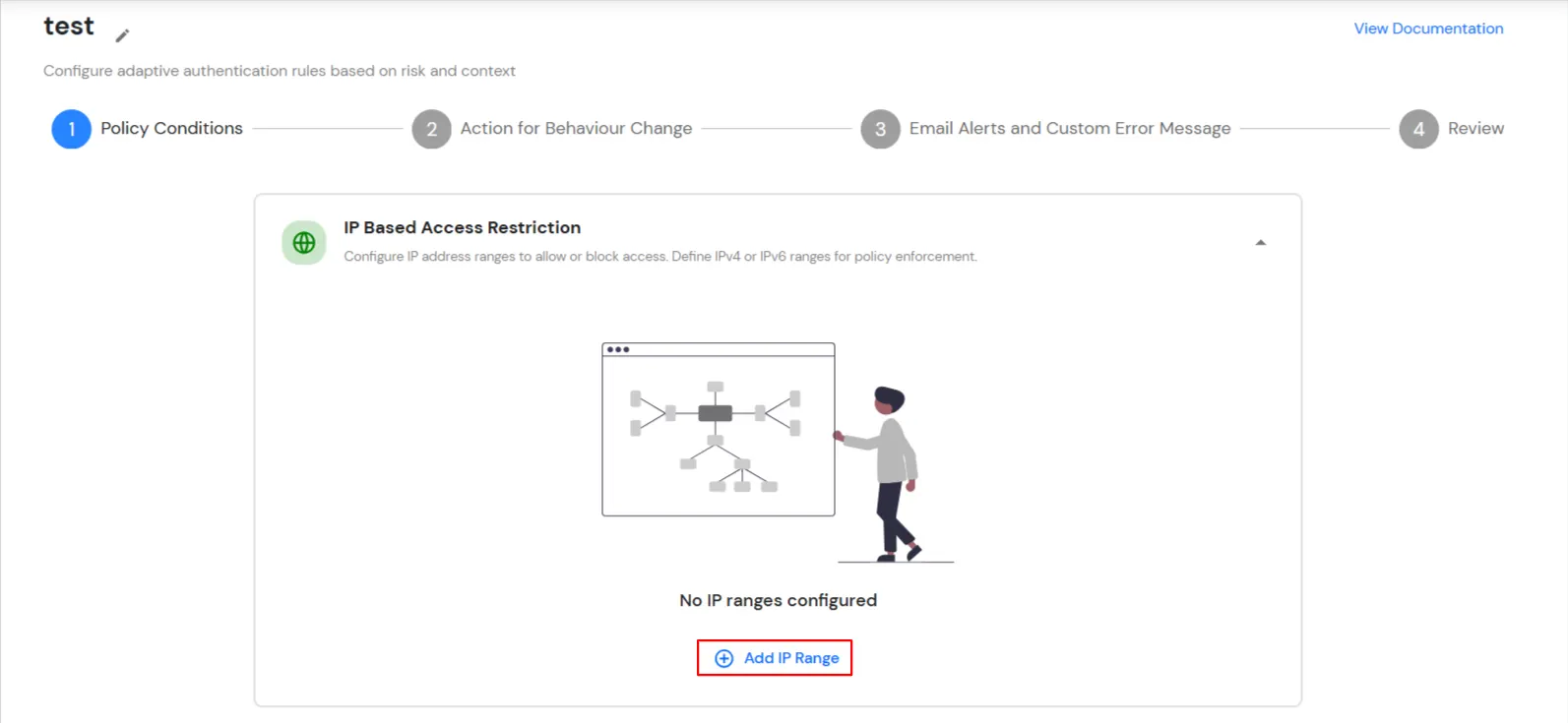
  • Click Add IP Range to configure IP addresses or IP ranges for the policy.
  • Add IP Range

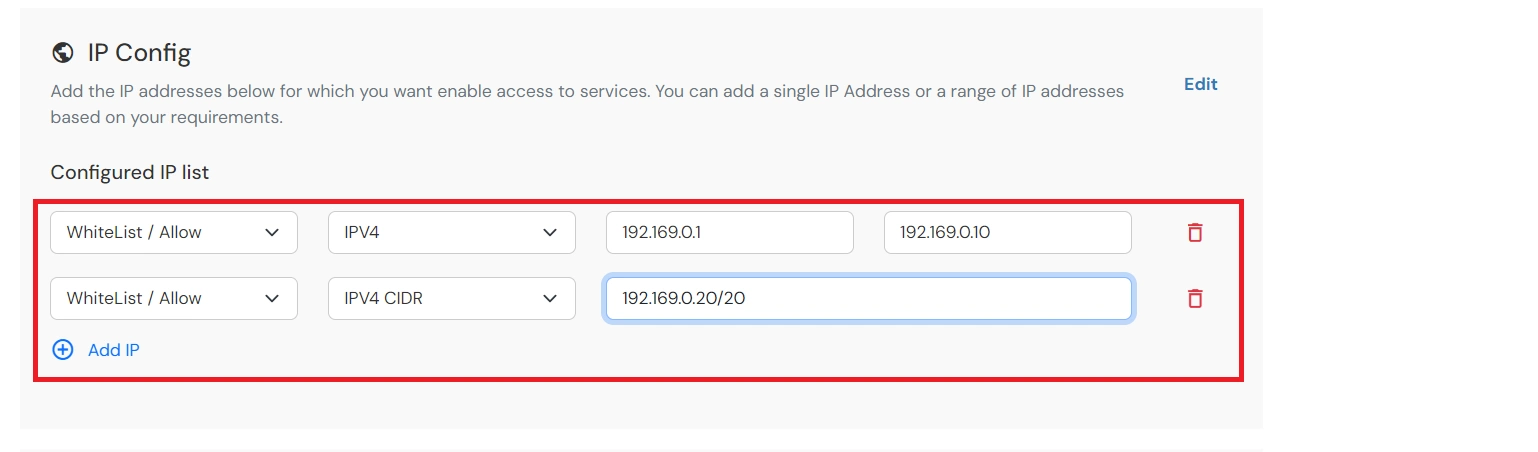
  • Specify the IP Address that you want to whitelist. For the IP Range other than the whitelisted one, you can select the above setting to reflect.
  • Choose either Allow or Deny by selecting the corresponding option from the dropdown. If a user tries to login with the whitelisted IP address, they will always be allowed access.
  • We support IP address range in three formats i.e., IPv4, IPv4 CIDR and IPv6 CIDR. You can choose whichever is suitable for you from the dropdown menu.
  • You can add multiple IPs or IP ranges by clicking the + Add IP Range button.
  • IP Add Range

  • Once the changes are made, click on Next.
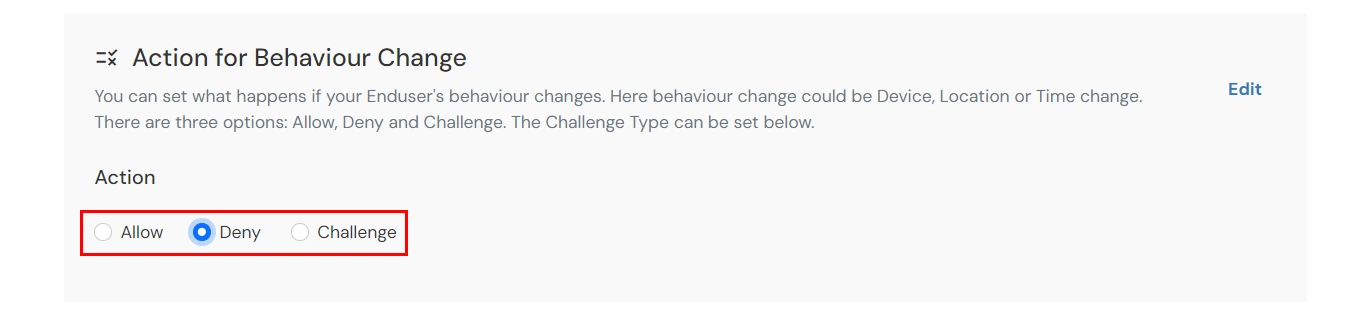
  • Select Action for Behavior Change, choose the appropriate Action and Challenge Type for the user from that section.
  • Action for Behaviour Change

    Action for behavior Change Options :


    Attribute Description
    Allow Allow users to authenticate and use services if Adaptive authentication condition is true.
    Deny Deny user authentications and access to services if Adaptive authentication condition is true.
    Challenge Challenge users with one of the three methods mentioned below for verifying user authenticity.

    Challenge Type Options:


    Attribute Description
    User second Factor

    The User needs to authenticate using the second factor he has opted or assigned for such as

    • OTP over SMS
    • PUSH Notification
    • OTP over Email and many more.
    KBA (Knowledge-based authentication) The System will ask the user for 2 of 3 questions he has configured in his Self-Service Console. Only after the right answer to both questions is the user allowed to proceed further.
    OTP over Alternate Email User will receive an OTP on the alternate email they have configured through the Self Service Console. Once the user provides the correct OTP, they are allowed to proceed further.

  • Click on Next to continue.

B. Restricting access to PeopleSoft with Device Based Access Restriction

    Device Based Access Restriction allows administrators to control user access based on trusted and registered devices. By leveraging device identification and verification mechanisms, administrators can define policies that evaluate the device used during authentication. When a user attempts to log in, the device is assessed against the configured policy and the appropriate action: Allow, Challenge or Deny is applied based on the configured conditions.

    You can configure Adaptive Authentication with Device Based Restriction in following way :
  • Login to Self Service Console >> Policies >> Adaptive Access Policy section from the left side menu.
  • Adaptive Authentication Policy

  • Click on the Create Policy button on the upper right. Add a suitable policy name and click on Create Policy.
  • Add RBA Policy Name

  • Click on the Dropdown option to expand the Device Based Access Restriction section to configure device-based access controls.
  • Device Based Access Restriction

  • Turn on the Enable Device Configuration toggle.
  • Device Based Access Restrictions

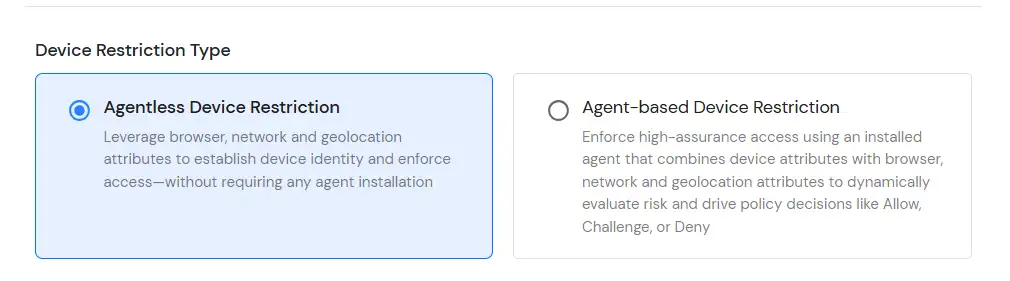
  • Configure either Agentless Device Restriction or Agent-Based Device Restriction based on your organization's requirements.
  • Agentless Device Restriction: Verifies and manages trusted devices without requiring any software or agent installation on the endpoint. It uses browser and device-based identification methods to evaluate device trust and enforce access policies during authentication.
  • Agent-Based Device Restriction: Provides enhanced device trust verification by using a lightweight agent installed on managed devices. It enables advanced device validation and risk-based access control to ensure that only trusted devices can access protected resources.
  • Device Restriction Type

  • Click here to get more information about Device Based Restriction.
  • Once the changes are made, click on Next.
  • Under Action for Behaviour Change, select the appropriate action and challenge type for the policy.
  • Action for Behaviour Change

  • Click on Next to continue.

C. Restricting access to PeopleSoft with Location Based Access Restriction

    In location restrictions, admin configures a list of locations where they want to allow end-users to either login or deny based on the condition set by the admin. When a user tries to login with adaptive authentication enabled, their Location Attributes, such as (Latitude, Longitude and Country Code) are verified against the Location list configured by the admin. Based on this user will be either allowed, challenged or denied.

    You can configure Adaptive Authentication with Location Based Restriction in following way :
  • Login to Self Service Console >> Policies >> Adaptive Access Policy section from the left side menu.
  • Adaptive Authentication Policy

  • Click on the Create Policy button on the upper right. Add a suitable policy name and click on Create Policy.
  • Adaptive Authentication: Add RBA Policy

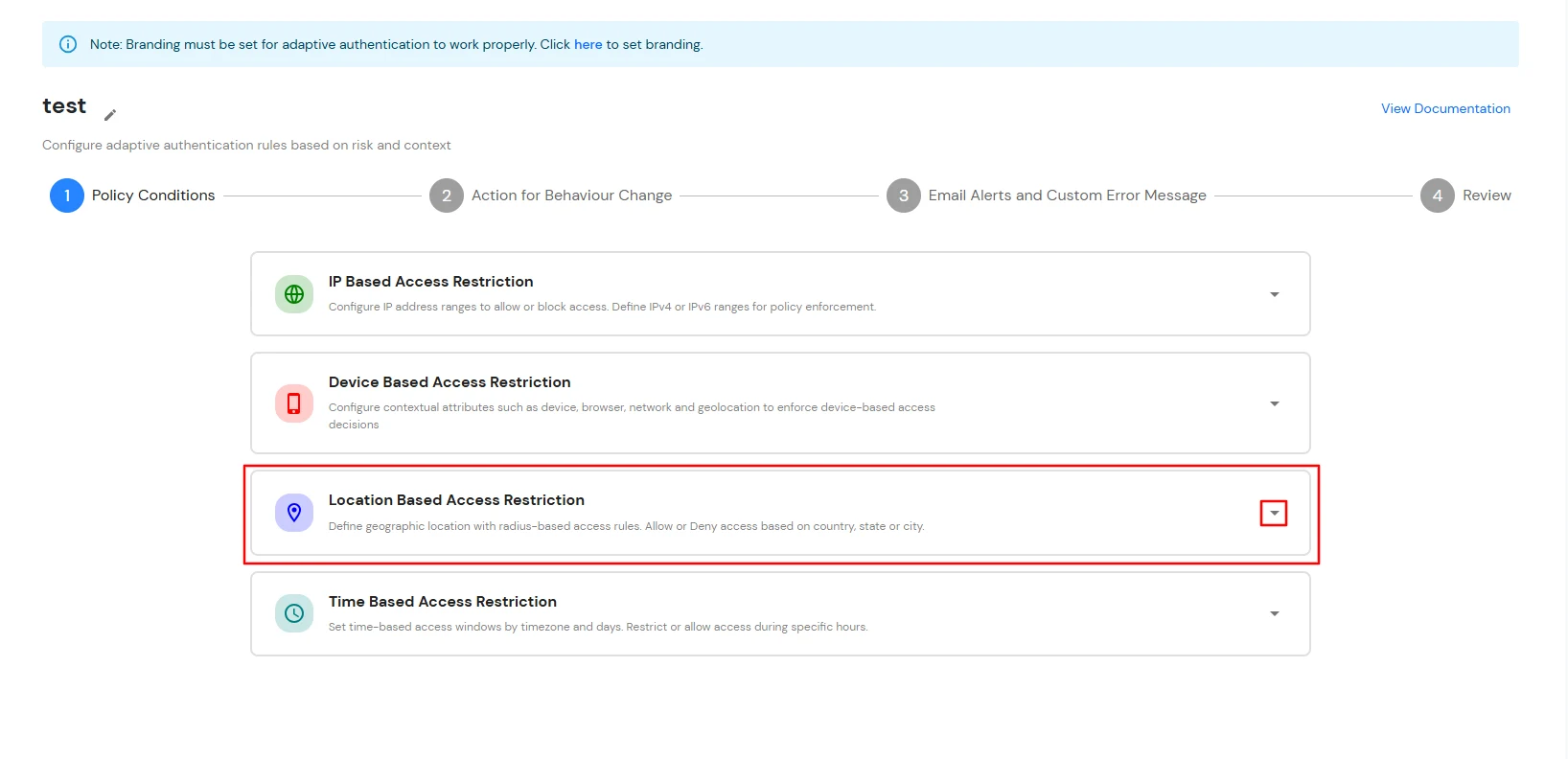
  • Click on the Dropdown to expand the Location Based Access Restriction section to configure location-based access rules.
  • Adaptive Authentication: Location Based Restriction

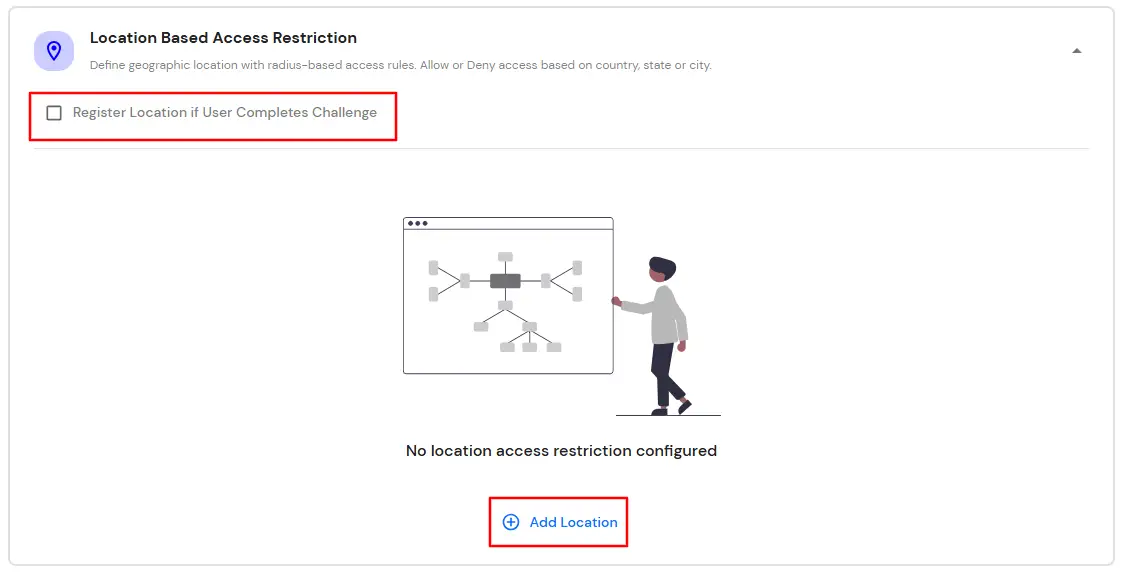
  • Select Register Location if User Completes Challenge to automatically register a user's location after successful challenge verification.
  • Click on Add Location.
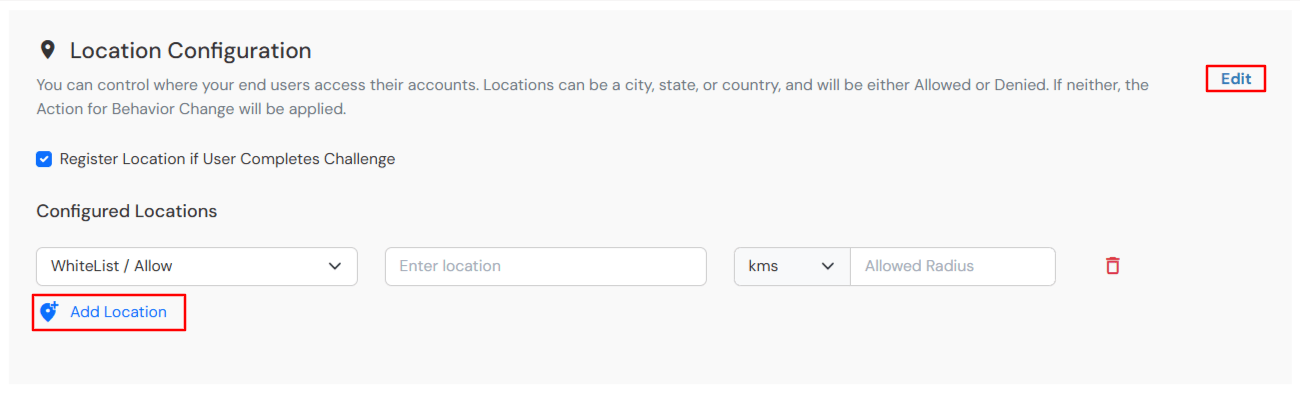
  • Location Configuration

  • In the Search Location field, enter the location name and select the appropriate location from the search results.
  • Specify the radius around the selected location and choose the distance unit (KM or Miles). This will be the total area in and around the location we have configured using the Latitude and Longitude points.
  • For each configured location, select whether access should be Allowed or Denied.
  • Adaptive MFA Location Restriction

  • You can click on the Add Location button to add more than one location and then follow steps 2-4 as mentioned above.
  • Once the changes are made, click on Next.
  • Select your Action for behavior Change and Challenge Type for user from the Action for behavior Change Section.
  • Action for Behaviour Change

  • Click on Next to continue.

D. Restricting access to PeopleSoft with Time Based Access Restriction

    In time restriction, admin configures a time zone with Start and End Times for that timezone and users are either allowed, denied or challenged based on the condition in the policy. When an end-user tries to login with the adaptive authentication enabled, their time zone-related attributes such as Time-Zone and Current System Time, are verified against the list configured by the admin and based on the configuration, the user is either allowed, denied or challenged.

    You can configure Adaptive Authentication with Time Based Restriction in following way :
  • Login to Self Service Console >> Policies >> Adaptive Access Policy section from the left side menu.
  • Adaptive Authentication Policy

  • Click on the Create Policy button on the upper right. Add a suitable policy name and click on Create Policy.
  • Add RBA Policy Name

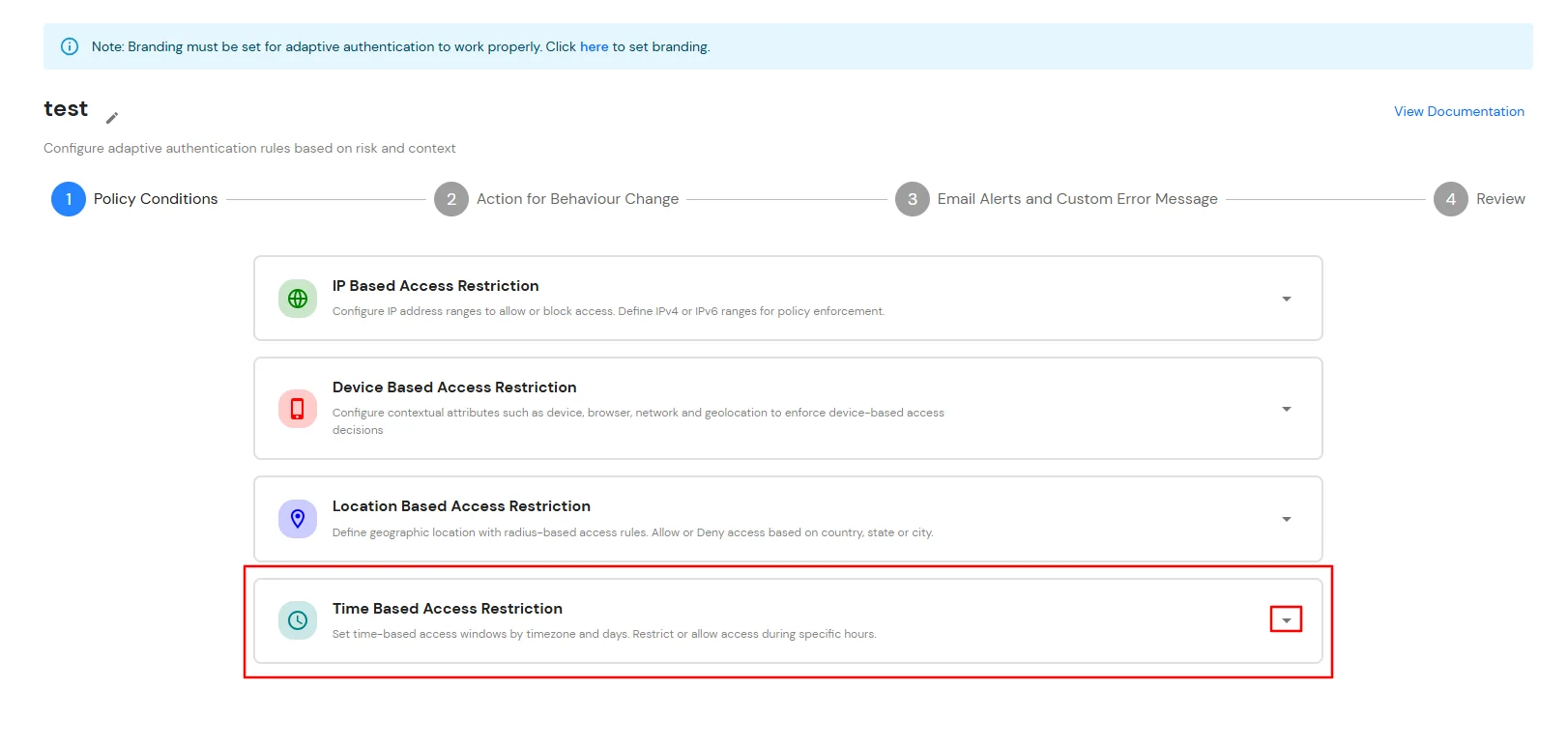
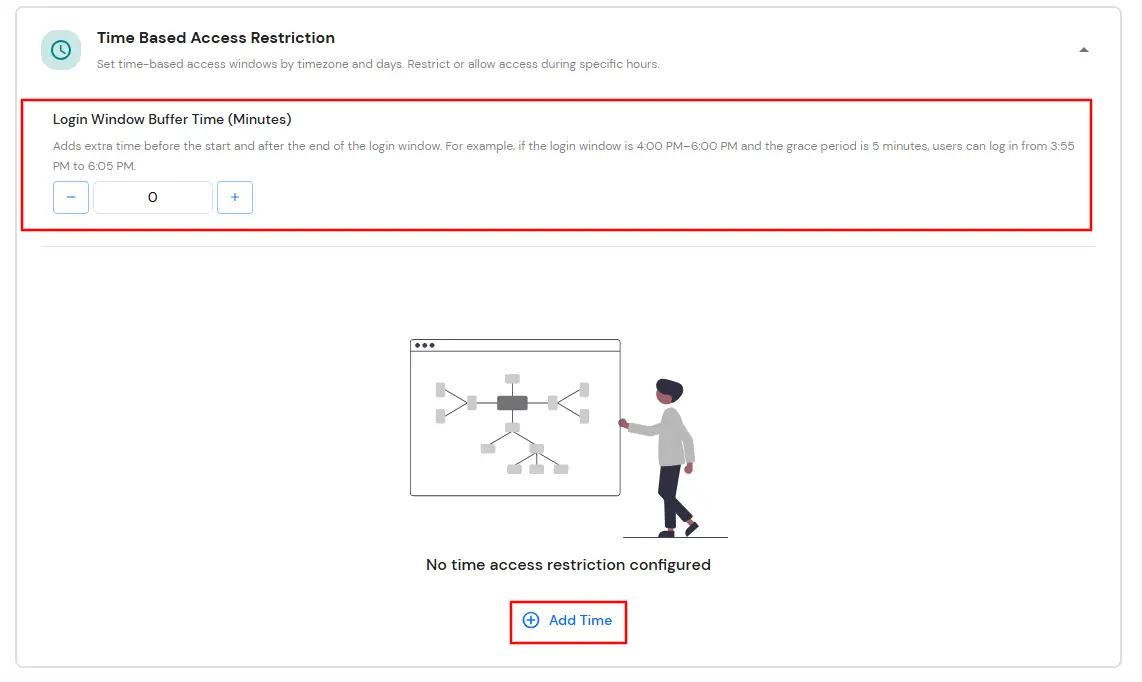
  • Expand the Time Based Access Restriction section by clicking on the dropdown icon to Time Based Access Restriction rules.
  • Expand Time Based Access Restriction

  • Enter the Login Window Buffer Time (Minutes) to allow a grace period before the start time and after the end time of the configured login window. If no value is specified, the default buffer time of 0 minutes is applied.
  • Click Add Time to create a time-based access rule.
  •  Click on Add Time

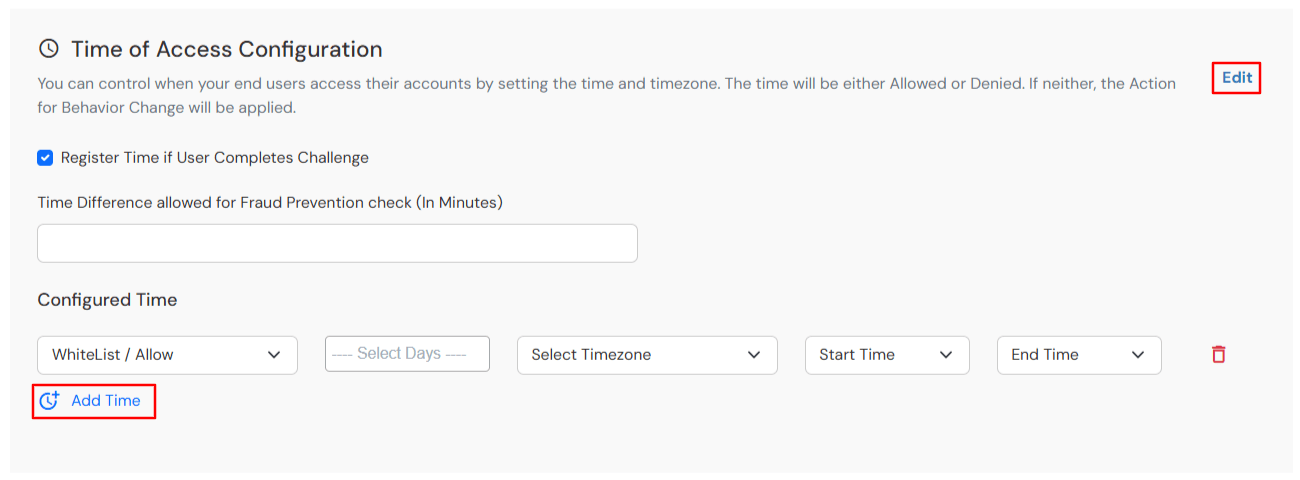
  • Select the required Timezone, configure the Start Time and End Time and choose the applicable days.
  • For each time-based rule, select whether access should be Allowed or Denied.
  • Adaptive MFA Time Restriction

  • Click on the Add Time to add more than one timezones.
  • Once the changes are made, click on Next.
  • Select your Action for behavior Change and Challenge Type for user from the Action for behavior Change Section.
  • Action for Behaviour Change

  • Click on Next to continue.

E. Email Alerts and Custom Email Message

    This section handles the notifications and alerts related to Adaptive Access Policy. It provides the following options:

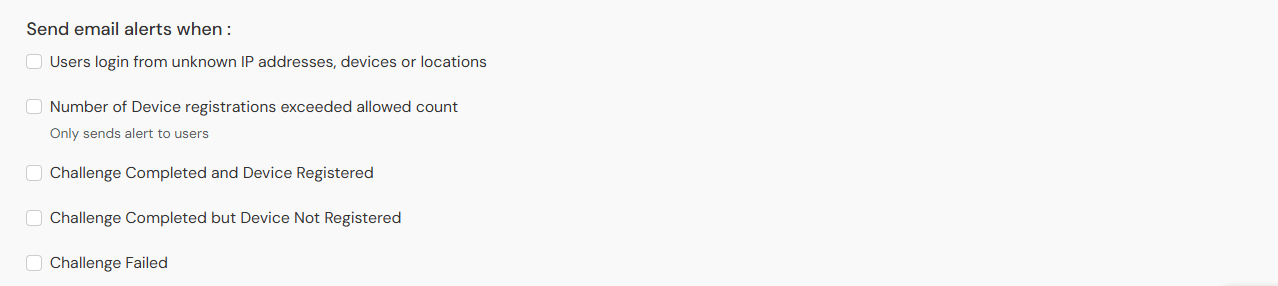
  • Send email alerts: Configure the recipients who should receive email notifications when adaptive authentication events occur. Alerts can be sent to administrators, end users or both, depending on your monitoring and security requirements.
    • Send email alerts to administrators: Enable this option to notify administrators when configured adaptive authentication events are triggered. You can optionally specify an email address under Administrator's e-mail address to receive alerts to receive alerts; otherwise, alerts are sent to the default administrator account.
    • Send Email Alerts To

    • Send email alerts to end users: Enable this option to notify end users when adaptive authentication events affect their login attempts or device registrations.
      • Number of Device Registrations Exceeded Allowed Count: When enabled, end users receive an email notification if they attempt to register more devices than the maximum number allowed by the configured device restriction policy. (Available only for end-user notifications.)
      • Get Email Alerts

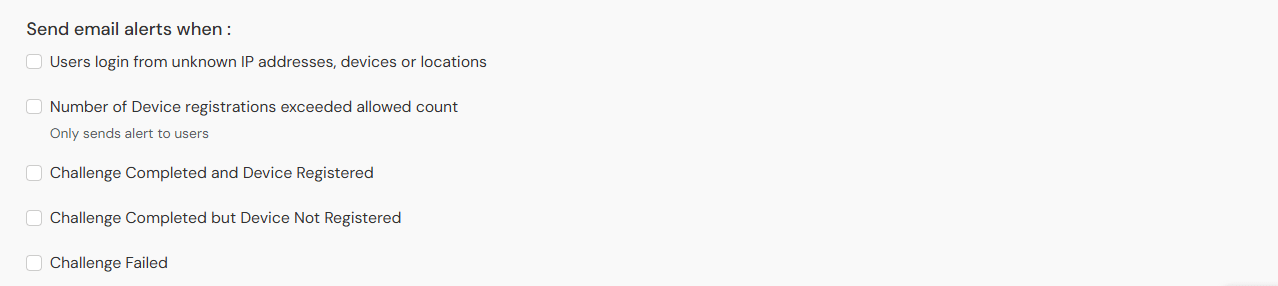
  • Get email alerts if users login from unknown devices or locations: Admins need to enable this option to enable receiving alerts for different alert options.

  • Option Description
    Users login from unknown IP addresses, devices or locations Enabling this option allows you to login from unknown IP addresses or devices and even locations.
    Challenge Completed and Device Registered Enabling this option allows you to send an email alert when an end-user completes a challenge and registers a device.
    Challenge Completed but Device Not Registered Enabling this option allows you to send an email alert when an end-user completes a challenge but do not registers the device.
    Challenge Failed Enabling this option allows you to send an email alert when an end-user fails to complete the challenge.

    Receive Email Alerts

  • In case you want multiple admin accounts to receive alerts, then you can enable the option for admin and then enter the admin emails separated by a ',' in the input field next to Administrator's email to receive alerts label. To enable alerts for the end users, you can enable the End User checkbox.
  • In case you want to customize the deny message that the end user receives in case his authentication is denied due to adaptive policy, you can do this by entering the message inside Deny Message text box.
  • Customize Deny Message

F. Review

    Review the configured policy conditions, behavior change actions, email alert settings and custom error messages before creating the adaptive authentication policy. This step provides a consolidated view of all configured settings, allowing you to verify the policy configuration and make any necessary changes before saving.
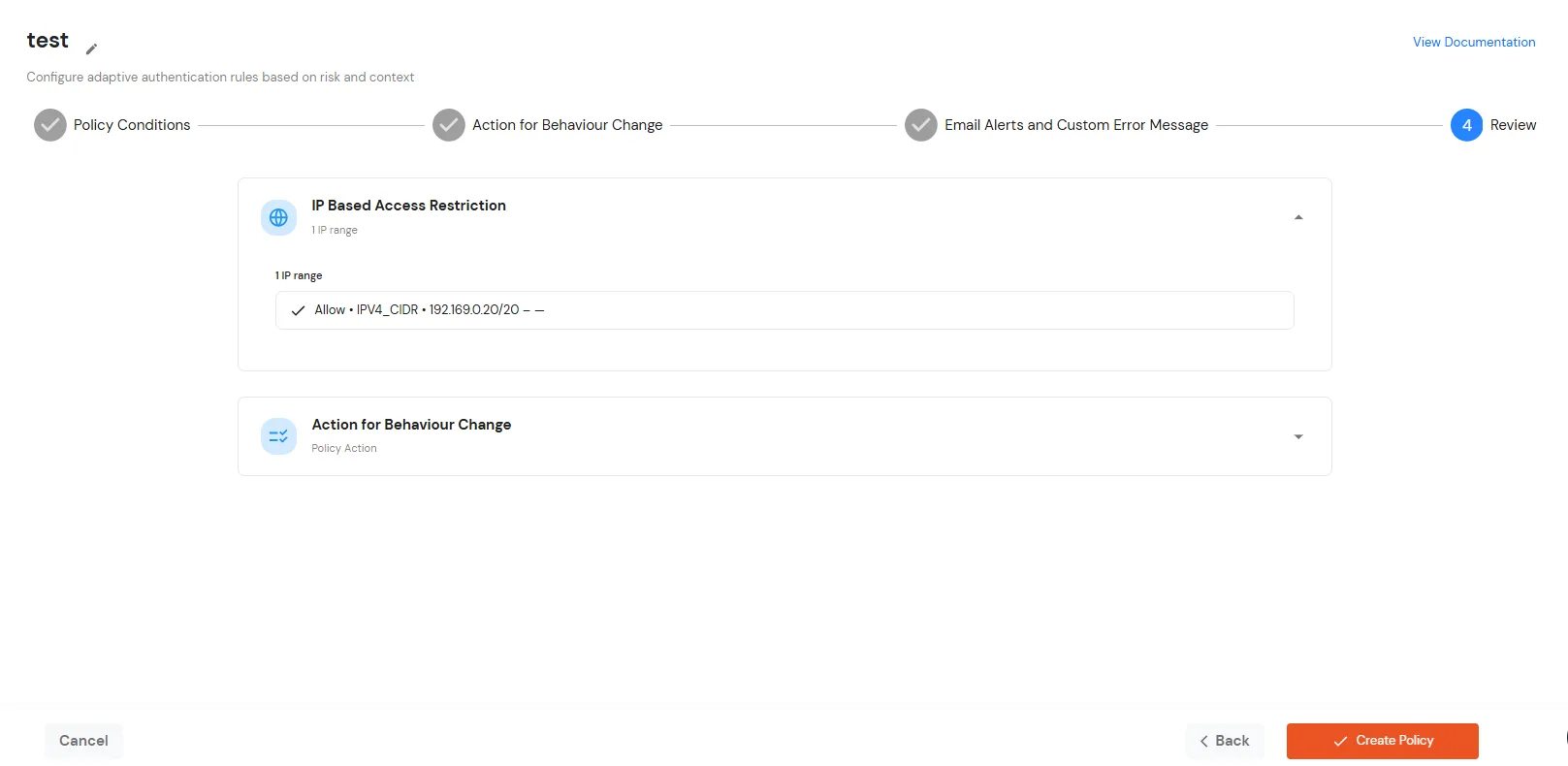
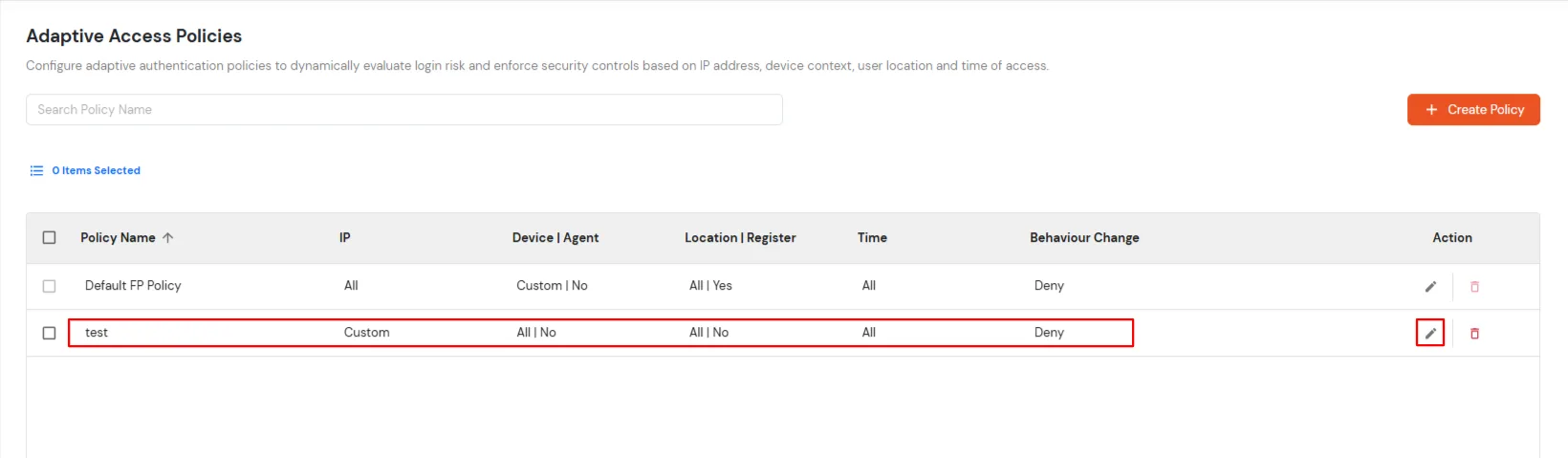
    Review Section

  • Click on Create Policy.

G. Add Adaptive Authentication policy to PeopleSoft

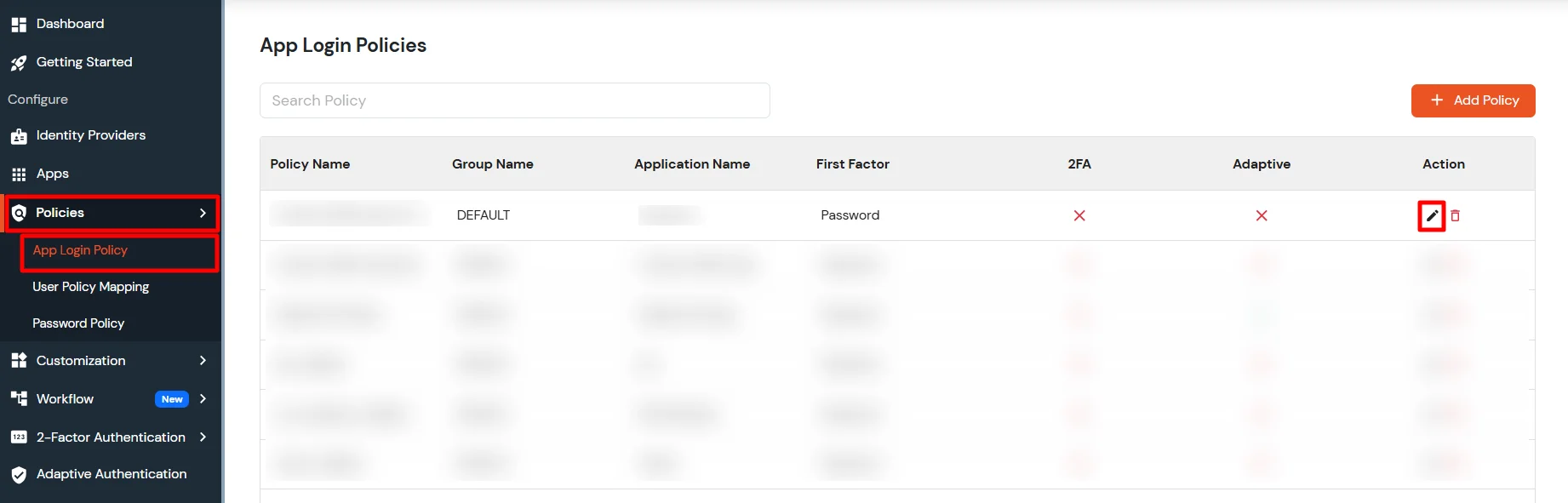
  • Login to Self Service Console >> Policies >> App Login Policy.
  • Click on Edit icon option for predefined app policy.
  • Edit 2FA Policy

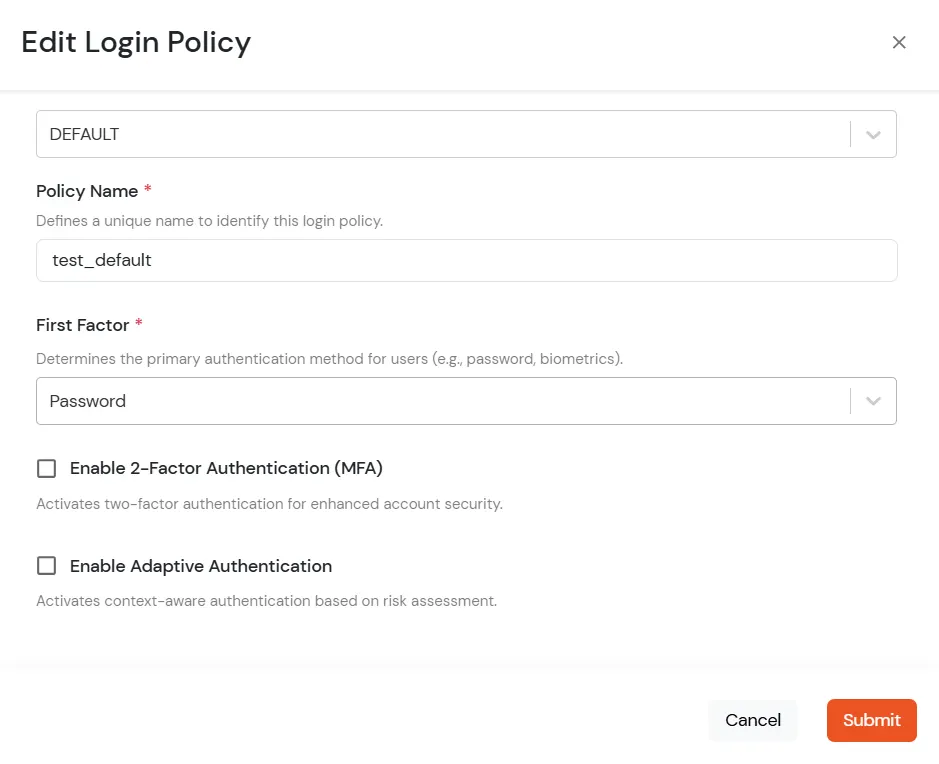
  • Set your policy in the Policy Name and select Password as First Factor.
  • Edit Login Policy

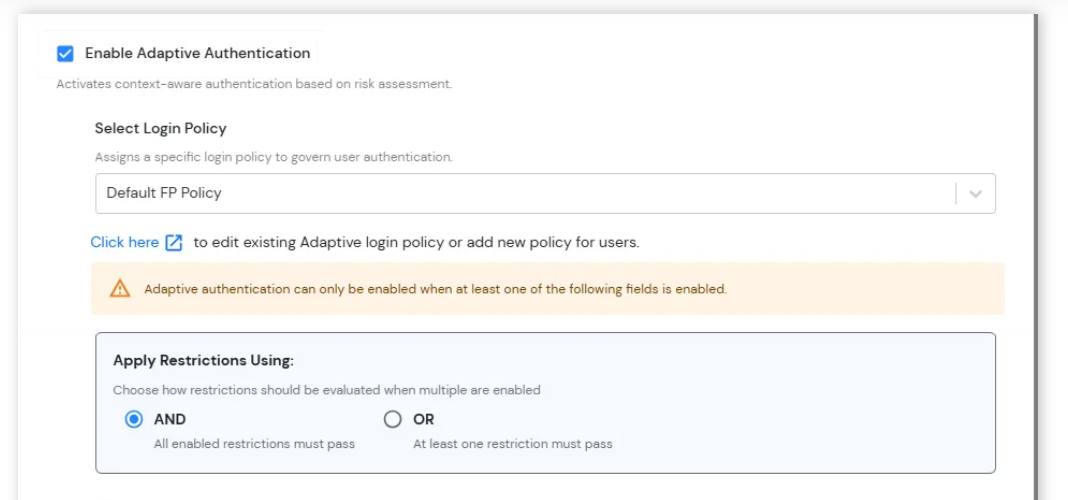
  • Enable Adaptive Authentication on Edit Login Policy page and select the required restriction method as an option.
  • From Select Login Policy dropdown select the policy we created in last step.
  • Apply Restrictions Using: Configure how multiple adaptive authentication restrictions should be evaluated during user login.
    • AND: All enabled restrictions must be successfully satisfied for the login attempt to be allowed.
    • OR: At least one enabled restriction must be successfully satisfied for the login attempt to be allowed.
  • Enable Adaptive Authentication

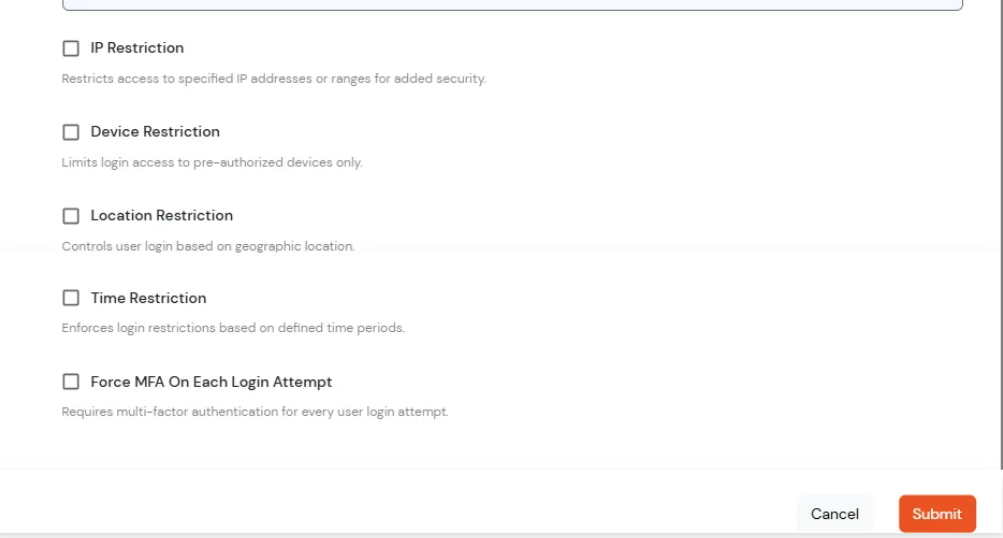
  • Adaptive Authentication Restrictions: Configure additional login restrictions and verification conditions to strengthen account security and control user access based on contextual risk factors.
    • IP Restriction: Restrict login access to specific IP addresses or IP ranges for enhanced security.
    • Device Restriction: Allow login access only from trusted or pre-authorized devices.
    • Location Restriction: Control user login access based on geographic location.
    • Time Restriction: Restrict user login access to specific days or time periods.
    • Force MFA On Each Login Attempt: Require users to complete MFA verification during every login attempt regardless of device or session state.
  • Apply Restrictions Using

How to add a trusted Device

  • When End-user log in to the self service console after the policy for device restriction is on, he is provided the option to add the current device as a trusted device.

Frequently Asked Questions (FAQs)


Our solution easily configures with PeopleSoft 8.5+ versions. If you have any other version please mail us at idpsupport@xecurify.com and we will be happy to help.

No, you do not need to make any additional purchase and install of OAM or OIM to use miniOrange PeopleSoft SSO solution.

The authentication flow is as follows:

1. The User tries to access the PeopleSoft, either directly at the AppsLogin endpoint or via a bookmarked URL.

2. PeopleSoft redirects the request to the miniOrange SSO Connector for authentication.

3. The PeopleSoft sends a SAML authentication request to configured IDP.

4. The User is Prompted to enter their SSO (IDP) credentials.

5. Configured IDP sends SAML response to miniOrange SSO Connector.

6. The Connector checks the value of the username/email attribute fetched from the IDP against the FND_USER table in the PeopleSoft Database.

7. After successful authentication, a session is created for the user in PeopleSoft - and PeopleSoft SSO successfully executes.

8. User is redirected to PeopleSoft as a logged-in user.

Yes, PeopleSoft SSO solution works seamlessly with any IDP/user store/directory such as Microsoft Entra ID, ADFS, Okta, etc.

Yes, we have officially been recognized as a Global Modernized Oracle Partner Network (OPN) Partner

Yes, we do provide SSO solution for other Oracle applications such as Oracle EBS, Oracle Peoplesoft, Oracle PeopleSoft, Oracle Sieble CRM, etc

We are an Oracle Partner, and our solution is verified by Oracle on their Cloud Marketplace. It is also the only PeopleSoft SSO Solution accepted on their marketplace.

External References

Note: Oracle and Java are registered trademarks of Oracle and/or its affiliates. miniOrange is a separate entity.
Want To Schedule A Demo?

Request a Demo


Our Other Identity & Access Management Products