Policy Management
Policy Management in EPM allows administrators to control how applications run by using Default Policies for general rules and Custom Policies for organization-specific needs, ensuring secure and flexible privilege management.
Custom Policy
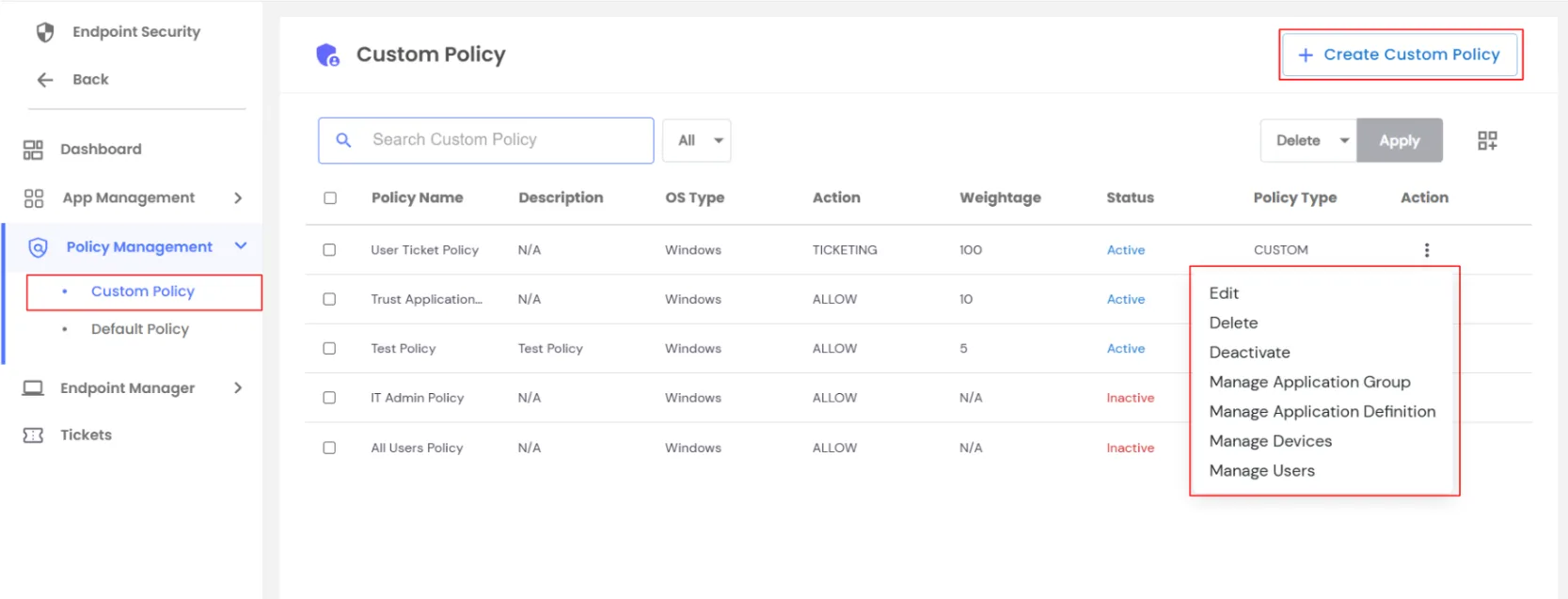
In the EPM dashboard, you can view all Custom Policies you created previously.
From this page, you can:
- Create a New Custom Policy
- Use the Action button for each existing policy to:
| Edit |
Modify policy details |
| Delete |
Remove the policy |
| Deactivate |
Set policy inactive |
| Manage Application Group |
Assign or update application groups for the policy |
| Manage Application Definition |
Assign or update application definitions |
| Manage Devices |
Assign policy to endpoints |
| Manage Users |
Assign policy to users |
This dashboard view allows easy management of all aspects of your custom policies.
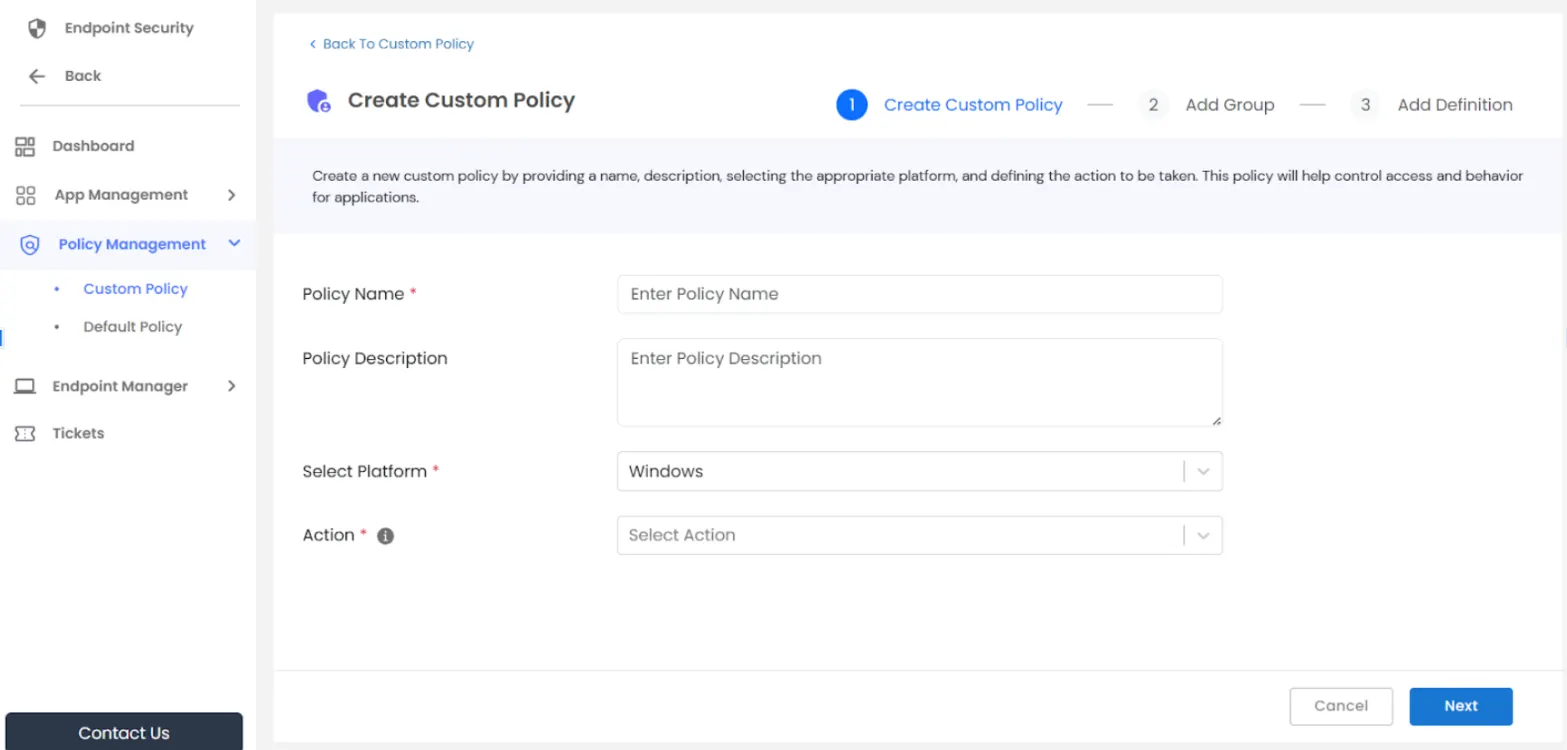
While creating a Custom Policy in the EPM dashboard, you can configure:
- Policy Details – Enter Policy Name, Policy Description, select Platform, and choose Action (Elevate, Block, Business Reason, or Ticket). Click Next.
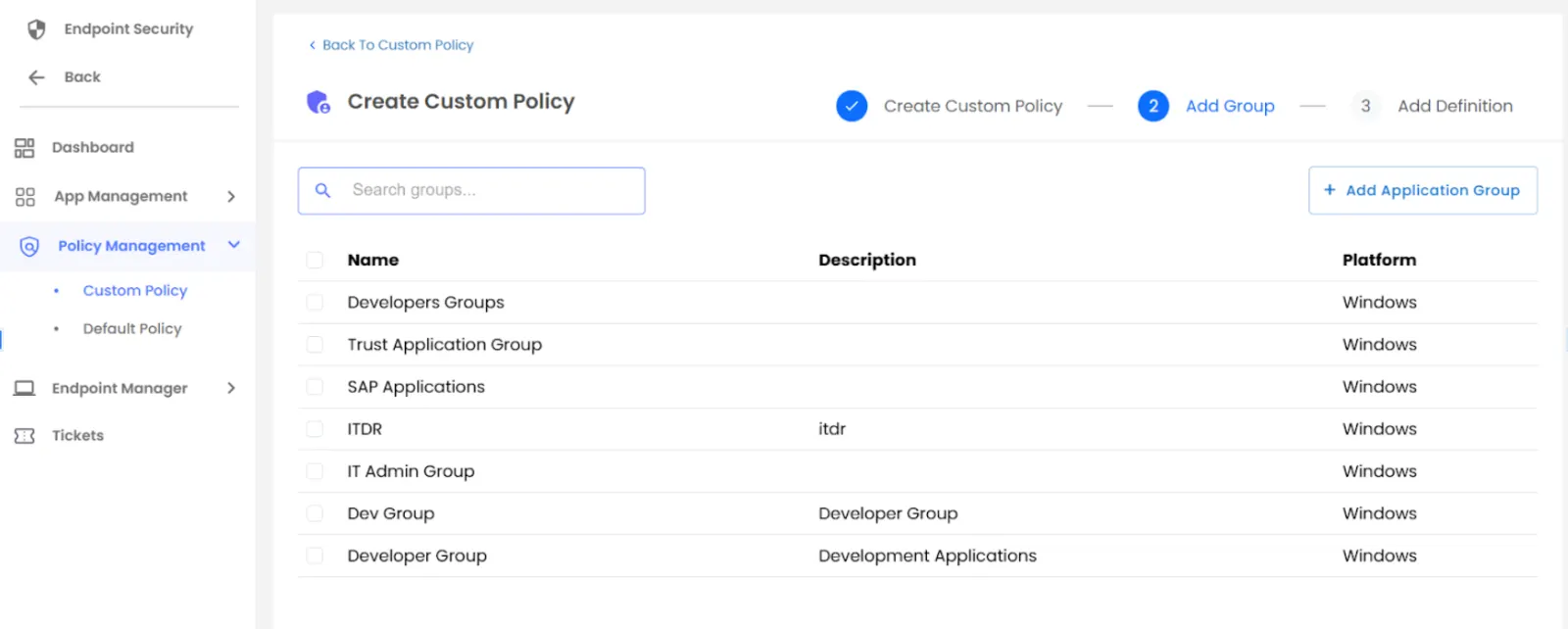
- Application Group Selection – Select an existing Application Group or create a new group at runtime. Click Next.
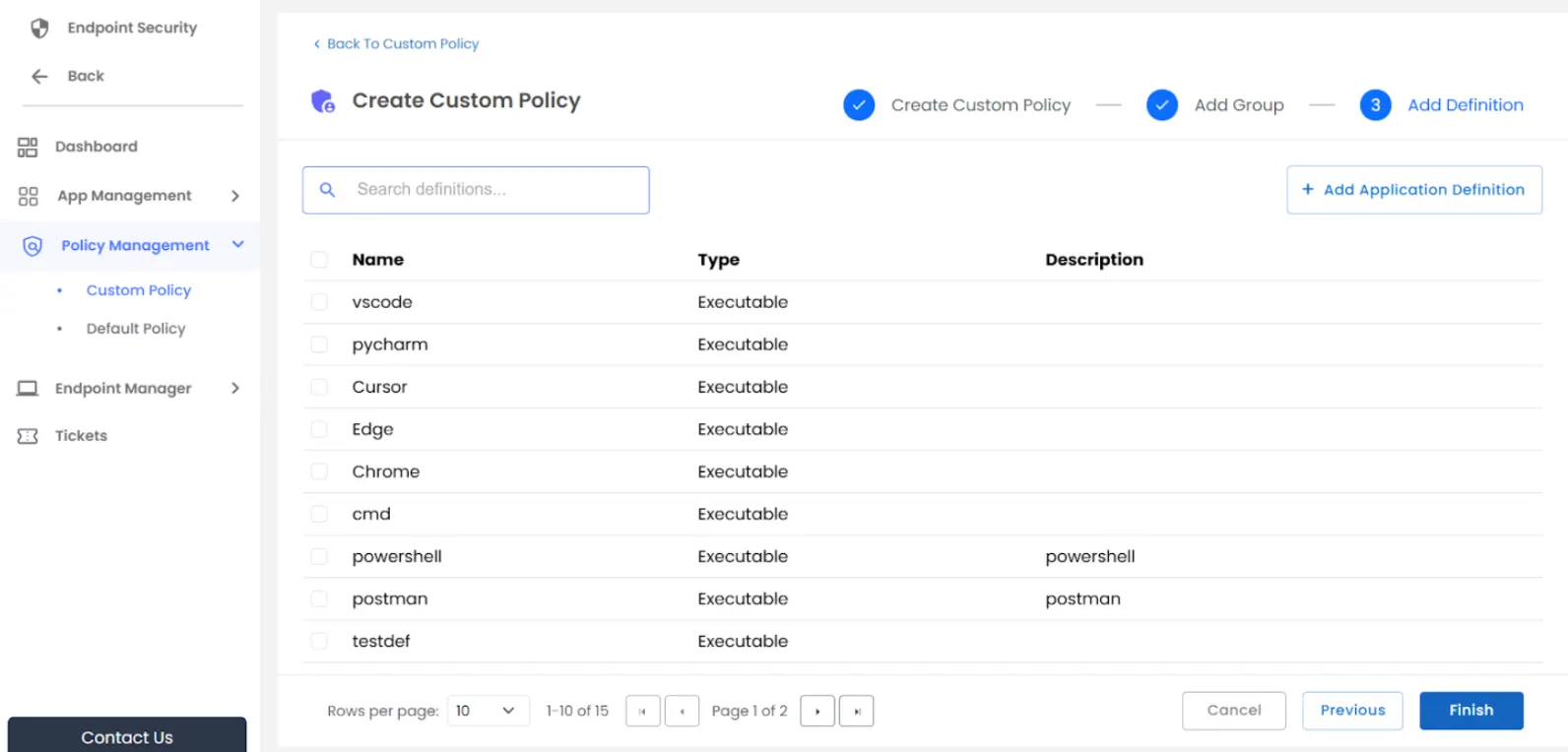
- Application Definition Selection – Select an existing Application Definition or create a new definition at runtime.
Default Policy
In the EPM dashboard, you can manage predefined policies that apply general privilege rules.
Key points about Default Policies:
- Four predefined policies: Ticketing, Business Reason, Block, and Allow by Default
- Policies are Inactive by default
- Can be assigned or unassigned to Application Groups, Application Definitions, Users, or Devices
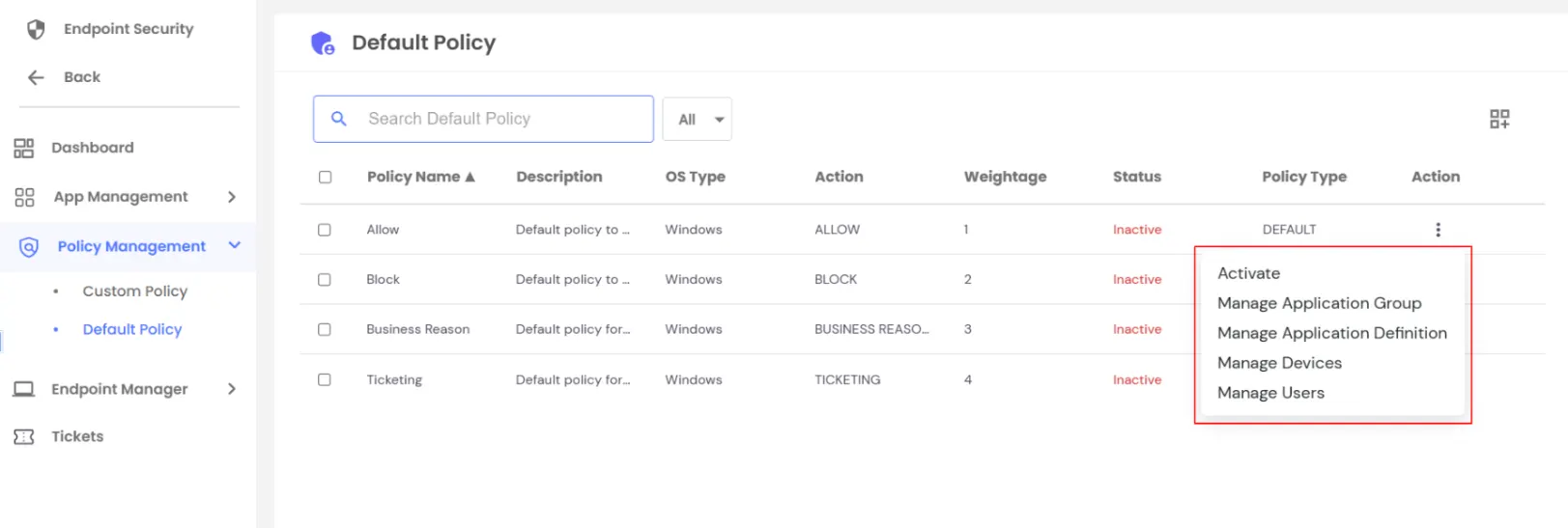
- Each policy includes action options:
- Activate – Enable the policy
- Manage Application Group – Assign or update groups
- Manage Application Definition – Assign or update definitions
- Manage Devices – Assign policy to endpoints
- Manage Users – Assign policy to users
Navigating to the Default Policy in miniOrange EPM lets administrators enforce baseline security rules while retaining the flexibility to assign policies where needed.
EPM Fallback Policy
In addition to the existing default policy types, fallback policies have been introduced for Windows, Linux, and macOS platforms.
These fallback policies are applied by default when no specific policy is configured for a device, application, or related definition. The default action type for all fallback policies is Block.
As a result, if no other policy is explicitly applied to an endpoint or application definition, all activities will be blocked by default due to the fallback policy being enforced.
Steps to Check the Fallback Policy
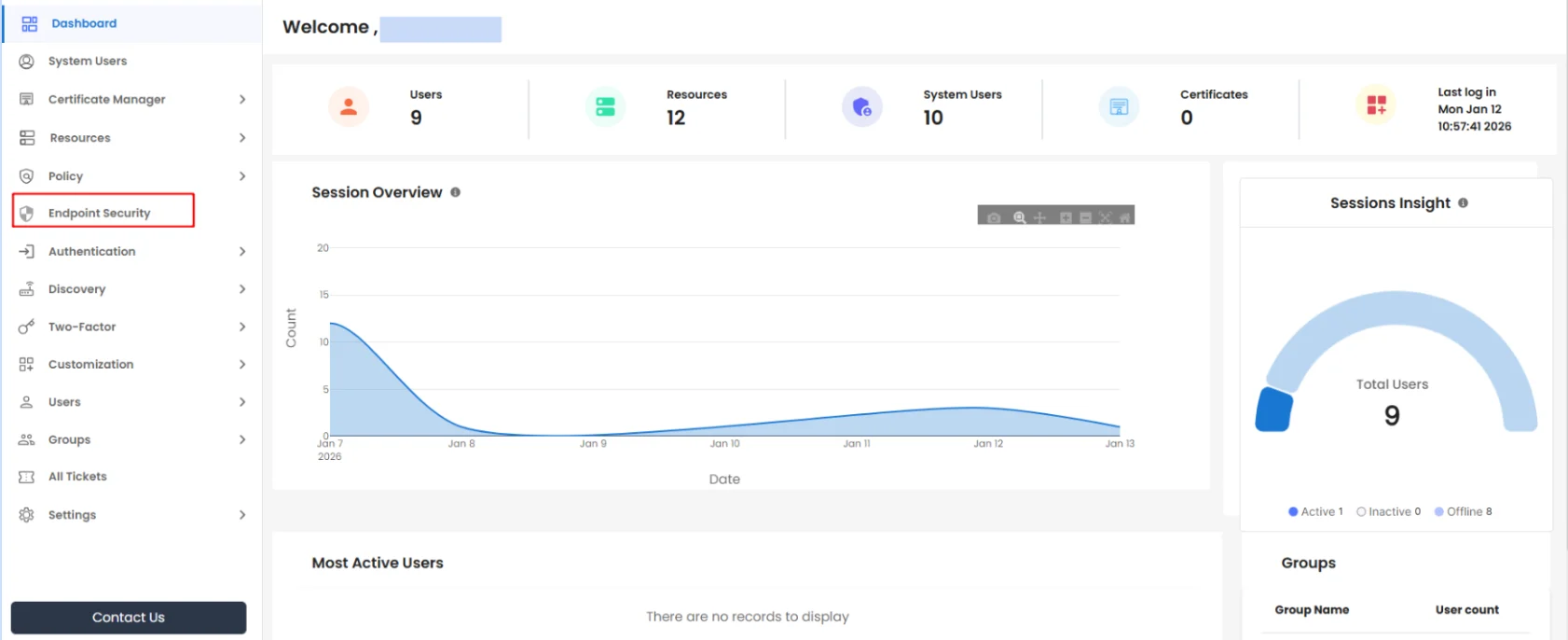
- Log in to the PAM Dashboard. From the left-hand sidebar, select Endpoint Security, as shown in the image.
- Navigate to Policy Management >> Default Policy. This section displays all default and fallback policies.
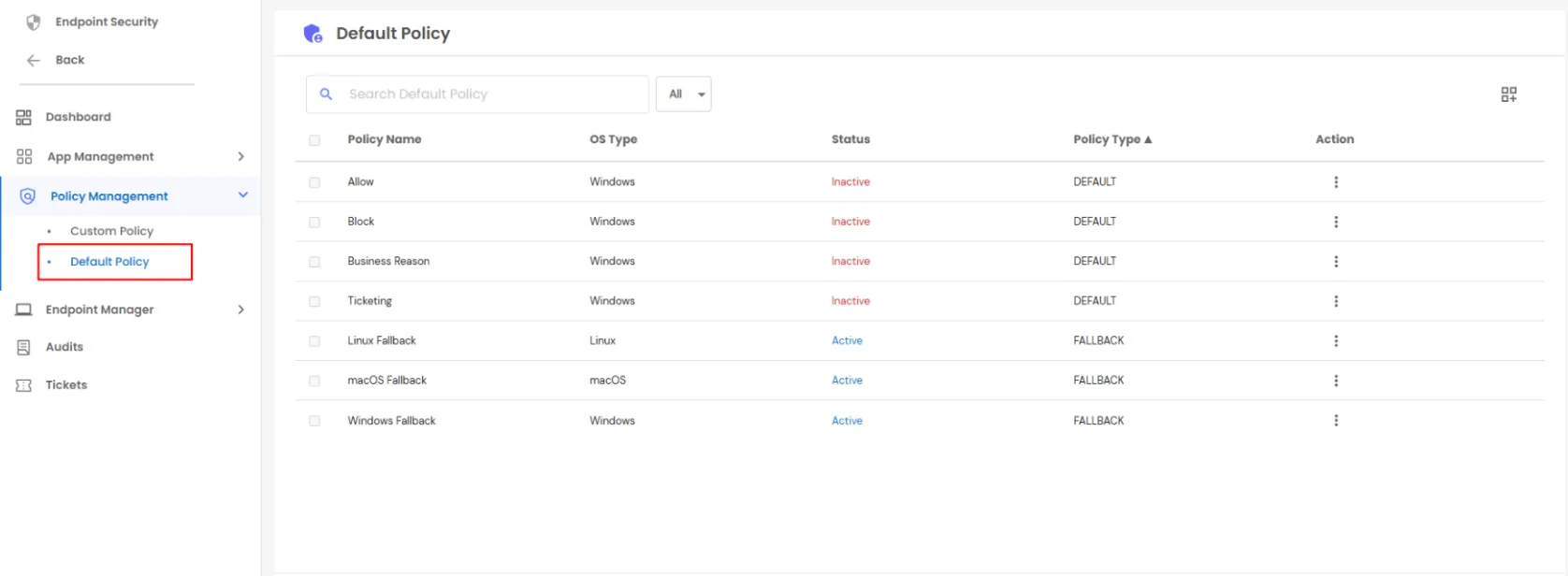
- The fields of the page are as follows:
- Policy Name: Displays the name of the policy, indicating its purpose or configured action.
- OS Type: Specifies the operating system for which the policy is applicable, such as Windows, Linux, or macOS.
- Status: Indicates whether the policy is Active or Inactive, showing whether the policy is currently enforced.
- Policy Type: Identifies whether the policy is a Default policy or a Fallback policy. Fallback policies are applied automatically when no other policy is assigned.
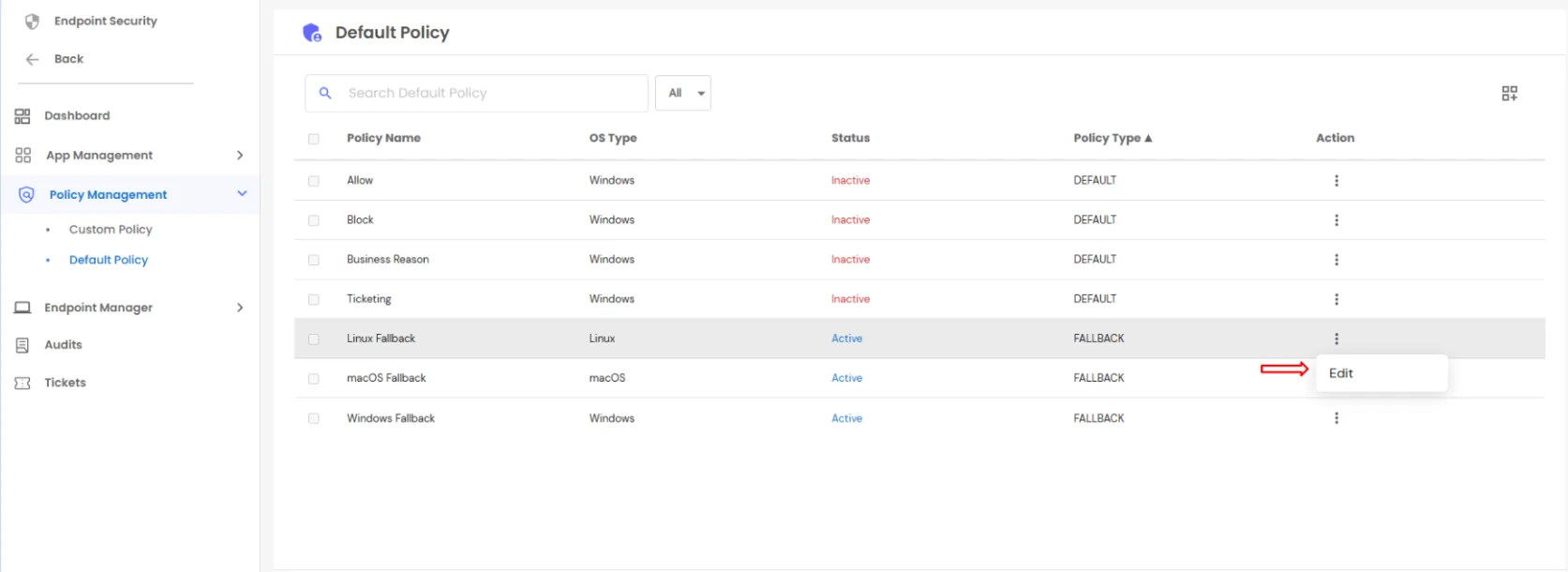
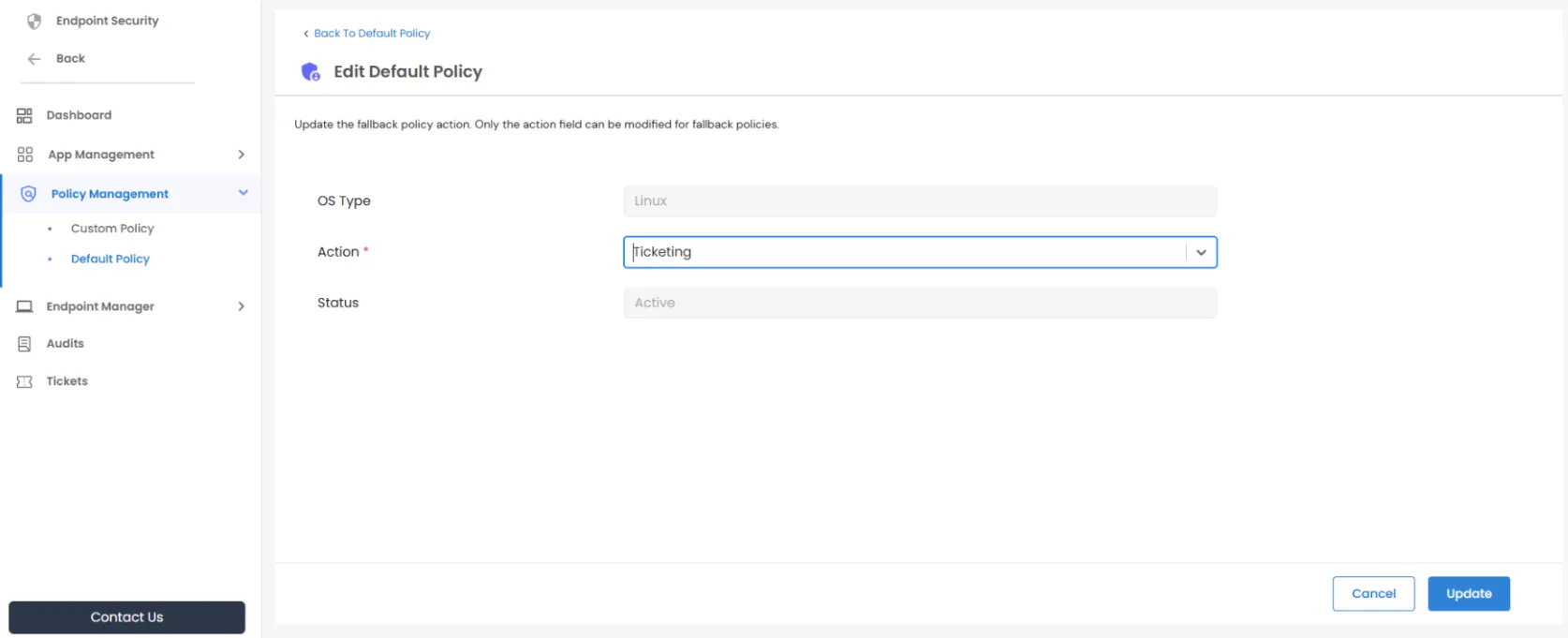
- Locate the fallback policy and click the three-dot (⋮) menu under the Action column. Only the policy action can be modified, with available options including Block, Allow, Ticketing, or Business Reason.
- By default, the policy action is set to Block.