Hello there!
Need Help? We are right here!

Need Help? We are right here!
Search Results:
×The Email and Notification Templates feature in miniOrange PAM allows administrators to both manage system-provided templates and customize them as per organizational requirements. This ensures consistent, branded, and professional communication across emails and in-portal notifications.
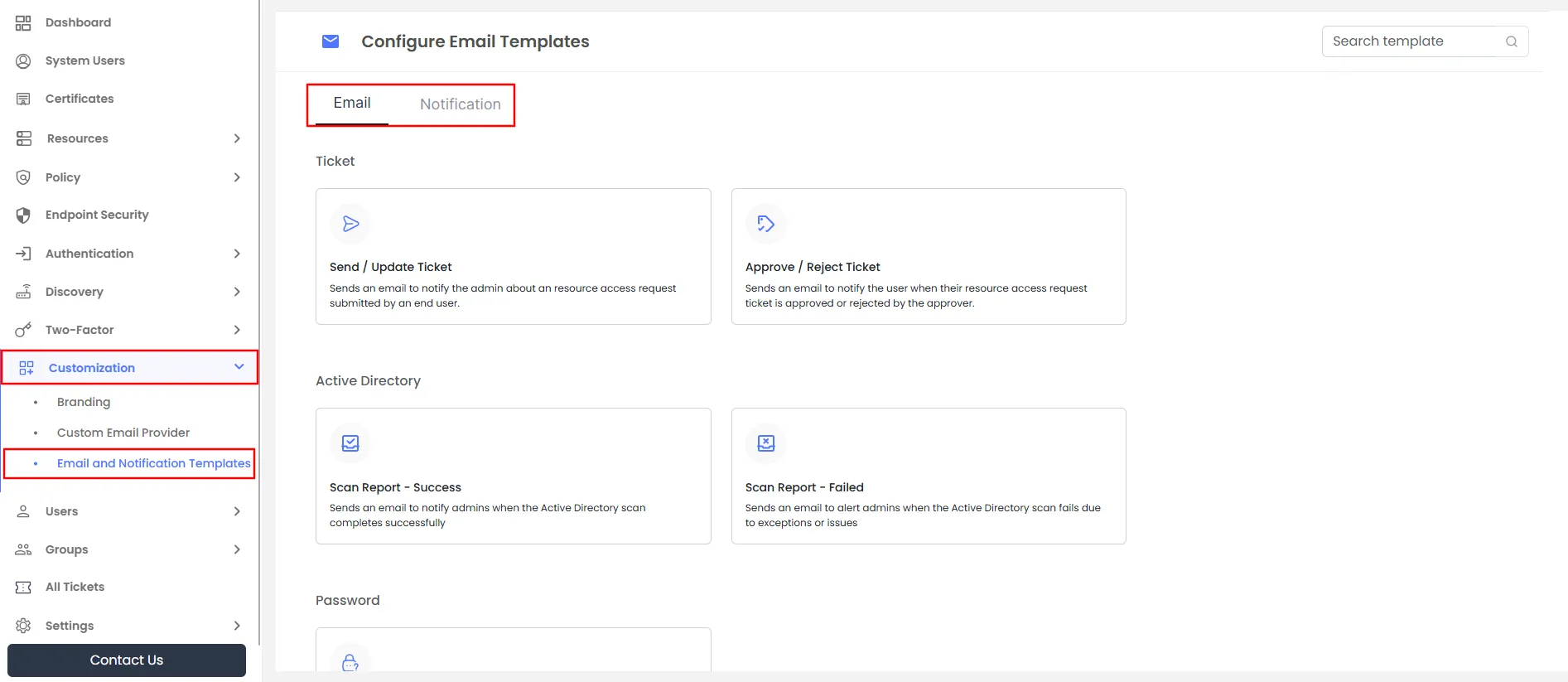
When you click on an email template card (for example, Send/Update Ticket), a new window opens with two options:
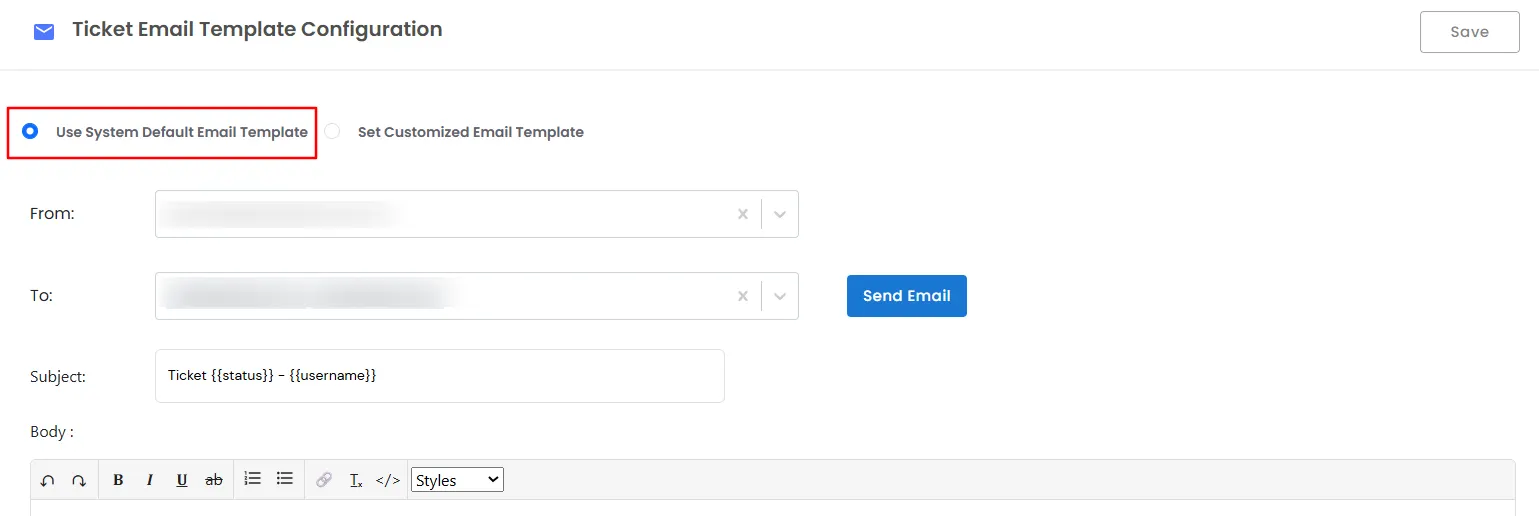
| Field | Description |
|---|---|
| From | Select the sender from the dropdown list of configured email addresses. |
| To | Add multiple recipients to whom the email will be sent. |
| Subject | Define the subject line of the email. You can use shortcodes for dynamic fields. |
| Body | Design the content using a text editor. Apply styling (bold, italic, lists, etc.) and insert shortcodes where required. |
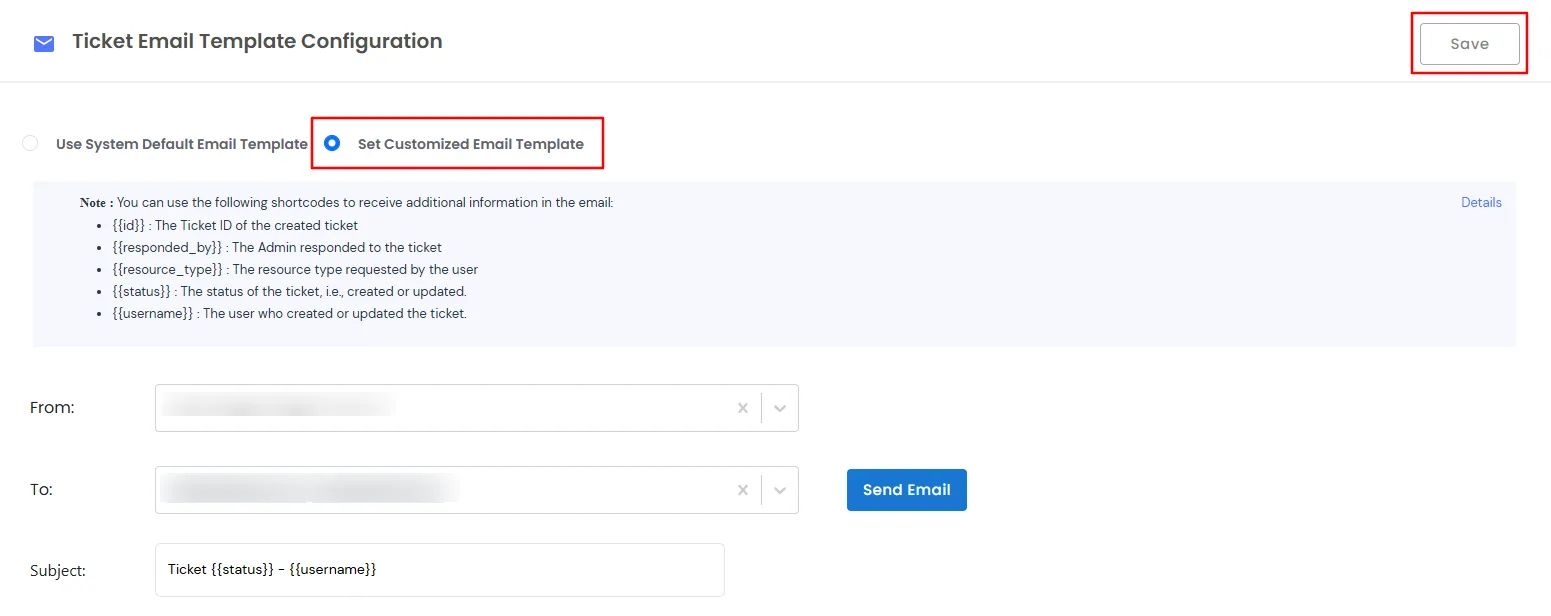
Available Shortcodes for Emails
| Shortcode | Description |
|---|---|
| {{id}} | Ticket ID of the created or updated ticket. |
| {{responded_by}} | Admin who responded to the ticket. |
| {{resource_type}} | Resource type requested by the user. |
| {{status}} | Current status of the ticket (e.g., Created, Updated). |
| {{username}} | User who created or updated the ticket. |
Example:
Steps to Customize an Email Template
The Notification Templates in miniOrange PAM allow administrators to personalize the in-portal messages sent to users and admins. You can either use the System Default Notification Template or create a Customized Notification Template to better align with your organization’s communication style.
Navigate to Notification Template Settings
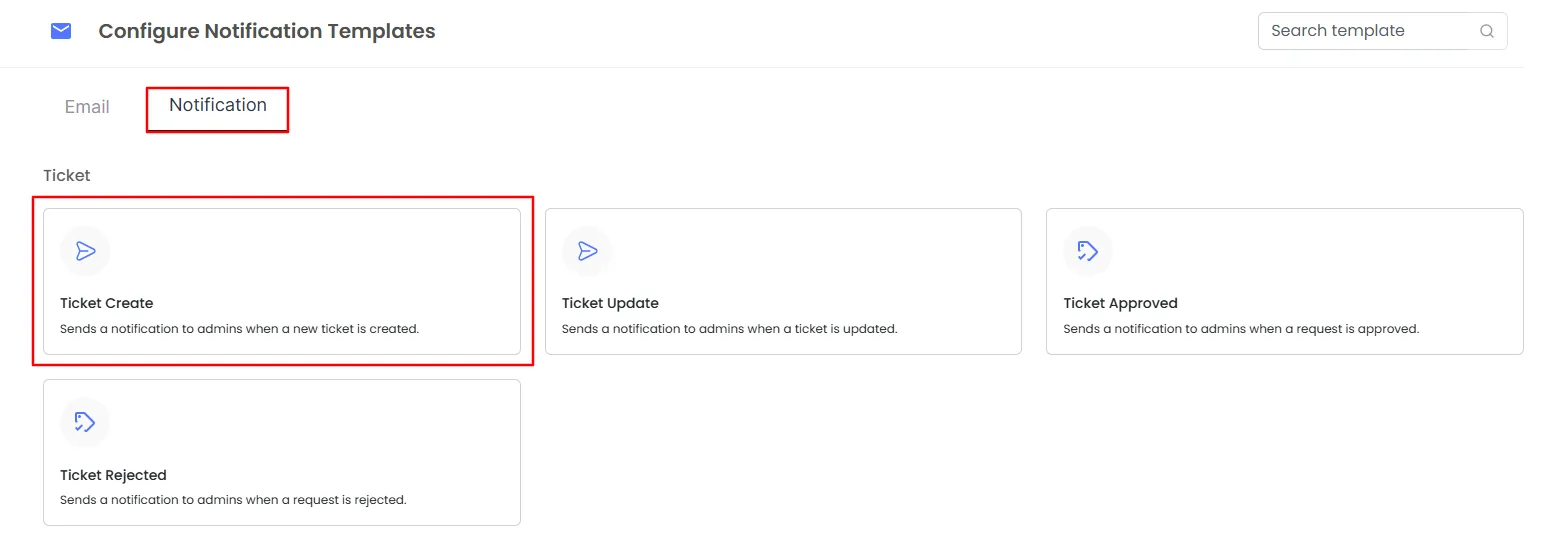
Select Template Type
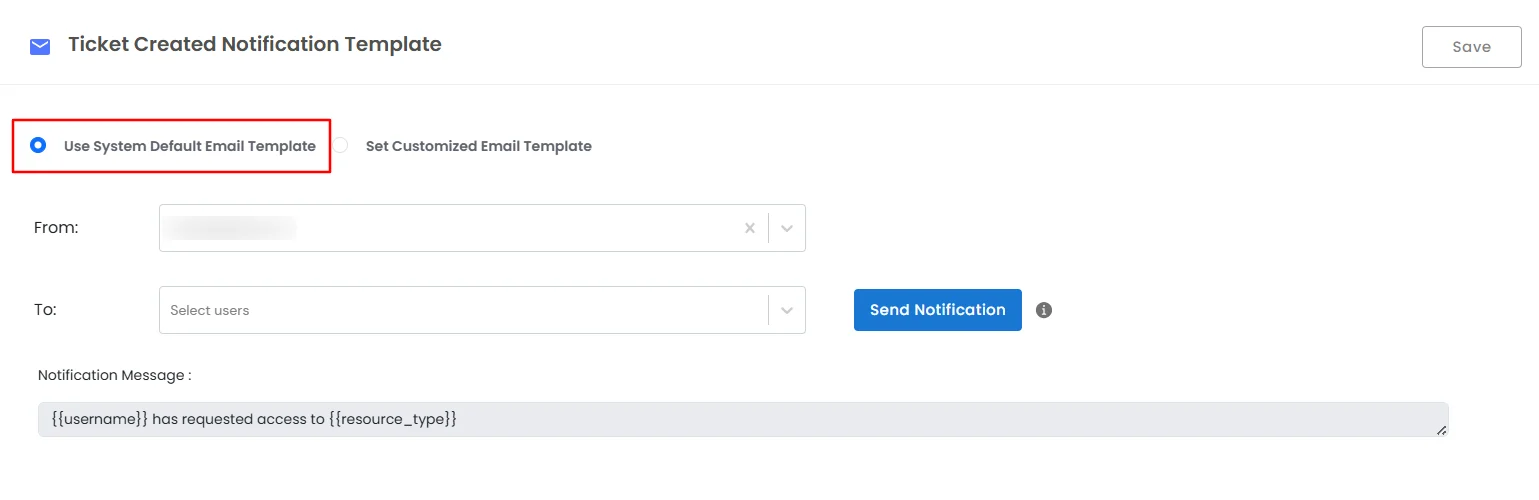
Default Notification Template Example
| Field | Description |
|---|---|
| From | Default sender of the notification. |
| To | Predefined recipient(s) of the notification. |
| Notification Message | {{username}} has requested access to {{resource_type}} |
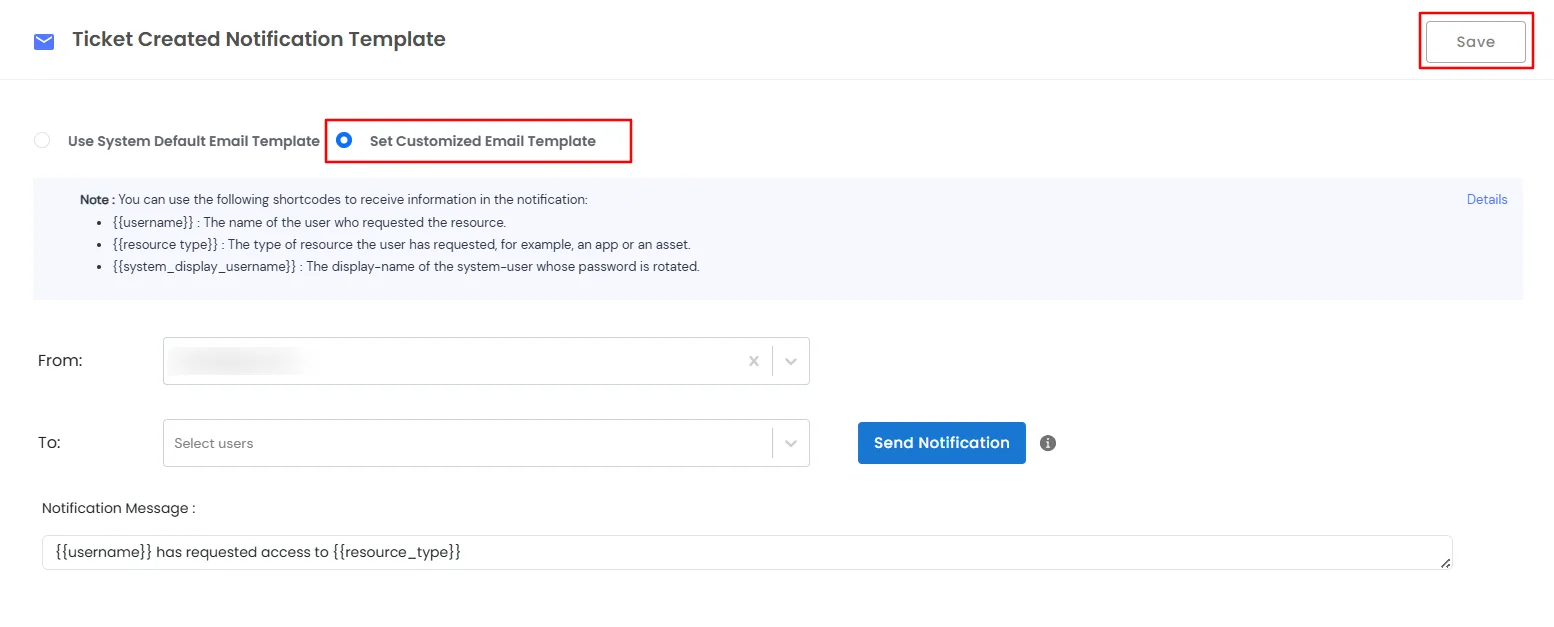
When you select Set Customized Notification Template, you can modify the following fields:
| Field | Description |
|---|---|
| From | Select or specify the sender of the notification. |
| To | Choose one or more recipients for the notification. |
| Notification Message | Update the body of the notification. Shortcodes can be inserted for dynamic content. |
Available Notifaction Shortcodes
| Shortcode | Description |
|---|---|
| {{username}} | The name of the user who requested the resource. |
| {{resource type}} | The type of resource the user has requested, for example, an app or an asset. |
Save and Test Notification Template
