Hello there!
Need Help? We are right here!

Need Help? We are right here!
Search Results:
×Watch what someone is doing on a resource right now, in real time, as it happens.
When someone connects to a server, database, or web app through PAM, an admin with the right permission can open that same session and watch it live - like watching someone's screen over a video call.
This is different from Session Recording, which saves a session so you can watch it back later. Live Streaming is only for watching a session while it is actually happening. Session Recording has its own separate handbook page: Session Recording.
Live Streaming is useful for real-time oversight - keeping an eye on a sensitive session while it is in progress and stepping in immediately if something looks wrong.
Important: There is no single master switch that turns live streaming on for everything. Live streaming of your actual resources (Servers, Databases, RDP/VNC, and Web Apps) is controlled per policy and is on by default. A separate setting in Product Settings only controls live streaming of the PAM dashboard itself, not your resources. Do not mix the two up. Both are covered below.
Each policy - the rules that control access to your Servers, Databases, RDP/VNC connections, and Web Apps - has its own live-streaming switch, and it is turned on by default.
You do not need to change anything unless you want to turn live streaming off for a specific policy or confirm that it is enabled.
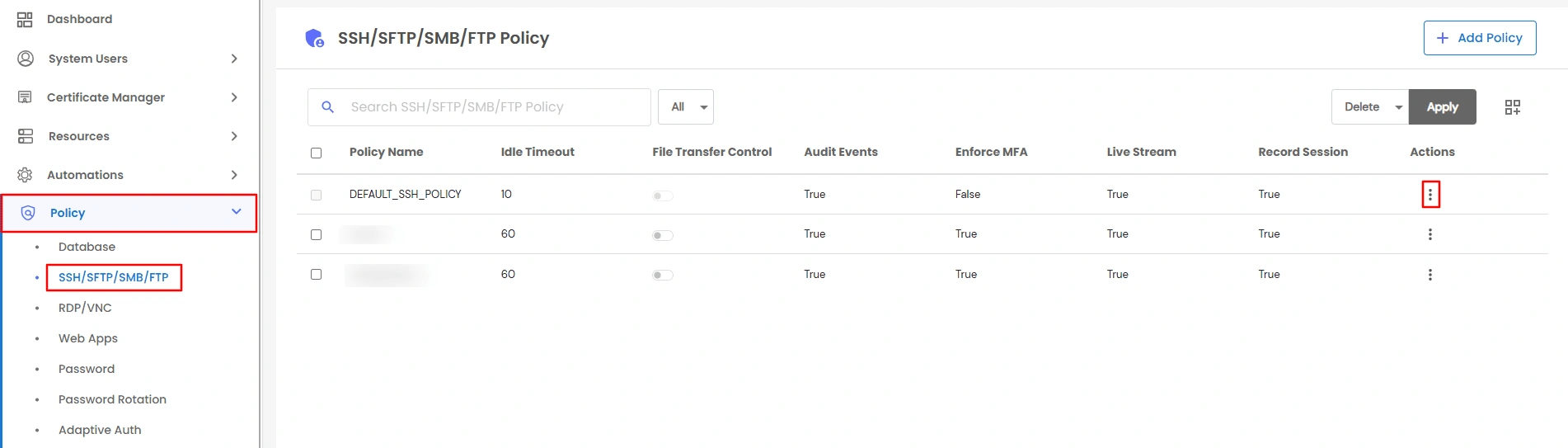
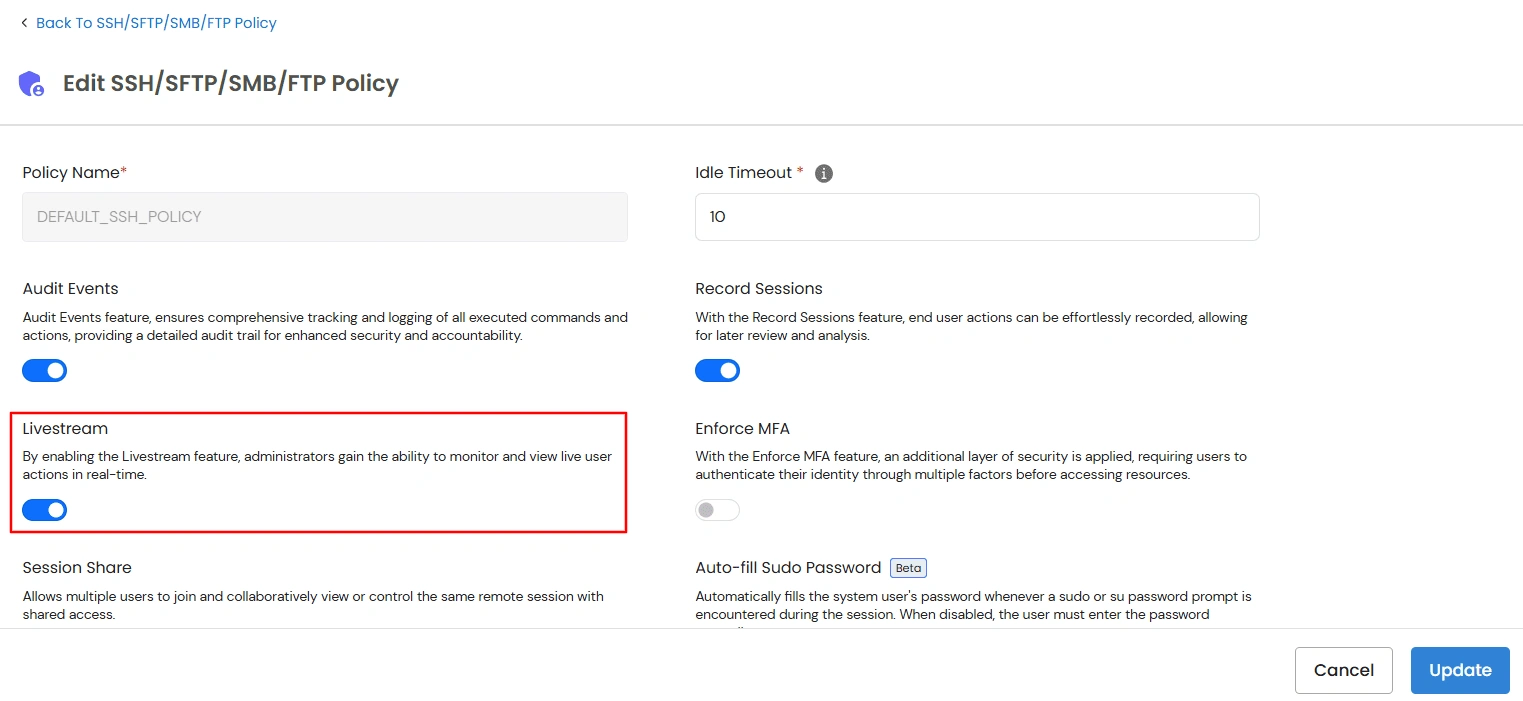
Note: Don't confuse this with Session Share. Session Share is a different feature - it lets two people jointly view or control the same session, with both actively participating in it. Live Streaming is for an admin to quietly watch someone else's session without joining it. Web App policies do not have a Session Share option.
PAM can also let an admin watch, live, what someone else is doing while browsing the PAM dashboard website itself. This is separate from anything they do on an actual resource.
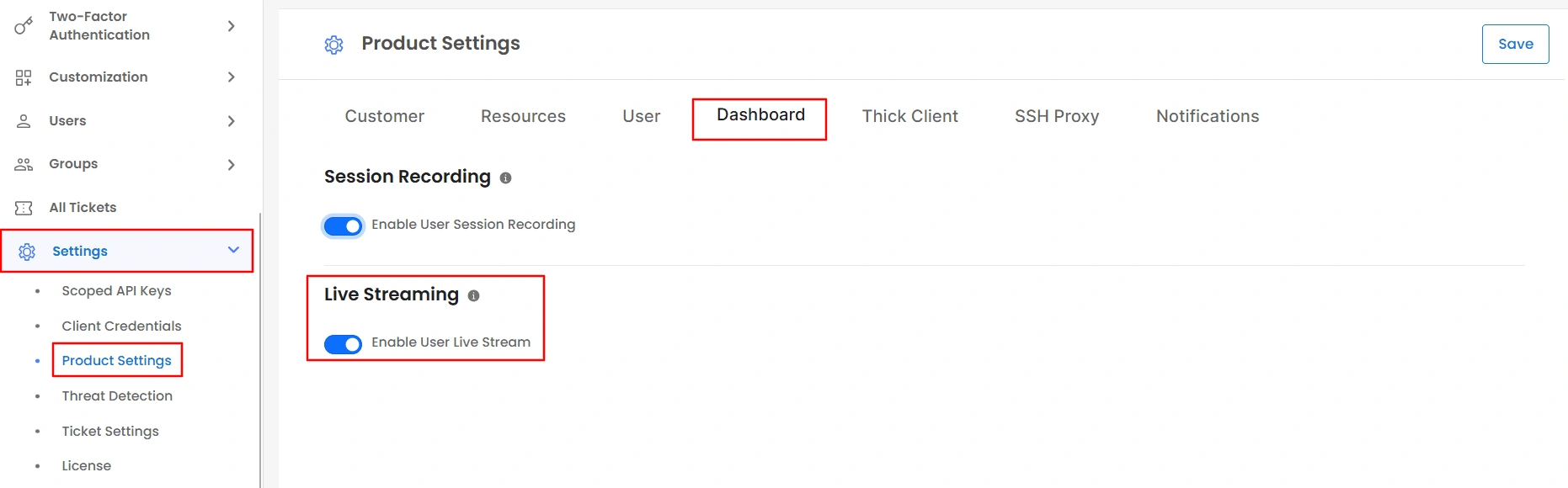
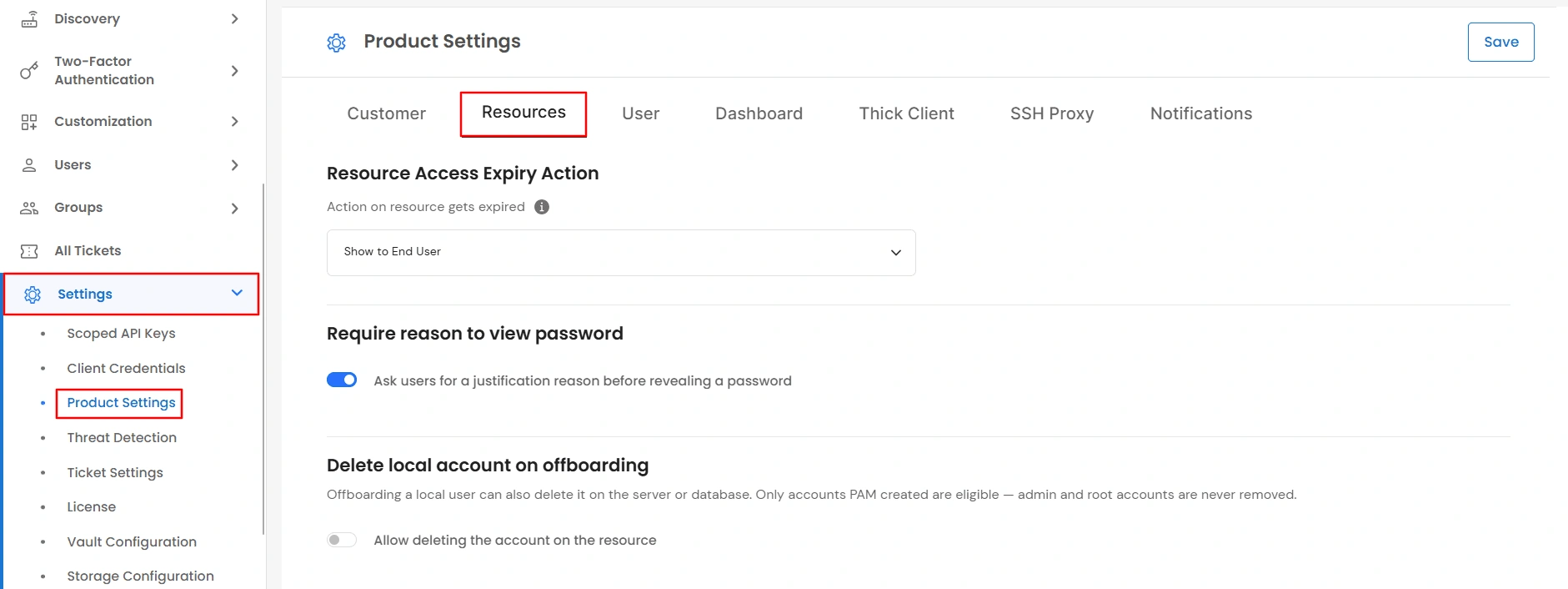
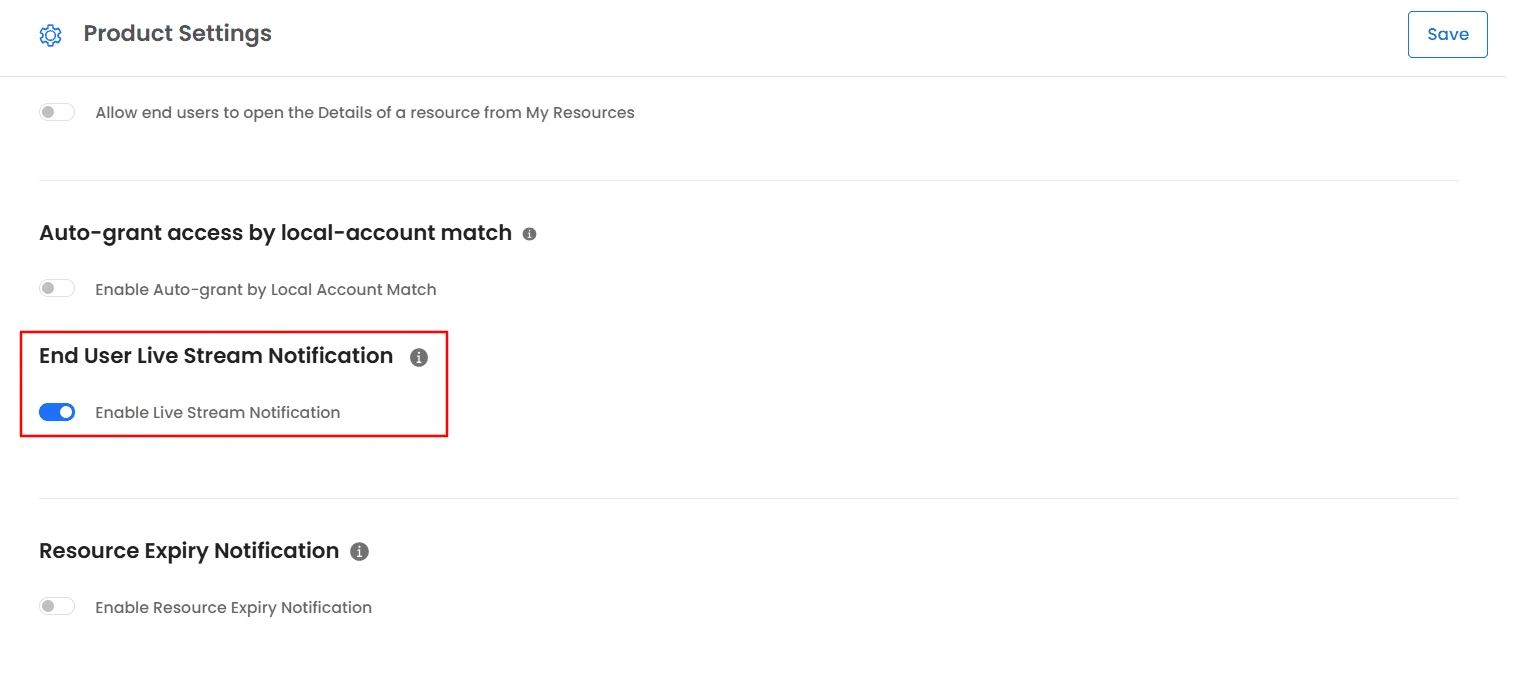
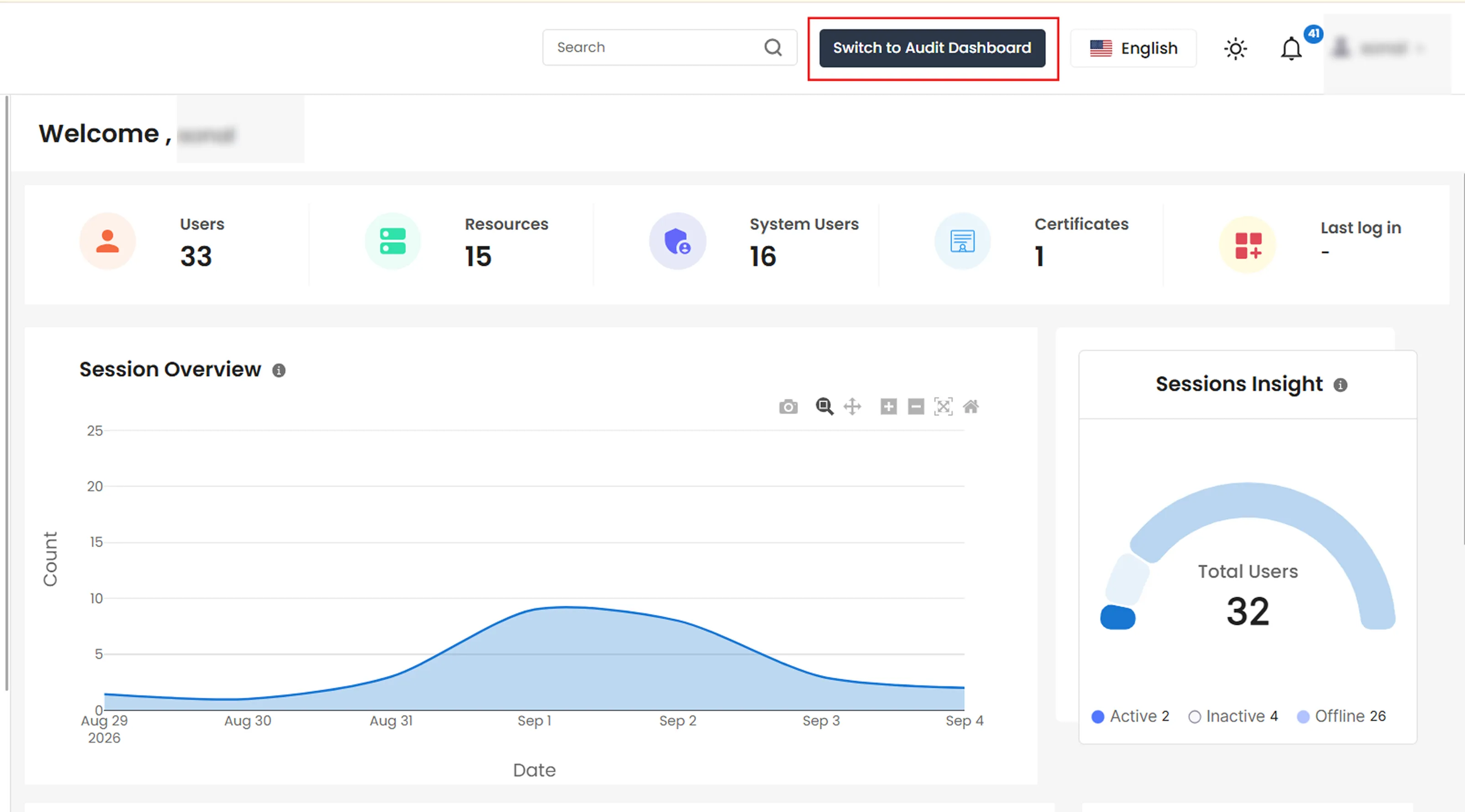
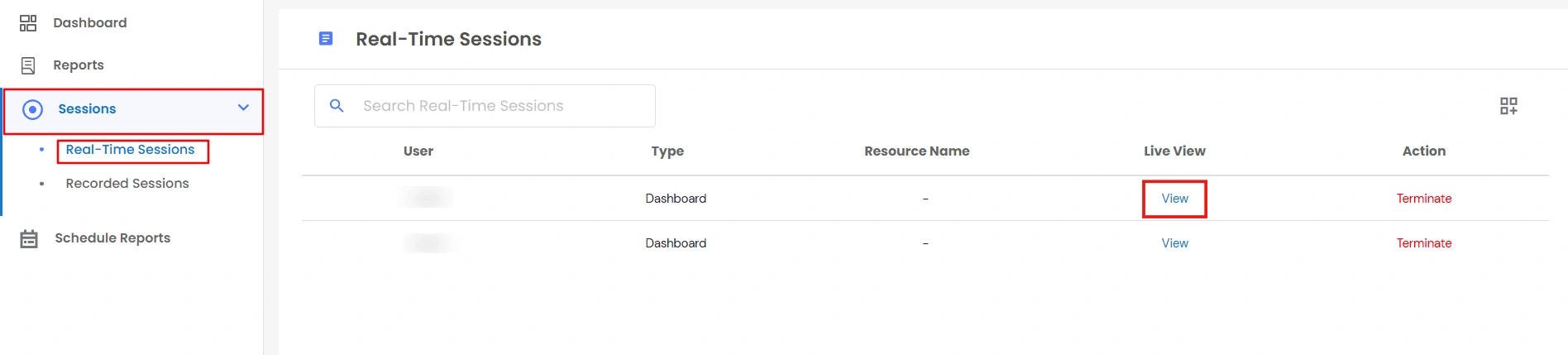
Note: During an RDP, VNC, or SSH session, PAM automatically places the viewer's email and connection details on the screen as a watermark, whether or not you enabled the notification in Step 3. This happens automatically and cannot be turned off. It helps trace any screenshot or photo of the screen back to the person who was watching.
If you have the required permission, a Terminate option appears on each row in Real-Time Sessions. Clicking it immediately disconnects that session.

| Permission | What it allows |
|---|---|
| Audit Dashboard | Required for the Switch to Audit Dashboard button to appear in the top navigation bar. |
| Live Session | Required to see the Sessions menu, including Real-Time Sessions. |
| Enable/Disable Live Streaming | Required to change the Dashboard activity live-streaming setting in Product Settings (Step 2). |
| Enable/Disable Live Stream Notifier | Required to change the end-user live-stream notification setting. |
| Kill Session | Required to see the Terminate option in Real-Time Sessions. |
