App Management
Application Management in the PAM dashboard enables organizations to organize applications by grouping them and defining their details, making policy assignment and management simpler and more effective.
The app management is classified into 2 sections:
- Application Group
- Application Definition
Application Group
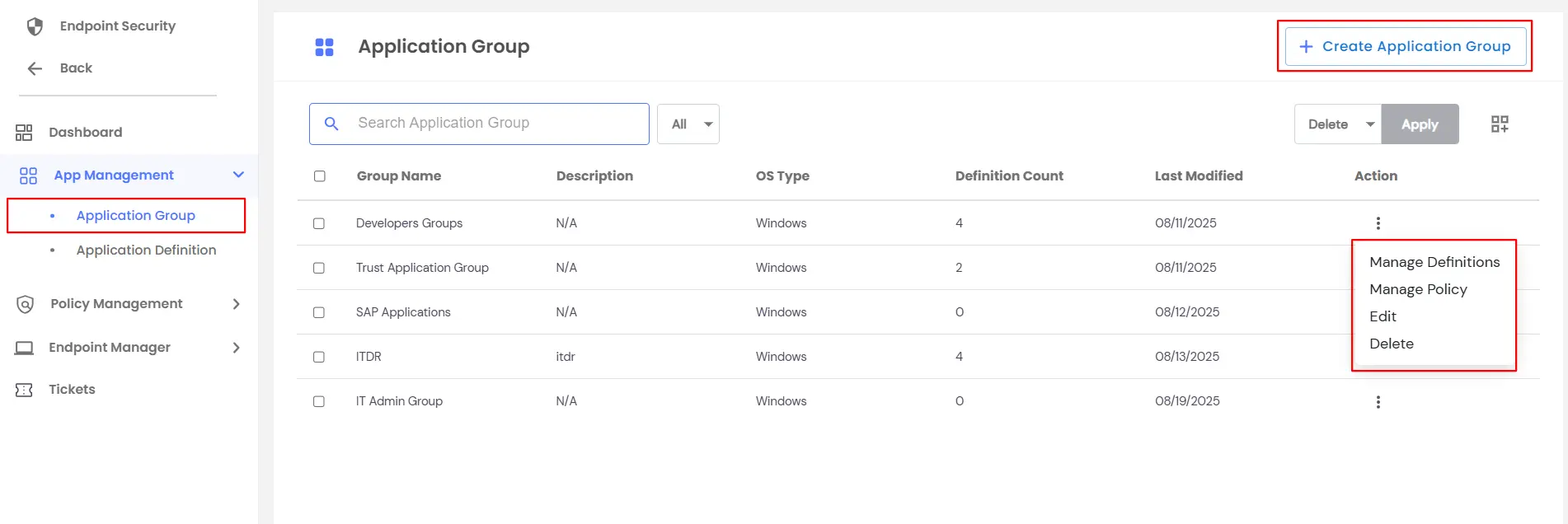
In the EPM dashboard, the Application Group page displays all created application groups.
From this page, you can:
- Create a New Application Group
- Use the Action menu for each existing group to:
- Manage Definitions – Add or remove application definitions within the group
- Manage Policy – Assign or update policies for the group
- Edit Application Group – Modify the group name, description, or platform
- Delete Application Group – Remove the application group from the dashboard
This allows centralized management of application groups, their definitions, and associated policies.
Creating an Application Group
- While creating a new application group, you can:
- Enter the Group Name and Group Description
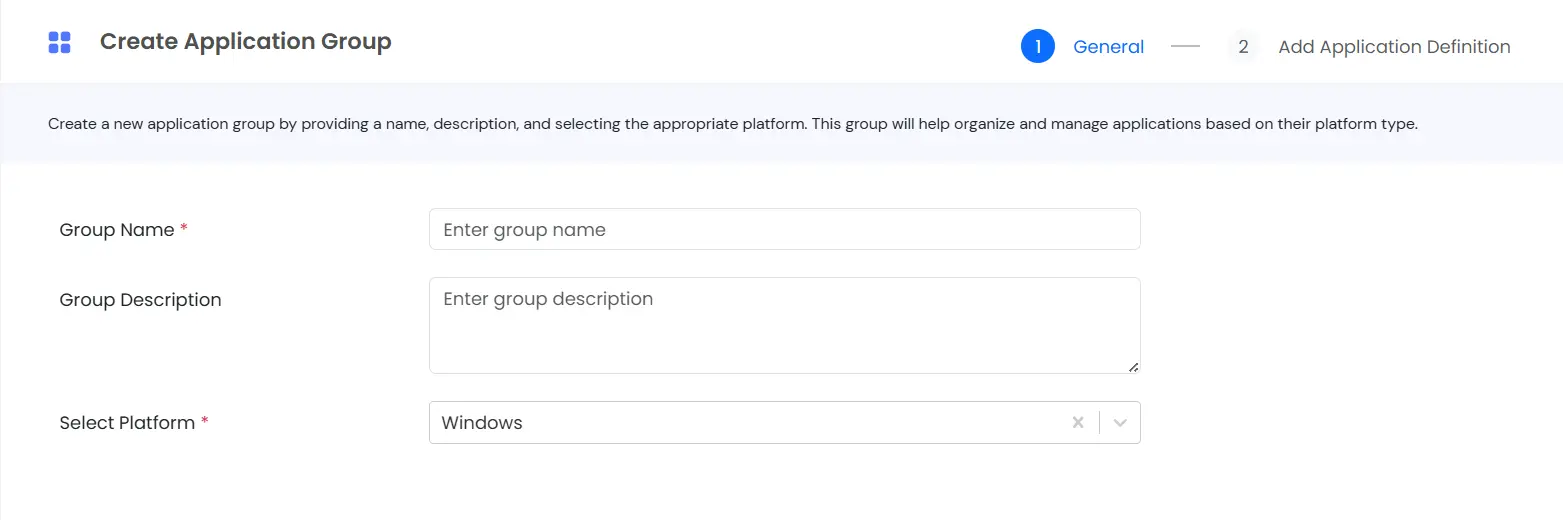
- Select the Platform (Windows, Linux, or Mac)
- Click Next to add application definitions to the group.
Adding Application Definitions to an Application Group
When adding application definitions to an application group, you have the following options:
Add New Application Definition
- Click Add New Application Definition
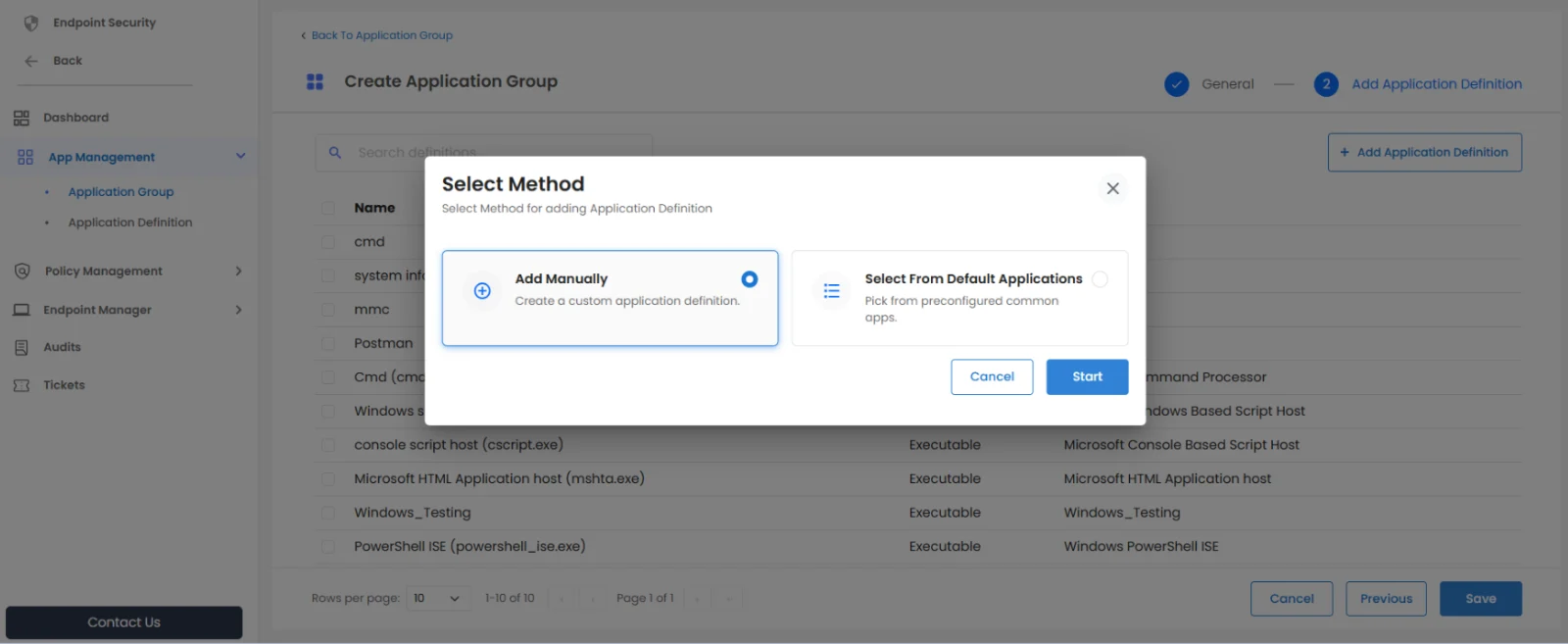
- Choose one of the following creation methods:
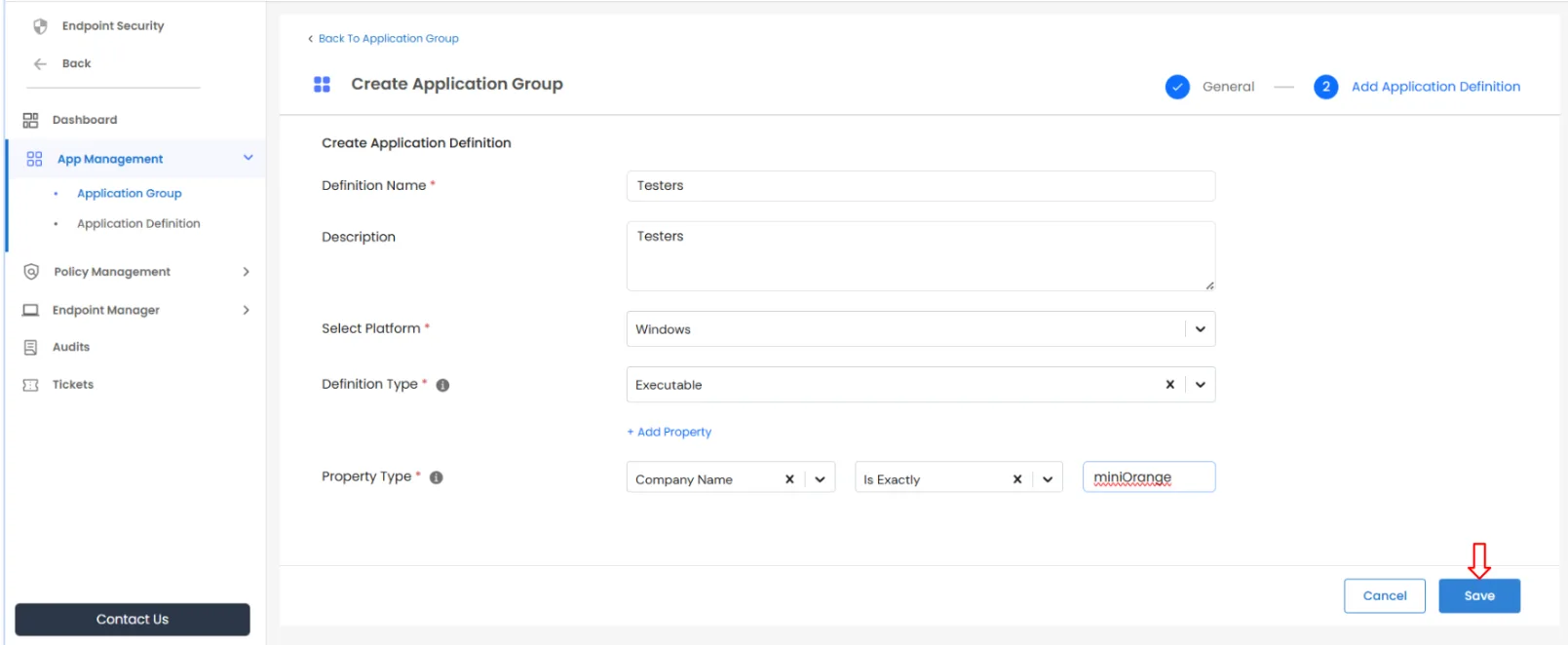
- Add Manually – Provide the required application details and Save.
- Select from Default Applications – Select the required applications from the default list and save. The application group will be added successfully.
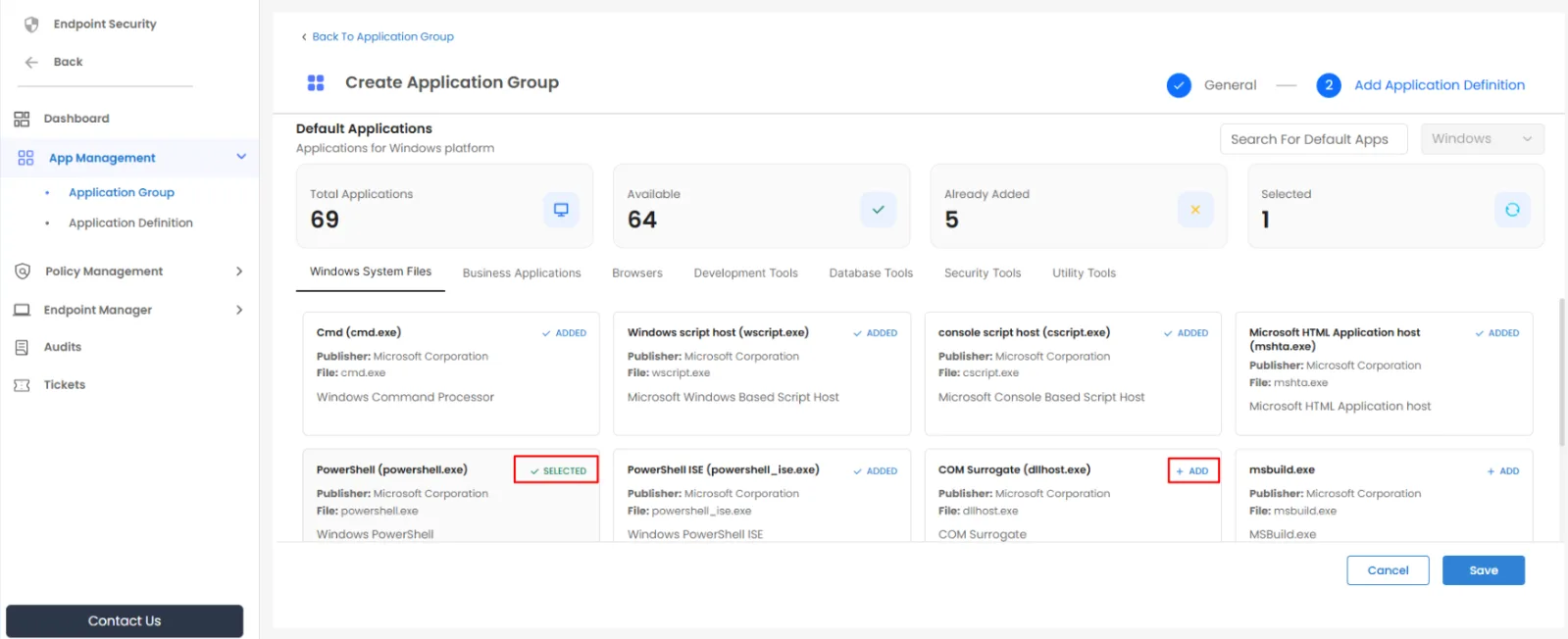
- Select Existing Application Definitions
- Choose one or more application definitions from the existing list.
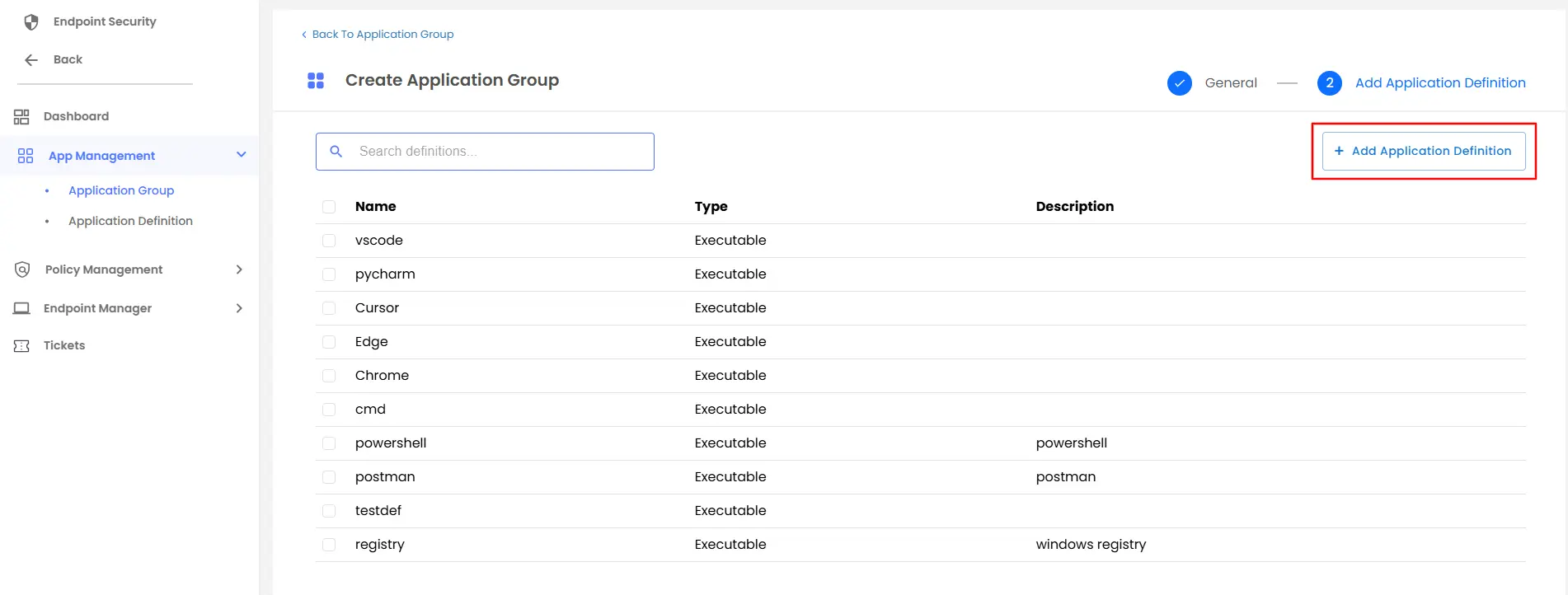
- Click on Save, and the application group will be added successfully.
Application Definition
The Application Definition allows you to create and manage application definitions.
From this page, you can create a new application definition using one of the following methods.
Creating a New Application Definition
There are two ways to create an application definition:
- Add Manually
- Select from Default Applications
Method 1: Add Application Manually
Use this option when the required application is not available in the default applications list.
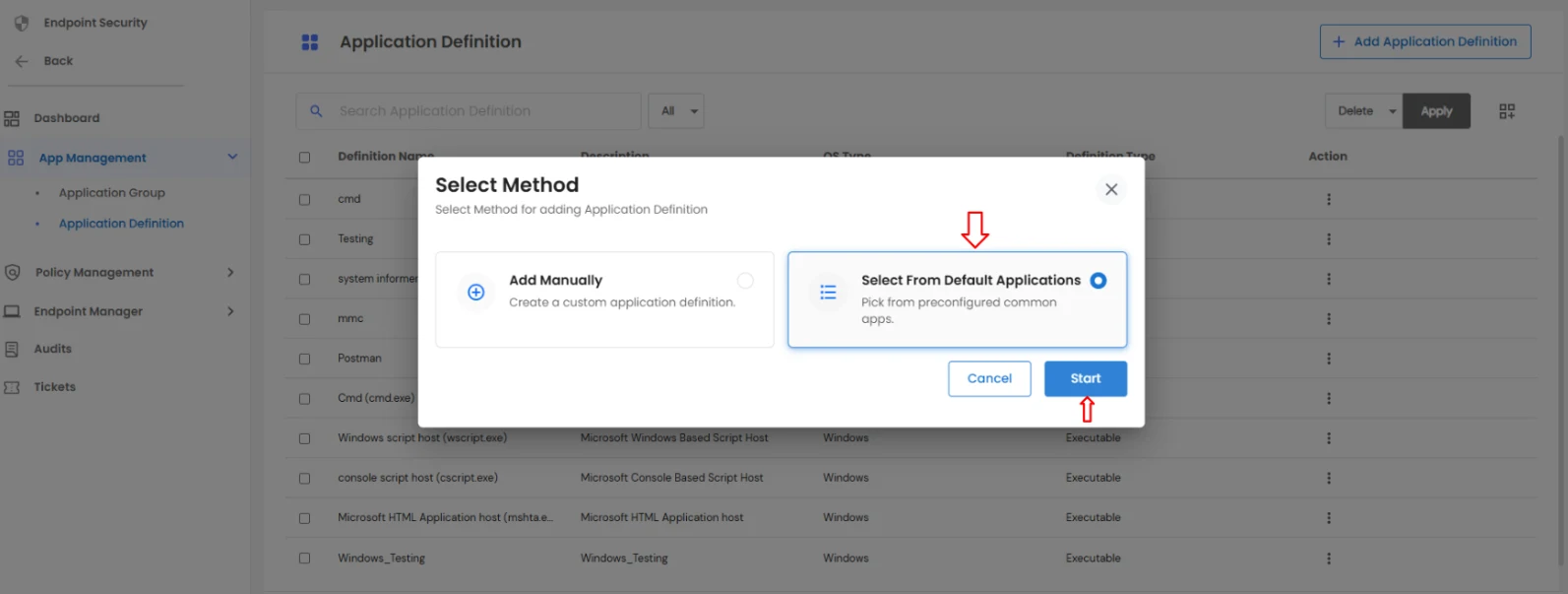
- Click the Add Application Definition button.
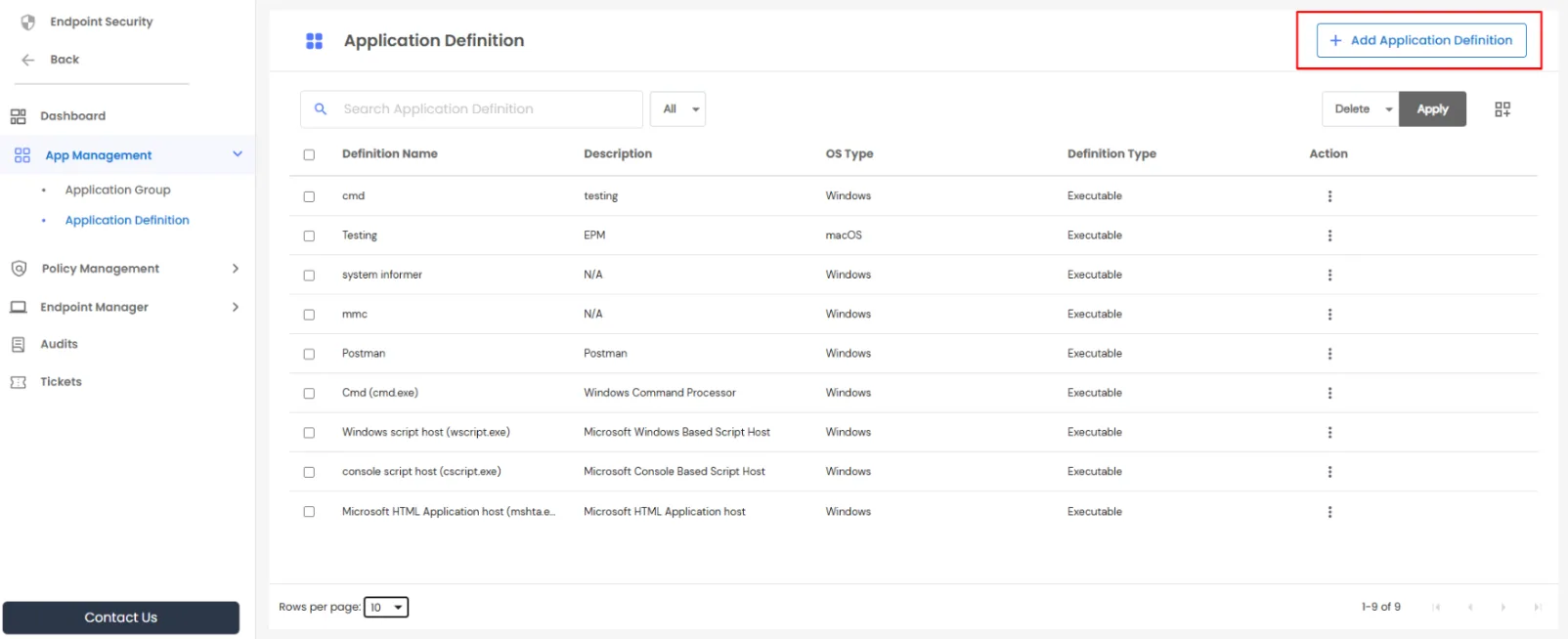
- A modal window opens with two options:
- Add Manually
- Select from Default Applications
- Select Add Manually and click Start.
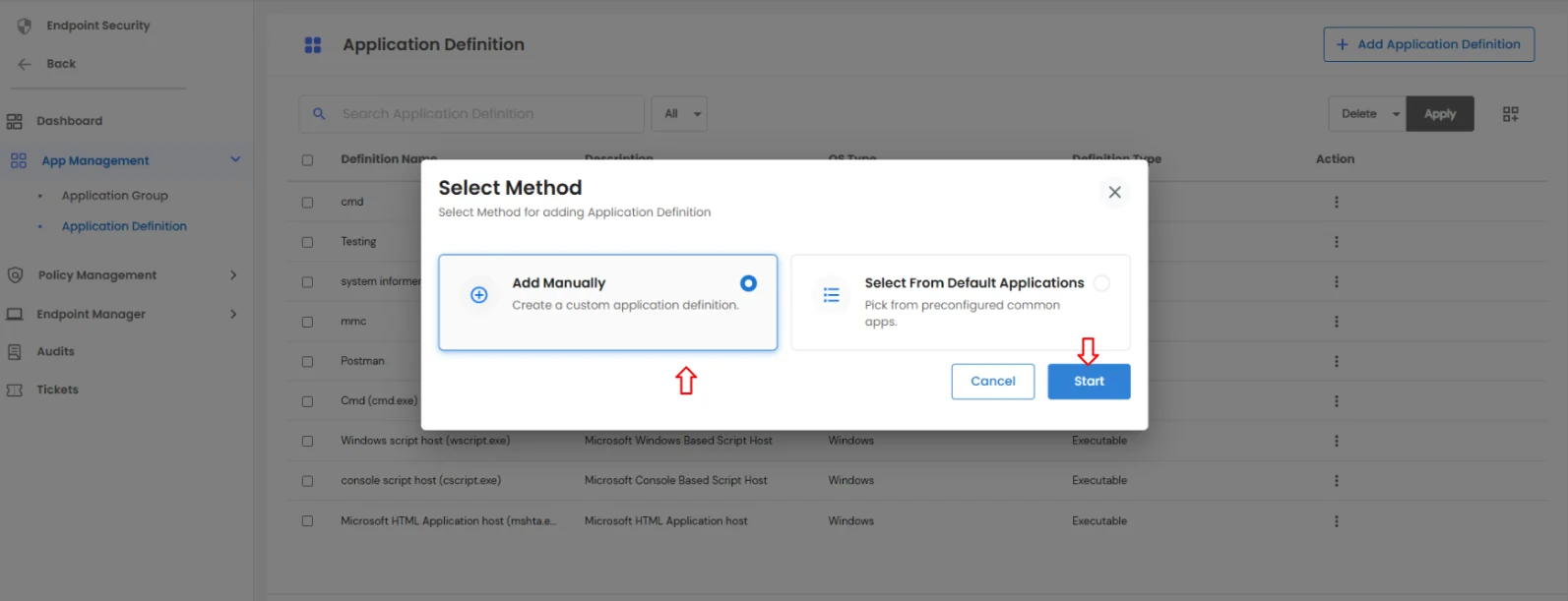
- A new page opens where you must enter the required details, such as:
- Definition Name
- Platform
- Definition Type
- Property Type
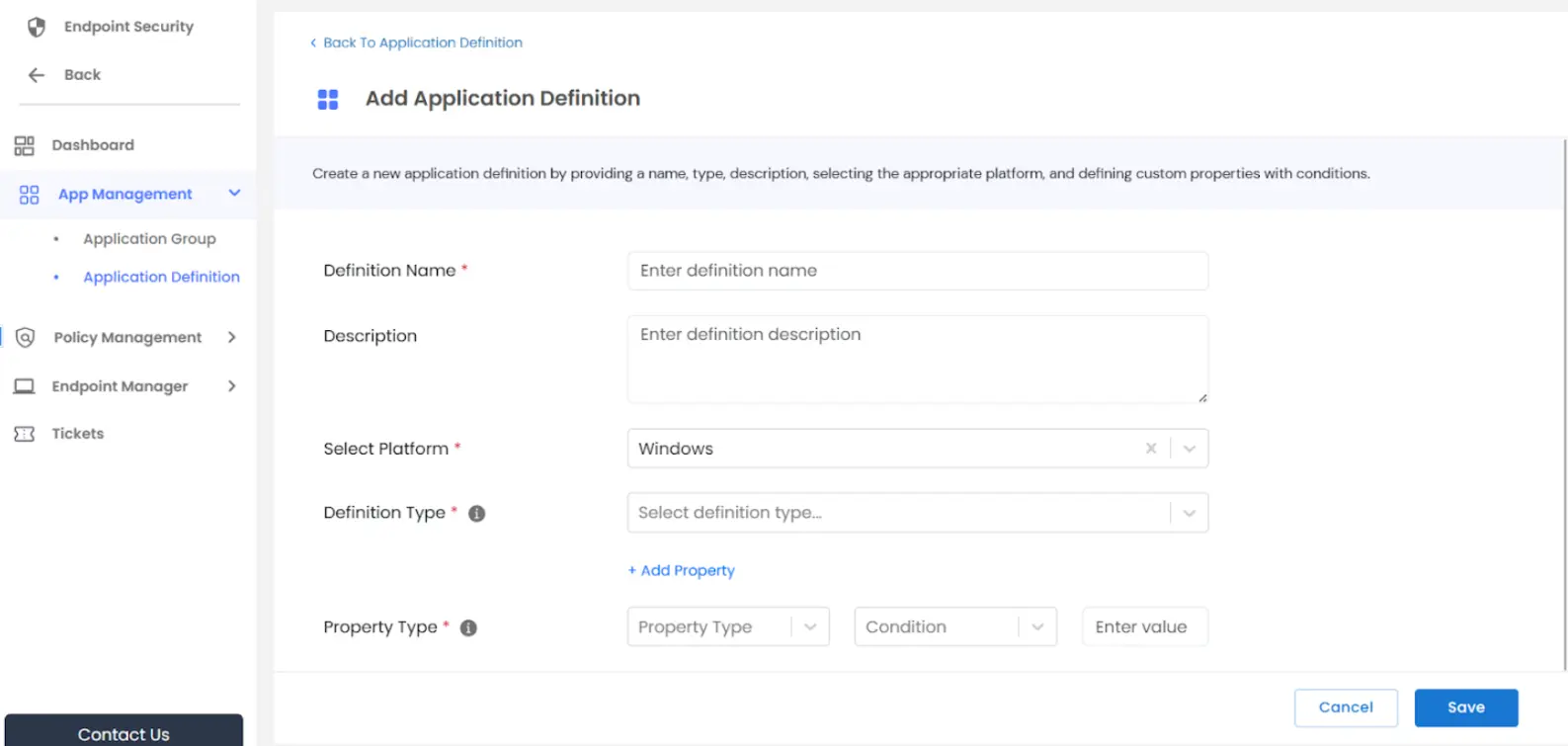
- Click Save to complete the process.
- Once saved, the new application definition is added successfully.
Method 2: Select from Default Applications
Use this option to add applications from the predefined default list.
- In the Add Application Definition modal, Choose Select from Default Applications and click Start.
- The system displays all available default applications.
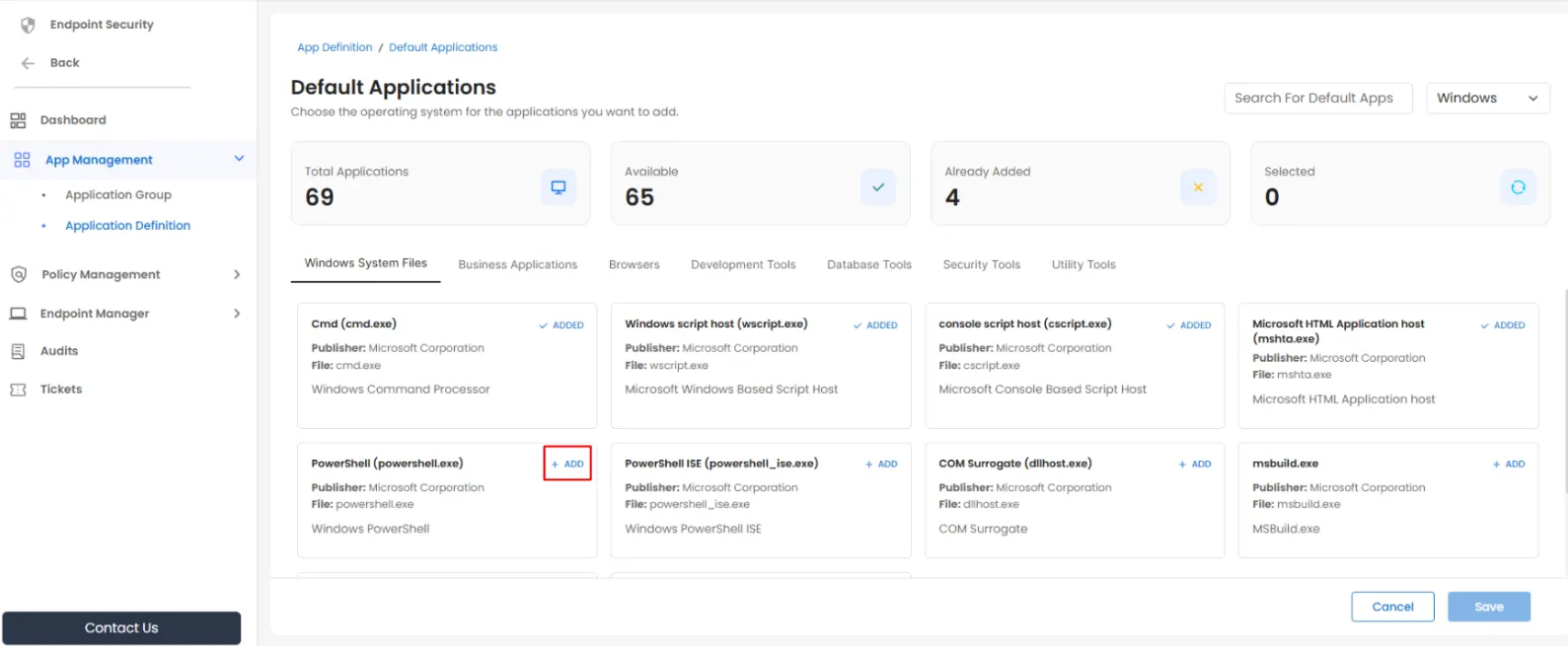
- Summary details are shown at the top, including:
- Total applications
- Available applications
- Applications already added
- Currently selected applications
- Click Add for the applications you want to include.
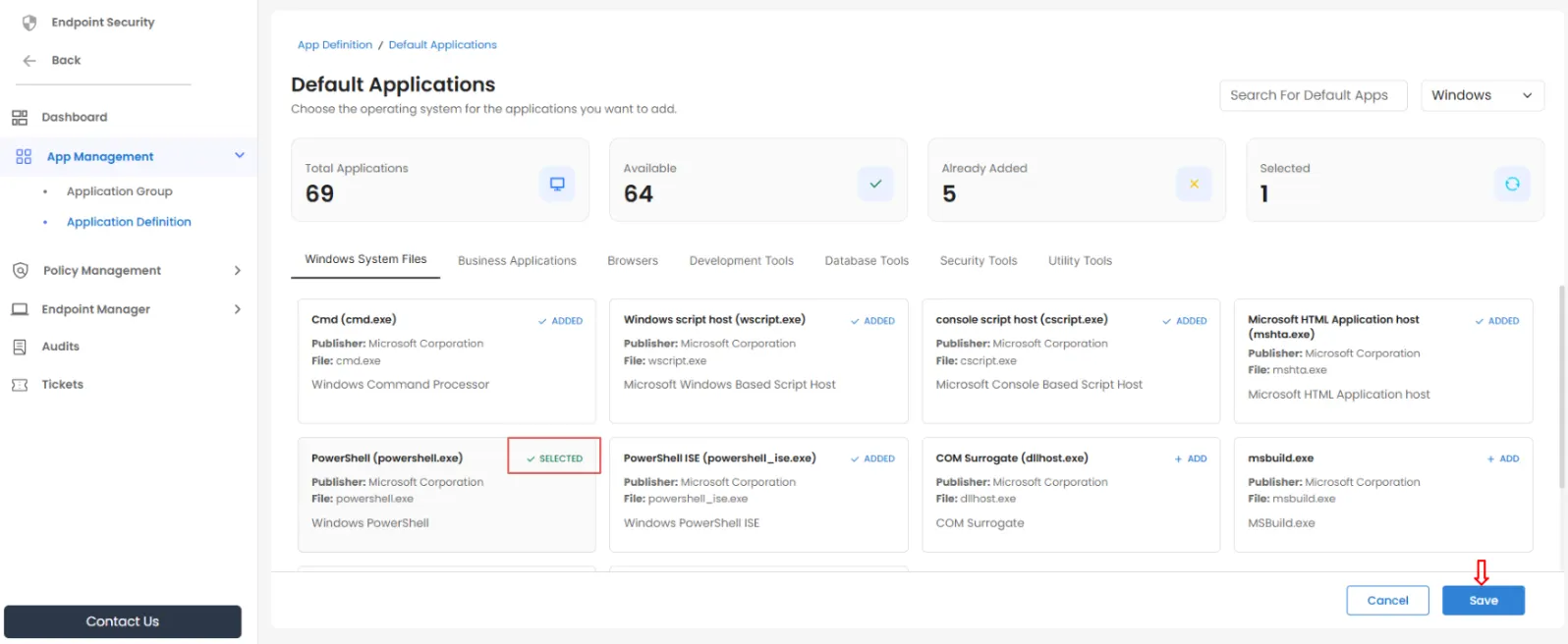
- Click Save to add the selected applications.
Managing Existing Application Definitions
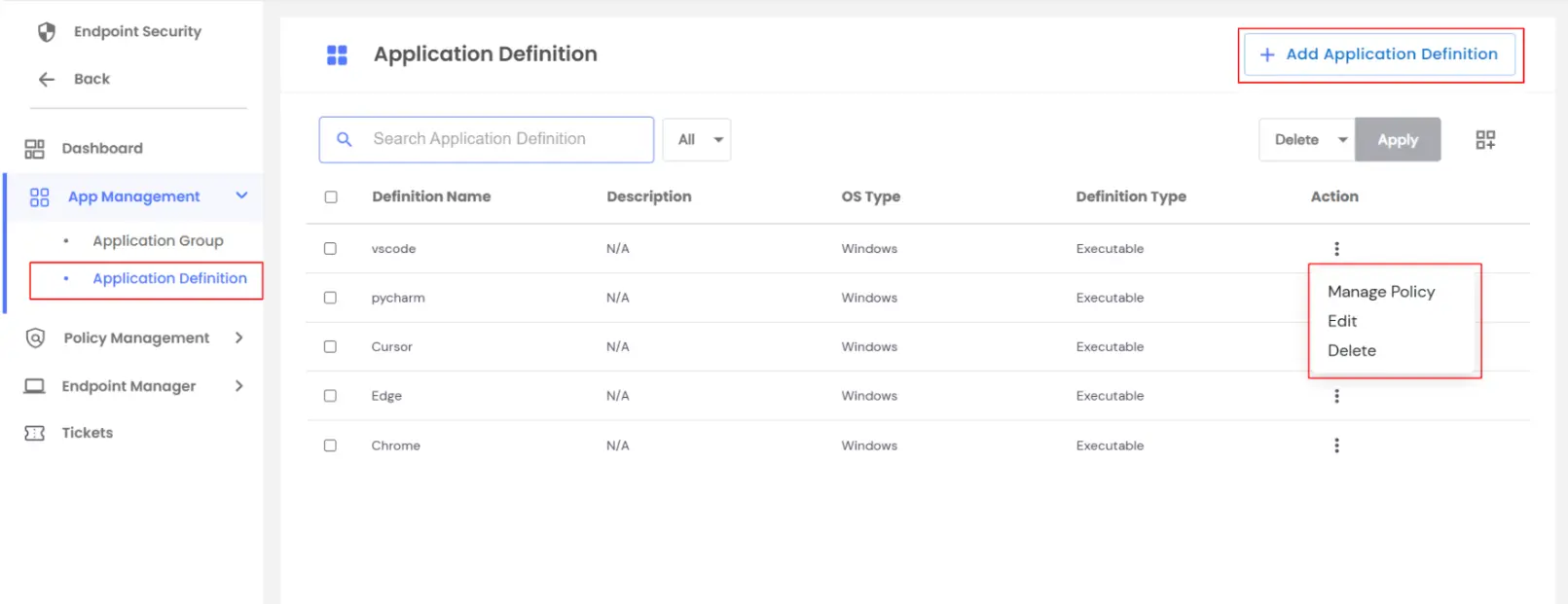
For each existing application definition, the Action menu allows you to:
- Manage Policy – Assign or unassign policies for the application
- Edit Application Definition – Modify the name, description, platform, or other properties
- Delete Application Definition – Remove the application definition from the dashboard
While creating an Application Definition, you can configure:
- Definition Name and Description
- Select Platform (Windows, Linux, Mac)
- Definition Type (Executable, Installer, Script)
- Property Type (File Name, Checksum, Location, Company Name, Product Version)
Navigating to Application Definition in the EPM dashboard lets you define applications precisely and manage their associated policies effectively.

