Personal Profile
All settings related to your account and profile are listed in the Personal Profile segment. You can add/update your account information & profile information. This section enables you to customize your experience accordingly.
Note: These settings will differ for everyone according to the level of access provided by your Admin.
- Go to top right corner and click on your Profile. Click on Personal Profile.
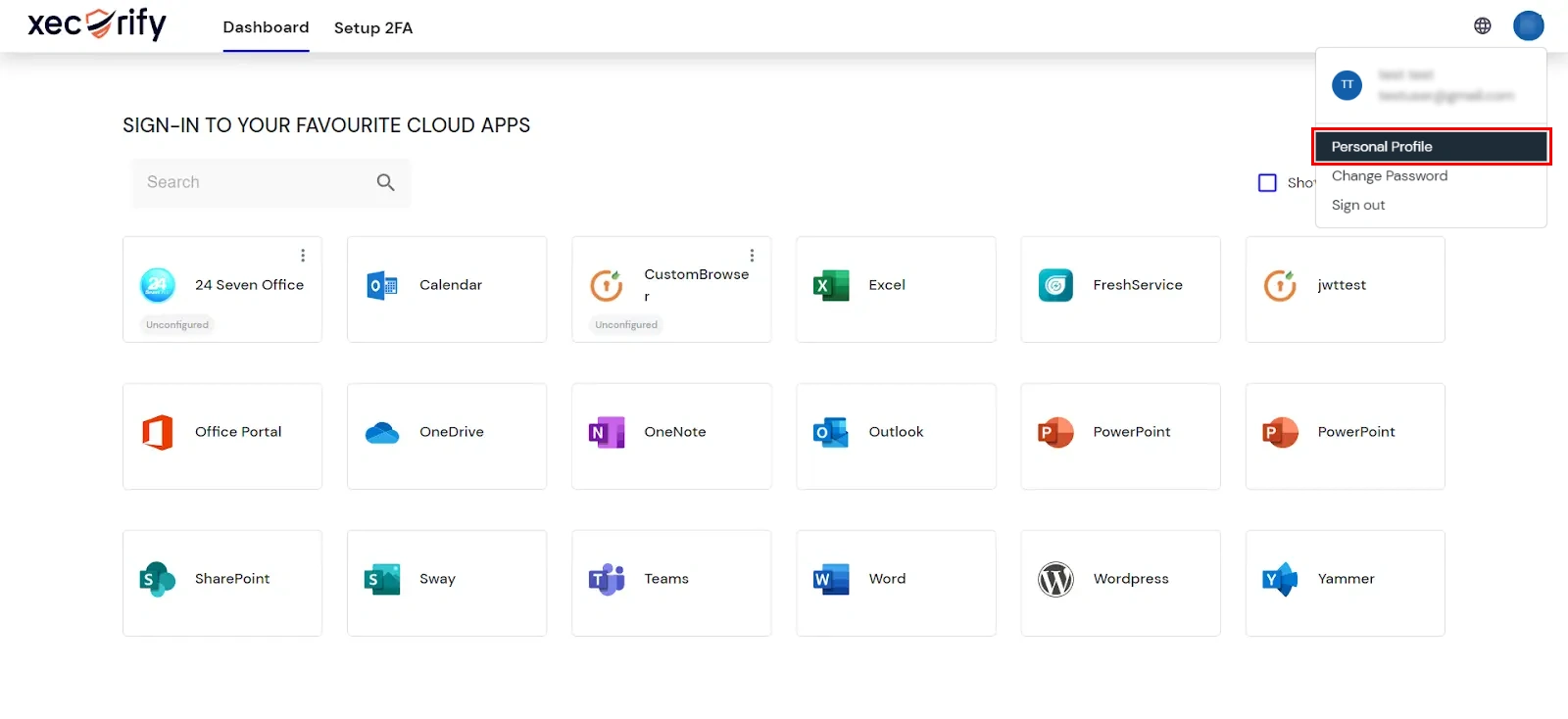
- Here you will see three sections:
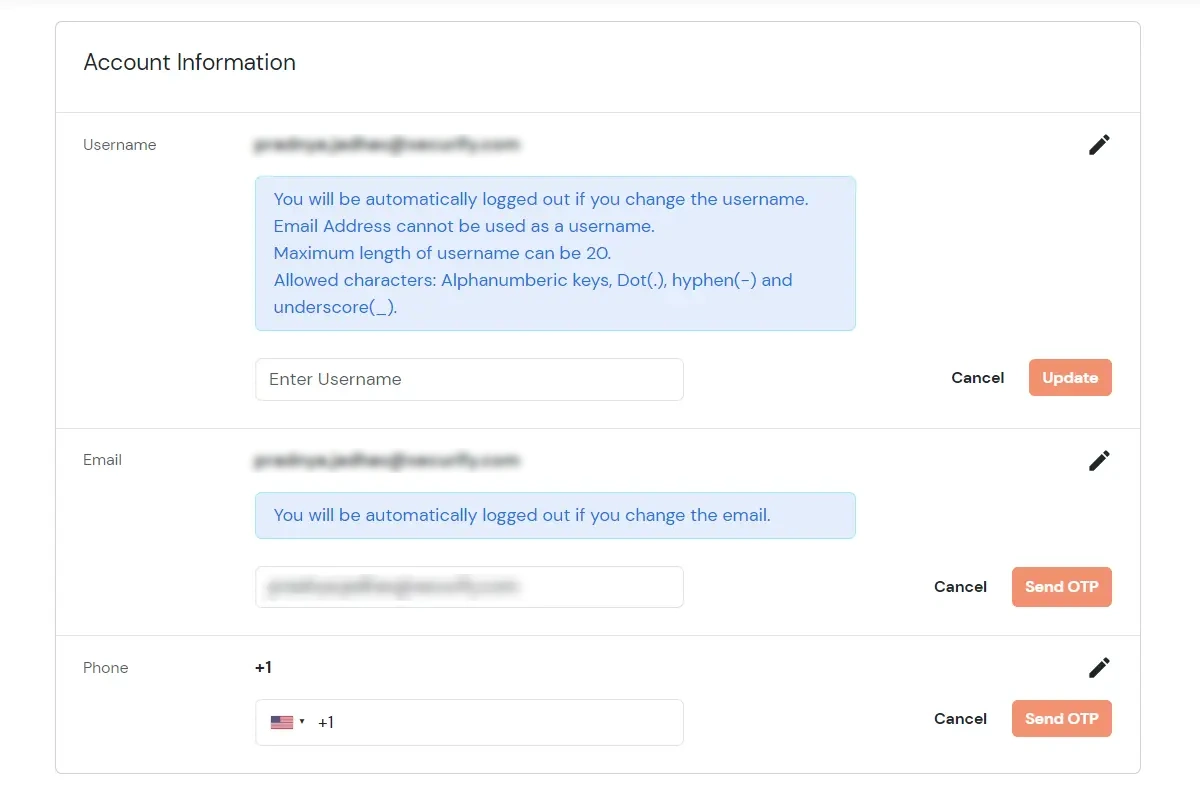
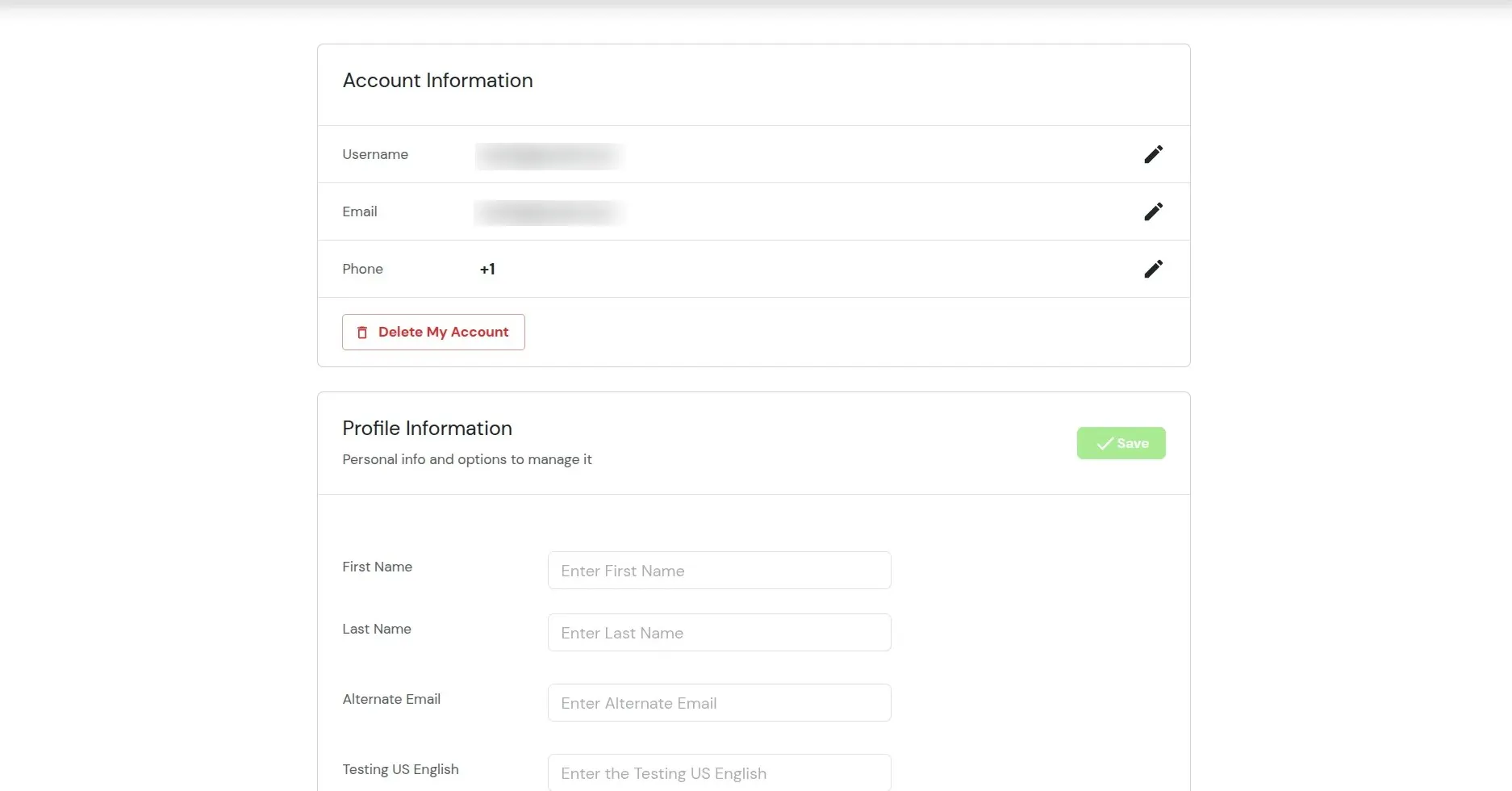
1. Account Information
- Here, you can edit Username. This should not be same as Email. You will be automatically logged out of the account after changing the username.
- You can also edit the Email and Phone number. You will be asked for an OTP for confirmation.
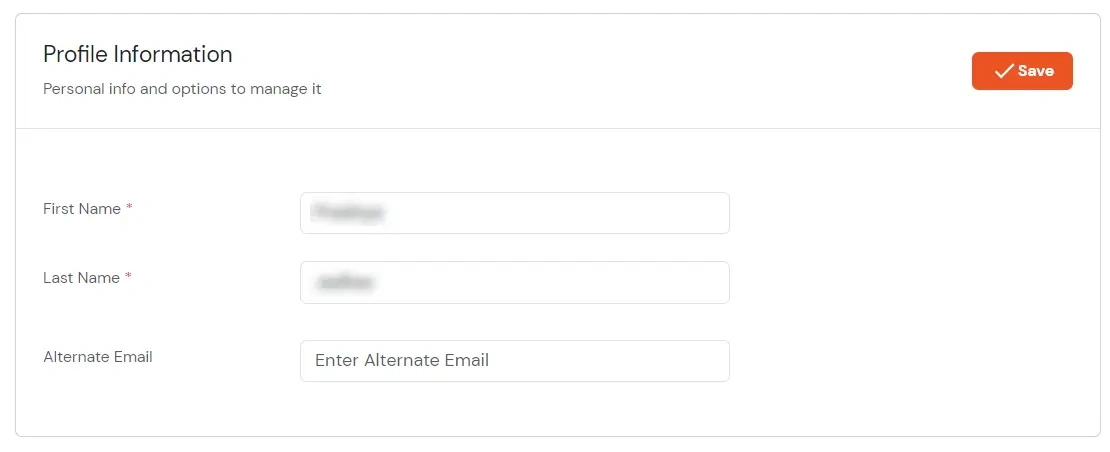
2. Profile Information
- Scroll down to the Personal Profile section.
- You can edit and manage your personal profile information like First Name, Last Name and Alternate Email.
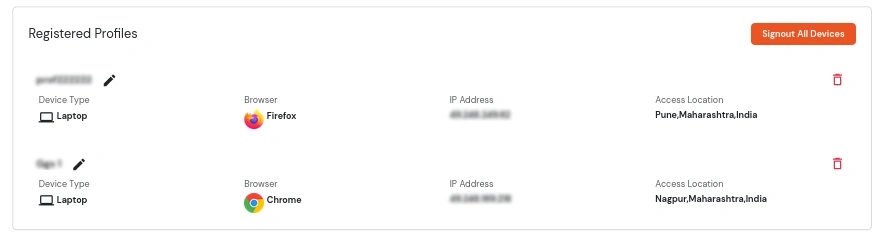
3. Registered Profiles
- If Adaptive Authentication is enabled, scroll down to find the Registered Profiles section.
- Here, you can see the list of all Signed in Registered Profiles of an individual user which shows Device type, Browser, IP Address & Access Location of that device.
- You can Signout from a particular device or Signout of all the Devices from here.
4. Raise Account Deletion Request
End users can schedule deletion of their own account using the following steps:
- Navigate to the Personal Profile section.
- Under Account Information, click Delete My Account.
- Enter the reason in the field Why are you deleting your account?
- Click Delete.
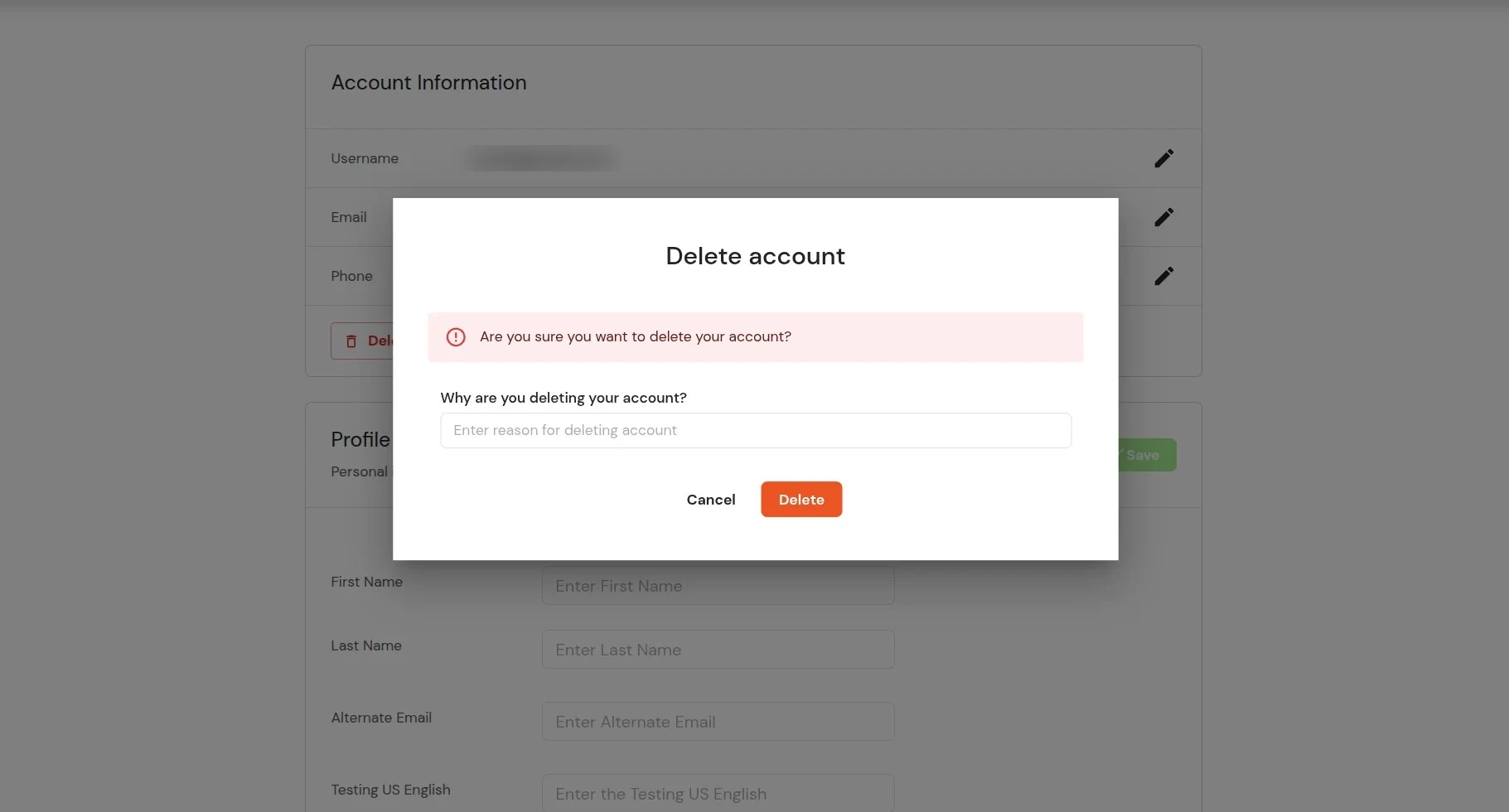
- The account deletion request is scheduled.
- A countdown timer starts based on the configured deletion duration.
- The user can view the deletion countdown in the application header.
5. Cancel Deletion Request
Users can revoke their scheduled deletion request before the deletion timeline expires.
- Navigate to the Profile section.
- Click Cancel Deletion Request.
- Confirm the action by clicking Yes.
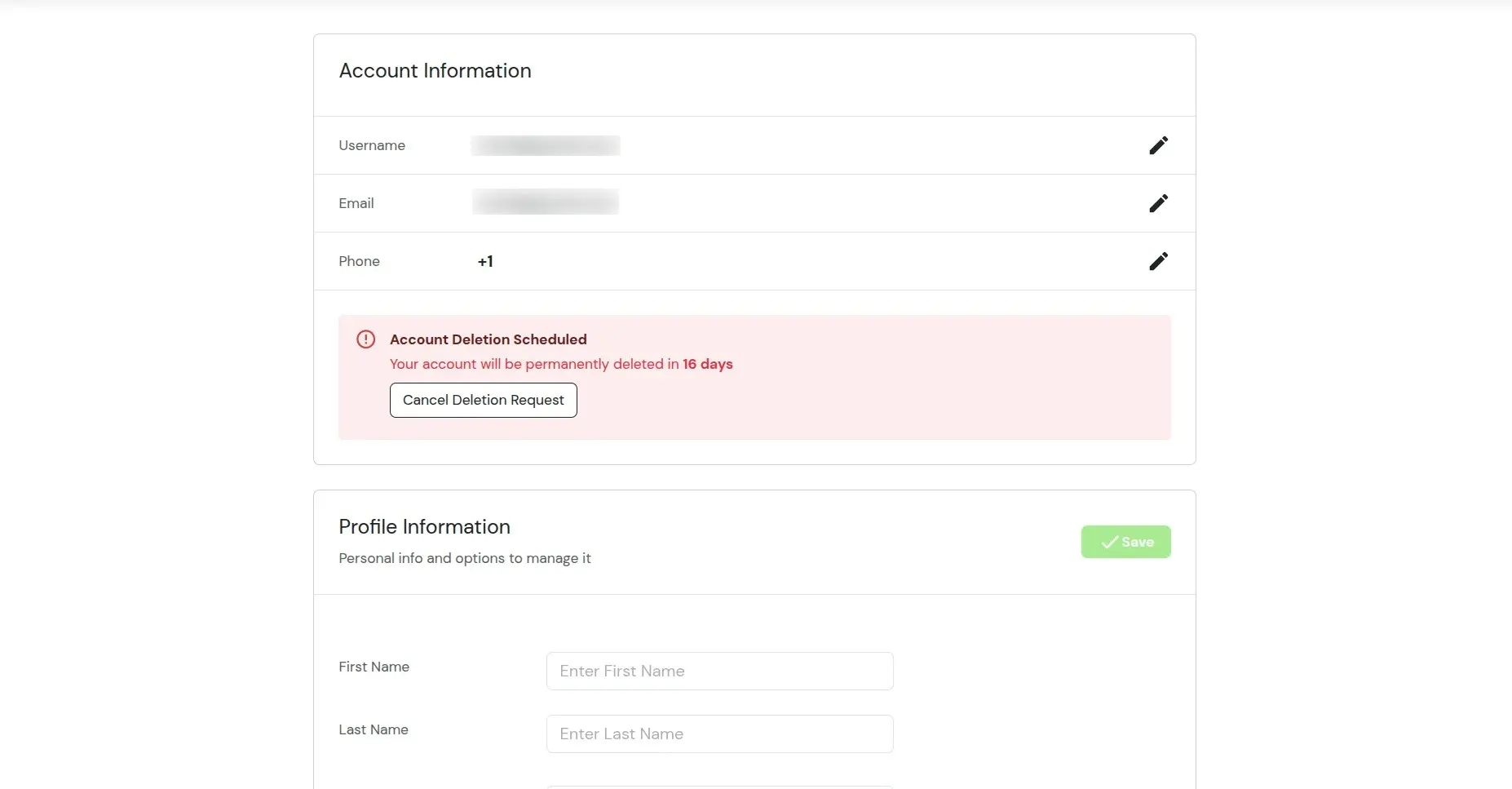
- The scheduled deletion request is revoked.
- The user account remains active.
- The deletion countdown is removed.