Manage Applications from the Self-Service Portal Dashboard
Overview
The system now offers two dashboard versions:
- Old Classic Dashboard: Traditional interface with basic app listing.
- New Modern Dashboard: Advanced interface with categorization, improved search, and enhanced user experience.
Key Benefits of New Dashboard :
- Custom Categories: Organize apps into user-defined categories
- Nested Categories: Create parent-child category relationships
- Favorites Management: Quick access to most-used applications
- Enhanced Search: Real-time search with keyboard shortcuts
- Mobile Optimized: Responsive design for all devices
- Custom Branding: Full CSS/JavaScript customization support
Enabling the New Dashboard UI
- Click on the Settings icon in the top-right corner of the dashboard.
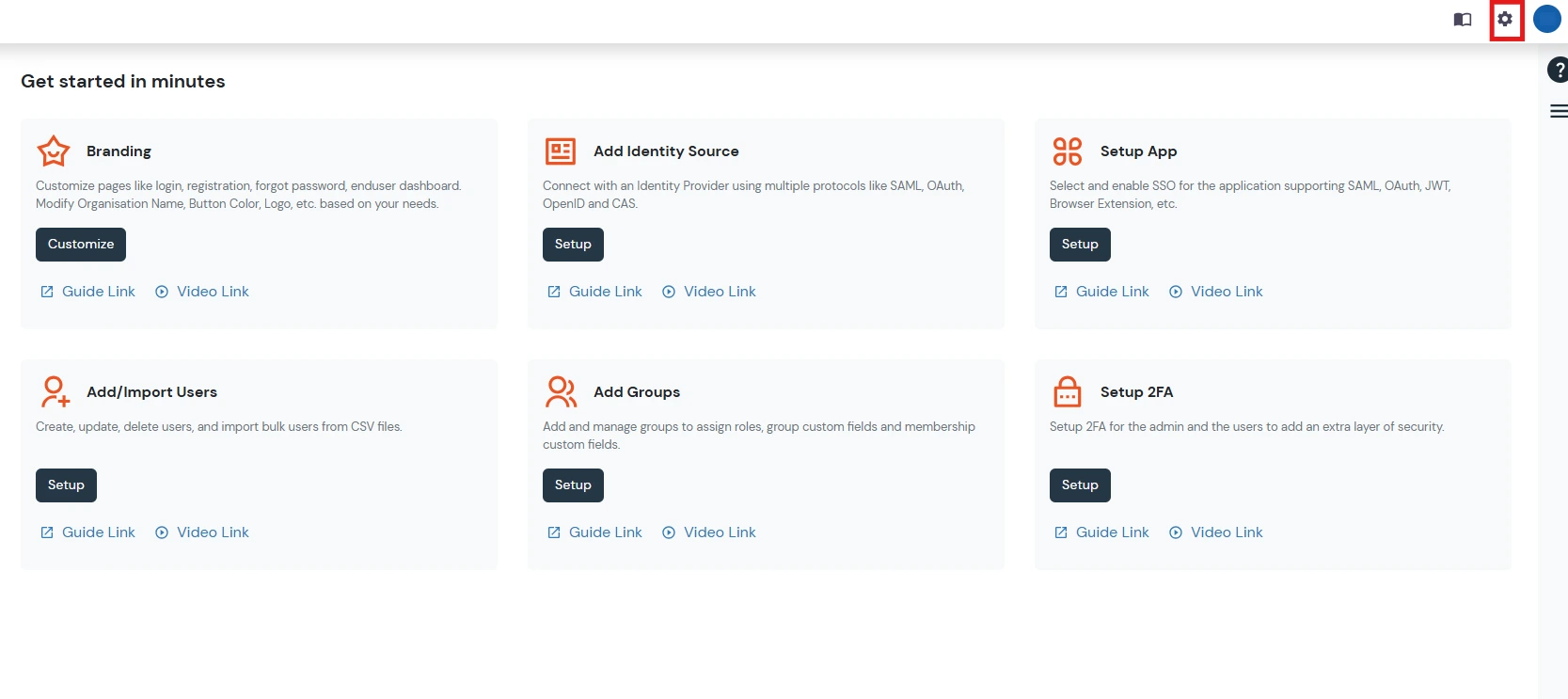
- Click on the Preferences tab.
- Under Choose look and feel of the end-user dashboard, you will see two options:
- Option A: New Modern Look
- Option B: Old Classic Look
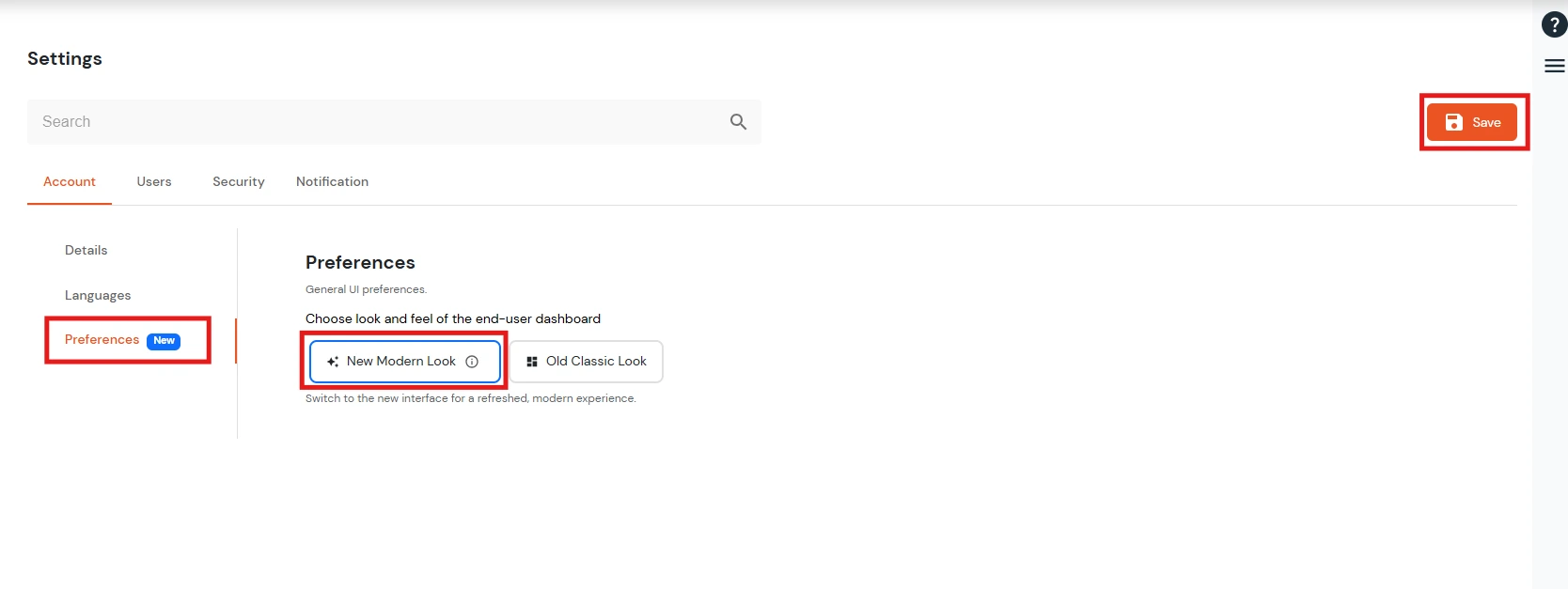
- By default, the Old Classic Look is applied. To switch, select the New Modern Look button (it highlights with a blue border and shows a preview tooltip).
- Click Save to apply changes.
- From the top-right corner, click on your Profile and select User Dashboard.
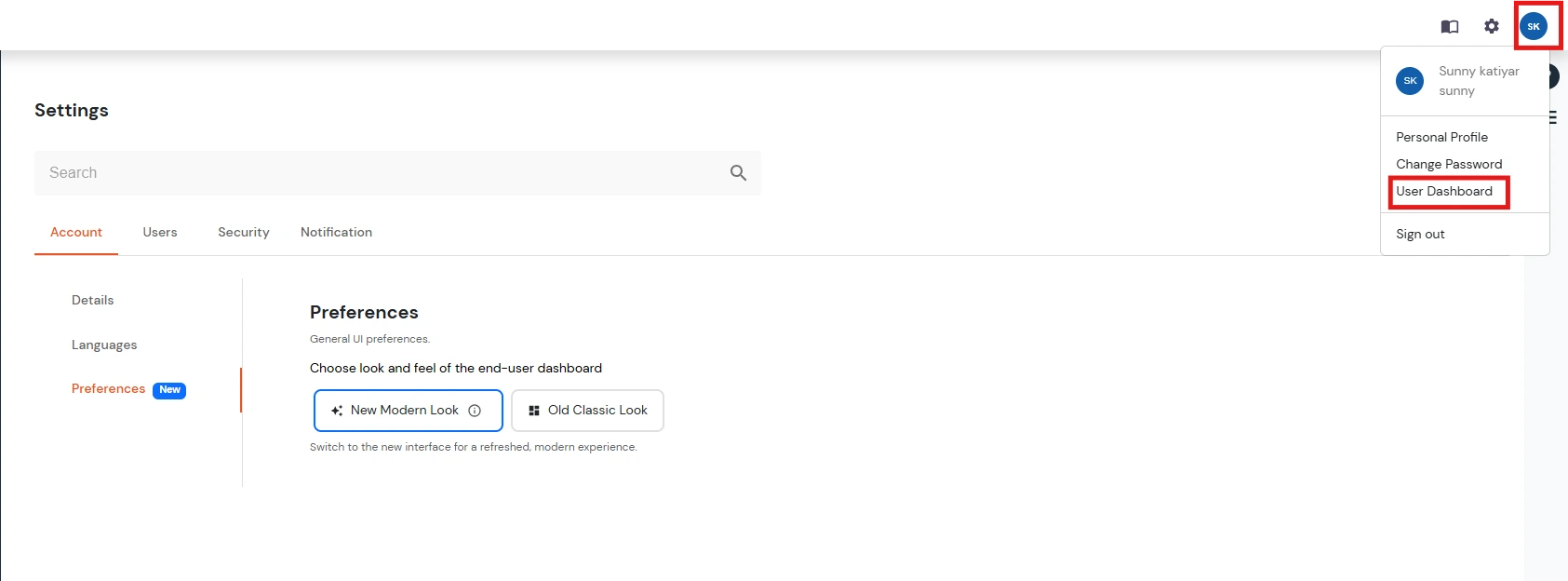
- You will see the new dashboard with a sidebar showing categories.
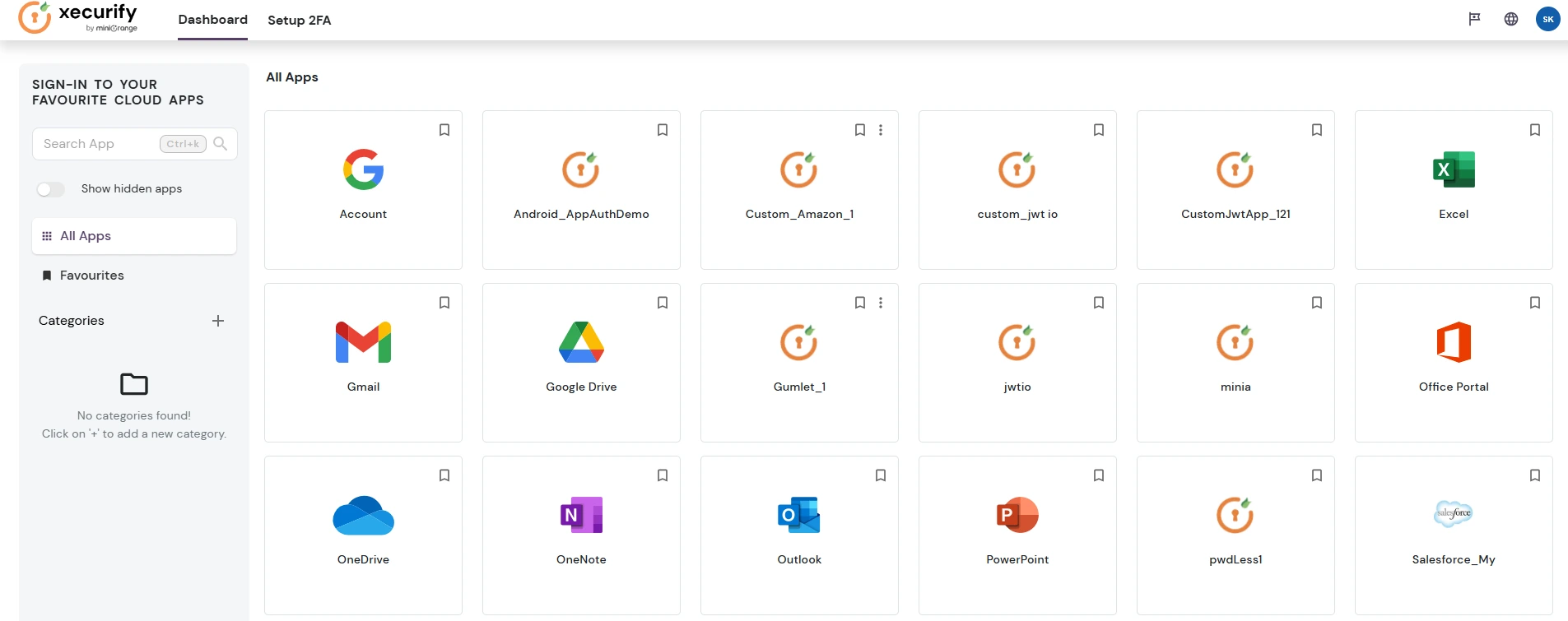
Categorization Features:
- Understanding the Category System: Default categories every user starts with:
-
All Apps :
- Shows every application available to user
- Cannot be deleted or modified
- Serves as main app repository
-
Favourites :
- Special category with Bookmarkicon
- Quick access to user added applications to favourites.
-
Custom Categories :
- User-created organizational folders
- Can be nested with parent-child relationships
Switching Between Organization and Personal Categories
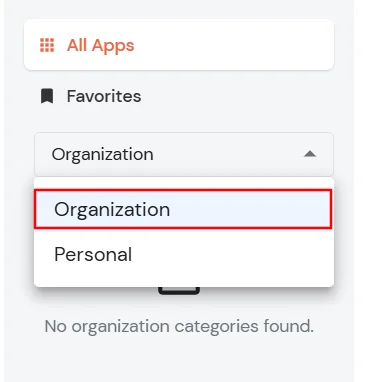
The dashboard provides two category views: Organization and Personal. Use the dropdown below the Favorites section to switch between these views.
To switch between category views:
- In the dashboard sidebar, locate the category dropdown below Favorites.
- Click the dropdown and select one of the following options:
- Organization - Displays categories configured and published by your administrator.
- Personal - Displays categories that you create and manage for your own use.
Organization
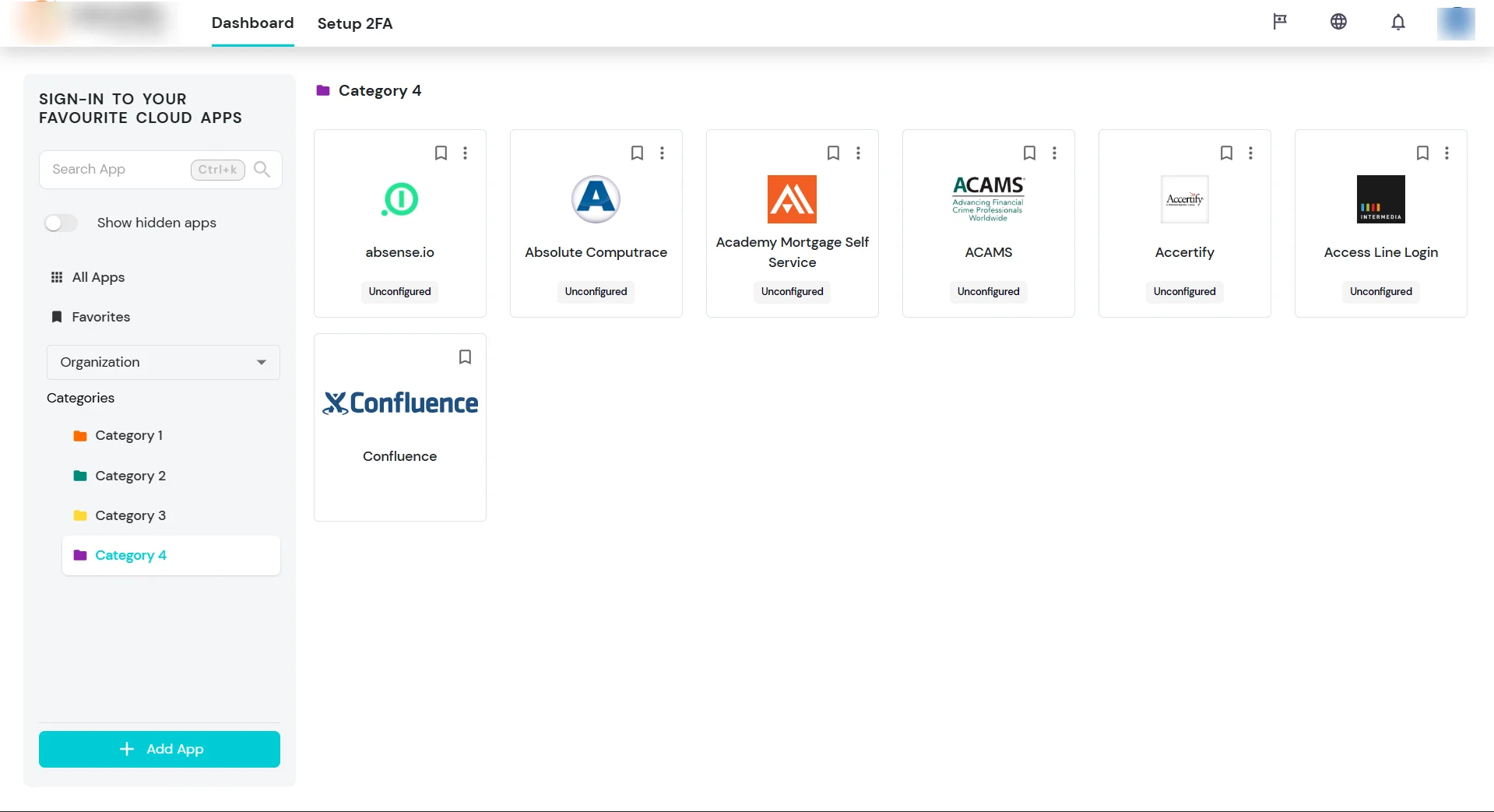
The Organization view displays the categories configured by your administrator. This view is read-only.
- Open a category to view the applications assigned to it.
- Click an application to launch it.
- You cannot create, edit, or delete organization categories.
- You cannot change the application assignments configured by your administrator.
Personal
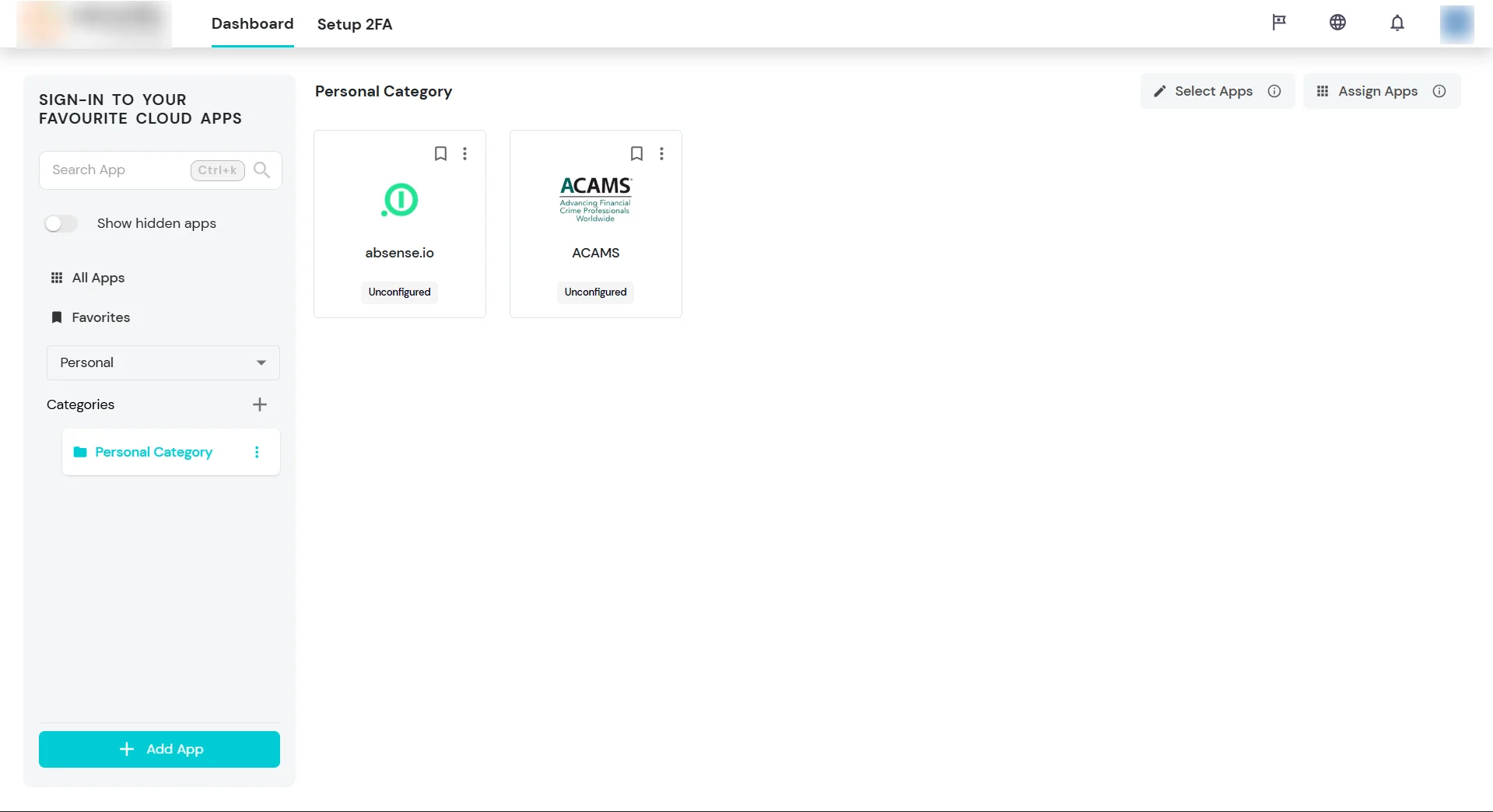
The Personal view allows you to organize applications according to your own preferences. Changes made in this view affect only your personal dashboard and do not modify the organization-wide categories.
In the Personal view, you can:
- Click + next to Categories to create a category.
- Edit or delete an existing personal category.
- Create a child category under a personal category.
- Assign applications to a personal category.
- Select applications and remove them from the current category.
- Add selected applications to another personal category.
- Manage nested personal categories.
Note: Deleting a personal category also deletes any child categories nested under it.
Creating and Managing Categories
- Go to the + Add Category button in the sidebar to create a personal category.
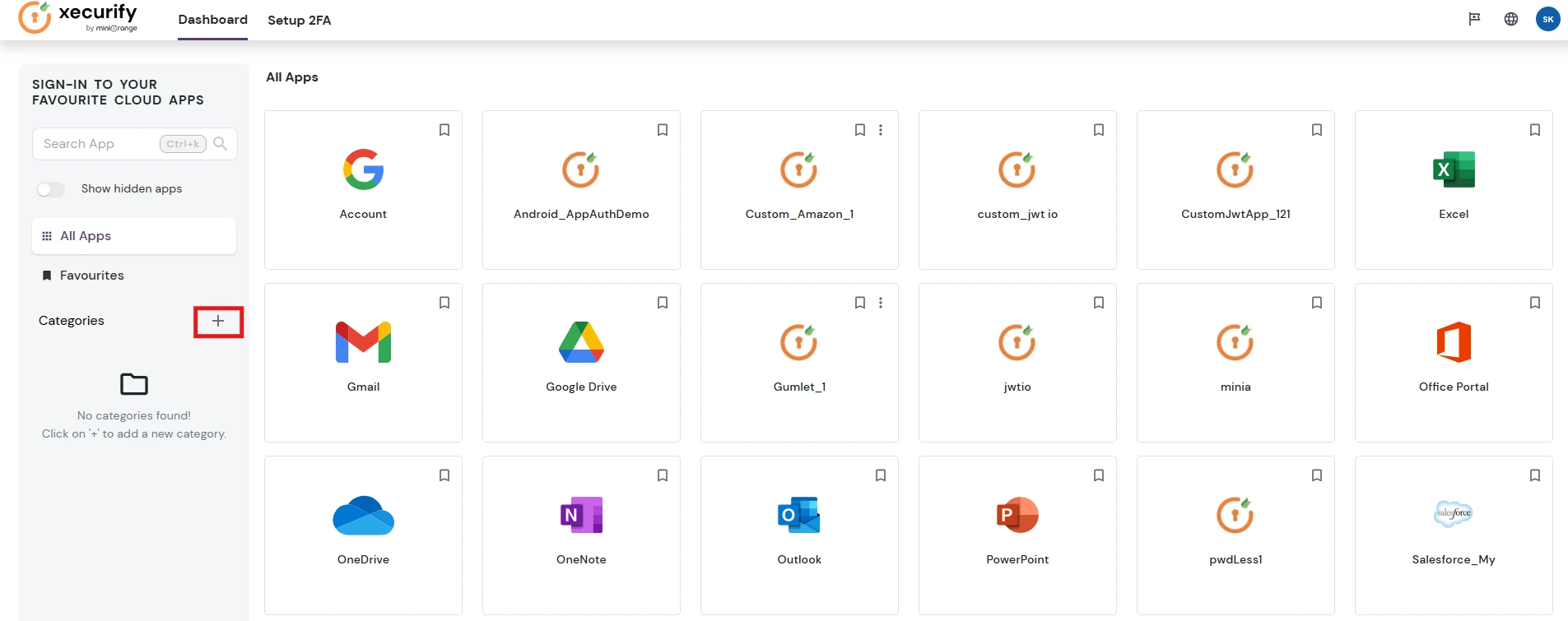
- A popup will appear to enter the category details.
- Enter category name (maximum 50 characters)
- Select parent category for nesting.
- Click Create Category button
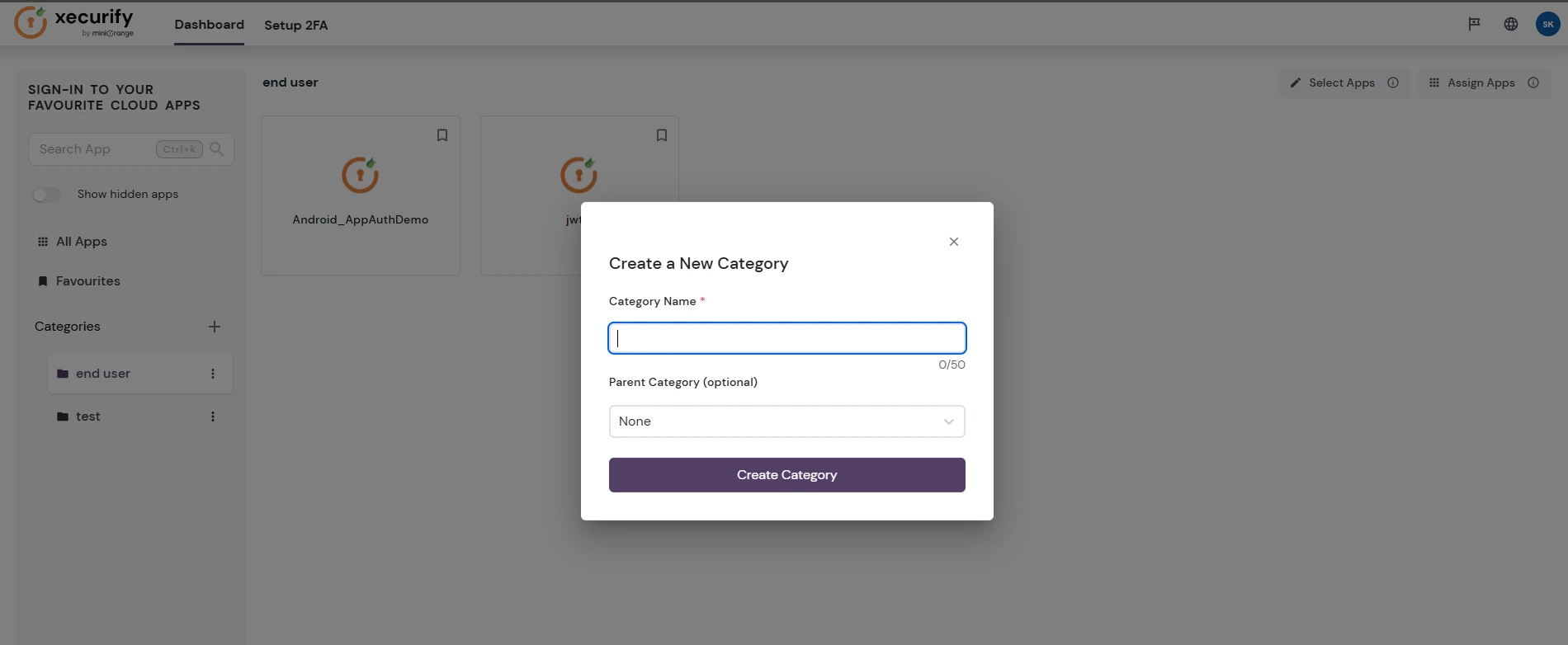
- Once it is created, you have the following options :
- Edit Category: Change category name/Change parent-child relationships.
- Add Category : Add a child category to the selected category.
- Delete Category: Remove category.
- Assign Apps : Assign apps to the category
- How to Edit : Click the three-dot menu next to the category name, select the desired action, and complete the process.
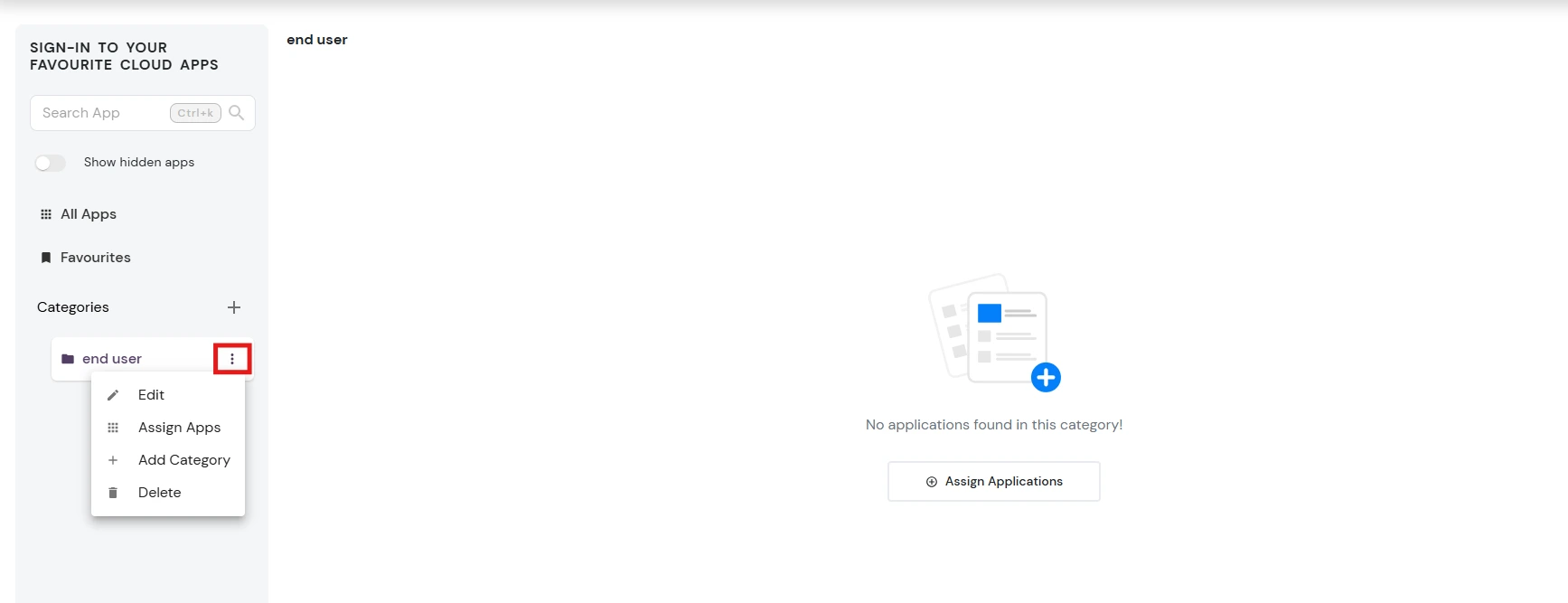
Adding Apps to Categories:
- Adding apps from the category action’s menu:
- Click on the category actions menu of the category.
- Click on the Assign Apps options.
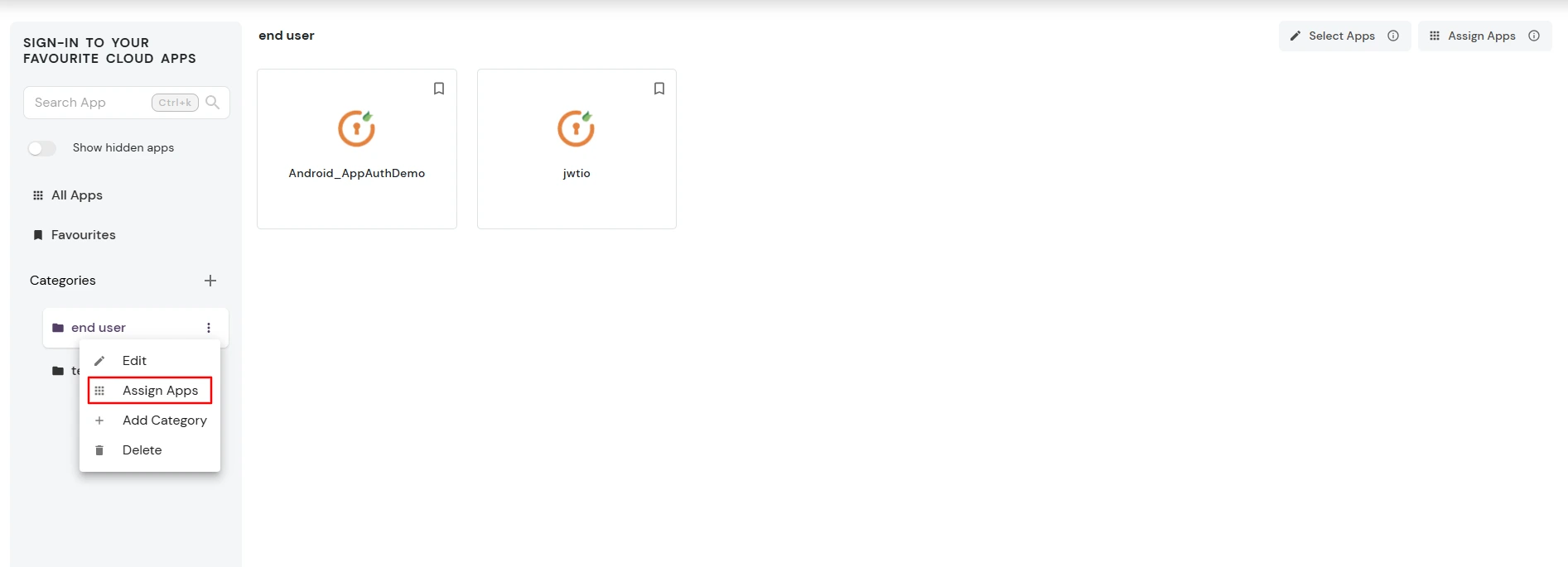
- A modal will open displaying all apps. Select multiple apps and click the Assign button.
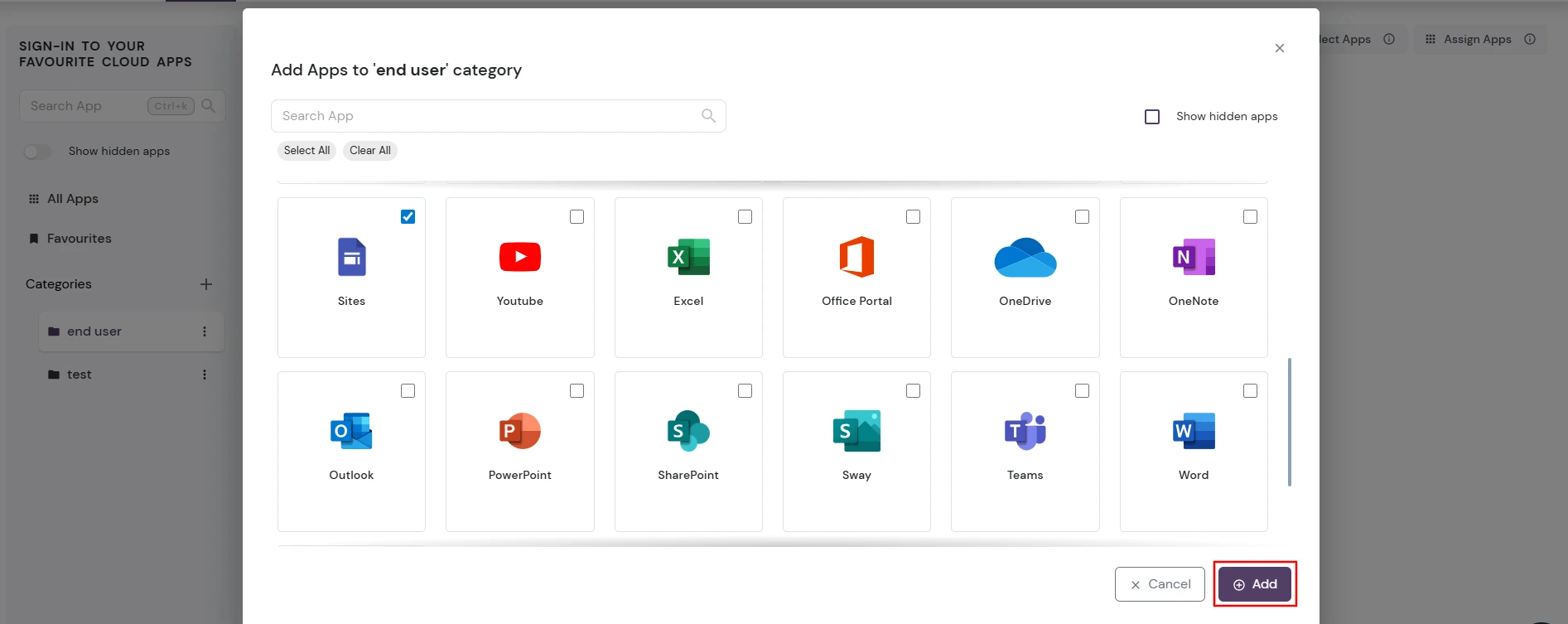
- Adding apps from the assign apps button inside the category
- At least one app should be added to the category for this option to appear in the top of the selected category.
- Click on the assign apps button
- A modal will open up select multiple apps and then click on the assing button
Removing Apps from Categories:
- Navigate to specific category
- Click on the Select apps button at the top .
- A selection interface will open, showing apps with checkboxes.
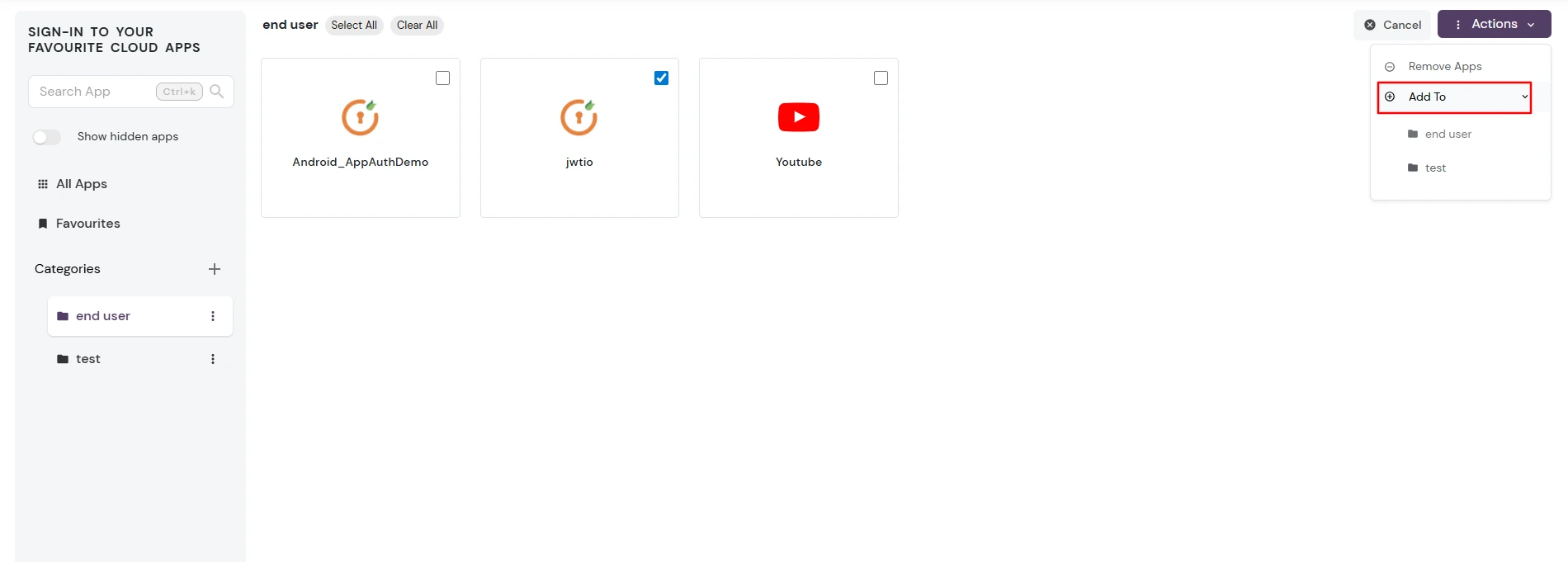
- Select multiple apps and click the Actions button .
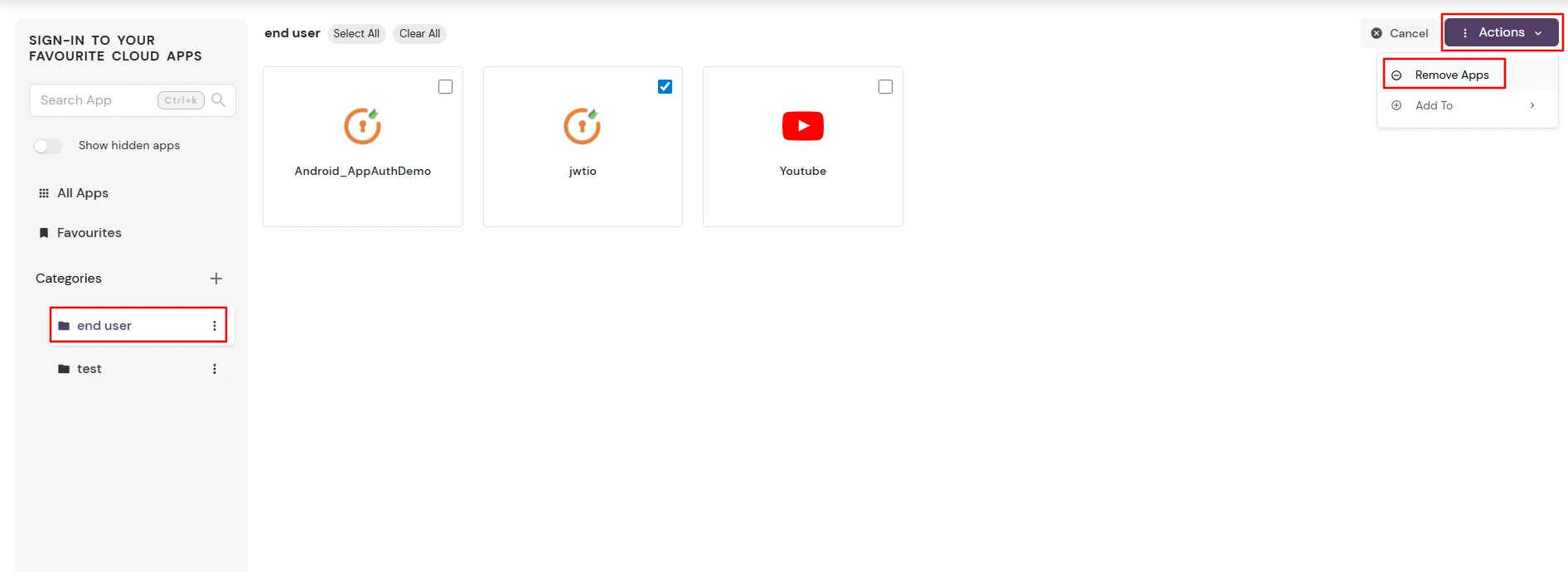
- Two options will appear:
- Remove Apps: Remove the selected apps from the current category.
- Add To: This option appears only when another category (besides the current one) exists. It allows you to copy the selected apps from the current category to another category.
Favourite Management
- Adding to Favorites :
- Click bookmark icon on any app
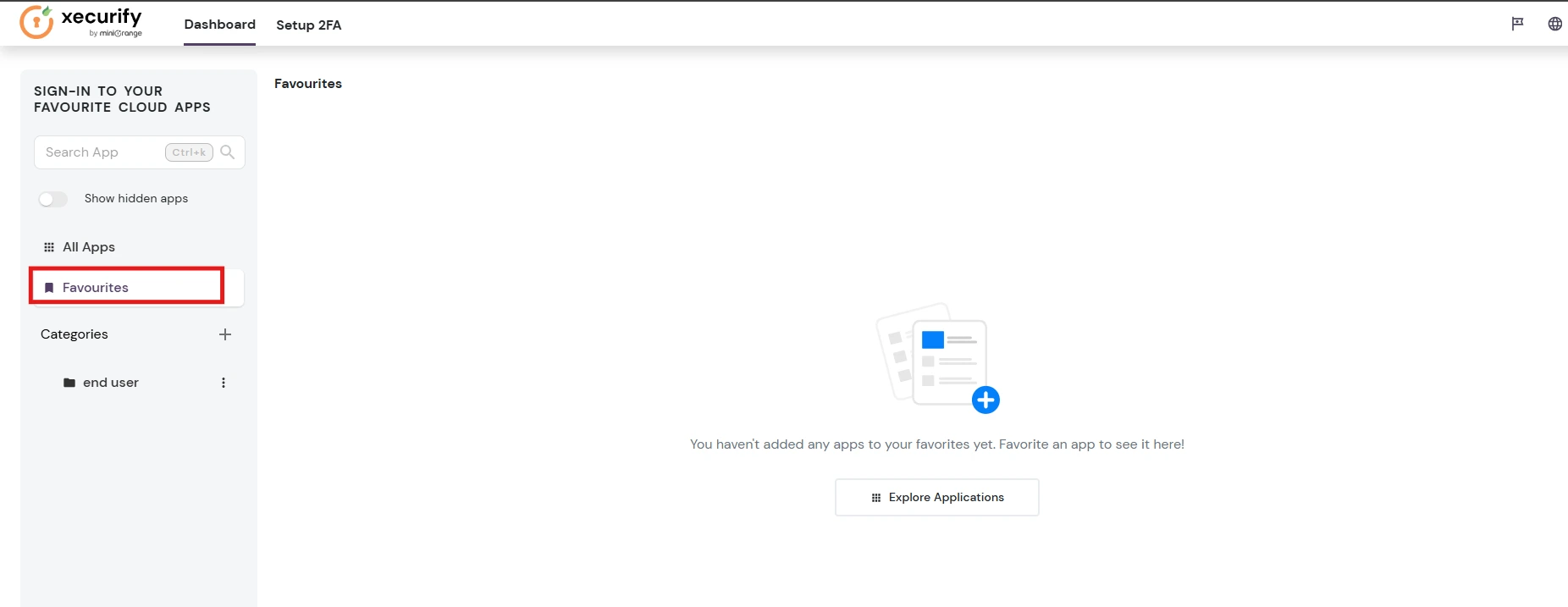
- The icon fills to indicate favorite status
- App automatically appears in Favourites category
- Removing from Favorites:
- Click filled bookmark icon
- Bookmark icon empties to indicate removal
- App removed from Favourites category
Advanced Organization Features
Category Hierarchy (Nesting)
- Creating Parent-Child Relationships:
- Create parent category first
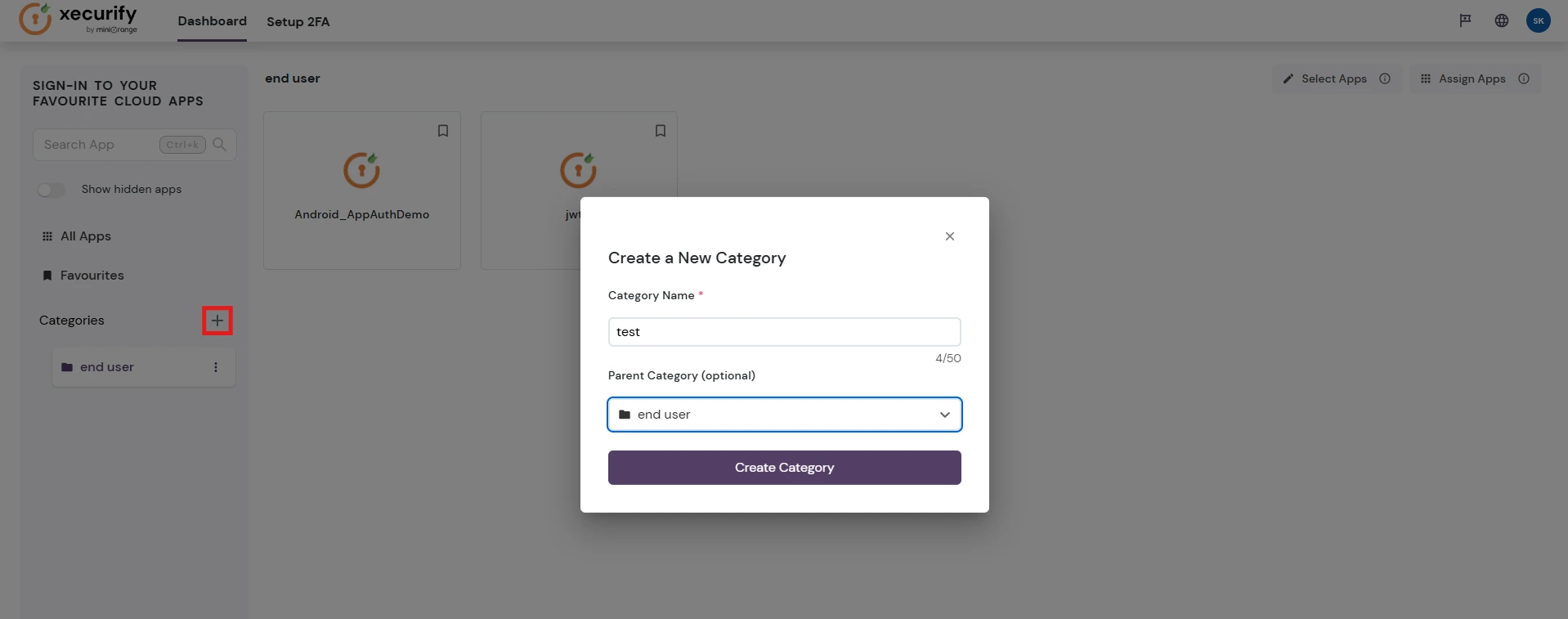
- When creating child category, select parent from dropdown
- Child categories appear indented under parents
- Folder icons indicate hierarchy levels
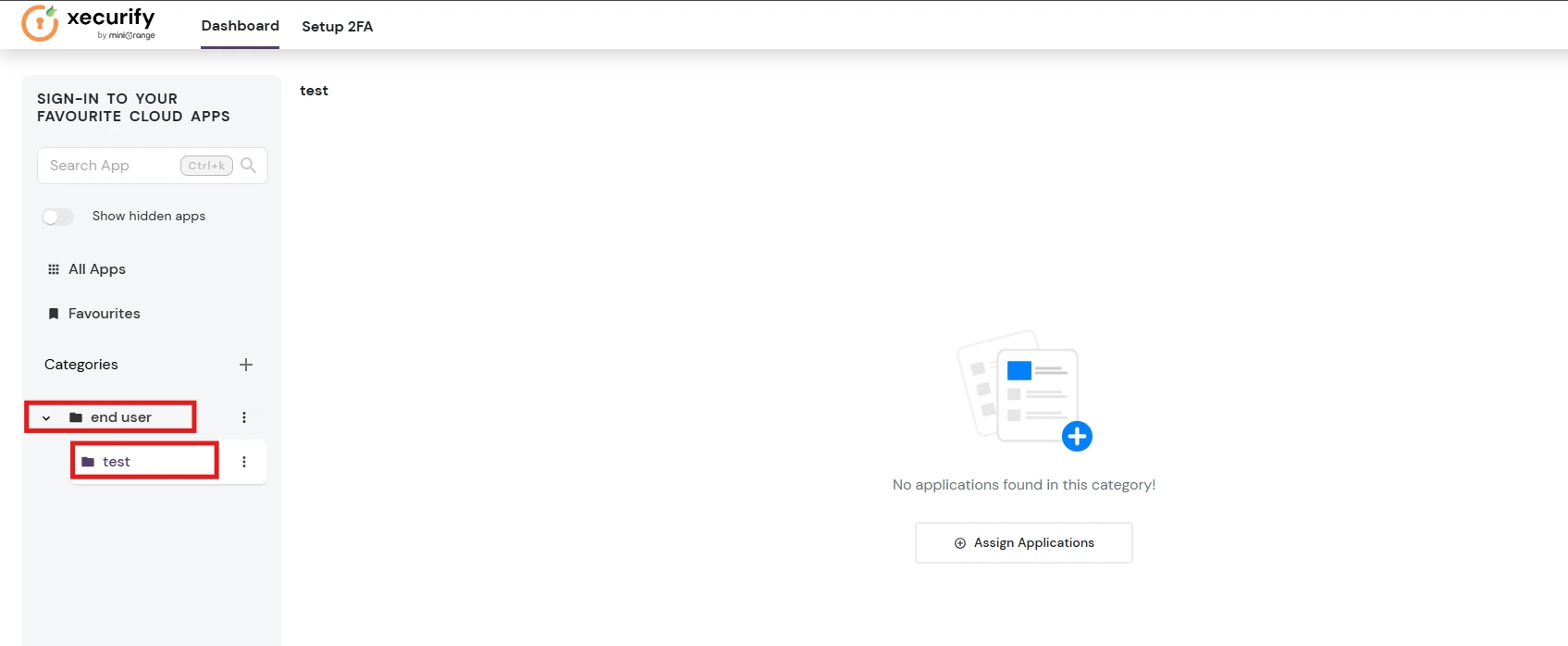
- Benefits of Nesting:
- Better organization for large app collections
- Logical grouping (e.g., "Finance" → "Accounting", "Finance" → "Budgeting")
- Expandable/collapsible sections
- Search and Discovery