How to Configure Two Factor Authentication(2FA/MFA) for Evernote
Two-Factor Authentication (2FA) or Multi-factor Authentication is the process of the authentication in which you have to provide two factors to gain the access into a particular application. First Factor is the one that you know username and password and Second factor is what you might have as unique, like a phone (For OTP) or Fingerprint. This additional layer of security prevents the unauthorized person from accessing the resources even if they know your username and password. miniOrange provides 15+ authentication methods and solutions to secure your applications.
For web applications that do not provide support for federated single sign-on, we have miniOrange Secure Single Sign-On browser plugins for SSO. Here, it is enabled on an application, where end users see an icon on their home pages and browsers, through this users can set and update their credentials. ( In the secure store for that application only).
miniOrange Supports all Browser Extension
- miniOrange Secure Single Sign-On Plugins for SSO support all popular web browsers like Chrome, Firefox, Safari, Internet Explorer and Microsoft Edge.
- Browser plugin a secure driven post to the application login page, signing in the user automatically on their behalf. - The plug-in does not store the credentials anywhere and they are discarded once the user has signed into the application.
- Users credentials are stored in an encrypted format by using AES encryption with the combination of a customer-specific private key. When a user clicks the application icon, miniOrange securely posts the username/password to the app login page over SSL and the user is automatically logged in.
Connect with External Source of Users
miniOrange provides user authentication from various external sources, which can be Directories (like ADFS, Microsoft Active Directory, OpenLDAP, AWS etc), Identity Providers (like Microsoft Entra ID, Okta, AWS), and many more. You can configure your existing directory/user store or add users in miniOrange.
Follow the step-by-step guide given below for Evernote Single Sign-On (SSO)
1. Configure Evernote in miniOrange
- Log into miniOrange Admin Console.
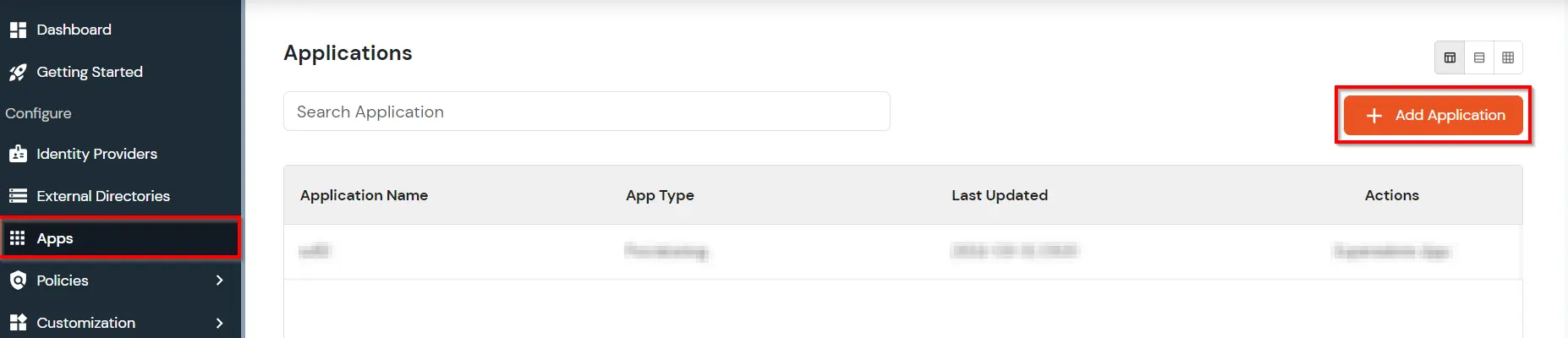
- Go to Apps >> click Add Application button.
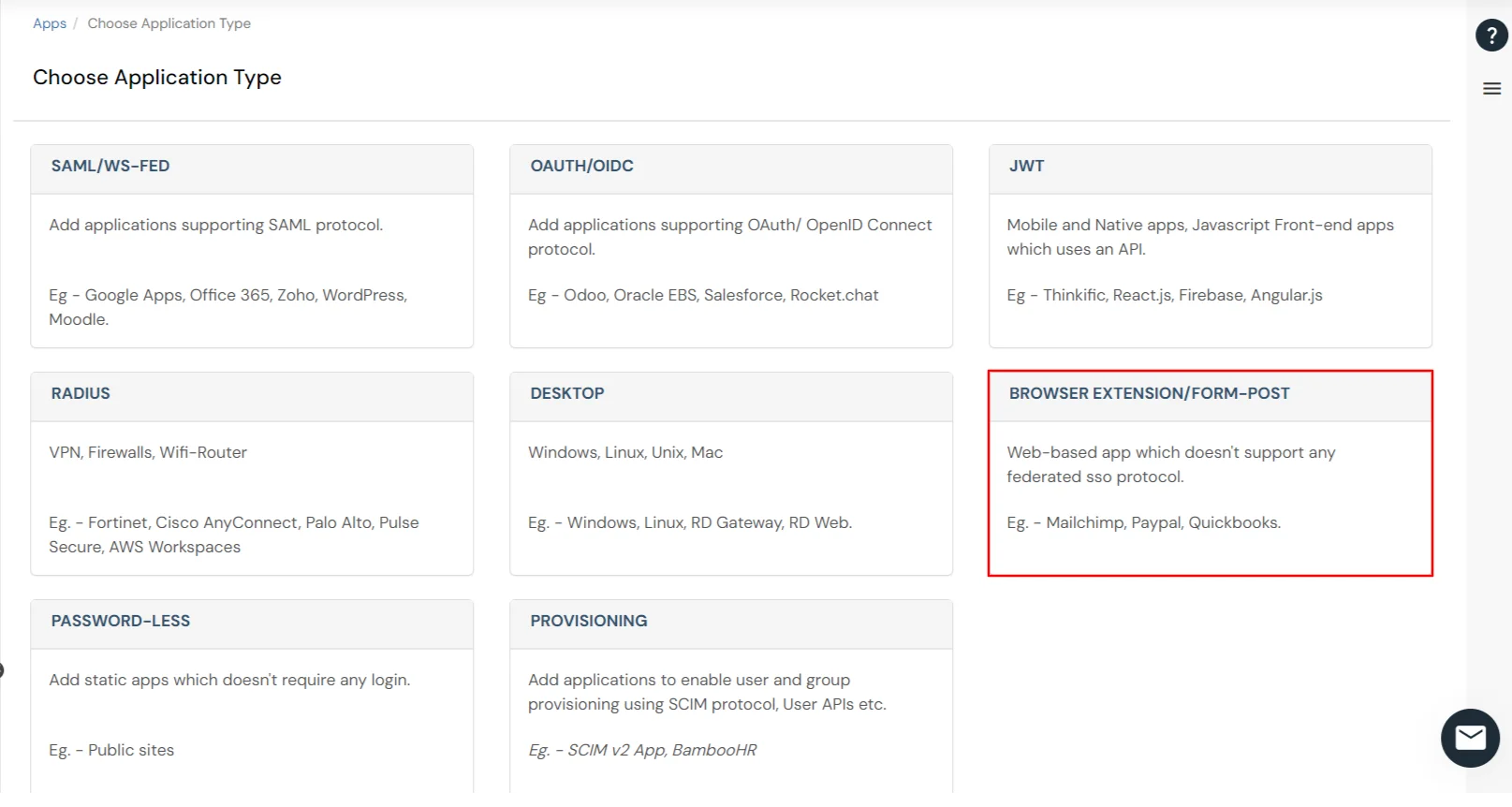
- In Choose Application Type click on BROWSER EXTENSION/FORM-POST as application type.
- Search for Evernote in the list, if you don't find Evernote in the list then, click on Add Custom App button.
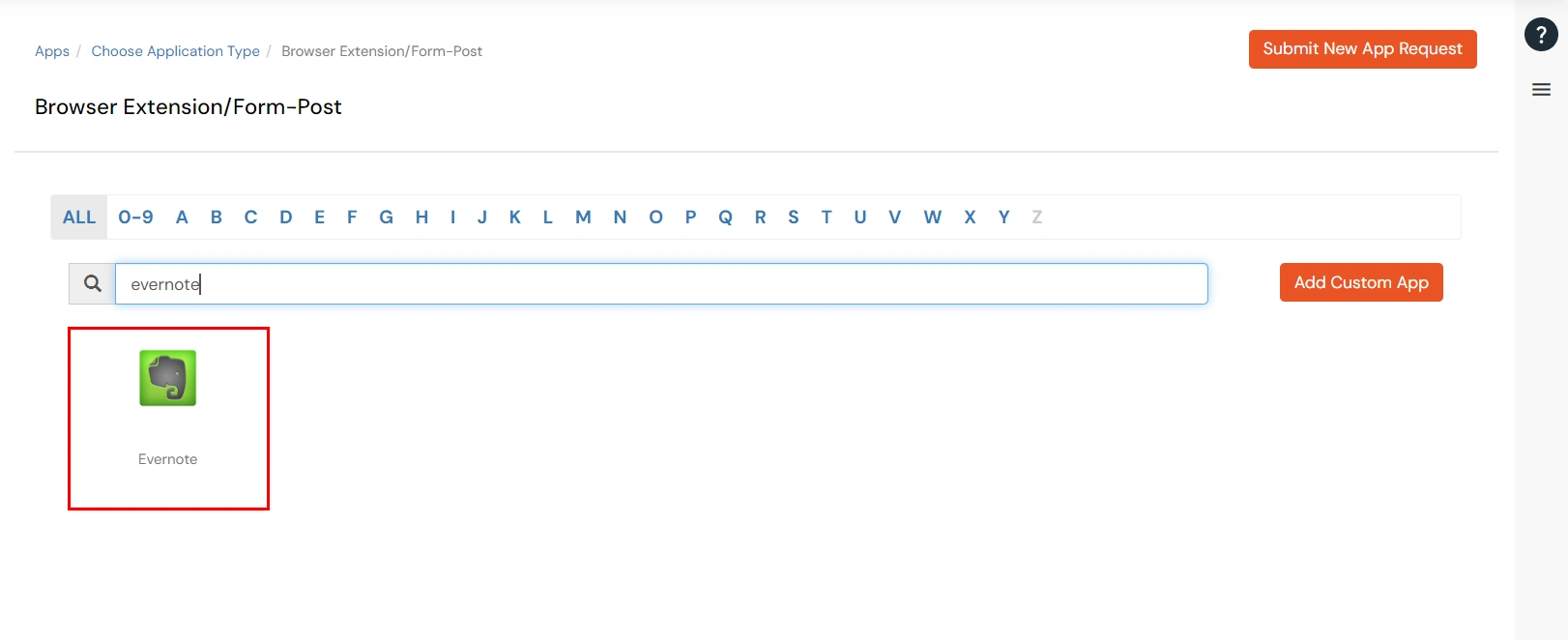
- Enter the following details in fields below:
| App Field |
Description |
| Display Name |
Suitable name for application identification |
| Login Type |
- Shared Login: If multiple users are allowed to access the app via the same credentials assigned by admin, admin should choose shared Login Account option.
- Individual Login: If each user has a different username and password for the app, admin should choose an Individual Login Account option, so that users can save their username and password from the user portal themselves.
|
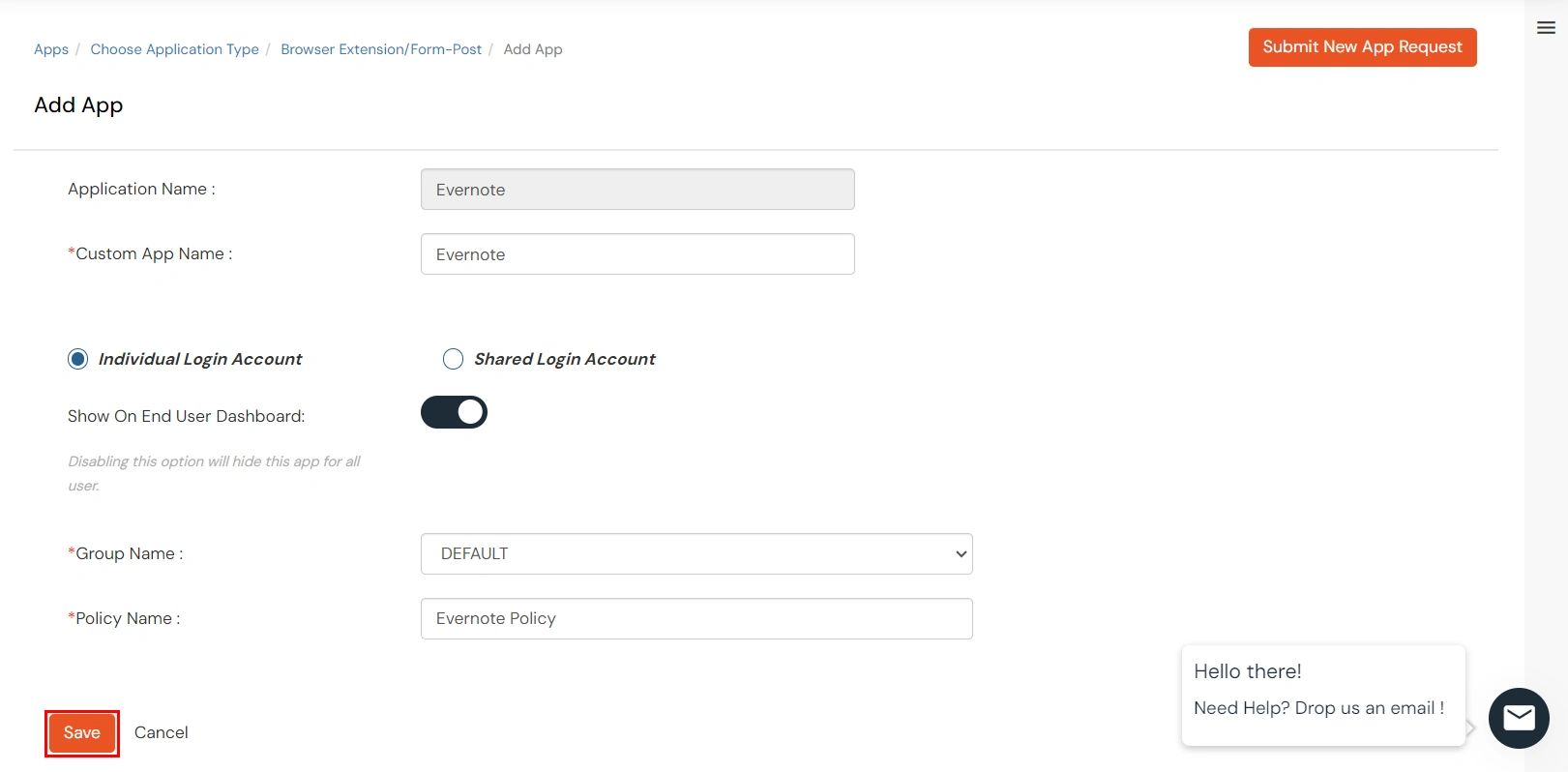
- Click on Next to proceed.
- Enter the following details in the fields below:
| App Field |
Description |
| App Type: |
- Simple Login: Select Simple Login for applications that use a standard login form with a username field, password field, and a login button.
- Login with Domain: Select Login with Domain for applications that require an additional input field, such as a domain name, account ID, tenant ID, or other constant value, along with the username and password.
- Login with Pre-Click: Select Login with Pre-Click for applications that require a user action, such as clicking a button, checkbox, or link, before the login credentials can be submitted.
|
| Auto Click Submit: |
Enable this toggle to automatically submit the login form after the extension fills in the user's credentials. Disable this option if users need to manually complete additional verification steps, such as entering a CAPTCHA, answering a security question, or providing other required information before signing in. |
| Show on Enduser Dashboard: |
Enable this toggle to make the application visible on the end-user dashboard. If the application is configured as a Shared Account and the shared credentials have not been configured, the application will not be displayed on the end-user dashboard even if this option is enabled. |
![Evernote Single Sign-On (SSO) Browser Add On]()
- Click on Next to continue.
- You need to Save the Application first to configure the policy for the application.
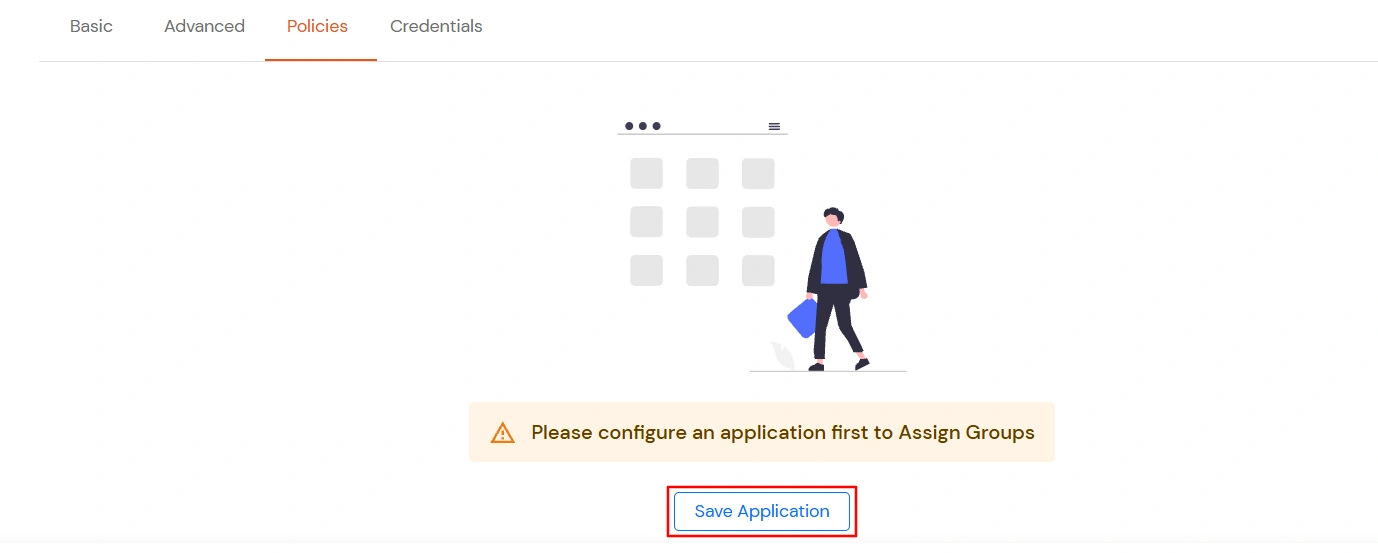
- Click on Assign group to configure the policy for that application.
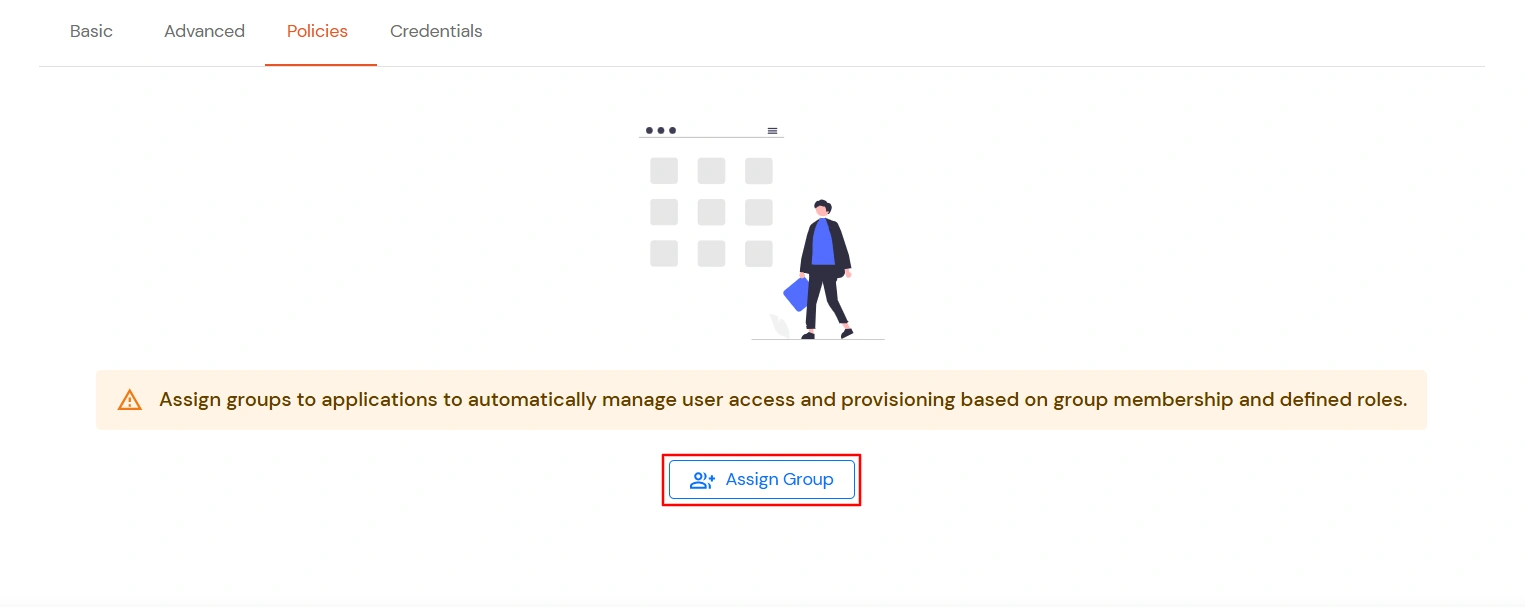
- A new Configure Group Assignment Modal tab will open. Fill in the details in the fields below.
- Assign Group: Select the groups you want to link with the application. You can select up to 20 groups at a time.
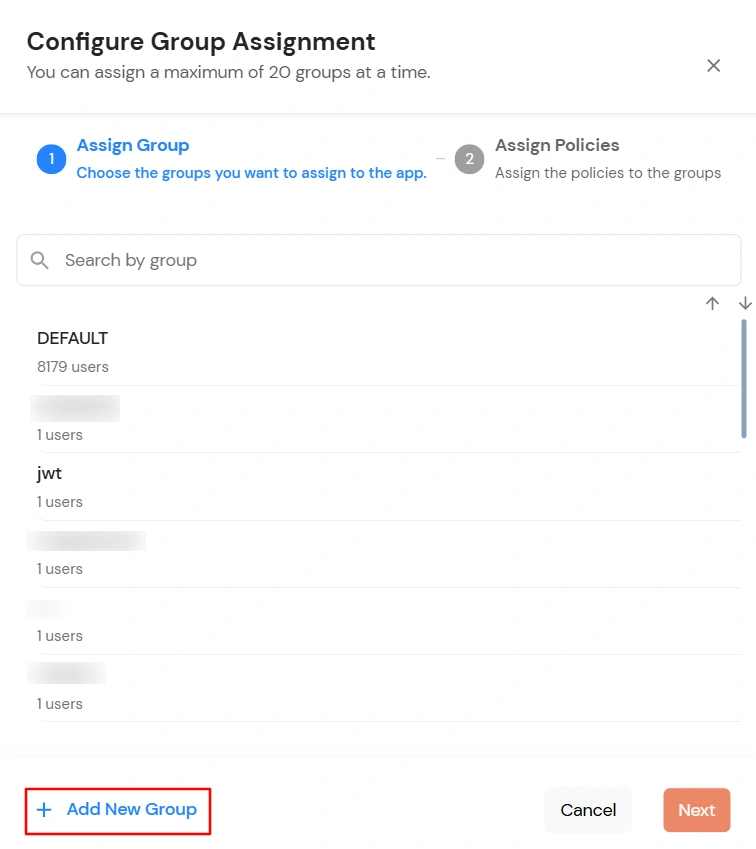
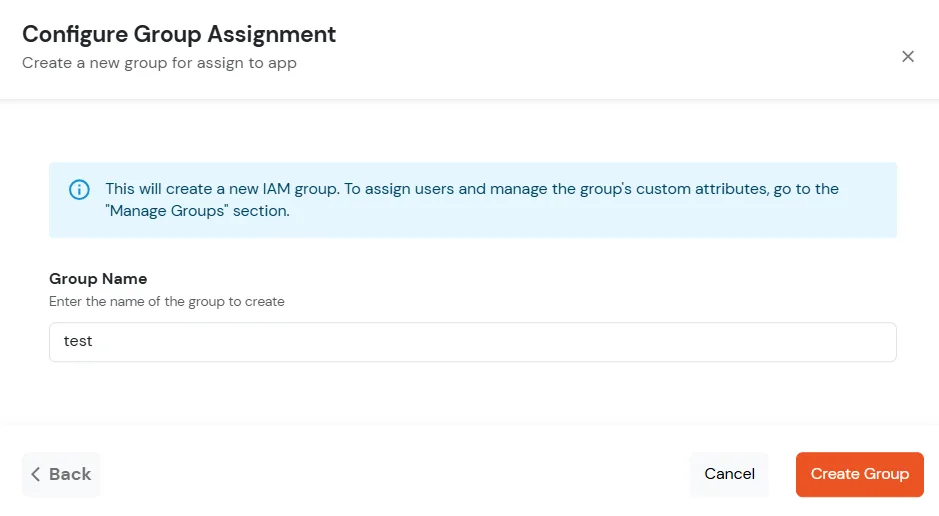
- If you need to create new group. Click on Add New Group button.
- Enter the Group name and click on Create Group.
- Click on Next.
- Assign Policies: Add the required policies to the selected groups. Enter the following details:
- First Factor: Select the login method from the dropdown.
- If you select Password as the login method, you can enable 2-Factor Authentication (MFA) and Adaptive Authentication, if needed.
- If you select Password-less as login method, you can enable 2-Factor Authentication (MFA) if needed.
- If you select Magic Link as the login method, the following options appear:
- Enable sign-in from other IPs: When enabled, users can open the Magic Link from a different IP address than the one from which it was requested.
- Enable sign-in from other devices: When enabled, users can open the Magic Link on a different device than the one used to request it.
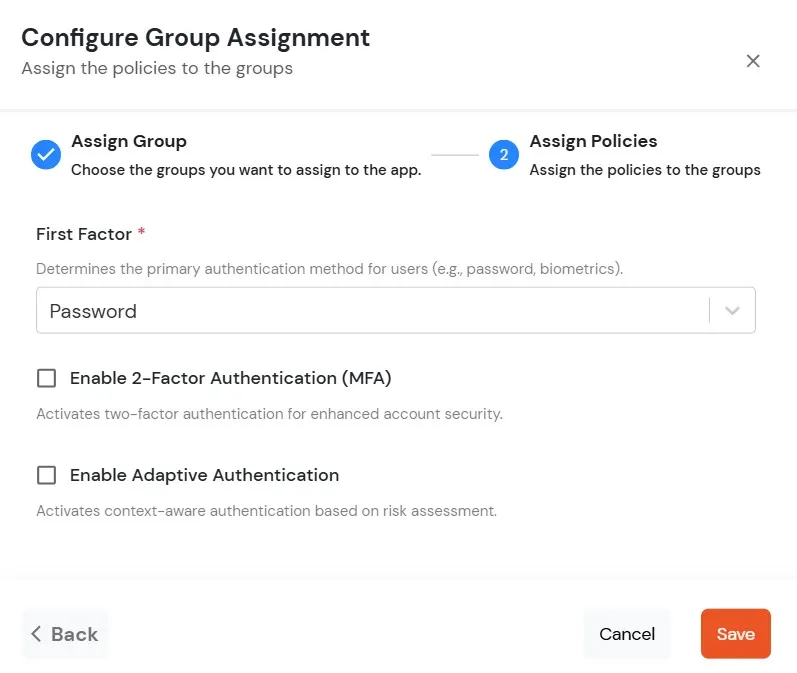
- Click on Save. Policies will be created for all the selected groups.
- You will see the policy listed once it’s successfully added.
- Click on Next to continue.
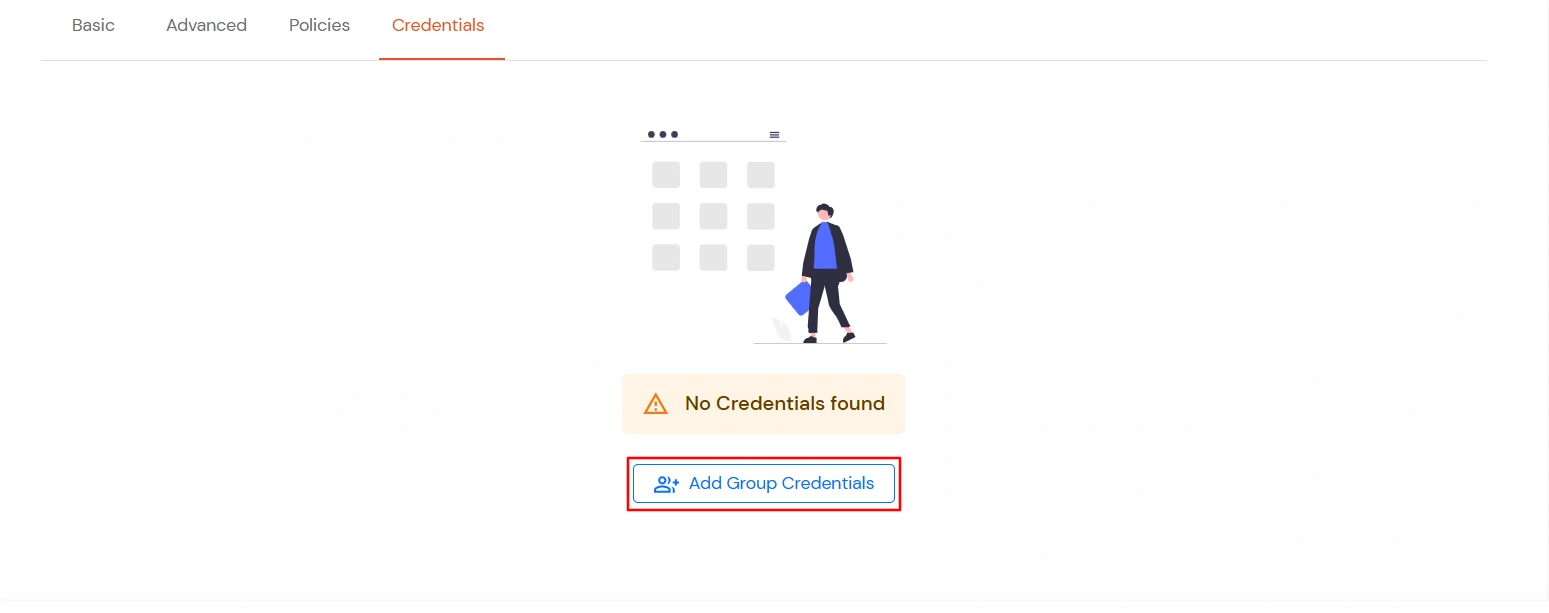
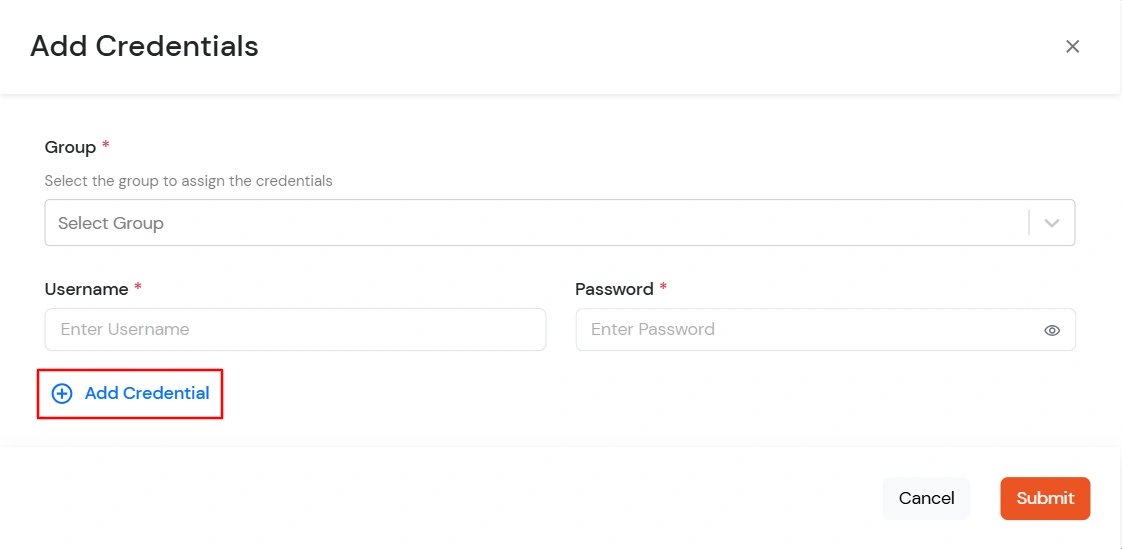
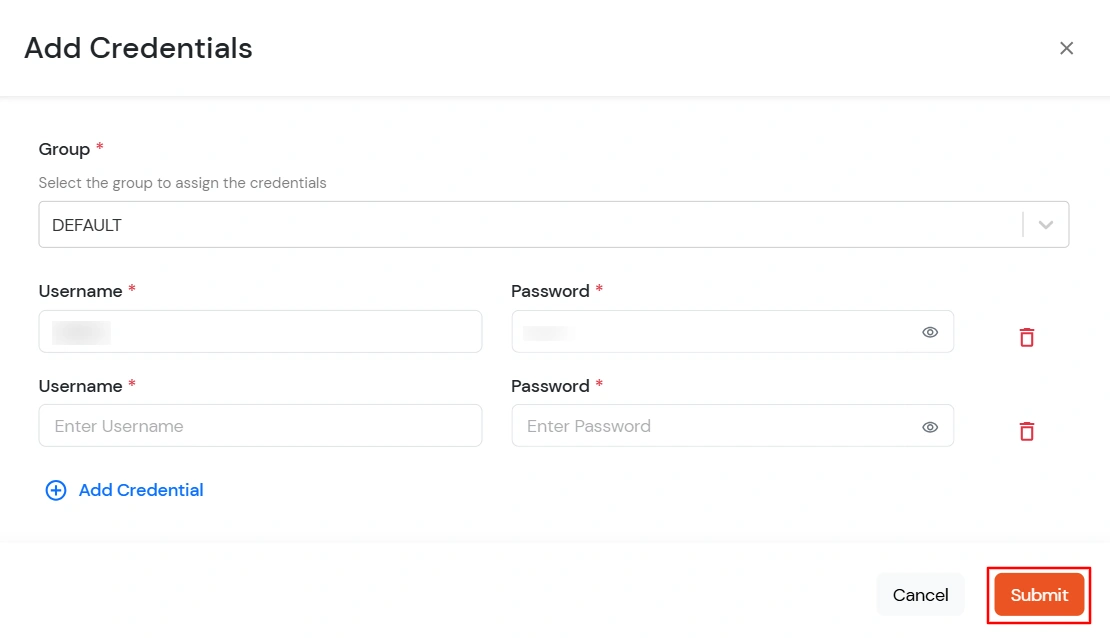
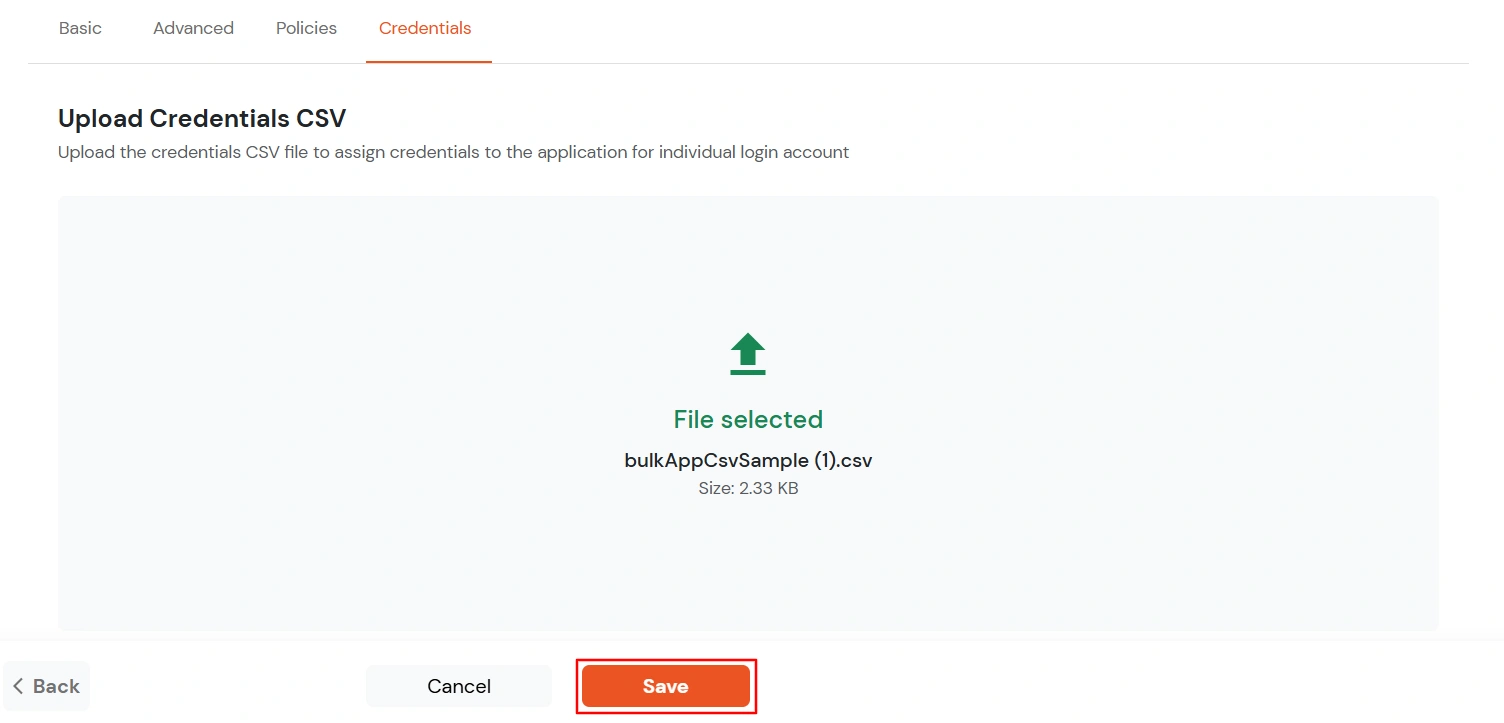
- To configure the Login Credentials for your app:
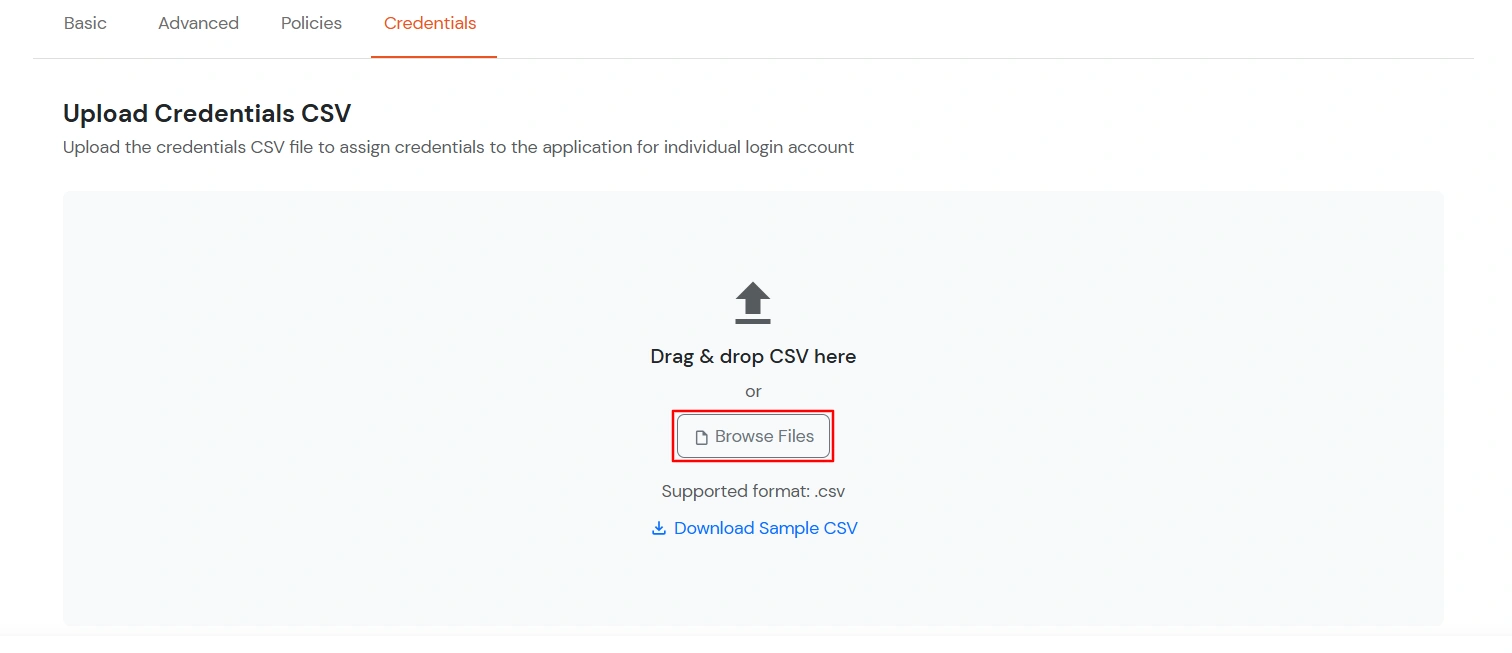
Use this option to assign individual login credentials to users by uploading a CSV file.
- Click Browse Files and select the CSV file containing the user credentials.
- Click Save to upload the credentials.
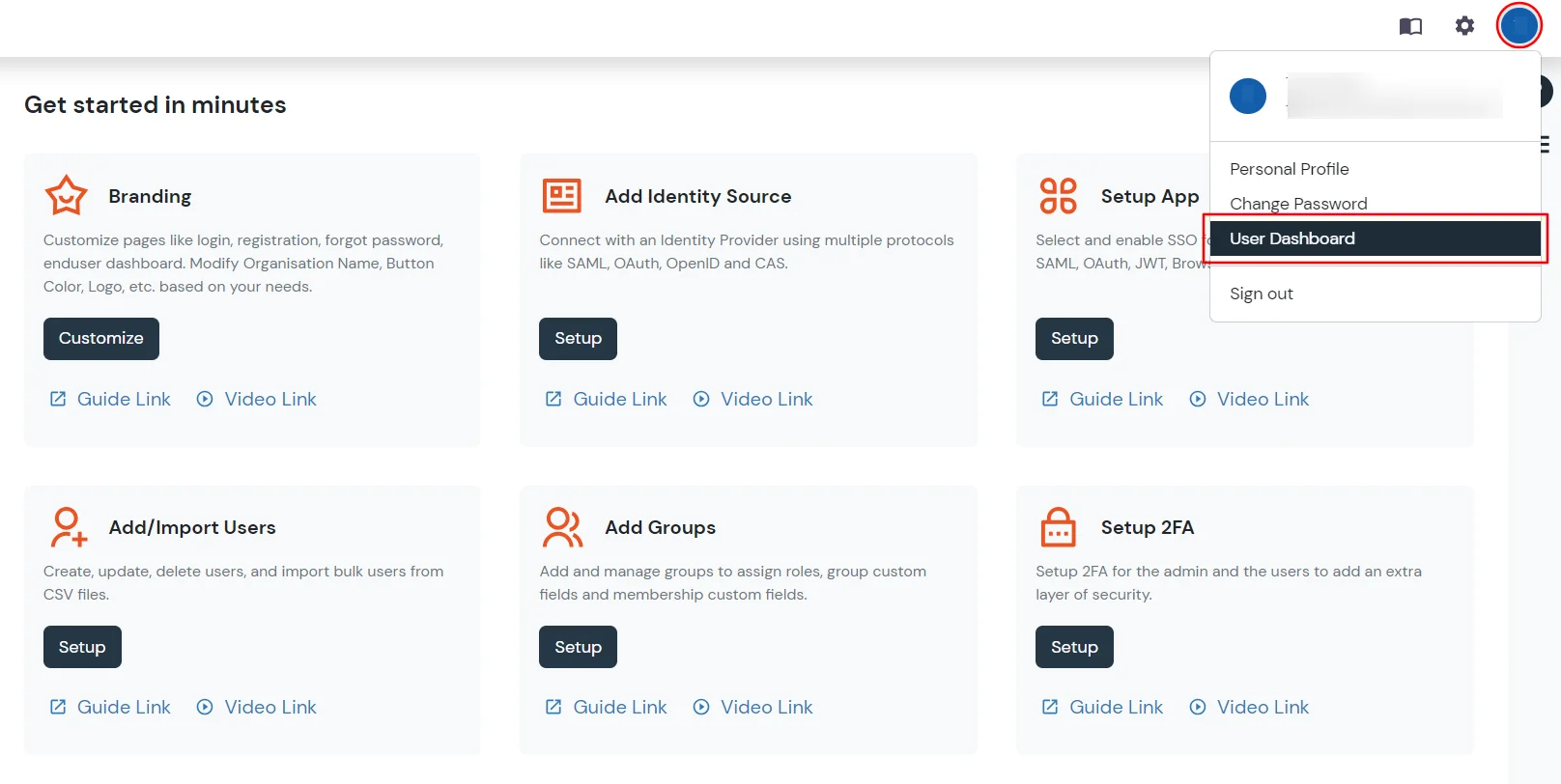
- From the top right side click Profile >> and then User Dashboard.
- Under the "SIGN-IN TO YOUR FAVOURITE CLOUD APPS" section search for Evernote app. Click on Evernote app icon then, click Download symbol.

- It will redirect you to add extension page. Now, click on the Add to Chrome.

- Click on Add extension.
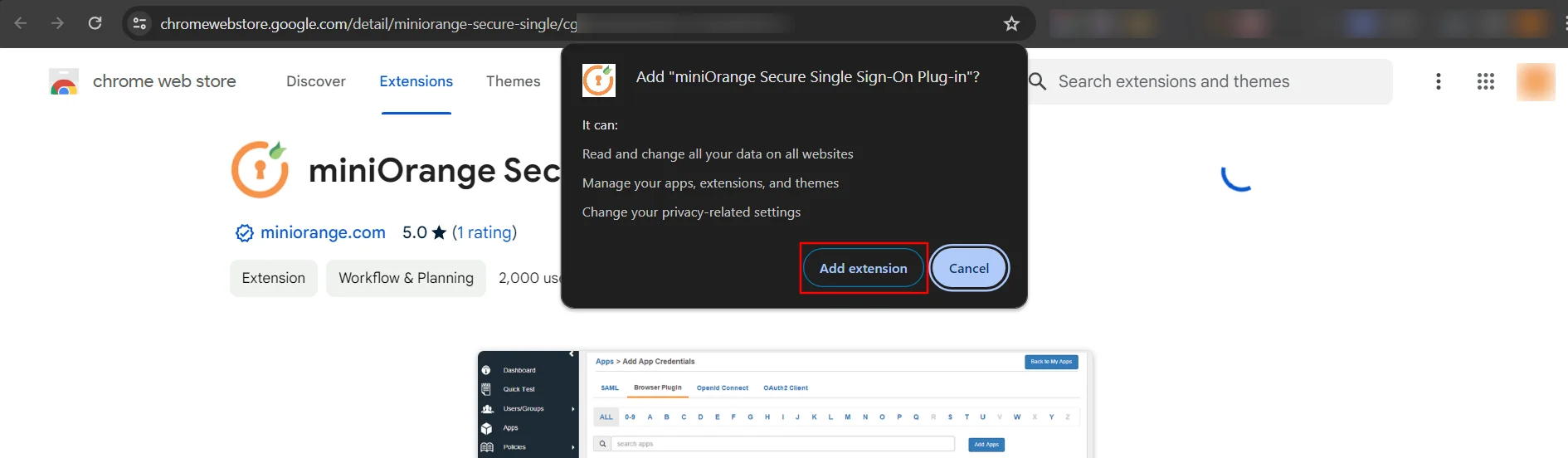
- Now, miniOrange extension is added in your extension
- Click on the app icon from miniOrange user portal, you will be redirected to Evernote login page.
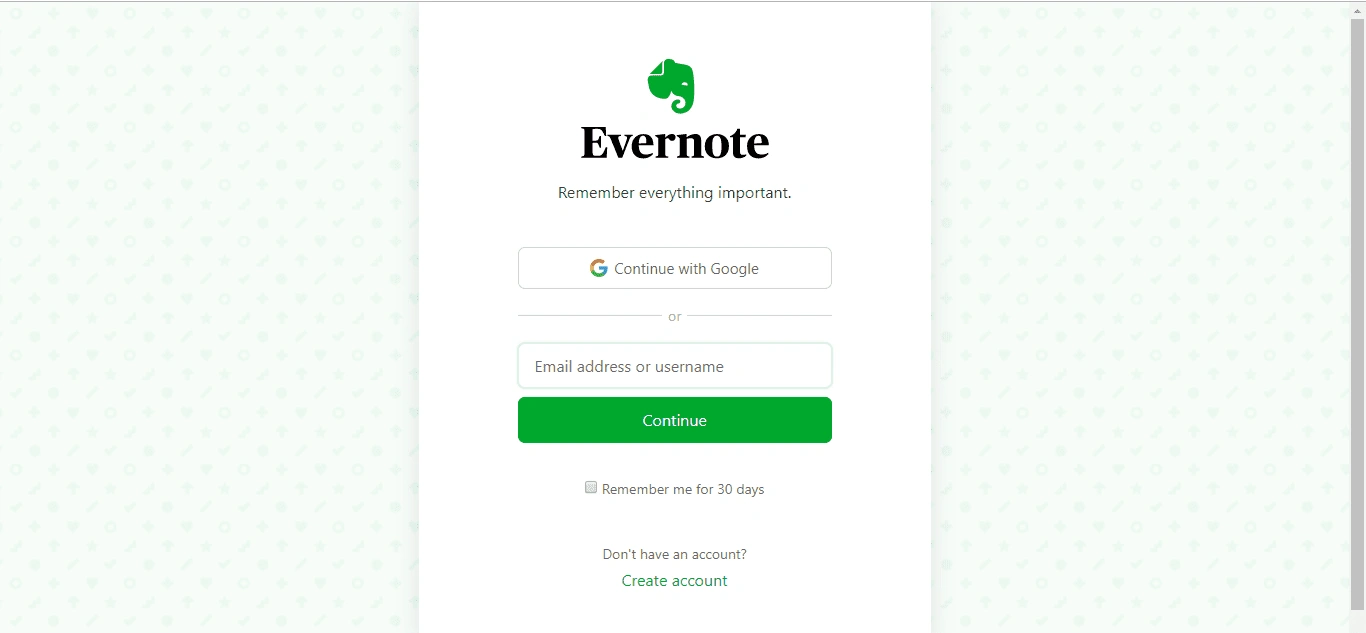
- Now browser extension will fill the username and password credentials automatically. Once enabled, end users can see an icon on their browser which auto-fills username and password on the application login page and submit the page automatically to let user access the app.
- Now, you can see the homepage of Evernote .
- Log into miniOrange Admin Console.
- Go to Apps >> click Add Application button.
- In Choose Application Type click on BROWSER EXTENSION/FORM-POST as application type.
- Search for Evernote in the list, if you don't find Evernote in the list then, click on Add Custom App button.
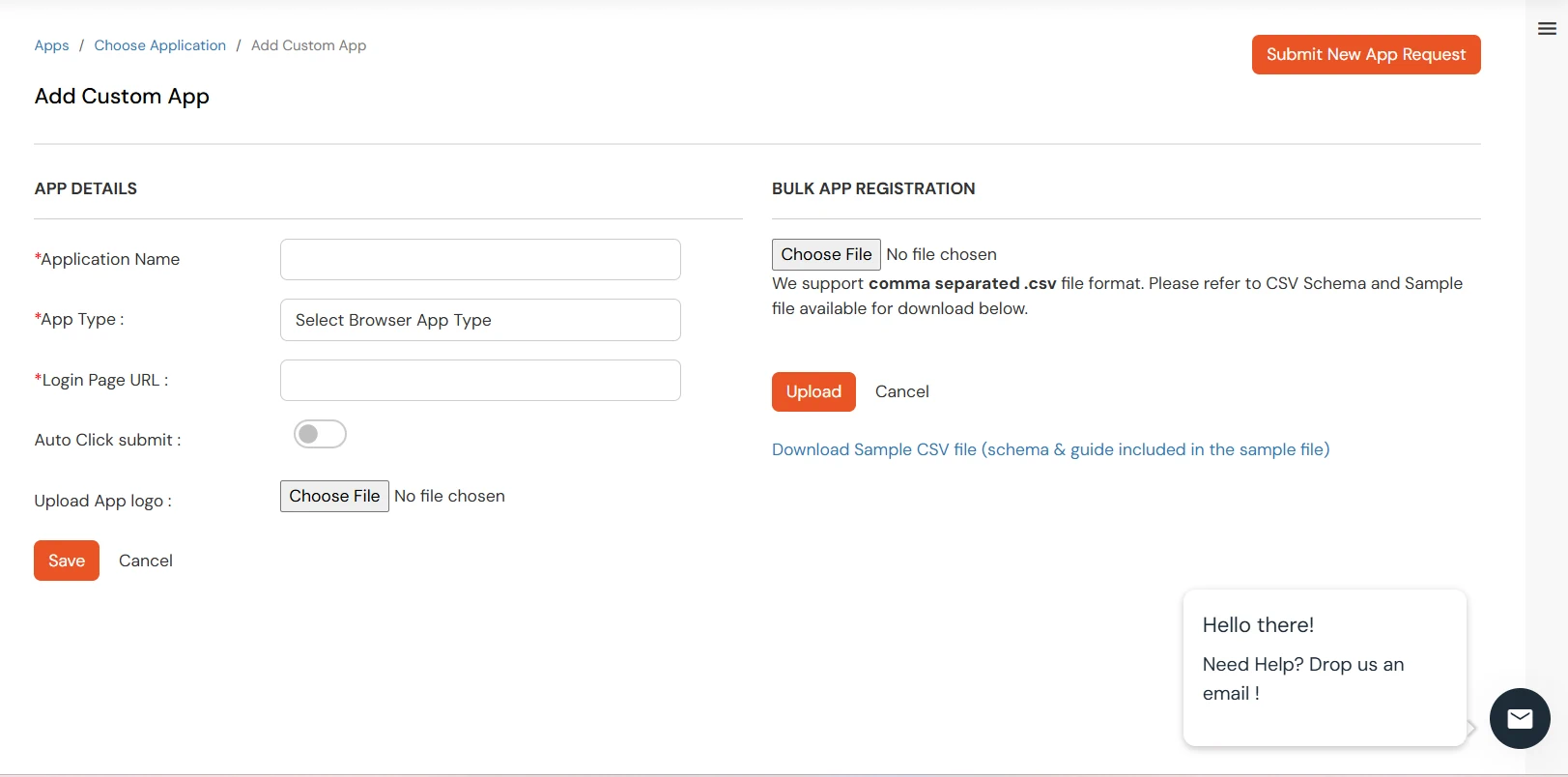
- Enter the following details in the fields below:
| App Field |
Description |
| Display Name |
Enter your application name |
| Login Page URL |
Login URL of your application |
| Login Account Type |
- Shared Login: If multiple users are allowed to access the app via the same credentials assigned by admin, admin should choose shared Login Account option.
- Individual Login: If each user has a different username and password for the app, admin should choose an Individual Login Account option, so that users can save their username and password from the user portal themselves.
|
| Upload App Logo |
Choose a file to upload the app logo. |
- Click on Next to proceed.
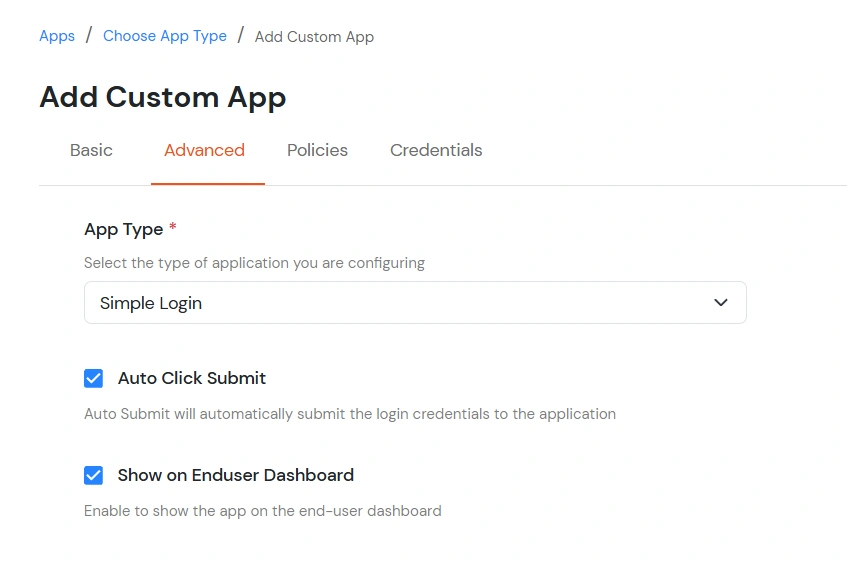
- Enter the following details in the fields below:
| App Field |
Description |
| App Type: |
- Simple Login: Select Simple Login for applications that use a standard login form with a username field, password field, and a login button.
- Login with Domain: Select Login with Domain for applications that require an additional input field, such as a domain name, account ID, tenant ID, or other constant value, along with the username and password.
- Login with Pre-Click: Select Login with Pre-Click for applications that require a user action, such as clicking a button, checkbox, or link, before the login credentials can be submitted.
|
| Auto Click Submit: |
Enable this toggle to automatically submit the login form after the extension fills in the user's credentials. Disable this option if users need to manually complete additional verification steps, such as entering a CAPTCHA, answering a security question, or providing other required information before signing in. |
| Show on Enduser Dashboard: |
Enable this toggle to make the application visible on the end-user dashboard. If the application is configured as a Shared Account and the shared credentials have not been configured, the application will not be displayed on the end-user dashboard even if this option is enabled. |
- Click on Next to continue.
- You need to Save the Application first to configure the policy for the application.
- Click on Assign group to configure the policy for that application.
- A new Configure Group Assignment Modal tab will open. Fill in the details in the fields below.
- Assign Group: Select the groups you want to link with the application. You can select up to 20 groups at a time.
- If you need to create new group. Click on Add New Group button.
- Enter the Group name and click on Create Group.
- Click on Next.
- Assign Policies: Add the required policies to the selected groups. Enter the following details:
- First Factor: Select the login method from the dropdown.
- If you select Password as the login method, you can enable 2-Factor Authentication (MFA) and Adaptive Authentication, if needed.
- If you select Password-less as login method, you can enable 2-Factor Authentication (MFA) if needed.
- If you select Magic Link as the login method, the following options appear:
- Enable sign-in from other IPs: When enabled, users can open the Magic Link from a different IP address than the one from which it was requested.
- Enable sign-in from other devices: When enabled, users can open the Magic Link on a different device than the one used to request it.
- Click on Save. Policies will be created for all the selected groups.
- You will see the policy listed once it’s successfully added.
- Click on Next to continue.
- To configure the Login Credentials for your app:
Use this option to assign individual login credentials to users by uploading a CSV file.
- Click Browse Files and select the CSV file containing the user credentials.
- Click Save to upload the credentials.
- From the top right side click Profile >> and then User Dashboard.
- Under the "SIGN-IN TO YOUR FAVOURITE CLOUD APPS" section search for Evernote app. Click on Evernote app icon then, click Download symbol.
- It will redirect you to add extension page. Now, click on the Add to Chrome.
- Click on Add extension.
- Now, miniOrange extension is added in your extension
- Click on the app icon from miniOrange user portal, you will be redirected to Evernote login page.
- Now browser extension will fill the username and password credentials automatically. Once enabled, end users can see an icon on their browser which auto-fills username and password on the application login page and submit the page automatically to let user access the app.
- Now, you can see the homepage of Evernote .
2. Embed Evernote application link in your Website/User Portal
- Go to Admin Dashboard >> Apps >> search for Evernote app.
- Click on Select in Action menu against Evernote app. Select Show SSO link option from dropdown.
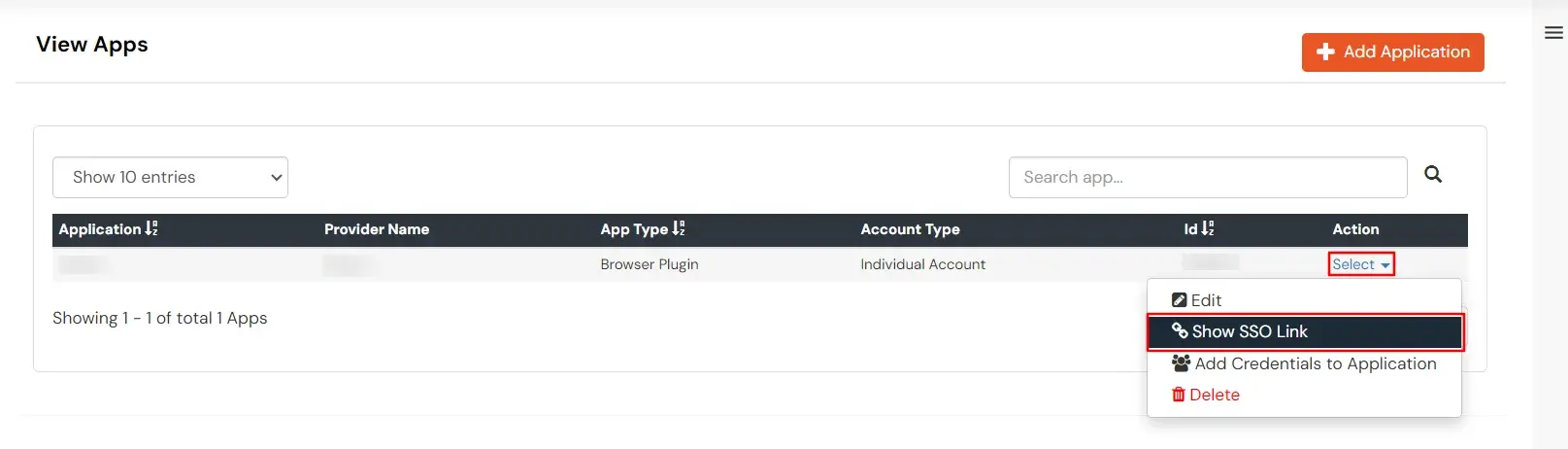
- Copy the app link and paste it anywhere on your website - User portal/ Apps Dashboard /Menu, etc.

3. Configure 2FA for Evernote
3.1: Enable 2FA for Users of Evernote app
- To enable 2FA for Users of Evernote application. Go to Policies >> App Login Policy
- Click on Edit icon against the application you have configured.
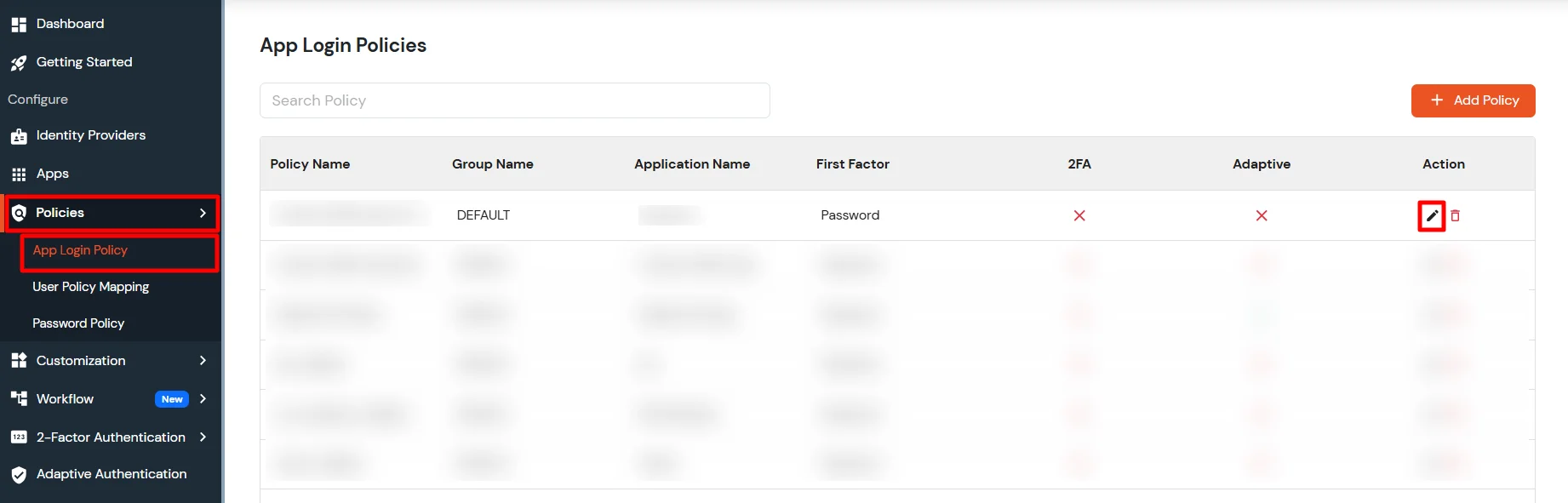
- Check the Enable 2-Factor Authentication (MFA) option.
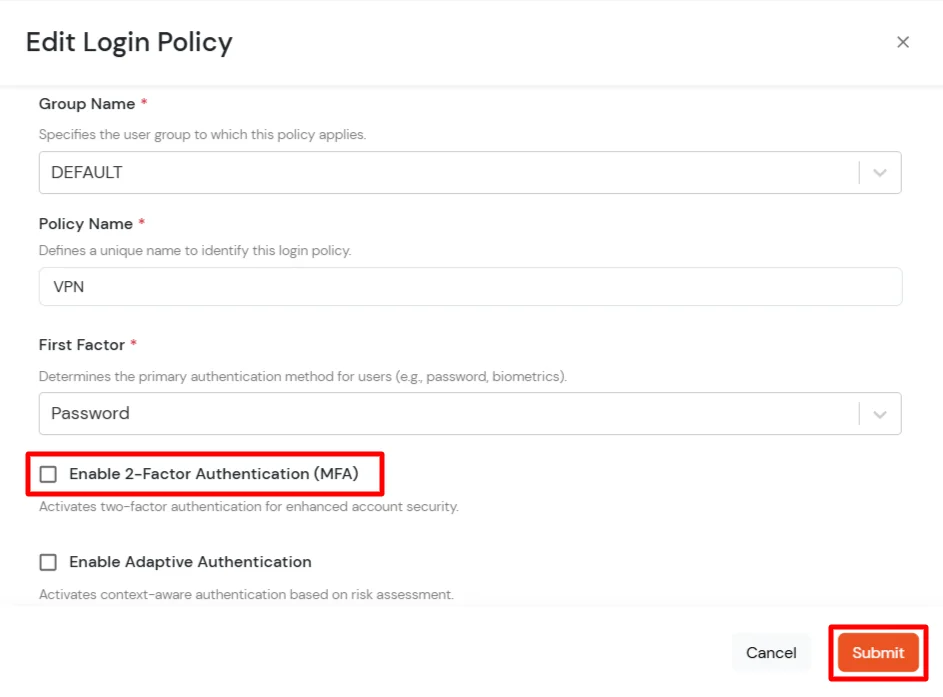
- Click on Submit.
3.2: Configure 2FA for your Endusers
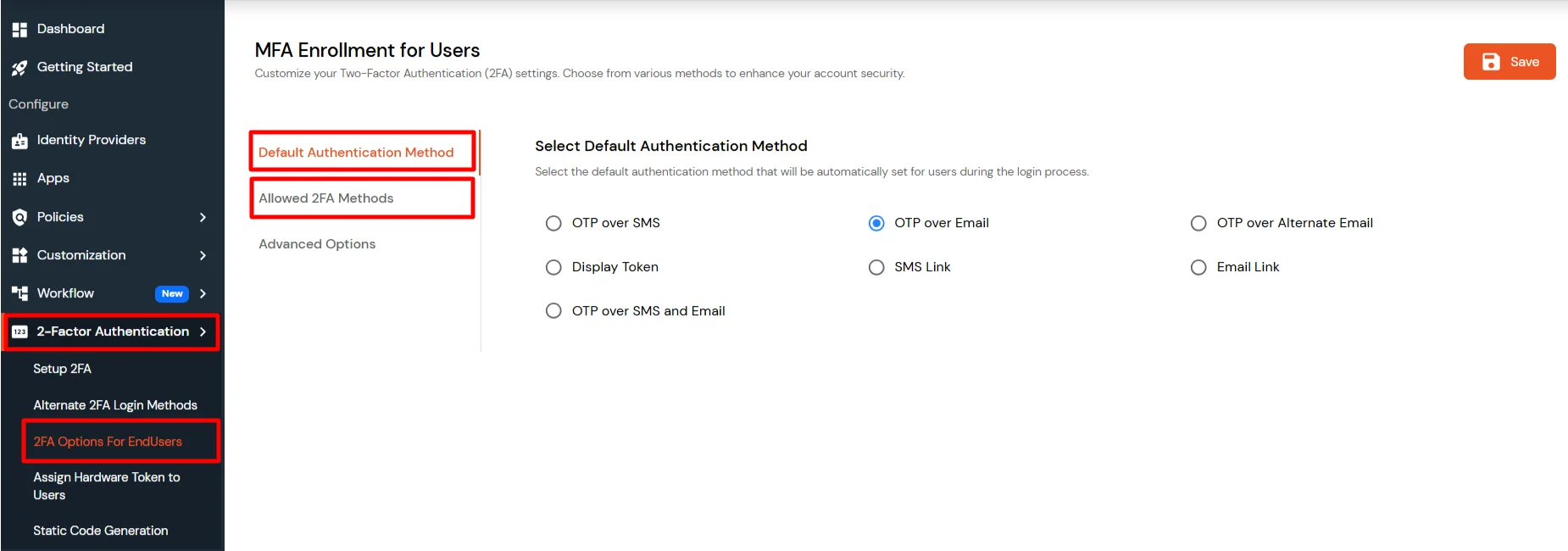
- To enable 2FA/MFA for Evernote endusers, go to 2-Factor Authentication >> 2FA Options For EndUsers.
- Select default Two-Factor authentication method for end users. Also, you can select particular 2FA methods, which you want to show on the end users dashboard.
- Once Done with the settings, click on Save to configure your 2FA settings.
3.3: Enduser 2FA Setup
- Login to End-User Dashboard using end user login URL.
- For Cloud Version: The login URL (branding url) which you have set.
- For On-Premise version: The login URL will be the same as of Admin Login URL.
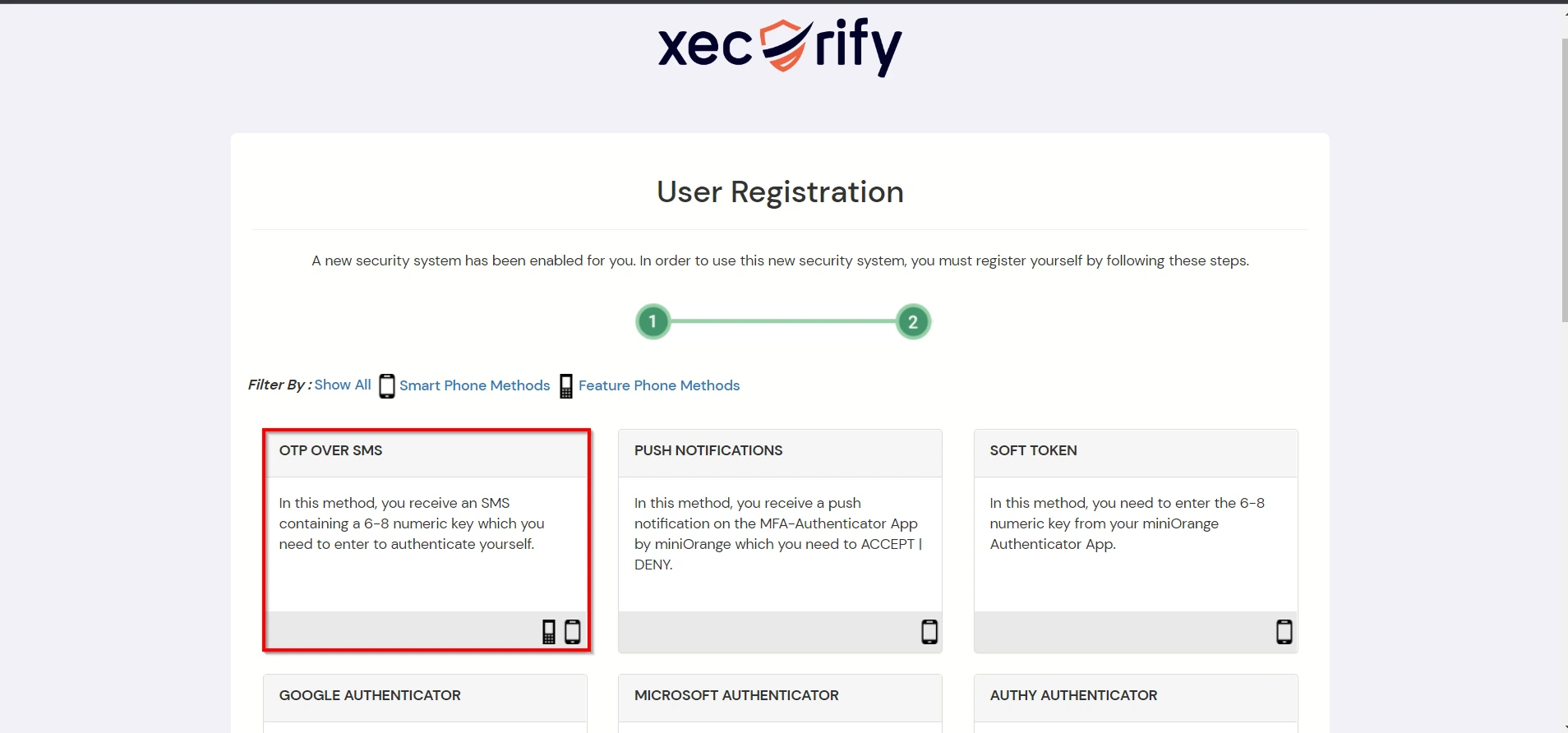
- Select Setup 2FA from left panel. Then select any of the 2FA method available.
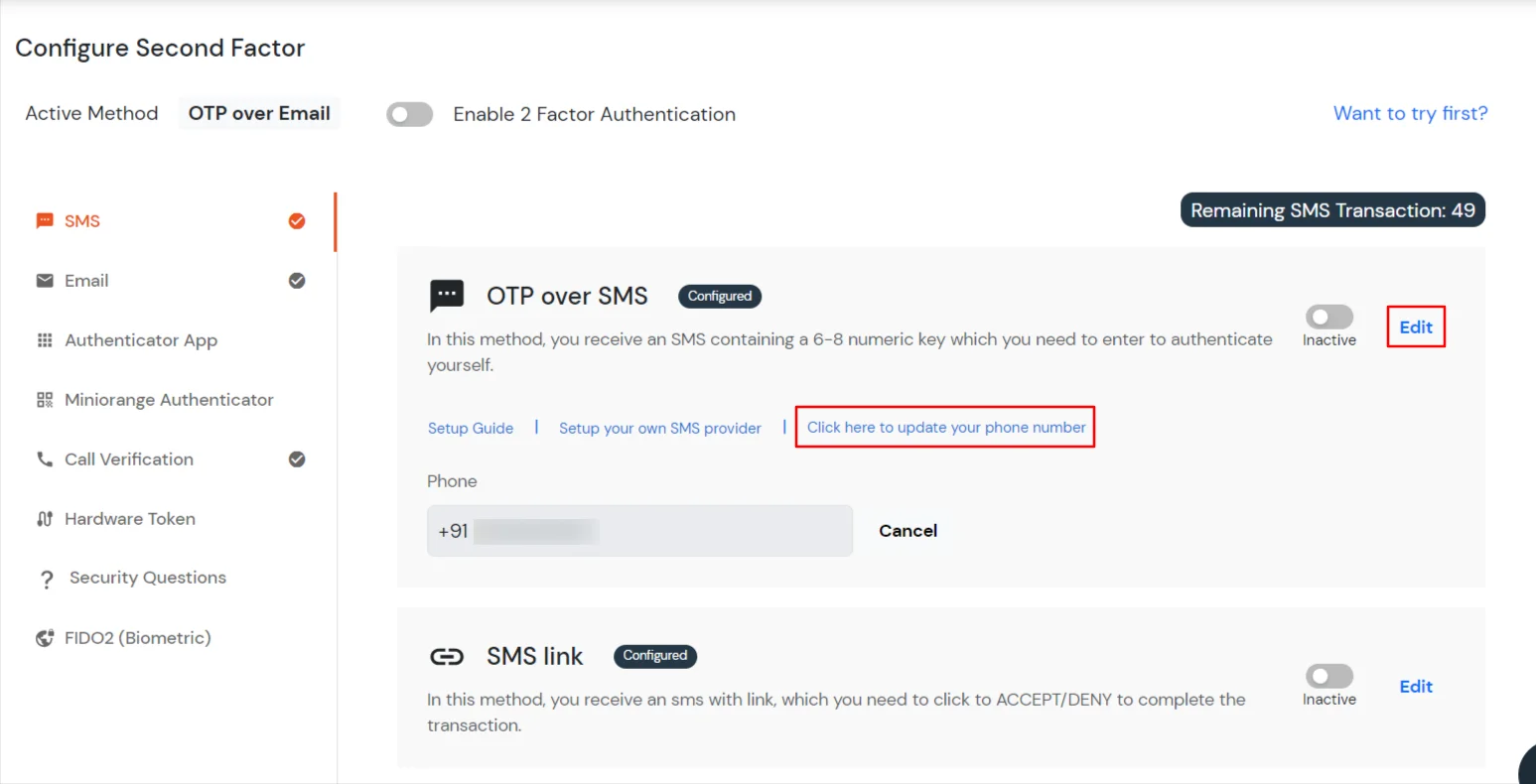
- For now, we have selected the SMS >> OTP OVER SMS as our 2FA method. You can explore the guide to setup other 2FA methods here.
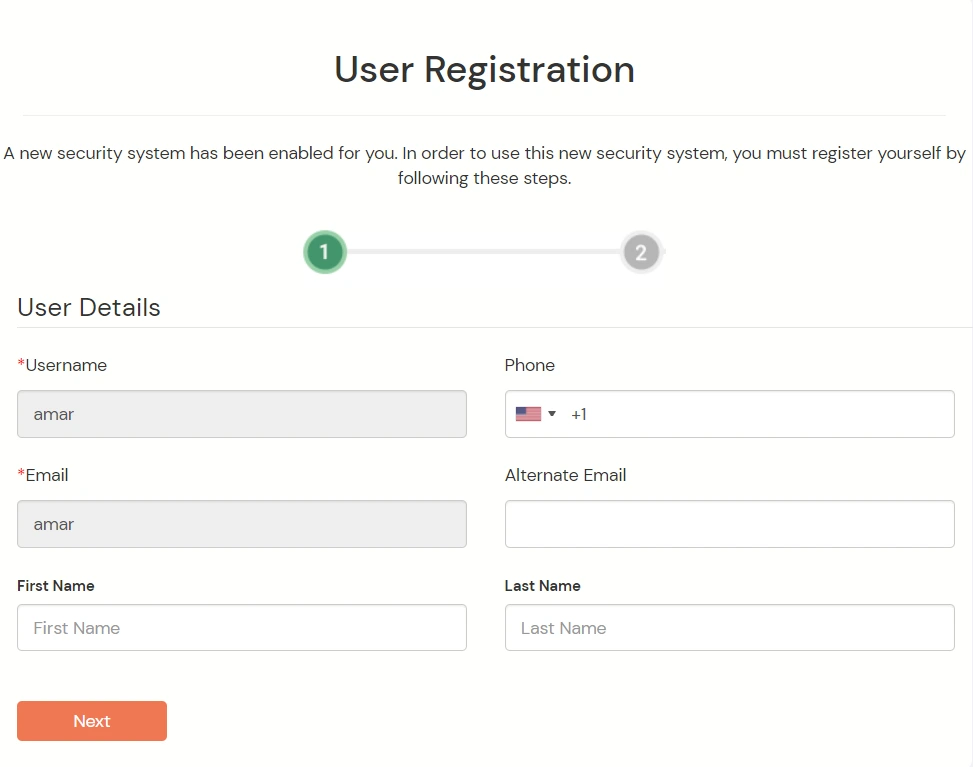
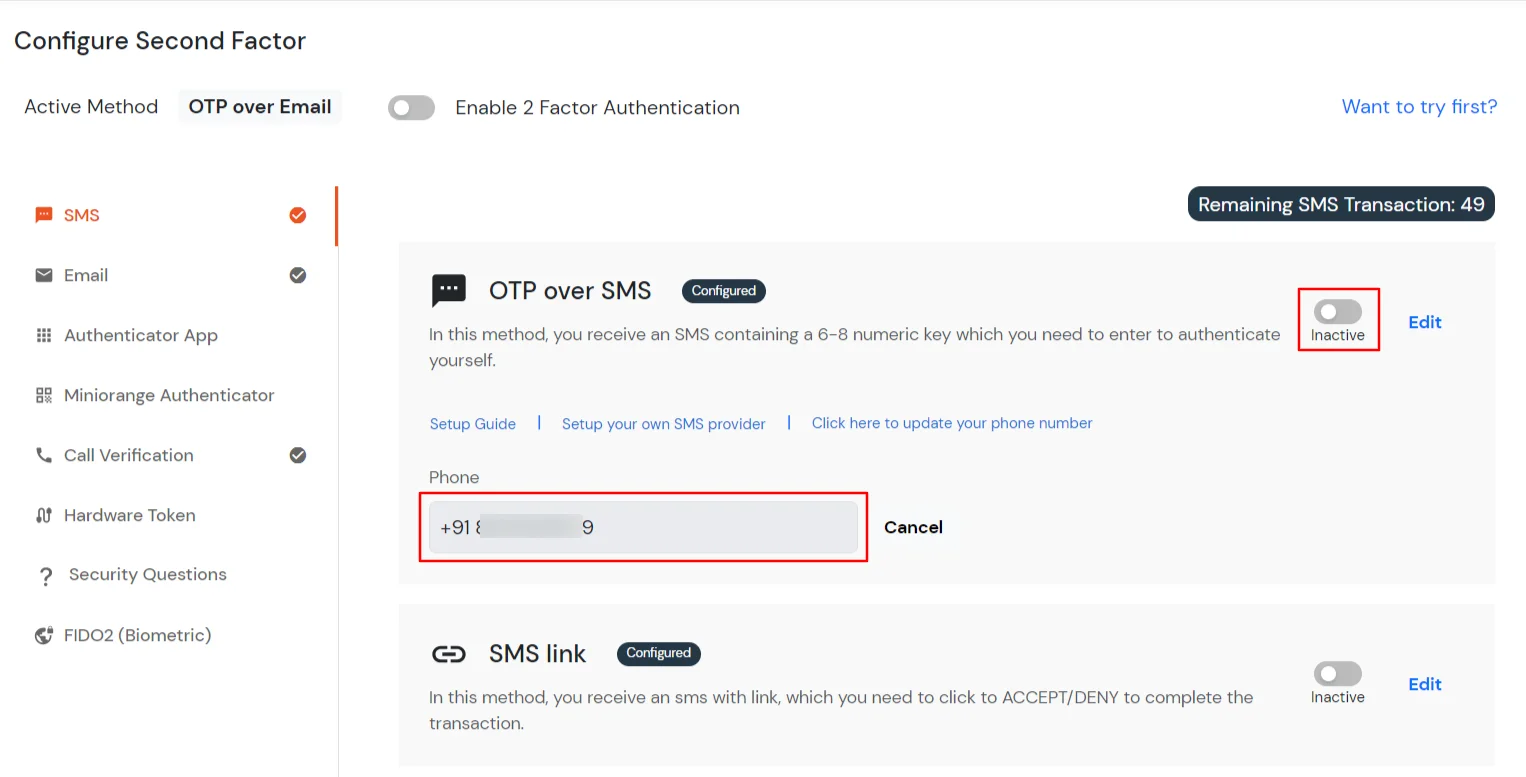
- Enable the OTP over SMS if you have your phone number added under your account information else click on Edit >> Click here to update your phone number link.
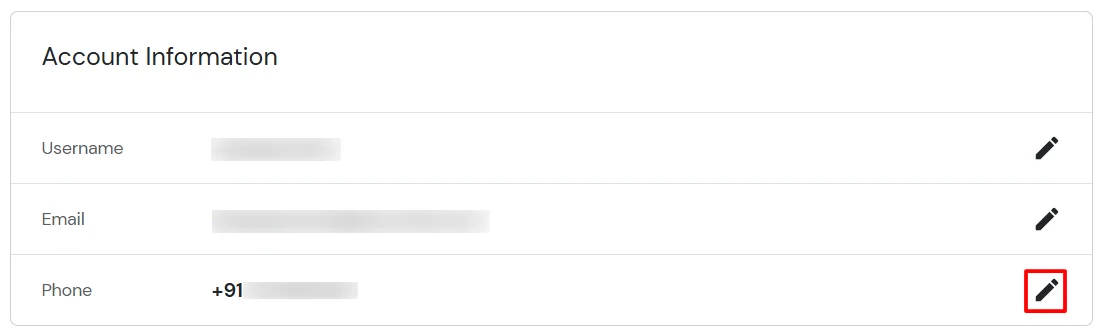
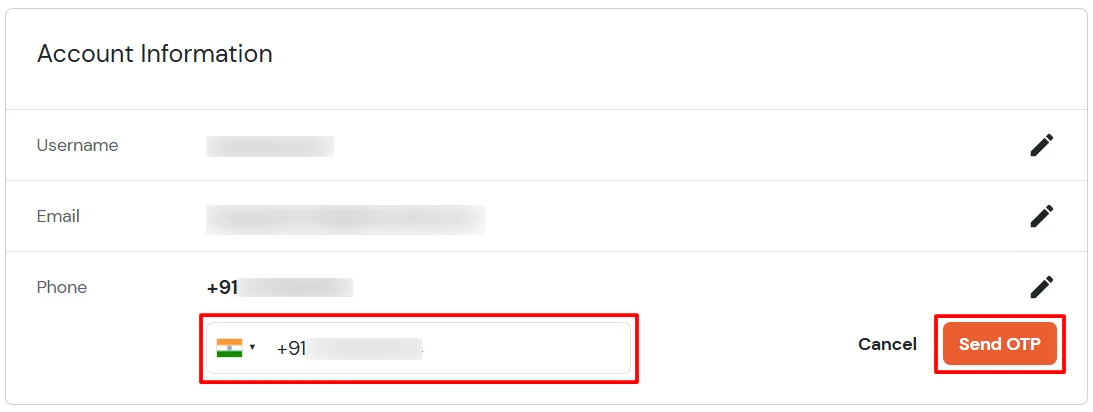
- In Account Information, click on edit icon.
- Select your country code, enter your mobile number, and click Send OTP.
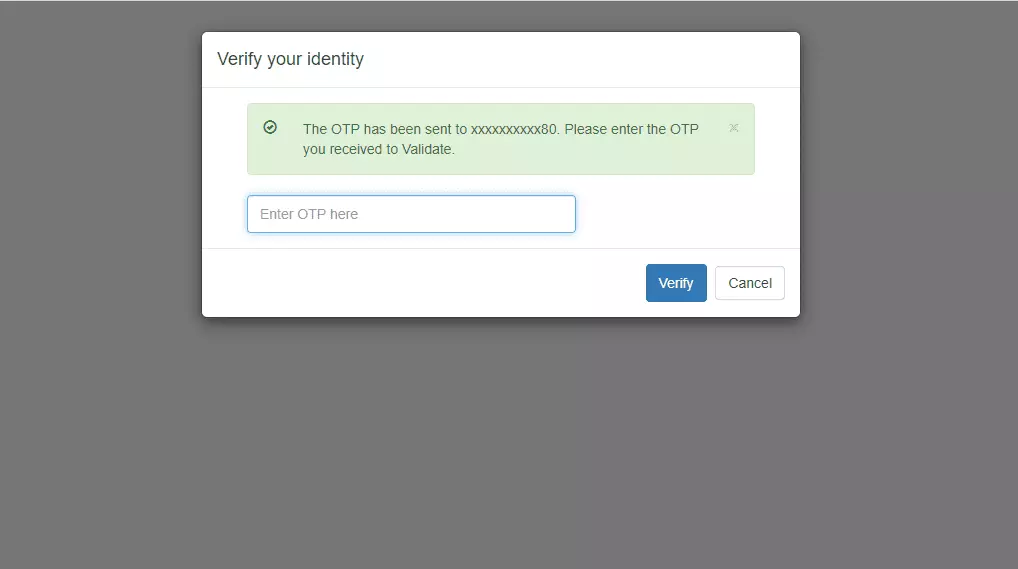
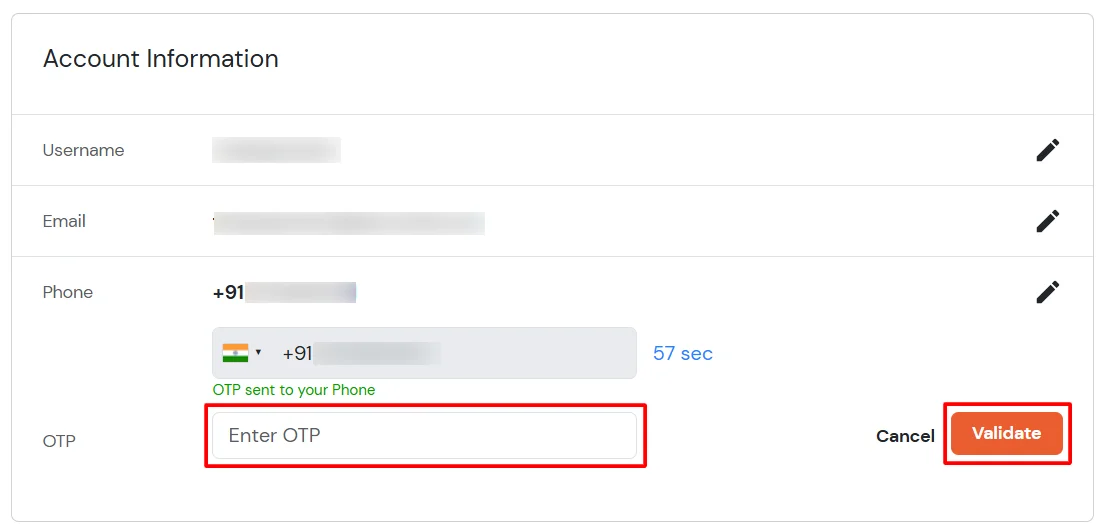
- Enter the OTP sent to your phone and click Validate.
- After adding your phone number, turn on the toggle to activate OTP over SMS.
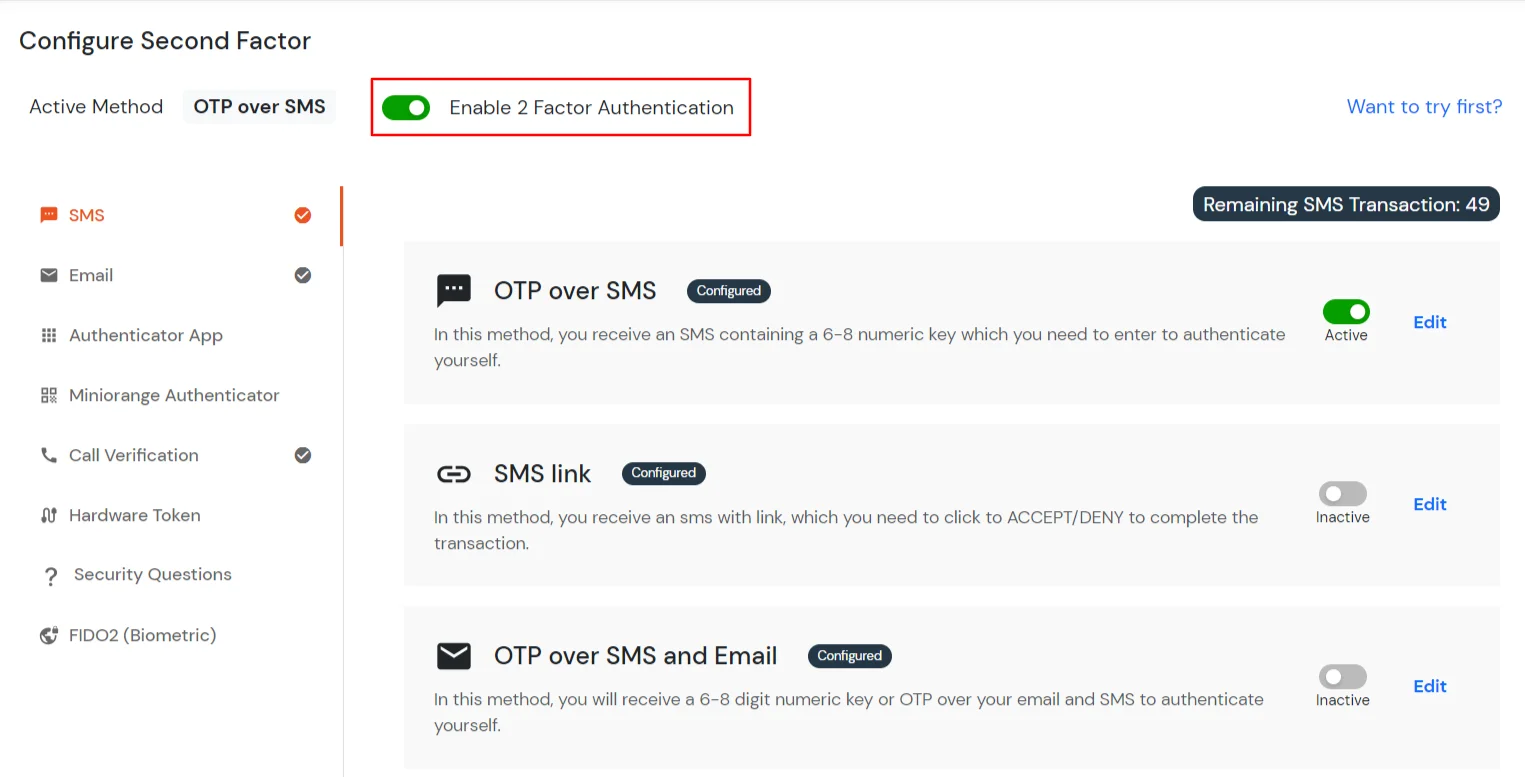
- Now Enable 2 Factor Authentication toggle if not done before as shown below.
4. Test 2FA for Evernote
5. Adaptive Authentication with Evernote
Adaptive Authentication for Evernote enables administrators to enforce context-aware access policies by evaluating user login conditions such as IP address, device, location and login time. Based on the configured policy, users can be allowed access, challenged with additional verification or denied access. Administrators can also configure email alerts, customize user-facing error messages, review policy settings before deployment and assign adaptive authentication policies to application login policies to strengthen security and prevent unauthorized access.
[Note: The Adaptive Authentication section has been moved from the left navigation menu. You can now access and manage adaptive authentication policies by navigating to Policies >> Adaptive Access Policy.]
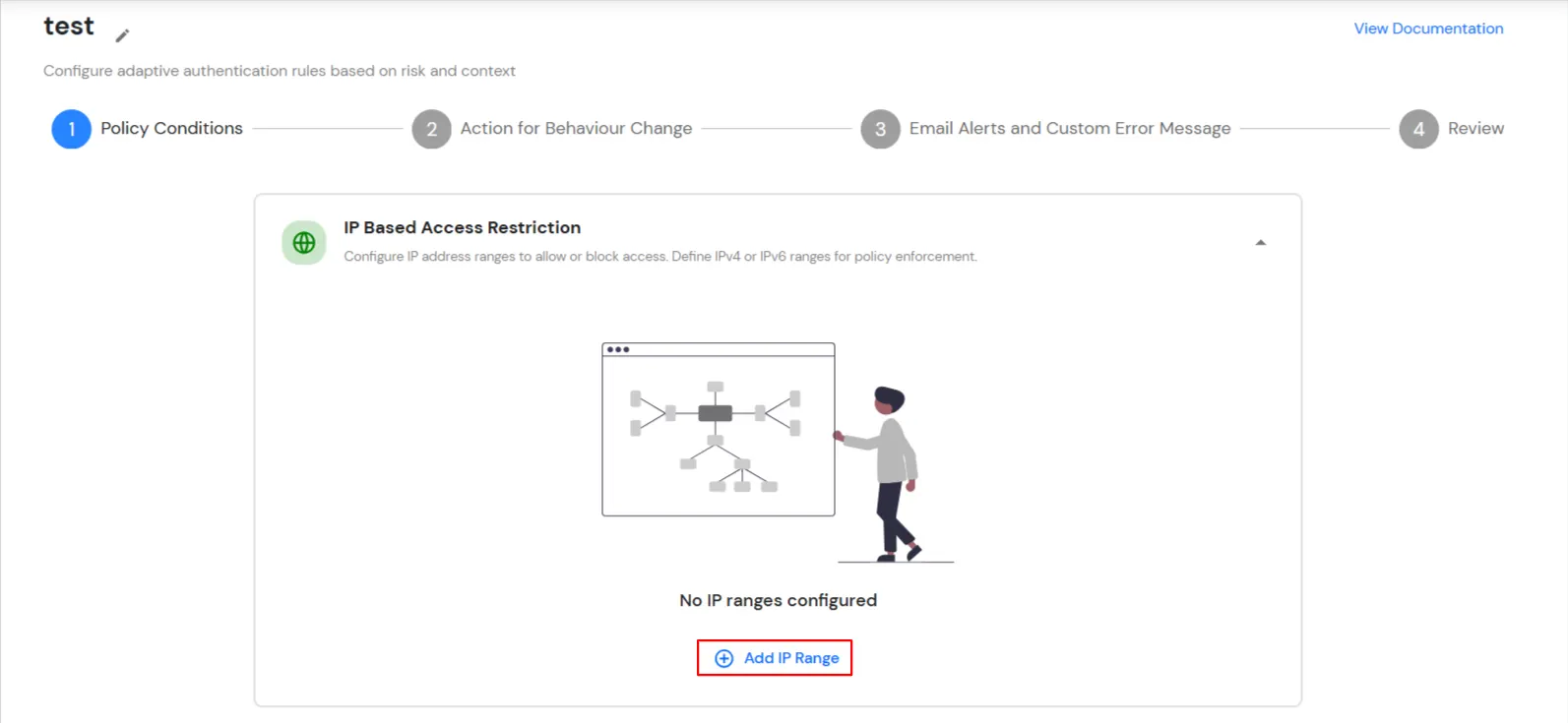
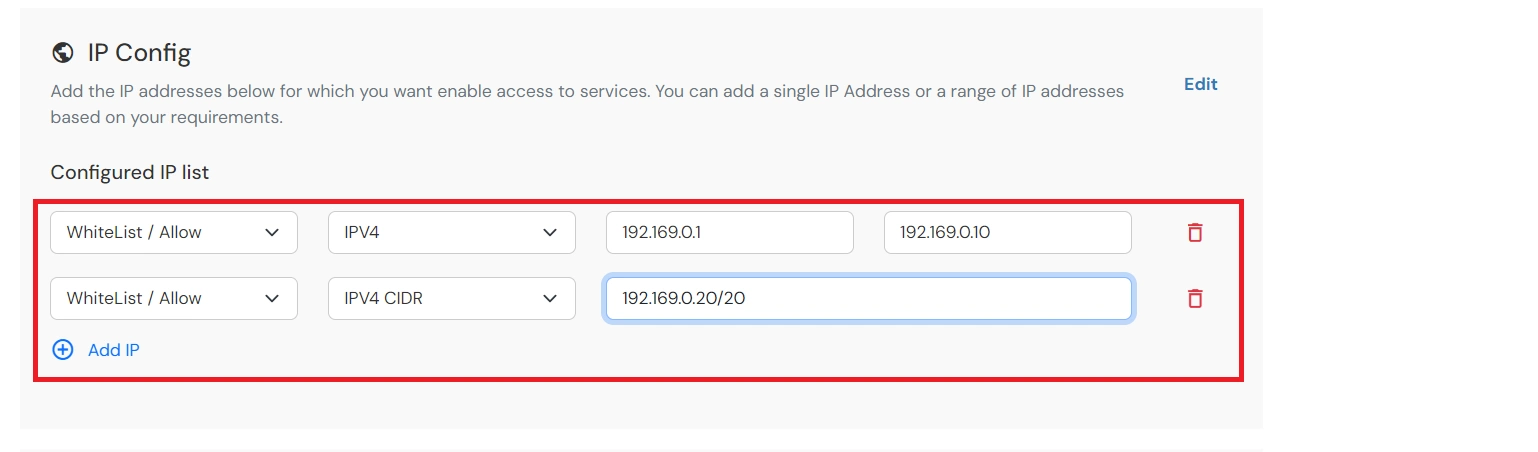
A. Restricting access to Evernote with IP Based Access Restriction
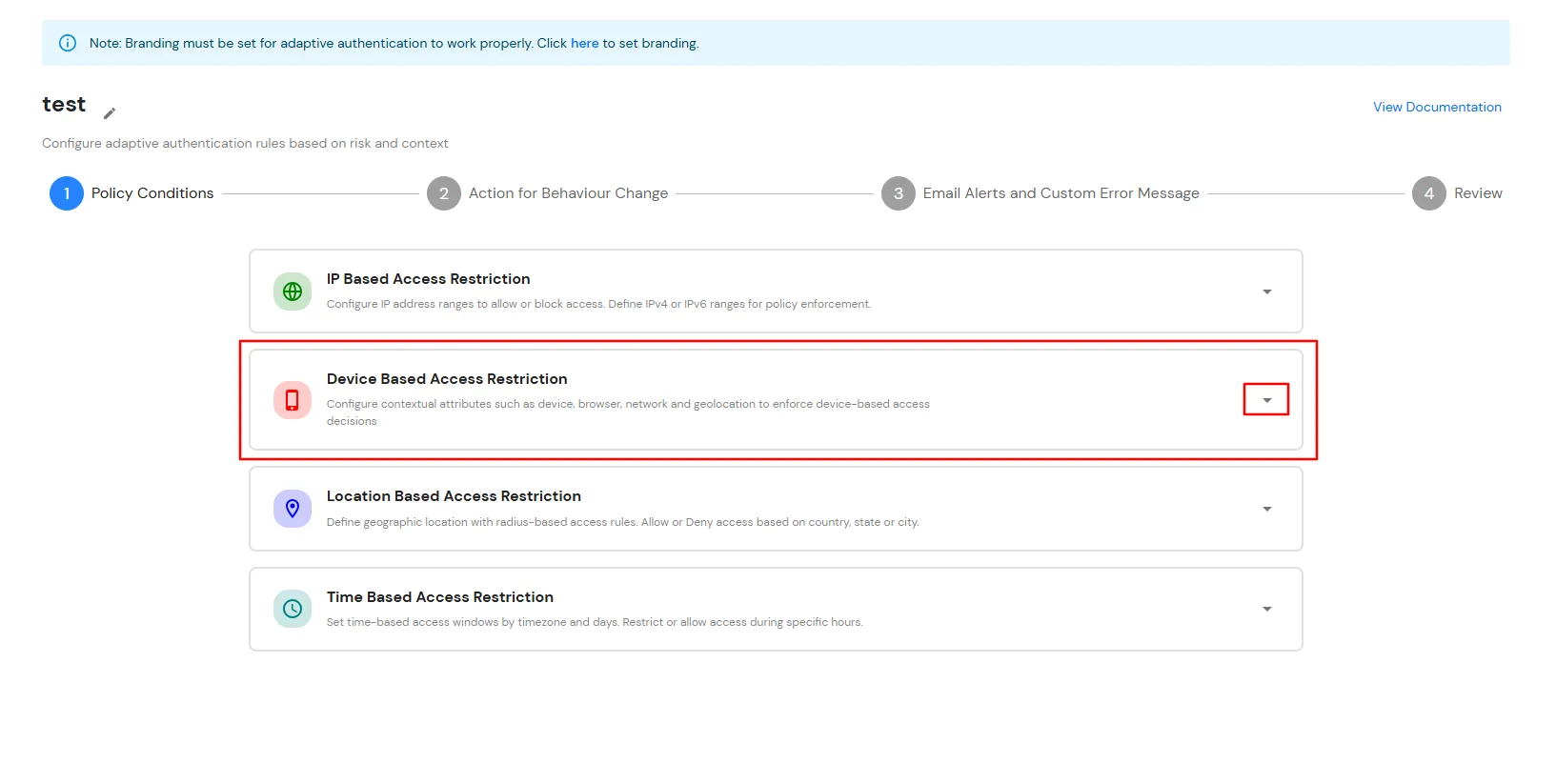
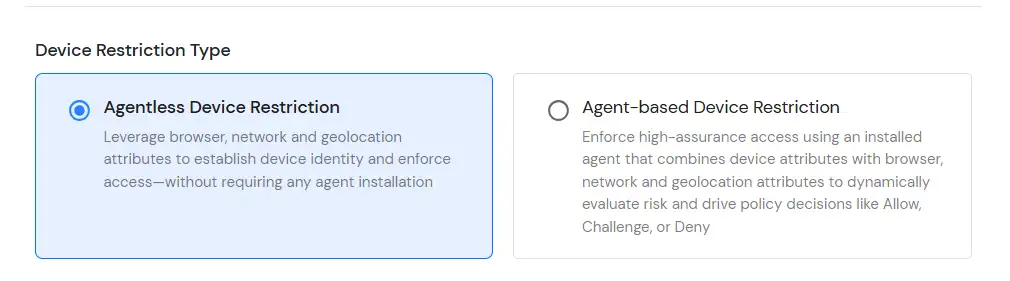
B. Restricting access to Evernote with Device Based Access Restriction
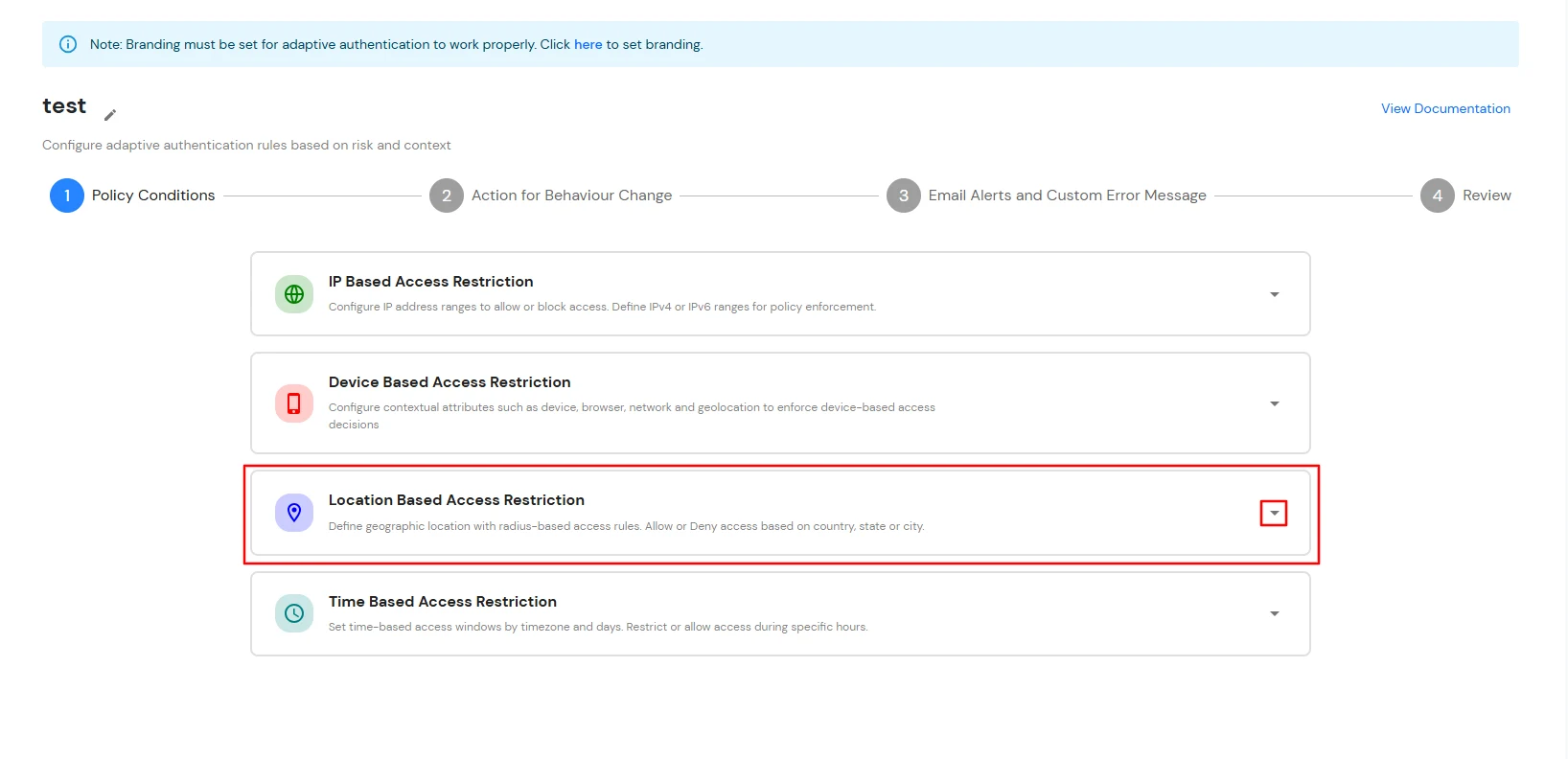
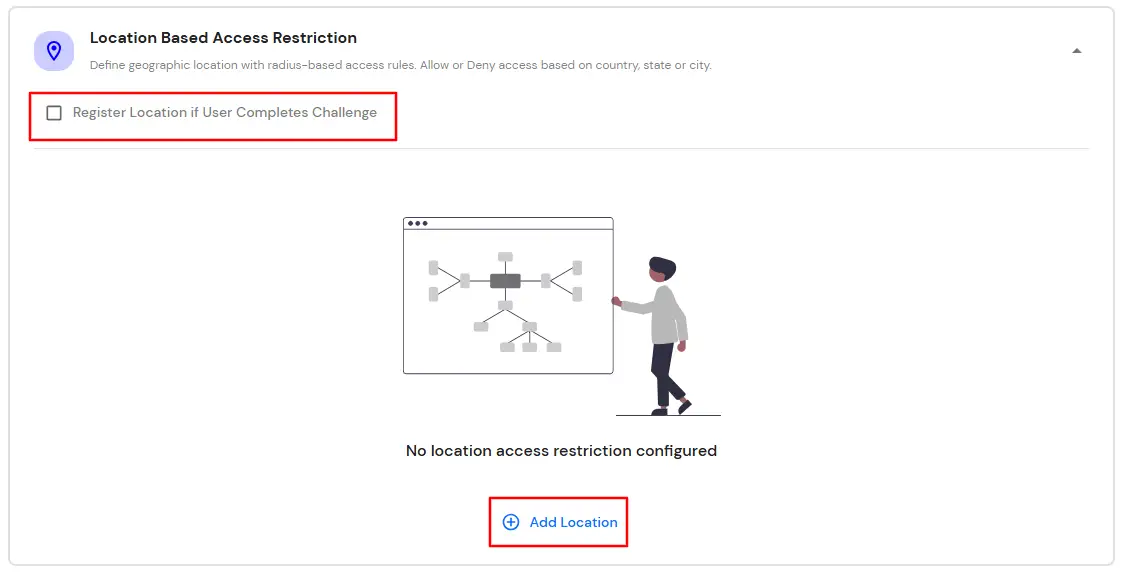
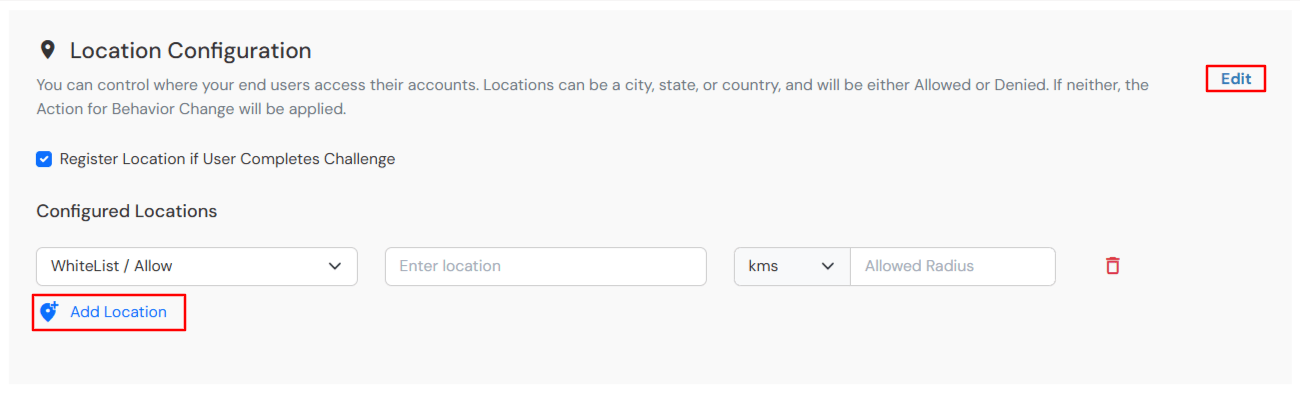
C. Restricting access to Evernote with Location Based Access Restriction
D. Restricting access to Evernote with Time Based Access Restriction
In time restriction, admin configures a time zone with Start and End Times for that timezone and users are either allowed, denied or challenged based on the condition in the policy. When an end-user tries to login with the adaptive authentication enabled, their time zone-related attributes such as Time-Zone and Current System Time, are verified against the list configured by the admin and based on the configuration, the user is either allowed, denied or challenged.
You can configure Adaptive Authentication with Time Based Restriction in following way :
- Login to Self Service Console >> Policies >> Adaptive Access Policy section from the left side menu.
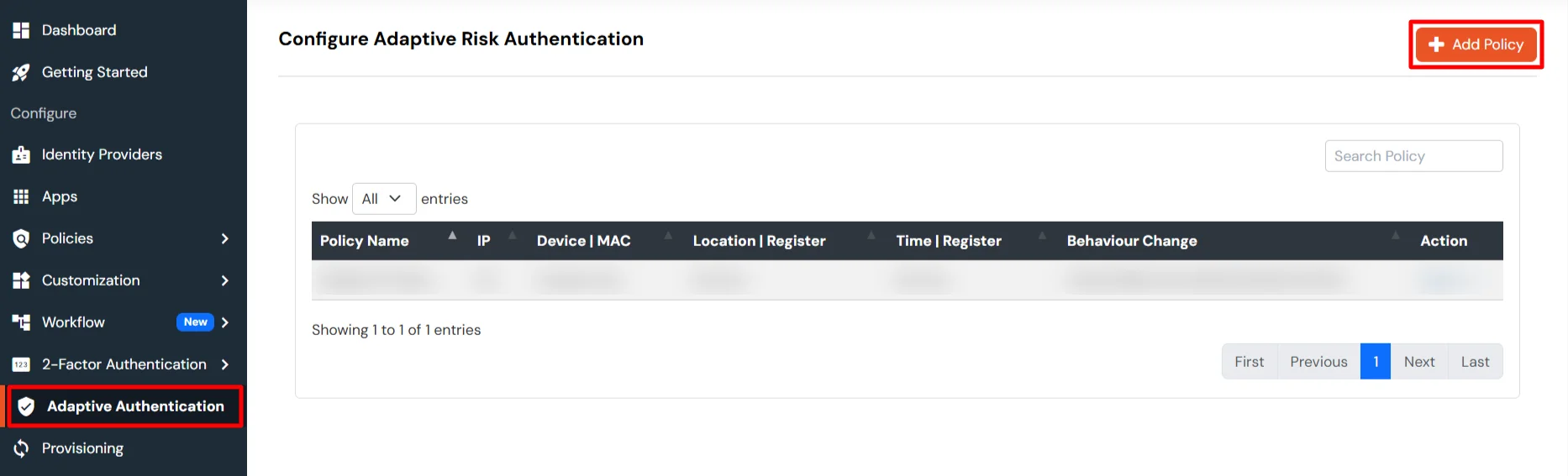
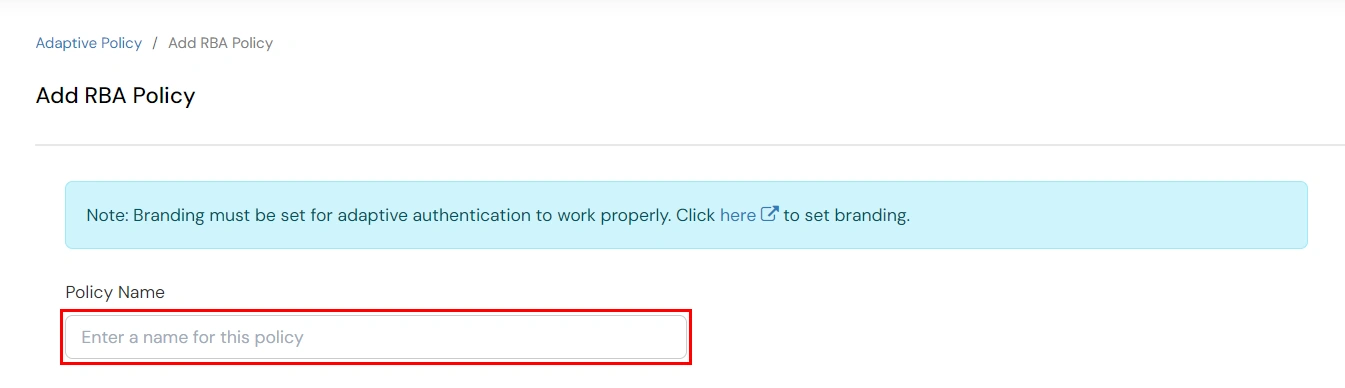
- Click on the Create Policy button on the upper right. Add a suitable policy name and click on Create Policy.
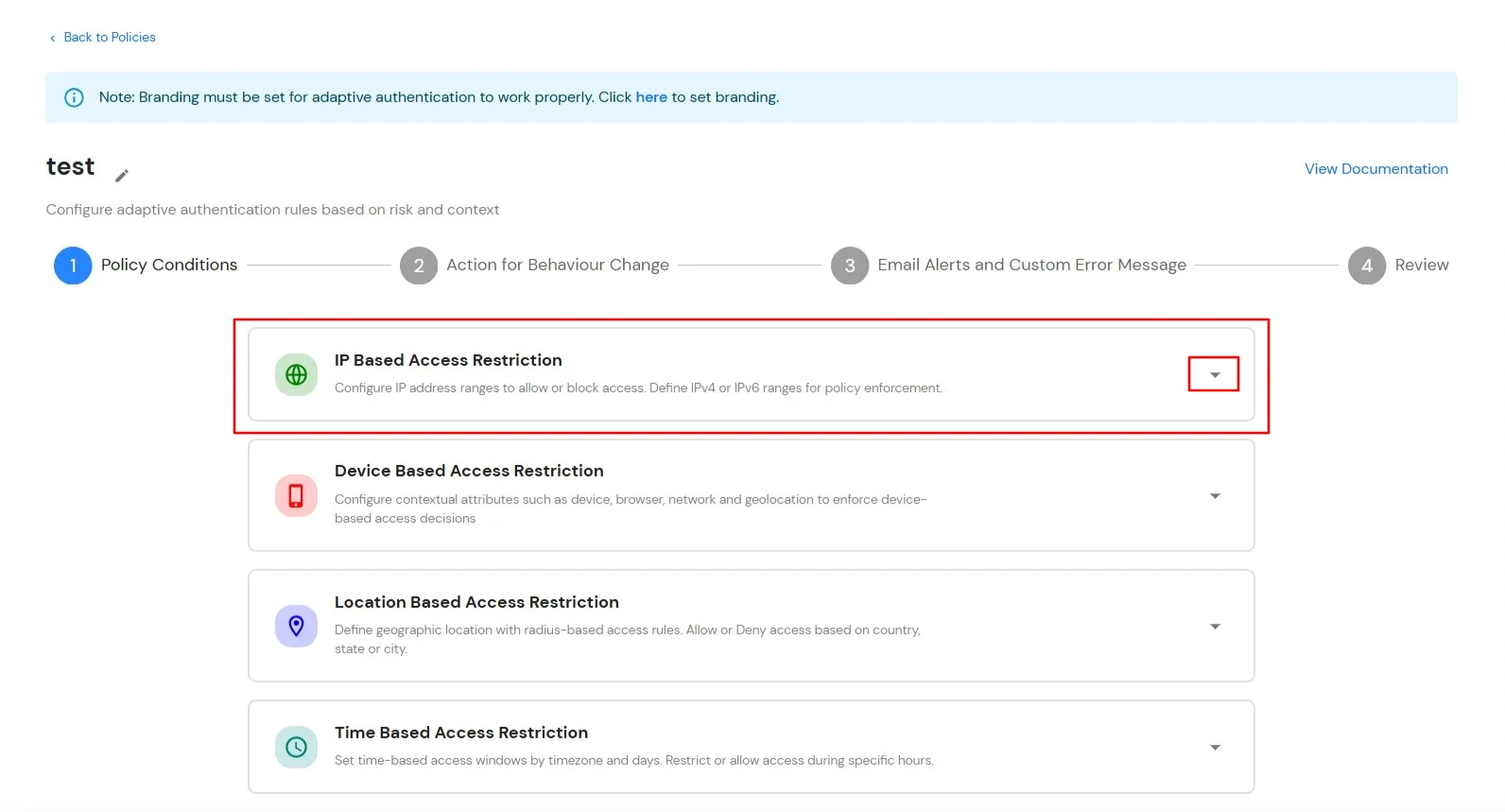
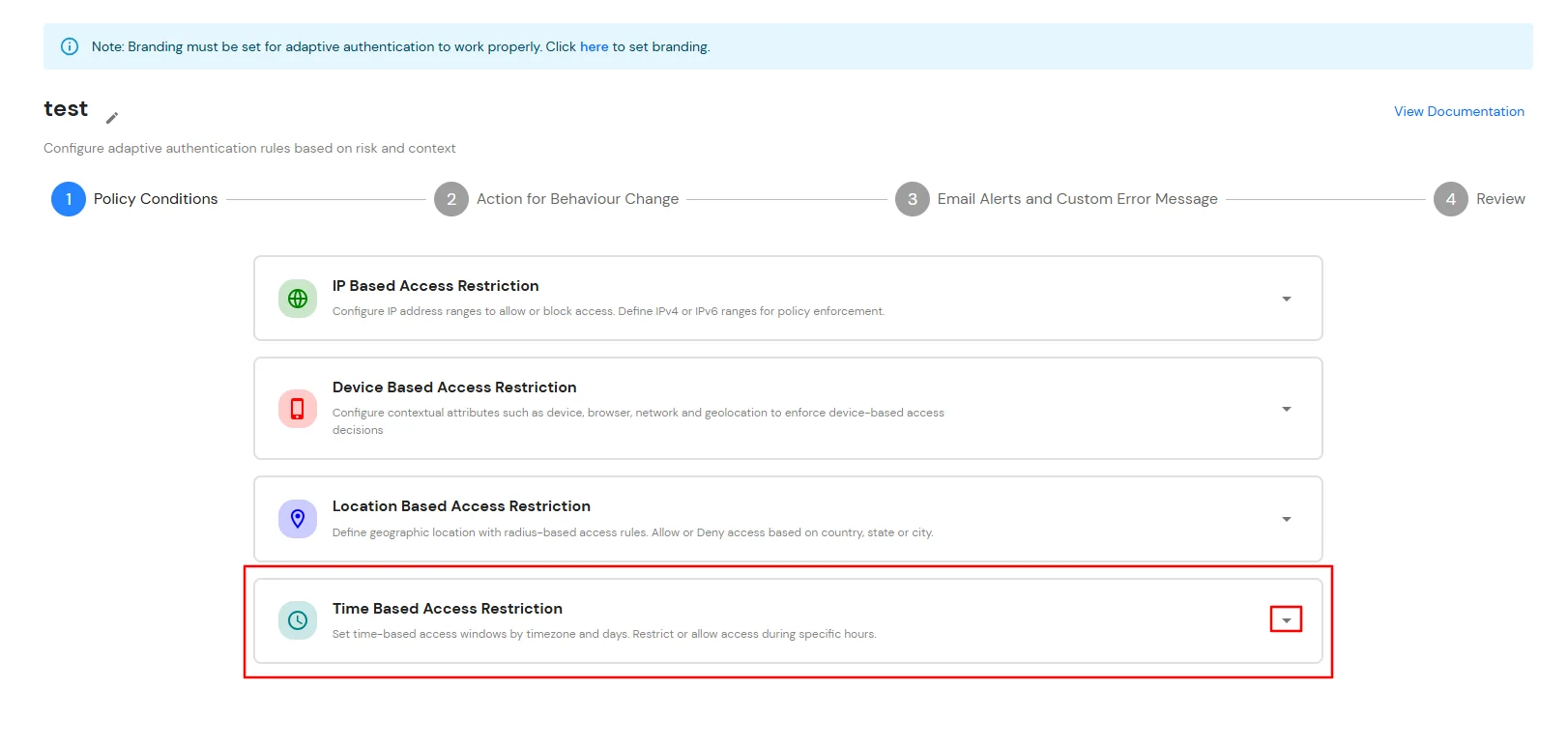
- Expand the Time Based Access Restriction section by clicking on the dropdown icon to Time Based Access Restriction rules.
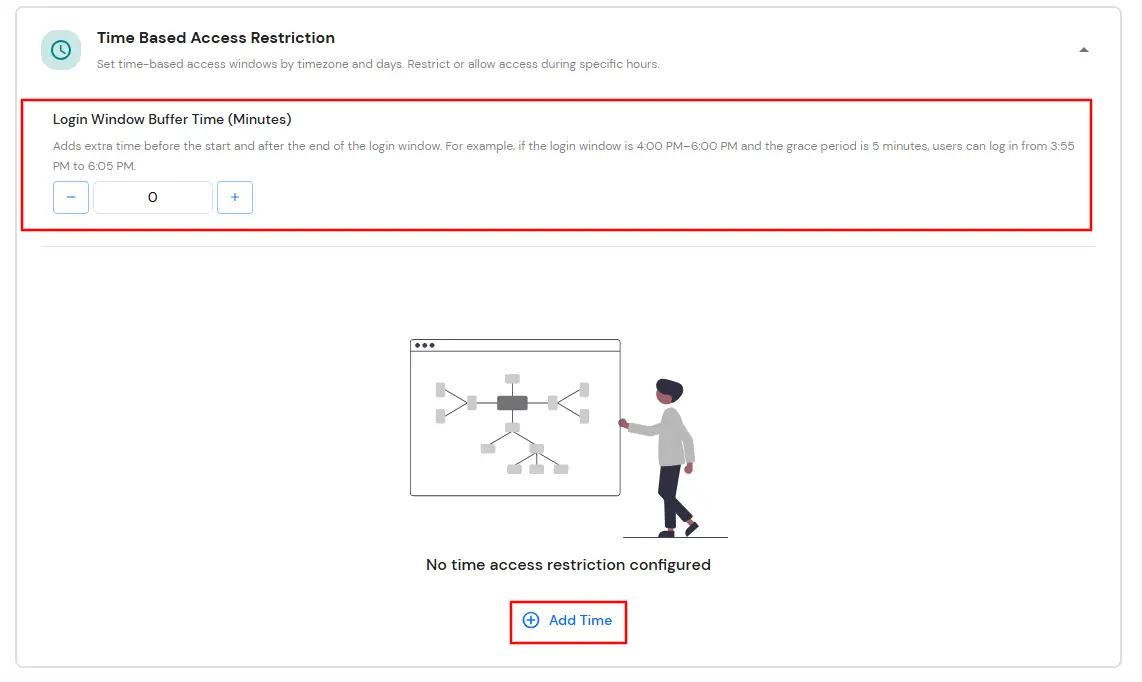
- Enter the Login Window Buffer Time (Minutes) to allow a grace period before the start time and after the end time of the configured login window. If no value is specified, the default buffer time of 0 minutes is applied.
- Click Add Time to create a time-based access rule.
- Select the required Timezone, configure the Start Time and End Time and choose the applicable days.
- For each time-based rule, select whether access should be Allowed or Denied.
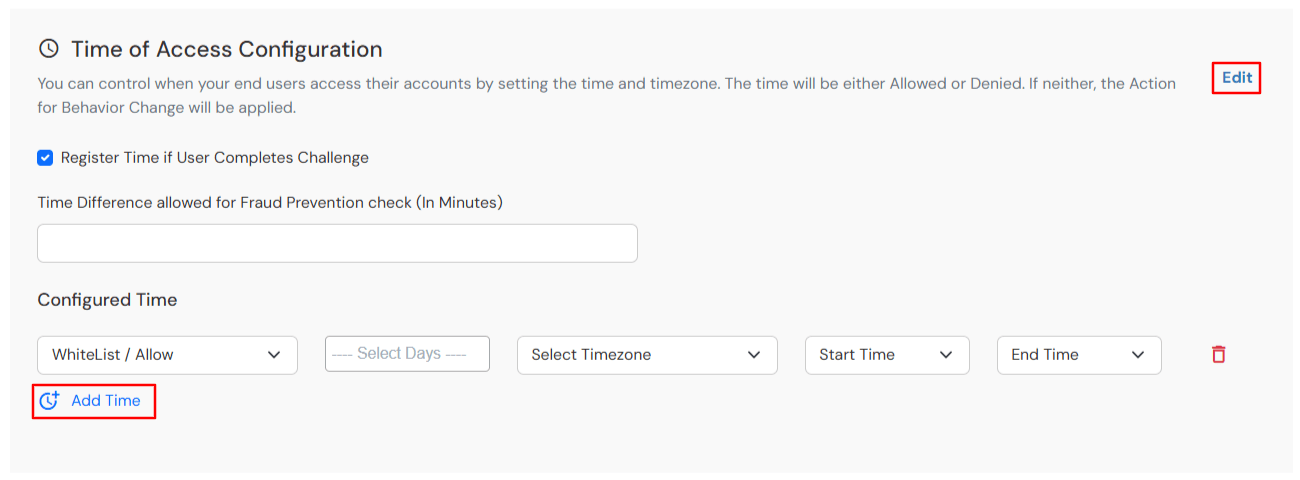
- Click on the Add Time to add more than one timezones.
- Once the changes are made, click on Next.
- Select your Action for behavior Change and Challenge Type for user from the Action for behavior Change Section.
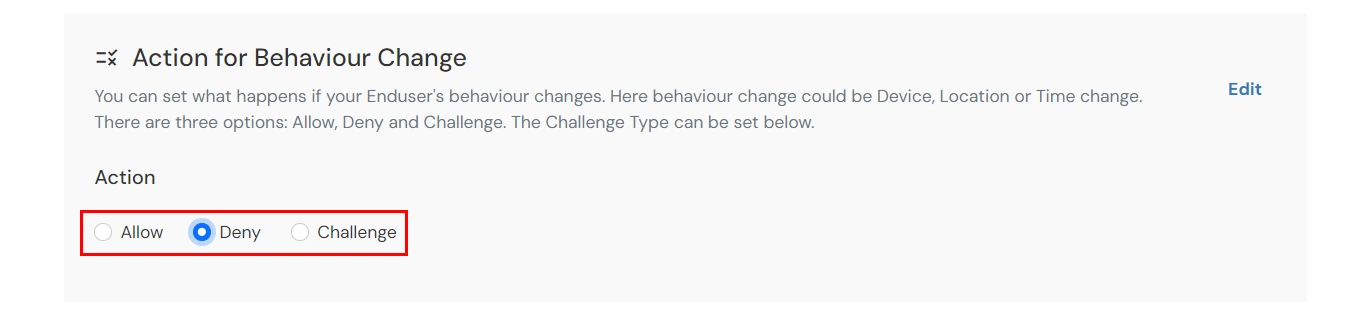
- Click on Next to continue.
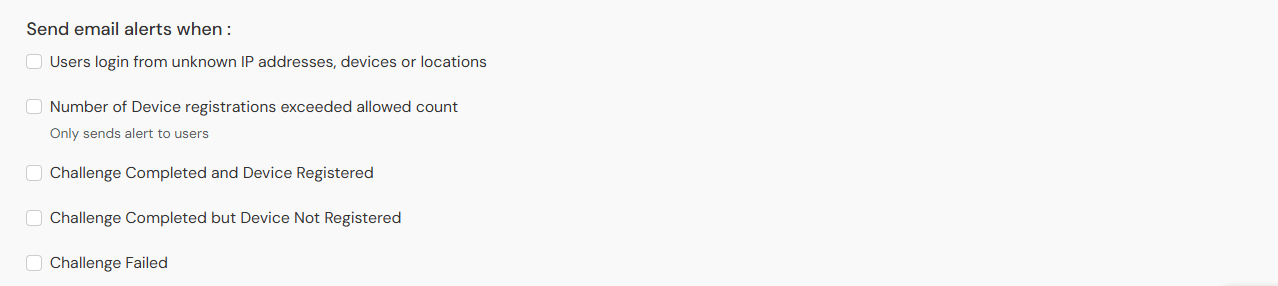
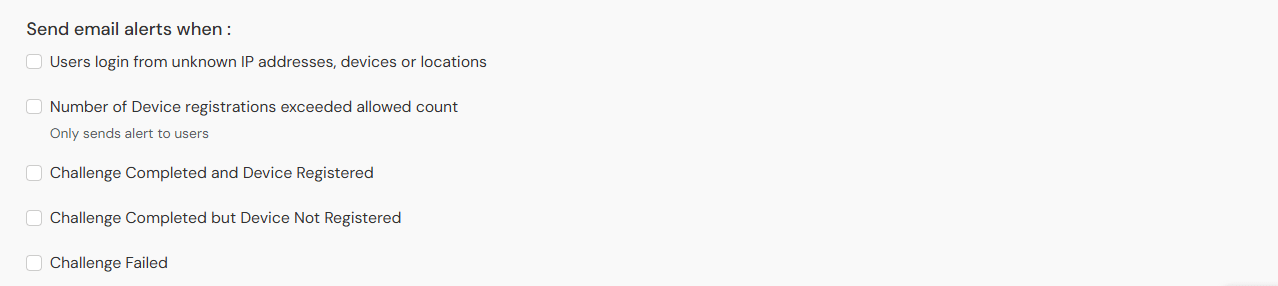
E. Email Alerts and Custom Email Message
F. Review
Review the configured policy conditions, behavior change actions, email alert settings and custom error messages before creating the adaptive authentication policy. This step provides a consolidated view of all configured settings, allowing you to verify the policy configuration and make any necessary changes before saving.
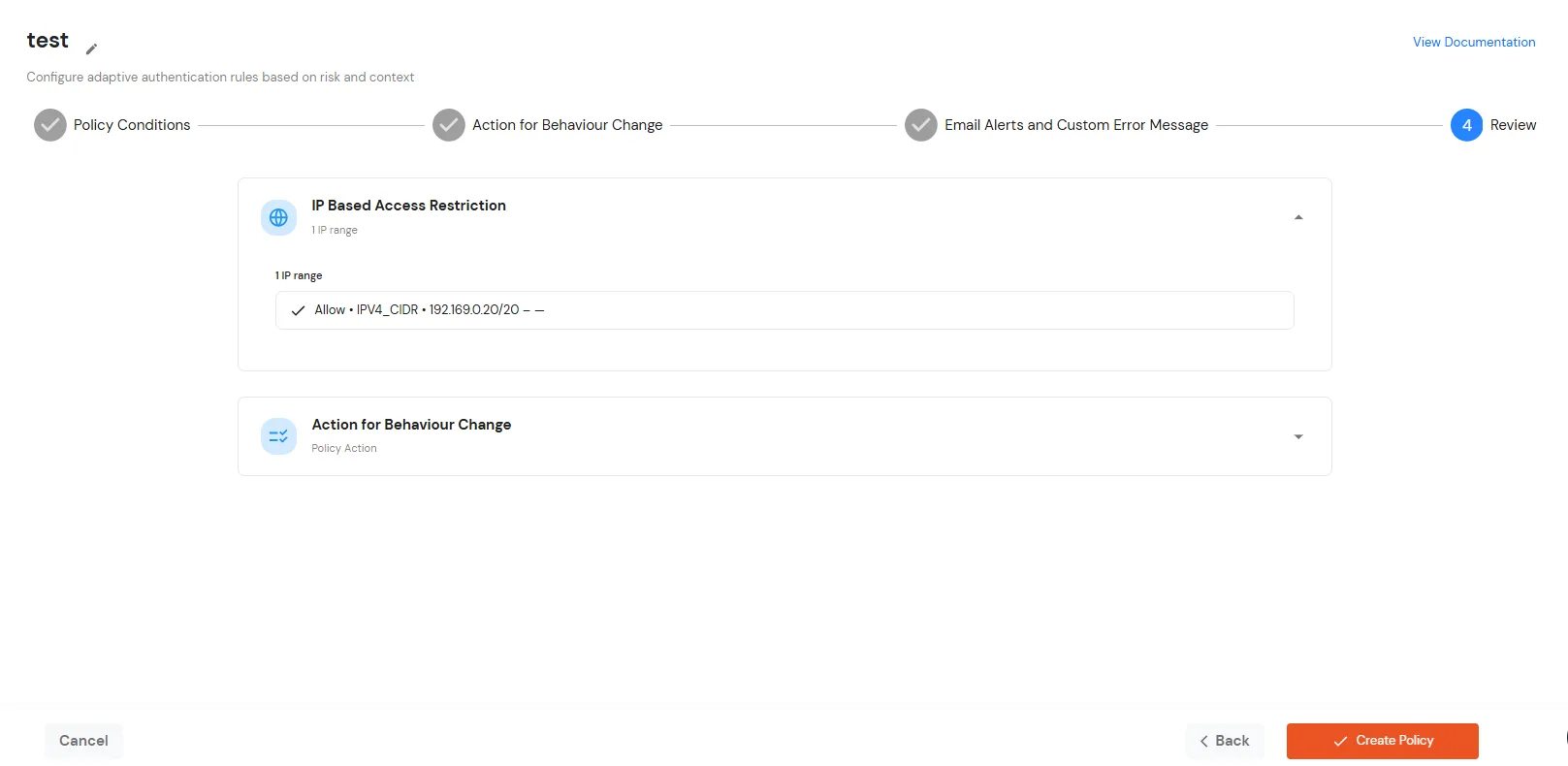
- Once you have verified all configurations, click Create Policy to save and activate the policy.
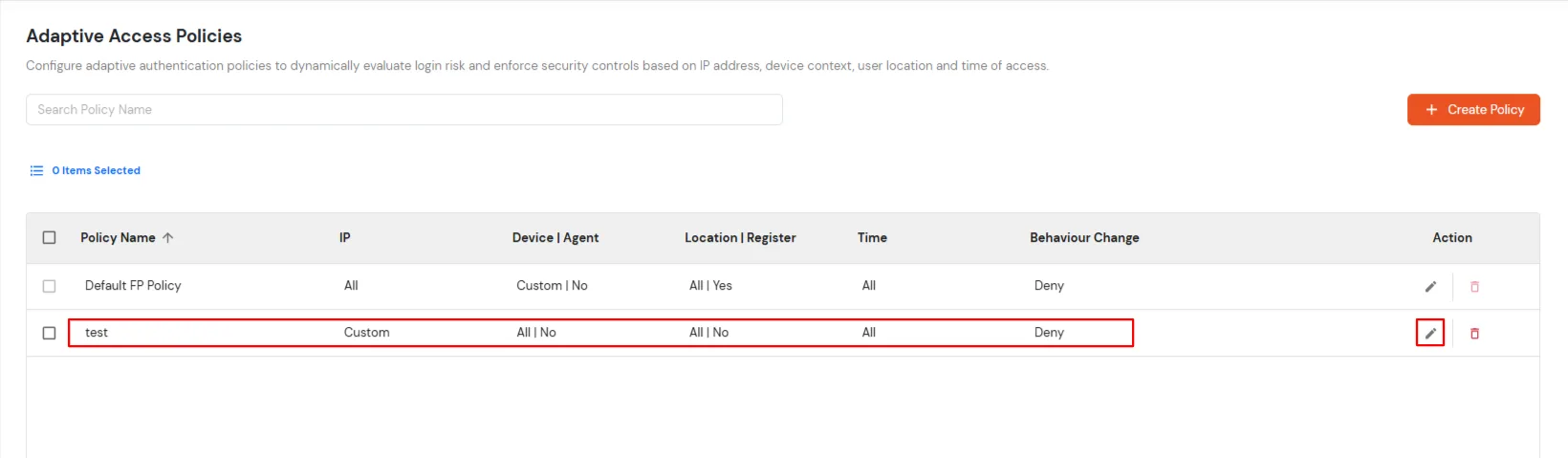
- You will see the policy listed once it’s successfully added.
G. Add Adaptive Authentication policy to Evernote
- Login to Self Service Console >> Policies >> App Login Policy.
- Click on Edit icon option for predefined app policy.
- Set your policy in the Policy Name and select Password as First Factor.
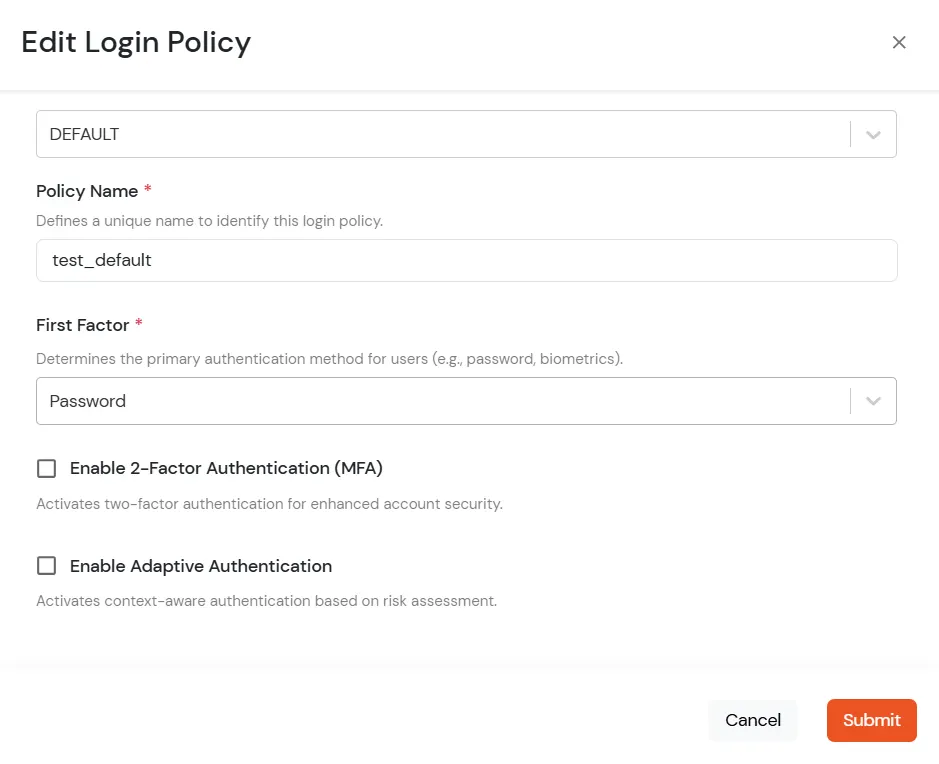
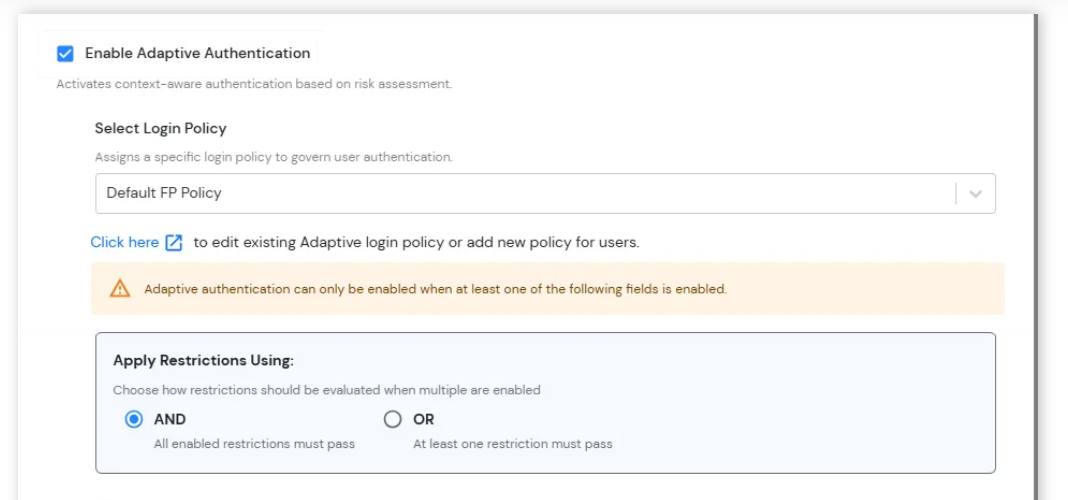
- Enable Adaptive Authentication on Edit Login Policy page and select the required restriction method as an option.
- From Select Login Policy dropdown select the policy we created in last step.
-
Apply Restrictions Using: Configure how multiple adaptive authentication restrictions should be evaluated during user login.
- AND: All enabled restrictions must be successfully satisfied for the login attempt to be allowed.
- OR: At least one enabled restriction must be successfully satisfied for the login attempt to be allowed.
-
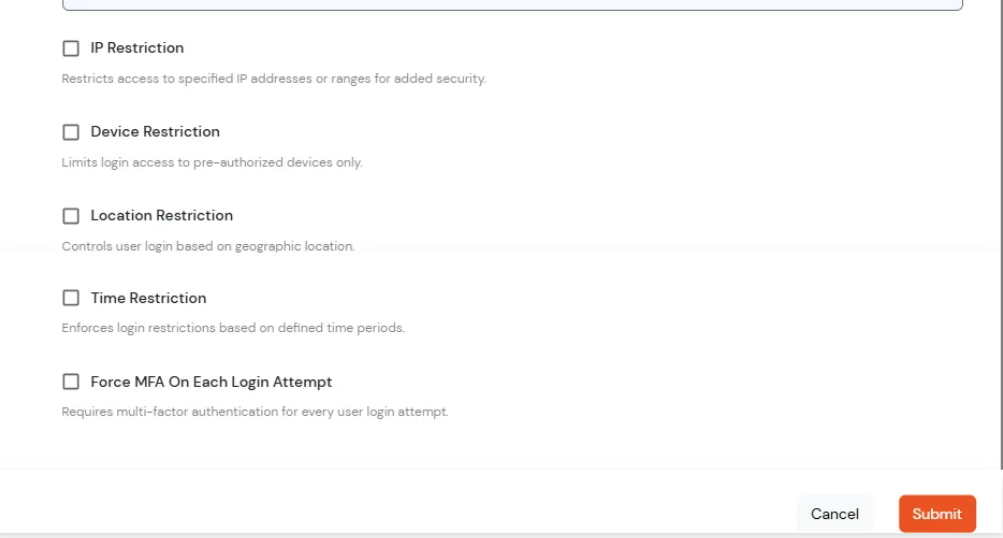
Adaptive Authentication Restrictions: Configure additional login restrictions and verification conditions to strengthen account security and control user access based on contextual risk factors.
- IP Restriction: Restrict login access to specific IP addresses or IP ranges for enhanced security.
- Device Restriction: Allow login access only from trusted or pre-authorized devices.
- Location Restriction: Control user login access based on geographic location.
- Time Restriction: Restrict user login access to specific days or time periods.
- Force MFA On Each Login Attempt: Require users to complete MFA verification during every login attempt regardless of device or session state.
How to add a trusted Device
- When End-user log in to the self service console after the policy for device restriction is on, he is provided the option to add the current device as a trusted device.
External References