Login With CAS Server
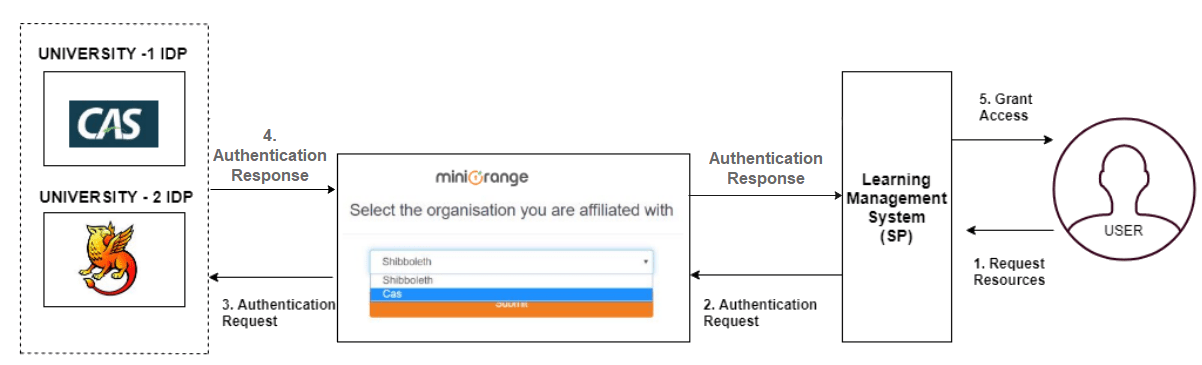
This guide gives a brief overview of Central Authentication Service (CAS) and also explains the steps to add a CAS Server (version 1.0-3.0 ) as an Identity source in miniOrange. This is a step by step guide for adding CAS server as CAS identity source. By doing this, you can achieve Single Sign-on (SSO) between SP applications that need not support CAS necessarily, and the IdP is a CAS Server. Within this document, you'll also find how to use "CAS as IDP" and how to "log in with a CAS".
What is Central Authentication Service (CAS)
A. CAS PROTOCOL
- It is a ticket-based single sign-on (SSO) protocol that provides users access to web applications after authentication against a central CAS Server.
- Its purpose is to permit a user to access multiple applications while providing their credentials (such as user id and password) only once. It also allows web applications to authenticate users without gaining access to a user's security credentials, such as a password. The name CAS also refers to a software package that implements this protocol.
- It was developed by a team at Yale University, which was later a project maintained by JASIG, and after that was merged into Apereo Foundation which now owns and maintains CAS. Apereo Foundations provide a multitude of software that is focused on educational institutions, and CAS is one among the solutions they offer.
B. CAS SERVER
- The Apereo CAS server is the most popular one, built on Java Spring framework, and it also has Cross-platform client support (Java, .Net, PHP, Perl, Apache, etc). The Apereo CAS server has 3 versions up to now - CAS 1.0, 2.0 and 3.0, with differentiation, majorly being Attributes supported in the CAS response, multi-factor authentication and cross-platform support. For more details on CAS, please click here.
Steps to configure CAS as an Identity Source
Here are the steps on how to configure Central Authentication Service (CAS) as an Identity source:
1. Configure CAS as Identity Source in miniOrange
- Click Here to go to your miniOrange dashboard.
- Log in using your miniOrange credentials.
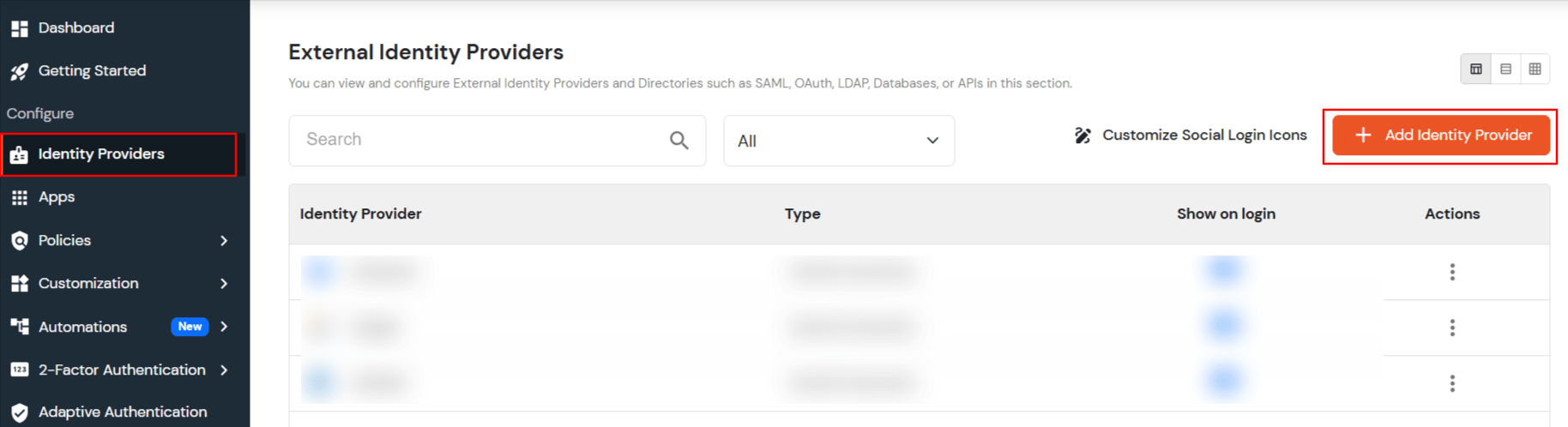
- Go to Identity Providers from the left hand side menu and click on the Add Identity Provider button.
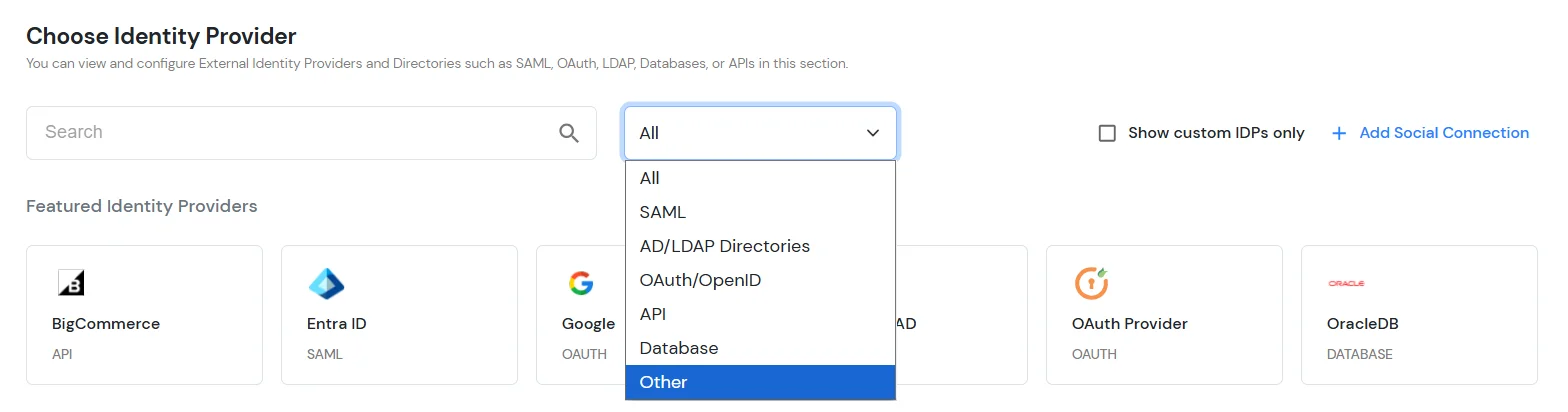
- Under the Choose Identity Provider section, select the Other option from the All type dropdown.
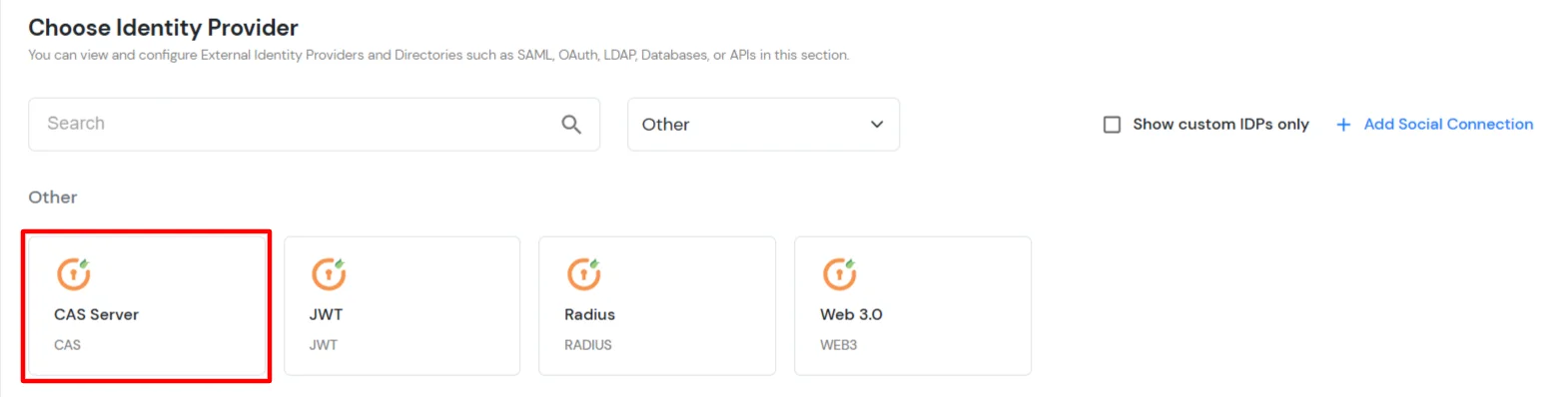
- Search for CAS Server and select it from the list.
- Under the Basic tab, enter the following values:
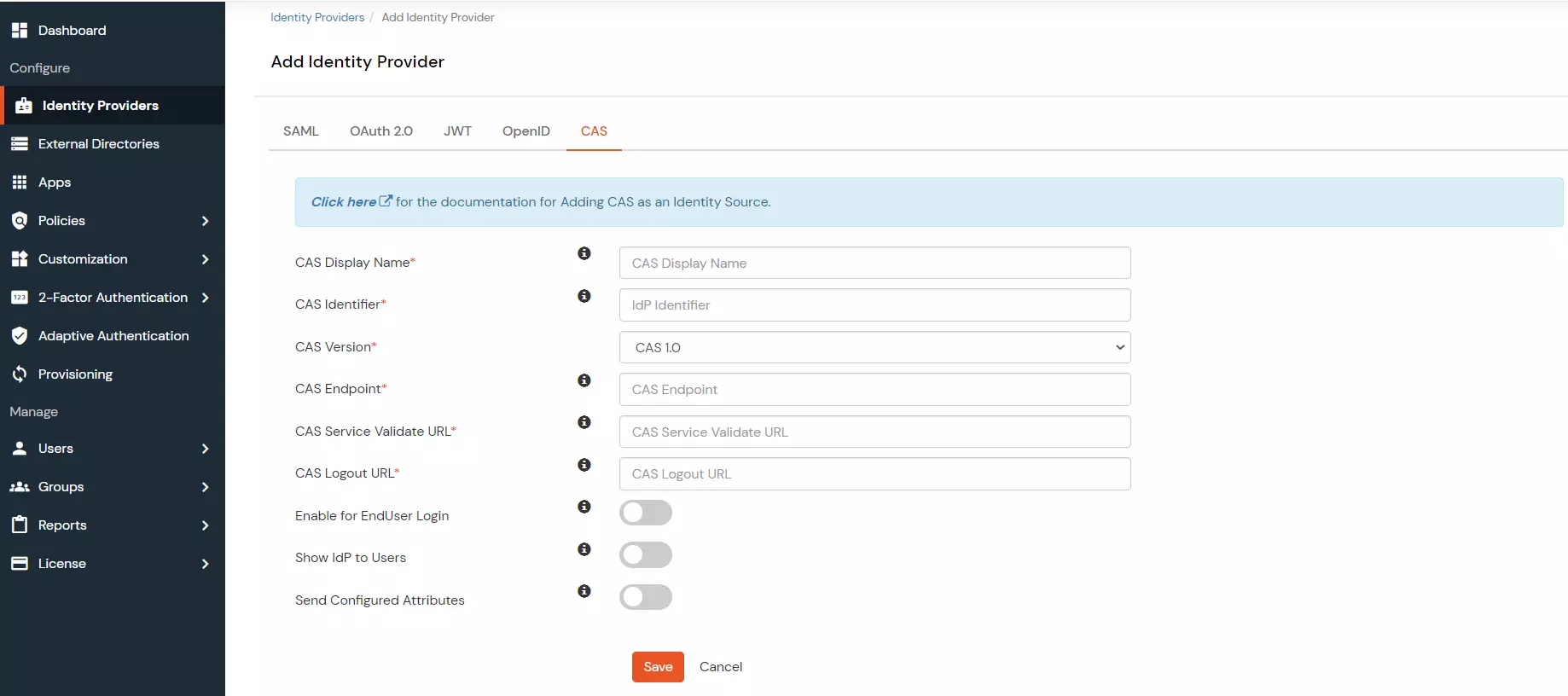
| CAS Display Name |
Enter a display name to identify the CAS Identity Provider in the miniOrange Admin Console. |
| CAS Identifier |
Enter an identifier for the CAS Identity Provider configuration. |
| CAS Version |
Select the CAS protocol version. The versions are CAS 1.0, CAS 2.0, and CAS 3.0. |
| CAS Endpoint |
Enter the CAS server endpoint URL. Format: https://www.testcasserver.org/cas |
| CAS Service Validate URL |
Enter the CAS service validation URL. Format: https://www.testcasserver.org/cas/validate (for CAS version 1) or https://www.testcasserver.org/cas/p3/serviceValidate (for CAS versions 2 & 3). If you have a custom Service Validate URL as mentioned by your CAS provider, enter the same. |
| CAS Logout URL |
Enter the CAS logout URL. Format: https://www.testcasserver.org/cas/logout?service=<redirect_url> where <redirect_url> is the URL to which users will be redirected after logging out from the CAS server. |
- Click on Next to proceed to the Advanced tab.
- In the Advanced tab, enter the following details:
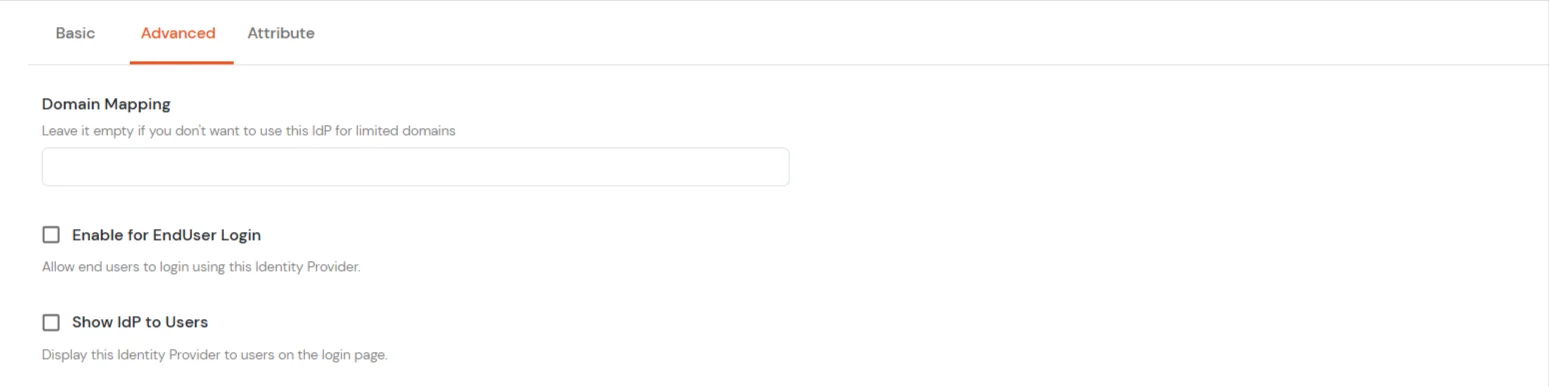
| Domain Mapping |
Enter comma-separated domain names to restrict this Identity Provider to specific domains. Leave empty to allow all domains. |
| Enable for EndUser Login |
Enable this option, if you want your endusers to log in to their corresponding End-User Dashboard using IDP Credentials. |
| Show IdP to Users |
Enable this option to display this Identity Provider as a login option on the user login page. |
- Click on Next to proceed to the Attributes tab.
- In the Attributes tab and configure the attributes for the CAS Server.
- Send Custom Attributes, if you enable this option, then only the attributes configured below will be sent in attributes at the time of login.
- Click on Add Attribute to add a new attribute.
- Enter the Attribute Name sent to SP and Attribute Name from IdP/User store.
- Example: email → Email, first_name → FirstName
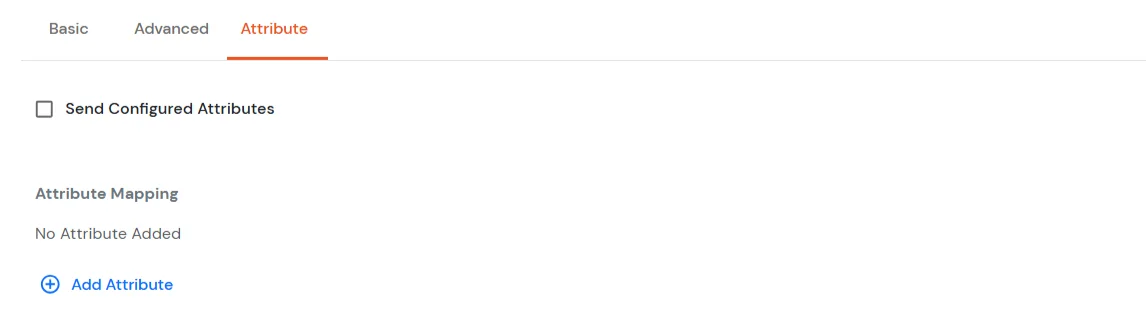
- Click on Save to save the attribute.
- Click on Save to save the configuration.
- You have now added a CAS Server as an Identity Source with miniOrange. Your users can now authenticate themselves using their CAS credentials to SSO into other applications.
2. CAS Server
- Configure the source URL of authentication requests in the CAS Server.
- For redirecting back to your site after logout,
- Configure the “followServiceRedirects” setting in the cas.properties file. The setting should be set to “true”.
- Add the following Logout URL to the CAS Service Registry:
https://www.testcasserver.org/cas/logout?service=<redirect_url> , for e.g., https://www.testcasserver.org/cas/logout?service=https://google.com.
3. Test your CAS IDP Configuration
- Login to our miniOrange moas service. Login using your miniOrange credentials.
- Go to Identity Providers tab from the left-hand side menu.
- Navigate to the CAS entry in External Identity Providers table.
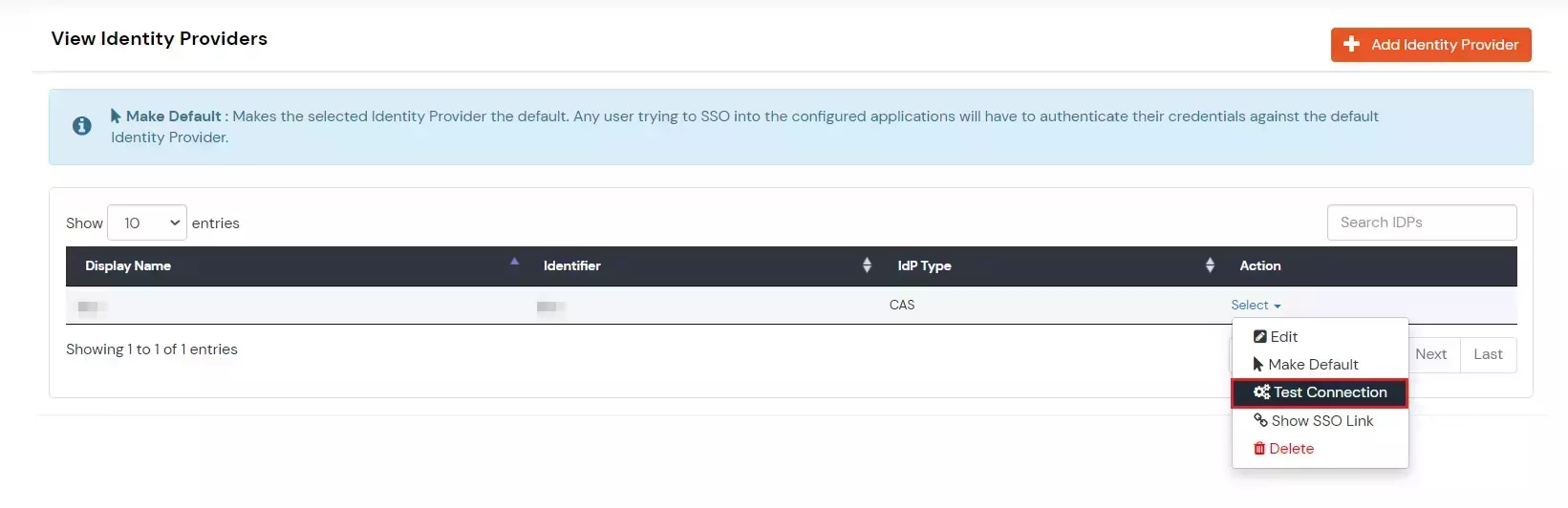
- Click on the three-dot icon beside the configured app.
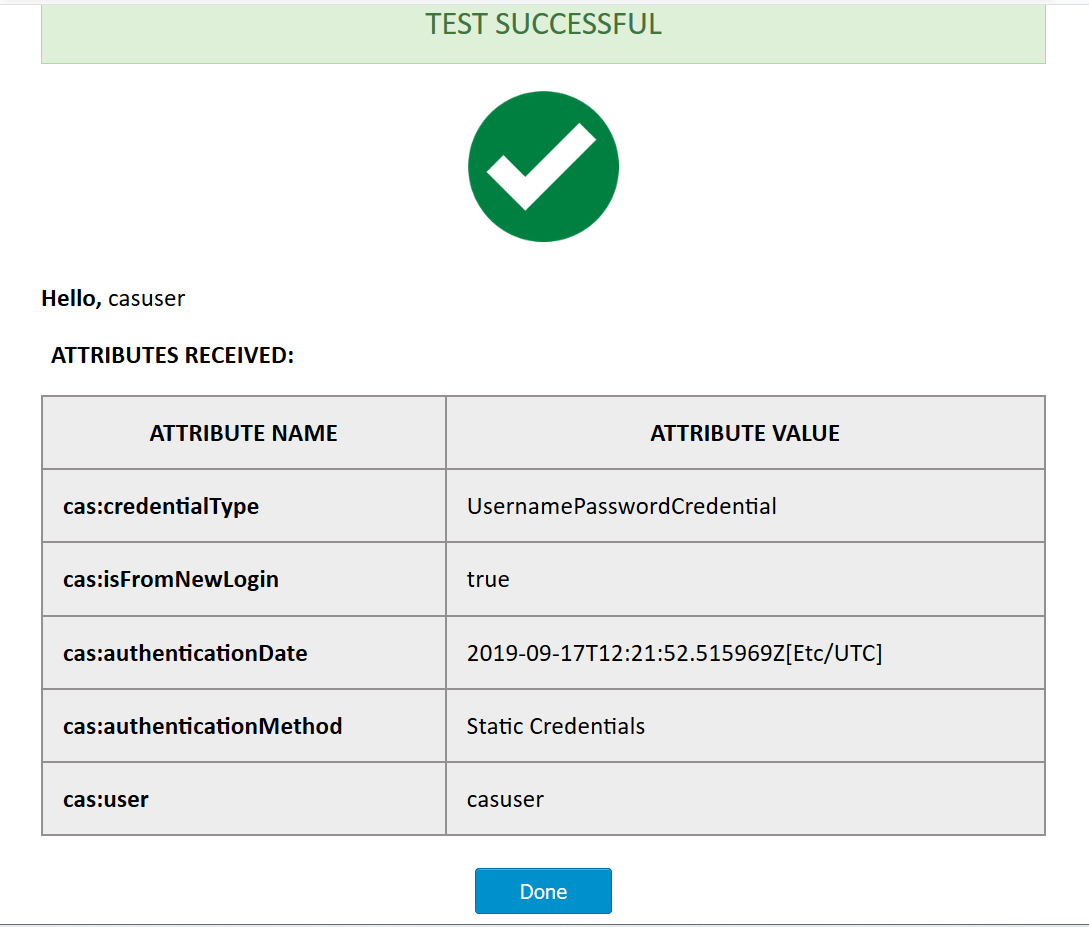
- Click on Test Connection to test the connection.
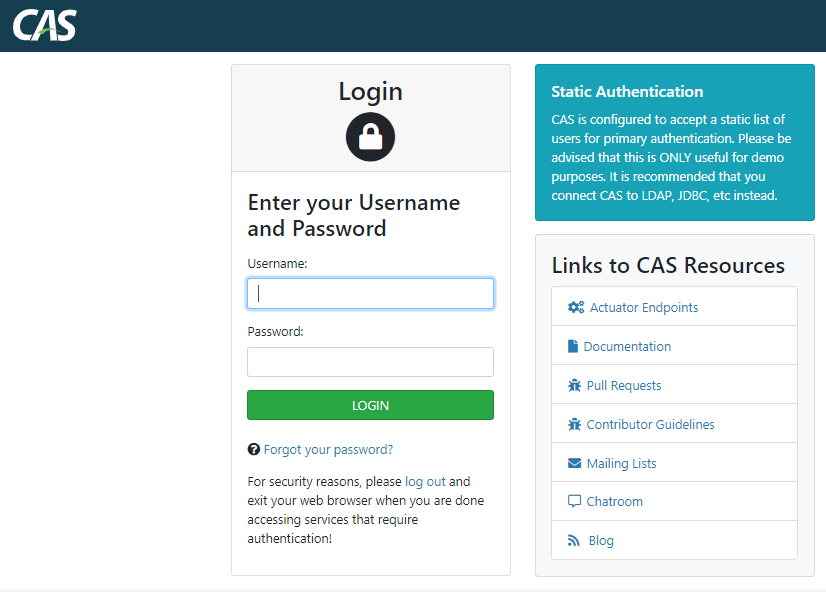
- Enter your CAS credentials on the CAS login page (Requires once per active session).
- On successful credential verification a table with values returned by CAS response will be shown.
Note: If a session is already active at the CAS endpoint, then there is no need to enter the credentials again in the same session.
4. CAS as an IDP Use Case
External References