Hello there!
Need Help? We are right here!

Need Help? We are right here!
Search Results:
×miniOrange allows you to authenticate your users via API authentication provider into multiple applications.
This way, you can achieve Single Sign-On (SSO) into your applications where the users will need to authenticate themselves via your API Server only once and they can access all the configured applications.
Authentication is the method or process by which a user’s identity is verified and recognized. The credentials provided are usually verified against a user store like database, active directory, file etc. API is the interface that allows access to protected resources on request of a user. With remote access to resources it becomes necessary to ensure that only the authorized users have access to the resources. This is where API Authentication comes into play. API Authentication is the process of verifying the identity of the user trying to access resources on the server.
Authentication is the process of verifying the identity of the user trying to access a resource and providing proof that the user is who they say they are.
Authorization is the mechanism by which one can determine the access level or user privileges of a resource. In simple terms authorization determines if the user in question has been allowed to access the requested resource. Usually authorization comes after authentication.
In short, authentication identifies who you are and authorization determines what you can do.
There are several implementations for API Authentication but the most popular authentication methods as follows:
In all API Authentication methods the aim is to generate a unique hash, token or api key that can be used to authorize further access to resources.
HTTP Basic Authentication is the most common and easiest of the authentication methods. Username and password of the user is combined and Base64 encoded. The result is then passed through a special HTTP header known as Authorization. When a user makes a request, the server decodes the Authorization header to verify the username and password. On successful authentication the user is provided access to the requested resource.
HTTP Bearer Authentication is similar to HTTP Basic Authentication but uses security access token instead of username and password of the user. The access token is usually a random string generated by the server after successful authentication indicating that the user associated with this token has access to the requested resources. This token is sent in the HTTP Header Authorization by the user to access a certain resource. The HTTP Header is read by the server and validated to check if the it’s valid and should have access to the requested resource.
API Key Authentication is similar to HTTP Bearer Authentication but provides more flexibility of where the API Key/Token is sent in the request. API Key is usually a long string of alphanumeric characters usually generated at the time of first login or dynamically generated after successful authentication. On subsequent requests the API Key is sent in the request body or header. The server reads the API Key and validates if it’s a valid key and the authorized resources it can access. This method provides the flexibility to the admin to revoke access at any time.
OAuth currently is the best choice for user authentication and authorization amongst all the authentication methods. In this method when users try to access a resource then they are prompted to authenticate themselves or login. After successful authentication a token is generated which can be used to access resources without having the user to authenticate themselves multiple times. OAuth also allows for better security with tighter scope checks and having a time validity for the tokens. As the token is revoked after a while there are less chances of being used by attackers to gain access to resources.
SAML is a widely used XML based SSO standard for exchanging authentication and authorization data between an Identity Provider and Service Provider. It’s mostly used to authenticate and share user information across web applications in a secure manner.
OAuth is a widely used authorization framework that allows two providers to share resources related to a user in a secure manner using scopes and time sensitive tokens.
OpenId is the widely used authentication protocol. It's an authentication layer on top of OAuth2.0 used to verify the identity of the user. Compared to OAuth where user identity is not known OpenId provides a token with user information. This token can further be used to gain access to other resources if needed.
JWT or JSON Web Token is a standard on how data is created. It recommends a fixed JSON format for the token that is signed using a shared secret or private/public key. This is useful in OAuth and OpenID standards where tokens are exchanged containing user data.
In API key authentication, a key-value pair is sent to the API Server either in Request headers or in request body.
miniOrange offers free help through a consultation call with our System Engineers to configure SSO for different apps using API authentication in your environment with 30-day free trial.
For this, you need to just send us an email at idpsupport@xecurify.com to book a slot and we'll help you in no time.
| User Authentication URL | Your API Authentication provider URL. Eg: https://example.com/endpoint/ |
| API Key | The API key value provided by your API Authentication Provider |
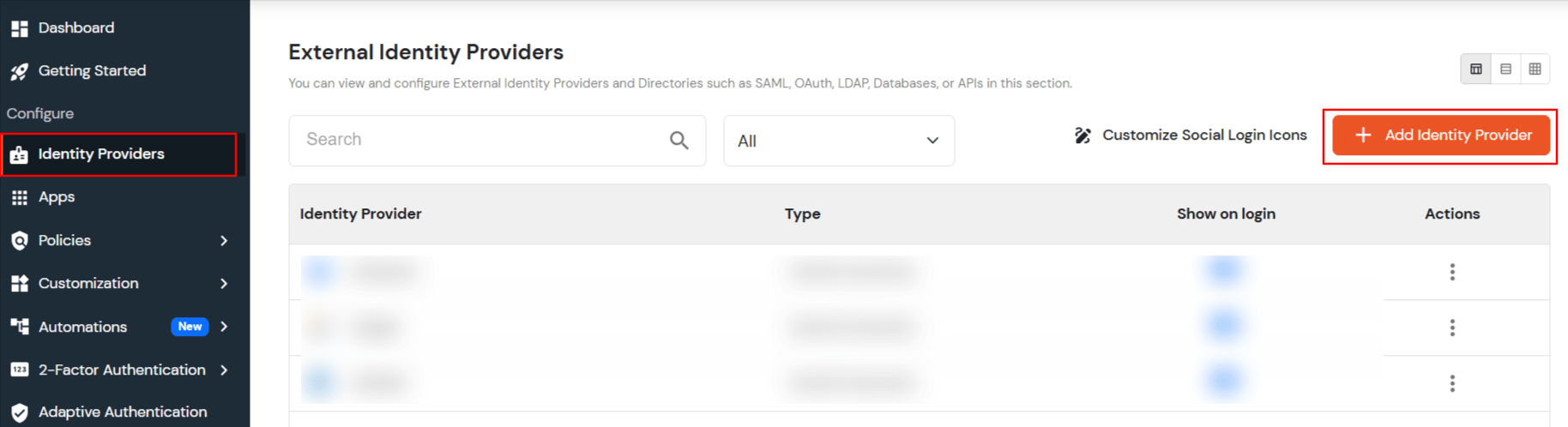
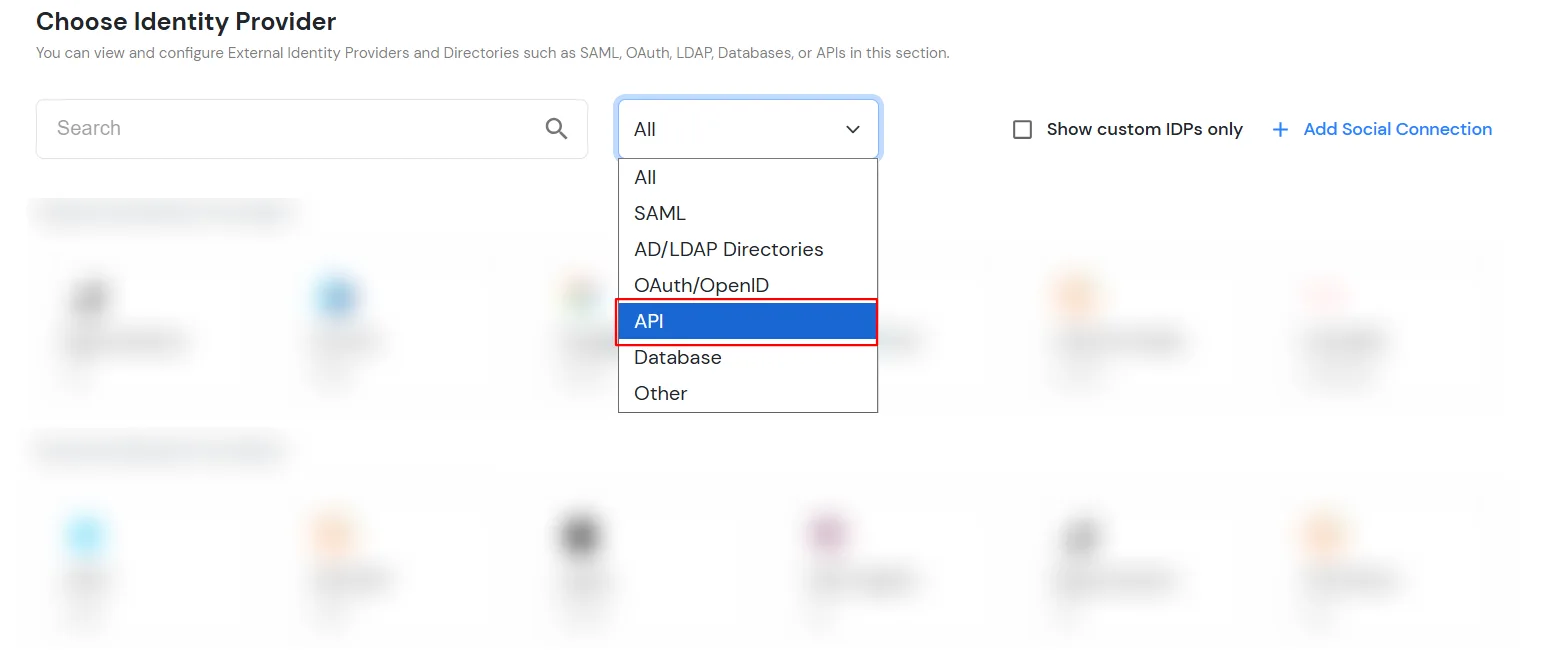
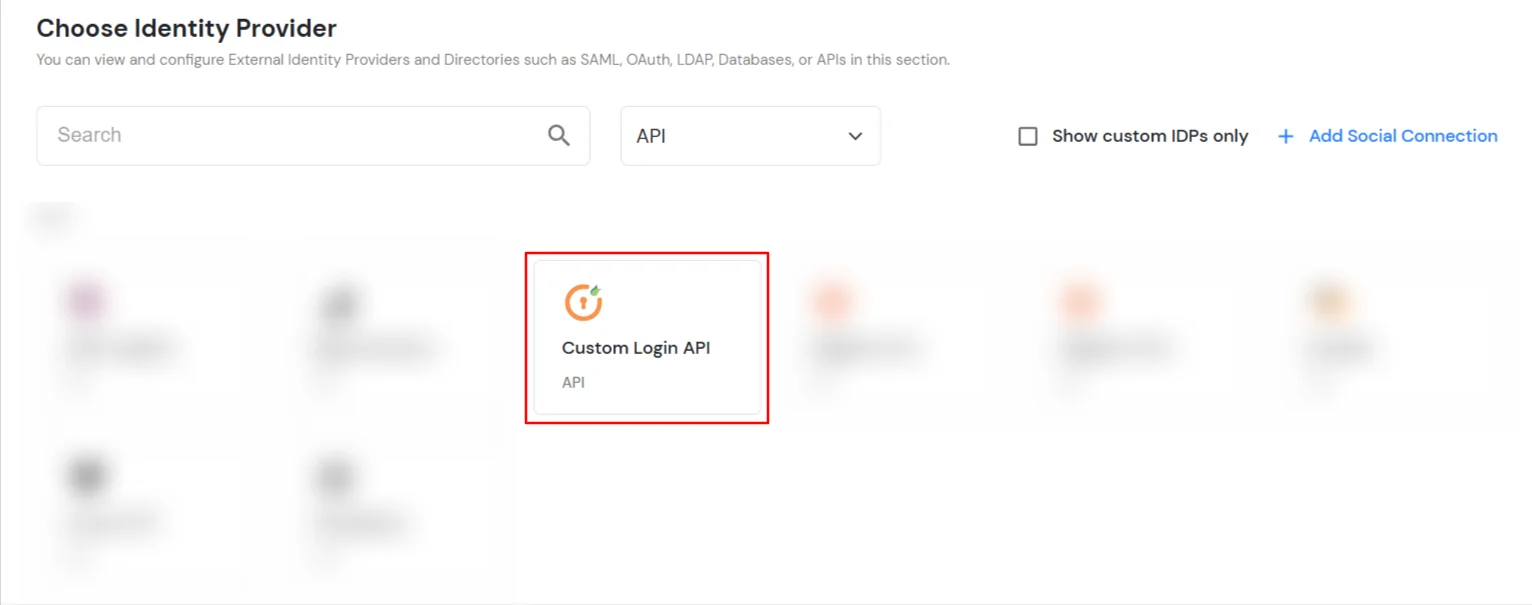
| IDP Name | Enter IDP Name as Custom Login API. |
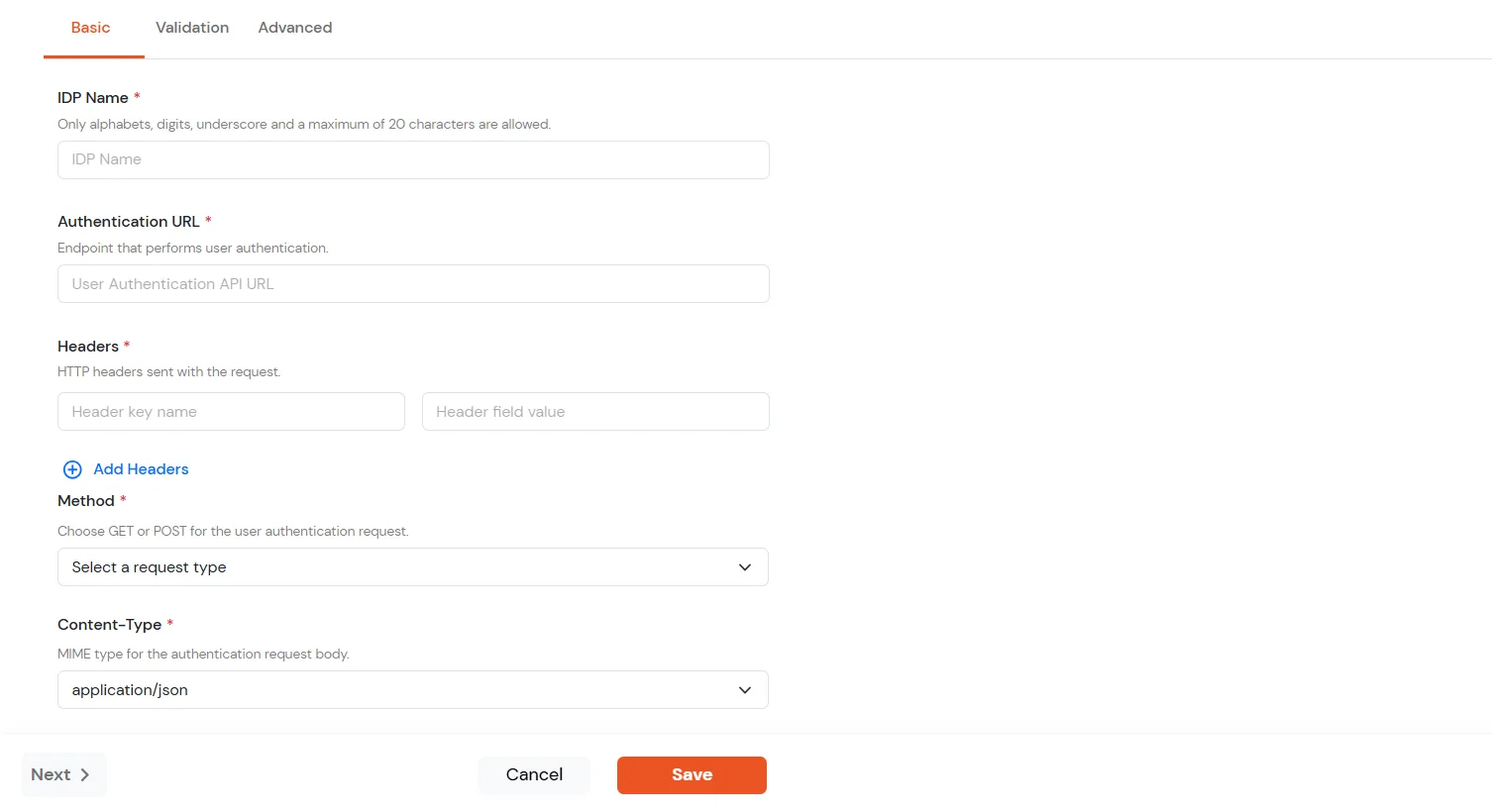
| Authentication URL | Paste the User Authentication URL that you copied in step 1. This is the endpoint that performs user authentication. |
| Headers | Enter the header key name and header field value, then click Add Headers if you need more headers. To send the API key in the request header, use Authorization_key as the header name and the API Key value from step 1. |
| Method | Select GET or POST for the user authentication request. |
| Content-Type | Select the MIME type for the authentication request body. For example, application/json, application/x-www-form-urlencoded. |
| Success Criteria | Select any one option from the dropdown and enter the values as: 1. is equal to: You can enter the Status key as 'status' and Status value 'SUCCESS'. 2. is not empty: You can enter the Status key as 'message'. 3. contains valid email address: You can enter the Status key as 'email'. |
| Error Status Message | Enter the error status message. For example, error. |
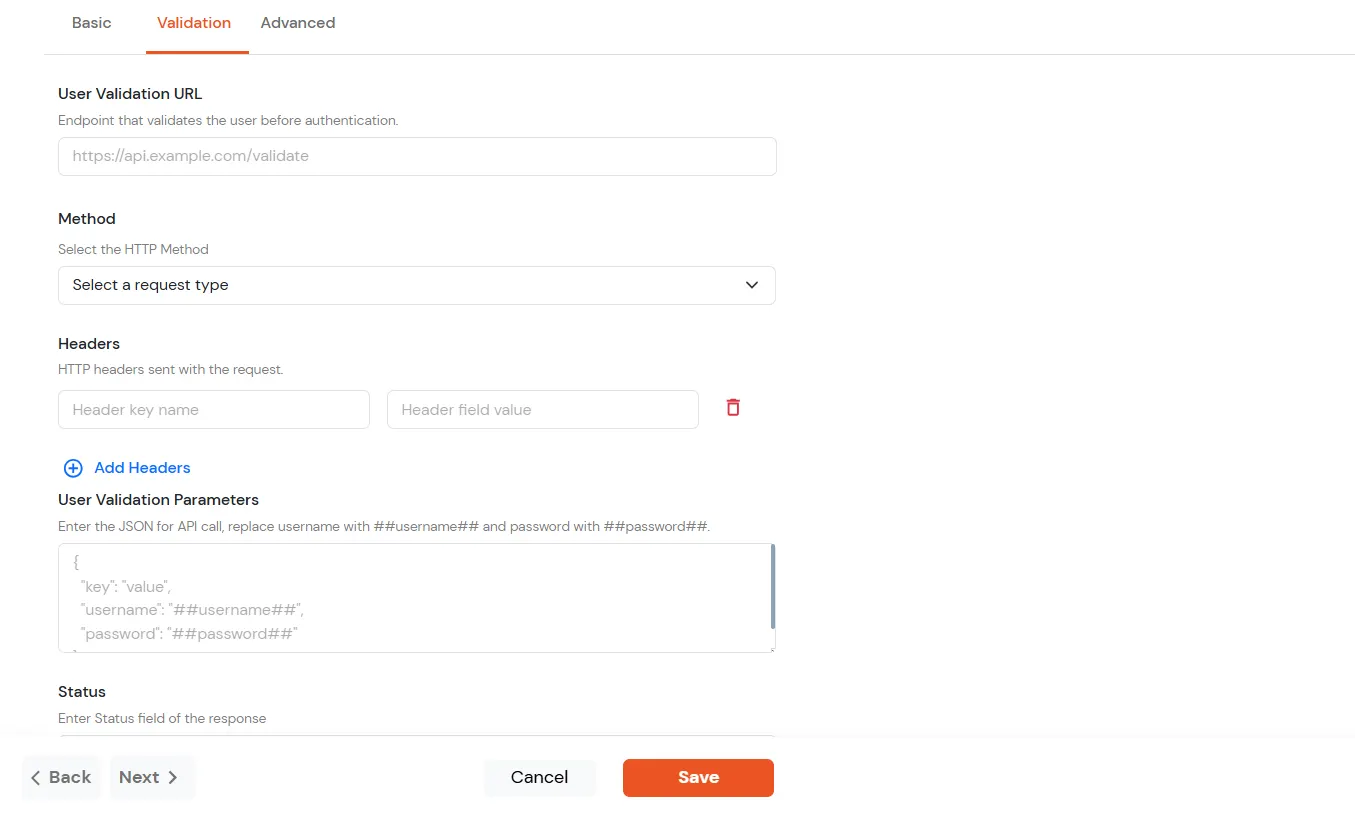
| User Validation URL | Endpoint that validates the user before authentication. Eg: https://api.example.com/validate |
| Method | Select the HTTP method for the validation request. |
| Headers | Enter the header key name and header field value, then click Add Headers if you need more headers. |
| User Validation Parameters | Enter the JSON for the API call. Replace username with ##username## and password with ##password##. { "username":"##username##", "password":"##password##" } To send the API key in the request body, include "api_key":"value" and put the API key from step 1 in place of value. |
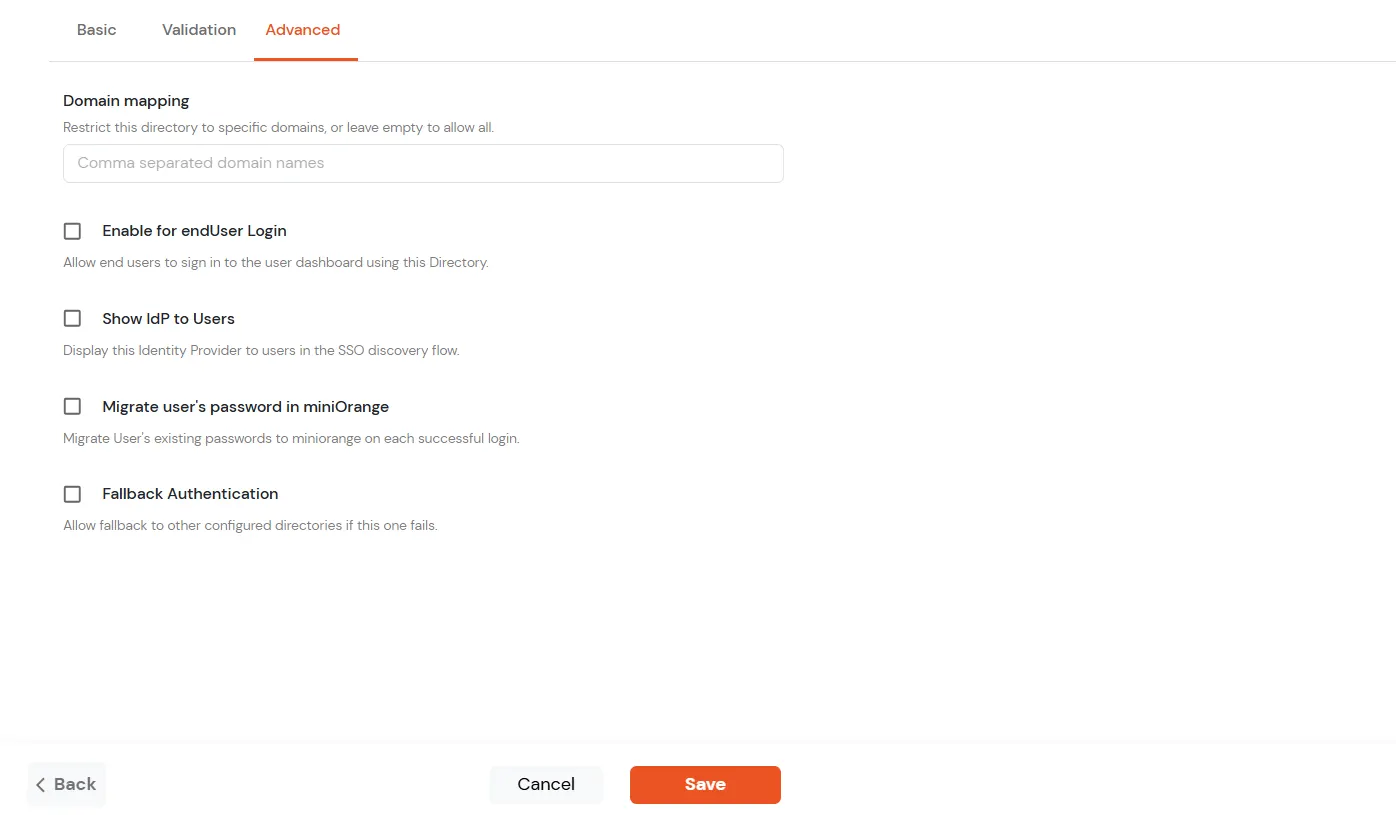
| Domain mapping | Restrict this directory to specific domains, or leave empty to allow all. |
| Enable for endUser Login | Allow end users to sign in to the user dashboard using this directory. |
| Show IdP to Users | Display this Identity Provider to users in the SSO discovery flow. |
| Migrate user's password in miniOrange | Migrate the user's existing passwords to miniOrange on each successful login. |
| Fallback Authentication | Allow fallback to other configured directories if this one fails. |
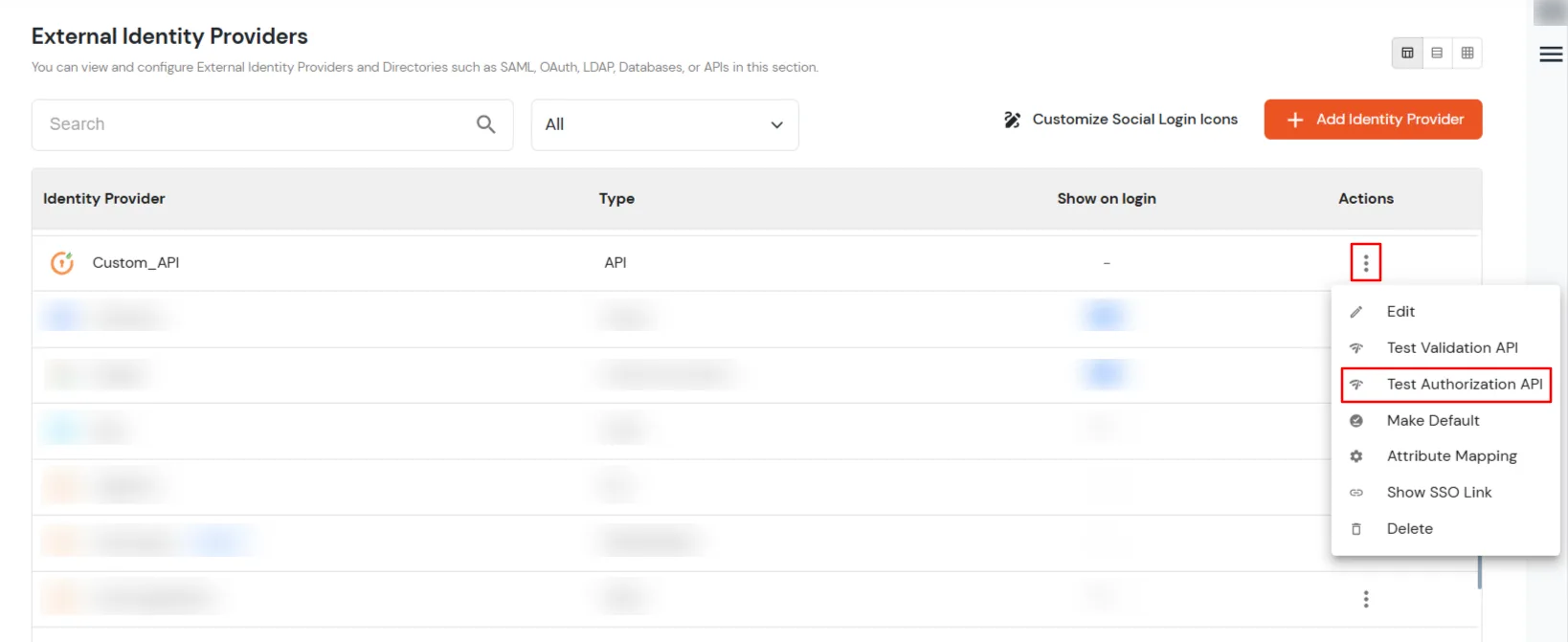
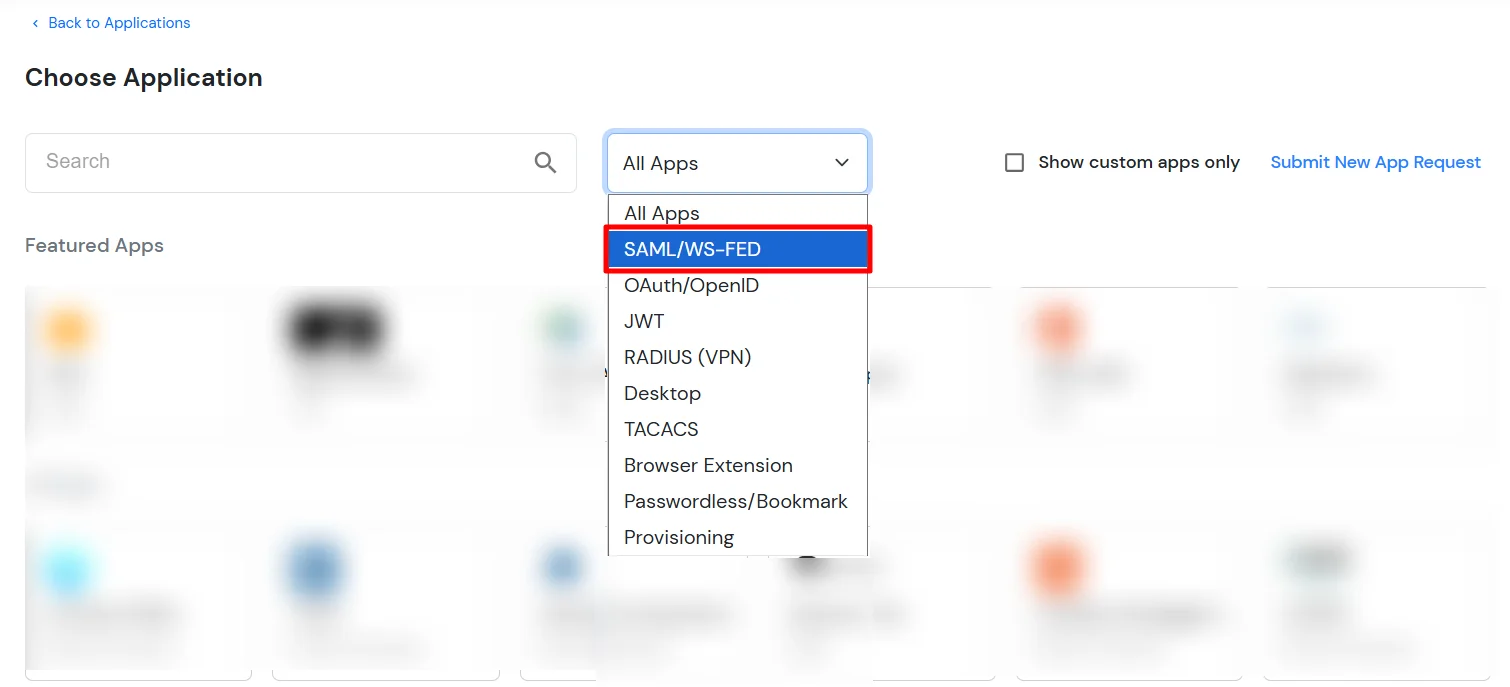
If you have already configured your application in miniOrange you can skip the following steps.

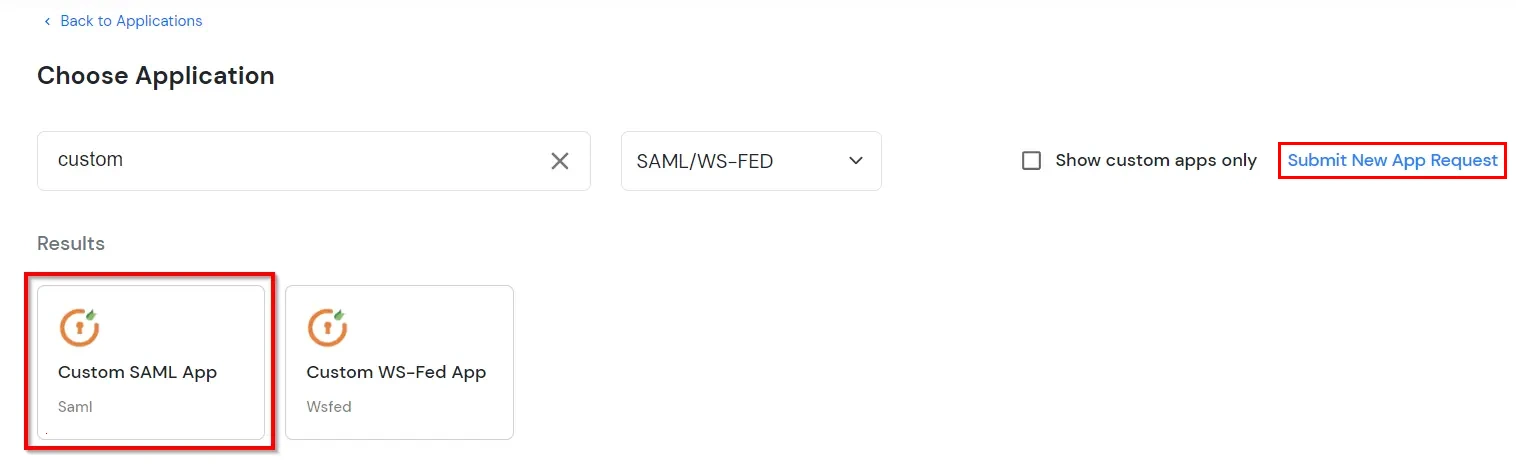
| Display Name (required) | Enter the Display name for your app as per your preference. |
| SP Entity ID or Issuer (required) | Is used to identify your app against the SAML request received from SP. The SP Entity ID or Issuer can be in either URL or in String format. |
| ACS URL or Assertion Consumer Service URL (required) | Defines where the SAML Assertion should be sent after authentication. Make sure the ACS URL is in the format: https://www.domain-name.com/a/[domain_name]/acs |
| Audience URL | As the name suggests, specifies the valid audience for SAML Assertion. It is usually the same as SP Entity ID. If Audience URL is not specified separately by SP, leave it blank. |
| Single Logout URL | The URL where you want the logout request to be consumed and where your users should be redirected after single logout from the applications. |
| Upload App Logo | Upload a logo for your application. |
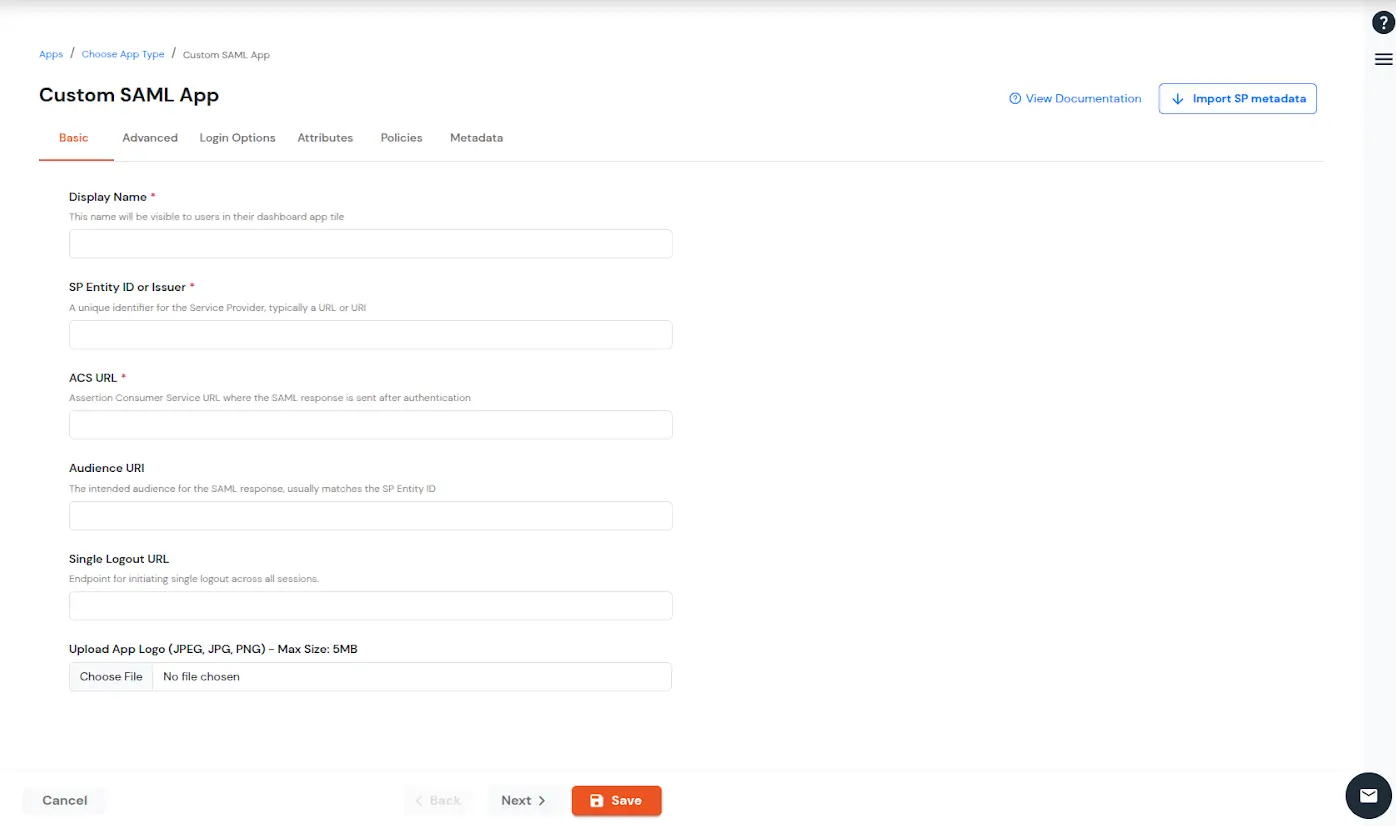
| Signed Request | Enable this to sign the saml request sent by SP. Provide the X509 certificate or upload the certificate. |
| Sign Response | Enable this if you want the entire SAML response to be signed. |
| Sign Assertion | Enable this if you want only the assertion within the SAML response should be signed. |
| Signature Algorithm | Select the algorithm that will be used to sign the SAML request/response. |
| Encrypt Assertion | Select this if you want to encrypt the assertion in SAML response and provide the algorithm and certificate for encryption. |
| Relay State | Enter the URL where you want the user to redirect after sign in to the application. |
| Override Relay state | Enable this to override the default relay state of the SP. |
| Logout Response Binding | A Logout Response is sent in reply to a Logout Request from SP. It could be sent by an Identity Provider or Service Provider. |
| IdP initiated Logout Request Binding: | A Logout Response is sent in reply to a Logout Request from the IdP dashboard. It could be sent by an Identity Provider or Service Provider.
|
| SAML Authentication Validity Period | The time for which the authentication should be considered valid and the user should be able to perform SSO. After that, the user will have to sign in again. |
| Enable Shared Identity | This feature lets you control whether a specific application can be accessed by shared user or not. |
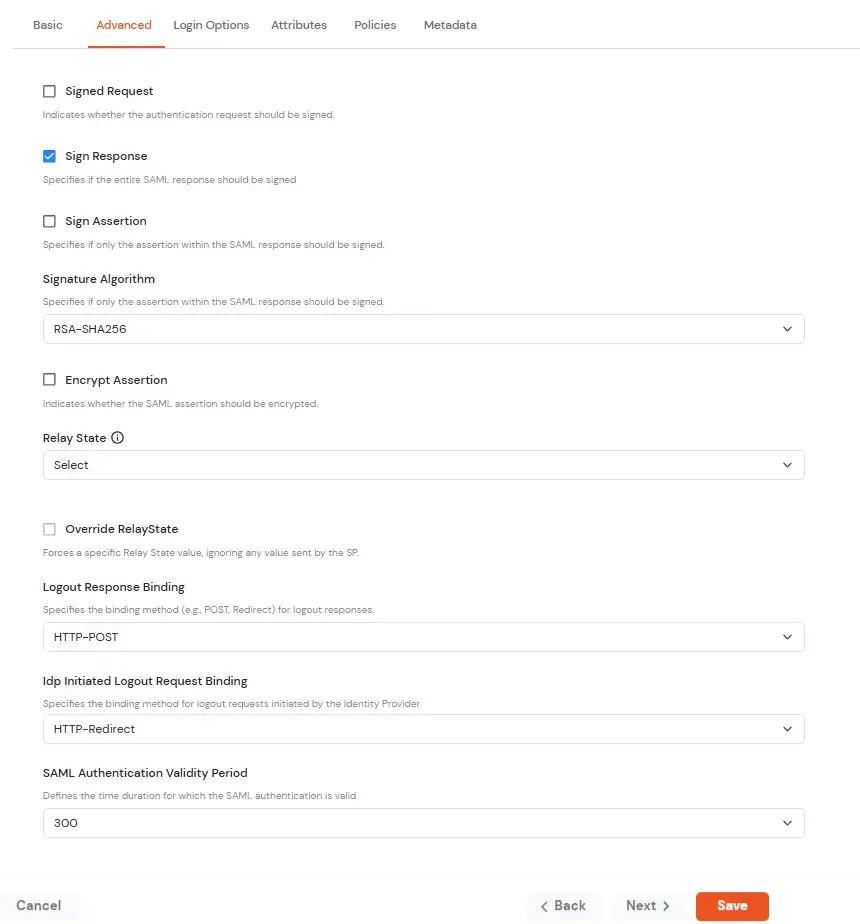
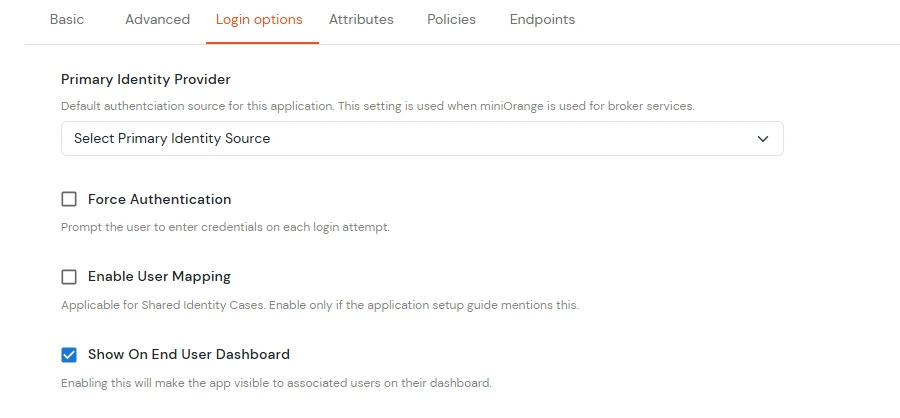
| Primary Identity Provider | Select the identity source from where you want the authentication to happen. You will see the list of all configured sources. |
| Force Authentication | Enable this to enforce authentication on each request to access the application. |
| Show On End User Dashboard | Disable this if you do not want the app to be visible for all users on end user dashboard. |
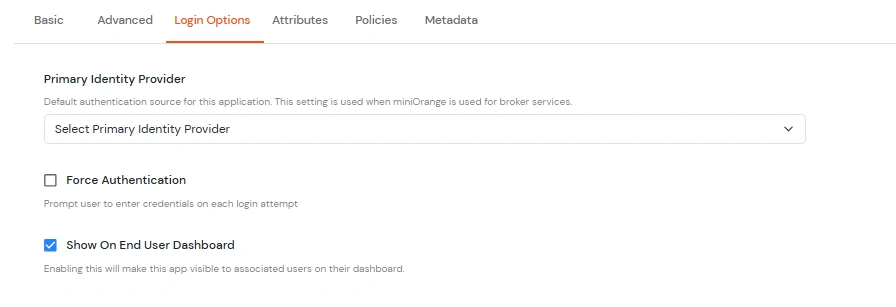
| NameID | NameID is the unique identifier for the authenticated user included in the SAML assertion. It allows the Service Provider to recognize and map the user to an account. Generally, NameID is a username or Email Address. |
| NameID Format | Defines what type of identifier is used in the NameID (e.g., email, persistent, transient) so the SP can correctly map the user. If the SP does not request a specific format, the IdP can leave it unspecified and use a default. |
| Add Name Format | Name Format defines how attribute names are represented in a SAML assertion (e.g., as simple strings or URIs). It helps the SP correctly interpret attribute naming and ensures consistency between IdP and SP. |
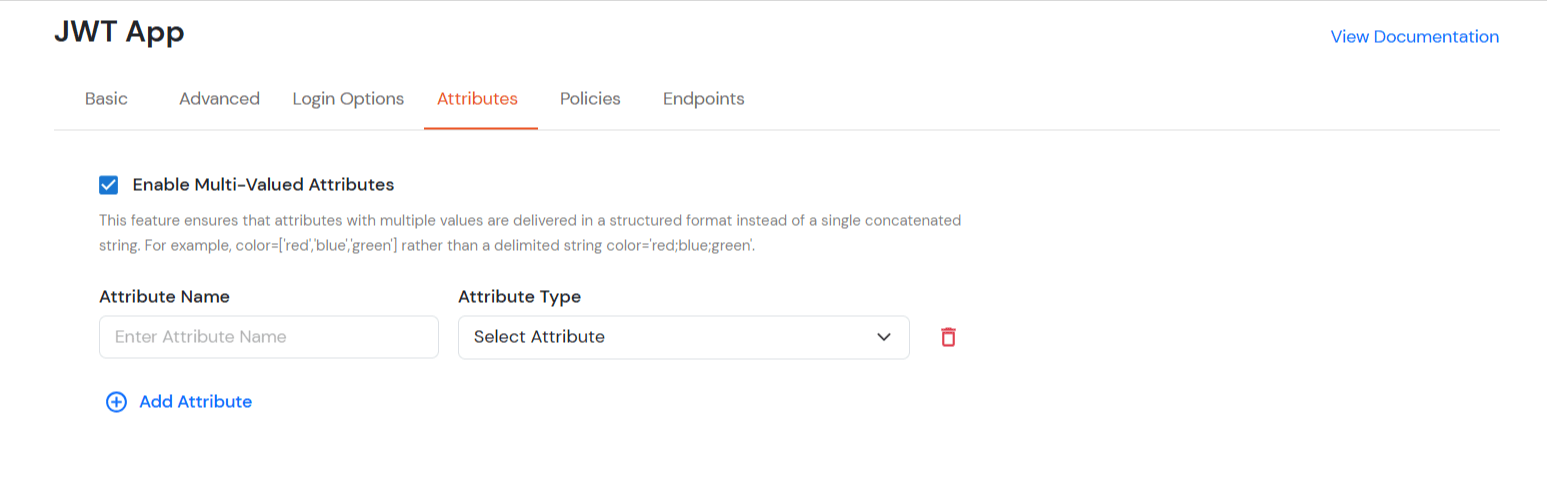
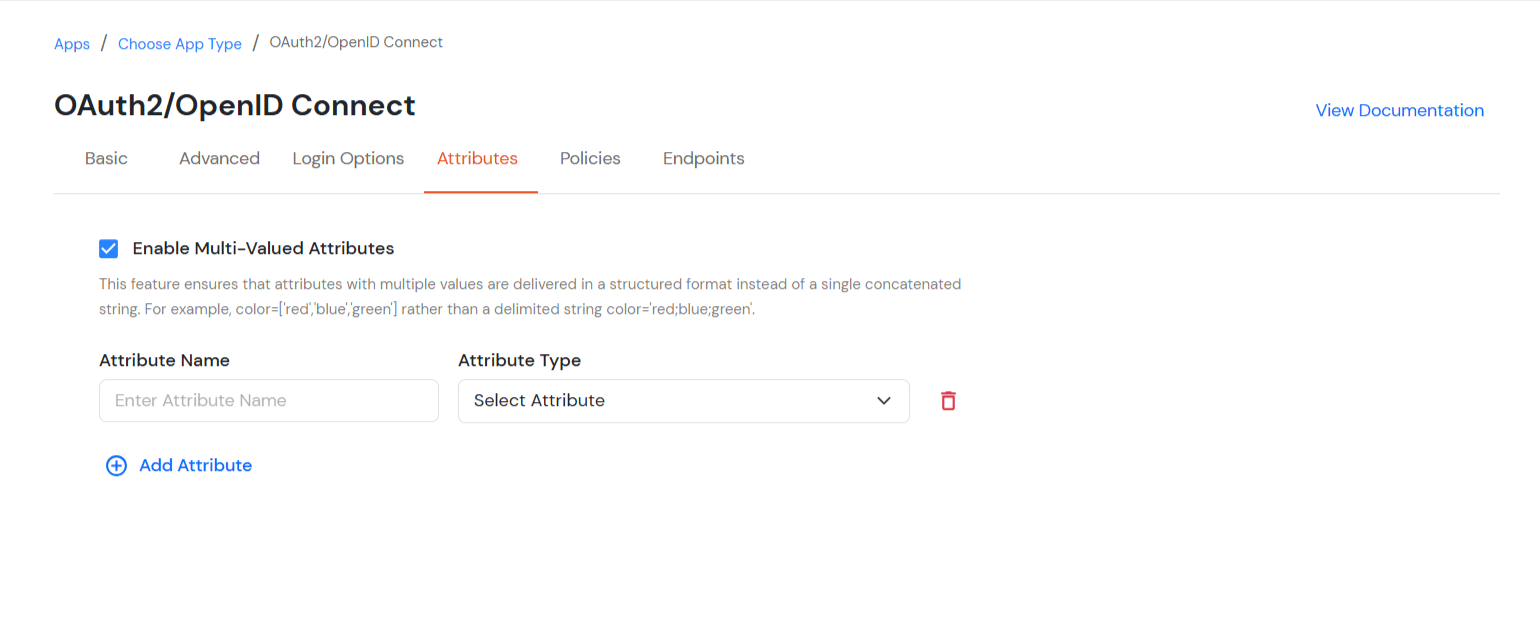
| Enable Multi-Valued Attributes | Enabled:Commas (,) and semicolons (;) are treated as separators, so the attribute is split into a clean list. Example: roles = ['admin', 'editor', 'viewer']. Disabled:Commas and semicolons are not treated as separators, so the attribute stays as one combined string. Example: roles = "admin;editor;viewer". |
| Attribute Mapping | You can Add Attributes to be sent in SAML Assertion to SP. The attributes include user’s profile attributes such as first name, last name, full name, username, email, custom profile attributes, and user groups, etc. |
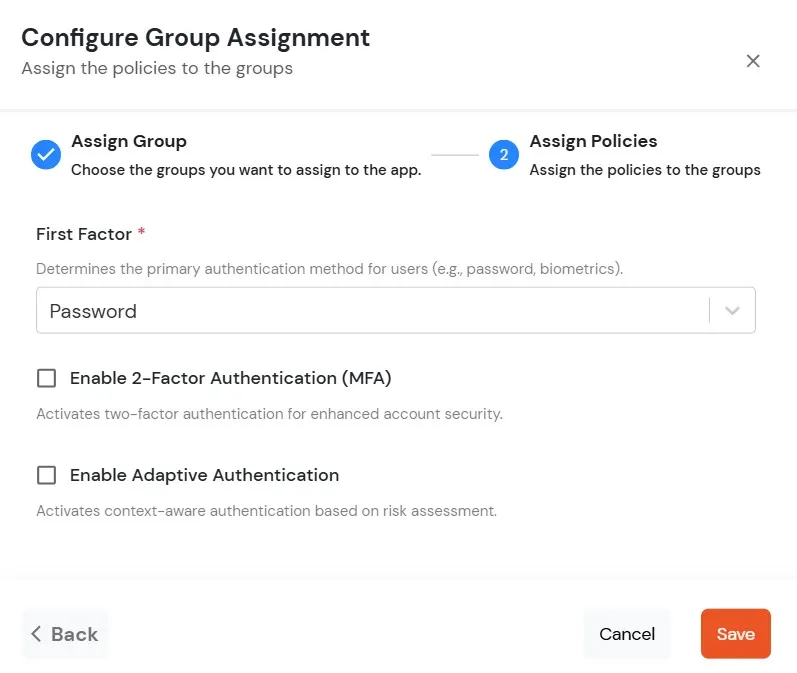
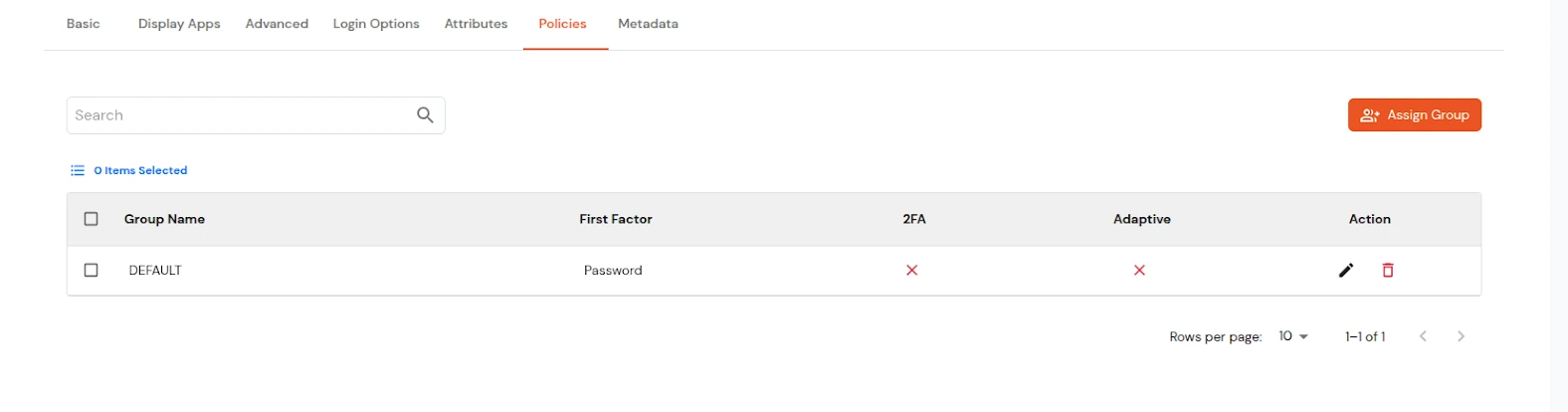
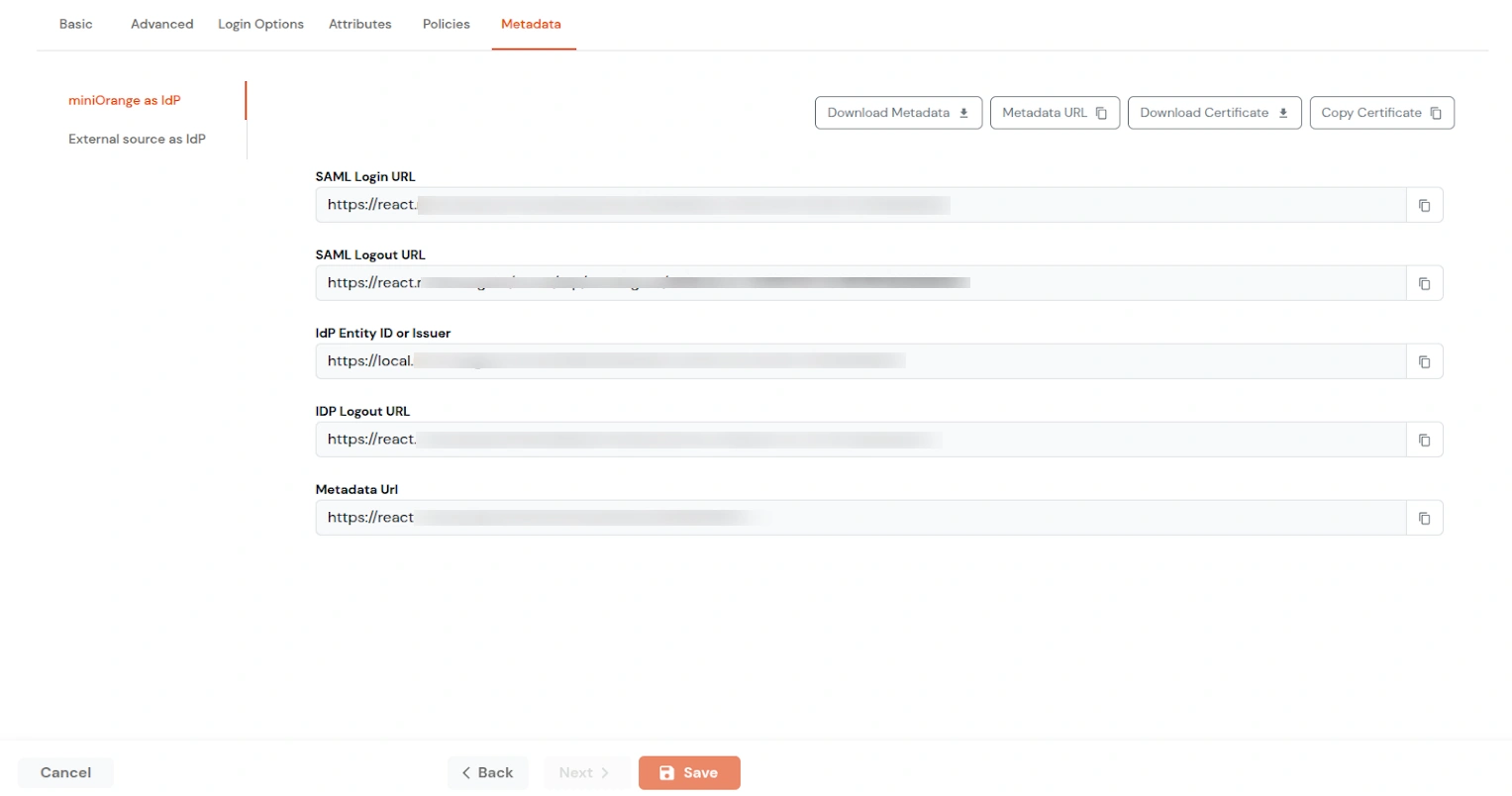
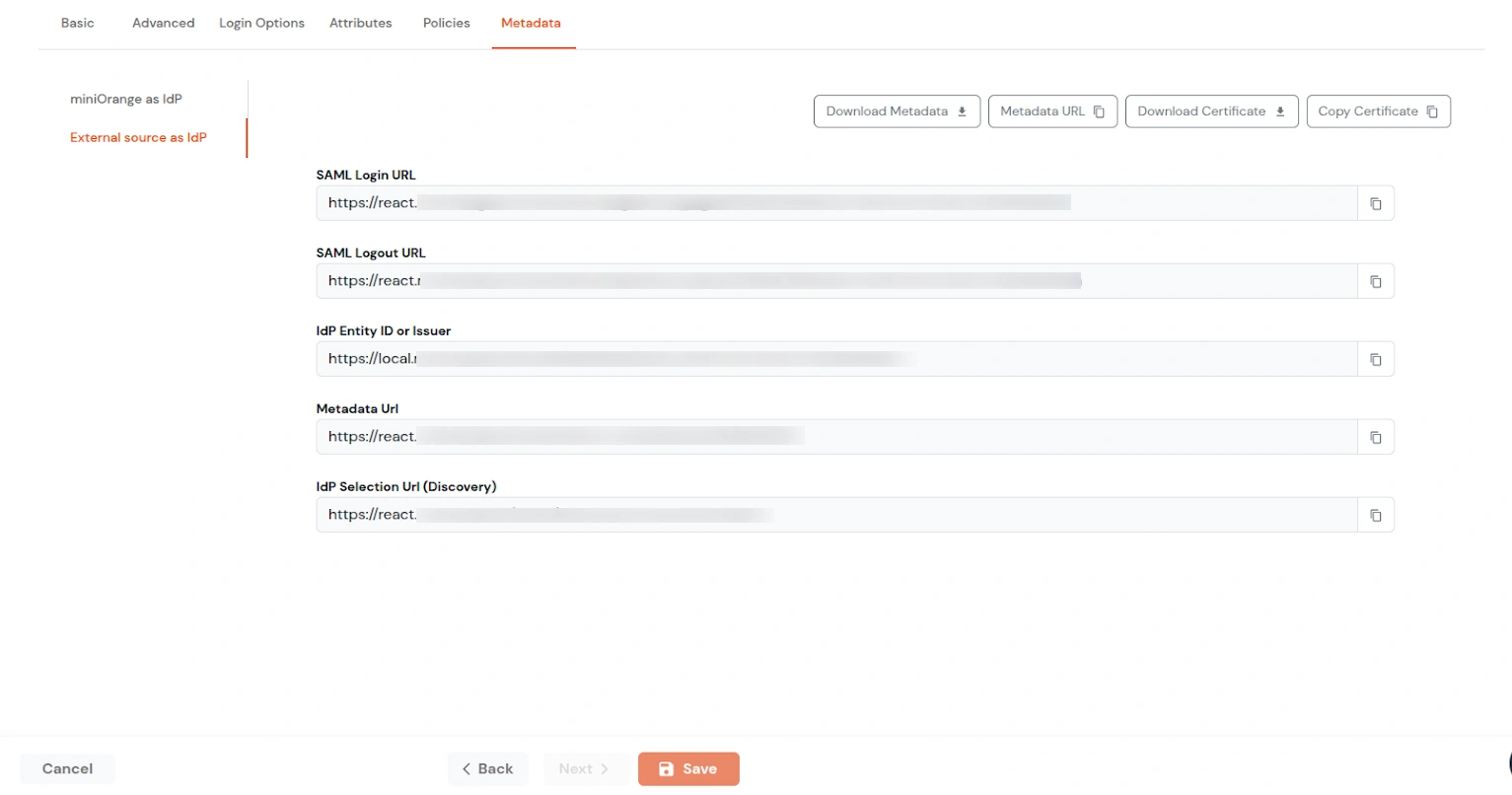
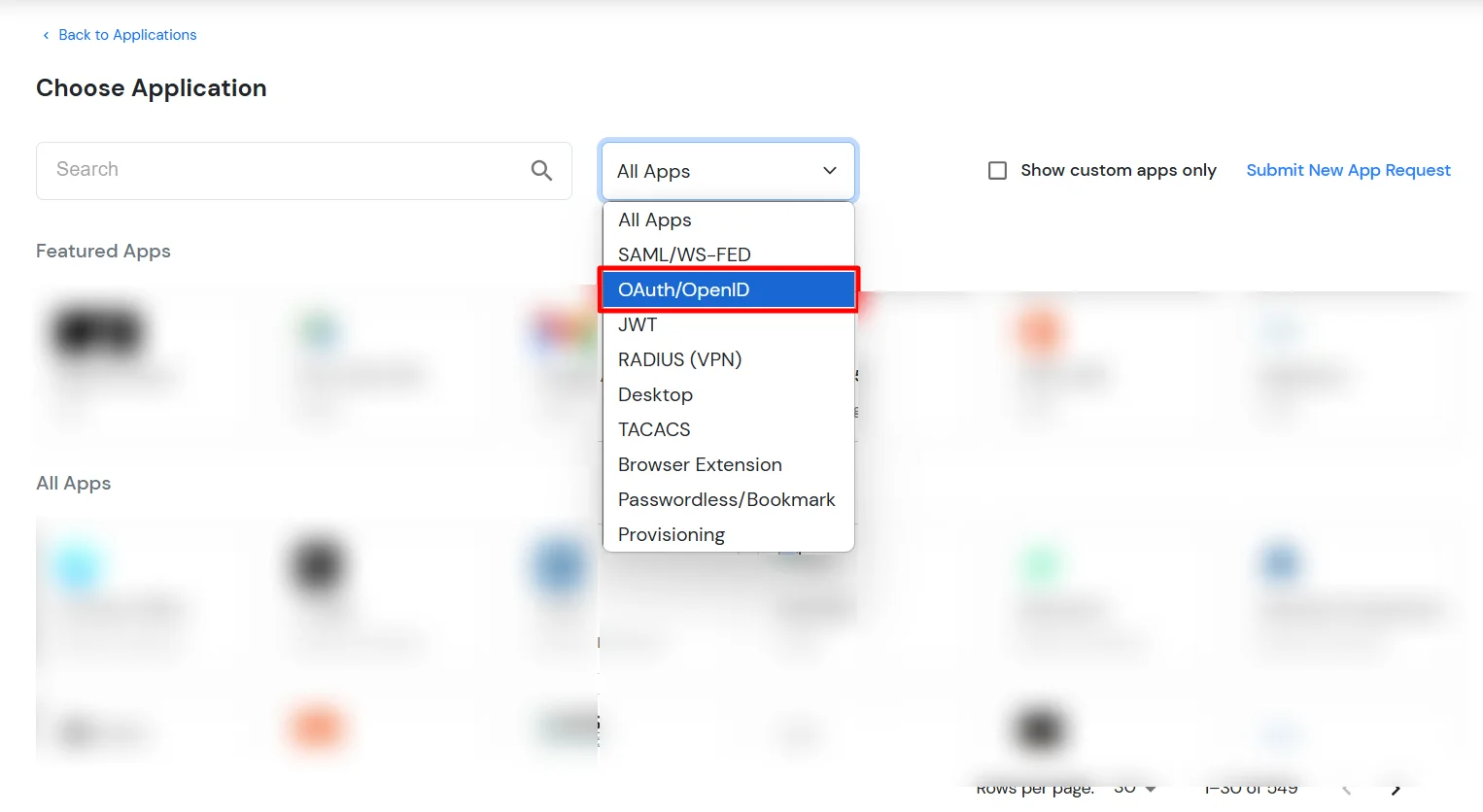
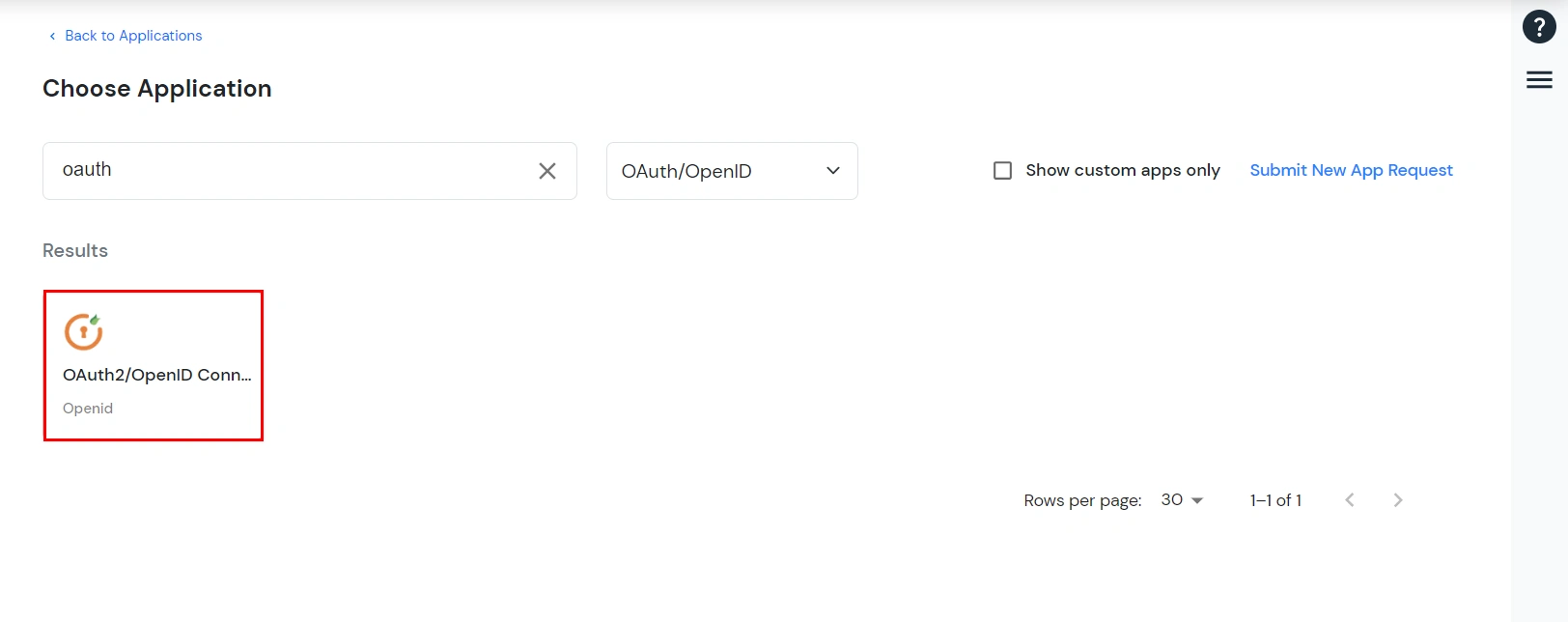
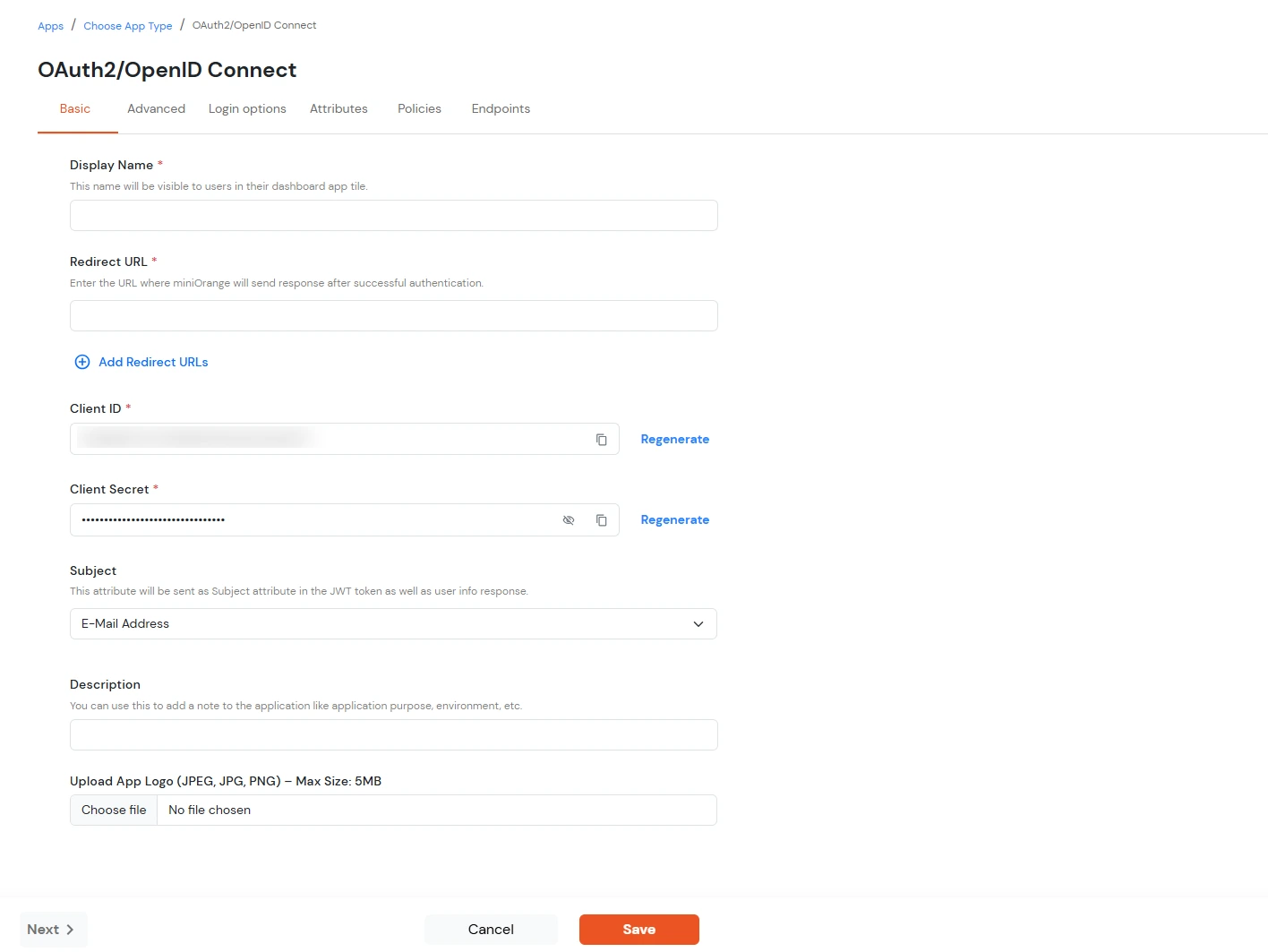
| Display Name | Enter the Display Name (i.e., the name for this application). |
| Redirect URL | Enter the Redirect URL. Make sure it follows this format: https://<mycompany.domain-name.com> |
| Client ID | Auto-generated. Click the copy icon to use it in your application. |
| Client Secret | Client Secret is hidden by default. Click the eye icon to reveal it and use the clipboard icon to copy it. |
| Subject (Optional) | Select an attribute from the dropdown list. |
| Description (Optional) | Add a description if required. |
| Upload App Logo (Optional) | Upload an app logo (Optional). The app will be shown in the end-user dashboard with the logo that you configure here. |
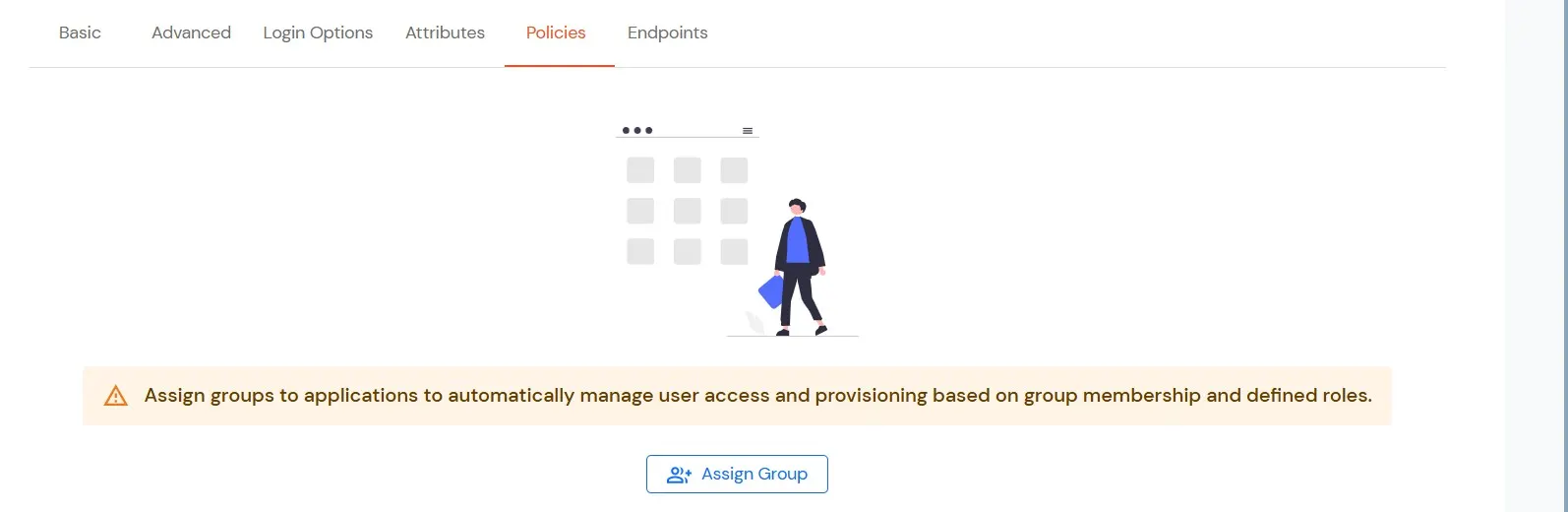
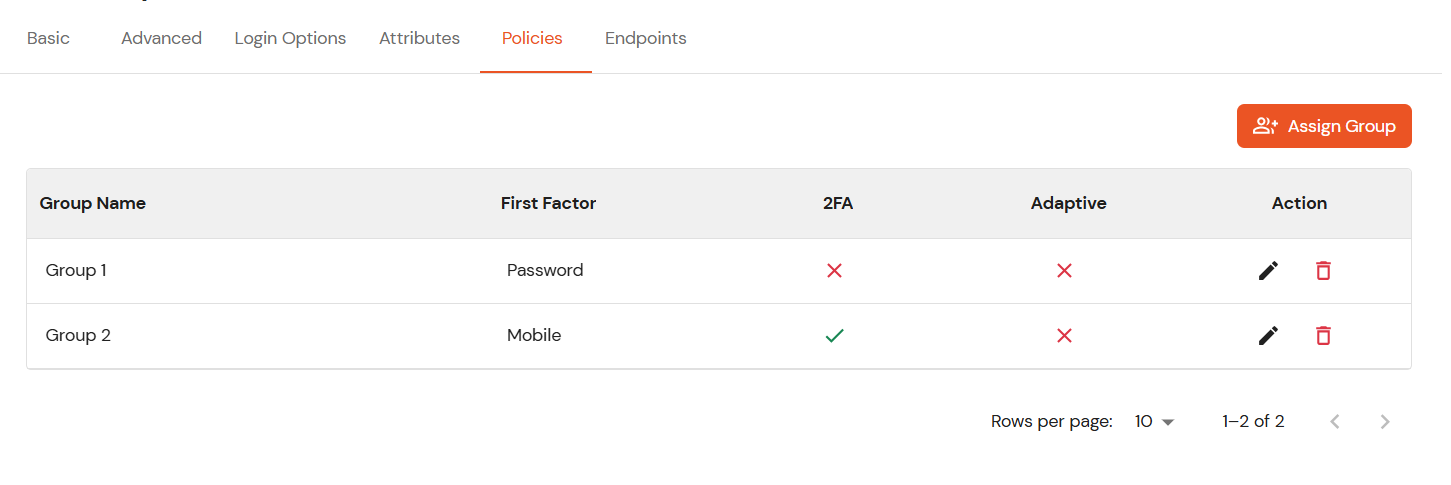
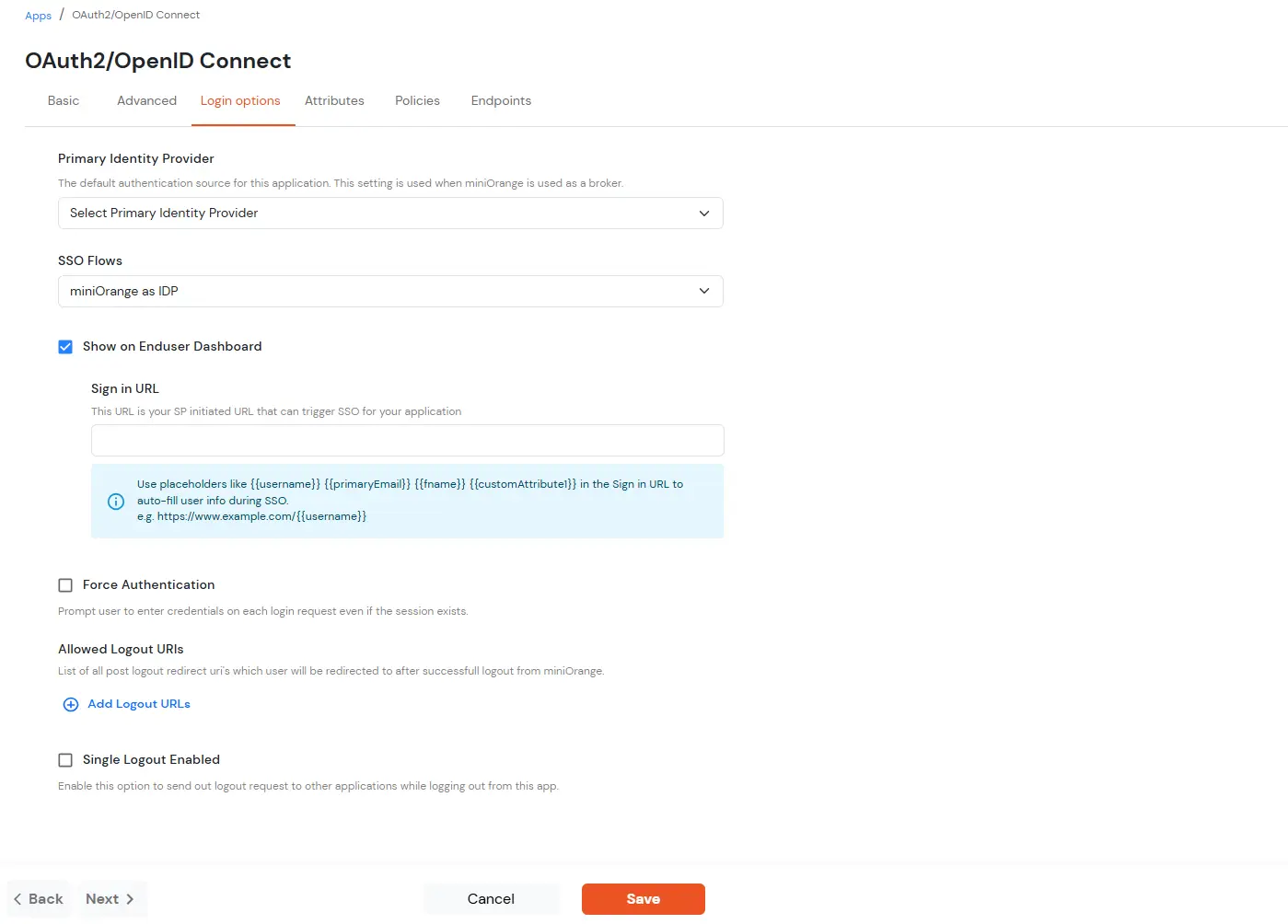
| Primary Identity Provider | Select the default ID source from the dropdown for the application. If not selected, users will see the default login screen and can choose their own IDP. [Choose miniOrange in this case.] |
| SSO FLows | Select the desired SSO flow from the dropdown, such as miniOrange as IDP, miniOrange as Broker, or miniOrange as Broker with Discovery Flow. |
| Show on Enduser Dashboard | Enable this option if you want to show this app in the end-user dashboard. |
| Force Authentication | If you enable this option, users will have to log in every time, even if their session already exists. |
| Allowed Logout URIs | Click the Allowed Logout URIs link to add a list of post-logout redirect URIs. Users will be redirected to one of these URIs after a successful logout from miniOrange. |
| Single Logout Enabled | Enable this option to send logout requests to other applications when logging out from this app. |
| Sign in URL | You can include user attributes in the sign-in URL using placeholders like {{username}}, {{primaryEmail}}, {{customAttribute1}}, etc. These placeholders will be dynamically replaced with the actual user values during the IdP-initiated SSO flow. You can generate url using following attributes: username, primaryEmail, alternateEmail, fname, lname, primaryPhone and customAttribute1. The url could be like this https://<sso-url>?username={{username}}
https://<sso-url>?username={{username}}&email={{primaryEmail}}https://<sso-url>/{{customAttribute1}}/{{customAttribute2}}/?username={{username}} |
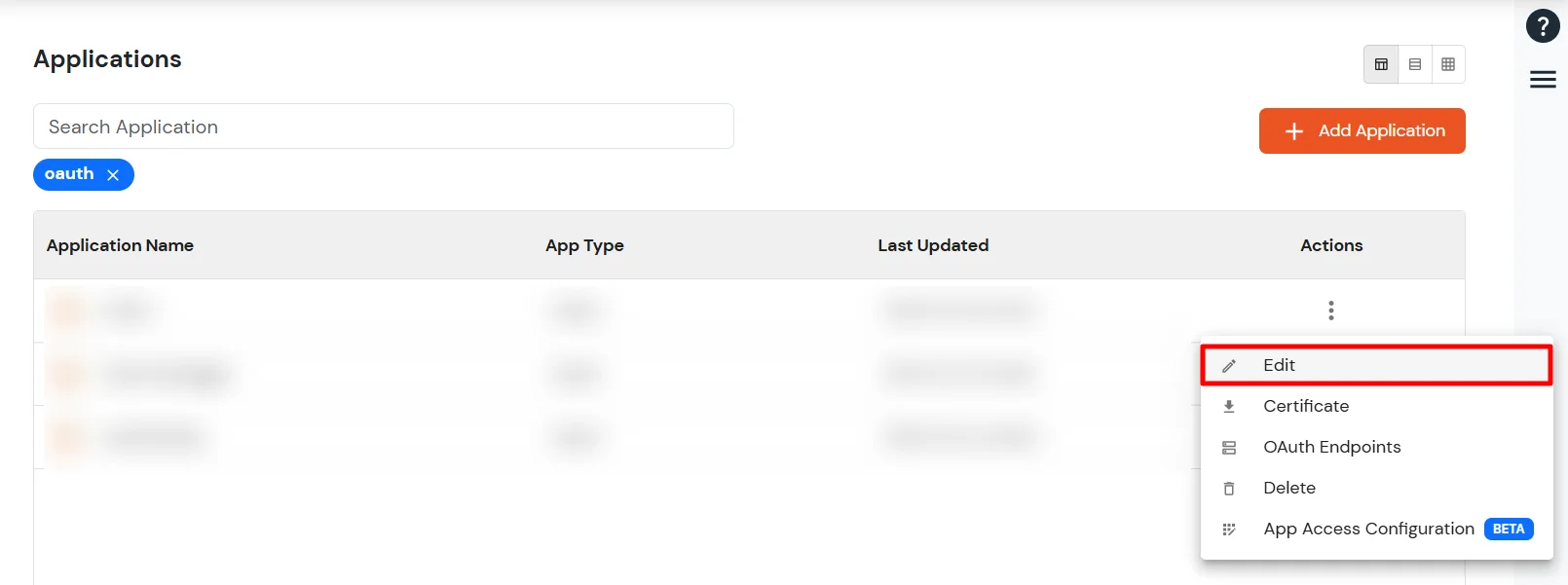
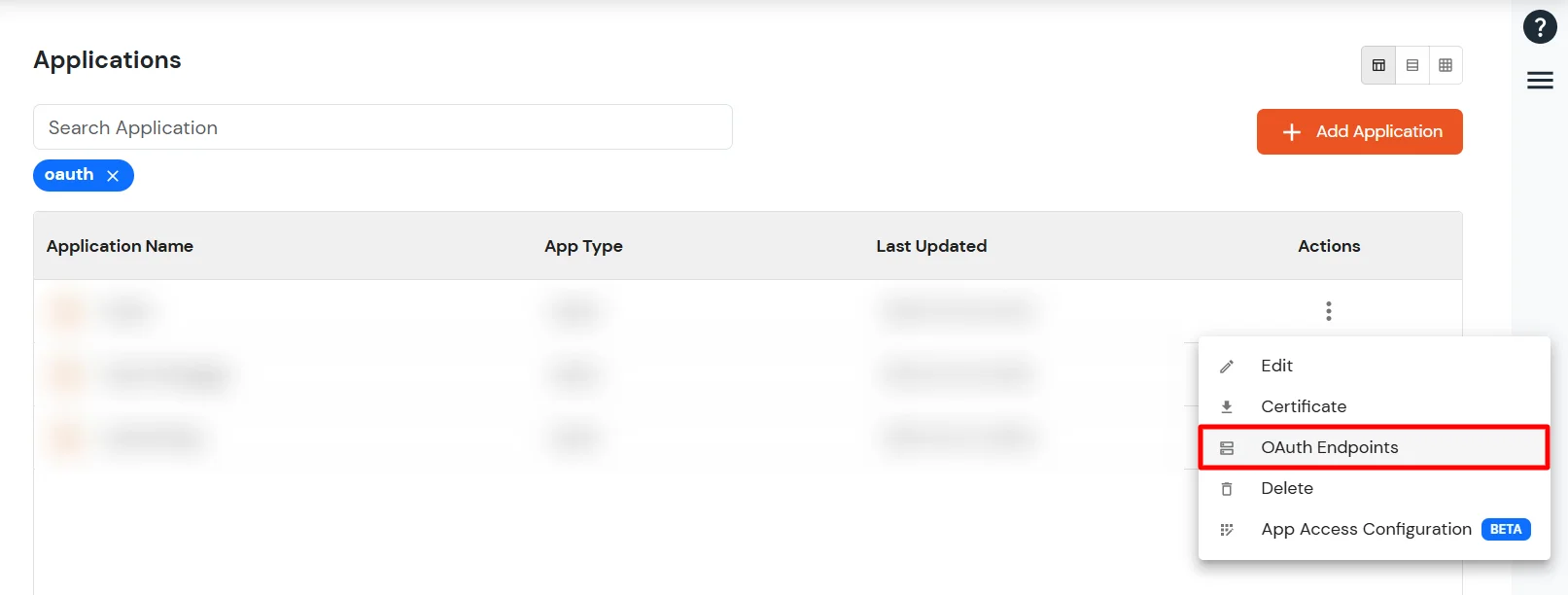
https://<your-company-name>.xecurify.com/moas/idp/openidsso ]https://<your-company-name>.xecurify.com/moas/rest/oauth/token ]| iss | https URI that indicates the issuer |
| sub | identifier of the user at the issuer |
| aud | client_id of the requesting client |
| nonce | the nonce parameter value received from the client |
| exp | expiration time of this token |
| iat | time when this token was issued |
| auth_time | time the authentication happened |
| at_hash | the first half of a hash of the access token |
https://<your-domain>.xecurify.com/moas/api/oauth/getuserinfo ] Required in case of OAuth Onlyhttps://<your-domain>.xecurify.com/moas/idp/oidc/logout?post_logout_redirect_uri ] :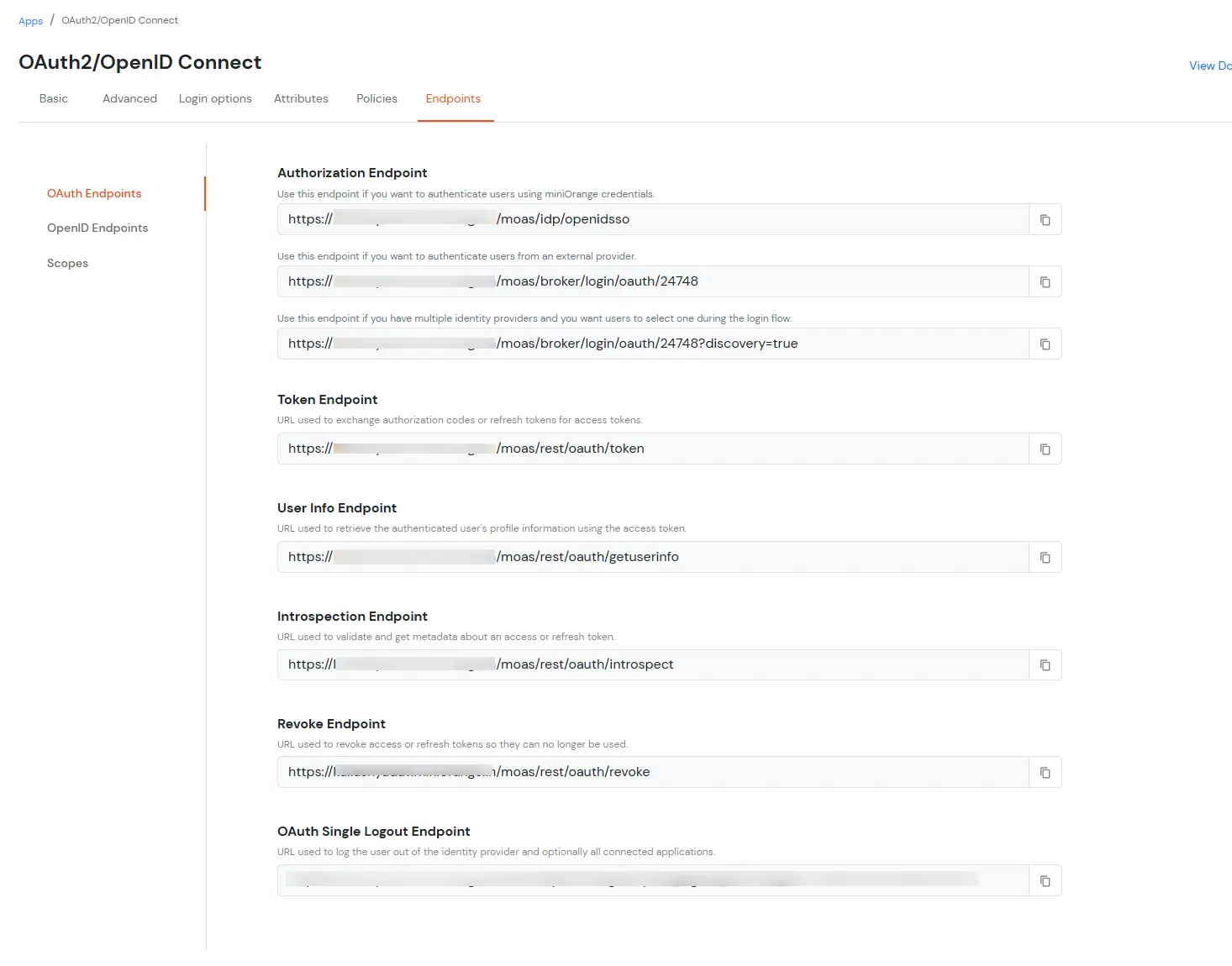
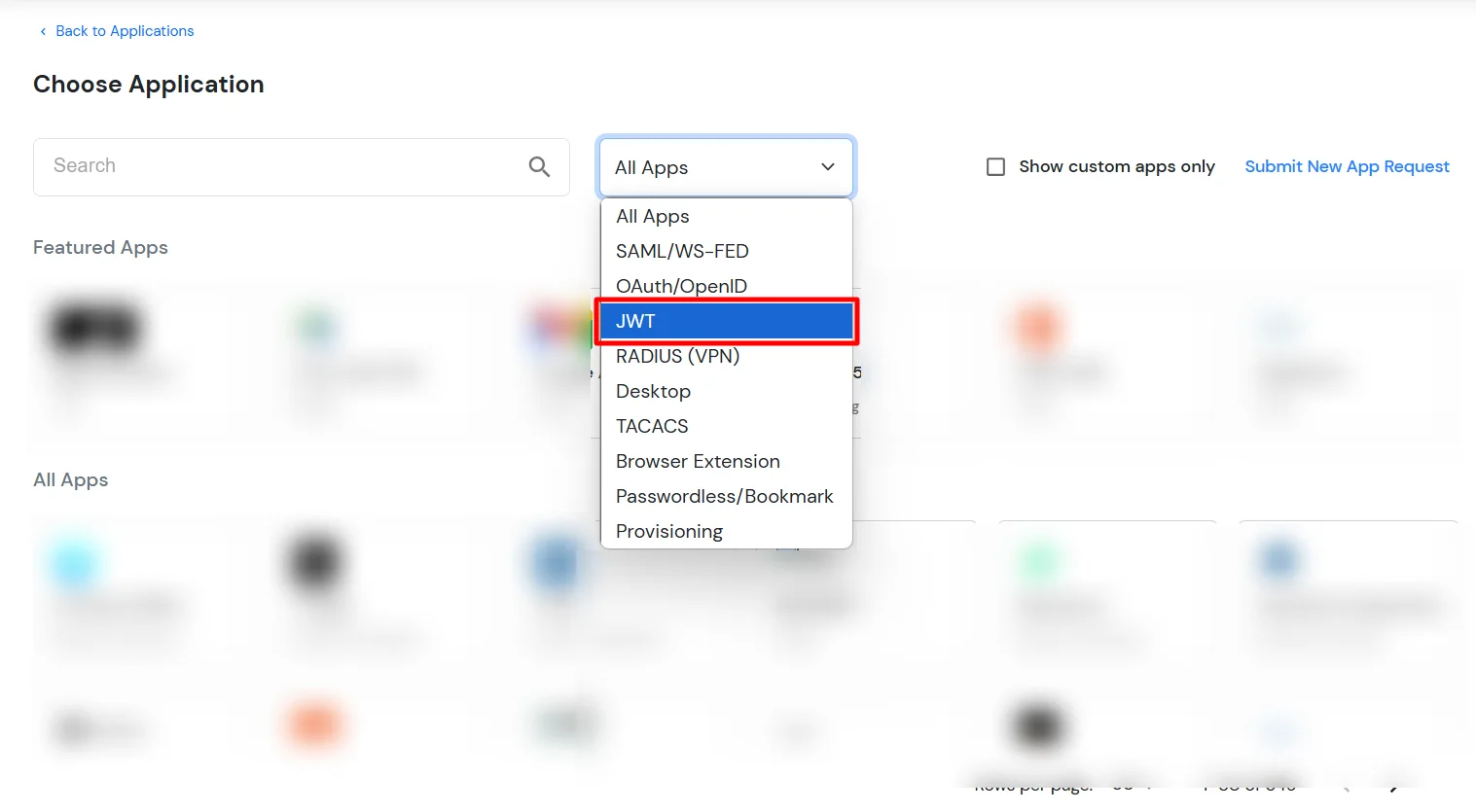
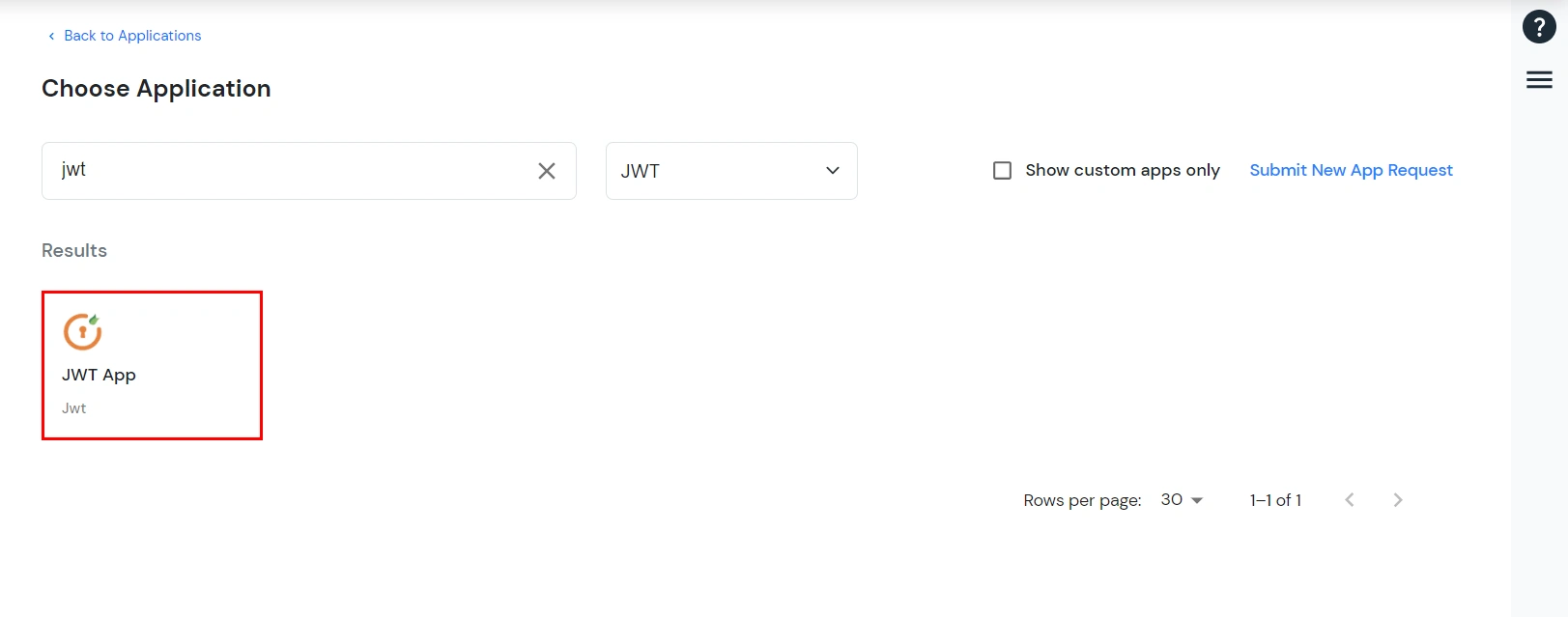
| Display Name | Enter the Display Name (i.e. the name for this application) |
| Redirect URL | Enter the Redirect URL (i.e. the endpoint where you want to send/post your JWT token). You can add multiple redirect URLs by separating them with a ‘;’.E.g. abc.com;xyz.com |
| Client ID | The Client ID is shown in the field below. Click the clipboard icon to copy it. |
| Client Secret | Client Secret is hidden by default. Click the eye icon to reveal it and use the clipboard icon to copy it. This is used in the HS256 signature algorithm for generating the signature. |
| Description (Optional) | Add a description if required. |
| Upload App Logo (Optional) | Upload an app logo (Optional). The app will be shown in the end-user dashboard with the logo that you configure here. |
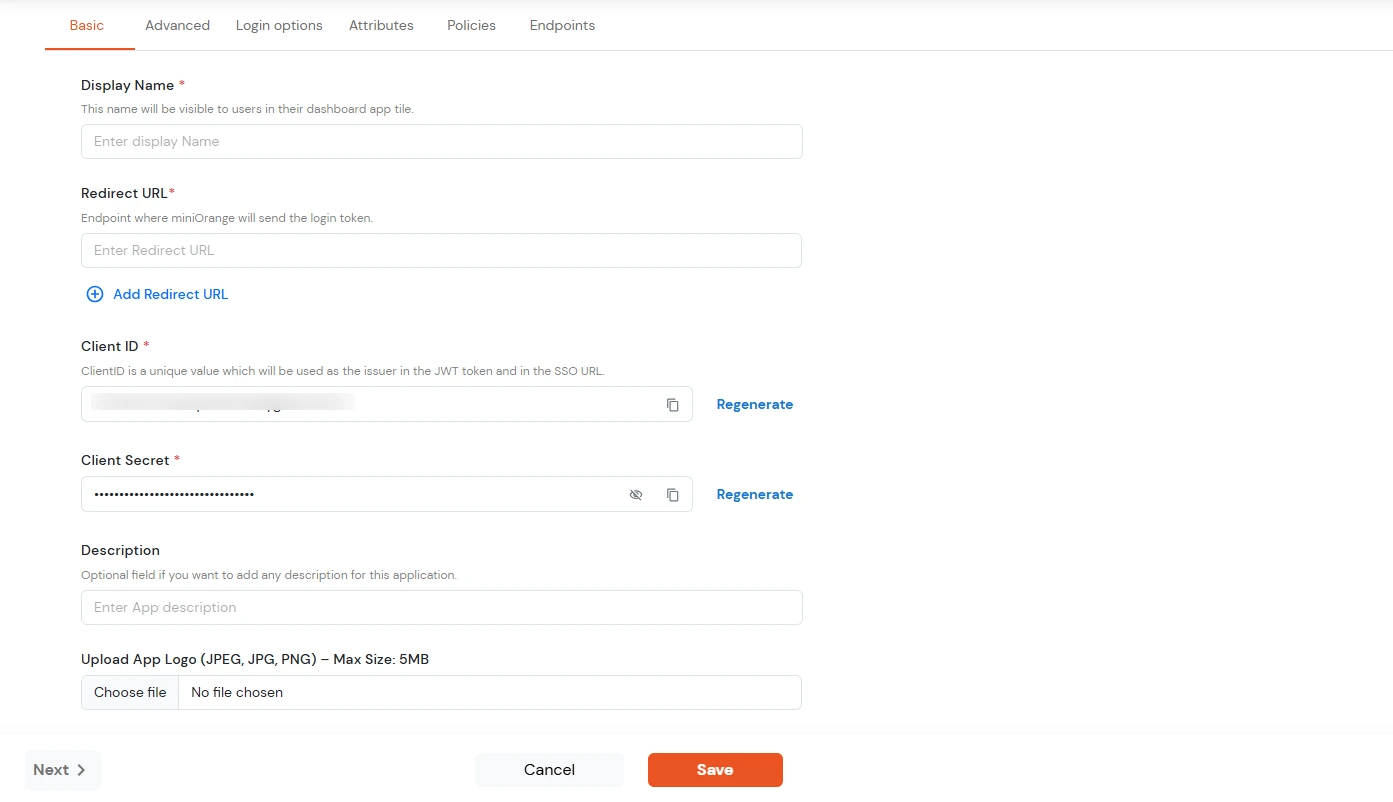
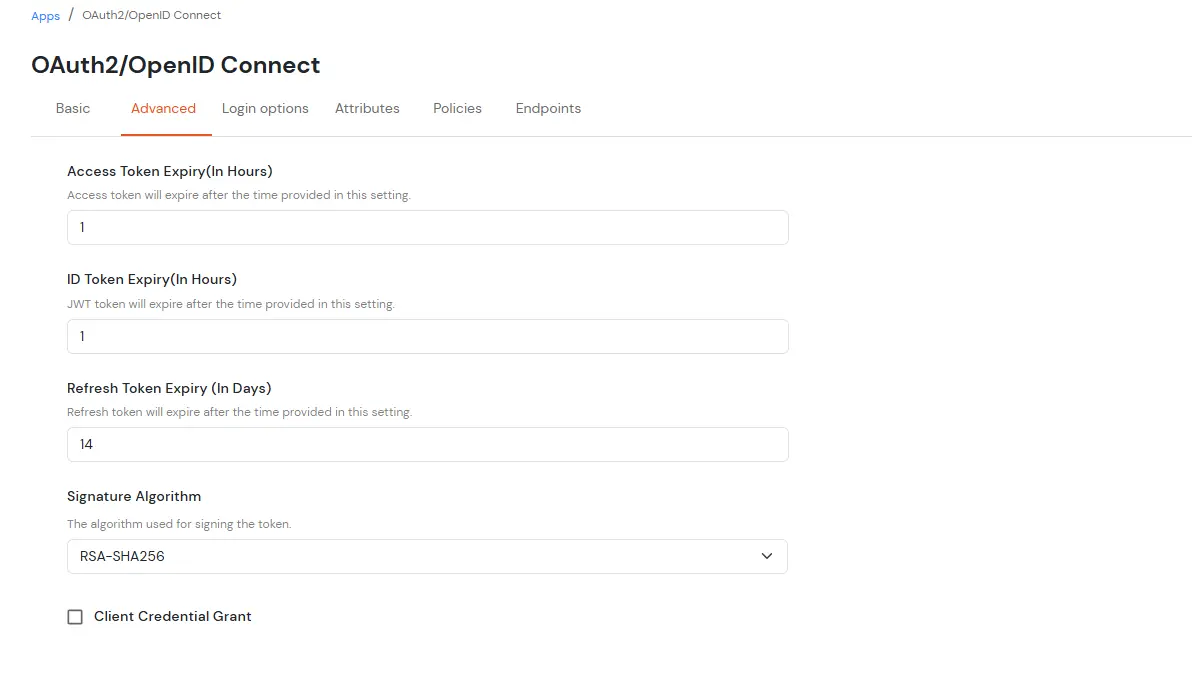
| Access Token | Enter the access token that will be sent to your redirect URL after a user logs in. This token helps your app know the user is allowed to access certain features. |
| ID Token Expiry (In Mins) | Set how long (in minutes) the ID token will be valid. After this time, the user will need to log in again to get a new token. |
| Subject | Choose what information, like the user’s email address, will be used to identify them in the token. This helps your app know which user is logged in. |
| Signature Algorithm | Select your signature algorithm from the dropdown. |
| The Logout URL of your application | Enter the web address where users should be sent after they log out. |
| Enable Shared Identity | This feature lets you control whether a specific application can be accessed by shared user or not. |
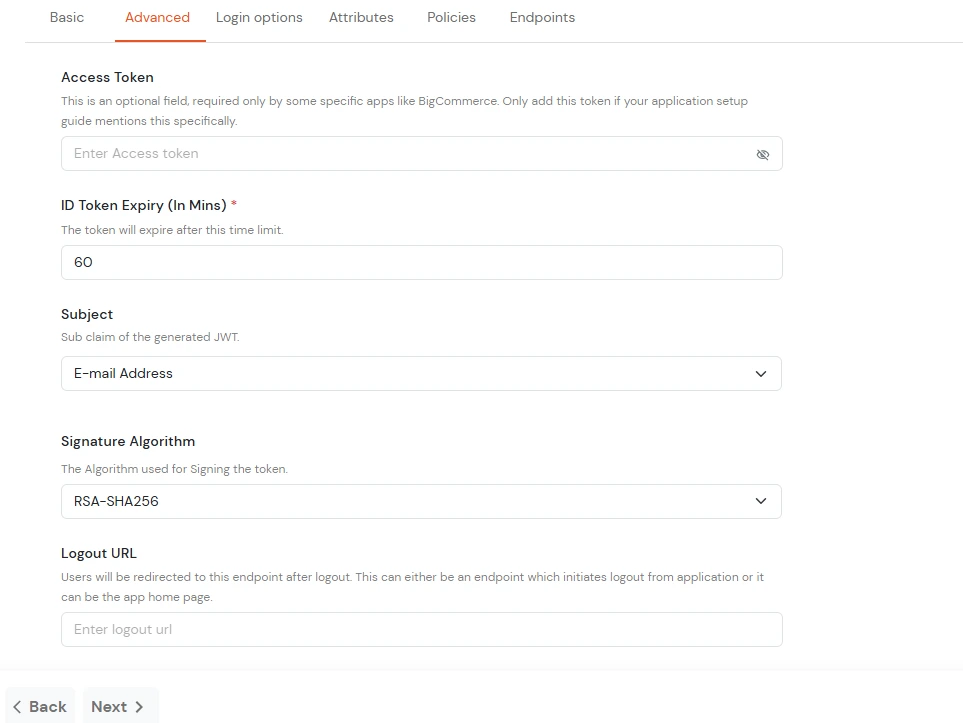
| Primary Identity Provider | Select the default ID source from the dropdown for the application. If not selected, users will see the default login screen and can choose their own IDP. [Choose miniOrange in this case.] |
| Force Authentication | If you enable this option, users will have to log in every time, even if their session already exists. |
| Enable User Mapping | Enable this option, if you want the app to show which user is signed in when it responds. |
| Show On End User Dashboard | Enable this option if you want to show this app in the end-user dashboard. |