Odoo is a powerful all in one management software, offering a range of business applications. It offers both community open source and enterprise versions with tools like including CRM, website/e-commerce, billing, accounting, manufacturing, warehouse - and project management, and inventory. Businesses can use this to manage their businesses and provide customized solutions to it's users.
Challenge faced by Odoo Users
If a user is logged into his site then he shouldn't have to log in second time to access services/resources on Odoo. A Single Sign-On (SSO) solution is required to allow users to be able to seamlessly move between their website and Odoo without the hassle of maintaining separate credentials. This allows admins to embed Odoo views on their site to give a unified experience to their users and customers.
miniOrange provides SSO solution for Odoo
miniOrange provides Single Sign-On solution to login to Odoo from your existing website using connectors or plugins. miniOrange supports JWT/OAuth/OpenID standard which is used to securely authenticate the user to login into applications like Odoo. A custom OAuth connector for Odoo enables SSO with any existing website.
Connect with External Source of Users
miniOrange provides user authentication from various external sources, which can be Directories (like ADFS, Microsoft Active Directory, OpenLDAP, AWS etc), Identity Providers (like Microsoft Entra ID, Okta, AWS), and many more. You can configure your existing directory/user store or add users in miniOrange.
Video Setup Guide
Prerequisites
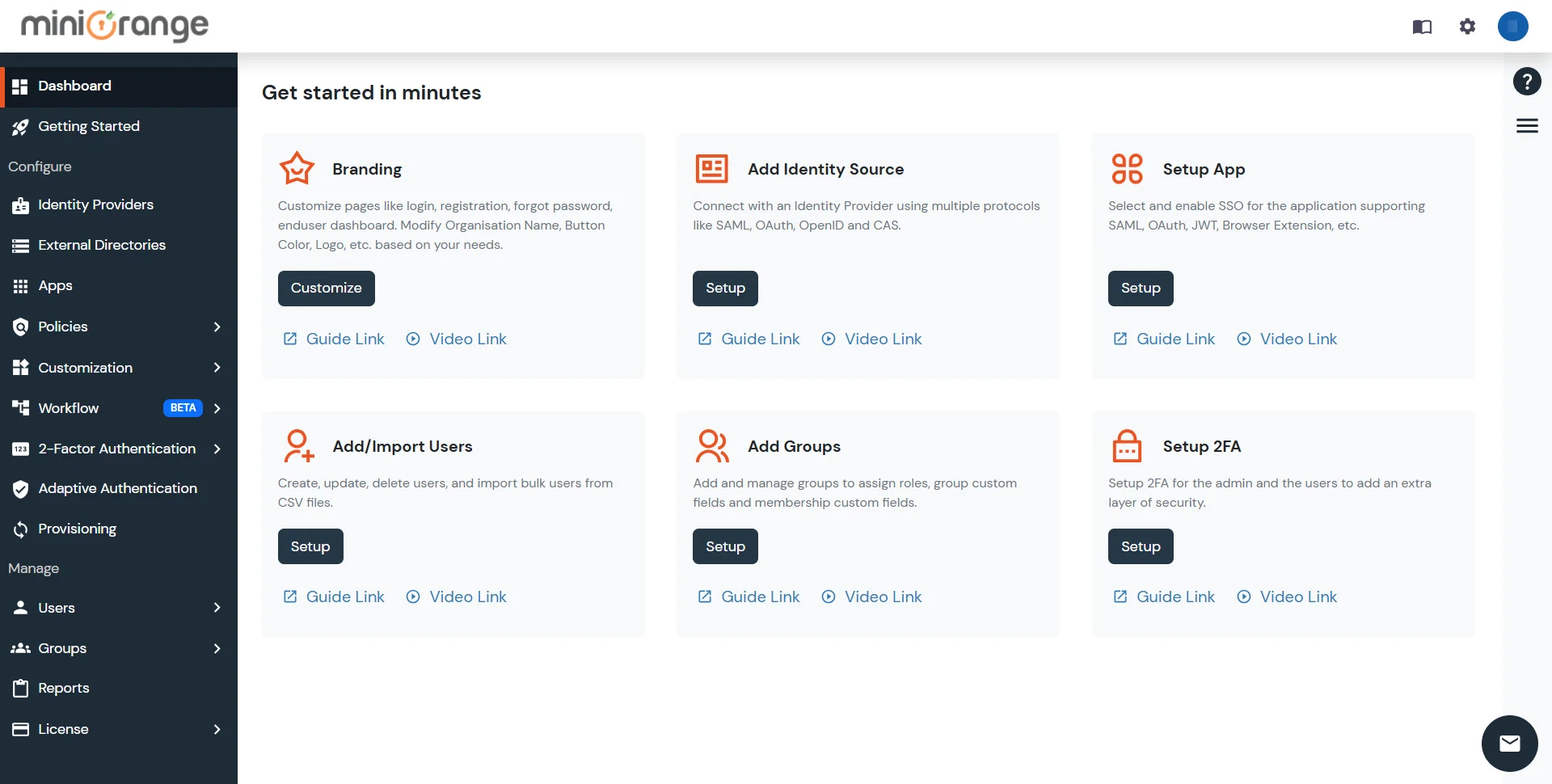
Please make sure your organisation branding is already set under Customization >> Login and Registration Branding in the left menu of the dashboard.
Follow the Step-by-Step Guide given below for Odoo Single Sign-On (SSO)
Note
Please be advised that for the owner or administrator of a database within the Odoo, it is recommended to refrain from
utilizing OAuth authentication. Employing OAuth for this user role can result in the disassociation of the database from their respective
Odoo account. Consequently, the affected database would no longer be amenable to actions such as duplication, renaming, or other forms of management
through the Odoo portal.
Go to Apps and click Add Application button at right corner of your screen.
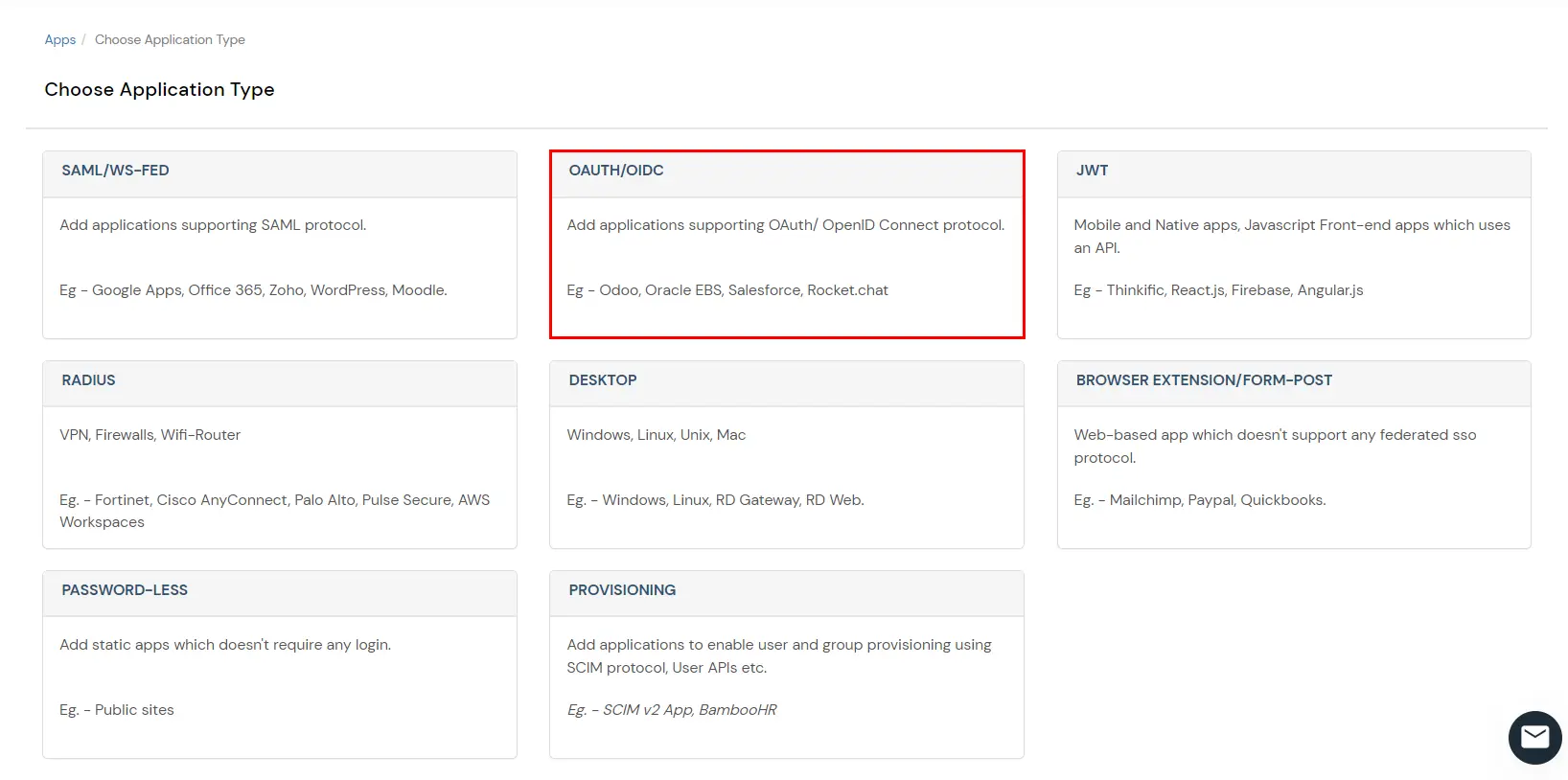
In Choose Application Type click on OAUTH/OIDC application type.
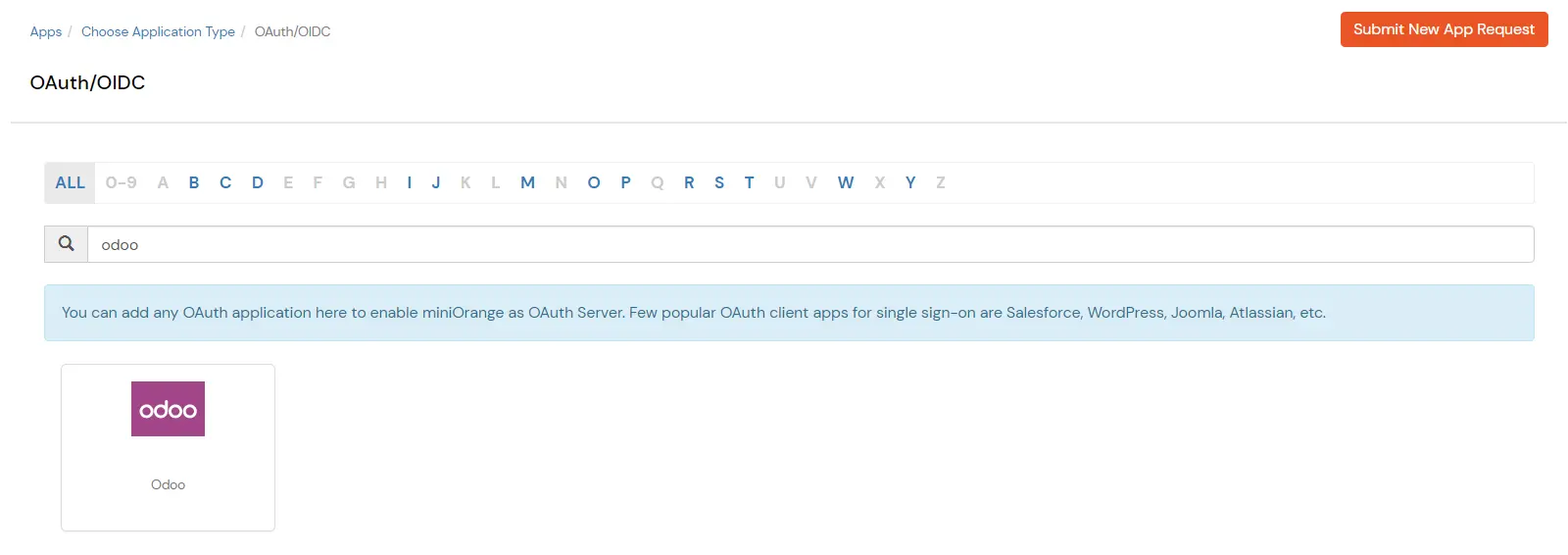
In the next step, search for your application from the list and select Odoo app.
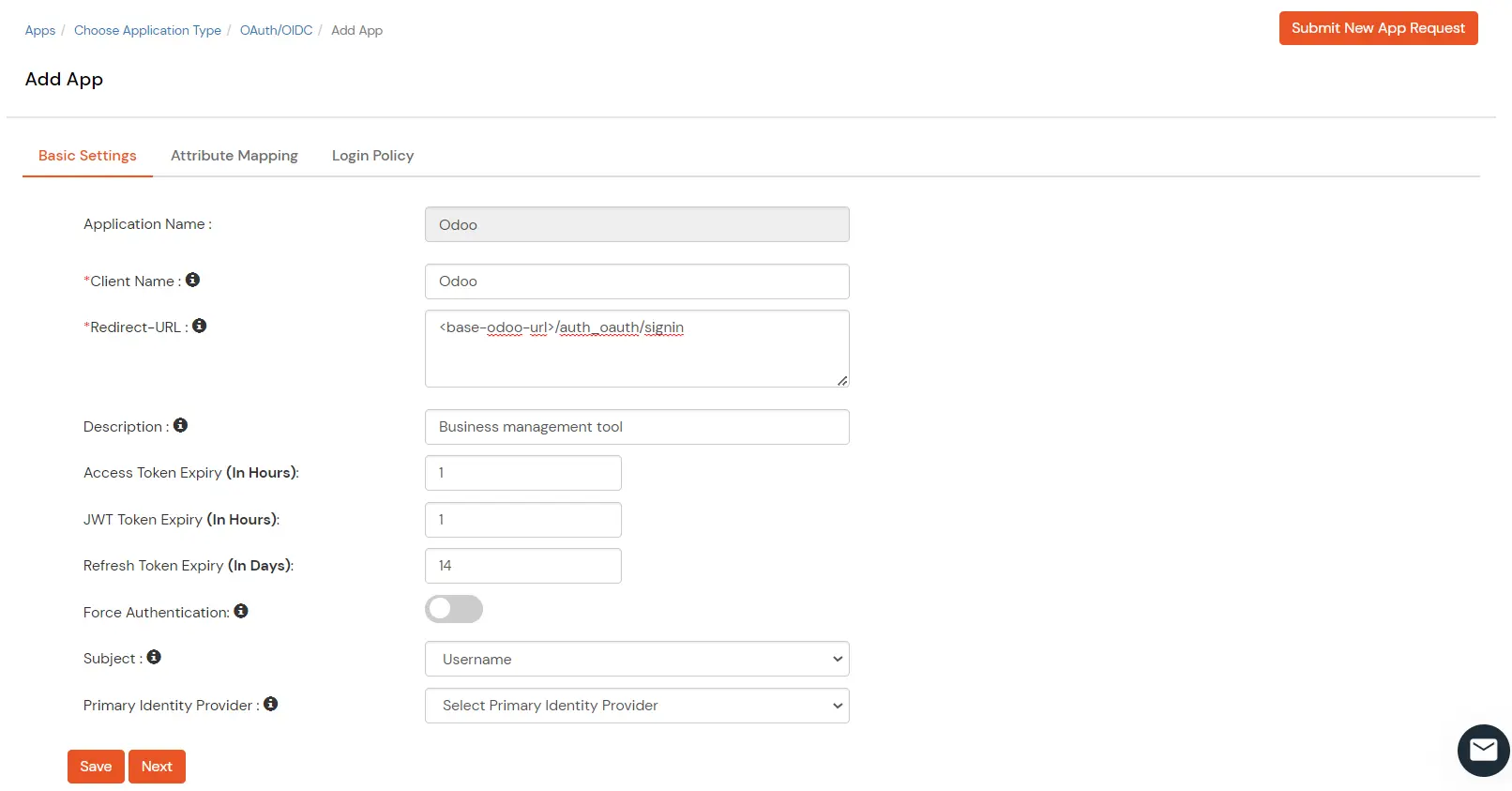
Enter client information accordingly.
Attribute
Description
Client Name
Choose an appropriate name according to your choice
Redirect URL
<base-odoo-url>/auth_oauth/signin
Description
Description of your choice
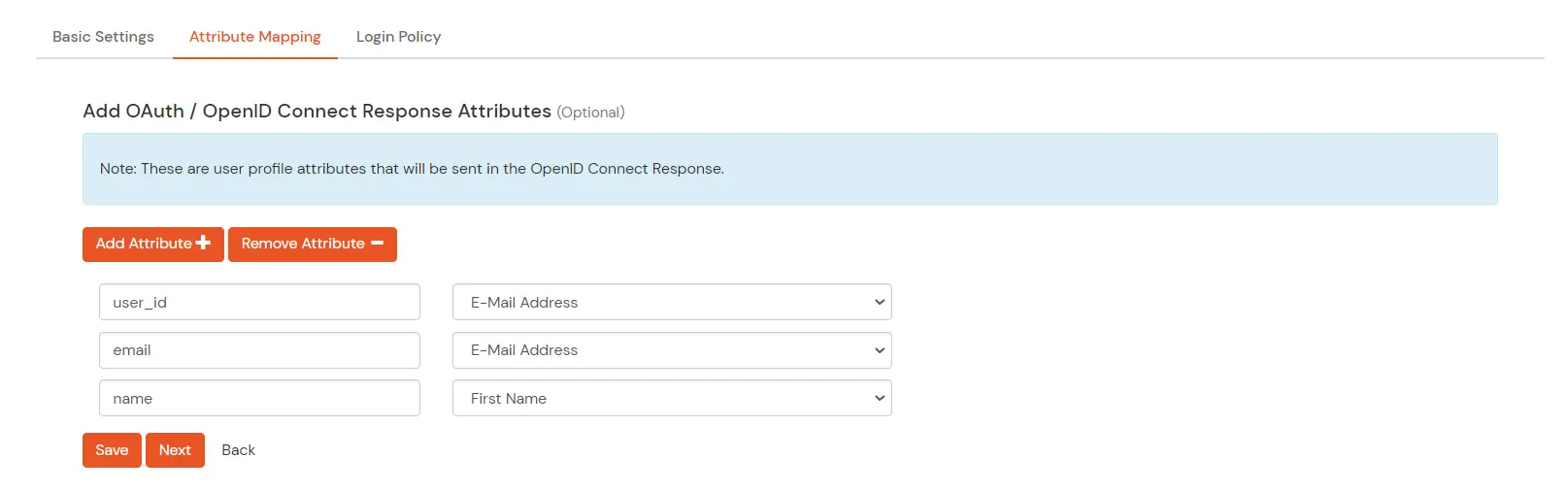
Attributes
As shown in the image below
Scroll down and click on the “Save Button”.
Your Odoo application is Successfully configured with miniOrange.
You can edit Application by using the following steps:
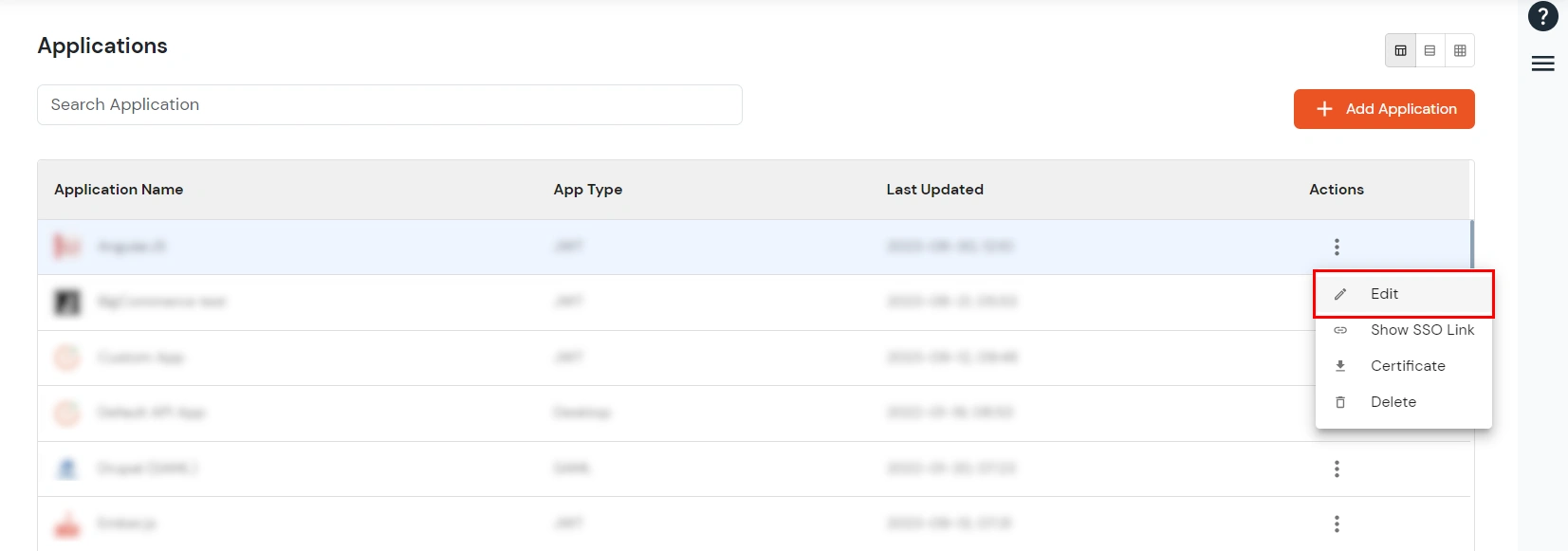
Go to Apps >> Manage Apps.
Search for your app and Click on the edit in Action menu against your app.
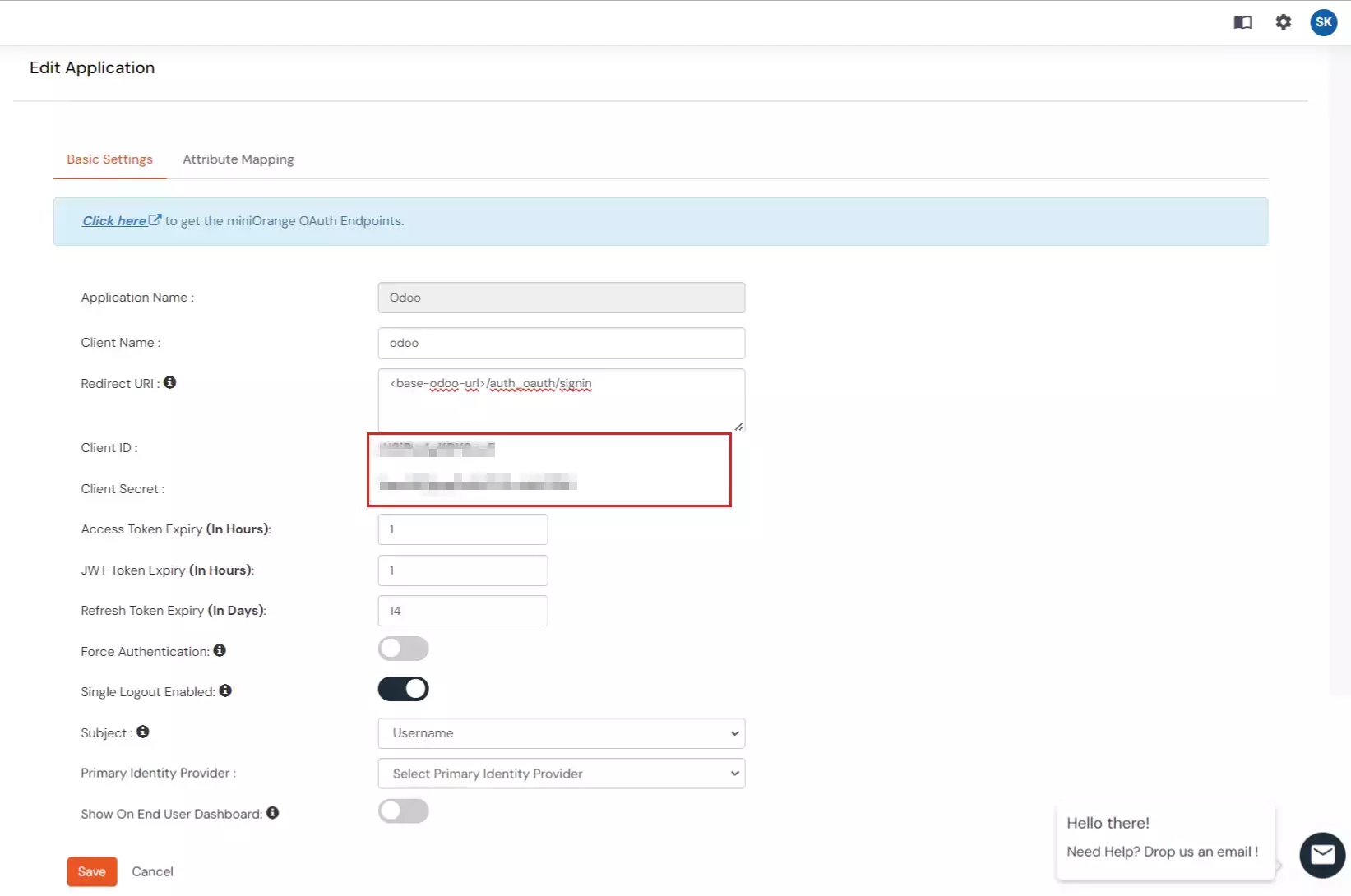
Note down all the parameters (Client id,Client secret). You will need this info while configuring Odoo with miniOrange.
2. Configure SSO in Odoo Admin Account
Login to your Odoo account as administrator.
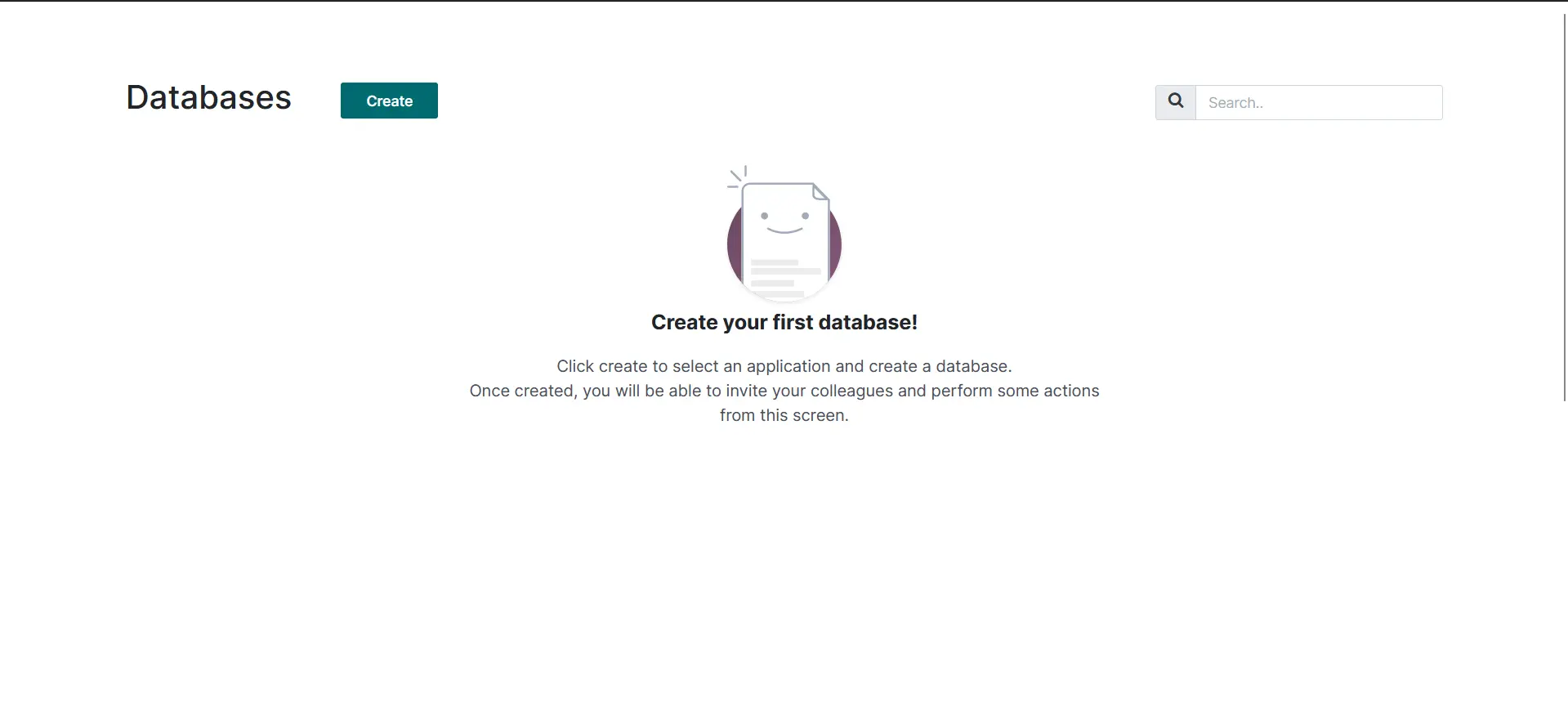
Create a new database if you don't already have one there.
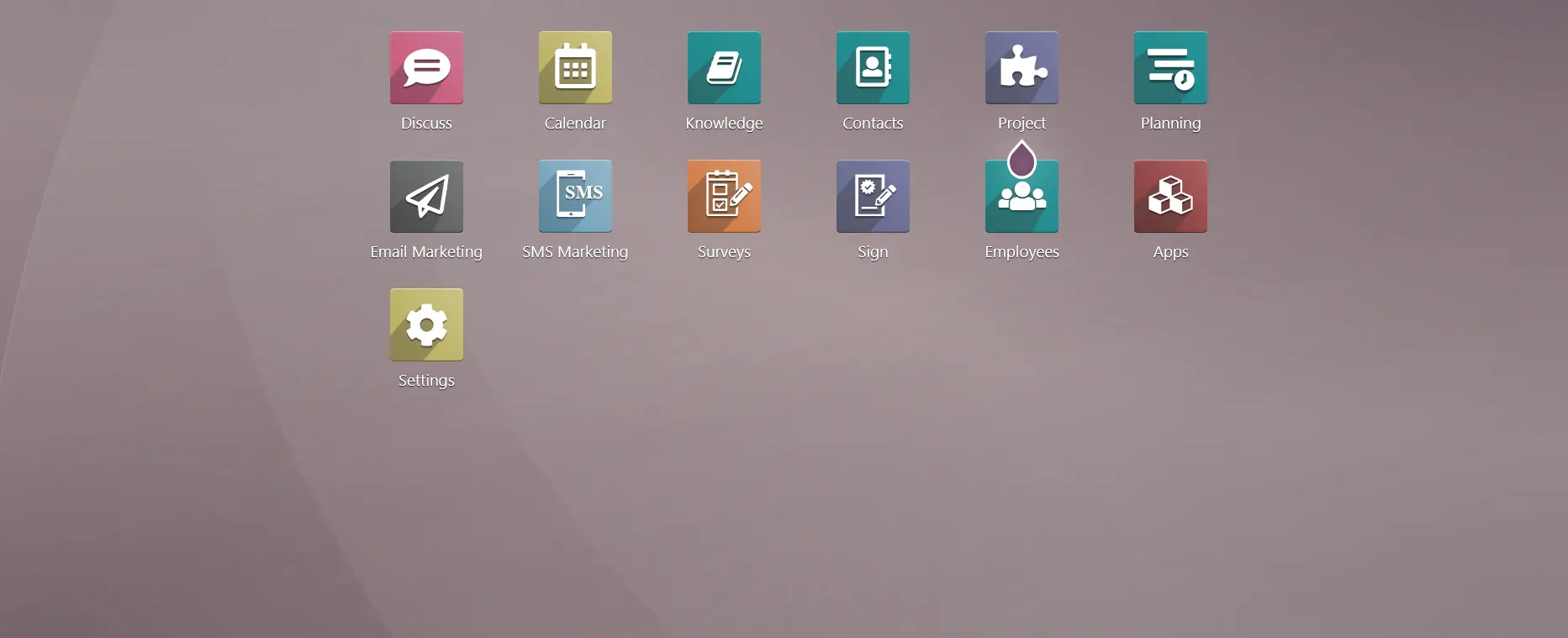
After logging into Admin dashboard, go to settings.
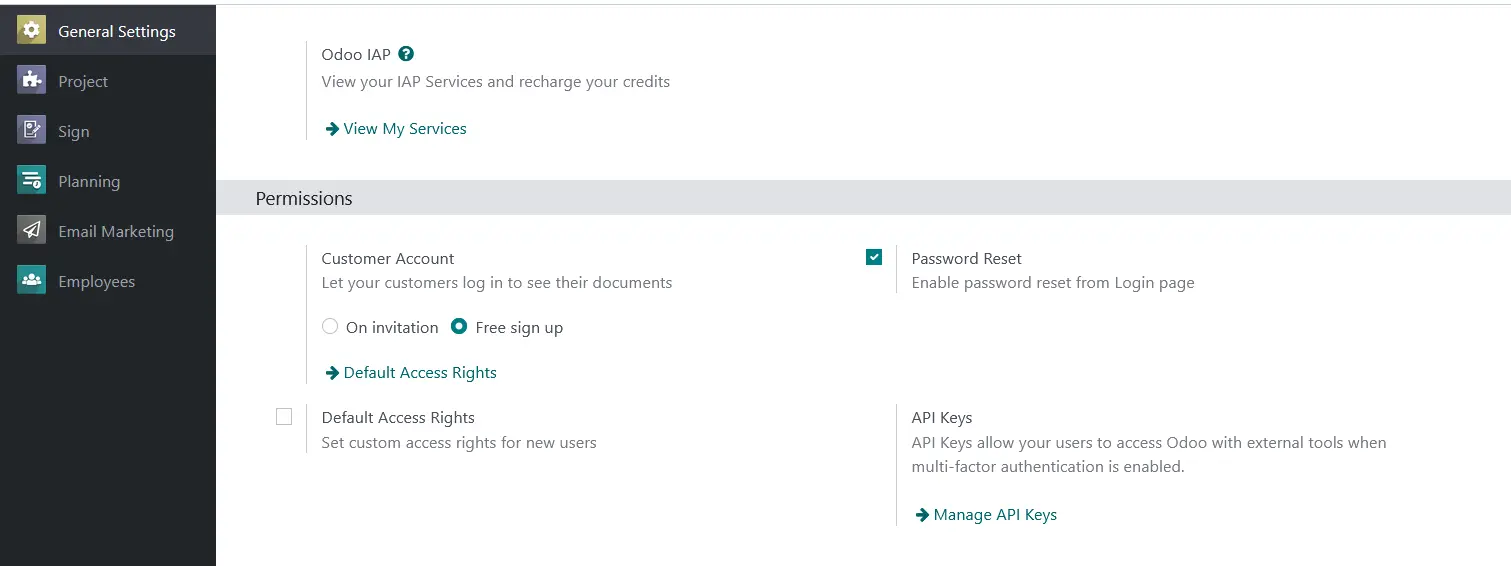
Make sure that the Free Sign up option is enabled here.
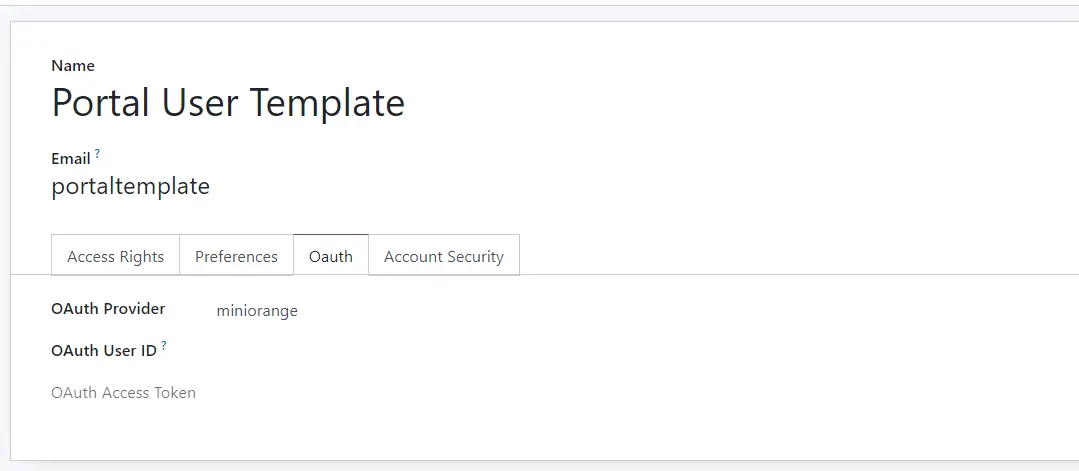
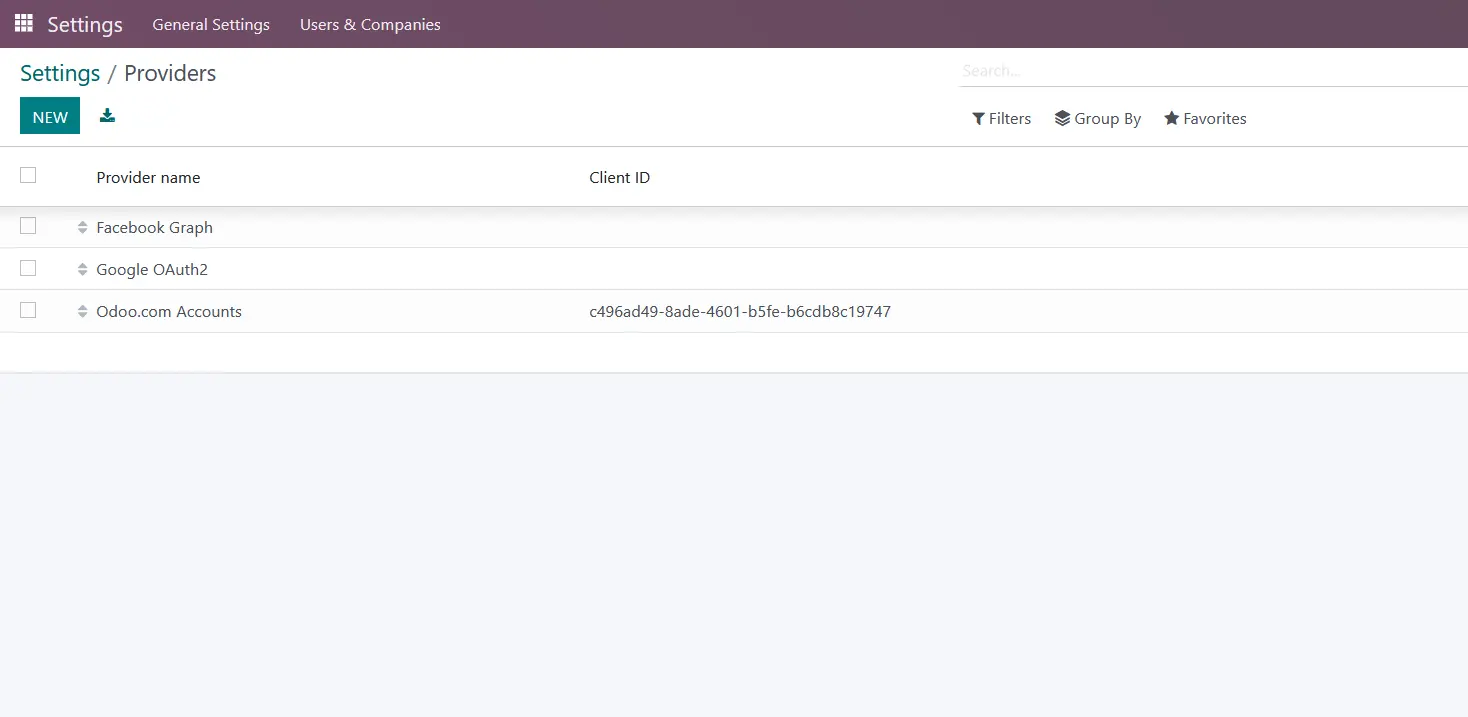
Select Default access rights. Under the Oauth section, select you configured IDP as the oauth provider.
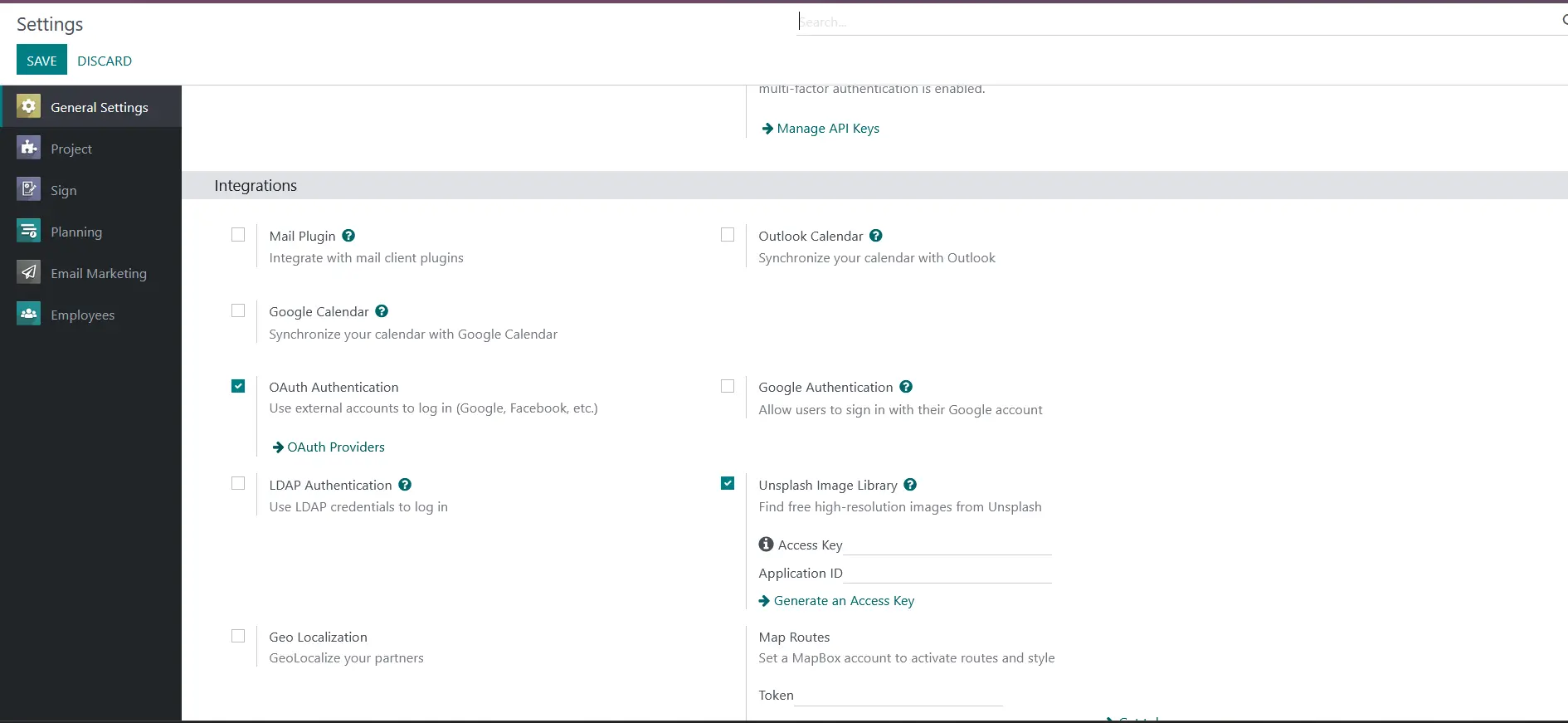
Enable Oauth Authentication and click on OAuth Providers to create a OAuth provider.
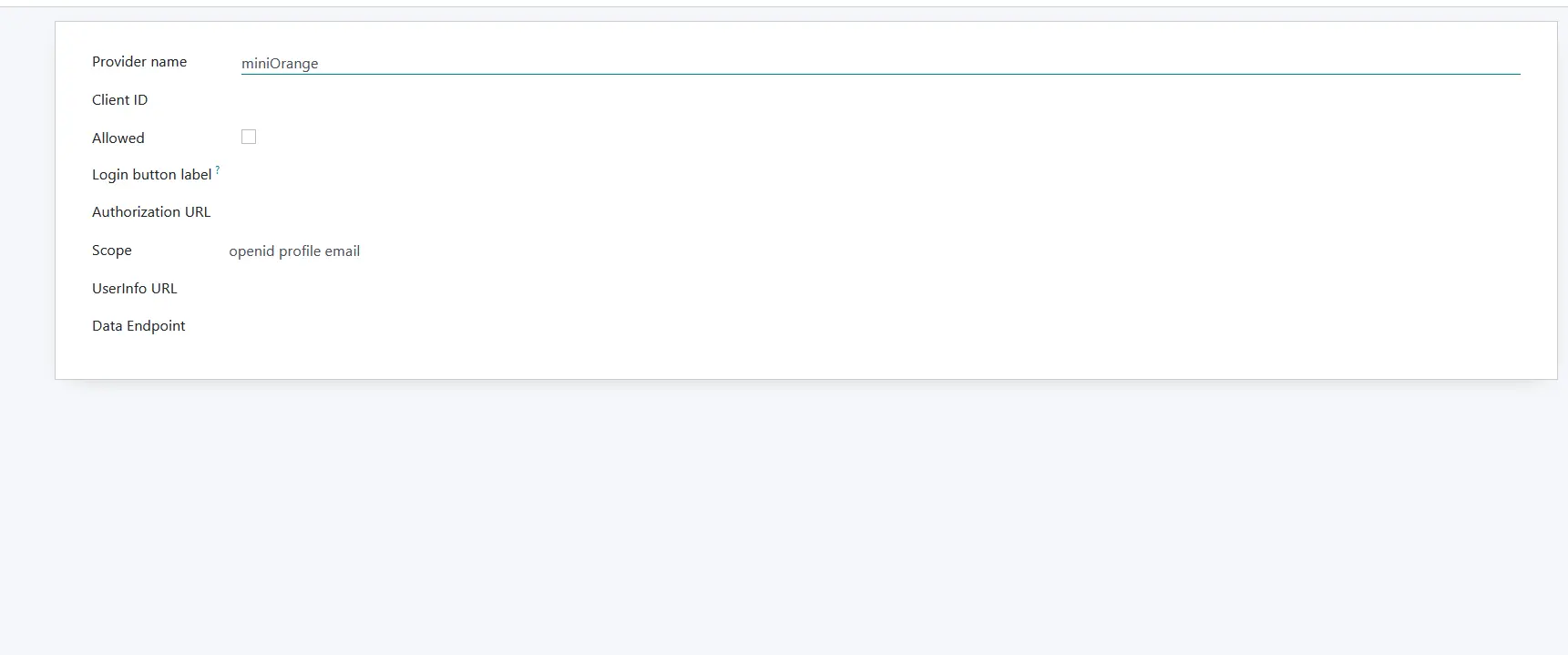
Create a new OAuth provider and name it as miniOrange.
Copy the client id authorization url , token endpoint, userinfo endpoint from the miniOrange.
Add token url in the Data endpoint field and enable the Allowed option.
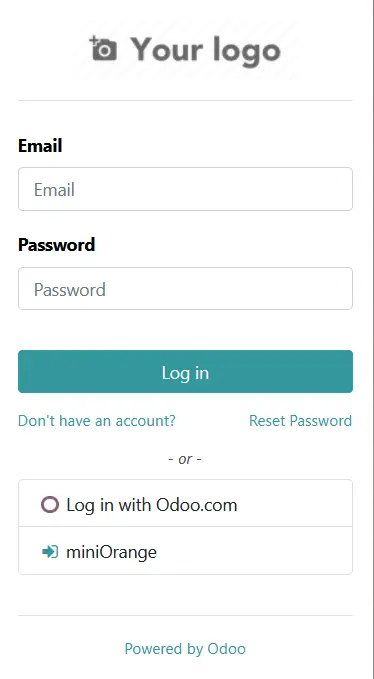
Go to your Odoo base url page and you will find your created Oauth provider.
Click on miniOrange and your SSO flow will initiate.
Note - If you have existing users and want to change the OAuth handler, follow the bellow steps.
Go to Settings > Users > OAuth > OAuth provider and select Re-send Invitation Email.
After you click the link in the email, login with the new OAuth handler instead of using your old credentials.
If you do this correctly, you should see it populate the OAuth User ID and OAuth Access Token under Settings > User > OAuth
3. Configure Your User Directory
miniOrange provides user authentication from various external sources, which can be Directories (like ADFS, Microsoft Active Directory, Microsoft Entra ID, OpenLDAP, Google, AWS Cognito etc), Identity Providers (like Okta, Shibboleth, Ping, OneLogin, KeyCloak), Databases (like MySQL, Maria DB, PostgreSQL) and many more. You can configure your existing directory/user store or add users in miniOrange.
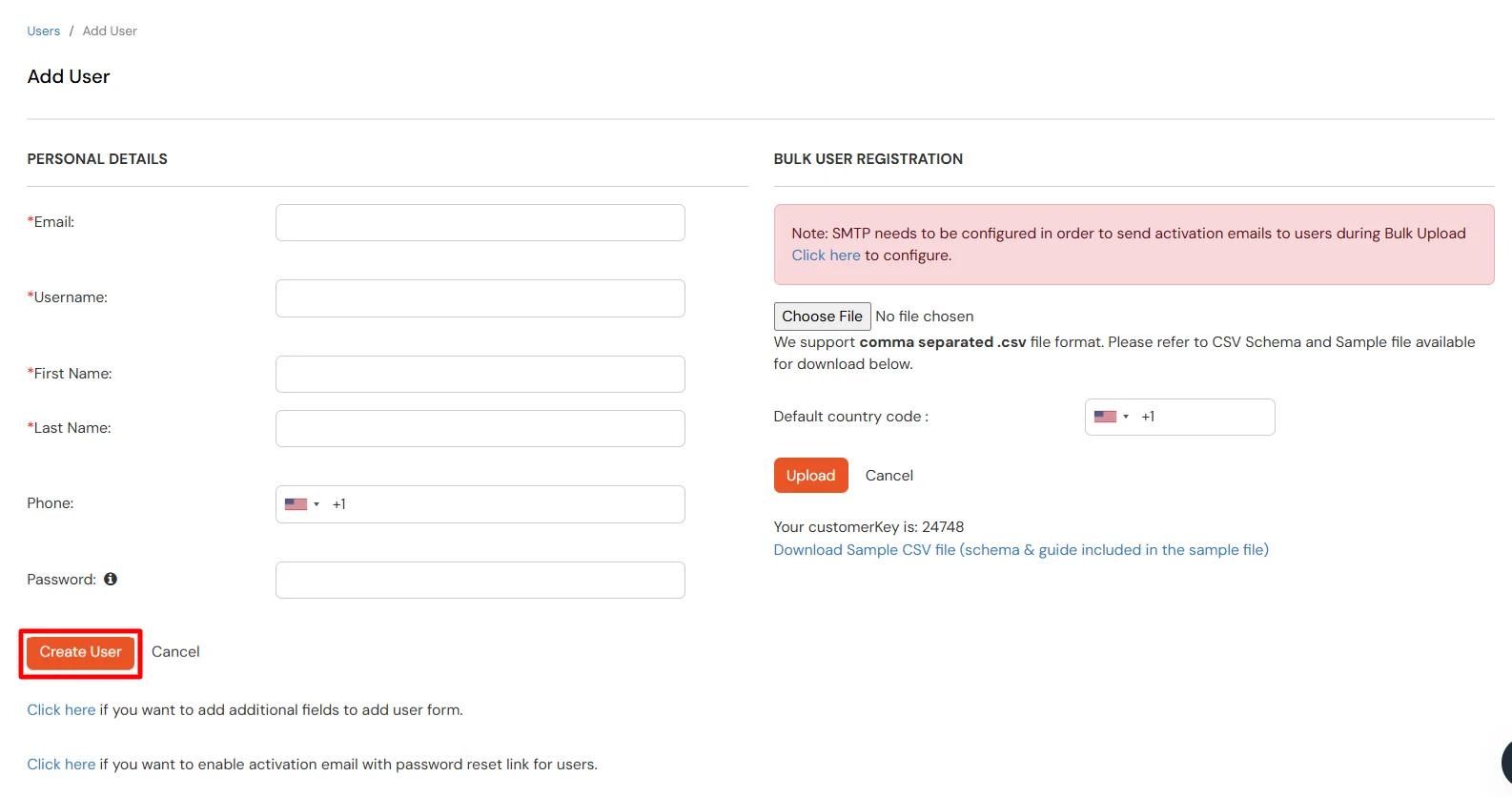
Here, fill the user details without the password and then click on the Create User button.
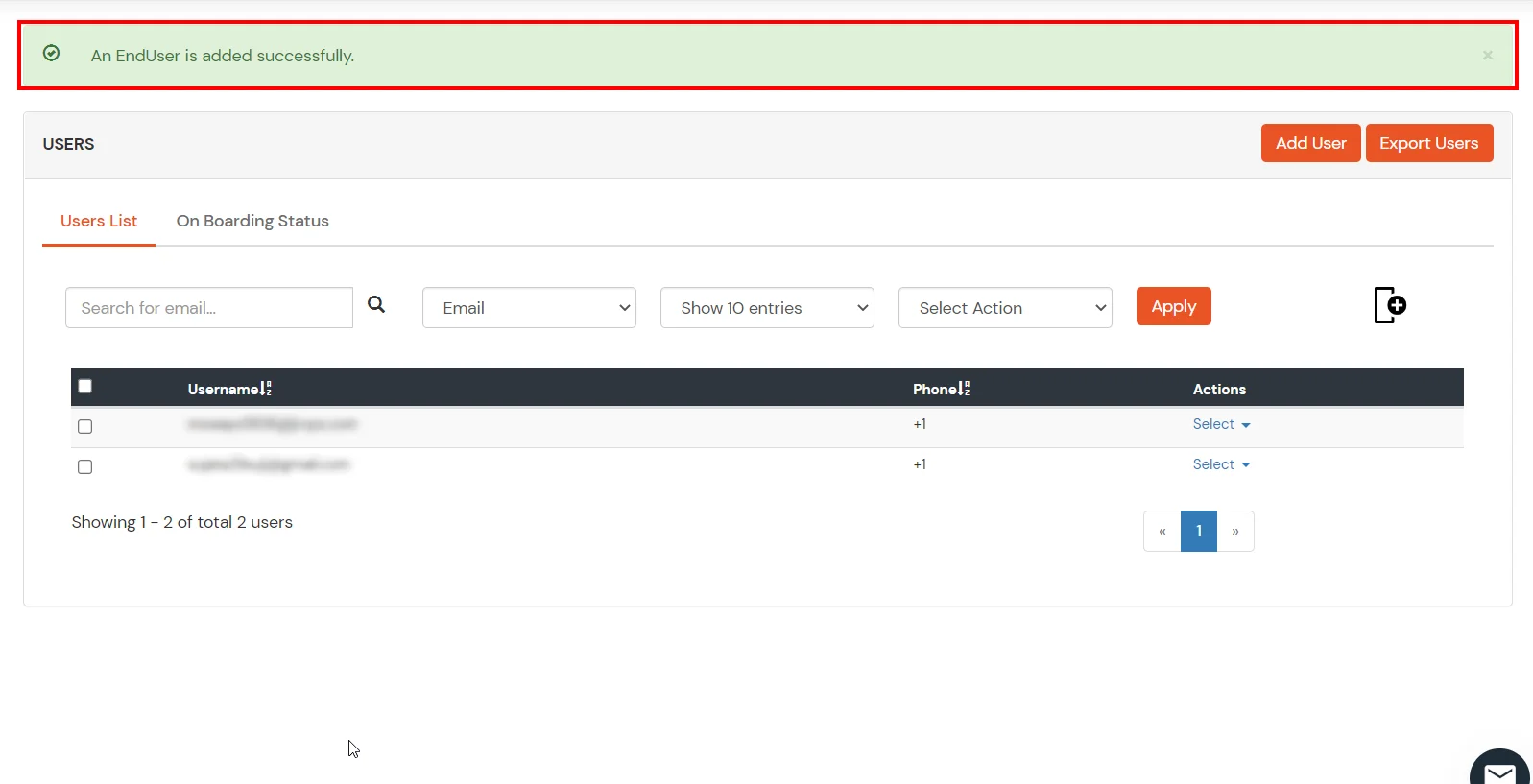
After successful user creation a notification message "An end user is added successfully" will be displayed at the top of the dashboard.
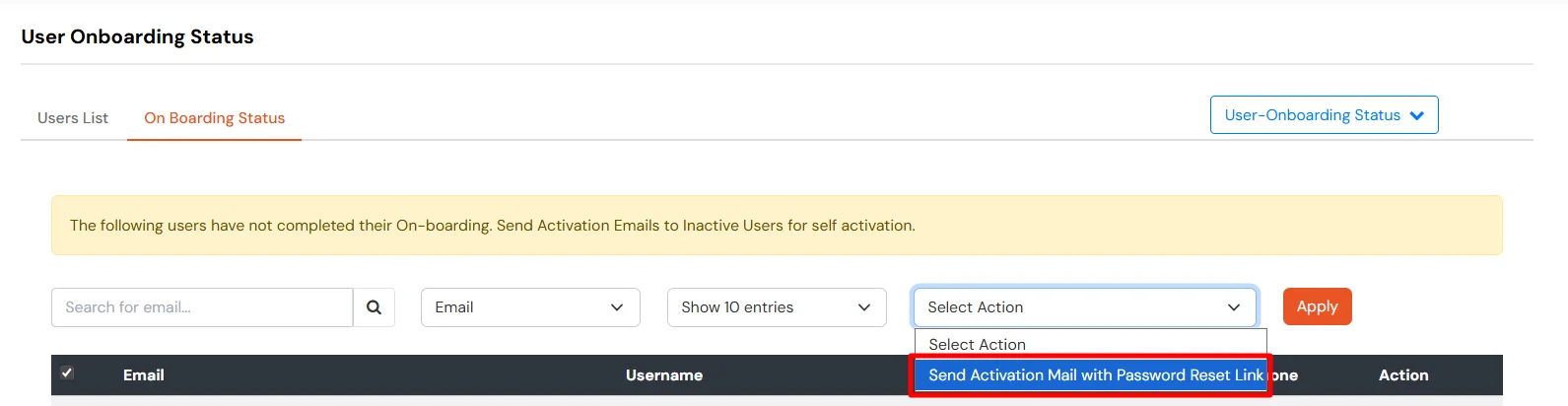
Click on Onboarding Status tab. Check the email, with the registered e-mail id and select action Send Activation Mail with Password Reset Link from Select Action dropdown list and then click on Apply button.
Now, Open your email id. Open the mail you get from miniOrange and then click on the link to set your account password.
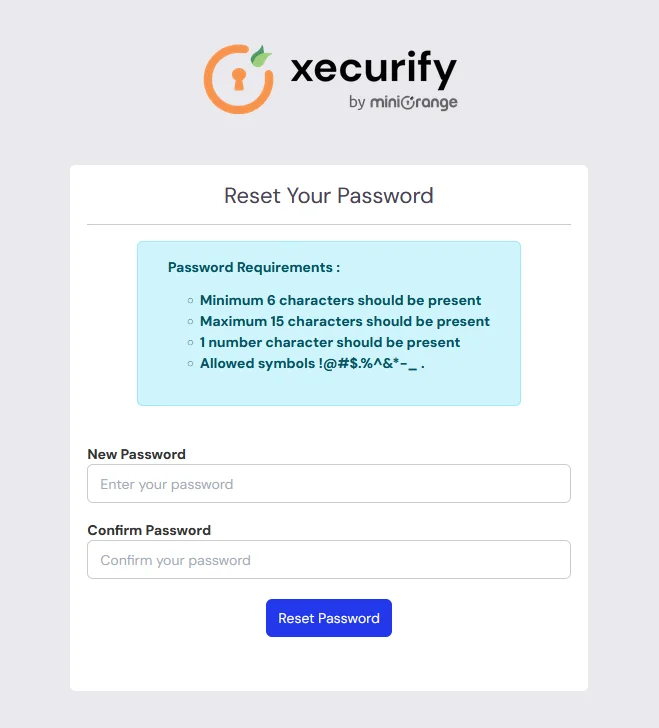
On the next screen, enter the password and confirm password and then click on the Single Sign-On (SSO) reset password button.
Now, you can log in into miniOrange account by entering your credentials.
2. Bulk Upload Users in miniOrange via Uploading CSV File.
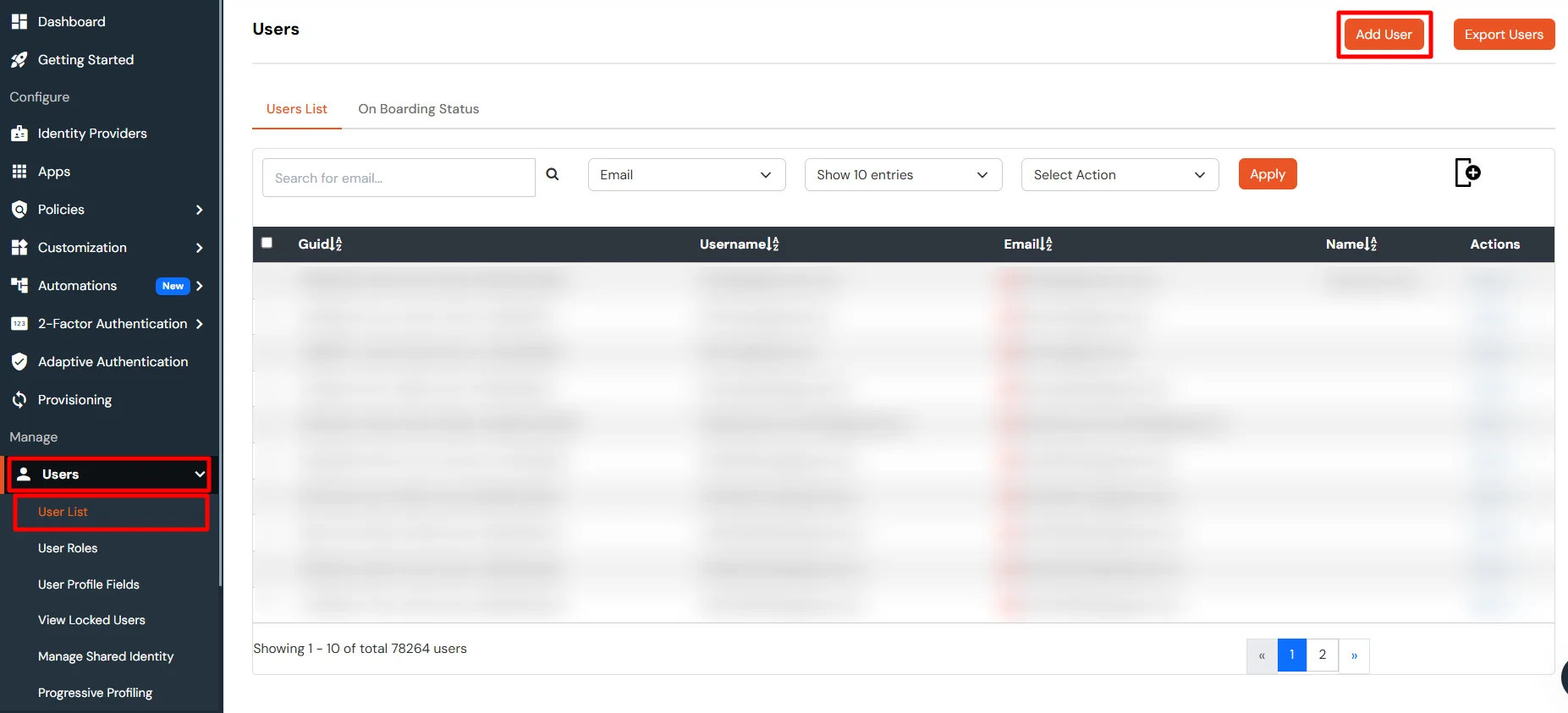
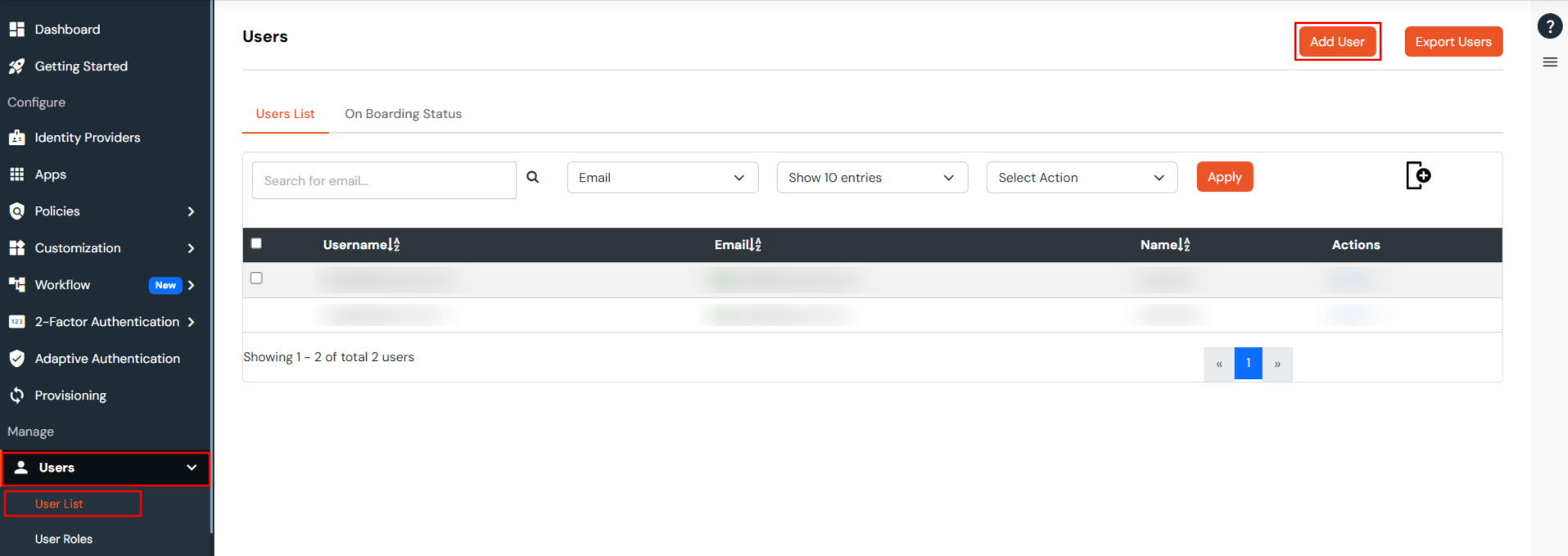
Navigate to Users >> User List. Click on Add User button.
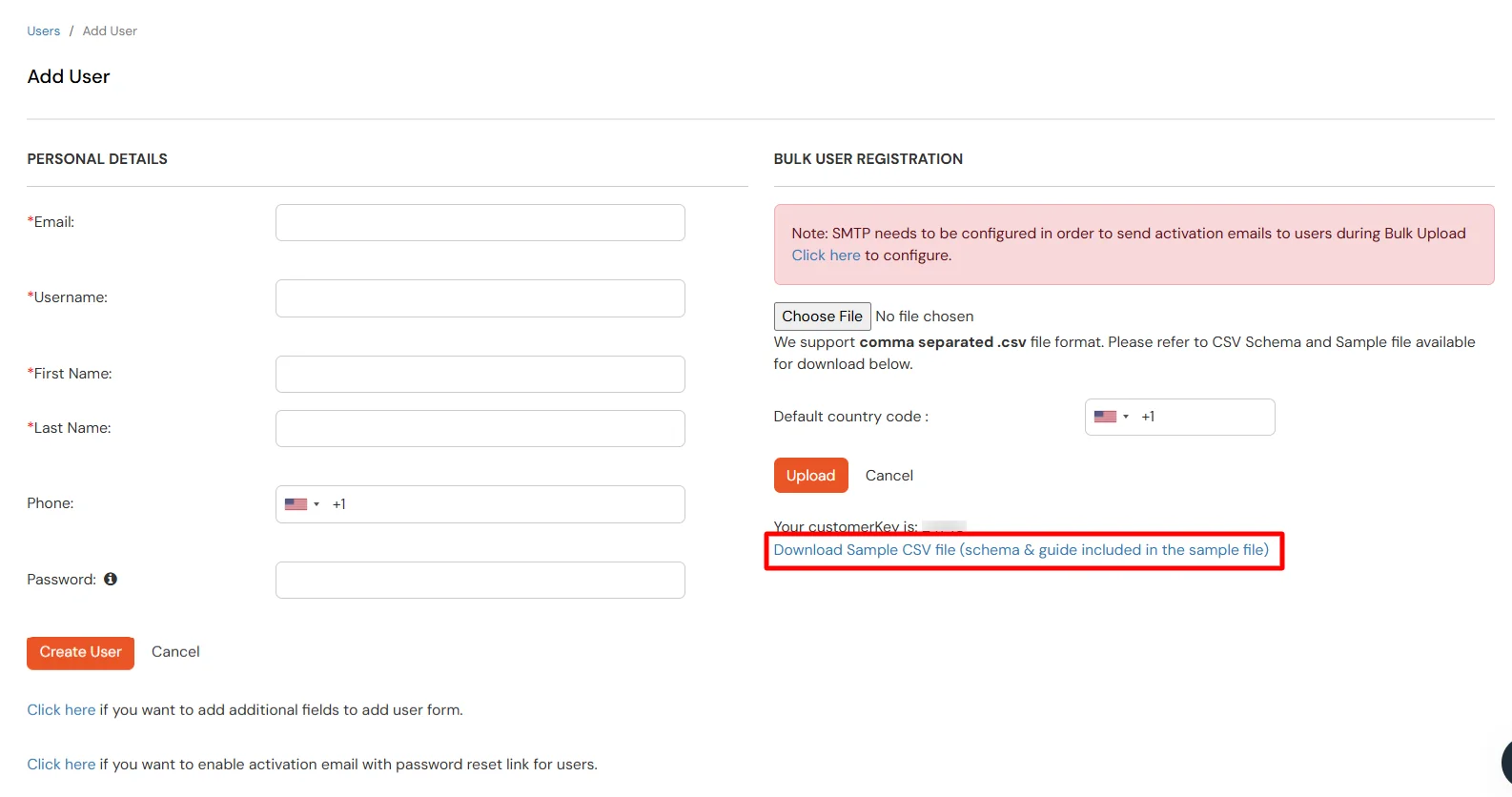
In Bulk User Registration Download sample csv format from our console and edit this csv file according to the instructions.
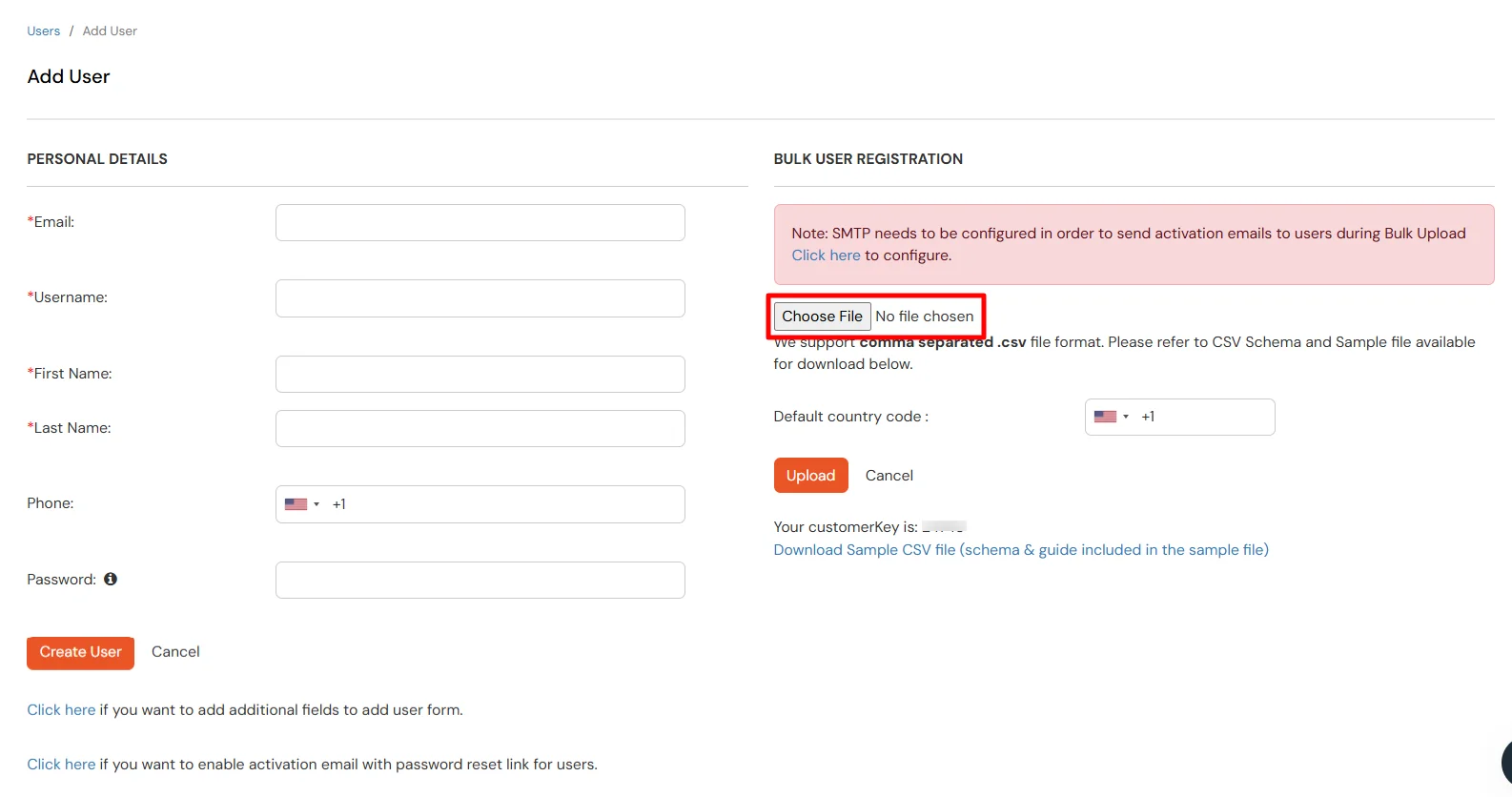
To bulk upload users, choose the file make sure it is in comma separated .csv file format then click on Upload.
After uploading the csv file successfully, you will see a success message with a link.
Click on that link you will see list of users to send activation mail. Select users to send activation mail and click on Send Activation Mail. An activation mail will be sent to the selected users.
Click on Identity Providers >> Add Identity Provider in the left menu of the dashboard.
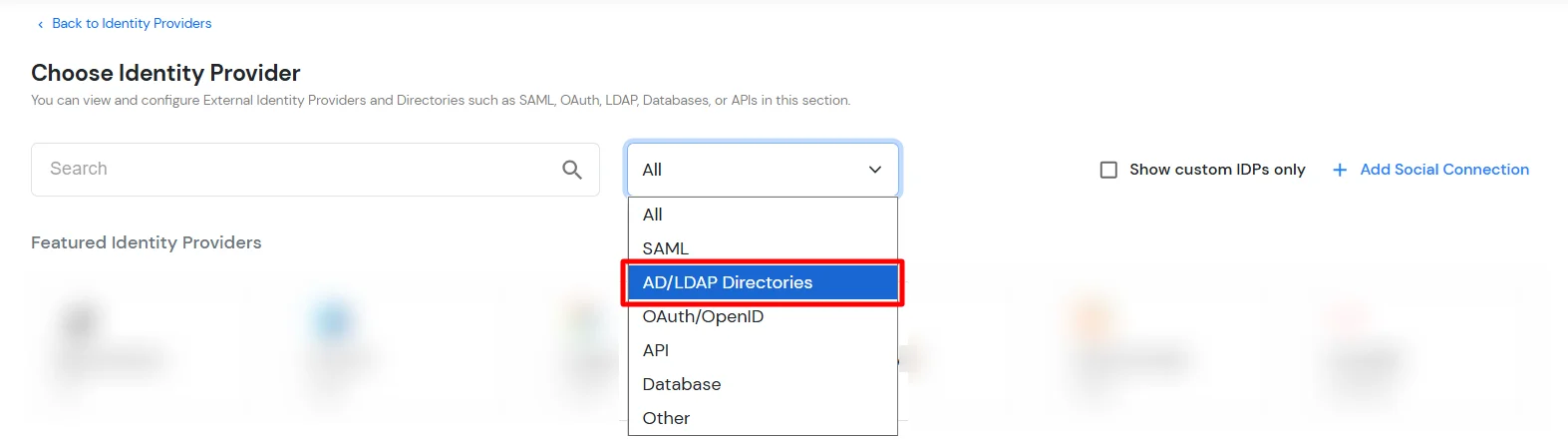
In Choose Identity Provider, select AD/LDAP Directories from the dropdown.
Then search for AD/LDAP and click it.
STORE LDAP CONFIGURATION IN MINIORANGE: Choose this option if you want to keep your configuration in miniOrange. If the active directory is behind a firewall, you will need to open the firewall to allow incoming requests to your AD.
STORE LDAP CONFIGURATION ON PREMISE: Choose this option if you want to keep your configuration in your premise and only allow access to AD inside premises. You will have to download and install miniOrange gateway on your premise.
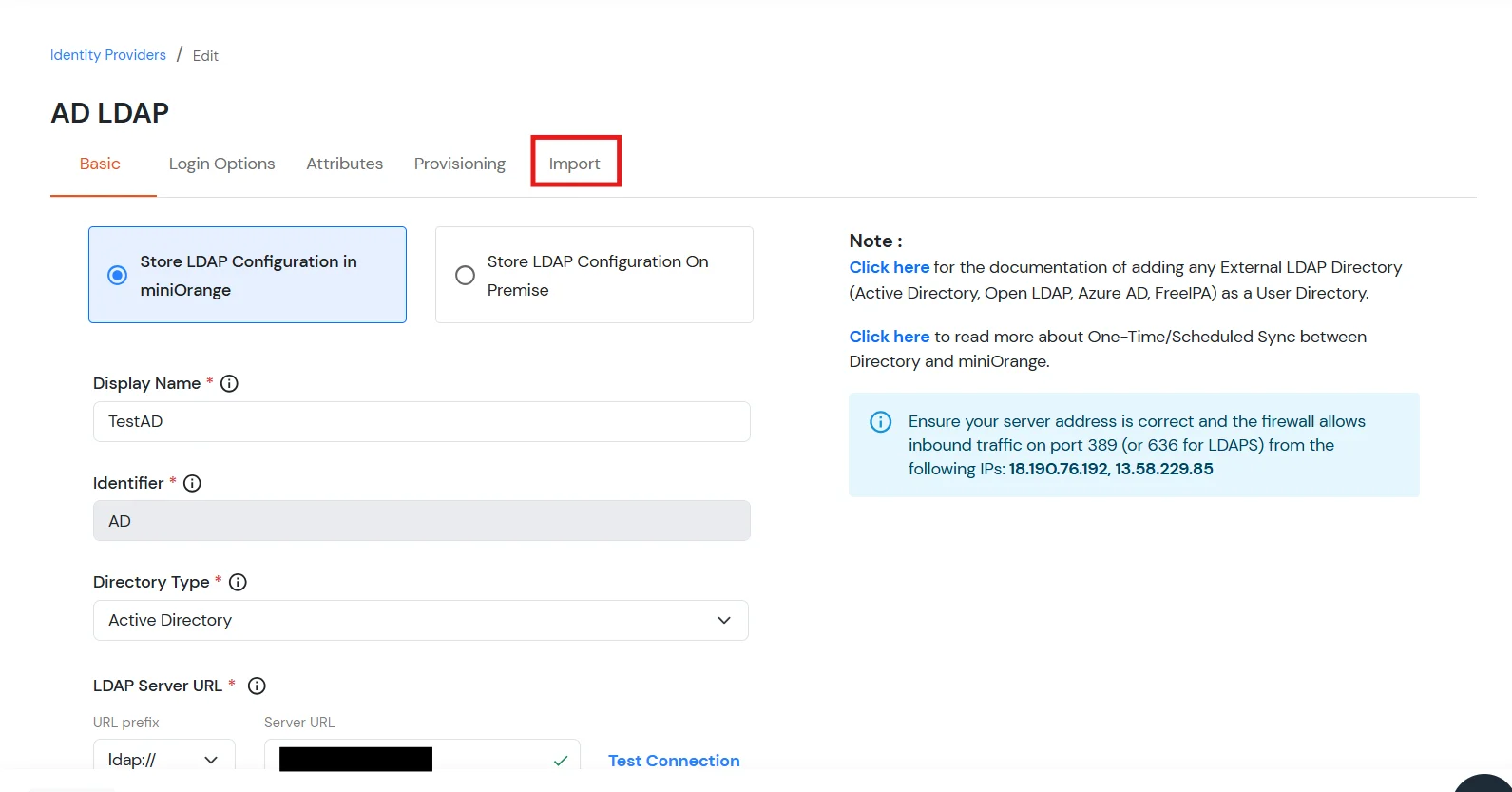
Enter LDAP Display Name and Identifier name.
Select Directory Type as Active Directory.
Enter the LDAP Server URL or IP Address against the LDAP Server URL field.
Click on the Test Connection button to verify if you have made a successful connection with your LDAP server.
In Active Directory, go to the properties of user containers/OU's and search for the Distinguished Name attribute. The bind account should have minimum required read privileges in Active Directory to allow directory lookups. If the use case involves provisioning (such as creating, updating, or deleting users or groups), the account must also be granted appropriate write permissions.
Enter the valid Bind account Password.
Click on the Test Bind Account Credentials button to verify your LDAP Bind credentials for LDAP connection.
Search Base is the location in the directory where the search for a user begins. You will get this from the same place you got your Distinguished name.
Select a suitable Search filter from the drop-down menu. If you use User in Single Group Filter or User in Multiple Group Filter, replace the <group-dn> in the search filter with the distinguished name of the group in which your users are present. To use custom Search Filter select "Write your Custom Filter" option and customize it accordingly.
Click on the Next button, or go to the Login Options tab.
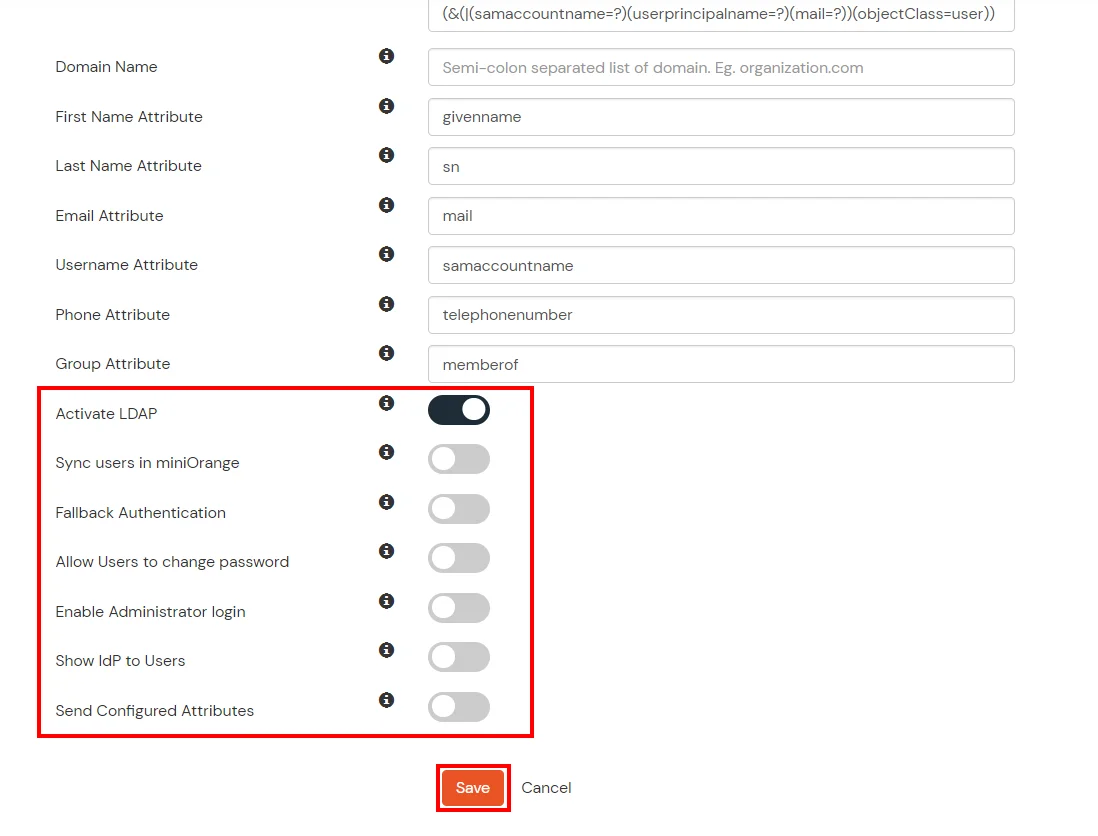
You can also configure following options while setting up AD. Enable Activate LDAP in order to authenticate users from AD/LDAP. Click on the Next button to add user store.
Here's the list of the attributes and what it does when we enable it. You can enable/disable accordingly.
Attribute
Description
Activate LDAP
All user authentications will be done with LDAP credentials if you Activate it
Fallback Authentication
If LDAP credentials fail then user will be authenticated through miniOrange
Enable administrator login
On enabling this, your miniOrange Administrator login authenticates using your LDAP server
Show IdP to users
If you enable this option, this IdP will be visible to users
Sync users in miniOrange
Users will be created in miniOrange after authentication with LDAP
Click on the Next button, or go to the Attributes tab.
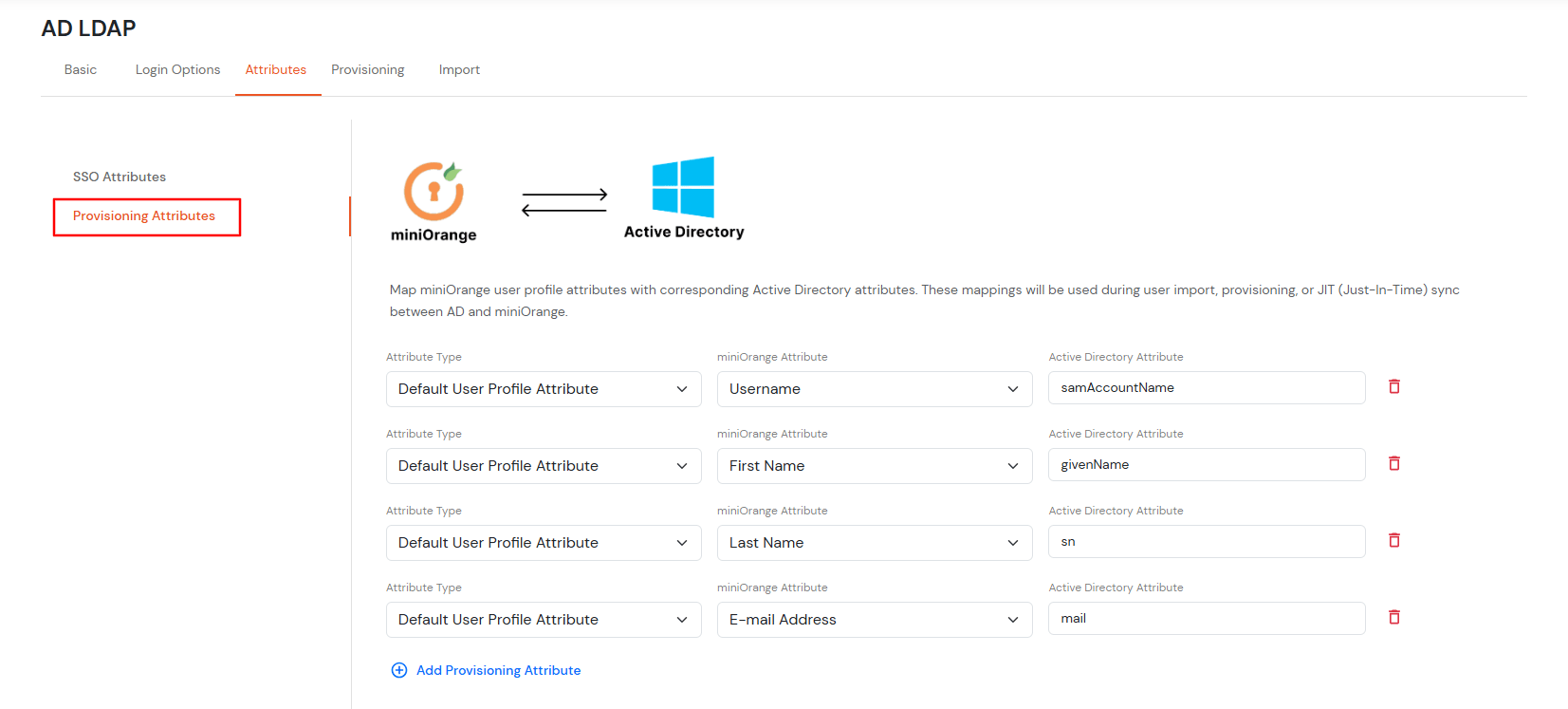
Attributes Mapping from AD
By default userName, firstName, lastName, email are configured. Scroll down and click on Save button. To fetch additional attributes from Active Directory, enable Send Configured Attributes. On the left side, enter the name that you wish to release to the applications. On the right side, enter the attribute name from Active Directory. E.g., if you wish to fetch company attribute from Active Directory, and send it as organization to configured applications, enter the following:
Attribute Name sent to SP = organization Attribute Name from IDP = company
Click on the Next button, or go to the Provisioning tab.
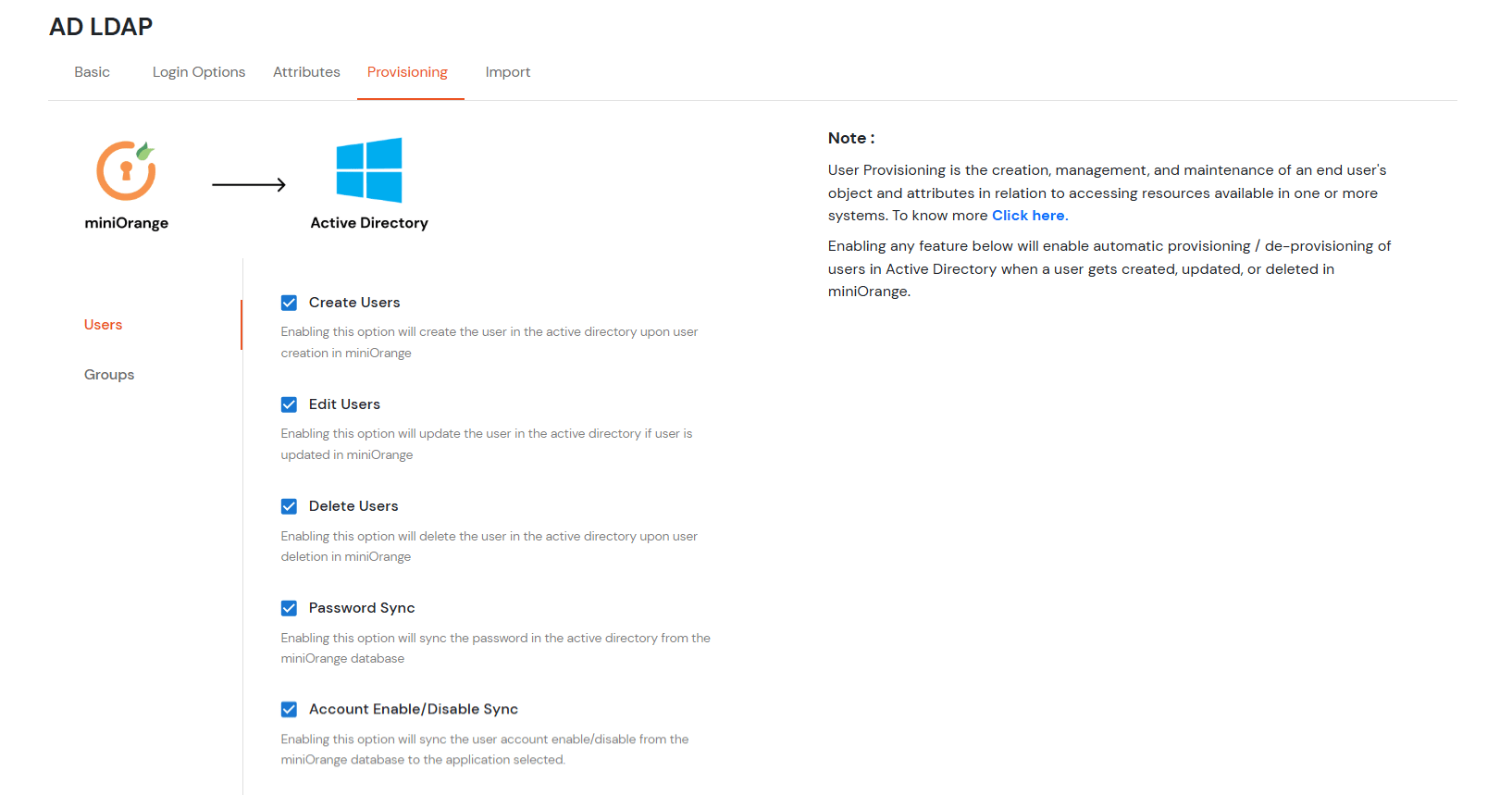
User Import and Provisioning from AD
If you want to set up provisioning, click here for detailed information. We will skip this step for now.
Import Password Policy from AD
If you want to import your Active Directory password policy into miniOrange, click here for detailed information. We will skip this step for now.
Test Connections
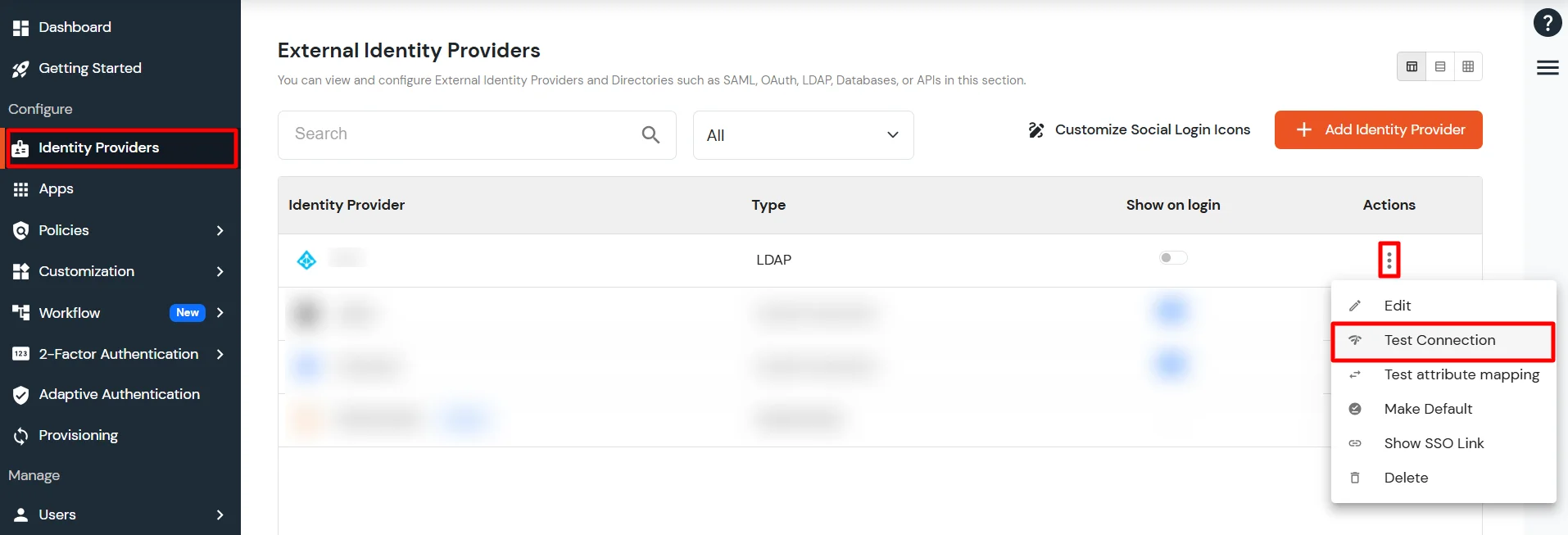
You will see a list of directories under Identity Providers. From the dropdown, select AD/LDAP Directories, search for your configured directory, click the three dots next to it, and select Test Connection.
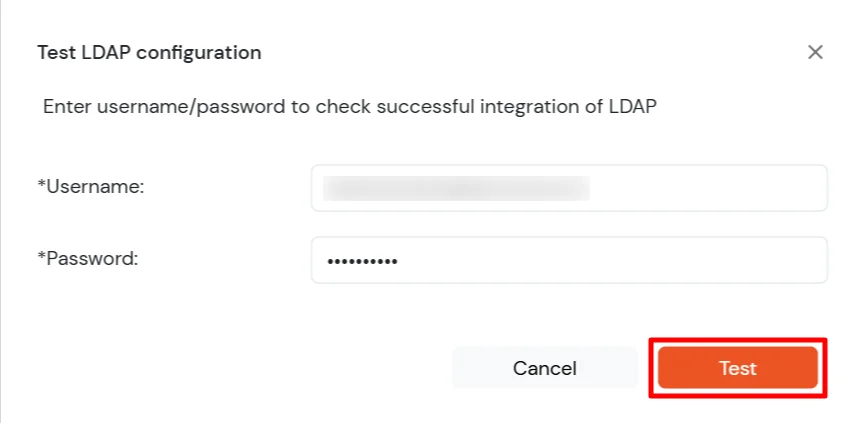
A pop-up appears prompting you to enter a username and password to verify your LDAP configuration.
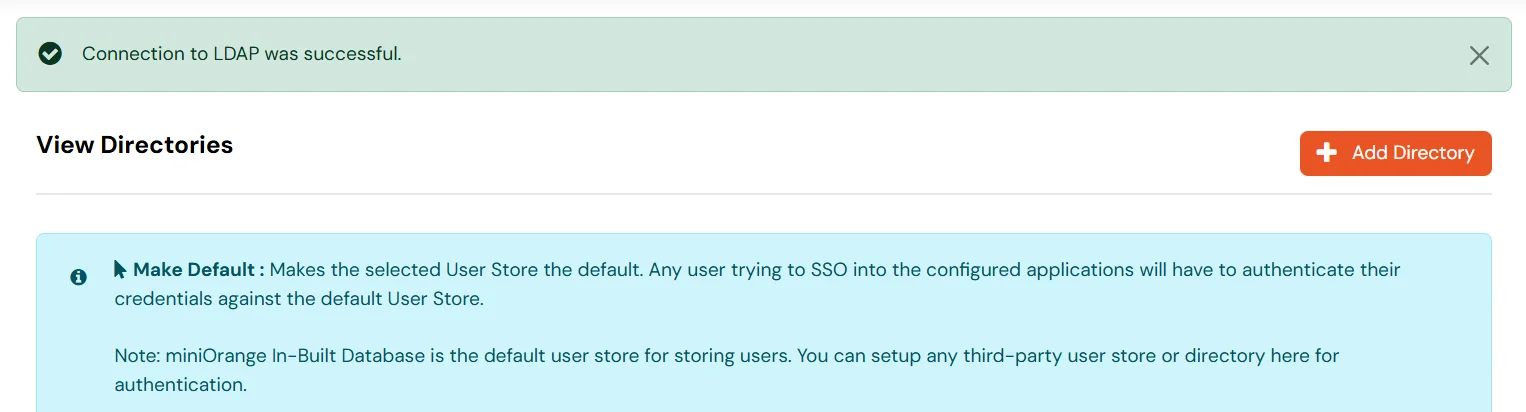
On Successful connection with LDAP Server, a success message is shown.
Test Attribute Mapping
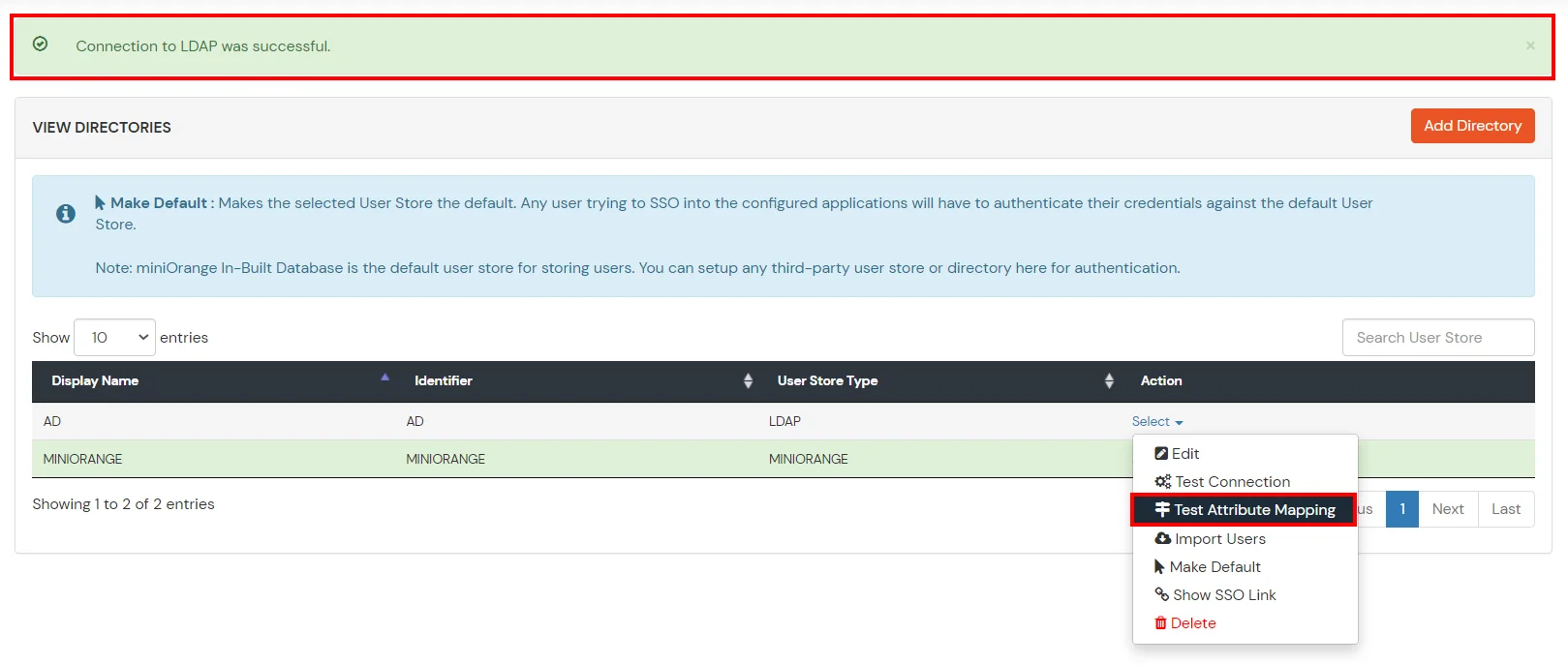
You will see a list of directories under Identity Providers. From the dropdown, select AD/LDAP Directories, search for your configured directory, click the three dots next to it, and select Test Attribute Mapping.
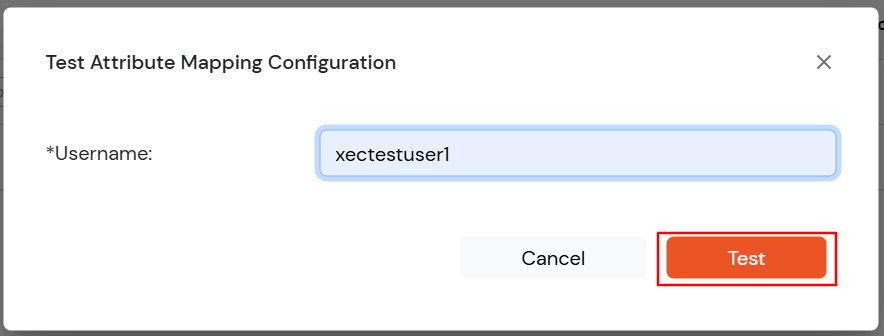
A pop‑up appears to enter a username and click Test.
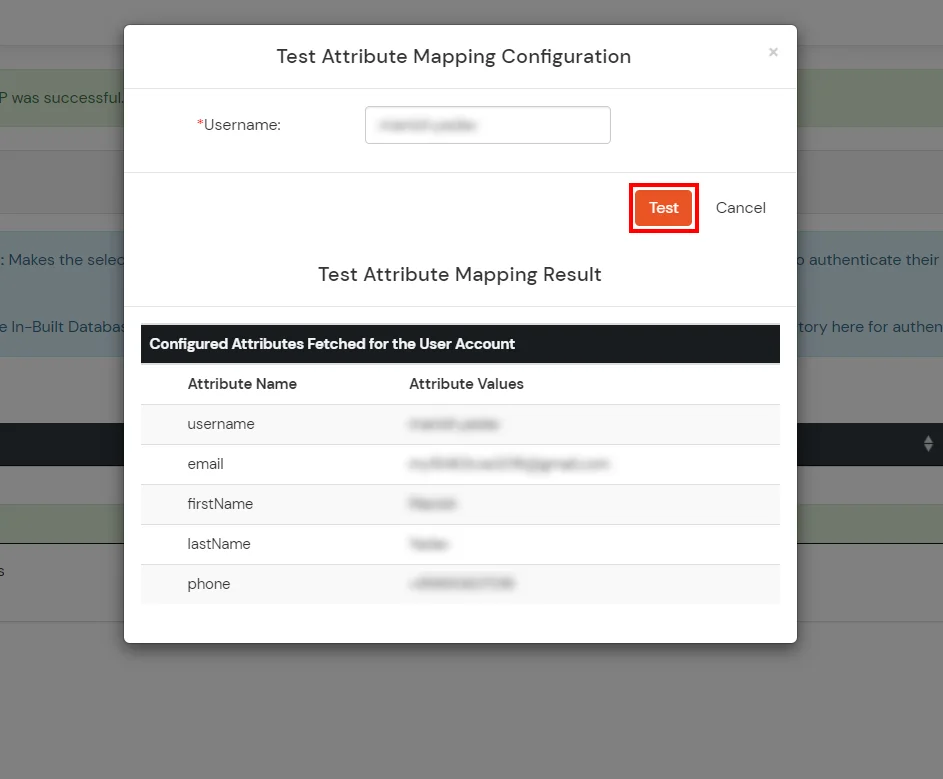
The Test Attribute Mapping Result will be displayed.
Set up AD as External Directory configuration is complete.
Note: Refer our guide to setup LDAP on windows server.
miniOrange integrates with various external user sources such as directories, identity providers, and etc.
Lets say you have configured miniOrange as your userstore.
On accessing the Single sign-On URL as mentioned in the second step, you will be asked for miniOrange credentials.
On entering the valid credentials, you will be successfully logged into Odoo.
Using IDP Initiated Login
Log into miniOrange IdP using your credentials.
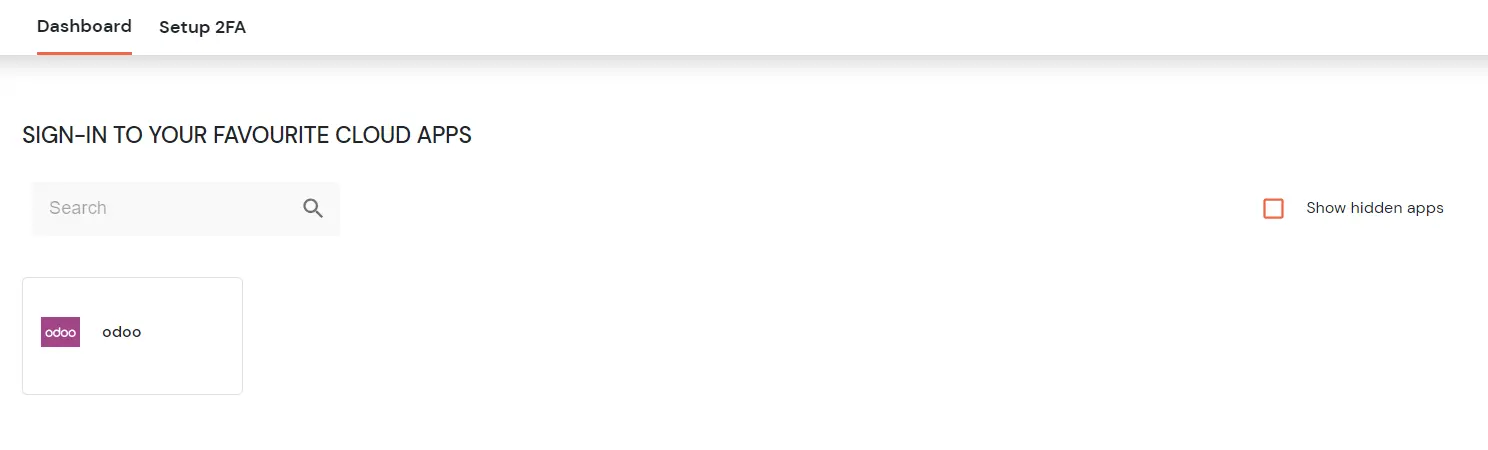
On the End User-Dashboard, click on the Odoo application configured, to test the SSO flow.
You will be successfully logged into Odoo.
Using SP Initiated Login
Lets say you have configured Okta as IDP.
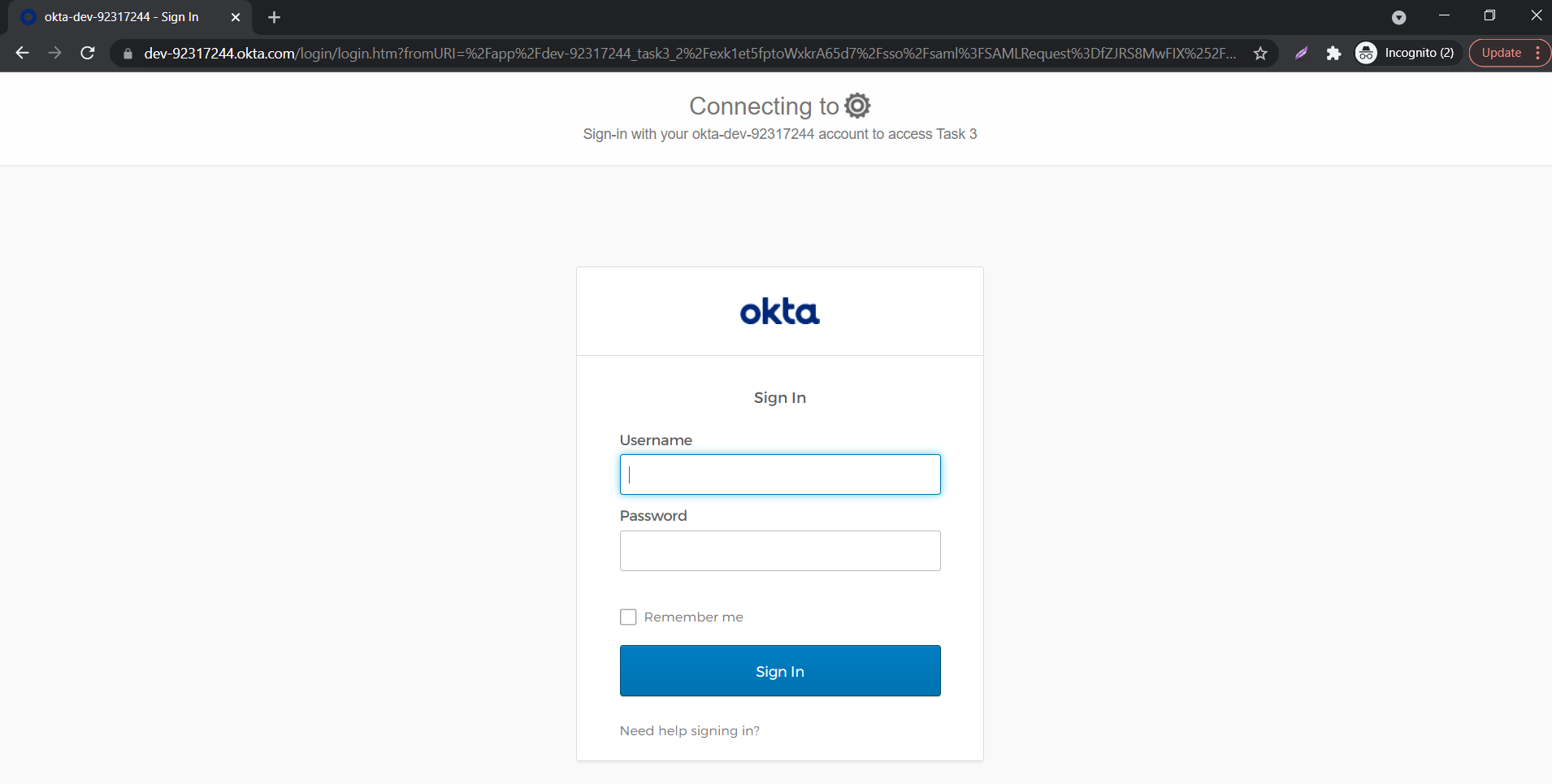
On accessing the Single sign-On URL as mentioned in the second step, you will be asked to enter your Okta credentials.
On entering the valid credentials, you will be successfully logged into Odoo.
Using IDP Initiated Login
Log into Okta using your credentials.
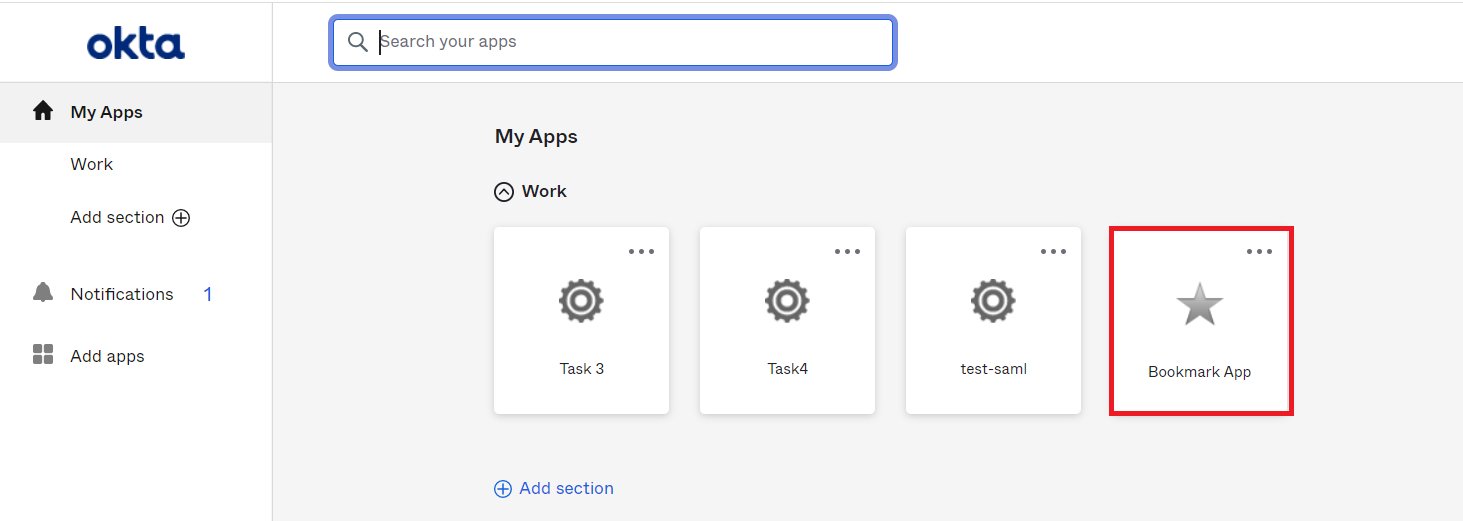
Click on Admin to access the Admin Console, then click on Applications.
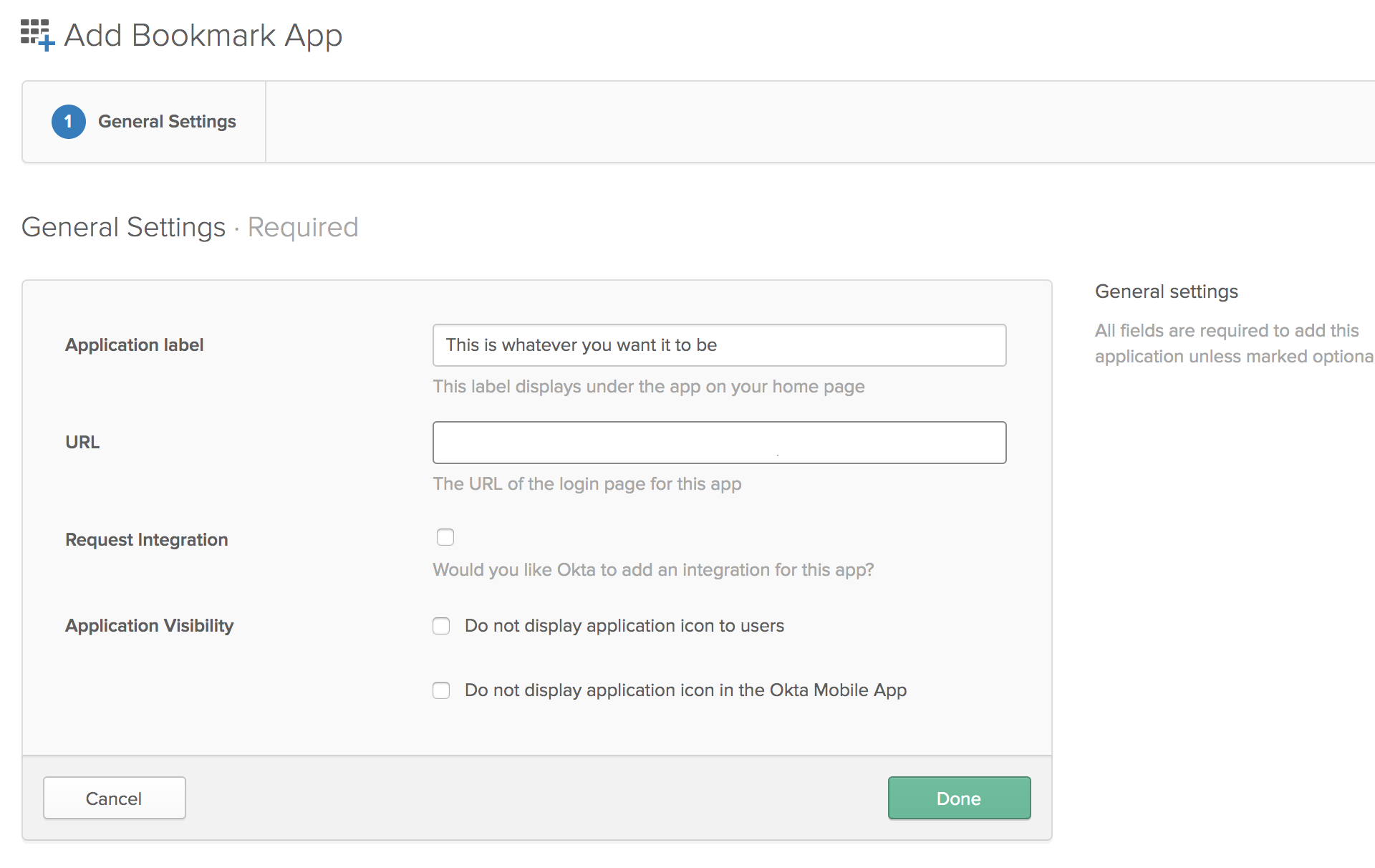
Click on Add Application and search for "Bookmark App", and Click Add in the left pane.
Choose an app name of your choice which will be the display name.
In the URL section, enter the SSO URL that is given in the JWT app.
Click on Save.
On the End User-Dashboard, click on the Odoo bookmark application configured, to test the SSO flow.
You will be successfully logged into Odoo.
Embedded views :
If you enable the Default Option in the OAuth Settings and are not able to log into Odoo then use the following link to bypass SSO and log in using username and password instead:
<base-odoo-url>/web/login?sso=false
The embedded URL would look something like the following: