Hello there!

Need Help? We are right here!

Support Icon
miniOrange Email Support
success

Thanks for your Enquiry. Our team will soon reach out to you.

If you don't hear from us within 24 hours, please feel free to send a follow-up email to info@xecurify.com

Search Results:

×

SAP HANA SAML Single Sign-On (SSO)


SAP HANA Single Sign-On (SSO) is an advanced security feature that simplifies the login process for SAP HANA users. With Single Sign-On (SSO) for SAP HANA , users only need to log in once to access multiple SAP applications and systems, saving time and increasing productivity. It provides a centralized authentication mechanism and eliminates the need for multiple usernames and passwords, improving security and reducing the risk of password-related issues. This page provides a step by step guide using which you can configure SSO for SAP HANA easily.


Get Free Installation Help


miniOrange offers free help through a consultation call with our System Engineers to Install or Setup SAP HANA SSO solution in your environment with 30-day free trial.

For this, you need to just send us an email at idpsupport@xecurify.com to book a slot and we'll help you in no time.


Supported SSO Features

miniOrange SAP HANA SAML integration supports the following features:

  • SP Initiated SSO Login: Users can access their SAP HANA account via a URL or bookmark. They will automatically be redirected to the miniOrange portal for login. Once they've signed on, they'll be automatically redirected and logged into SAP HANA.
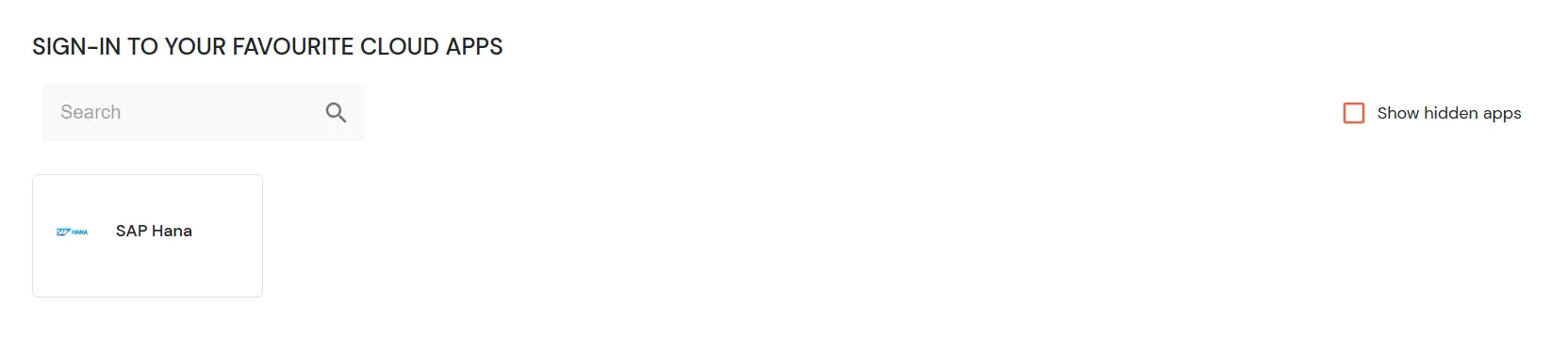
  • IdP Initiated SSO Login: Users need to login to the miniOrange first , and then click on the SAP HANA icon on the applications dashboard to access SAP HANA. (If you have set up any more Identity Sources, you will log in to that platform).

Connect with External Source of Users


miniOrange provides user authentication from various external sources, which can be Directories (like ADFS, Microsoft Active Directory, OpenLDAP, AWS etc), Identity Providers (like Microsoft Entra ID, Okta, AWS), and many more. You can configure your existing directory/user store or add users in miniOrange.
Follow the Step-by-Step Guide given below for SAP HANA Single Sign-On (SSO)

1. Configure SAP HANA in miniOrange

  • Login into miniOrange Admin Console.
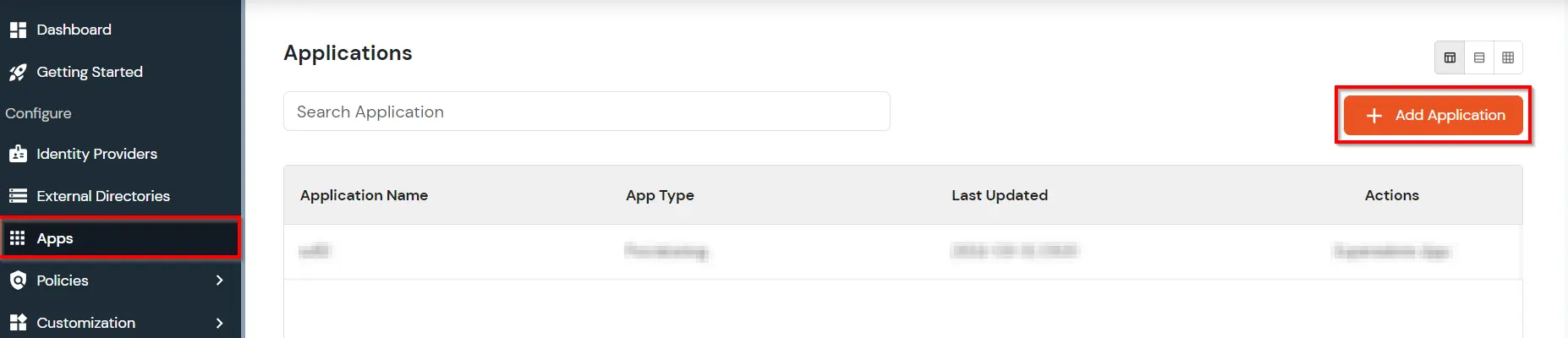
  • Go to Apps and click on Add Application button.
  • SAP HANA Single Sign-On (SSO) add app

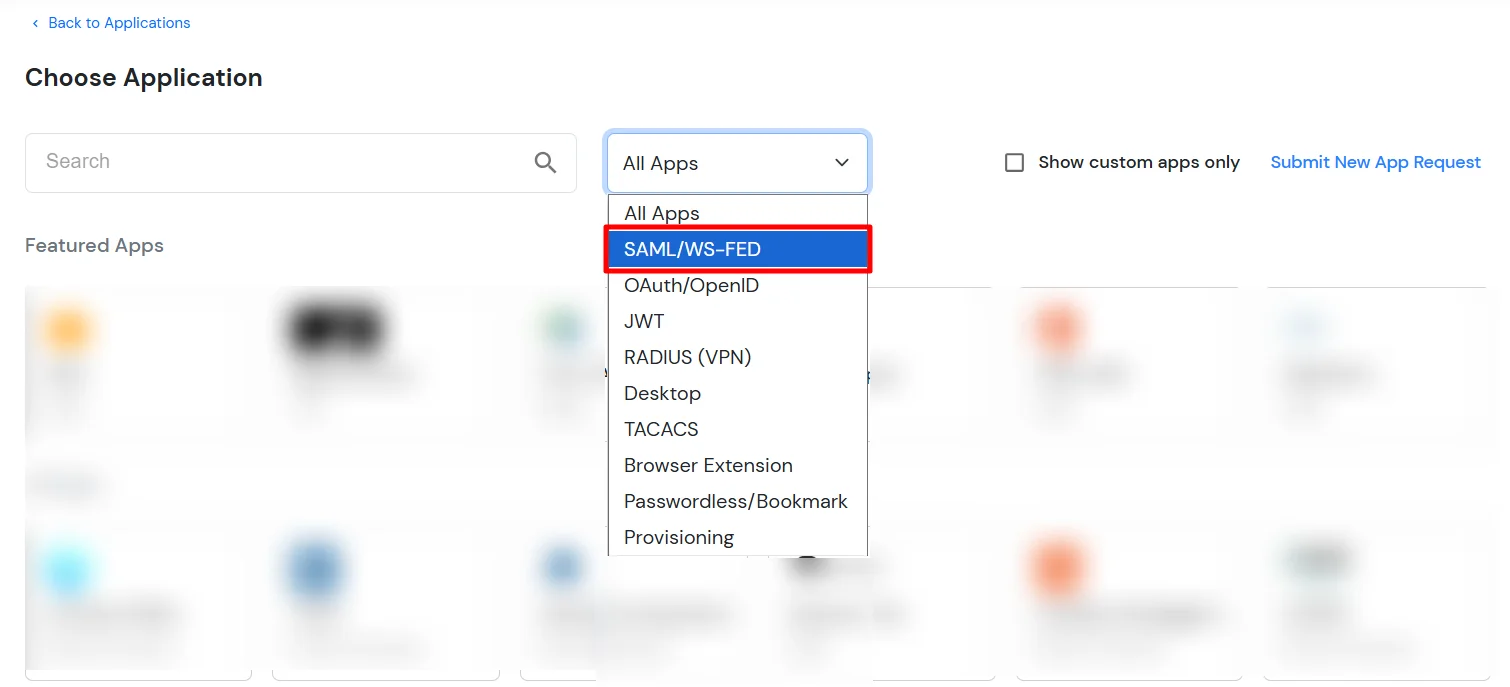
  • In Choose Application Type, select SAML/WS-FED from the All Apps dropdown.
  • SAP HANA Single Sign-On (SSO) choose app type

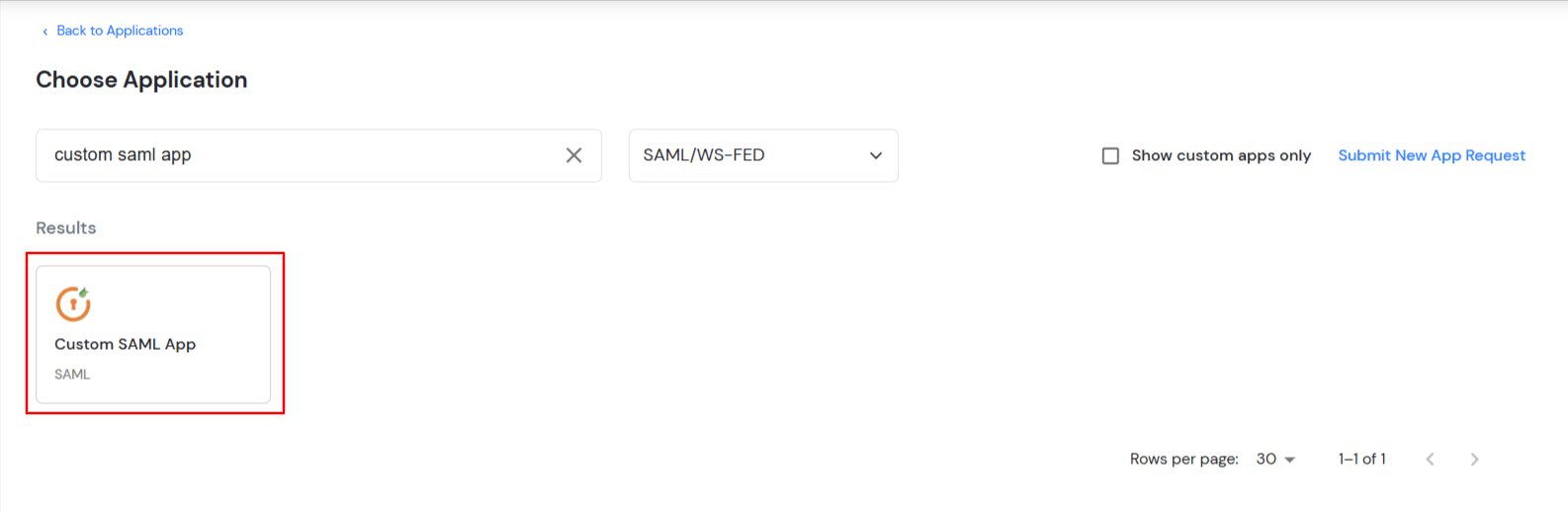
  • Search for SAP HANA in the list, if you don't find SAP HANA in the list then, search for custom and you can set up your application in Custom SAML App.
  • SAP HANA Single Sign-On (SSO) manage apps

  • Enter the following values in the respective fields.
  • Display Name: SAP HANA
    SP Entity ID or Issuer: https://www.sap.com/a/your_samlname
    ACS URL: https://www.sap.com/a/your_samlname

    SAP HANA Single Sign On (sso) saml

  • Click Next to go to the Login policy. You need to Save the Application first to configure the policy for the application.
  • miniOrange Identity Platform Admin Handbook: Save the application in the Policies section

  • After the application is saved you can configure the policy for that application.
  • miniOrange Identity Platform Admin Handbook: Go to Policies and Assign Group

  • Click on the Assign group button. A new Configure Group Assignment Modal tab will open.
    • Assign Group: Select the groups you want to link with the application. You can select up to 20 groups at a time.
    • miniOrange Identity Platform Admin Handbook: Go to Policies and Add Policy

    • If you need to create new group. Click on Add New Group button.
    • Enter the Group name and click on Create Group.
    • miniOrange Identity Platform Admin Handbook: Go to Policies and Add Policy

    • Click on Next.
    • Assign Policies: Add the required policies to the selected groups. Enter the following details:
    • First Factor: Select the login method from the dropdown.
      • If you select Password as the login method, you can enable 2-Factor Authentication (MFA) and Adaptive Authentication, if needed.
      • If you select Password-less as login method, you can enable 2-Factor Authentication (MFA) if needed.
      • If you select Magic Link as the login method, the following options appear:
        • Enable sign-in from other IPs: When enabled, users can open the Magic Link from a different IP address than the one from which it was requested.
        • Enable sign-in from other devices: When enabled, users can open the Magic Link on a different device than the one used to request it.
  • miniOrange Identity Platform Admin Handbook: Under the Add Login Policy, provide the details

  • Click on Save. Policies will be created for all the selected groups.
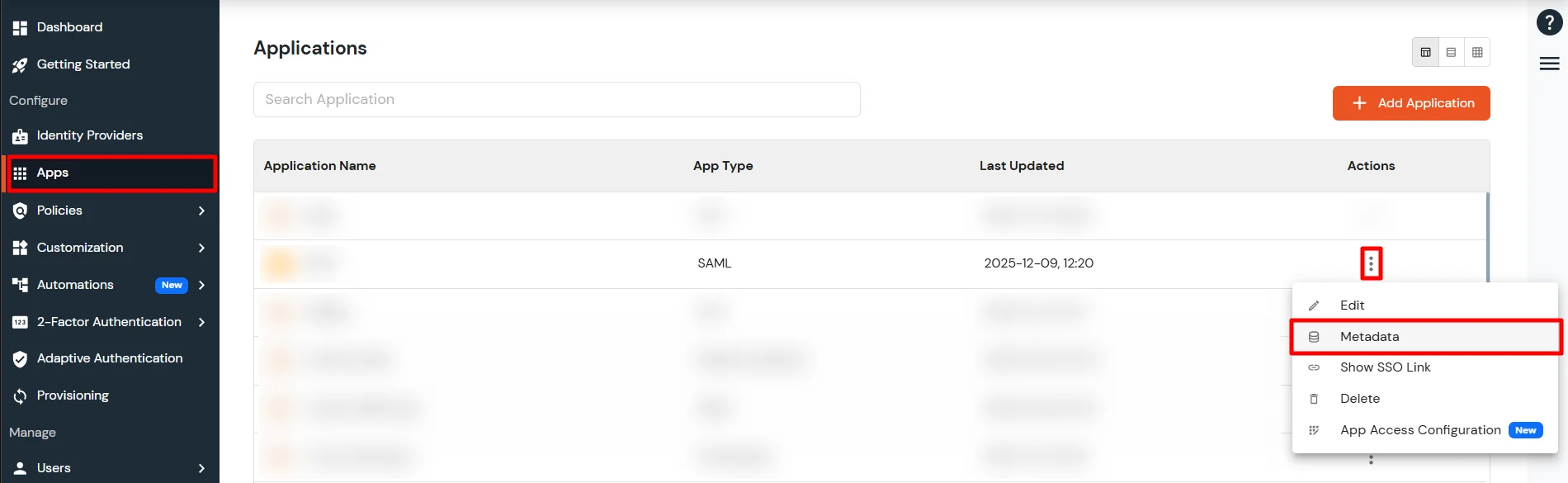
  • Go to Apps >> Applications, search for your app, and click the three-dot icon under the Actions column.
  • Configure SAP HANA SSO (Single Sign-On): Go to Metadata link

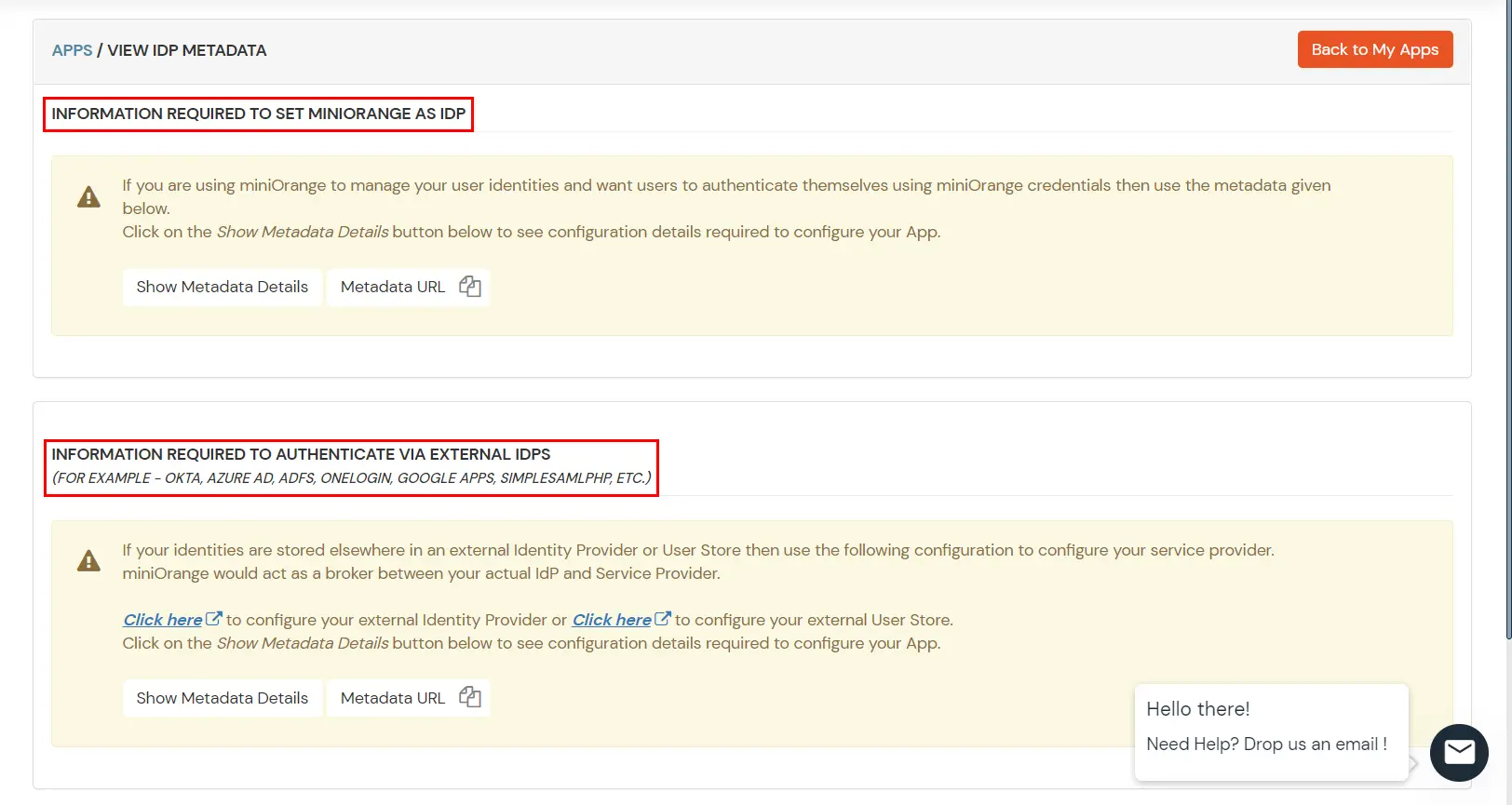
  • Now, select Metadata. Here you will see 2 options, if you are setting up miniOrange as IDP copy the metadetails related to miniOrange, if you required to be authenticated via external IDP's(okta,AZURE AD, ADFS, ONELOGIN, GOOGLE APPS) you can get metadata from the 2nd Section as shown below.
  • Configure SAP HANA Single Sign-On (sso) Select miniOrange as Idp

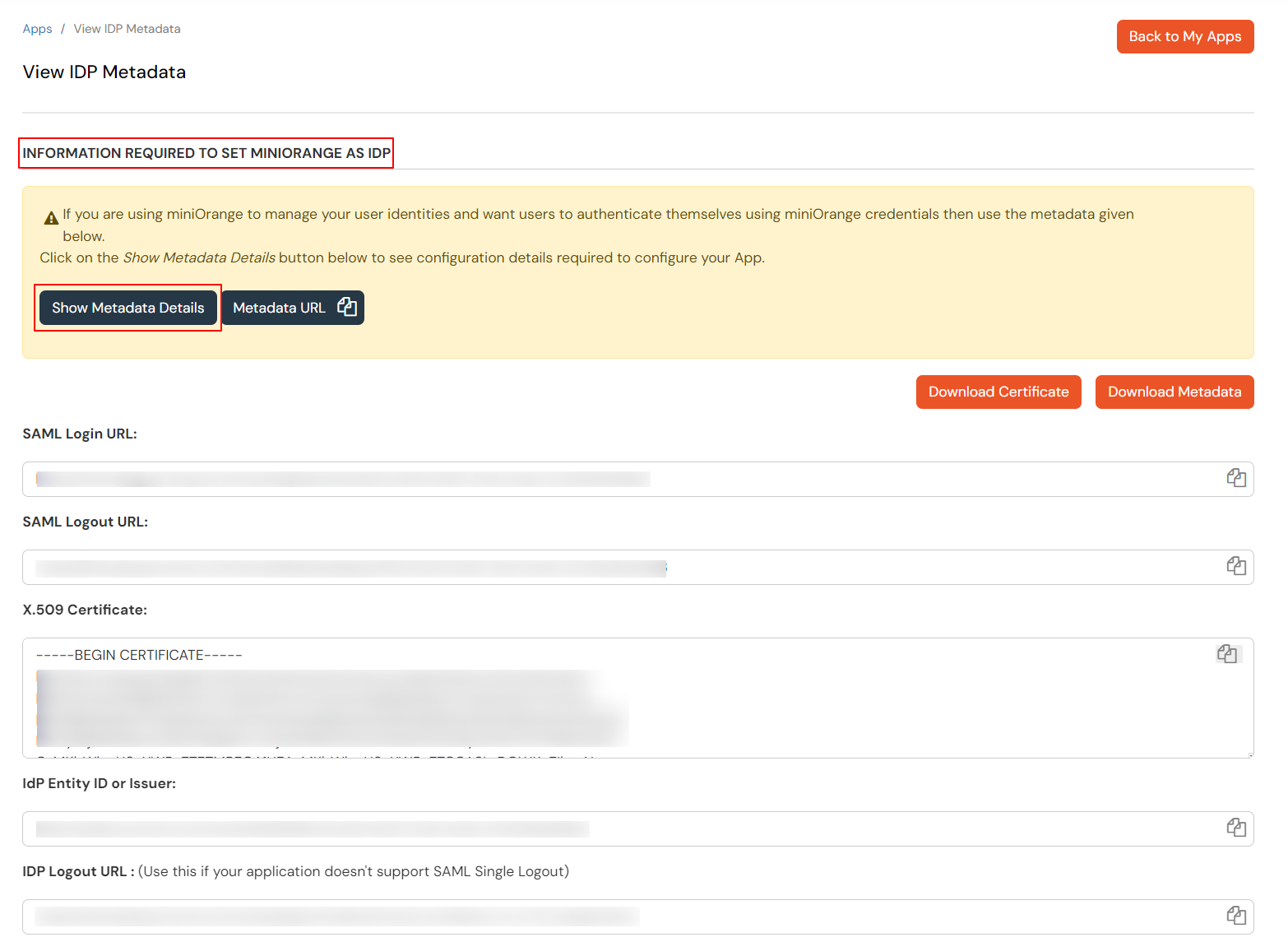
  • Keep the Metadata URL and click on the Download Metadata button to download the Metadata XML file which you will require in Step 2.
  • Configure SAP HANA SSO (Single Sign-On): Select Metadata details external IDP or miniOrange as IDP


2. Configure SSO in SAP HANA Admin Account

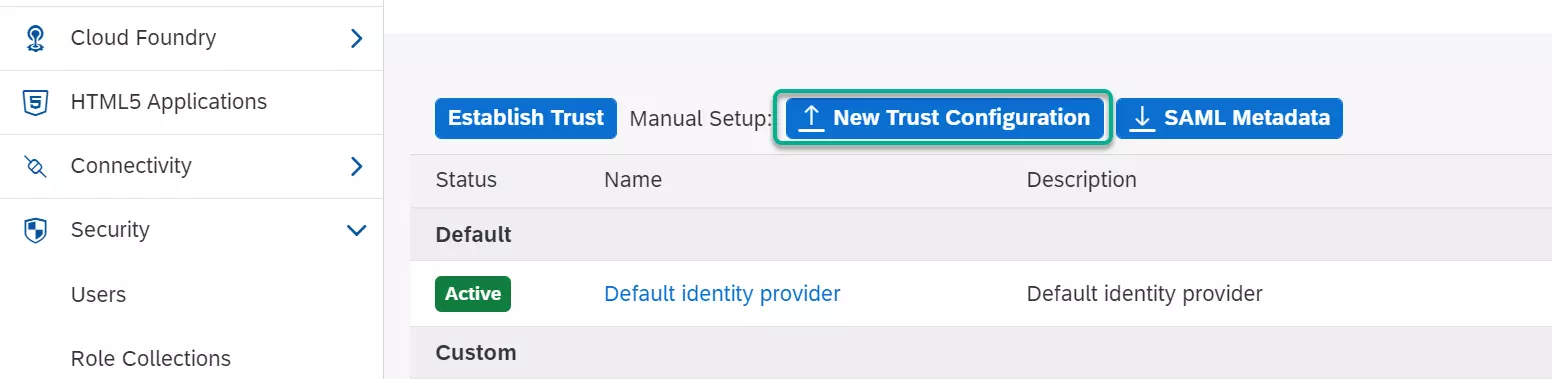
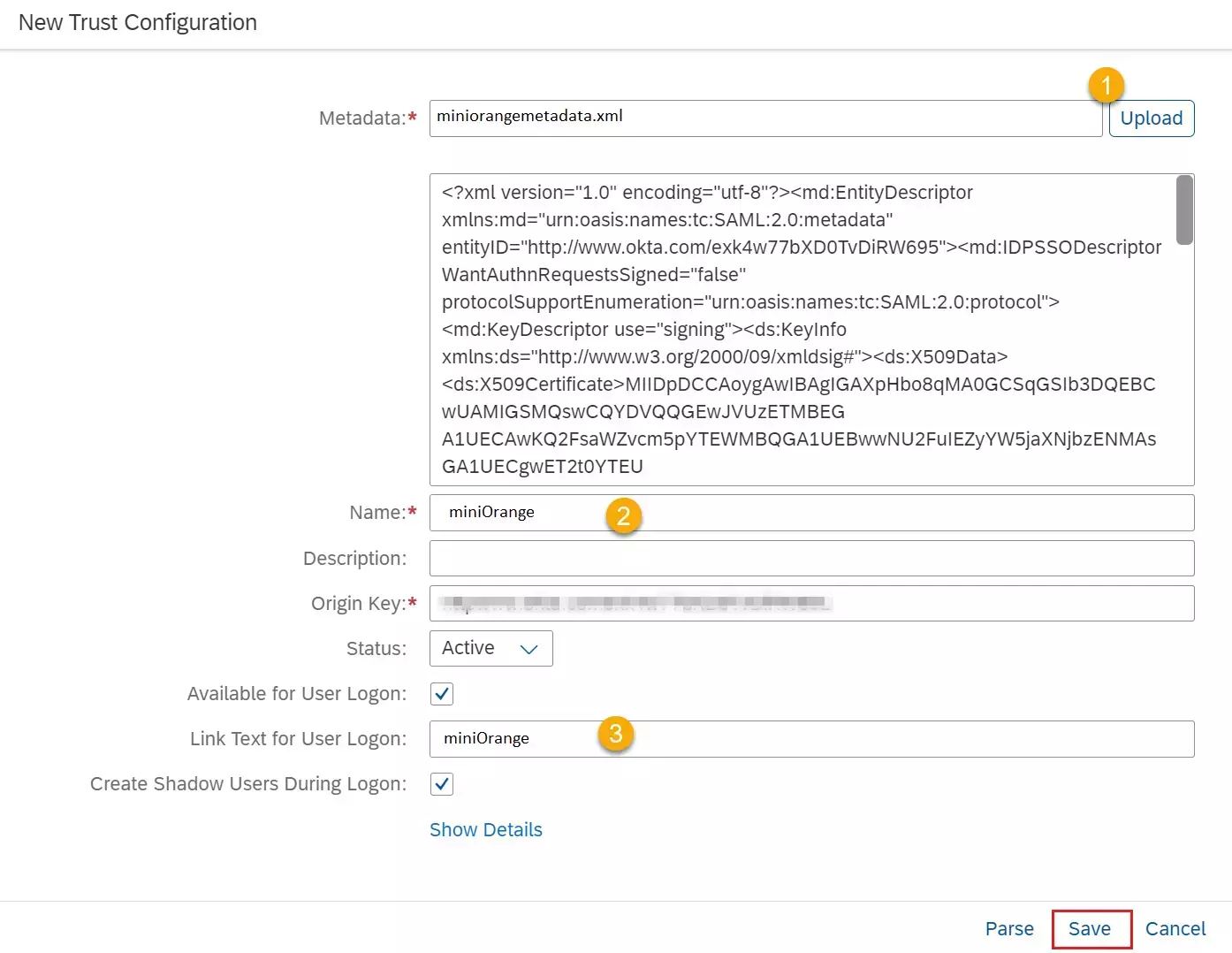
  1. Login to your SAP HANA Admin Account and select New Trust Configuration
  2. SAP HANA Single Sign On (sso) configuration steps

  3. Upload the metadata file obtained from miniOrange. Provide a name for the IdP setup as well as a name that showup on the login screen (when you have multiple IdPs enabled).
  4. SAP HANA Single Sign On (sso) configuration steps

  5. Click Save.

3. Test SSO Configuration

Test SSO login to your SAP HANA account with miniOrange IdP:
    Using SP Initiated Login

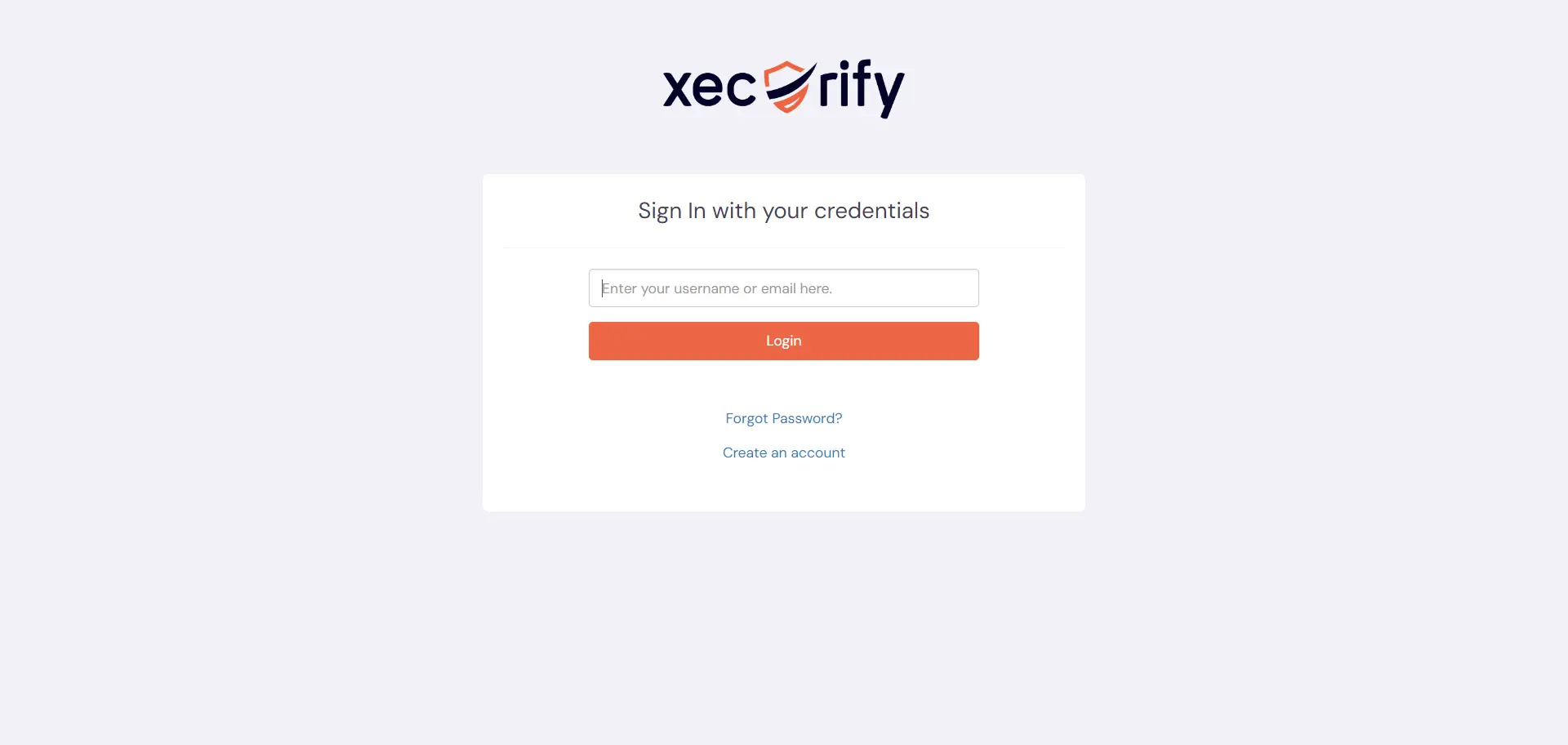
    • Go to your SAP HANA URL, here you will be either asked to enter the username or click on the SSO link which will redirect you to miniOrange IdP Sign On Page.
    • SAP HANA Single Sign-On (SSO) login

    • Enter your miniOrange login credential and click on Login. You will be automatically logged in to your SAP HANA account.

    Using IDP Initiated Login

    • Login to miniOrange IdP using your credentials.
    • SAP HANA Single Sign-On (SSO)

    • On the Dashboard, click on SAP HANA application which you have added, to verify SSO configuration.
    • SAP HANA Single Sign-On (SSO) manage apps


    Not able to configure or test SSO?


    Contact us or email us at idpsupport@xecurify.com and we'll help you setting it up in no time.



External References

Want To Schedule A Demo?

Request a Demo


Our Other Identity & Access Management Products