Hello there!
Need Help? We are right here!

Need Help? We are right here!
Search Results:
×Google Workspace user provisioning by miniOrange automates the creation, updating, and deletion of user accounts and groups in Google Workspace. Administrators can import users and groups from Google Workspace into miniOrange, provision identities from miniOrange to Google Workspace, and automate recurring imports.
This guide explains how to configure Google Workspace provisioning and deprovisioning, map user attributes, configure group-based provisioning, schedule automatic imports, and monitor provisioning activity.
miniOrange supports two-way user and group synchronization with Google Workspace.
Google Workspace → miniOrange
Import existing users, groups, and group memberships from Google Workspace into miniOrange.
miniOrange → Google Workspace
Provision users and groups from miniOrange to Google Workspace based on your configured provisioning rules and group assignments.
Google Workspace ↔ miniOrange
Import: Google Workspace → miniOrange
Provision: miniOrange → Google Workspace
This makes miniOrange the central platform for managing user and group information across connected applications.

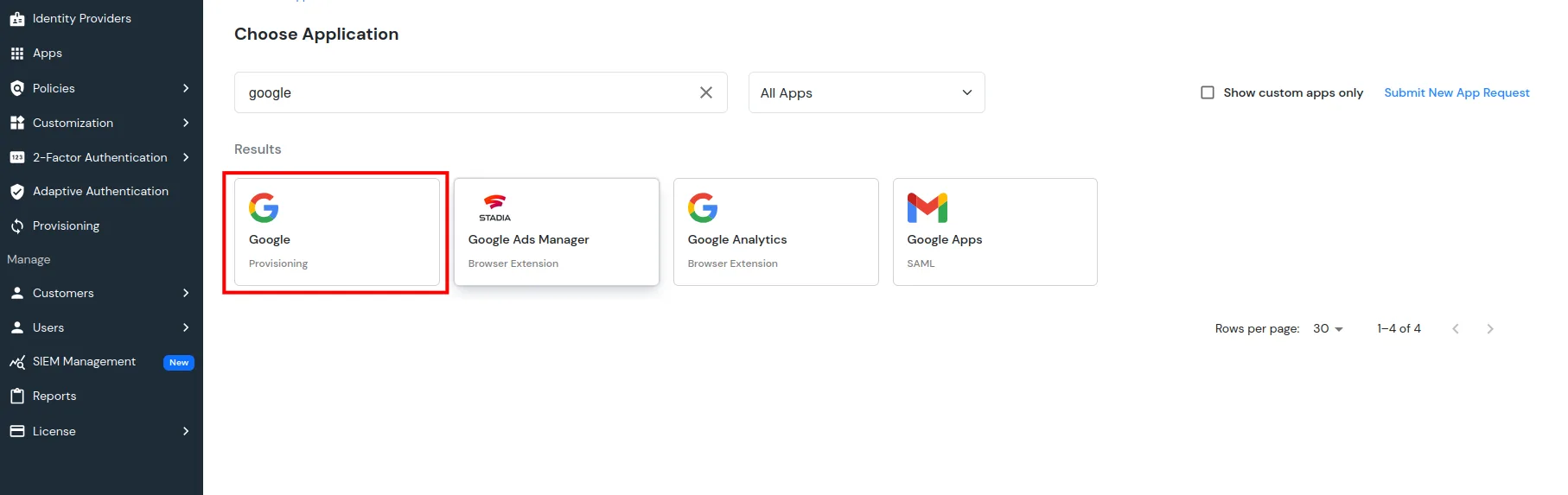
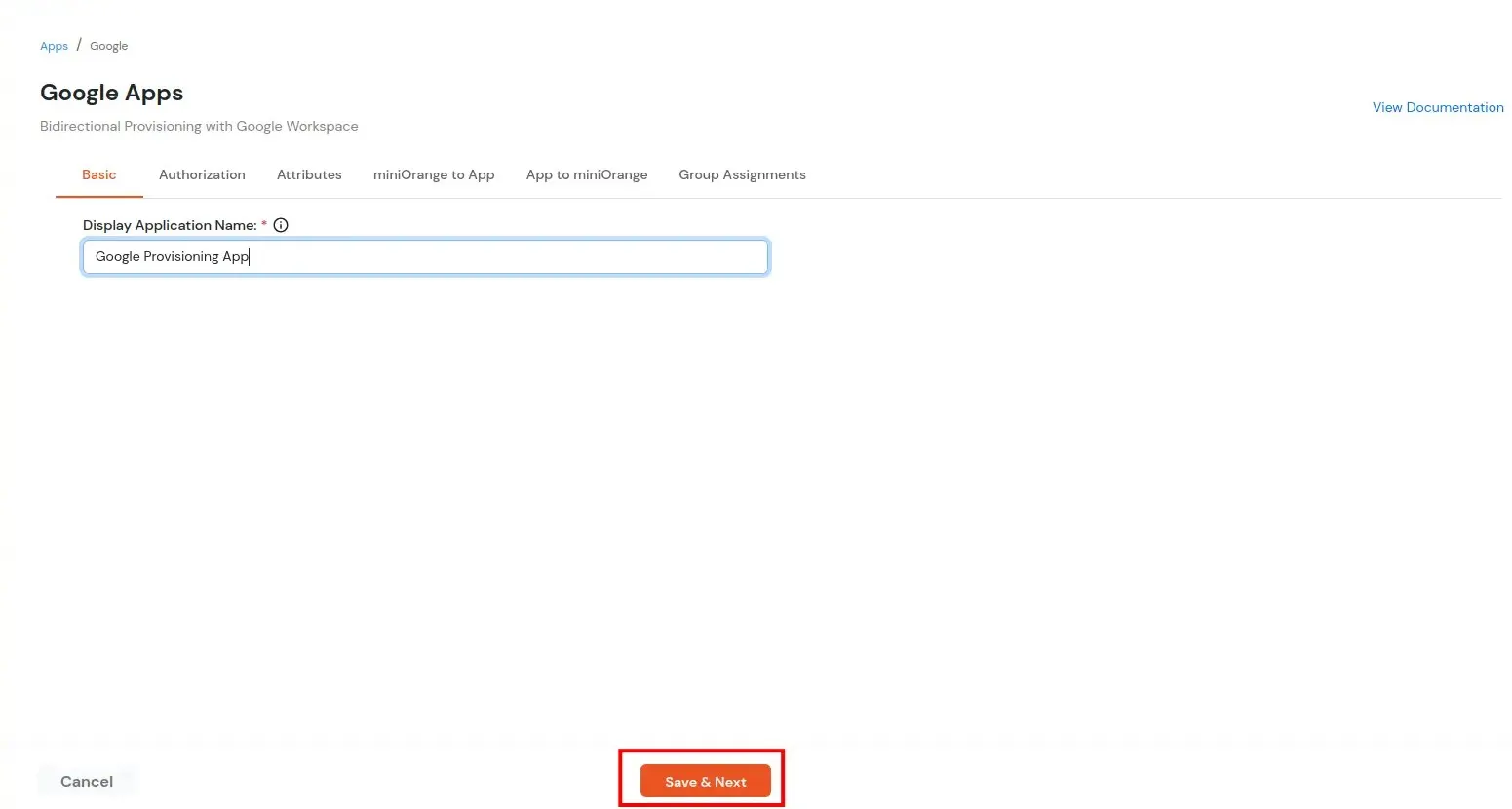
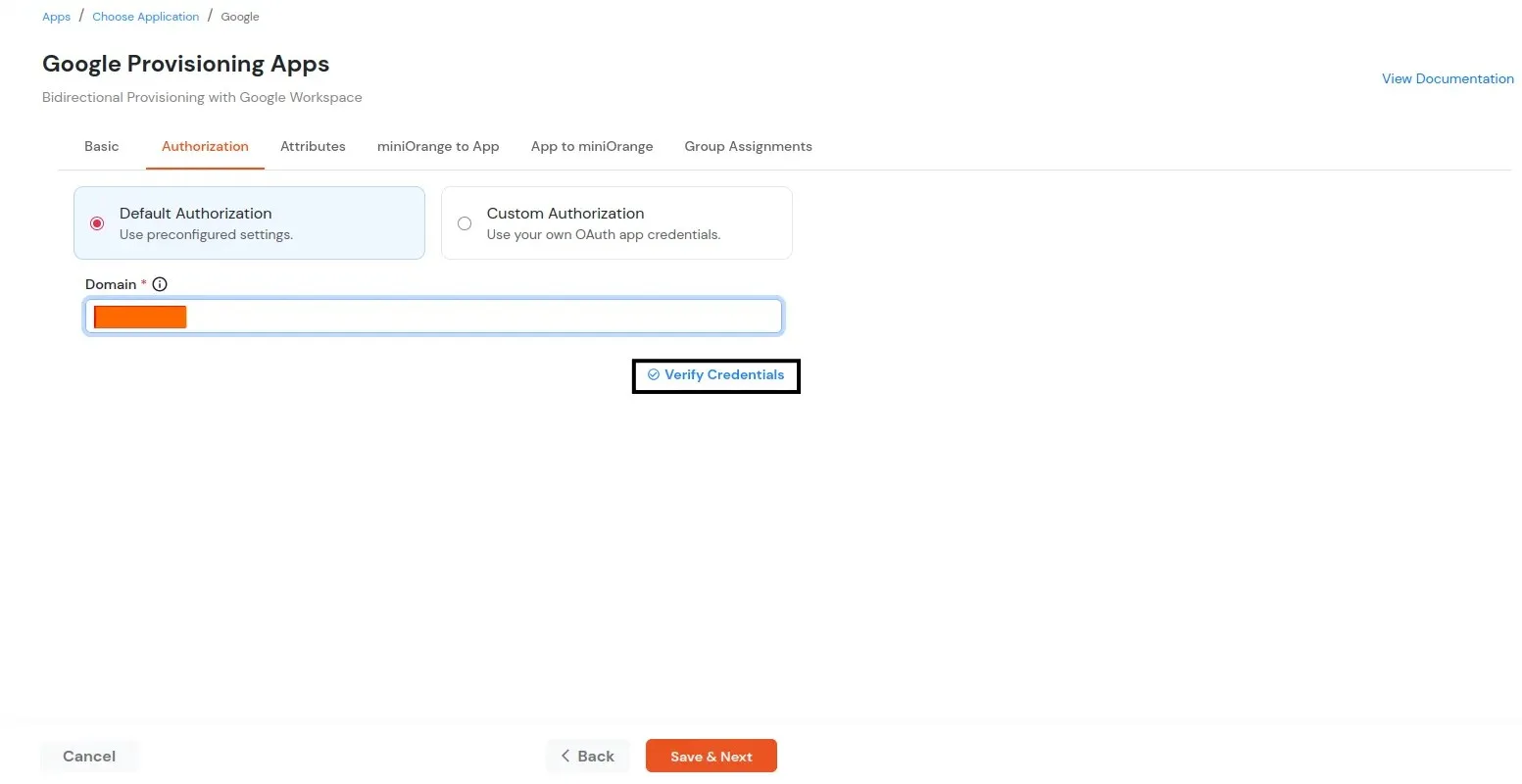
Note: This guide covers the Default Authorization flow for configuring Google Workspace Provisioning. If your application requires Custom Authorization, please navigate to the Custom Authorization tab and follow the step-by-step instructions provided there to complete the authorization setup.
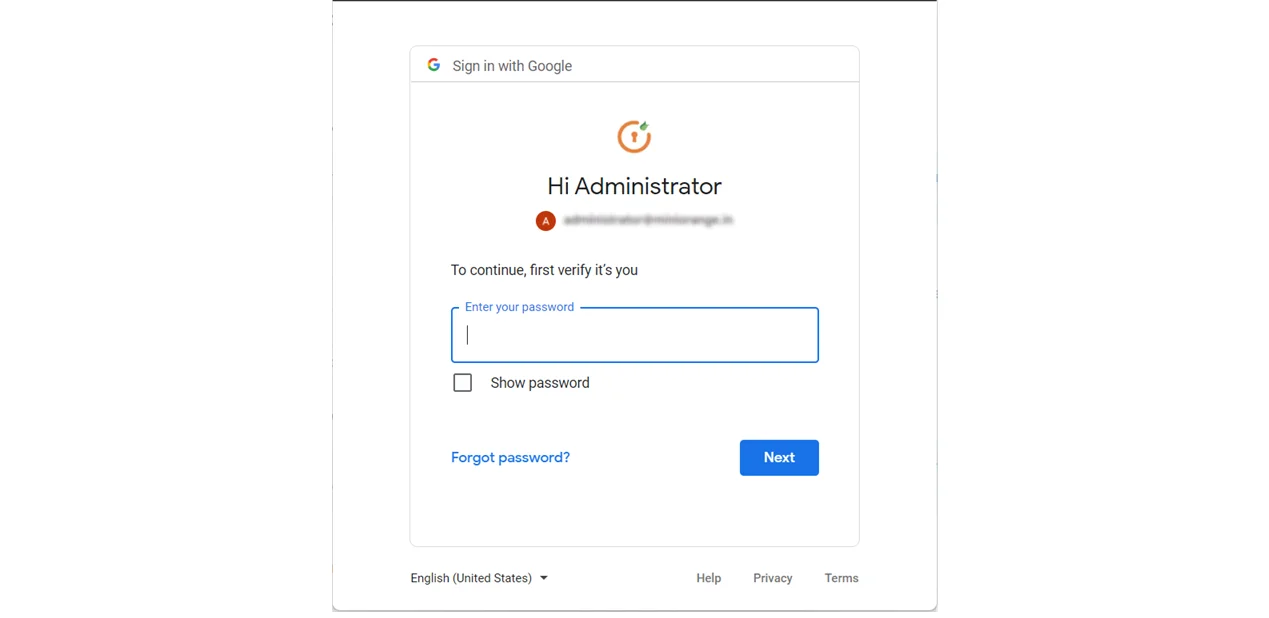
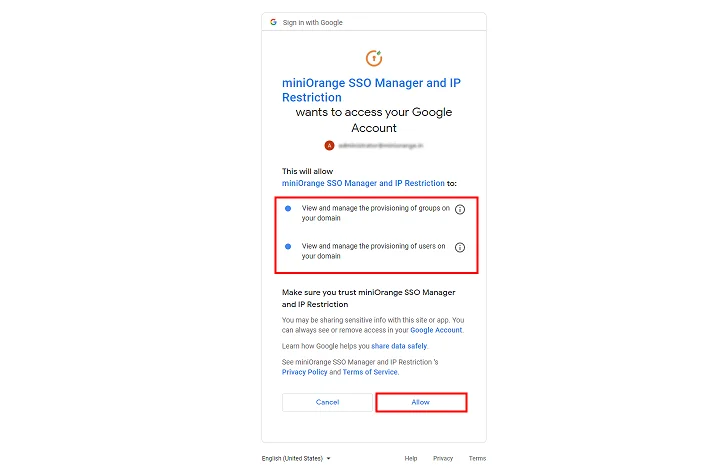
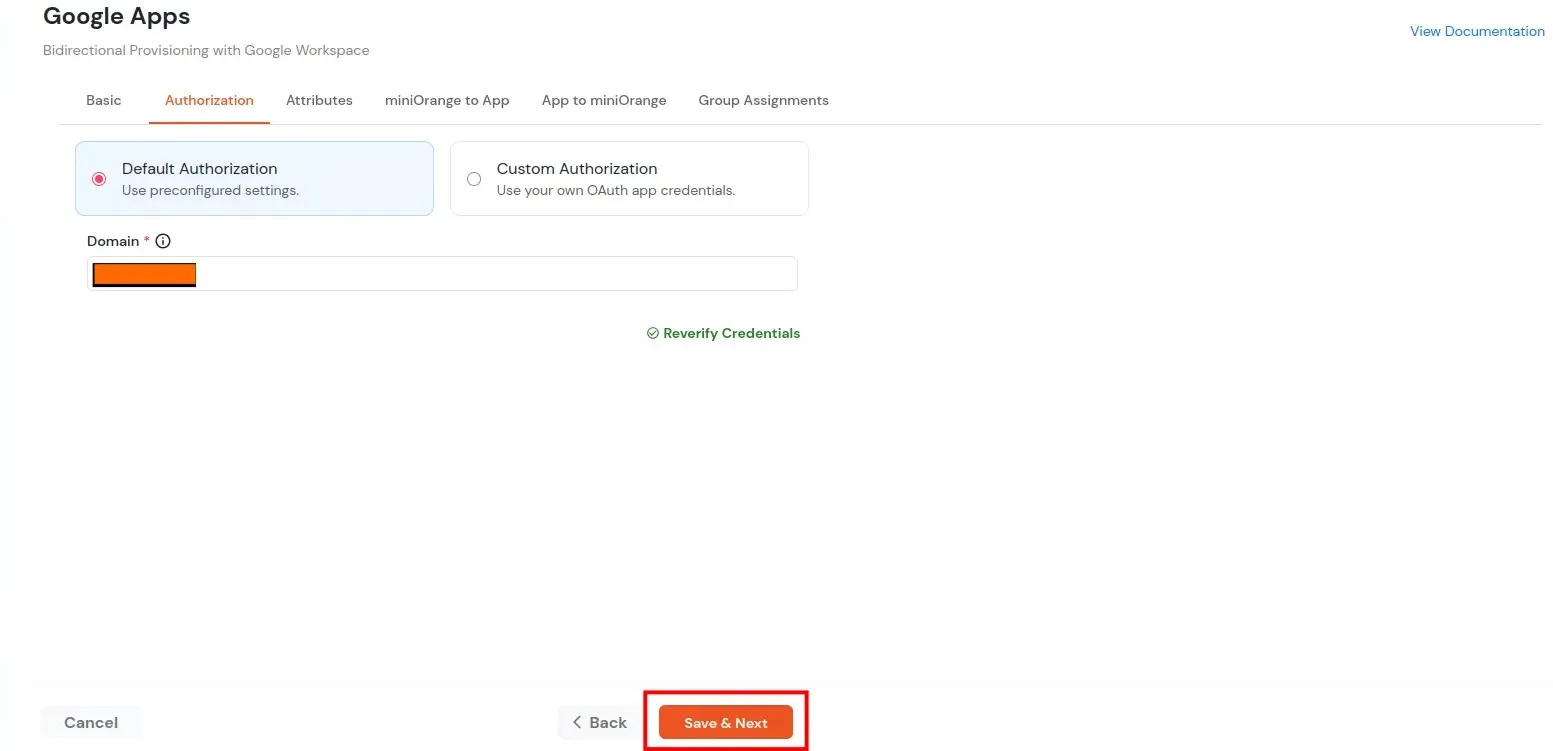
This standard operating procedure (SOP) defines the authoritative, generalized workflow for establishing automated user synchronization from the miniOrange identity platform to a target Google Workspace organization.
Following this structured architecture ensures robust data handshakes and seamless identity verification across directory ecosystems.
Before beginning configuration, ensure the following parameters are established:
Step 1: Activating APIs & Preparing Google Cloud Project
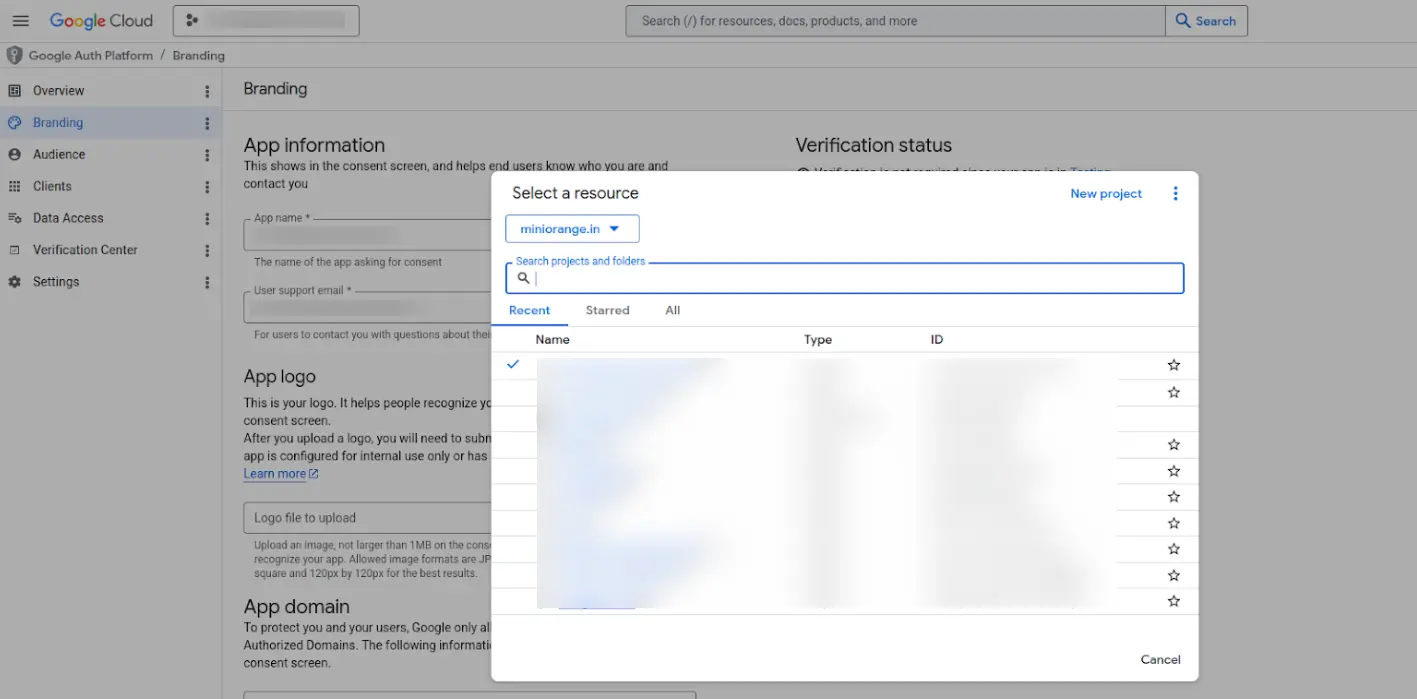
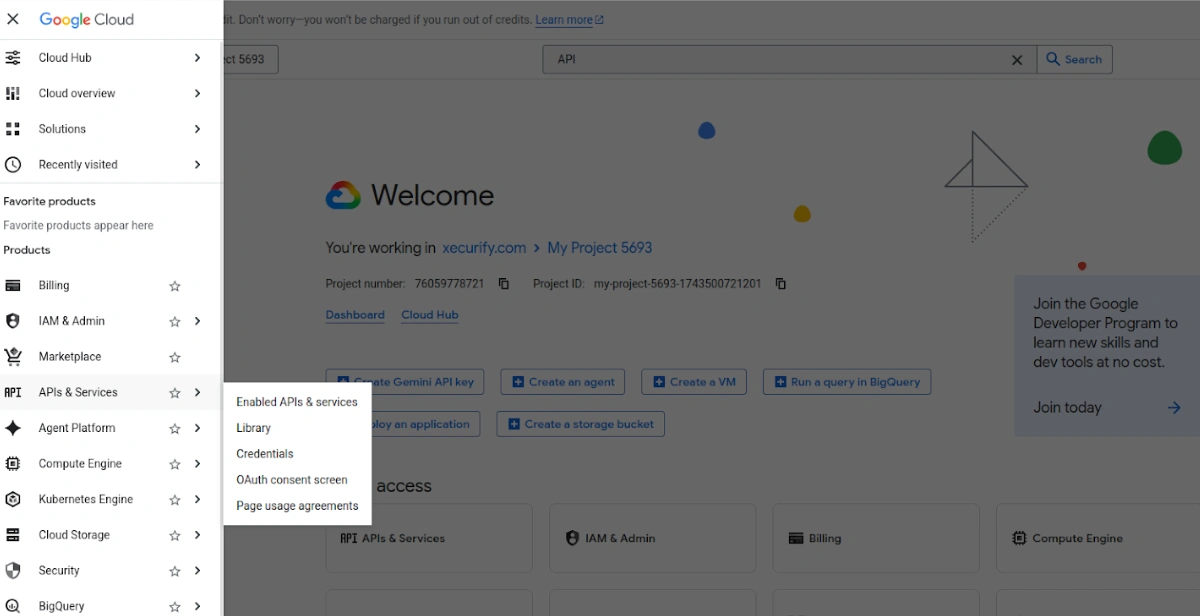
Step 2: OAuth Application Settings:
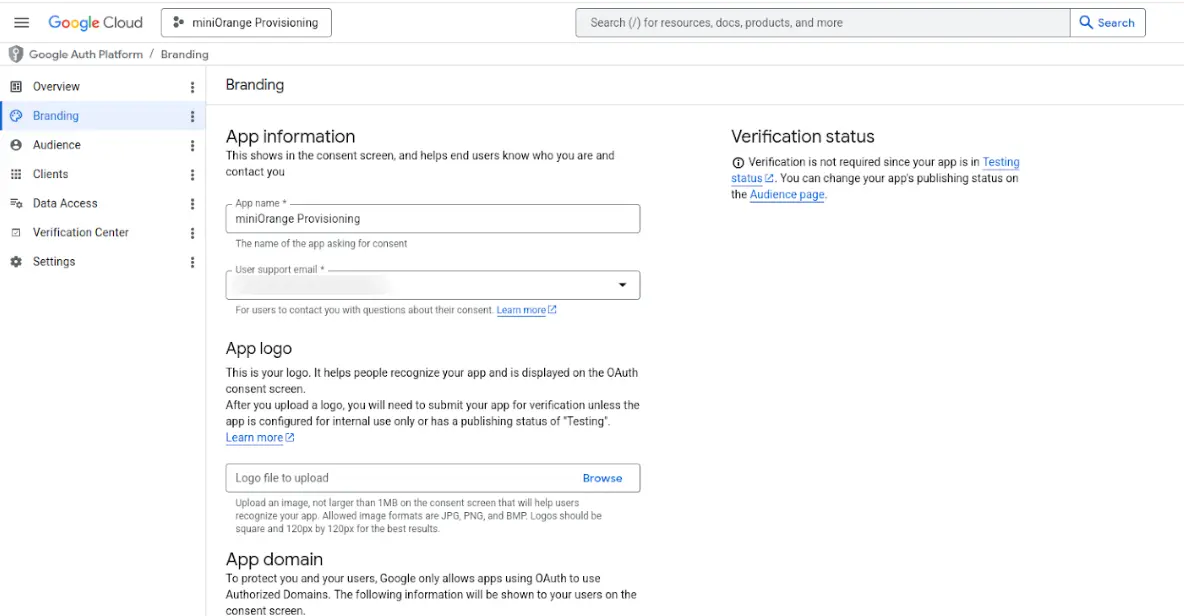
Step 3: Creating and Registering API Credentials:
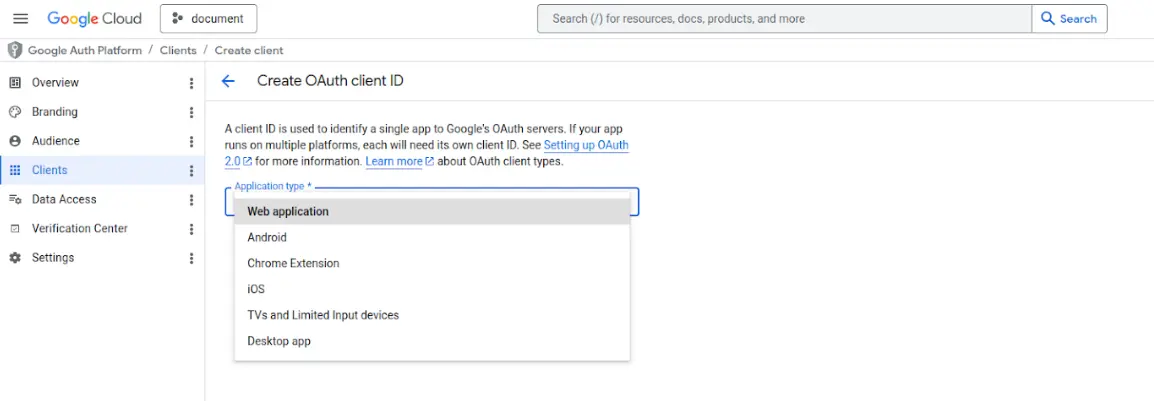
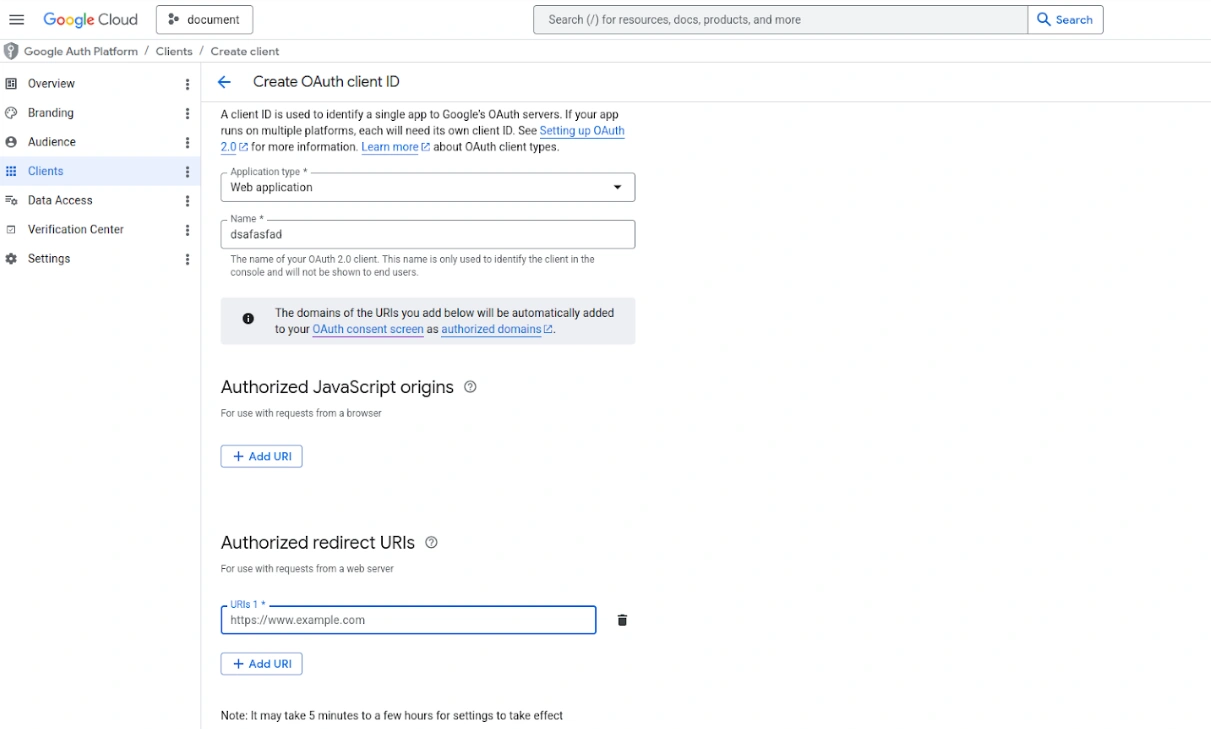
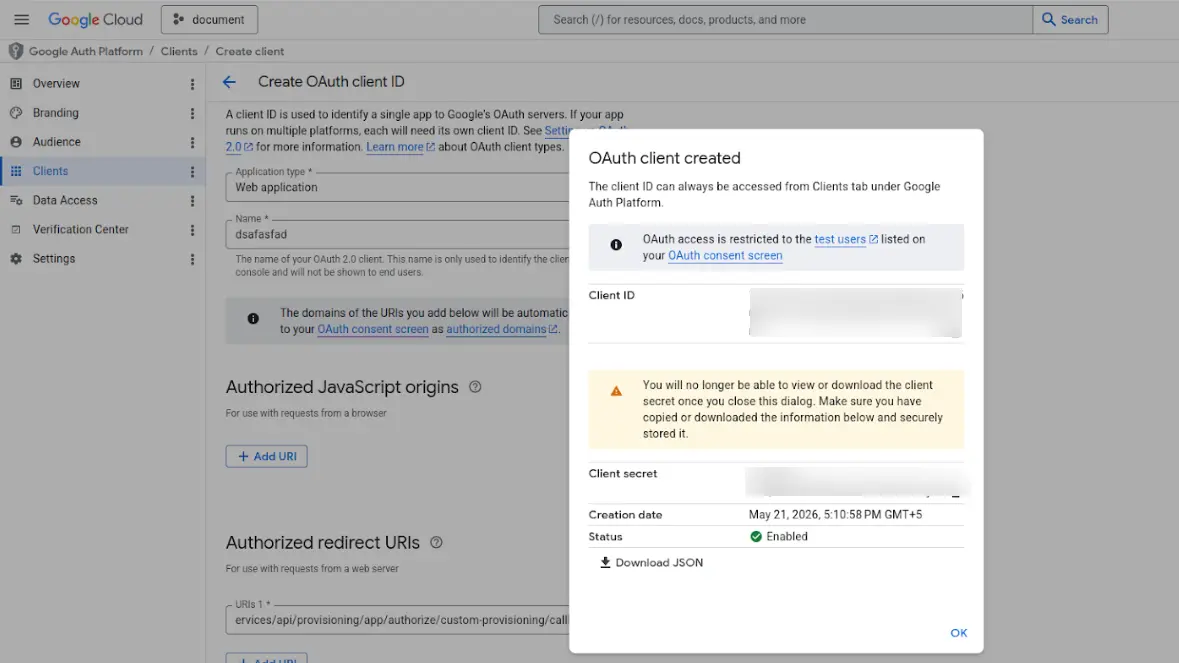
Step 4: Specifying Authorized Identity Parameters:
https://www.googleapis.com/auth/userinfo.email - Provides access to the primary Google Account email address.https://www.googleapis.com/auth/userinfo.profile - Provides access to public personal profile information.https://www.googleapis.com/auth/openid - Associates users with their unique personal profile identity on Google.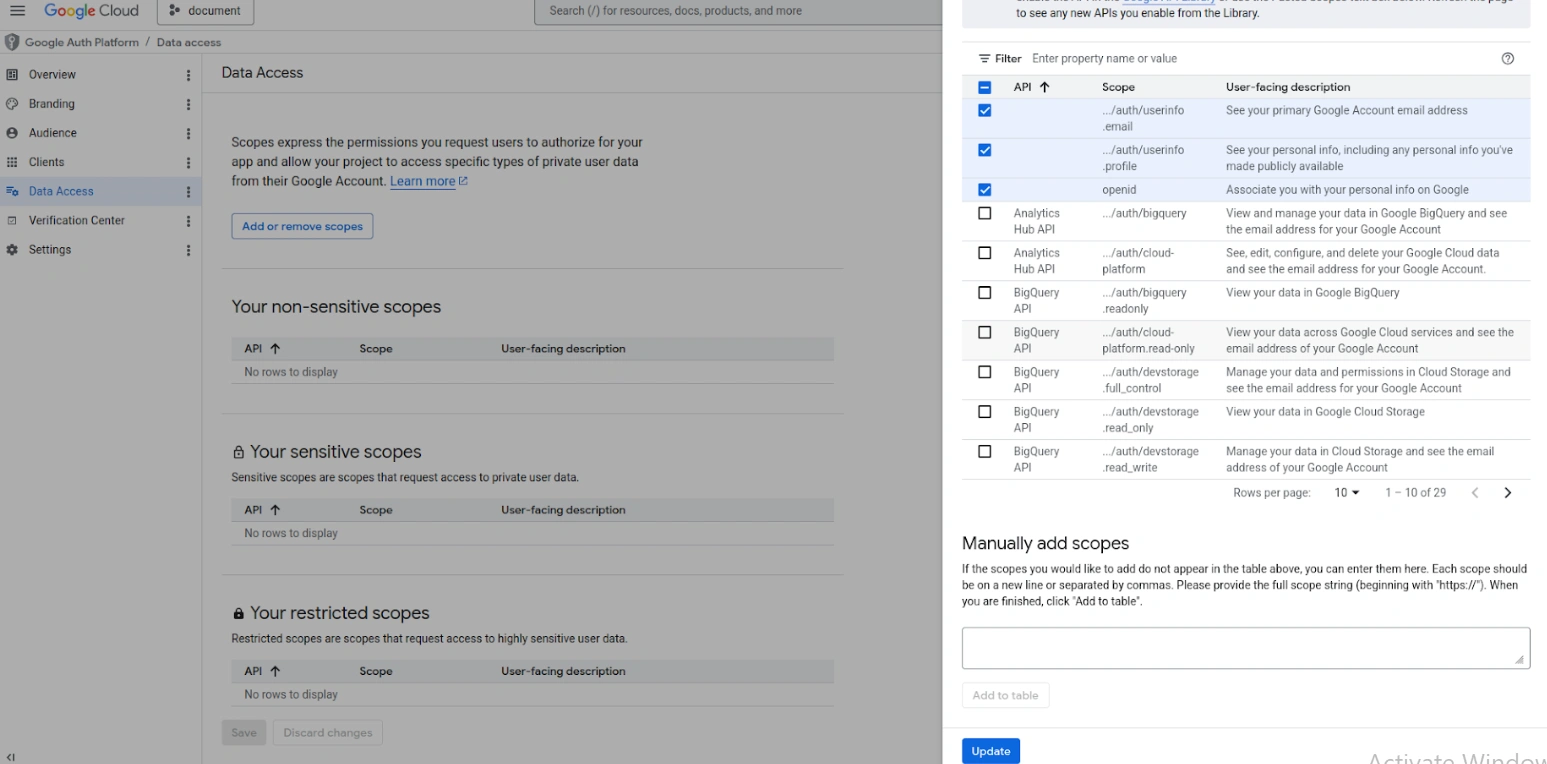
Step 5: Establishing Connection and Launching Handshake:
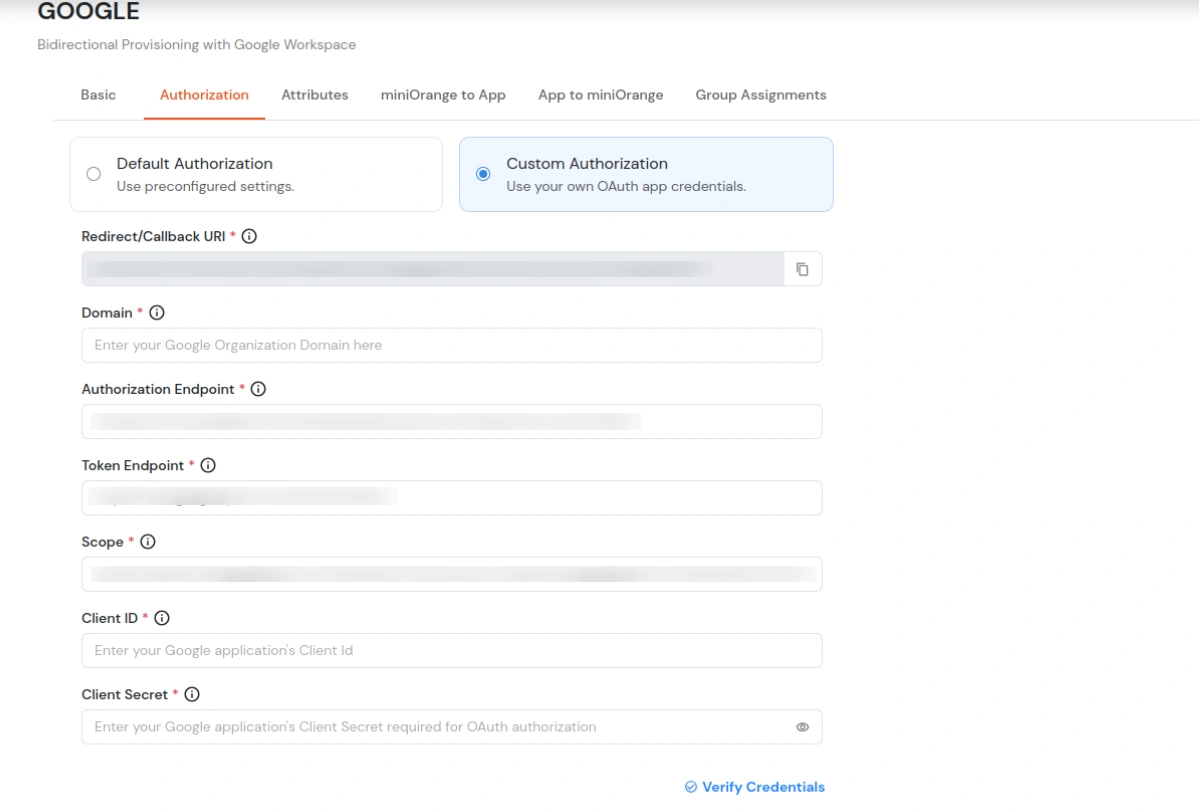
The following matrix serves as the deployment validation baseline prior to promoting the integration to production status:
| Integration Checkpoint | Target Configuration Metric | Expected Verification Status |
|---|---|---|
| Identity Data Scopes | Verified scopes userinfo.email, userinfo.profile, and openid correctly bound. | Verified Success |
| Google SDK APIs | Admin SDK API validated as active within the Google Cloud project. | Verified Success |
| Synchronization Vector | Configured to push identities downward from miniOrange into Google Workspace. | Verified Success |
| Action Policies | Create Users permission enabled. Updates and Deletes are optional. | Verified Success |
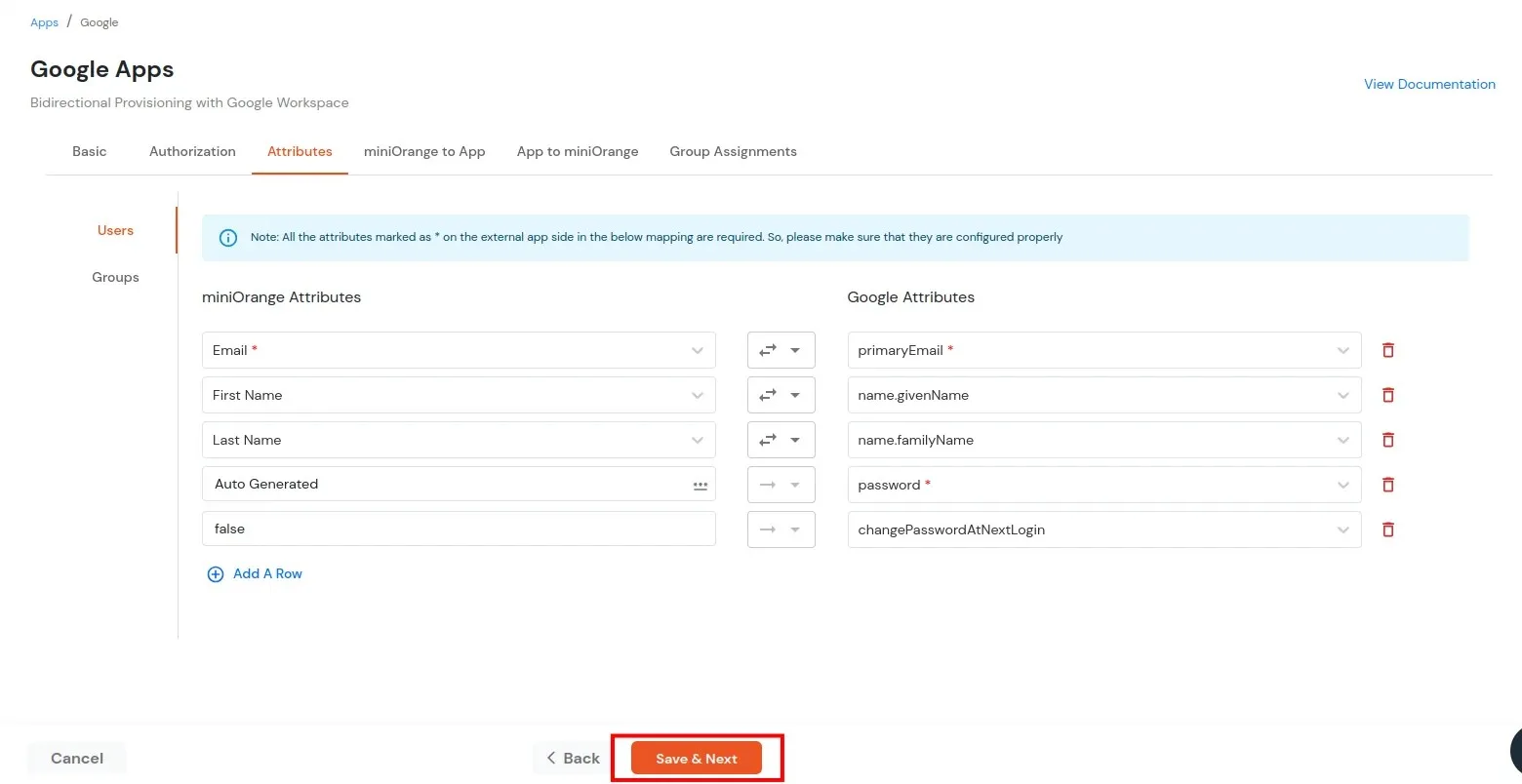
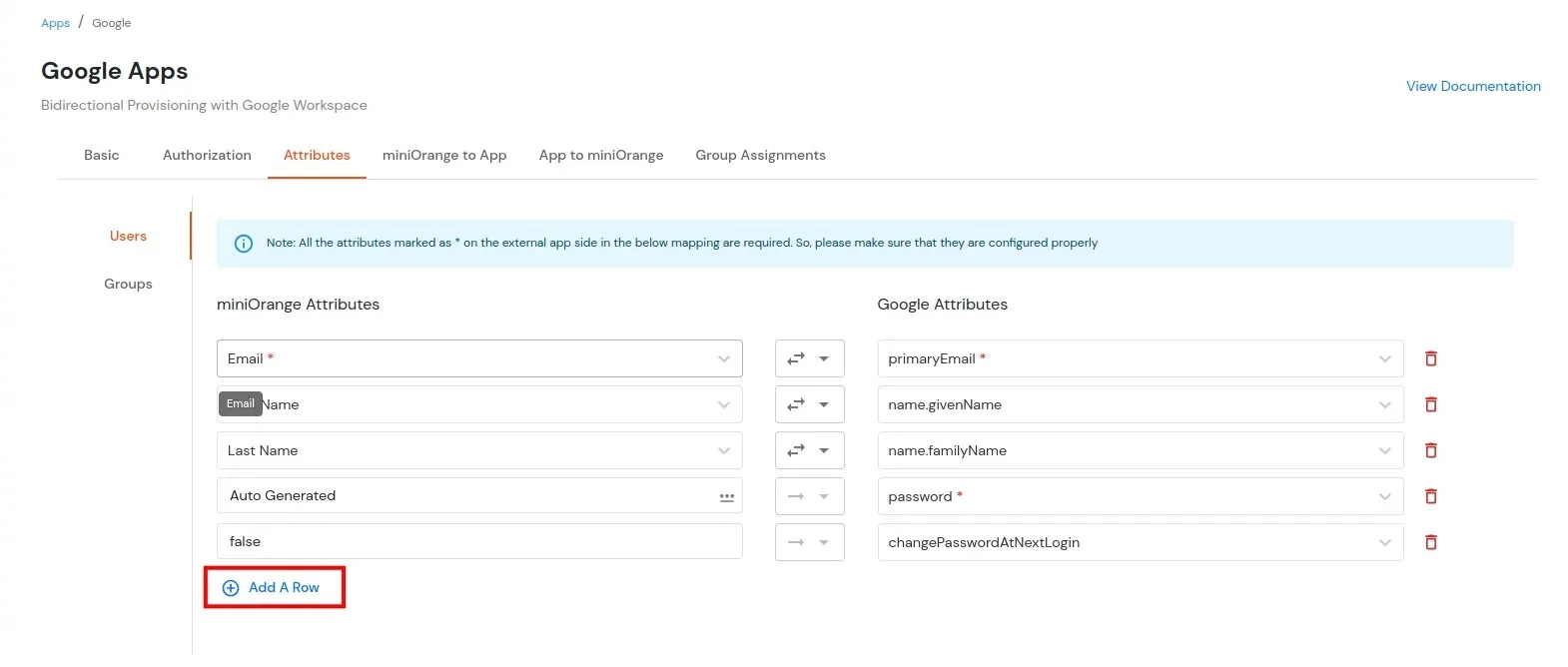
(Directory >> Users >> Manage Custom Attributes)
Refer to the screenshot below to identify the Category and Field names.
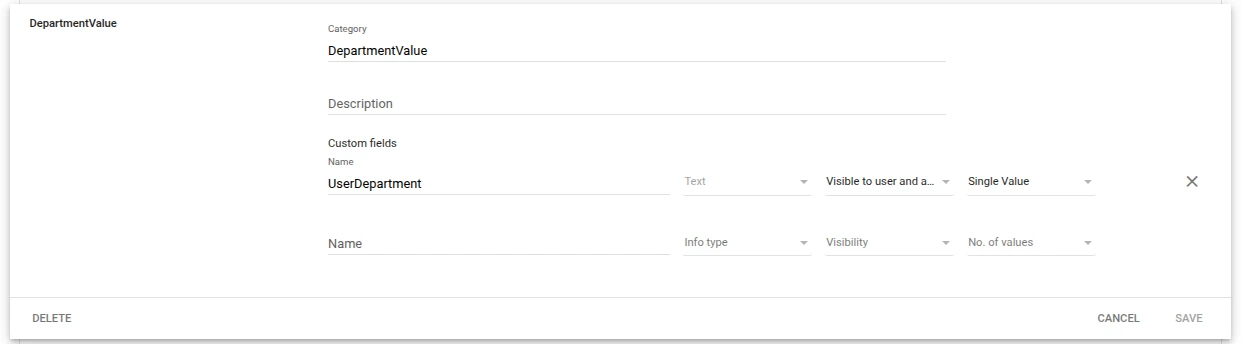
and use them in the format: customSchemas.<Category>.<Field>.
Example: customSchemas.DepartmentValue.UserDepartment
Note: If the Category or Field name contains spaces, replace them with underscores (_).
Example: customSchemas.Department_Attribute.User_Department
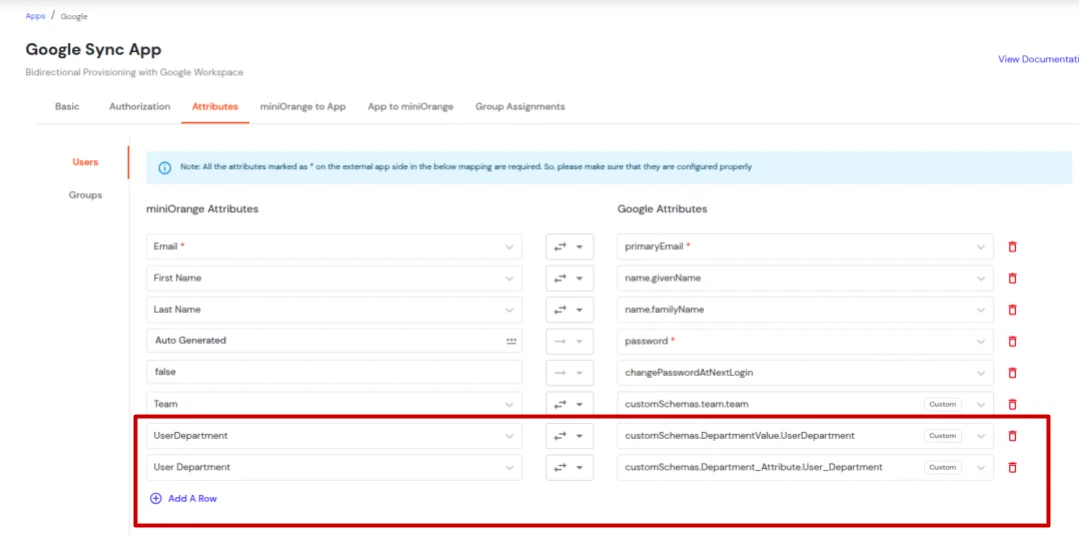
Note: Google Workspace supports multiple custom attribute types such as Text, Number, Boolean, Date, and Multi-value fields. While configuring these in miniOrange, ensure the corresponding attribute type is selected appropriately:
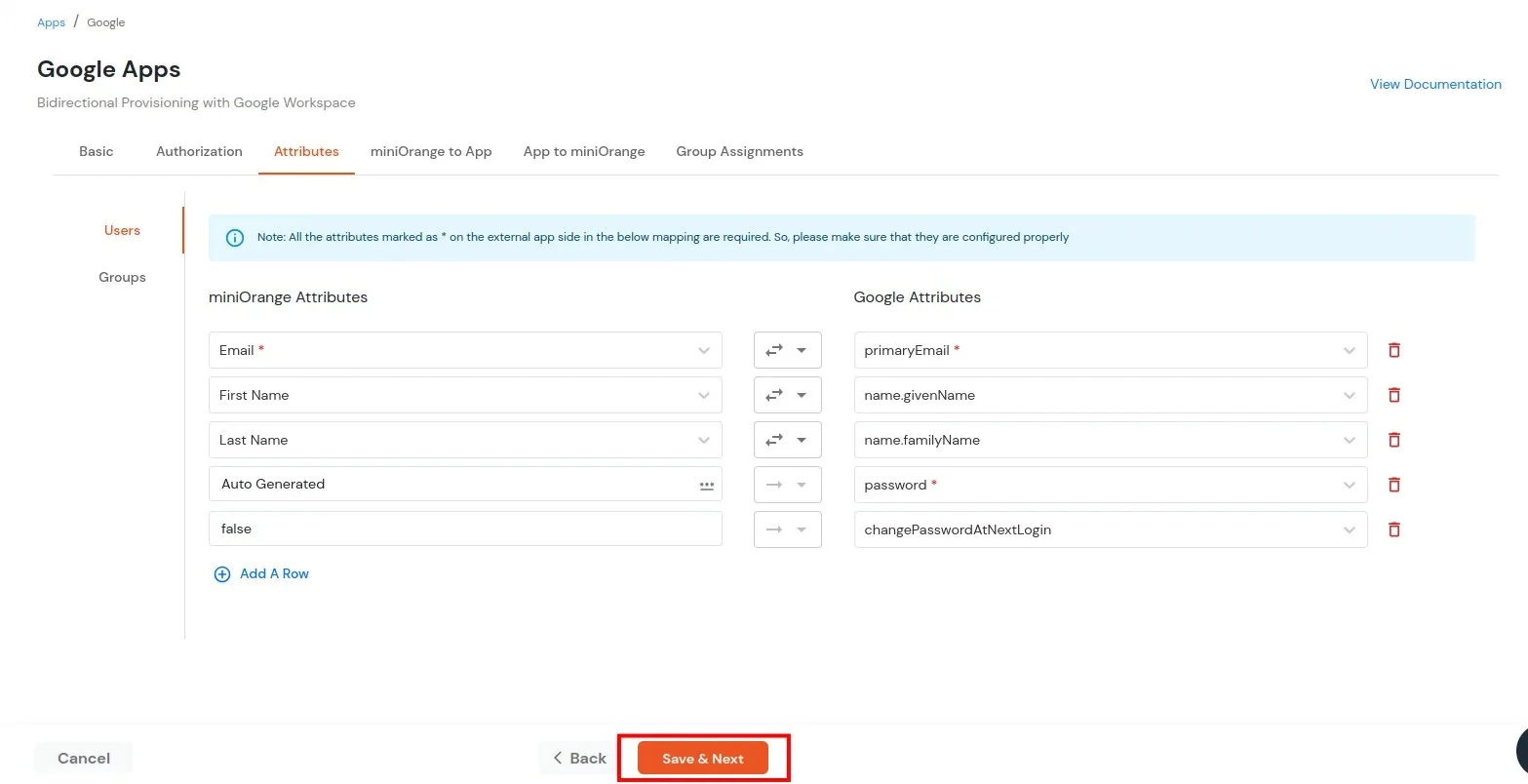
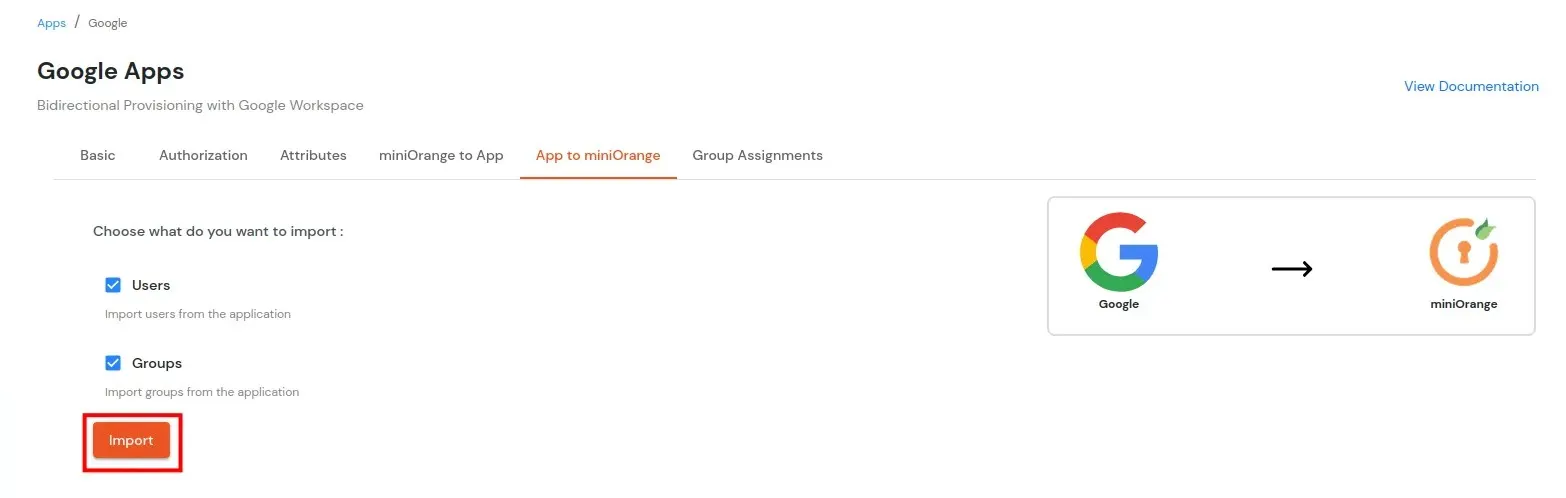
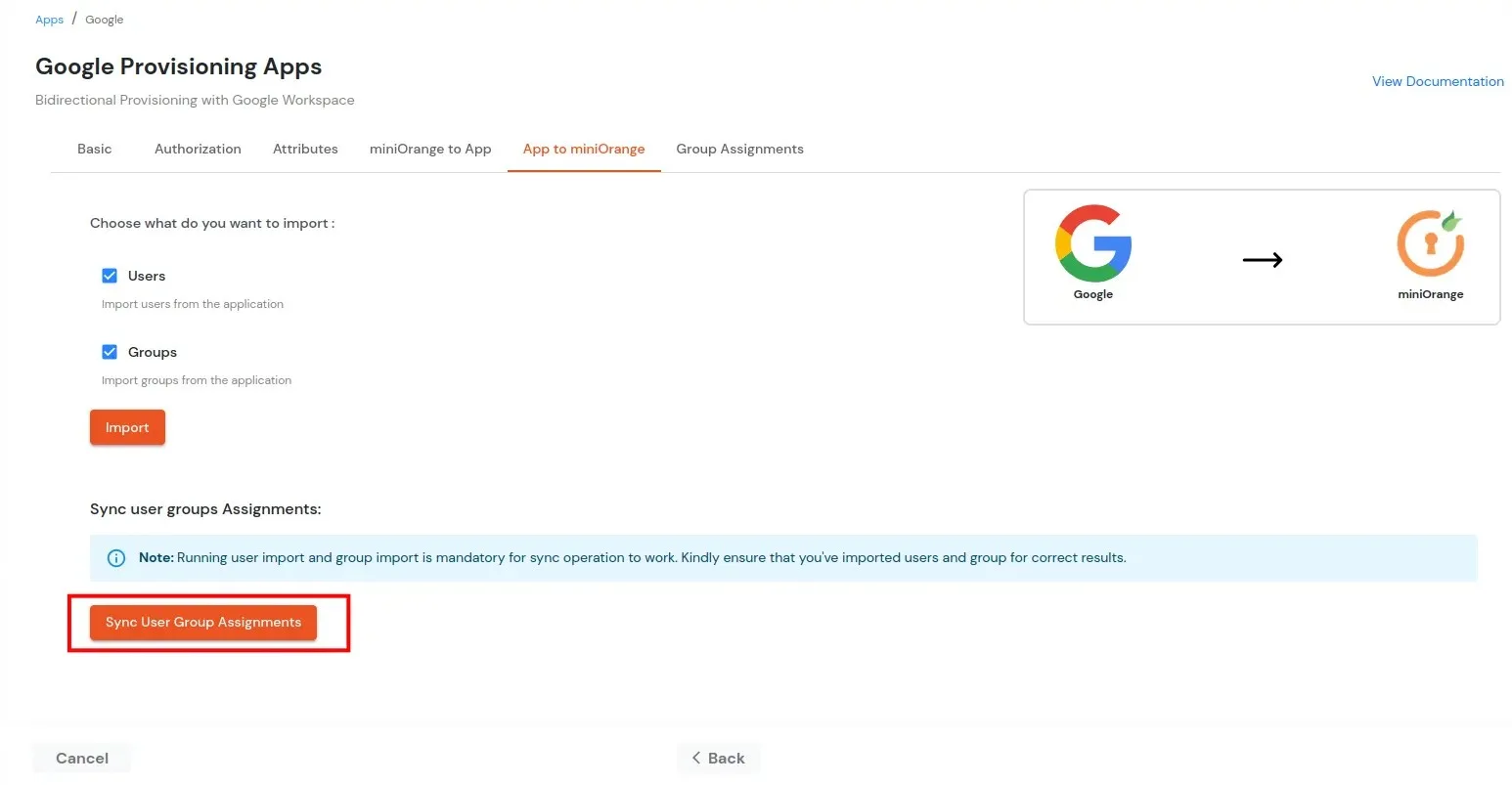
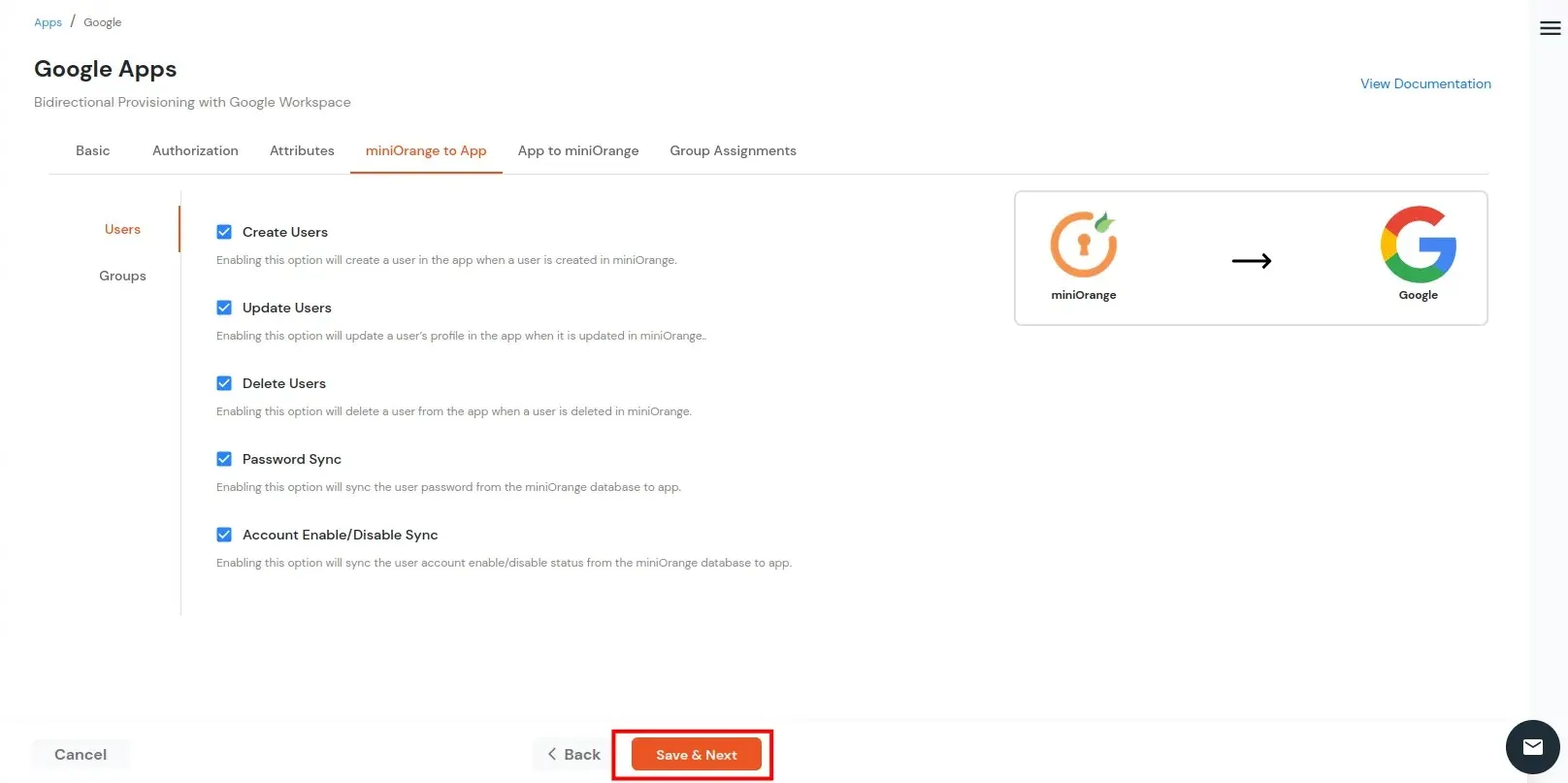
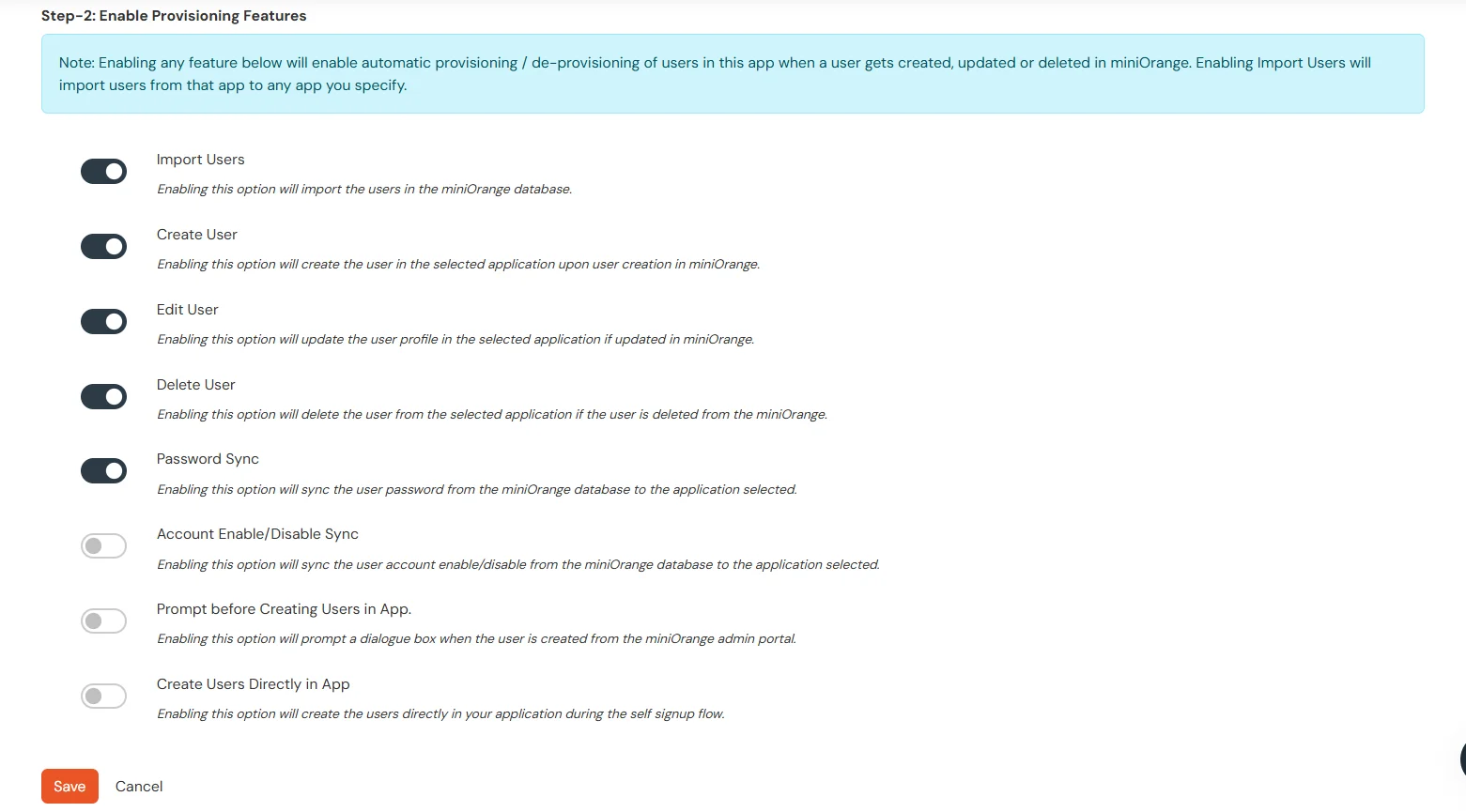
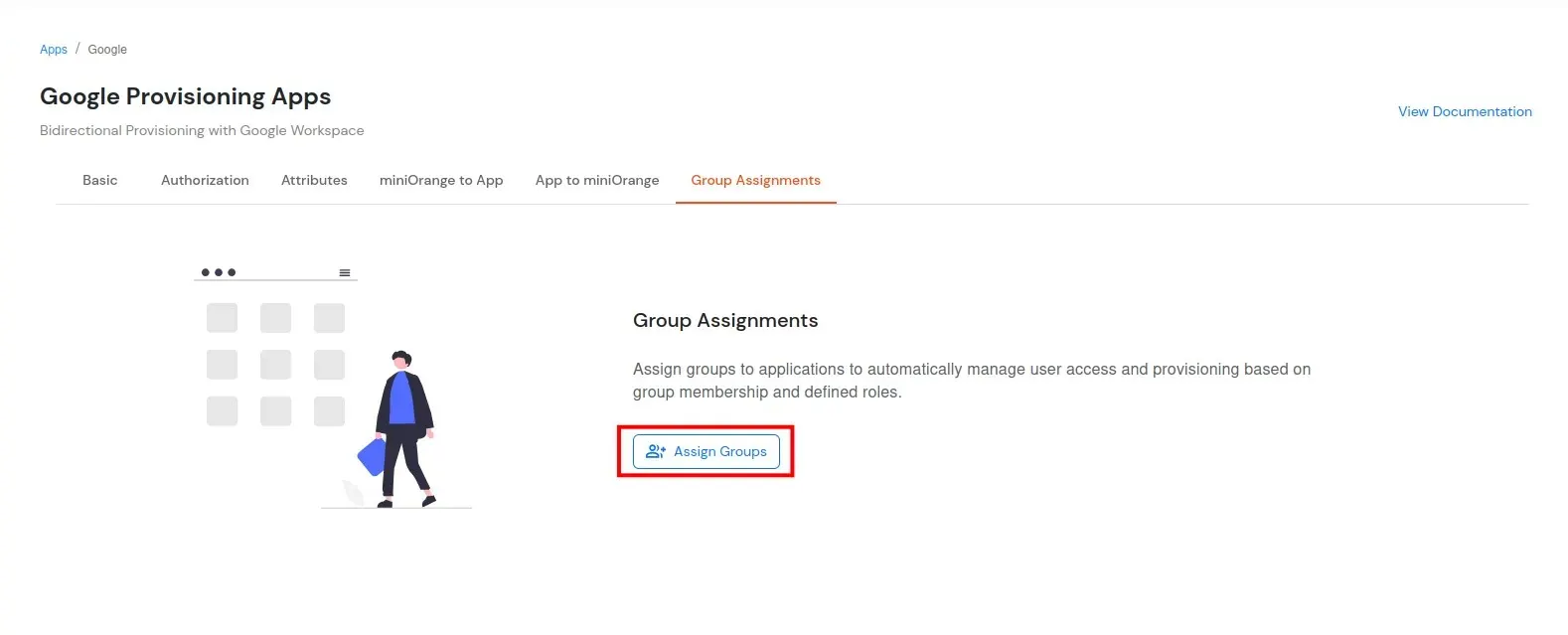
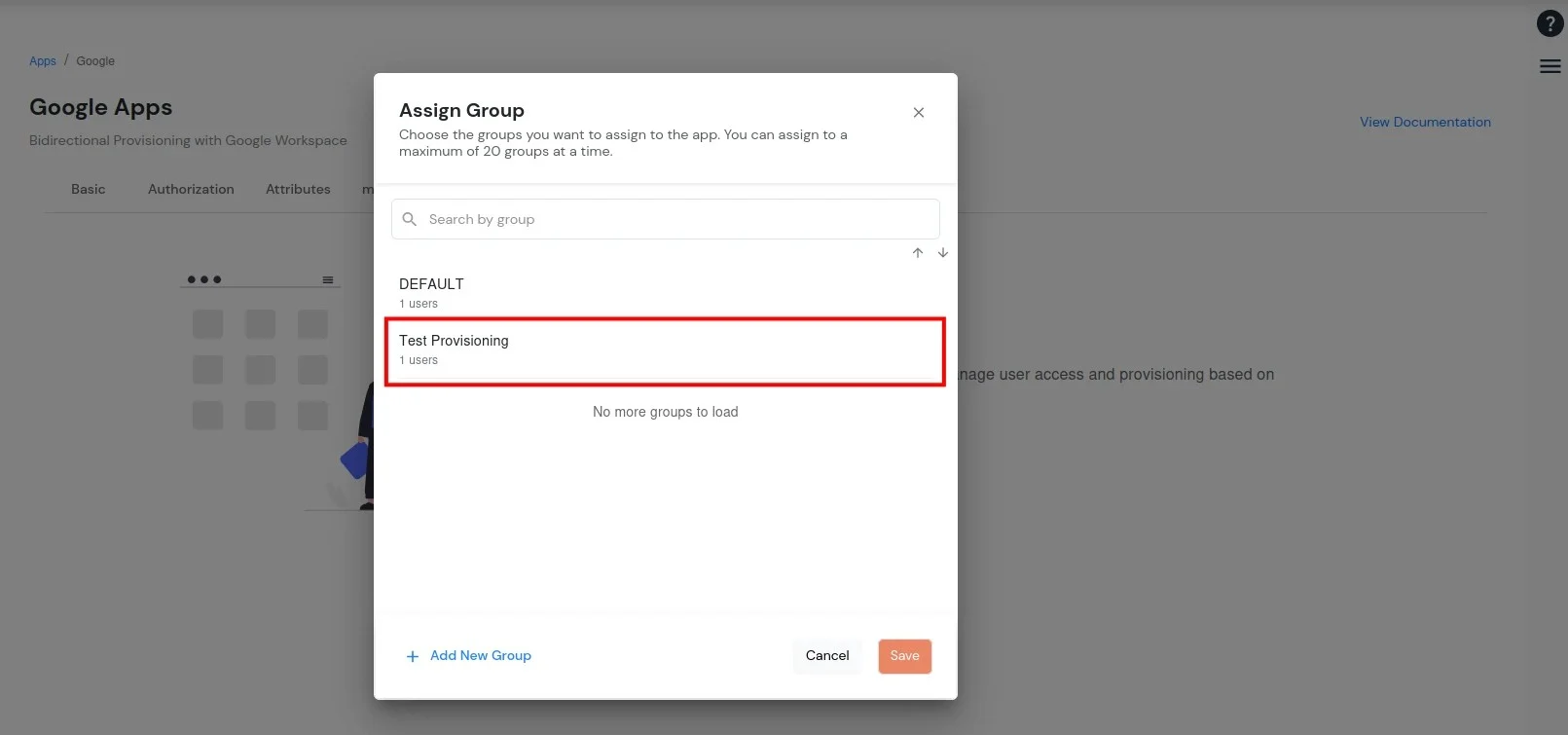
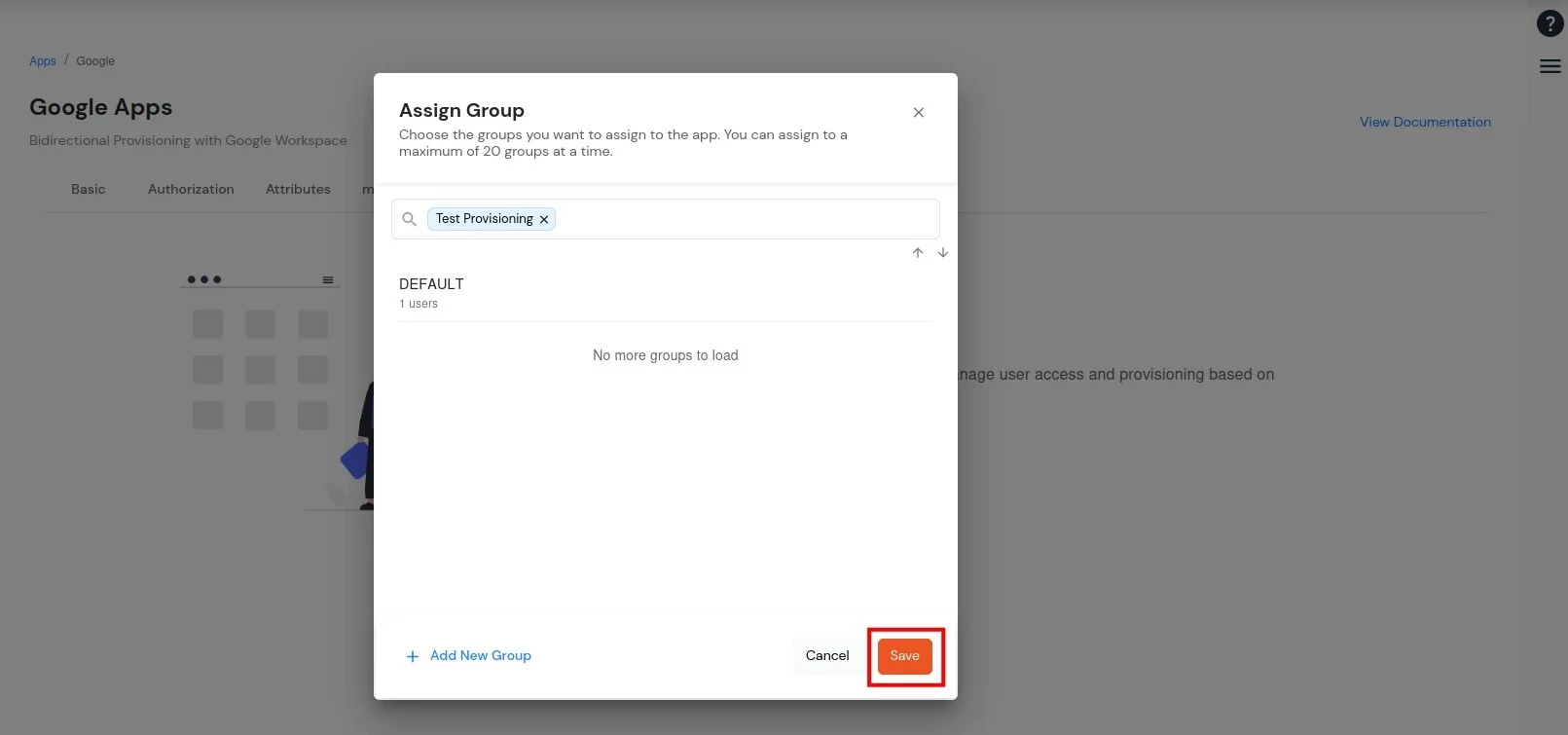
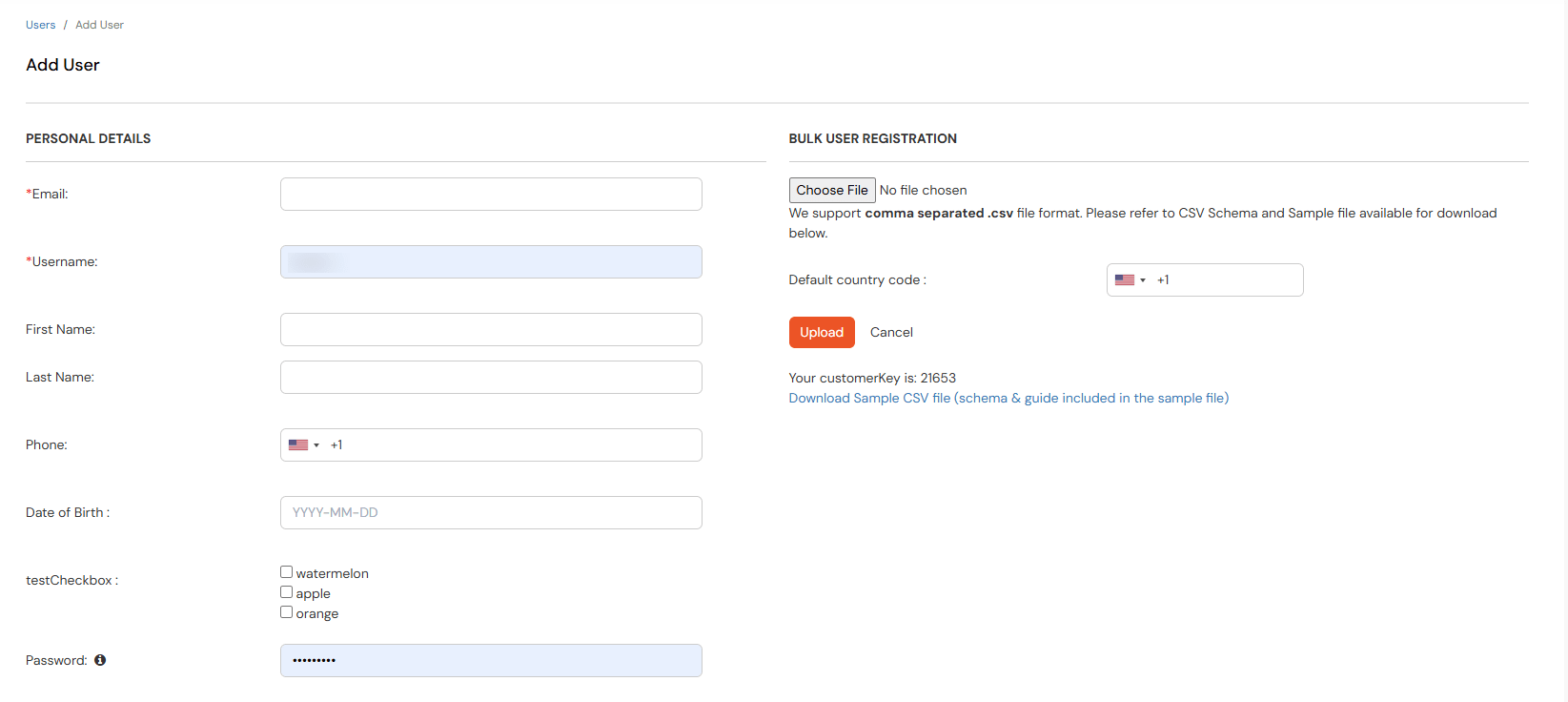
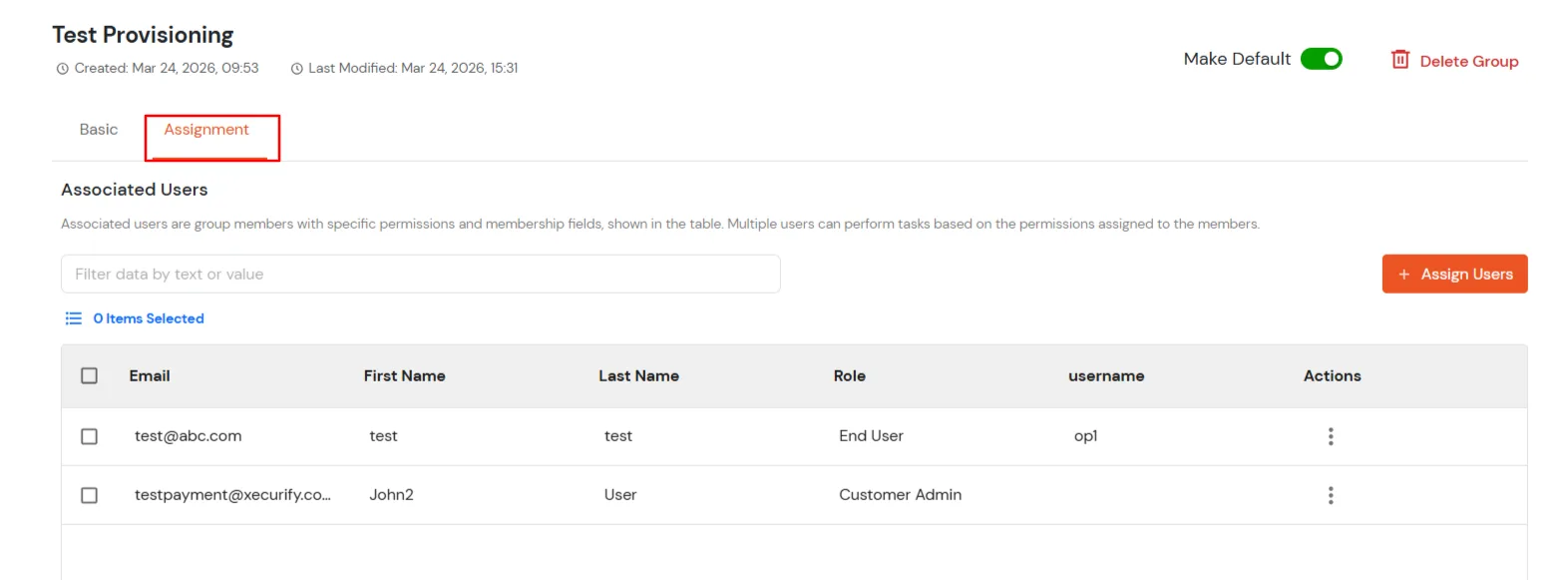
Note: User provisioning to Google Apps is based on Group Assignment Logic: When a user is added to the assigned group(s) in Group Assignments, they will be provisioned according to the features that have been enabled. You will configure these group assignments in the next steps.

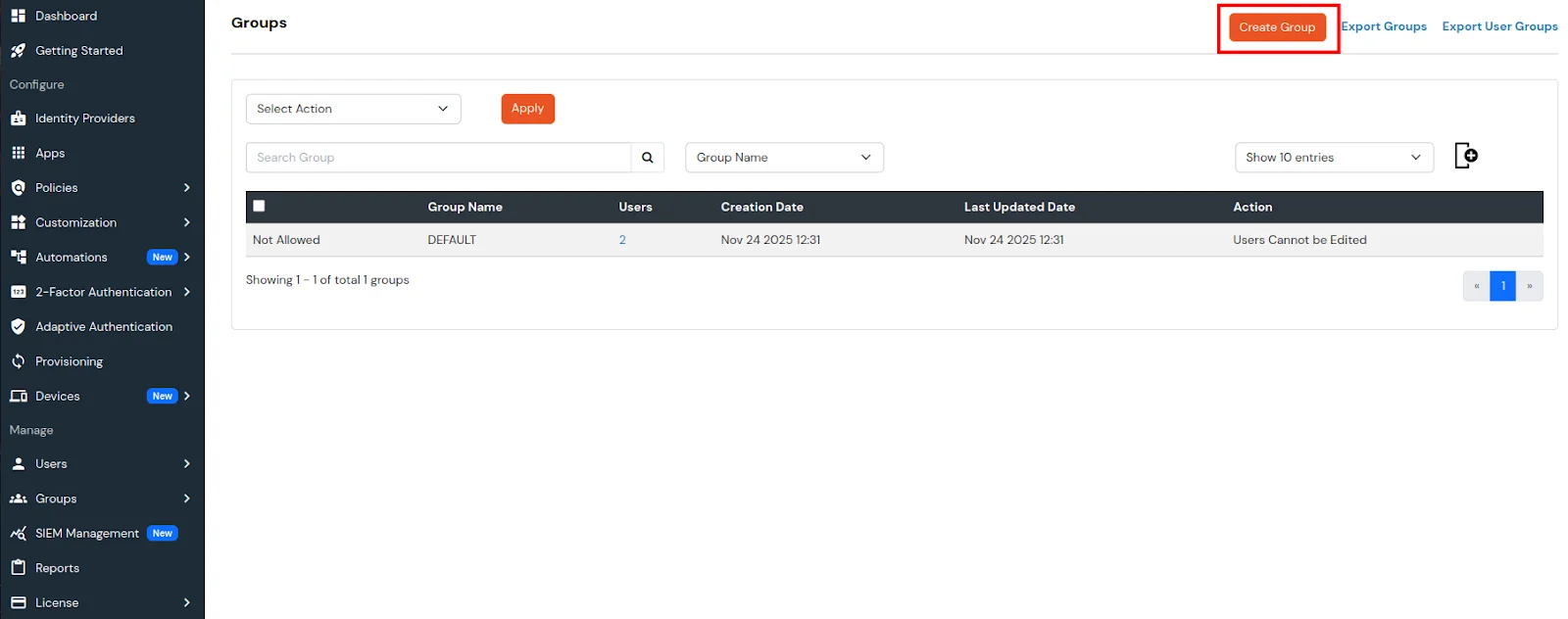
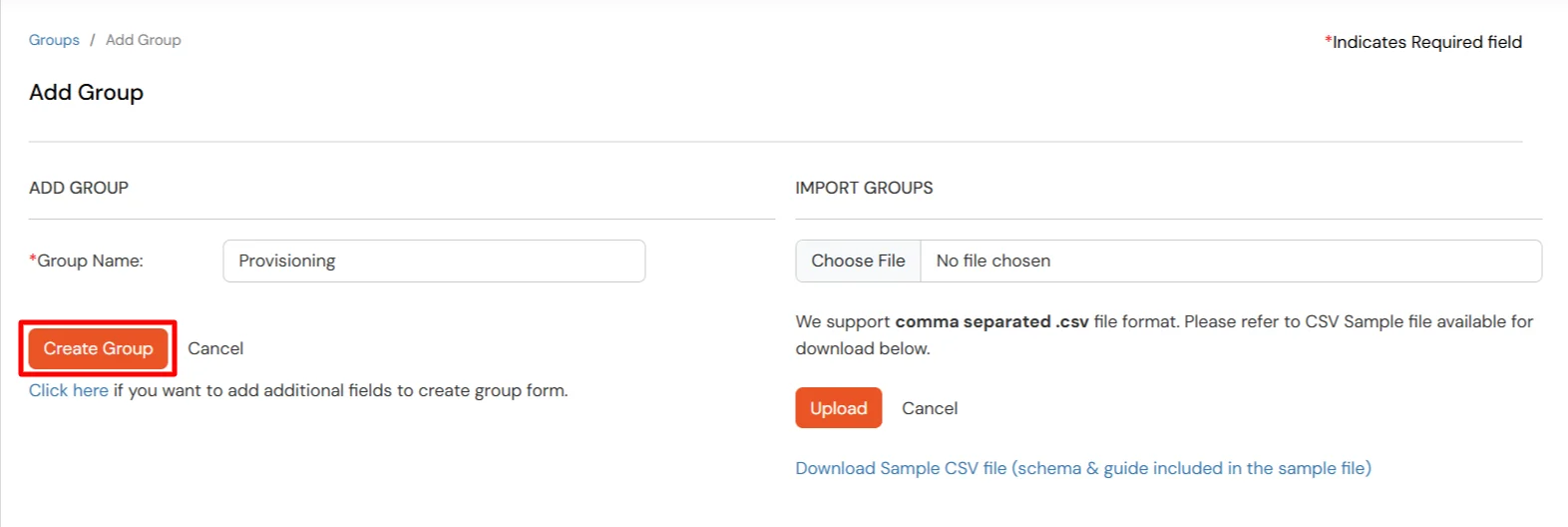
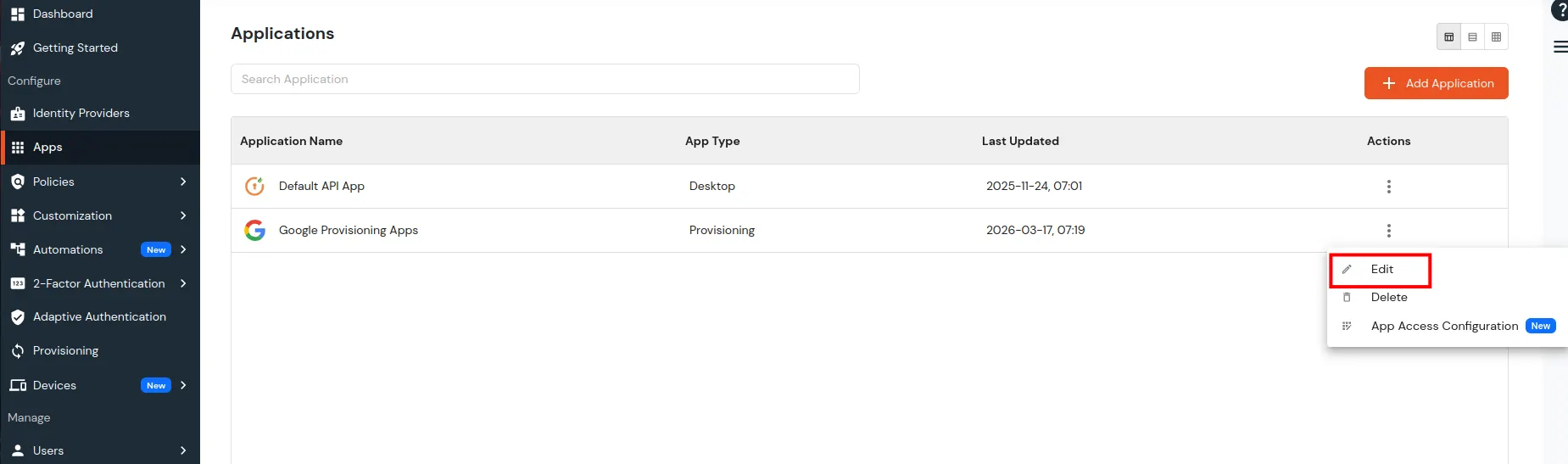
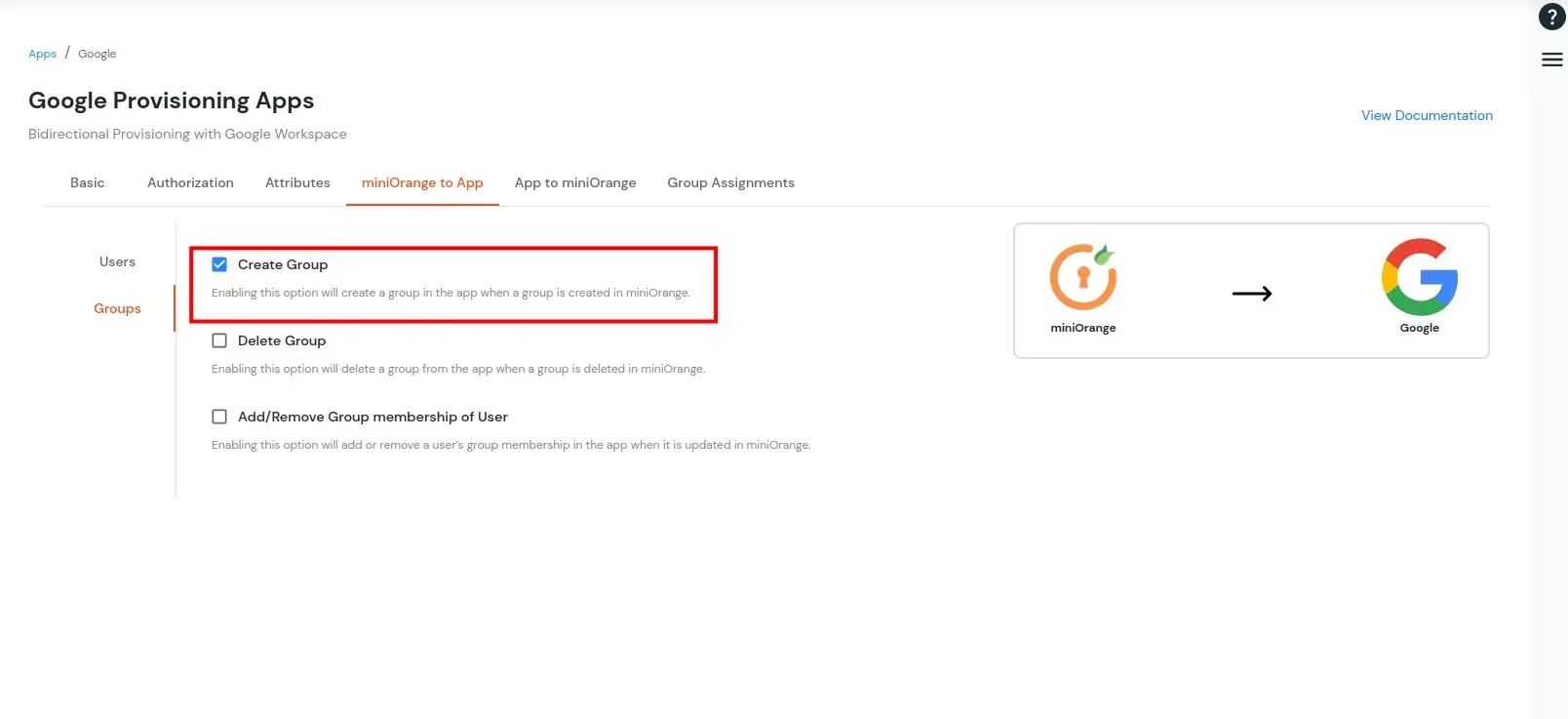
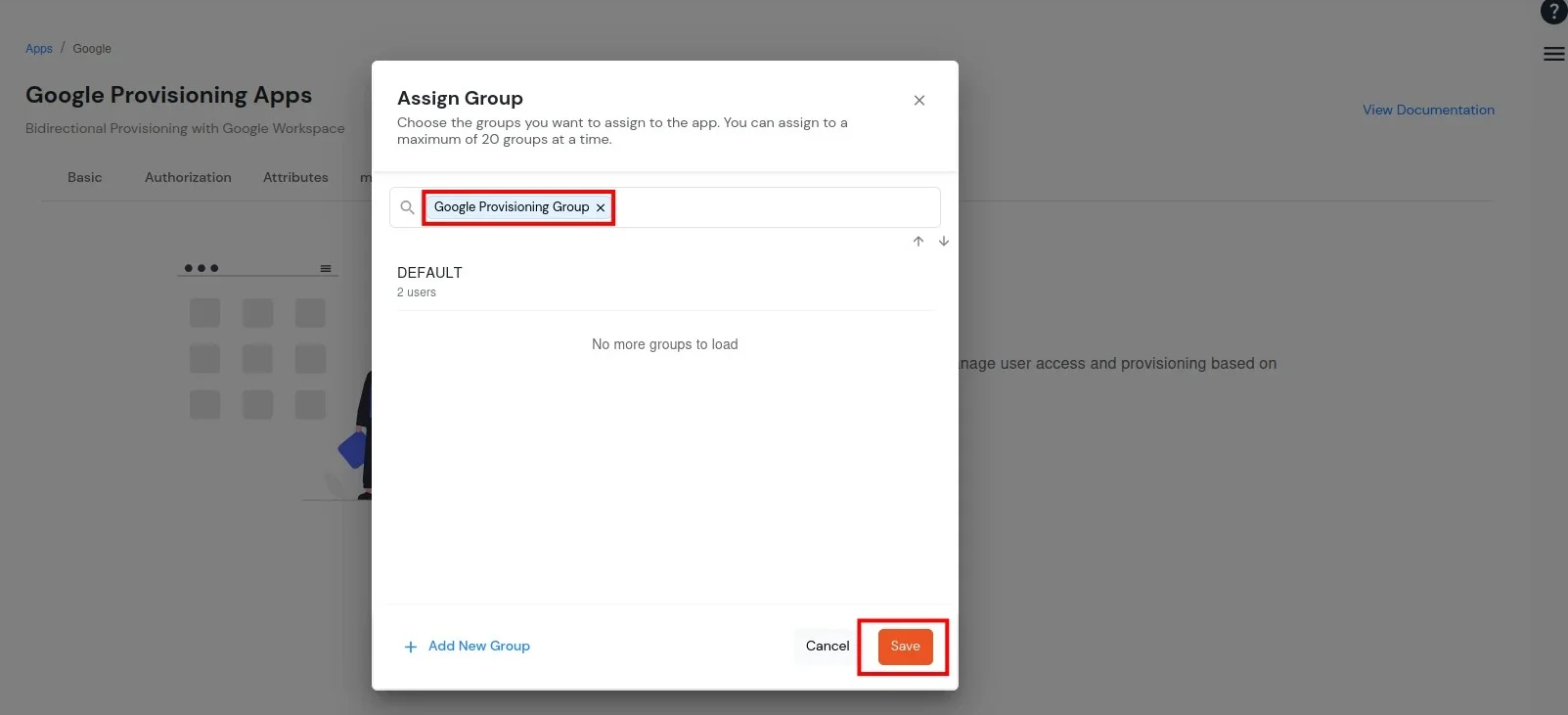
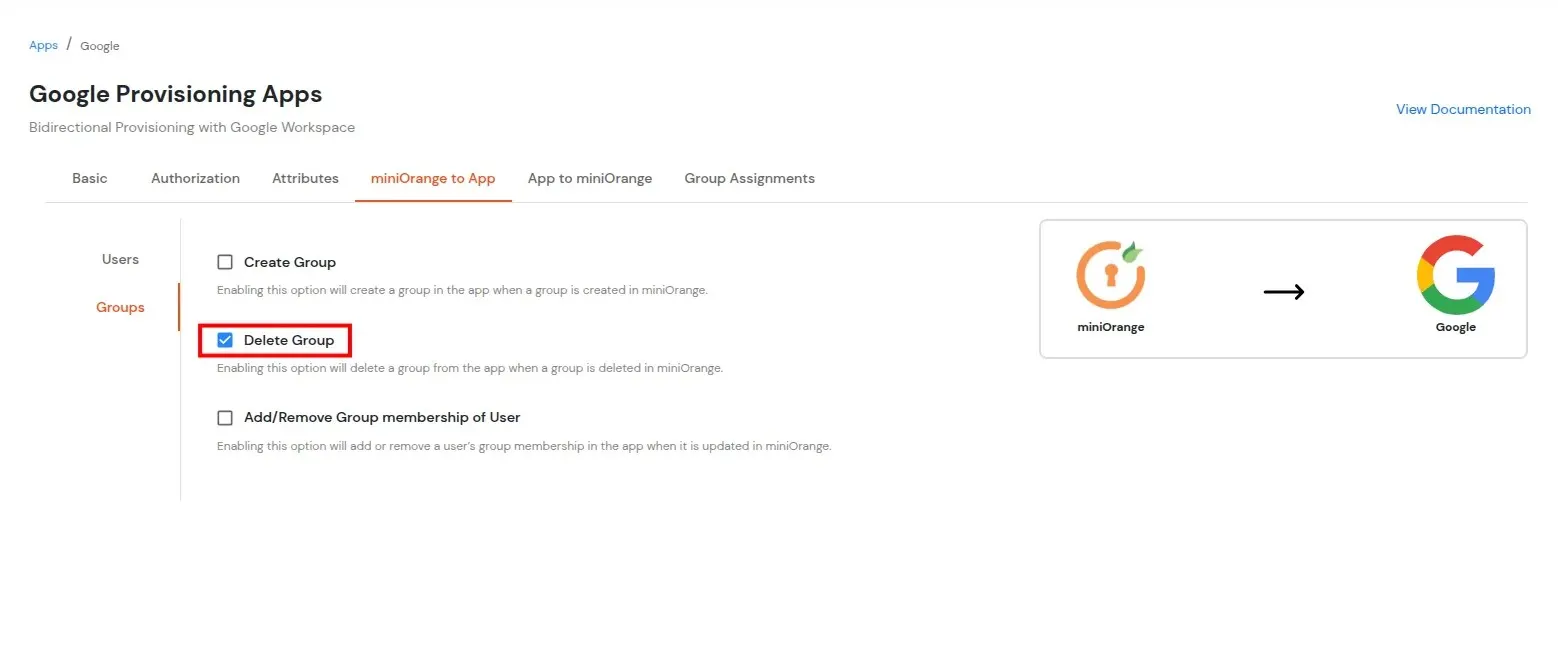
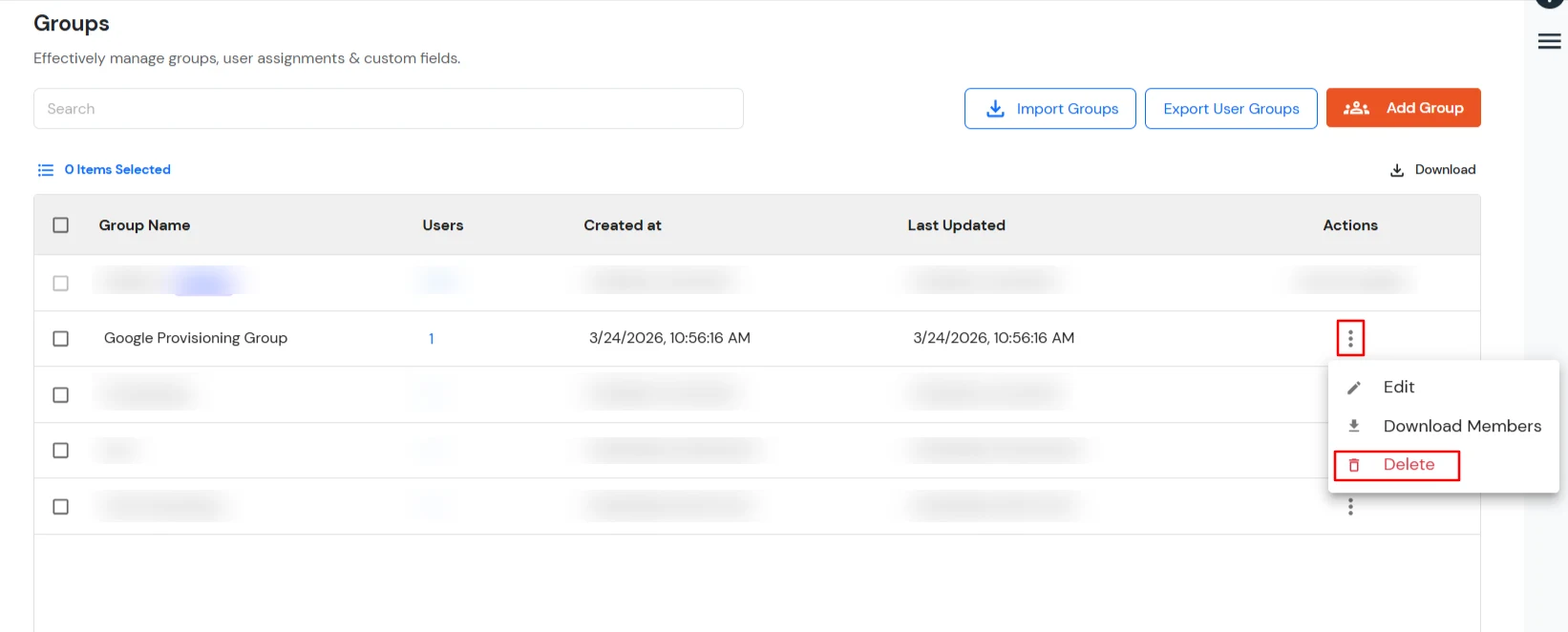
Note: If the Schedulers tab is not visible, contact idpsupport@xecurify.com to have it enabled.
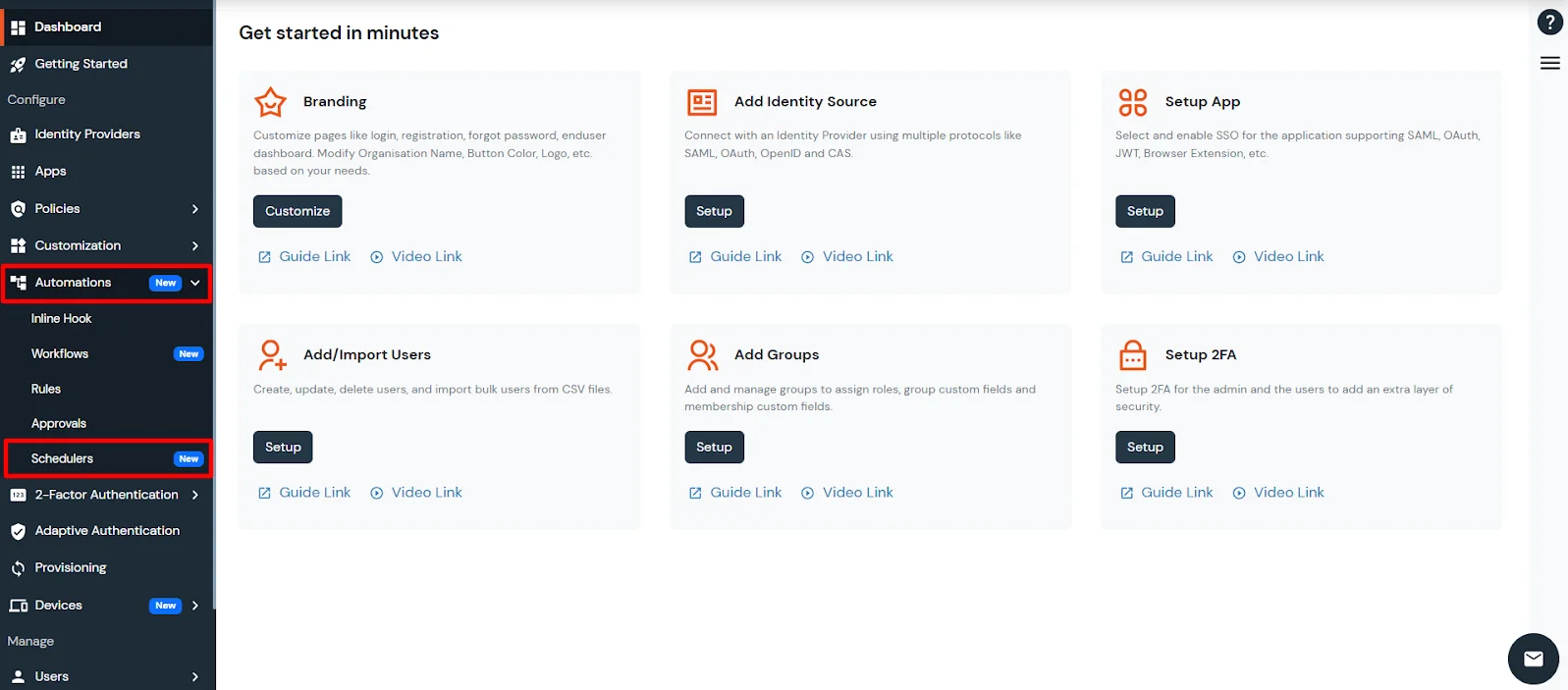
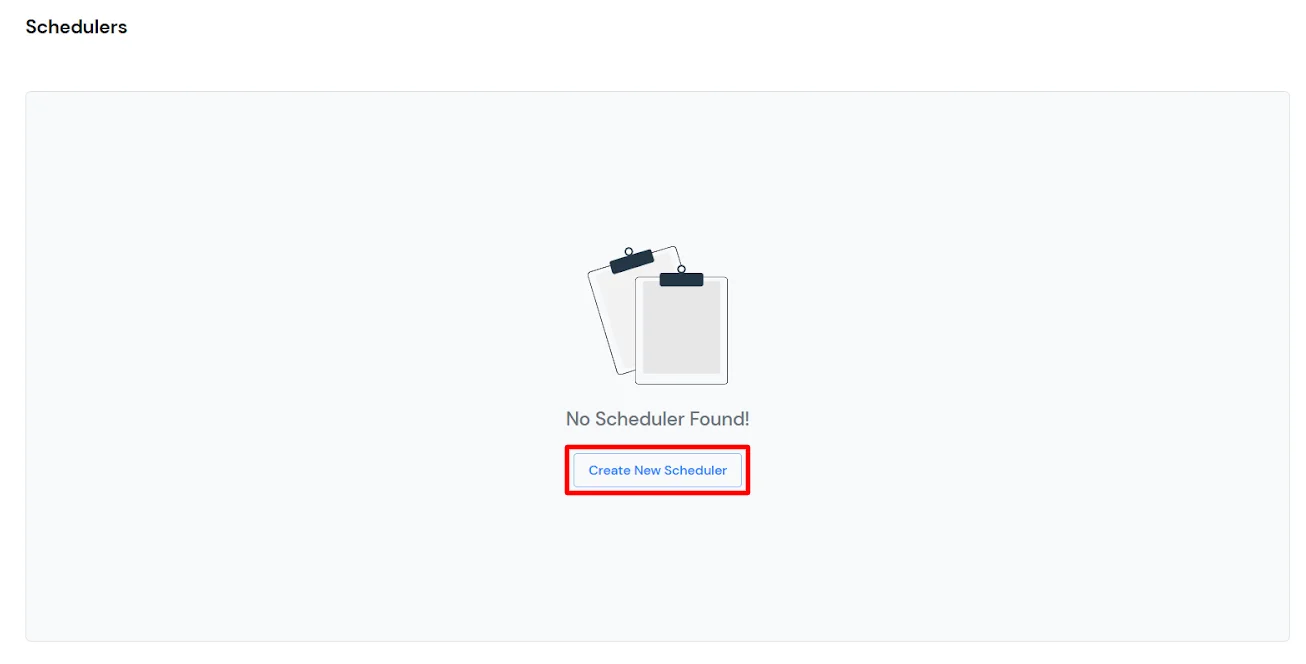
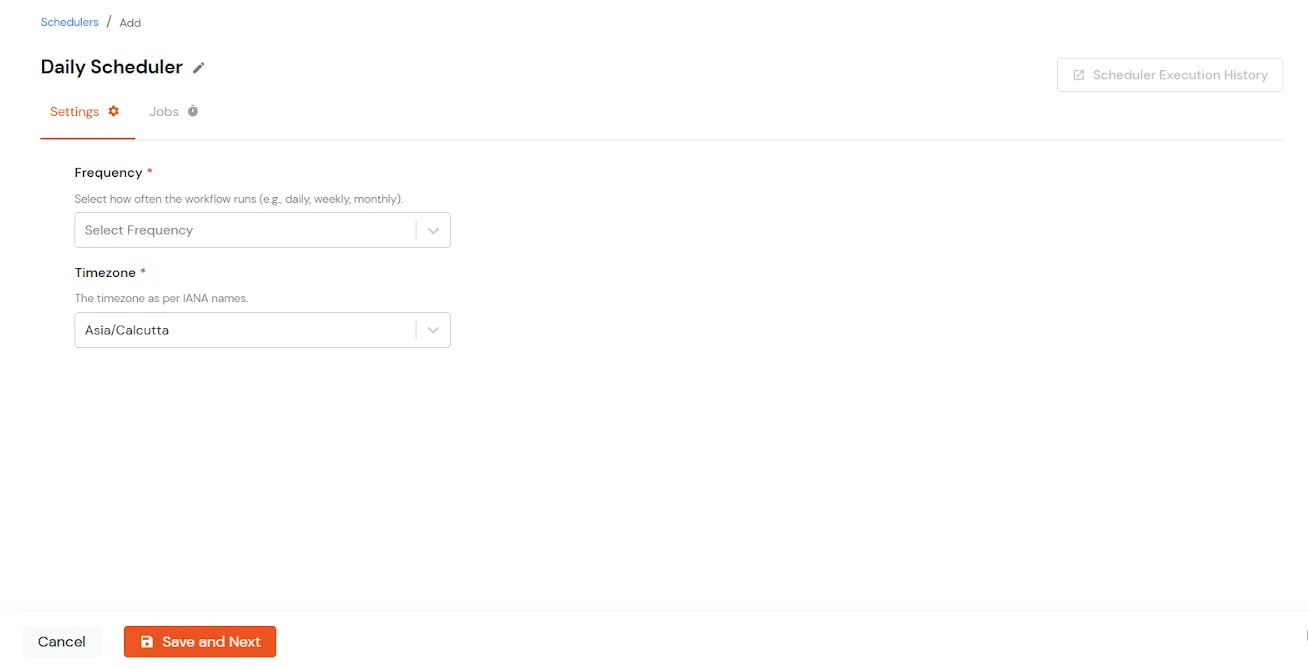
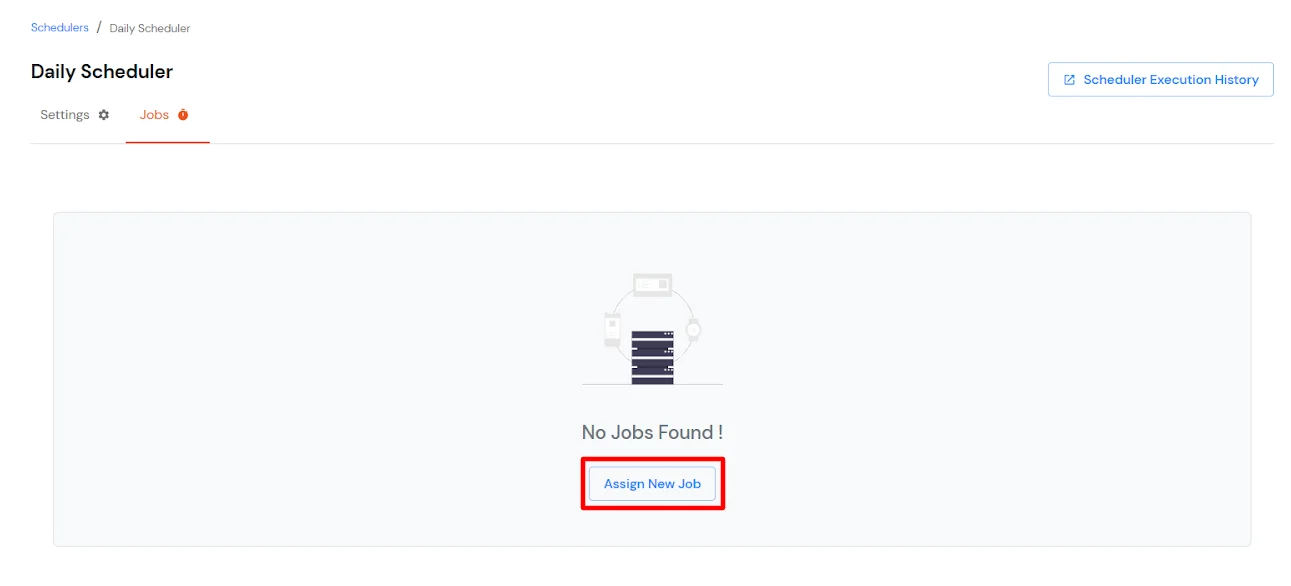
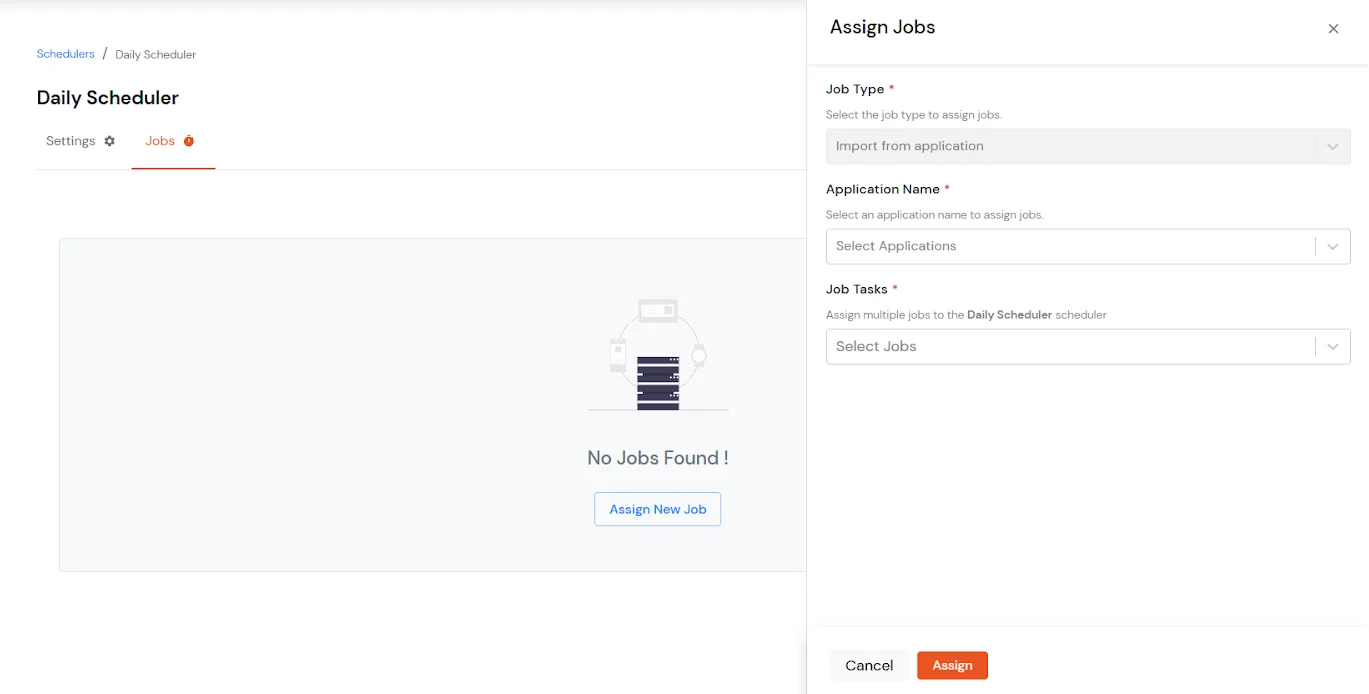
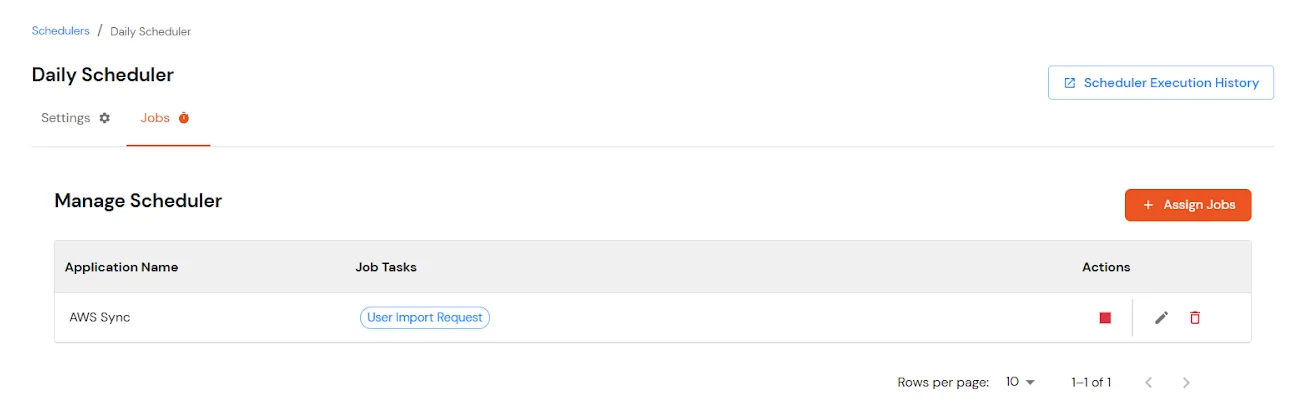
Note: If you want to import data from multiple applications, you can assign multiple jobs to the same scheduler.
Google Workspace user provisioning is the process of automatically creating, updating, and managing user accounts and groups in Google Workspace based on information from a centralized identity source.
Yes. miniOrange supports inbound provisioning, allowing administrators to import users and groups from Google Workspace into miniOrange.
Yes. miniOrange supports outbound provisioning to create, update, and delete Google Workspace users based on configured provisioning rules and group assignments.
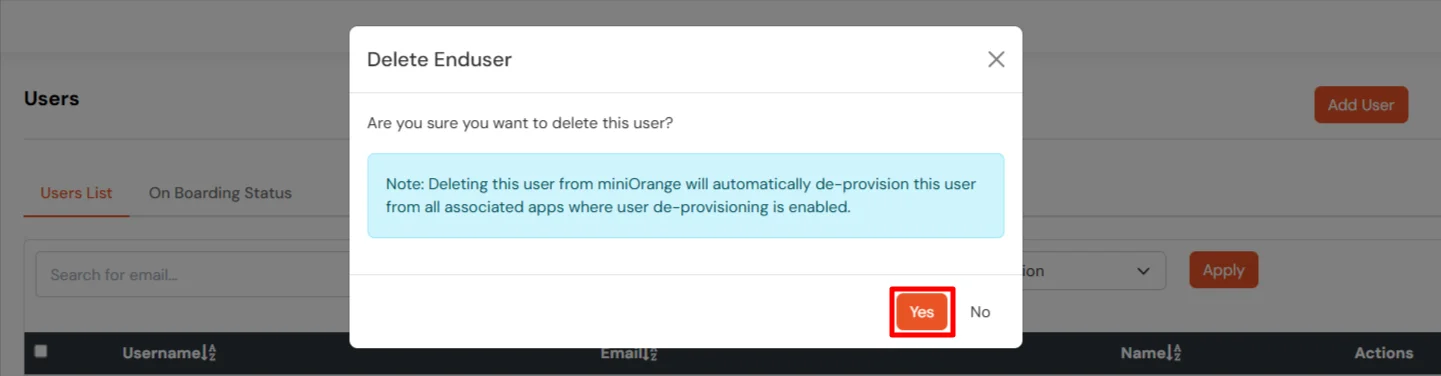
Yes. Google Workspace deprovisioning can be configured to remove users and groups from Google Workspace when the corresponding identities are deleted or deprovisioned in miniOrange.
Yes. Scheduled jobs can automatically import users, groups, and user group assignments from Google Workspace according to a configured schedule.
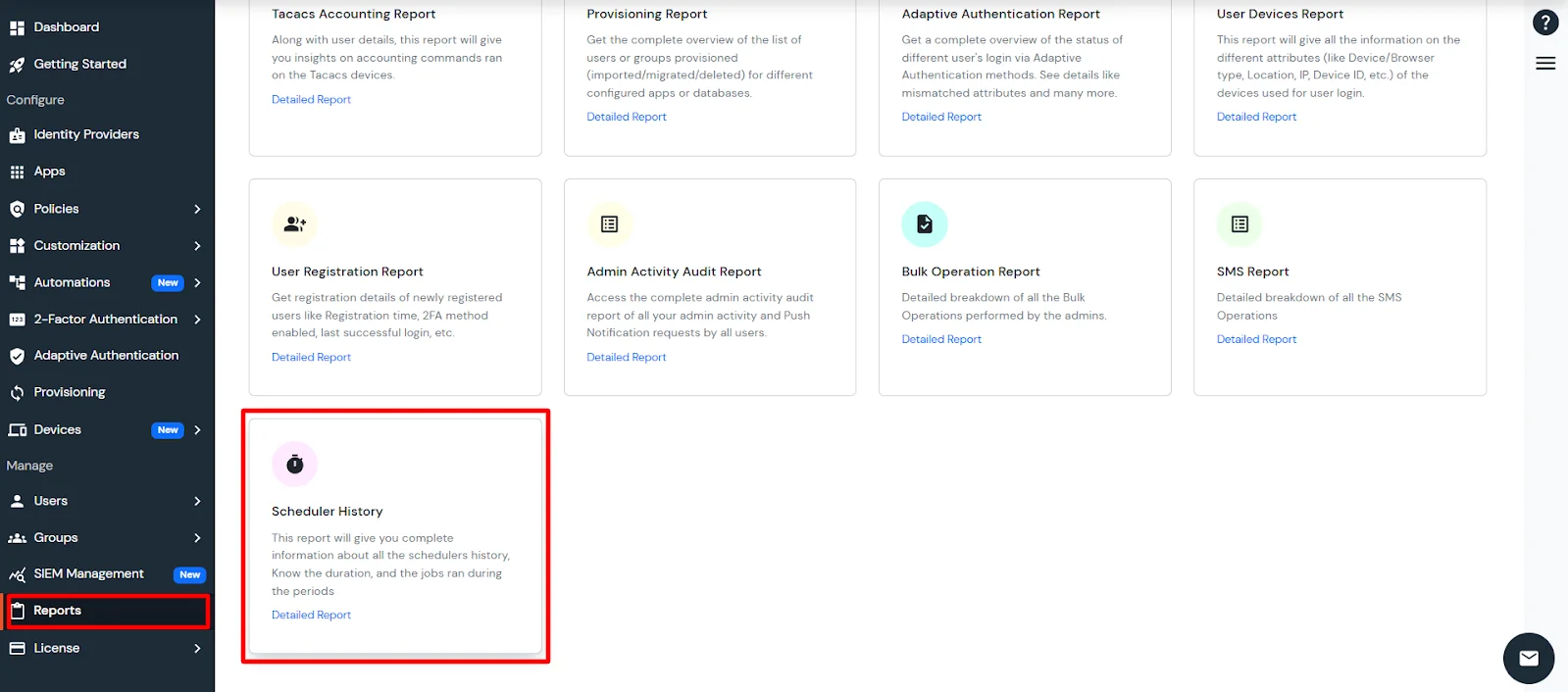
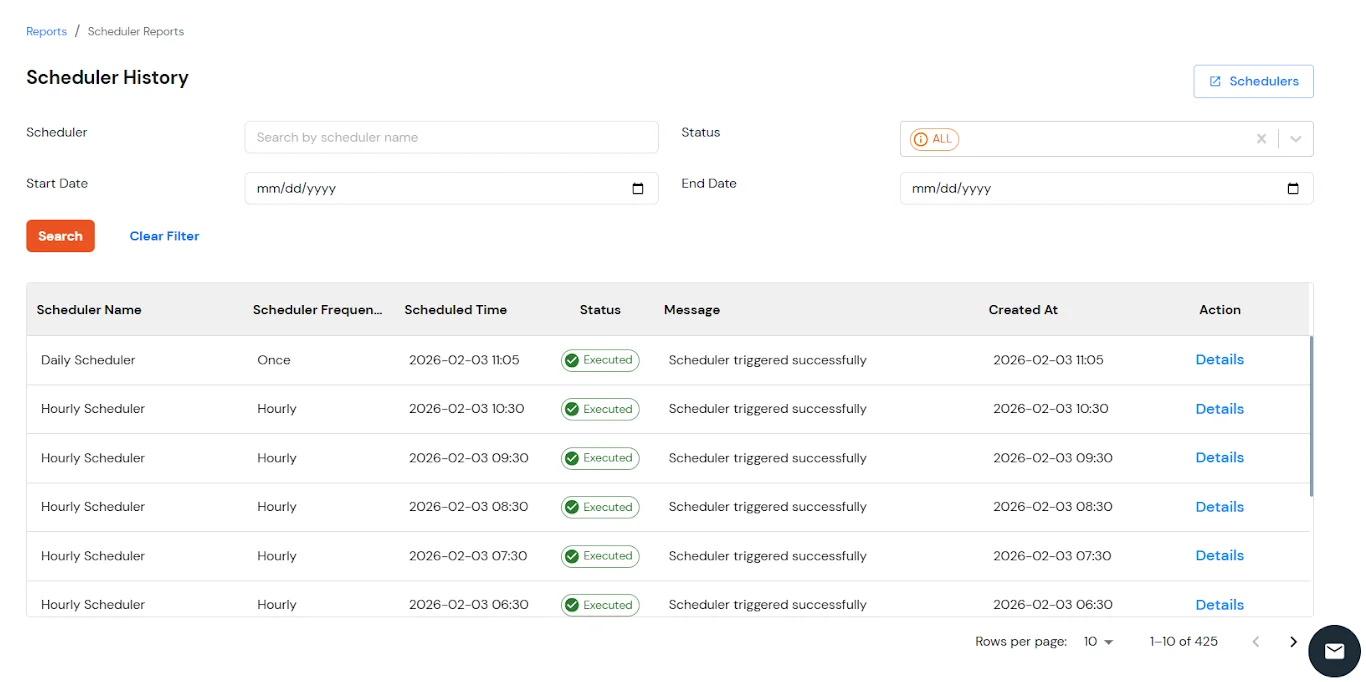
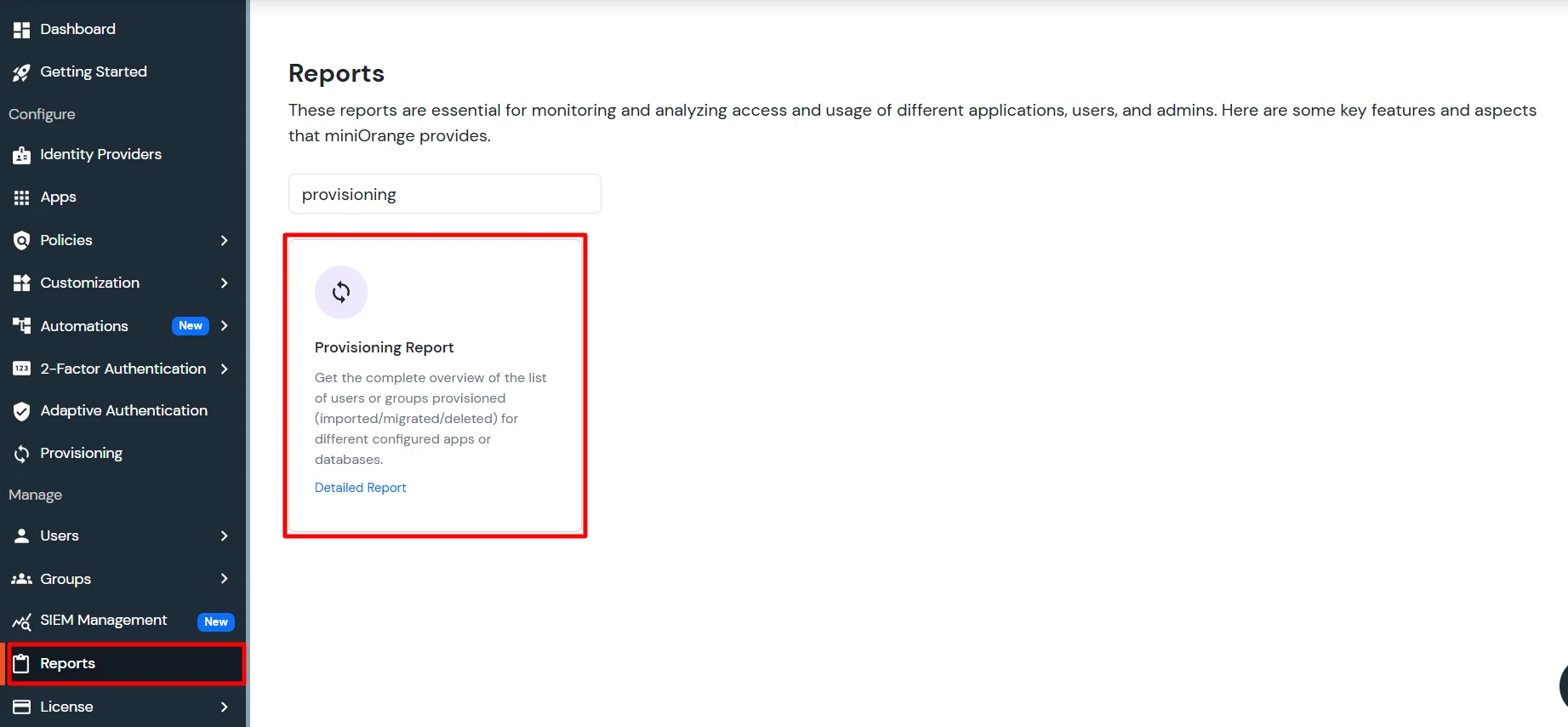
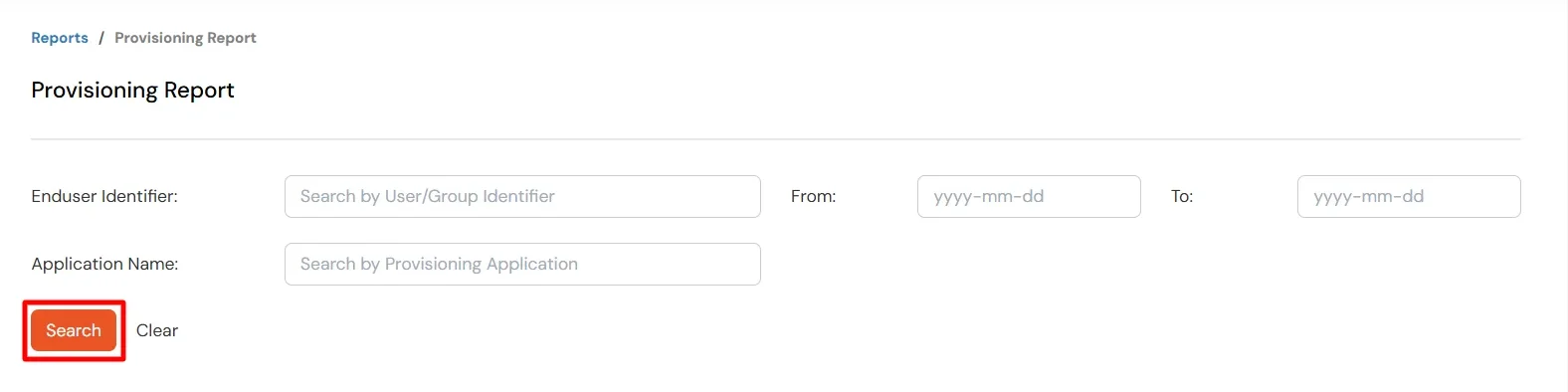
Use the Provisioning Reports in the miniOrange Admin Console to review provisioning activity and identify failed operations. For scheduled imports, check Scheduler History.