Manage User Roles
To manage user roles and their capabilities,
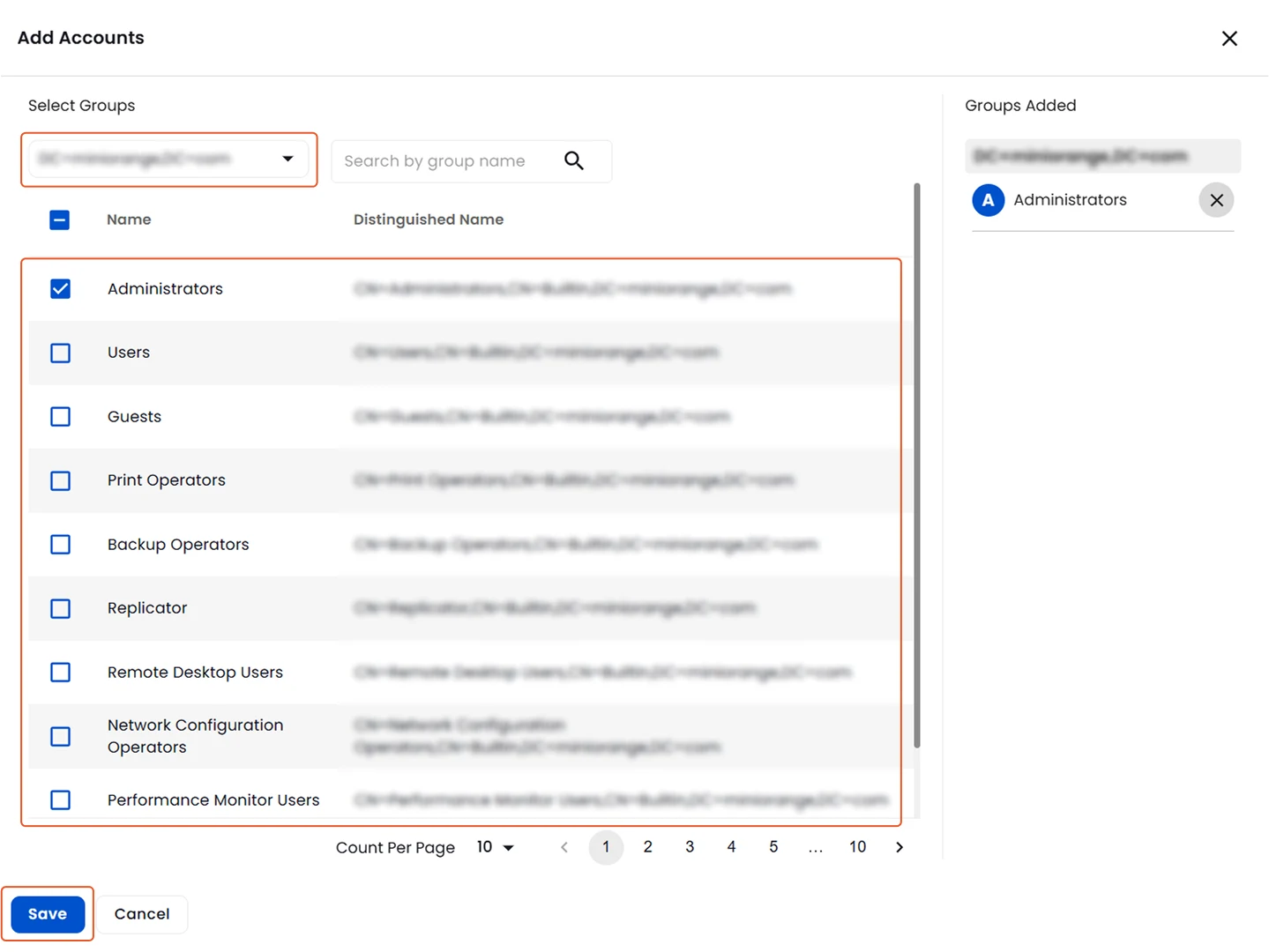
- Navigate to Roles & capabilities from the left-hand menu.
- In the Roles window, you can see a list of role names, users and groups to which the roles are assigned, capabilities of the role and an action button to perform various operations on the role.
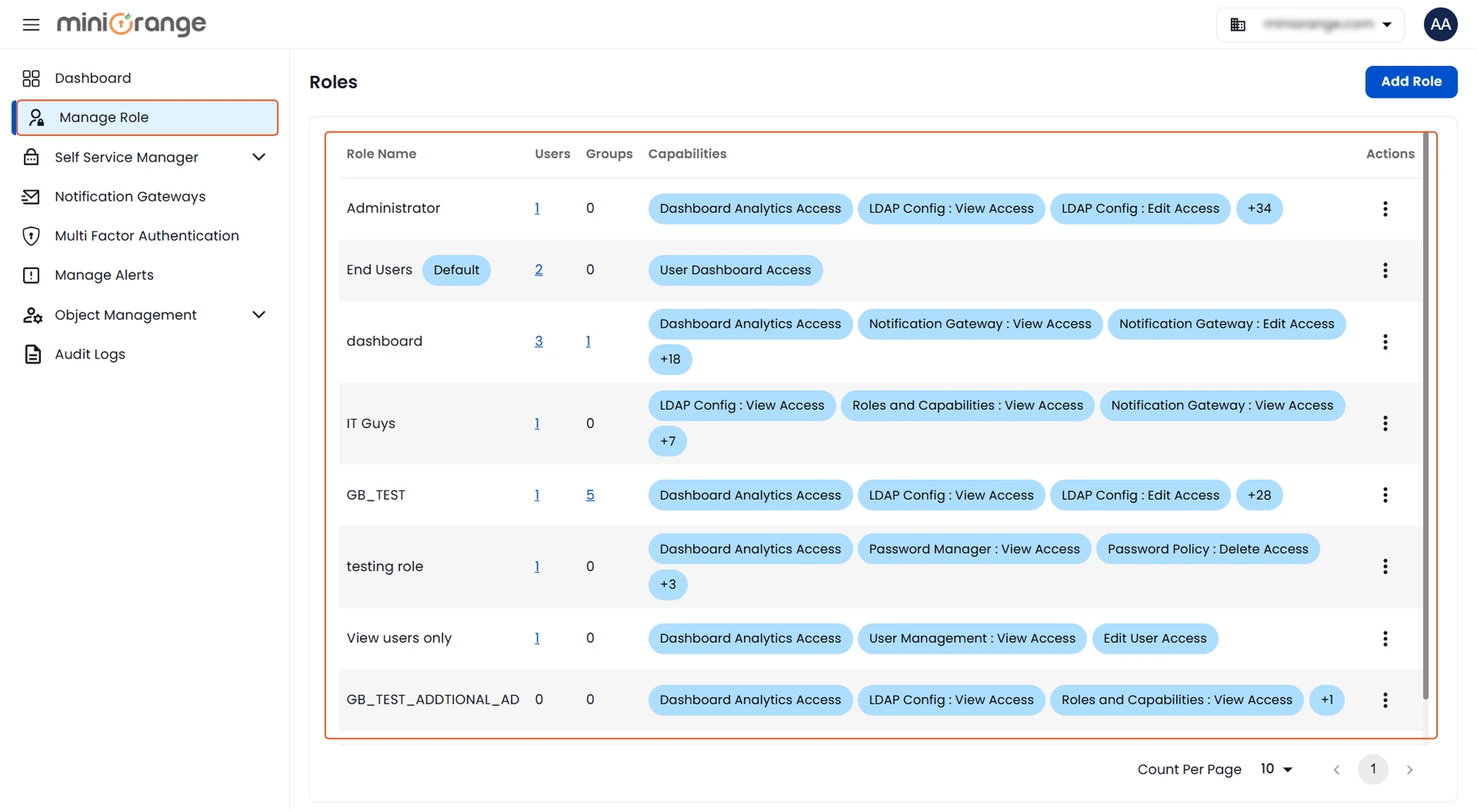
Actions thet can be performed on the roles:
- The following actions can be performed on the roles:
- Edit: Edit the role name and capabilities.
- Delete: Delete the role.
- Mark As Default: Make the selected role as default for all the users.
- Edit Members: Add, Remove the users and groups to which the role is assigned.
Edit Role:
To edit the desired role,
- In the Actions column, click on the edit option of desired role.
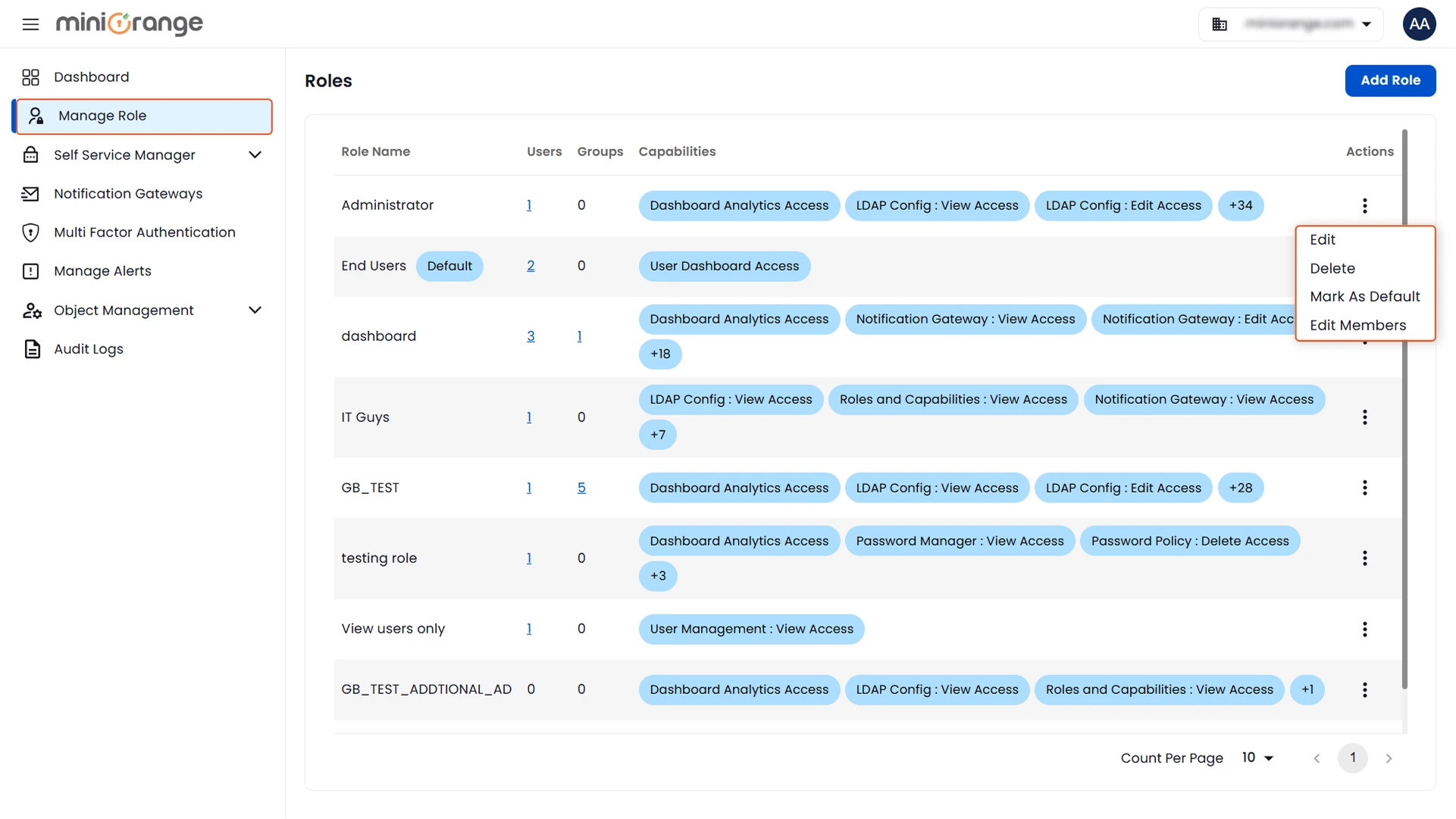
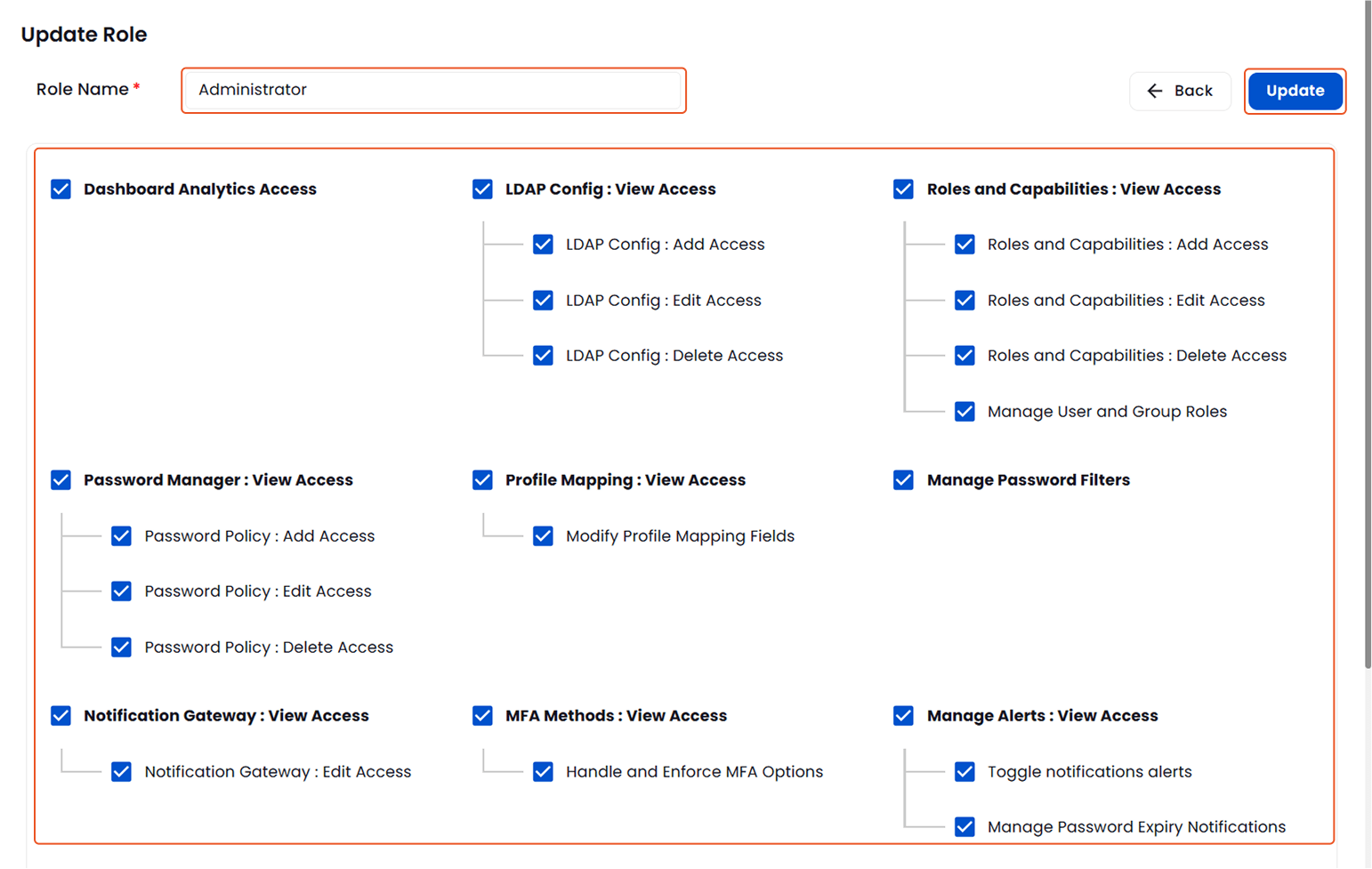
- In the Role Name, update the existing role name with desired role name.
- Enable the Restrict Role for specific groups/ous toggle if you want to restrict the role to specific groups/OUs.
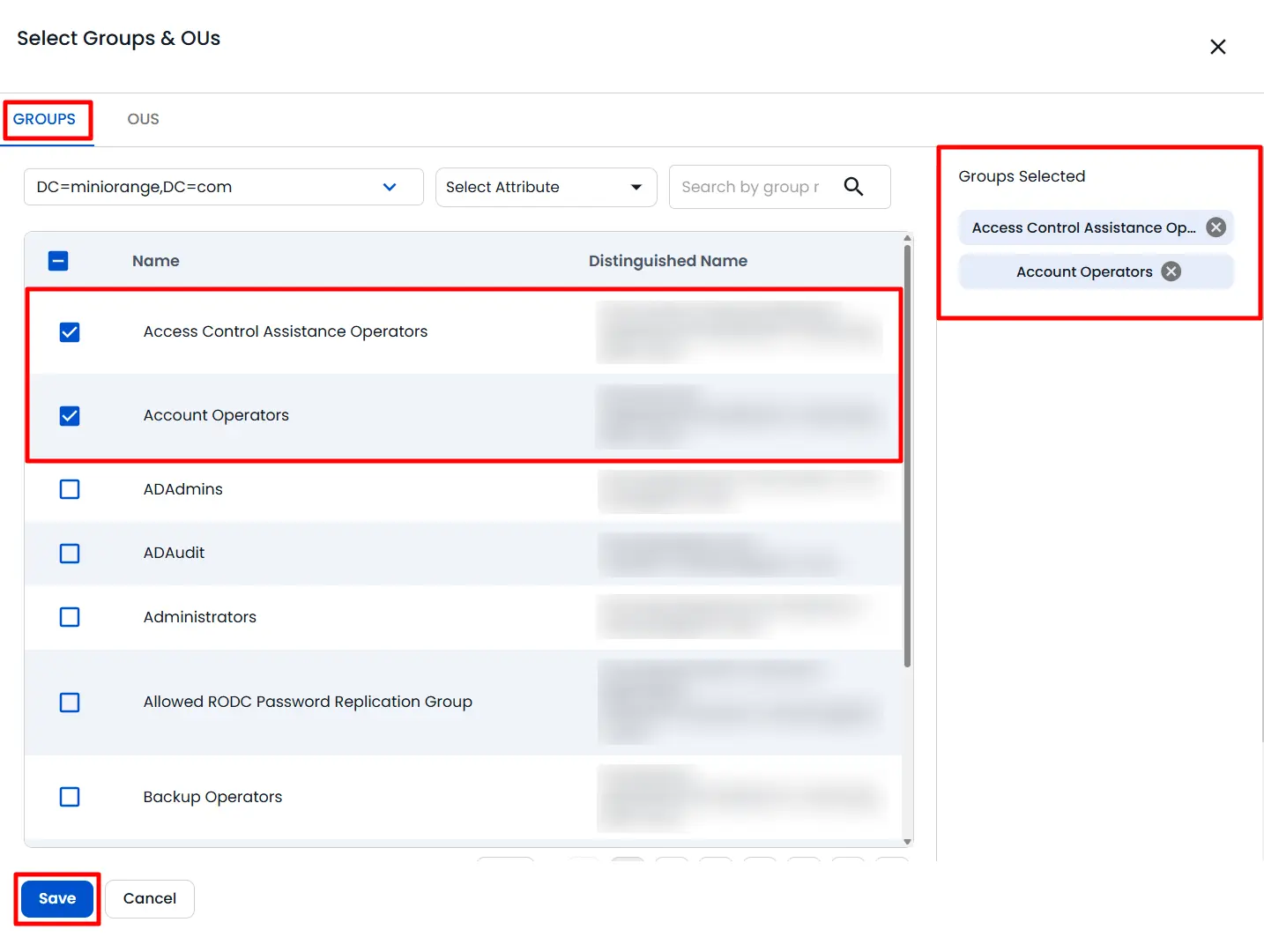
- Click on the Select Groups & OUs button to select the groups and OUs for which you want to restrict the role.
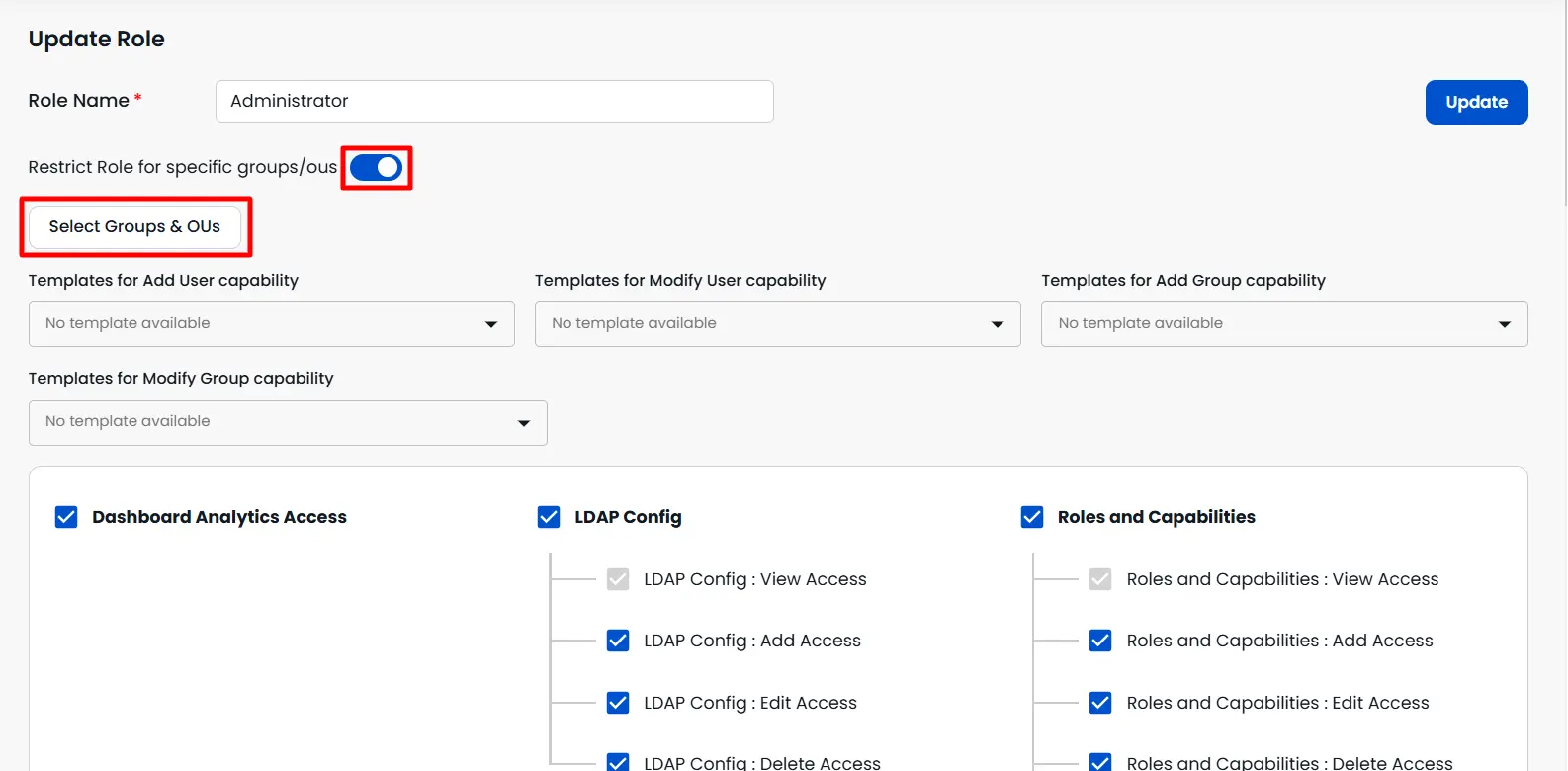
- Select the desired groups from the Groups tab. The selected groups will be displayed under Groups Selected.
- Select the desired OUs from the OUs tab. The selected OUs will be displayed under OUs Selected.
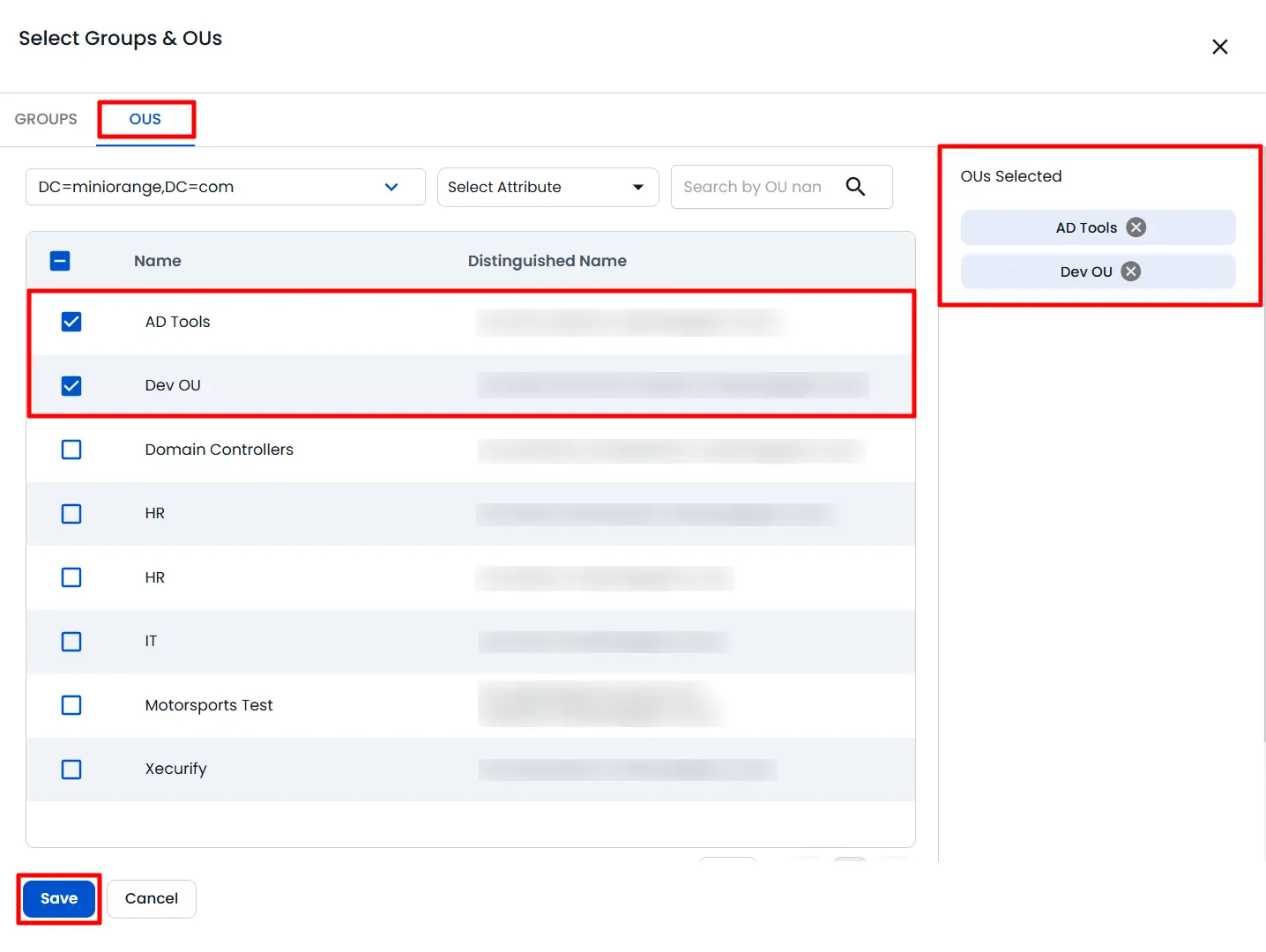
- Click on the Save button to save the selected groups and OUs.
- Select the desired templates for the Add User, Modify User, Add Group, and Modify Group capabilities.
- Select the capabilities for the role.
- Once done with the capabilities, click on the Update button to update the role.
Edit Members in the Roles:
To add and remove members to any particular role:
- Click on the Edit Members option from the Actions column of any desired role.
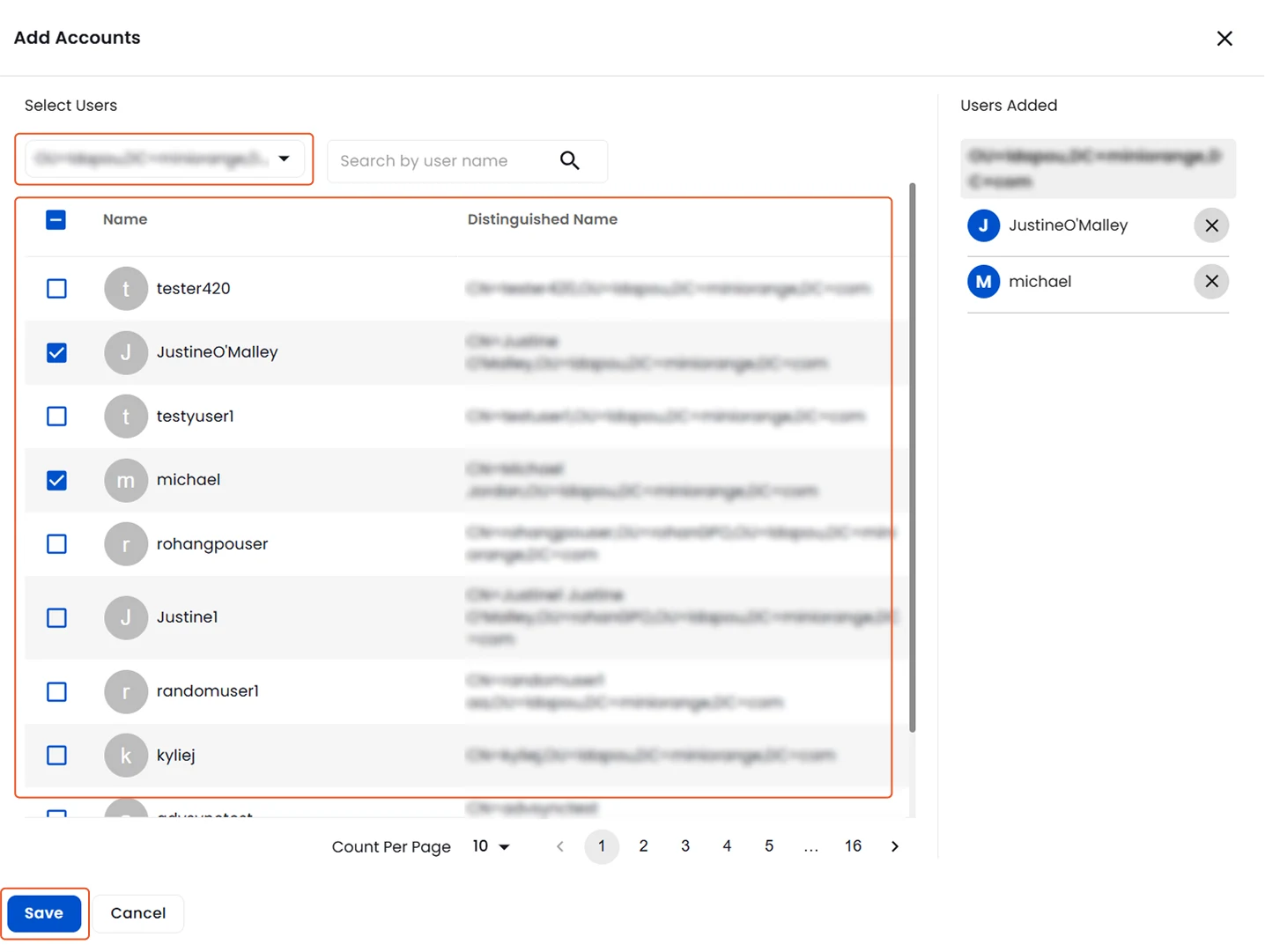
Add user accounts to the selected role:
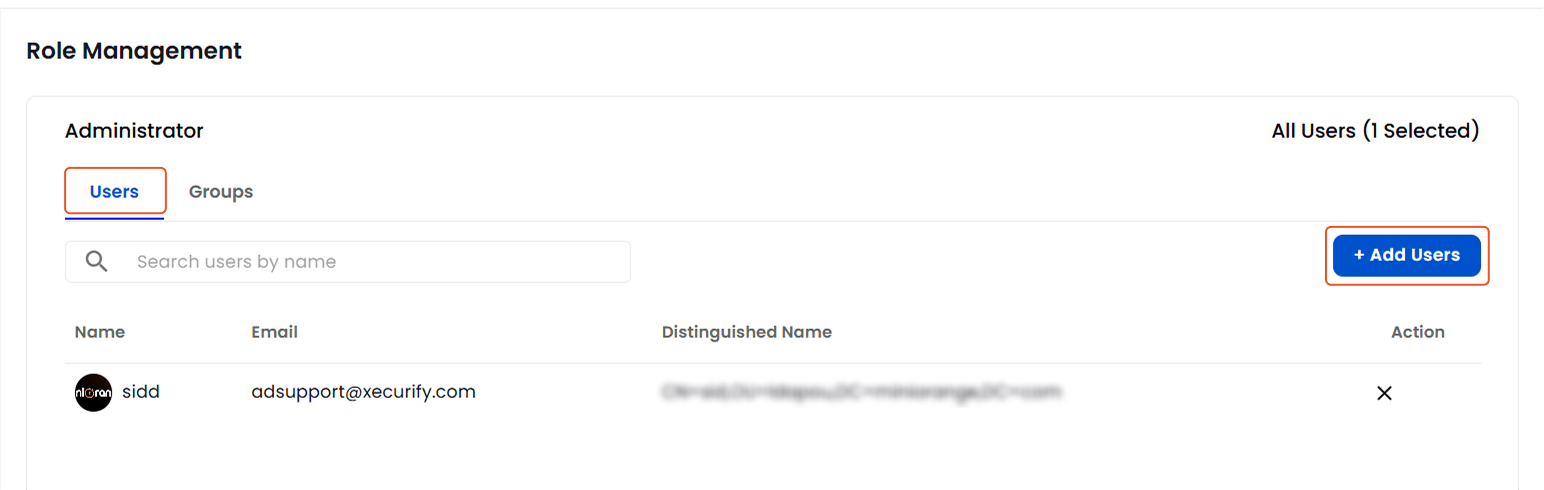
- In the Users tab already added users will be displayed.
- In the Actions column, click on the cross icon to remove the added user.
- Click on the Add Users button, to assign the selected role to the users.
- To add user accounts, Select first directory from the dropdown.
- To search for a particular user, select an Attribute, enter the user name (optional), and click on the search icon.
- A list of users will appear with their distinguished names.
- Select the users to assign the selected role to.
- The selected users will appear in the Users Added section.
- Once done with the users selection, click on the Save button.
Add groups to the selected role:
- In the Groups tab already added groups will be displayed.
- In the Actions column, click on the cross icon to remove the added group.
- Click on the Add Groups button, to assign the selected role to the groups.
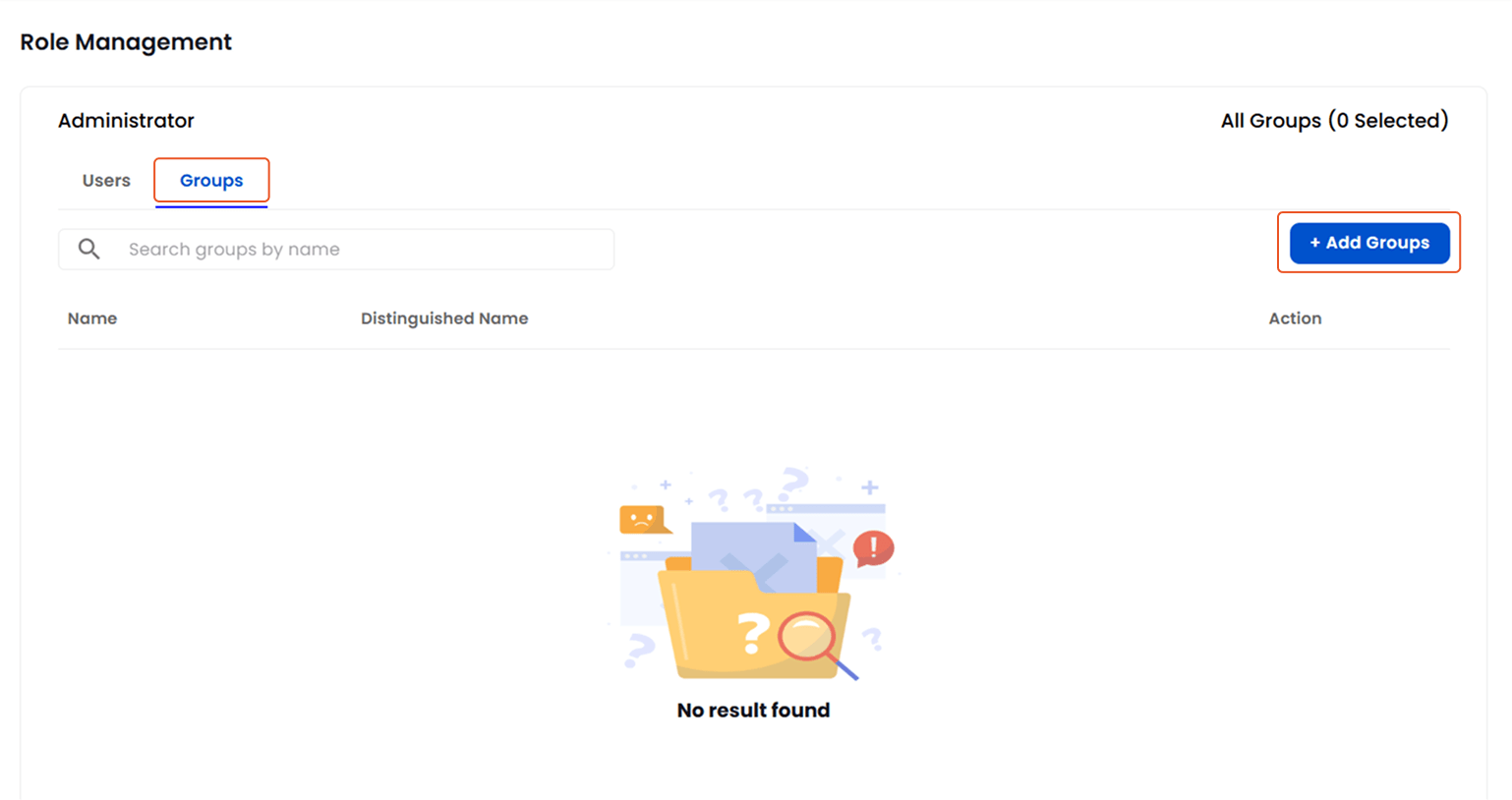
- To add Groups, Select first directory from the dropdown.
- To search for a particular group, select an Attribute, enter the group name (optional), and click on the search icon.
- A list of groups will appear with their distinguished names.
- Select the groups to assign the selected role to.
- The selected groups will appear in the Groups Added section.
- Once done with the groups selection, click on the Save button.