Add & Update User Accounts
Add Users in Active Directory:
To create a new user account:
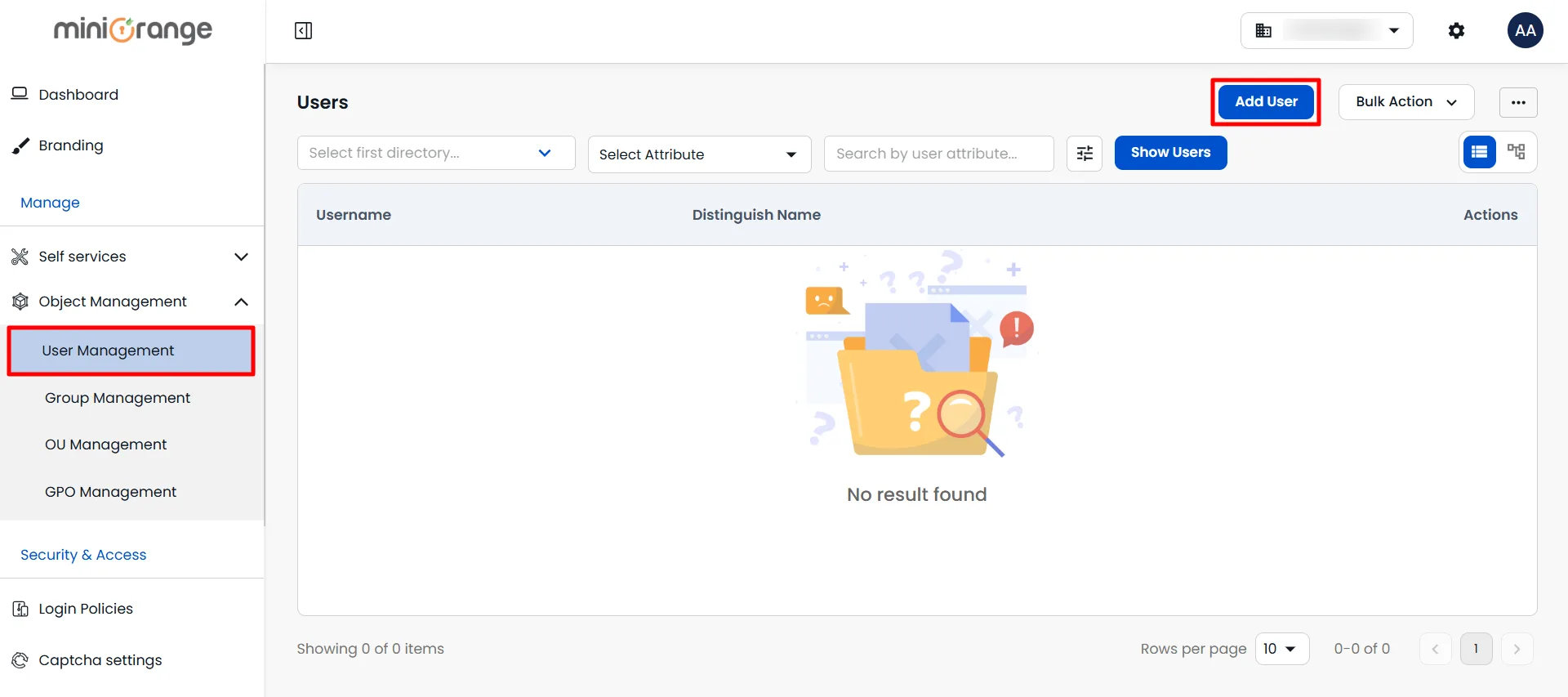
- Navigate to Object Management > User Management.
- Click on the Add User button.
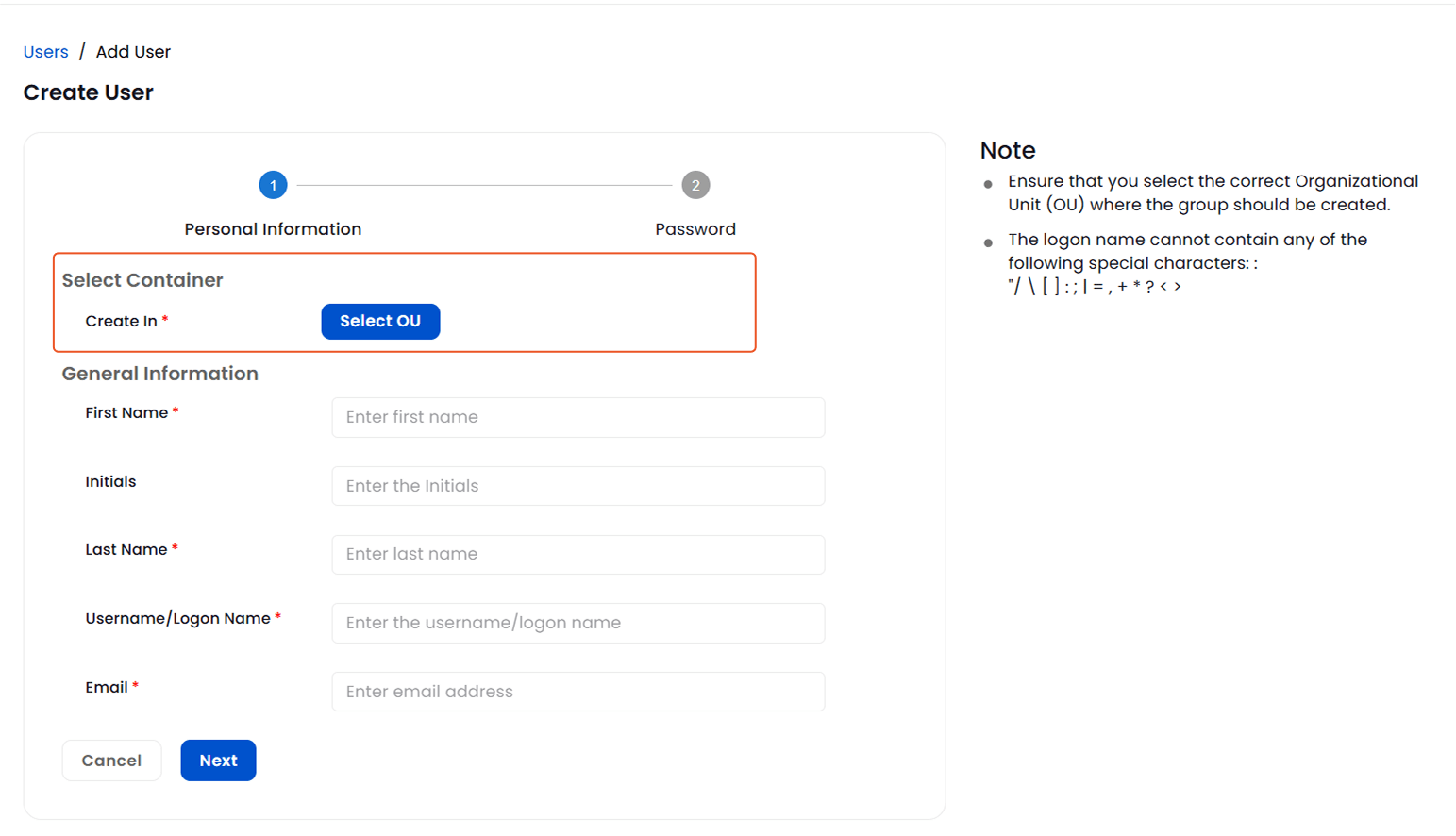
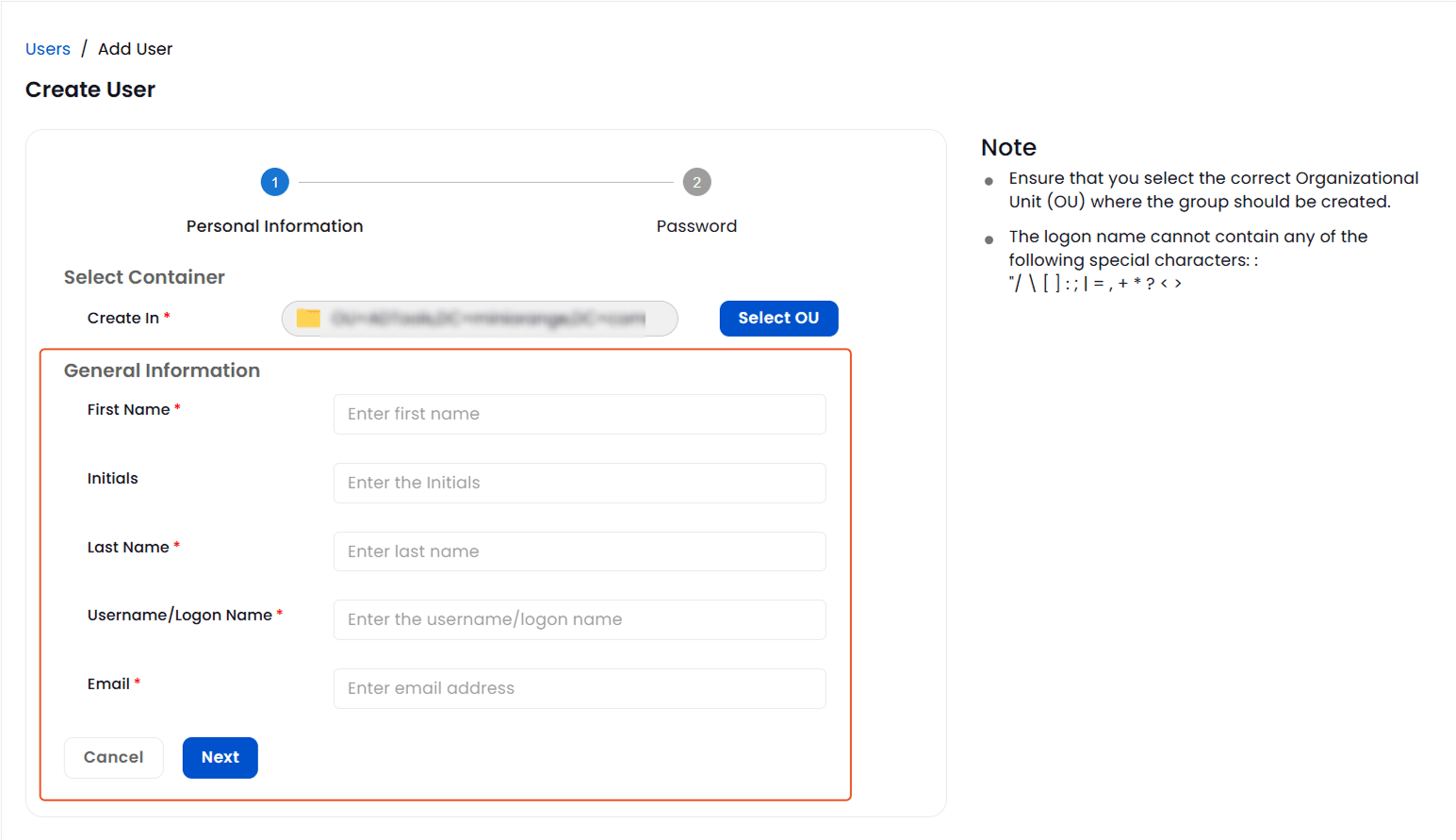
Step 1: Select Container:
- Click Select OU to choose the container where the new user will be created.
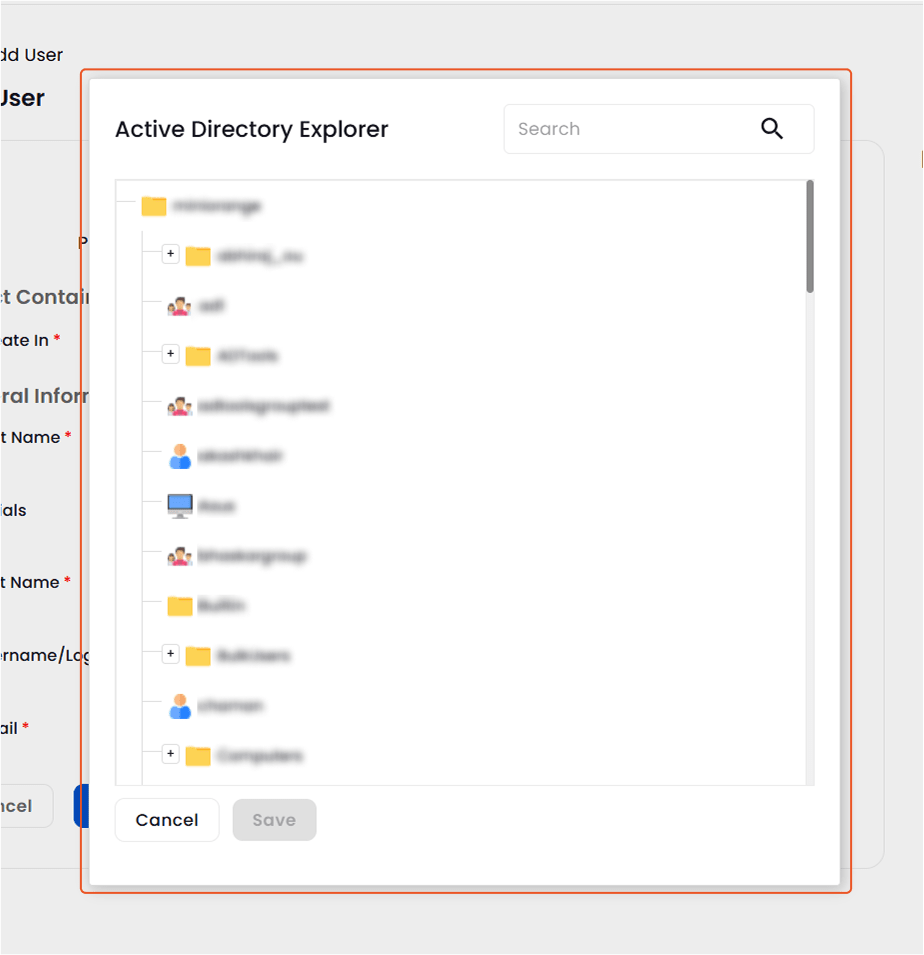
- In the Active Directory Explorer select the desired organizational unit.
- After selecting the desired OU, click Save to confirm.
Step 2: Enter General User Information
- Fill in the following fields:
- First Name
- Initials
- Last Name
- Username / Logon Name
- Email Address
- Click Save & Next to proceed to password settings.
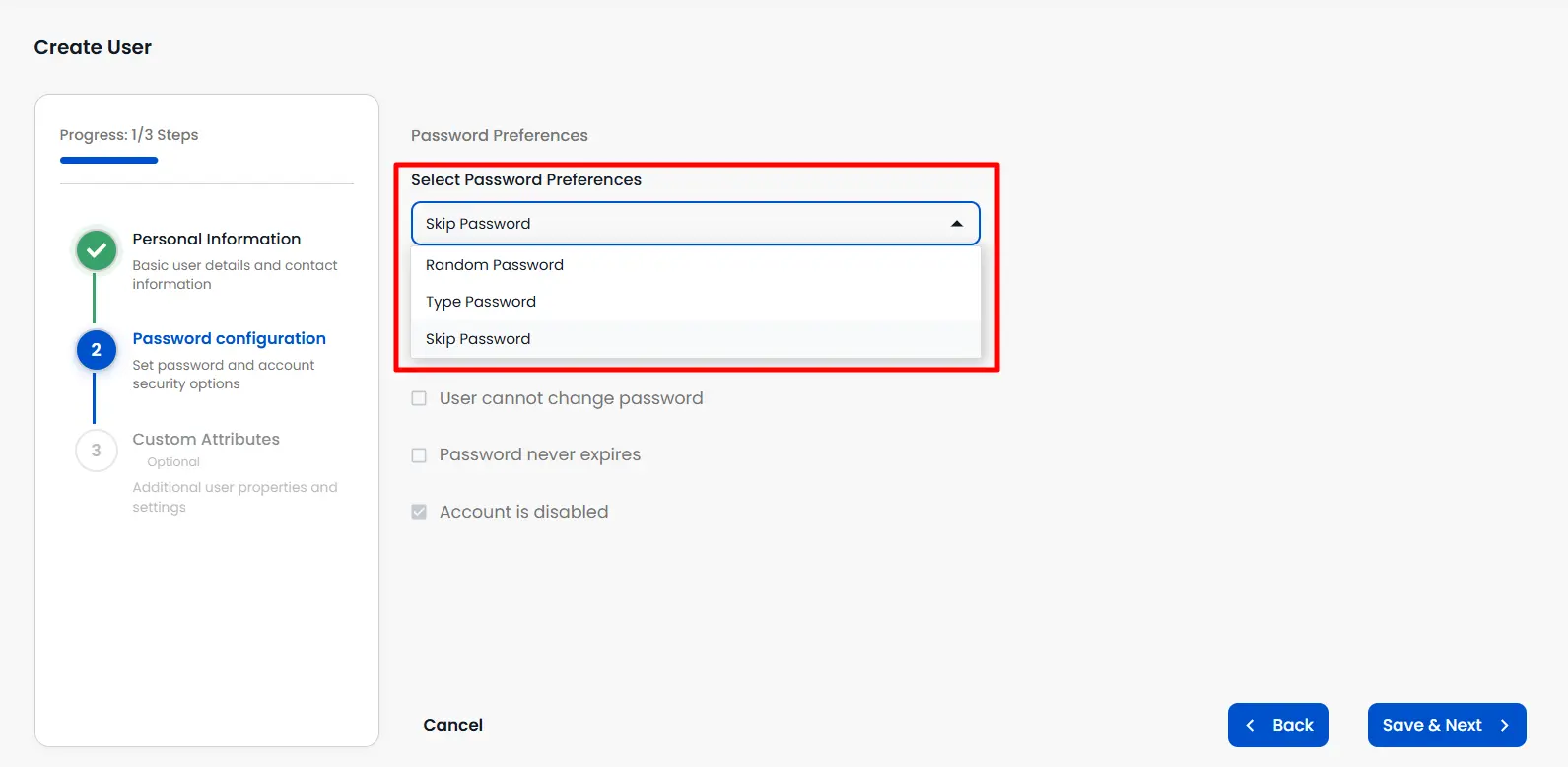
Step 3: Set Password Preferences
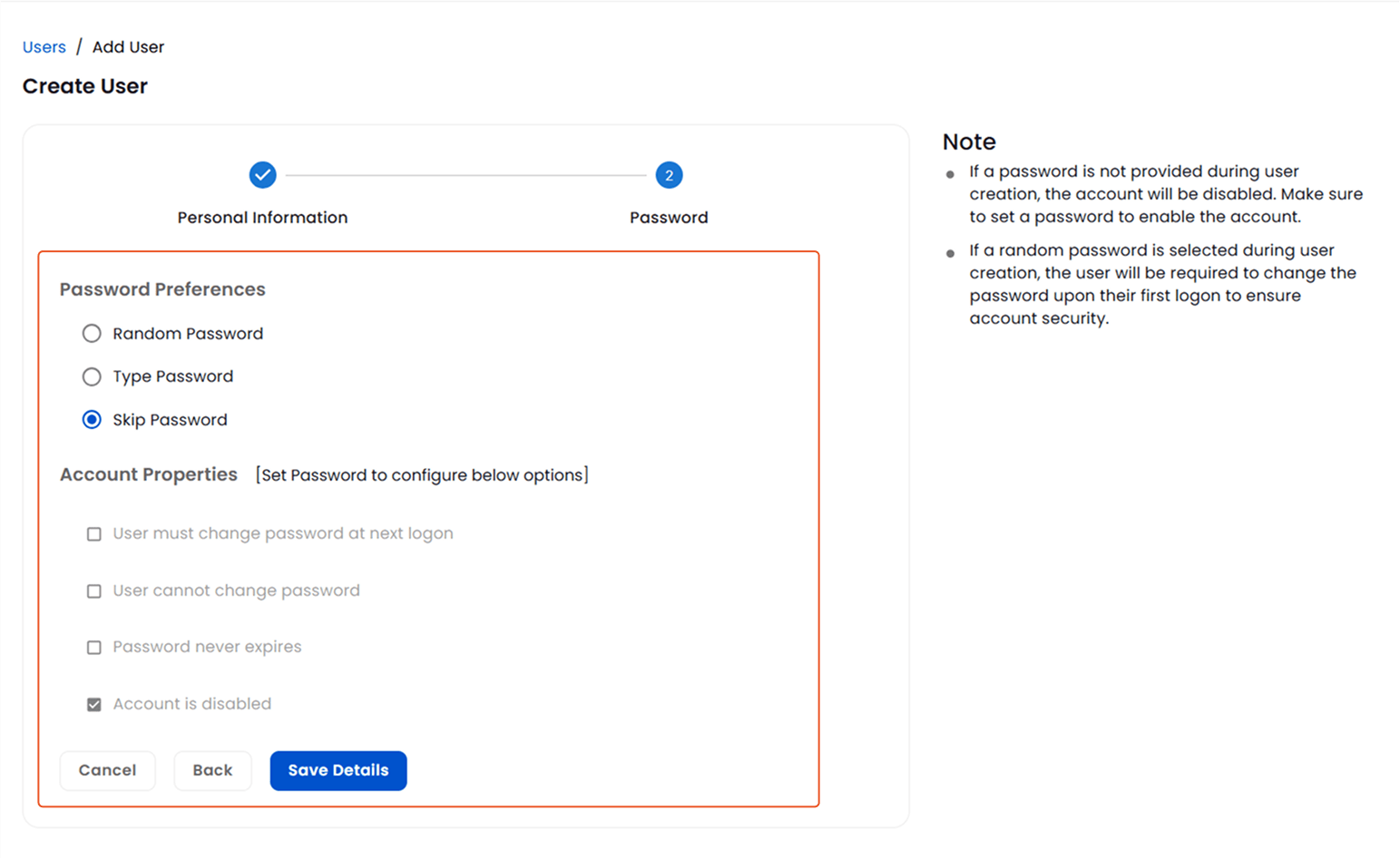
Step 4: Configure Account Properties
Step 5: Save the User
- Once all fields are configured, click Save & Next to add the user to Active Directory.
Modify or Update User Account Information in AD Tools:
To update an existing user's details:
- Navigate to Object Management > User Management.
- Select the required directory from the Select first directory dropdown.
- Select the required user attribute from the Select Attribute dropdown.
- Enter the relevant value in the Search by user attribute field.
- Click Show Users to display the matching users.
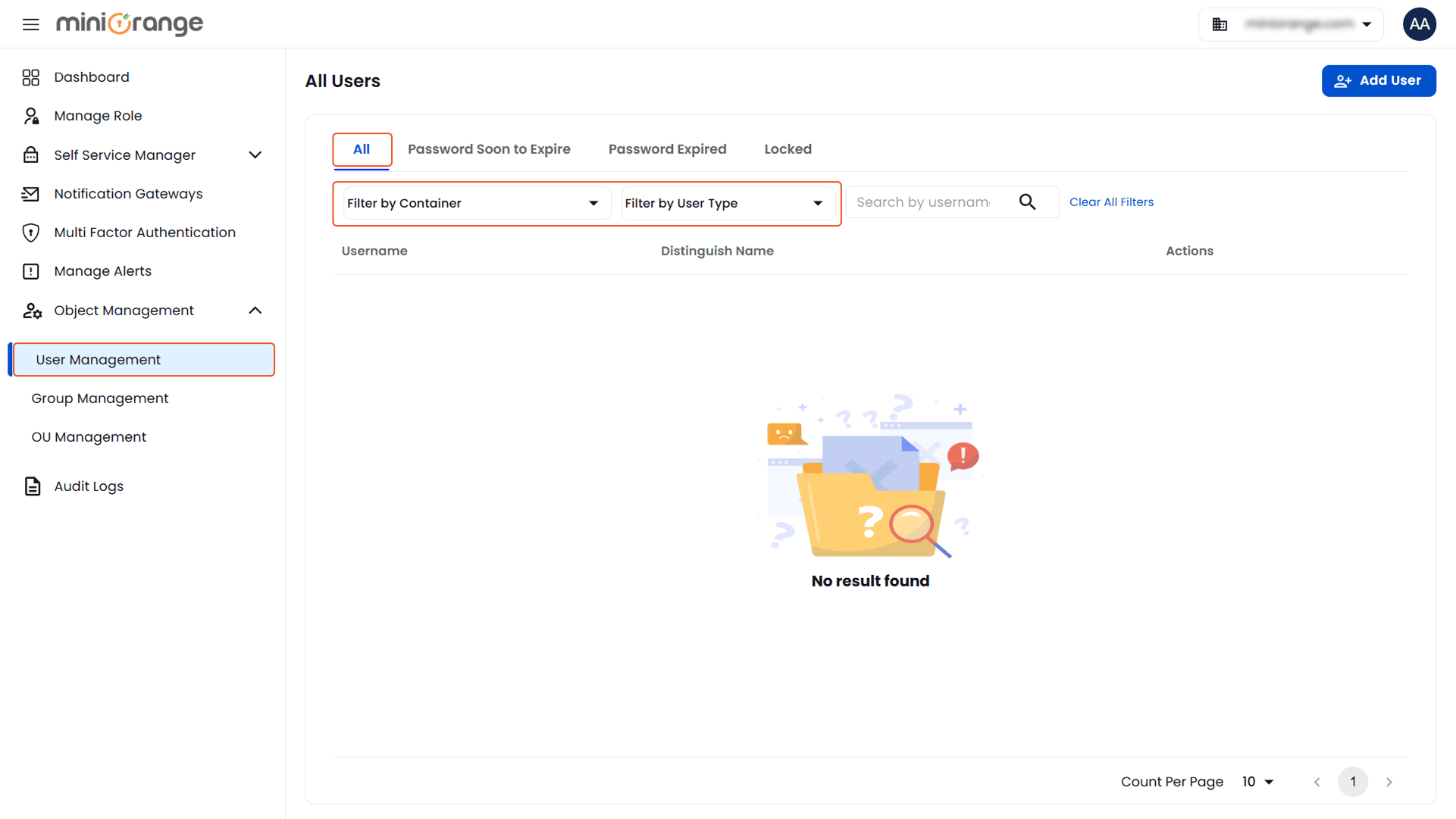
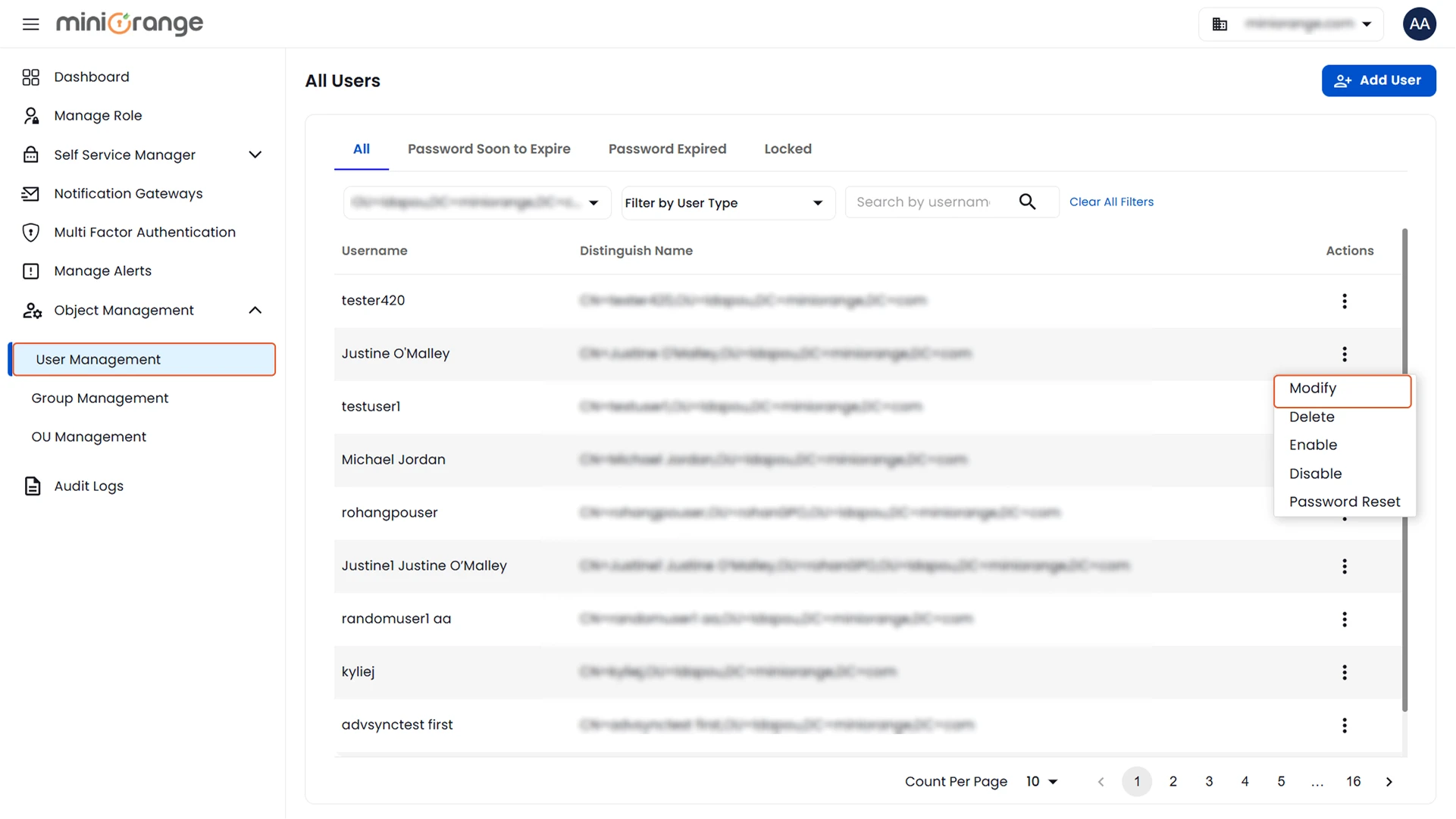
- In the user list, go to the Actions column and click the three-dot icon next to the desired user.
- From the dropdown options, select Modify User.
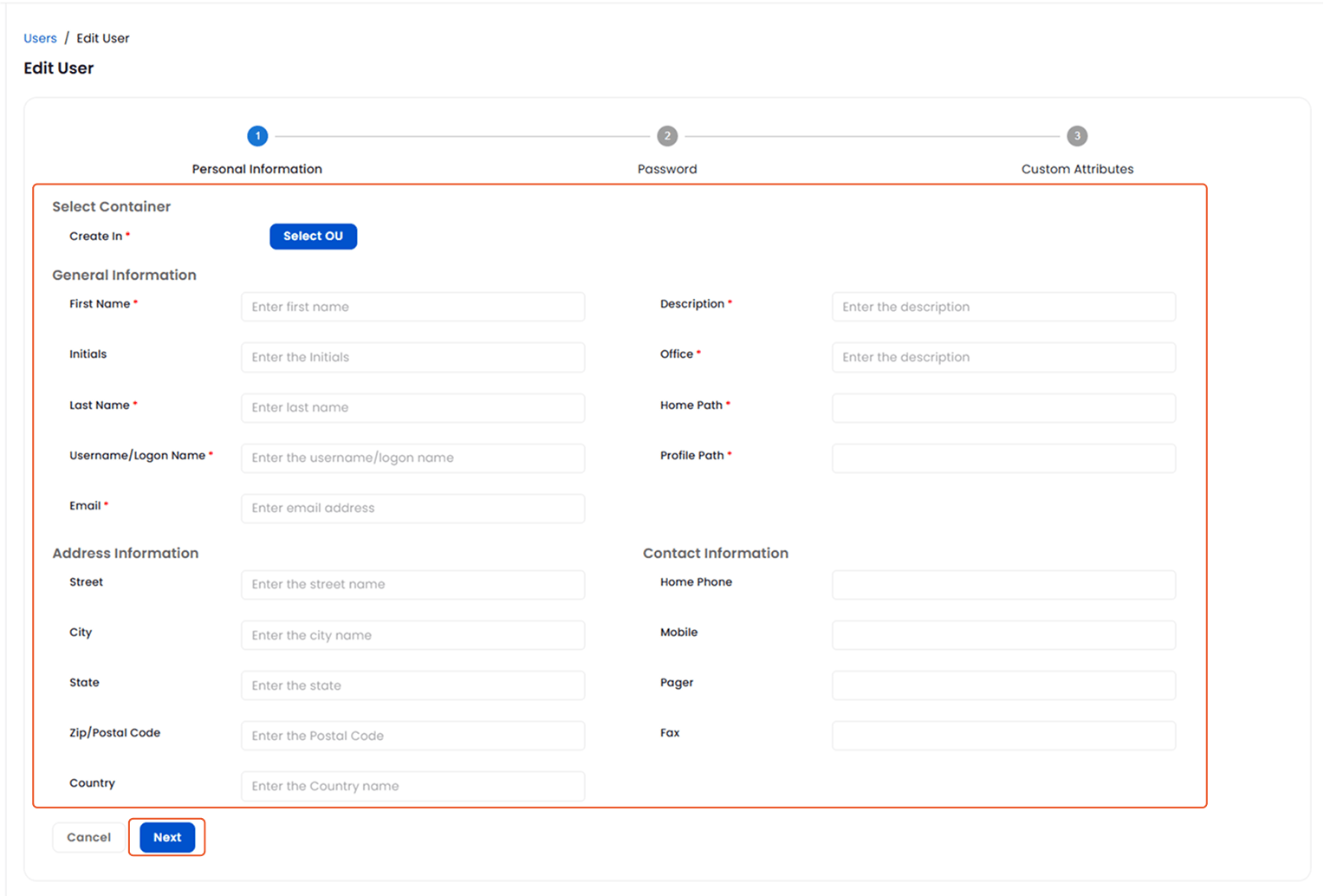
Step 1: Edit Personal Information
Update the following fields as needed:
- General Information: First Name, Last Name, Initials, Username/Logon Name, Email, Office, Home Phone, Mobile, and Description.
- Address Information: Street, City, State, Zip/Postal Code, and Country.
- Click Save & Next to proceed to password-related settings.
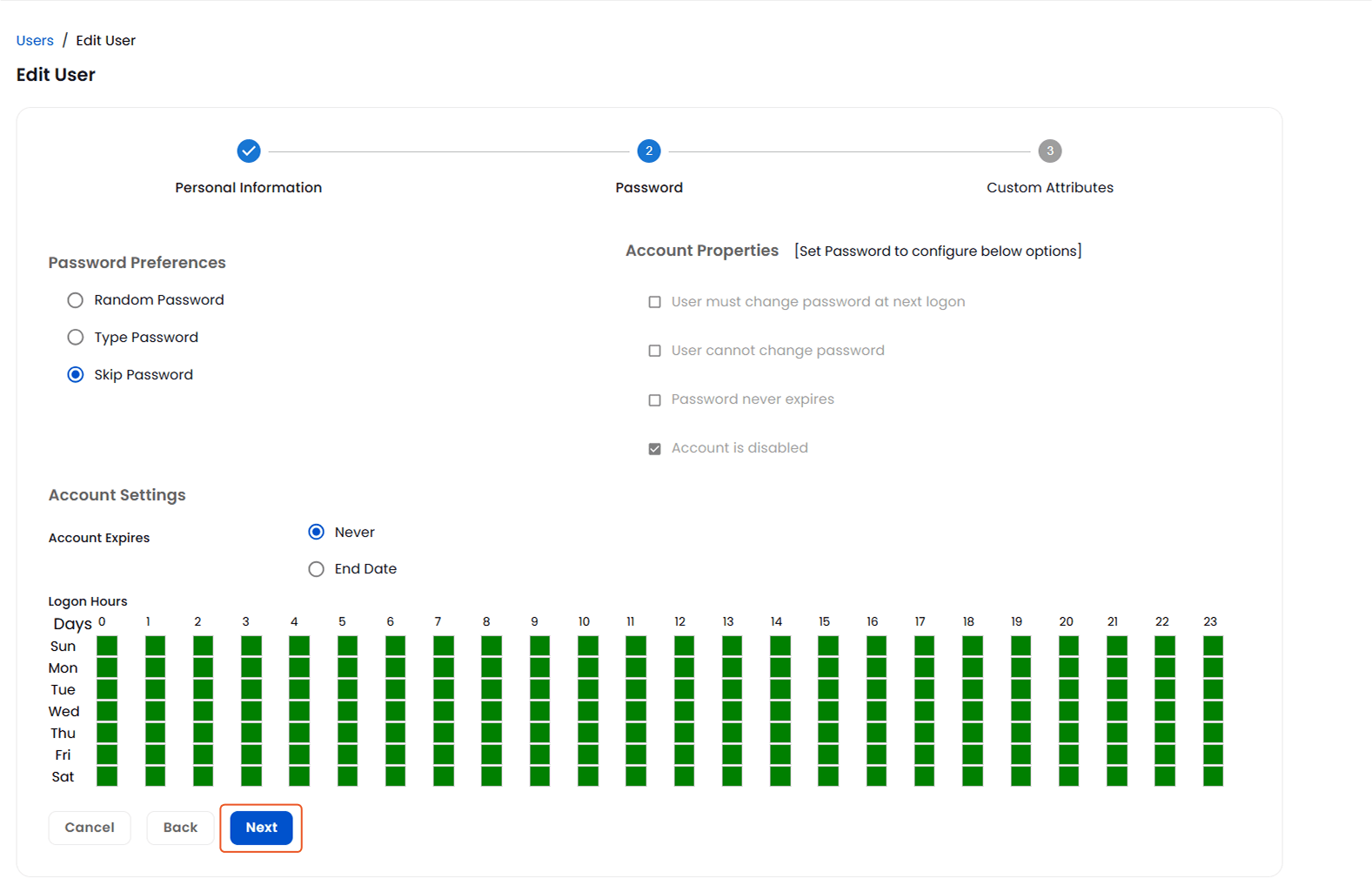
Step 2: Configure Password Settings
- In the Password section, you can configure:
- Account Properties:
- The user must change the password at the next logon.
- The user cannot change the password.
- Password never expires.
- The account is disabled.
Step 3: Set Account Settings
- Account Expiration:
- Never: Password does not expire.
- End Date: Set a specific date for password expiration.
- Logon Hours:
- Configure allowed login hours.
- Green blocks: login allowed, Gray blocks: login restricted.
- Click Save & Next to proceed to custom attributes.
Step 4: Manage Custom Attributes
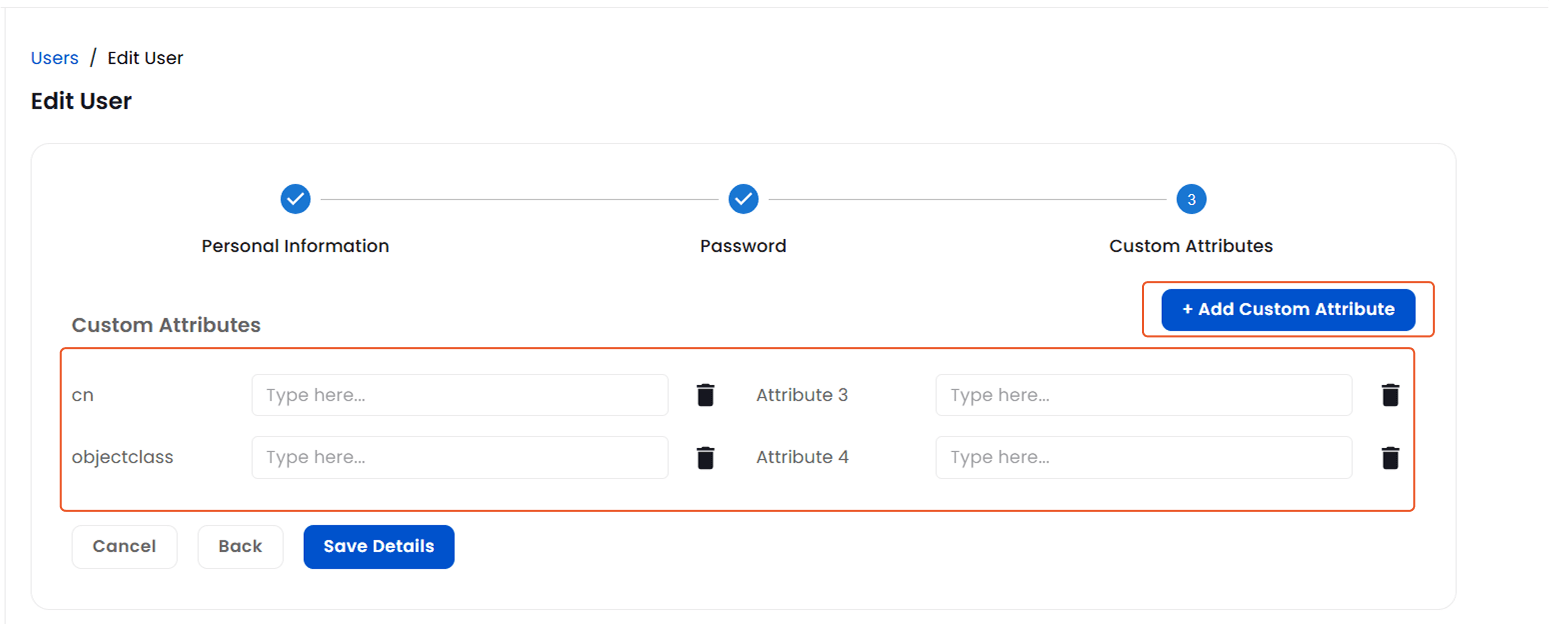
- Under Custom Attributes, you can manage the user's existing custom attributes.
- To add a new custom attribute:
- Select the required Attribute Name from the dropdown.
- Select the Data Type for the attribute.
- Enter the Value for the attribute.
- Click Add.
- Under Current Attributes, you can delete the values of existing custom attributes using the Delete icon.
- Once all updates are complete, click Save Details to apply the changes to the user account.