SMS Notification Gateway
To configure SMS notifications in AD Tools:
- Navigate to Notification & Alerts > Notification Gateways.
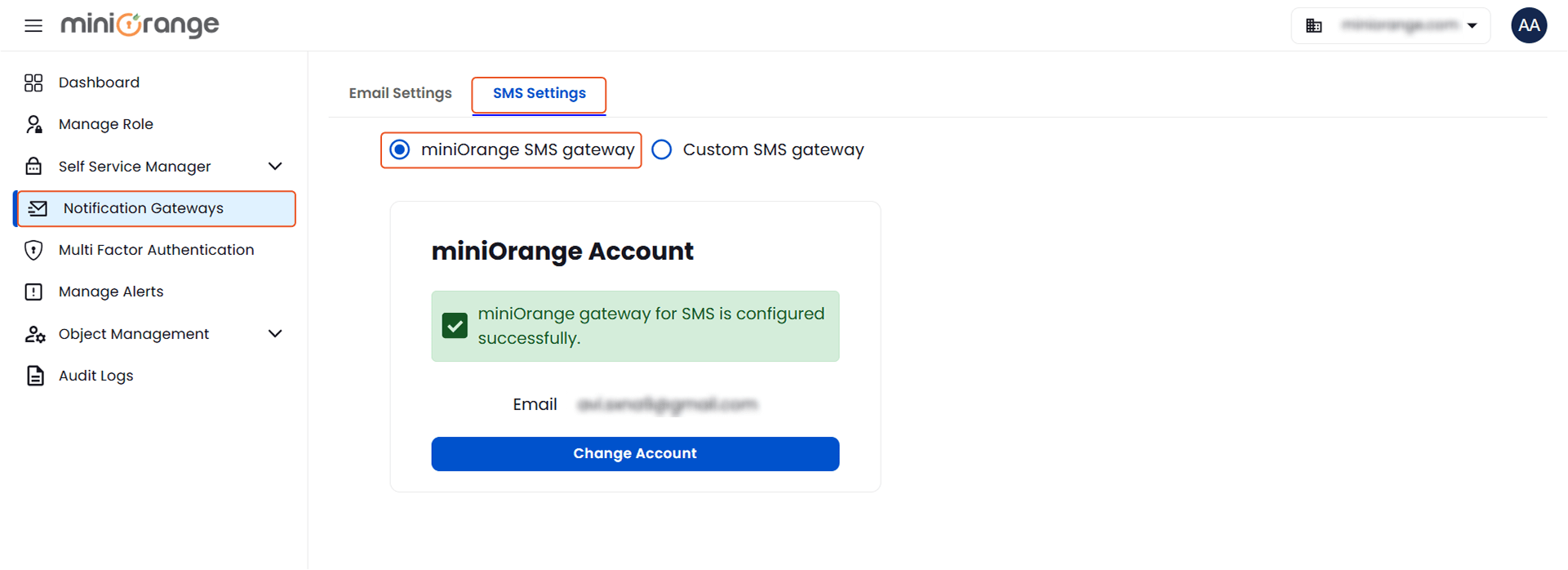
- Under the SMS Gateway Configuration tab, you will see two options:
- miniOrange SMS Gateway (default)
- Custom SMS Gateway
- If you prefer to use your own SMS service provider, click on Custom SMS Gateway.
This will open the configuration form where you can enter your API details and parameters as required by your SMS provider.
Once configured, the AD Tools system will use your custom SMS gateway to send alerts and OTPs to users via SMS.
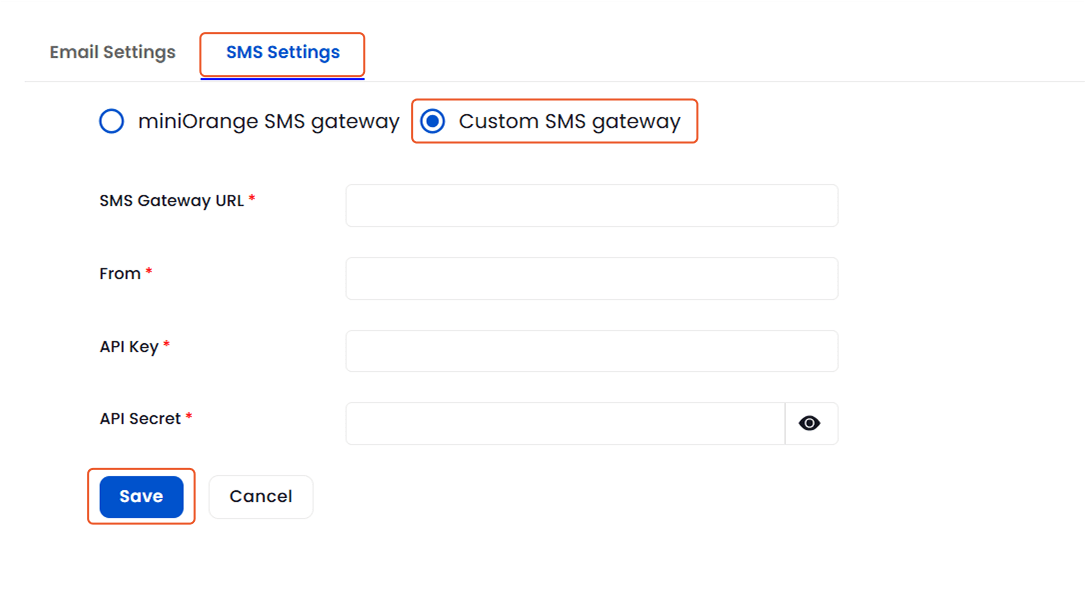
Set Up a Custom SMS Gateway:
- Navigate to Notification & Alerts > Notification Gateways.
- Under the SMS Gateway Configuration tab, select Custom Email Gateway.
- Enter the following details provided by your SMS gateway provider:
- SMS Gateway:
Select your SMS gateway provider from the dropdown list (e.g., Twilio).
- API URL:
This is the API endpoint where the SMS data is sent. It triggers message delivery.
Example: https://api.smsprovider.com/send
- Account SID:
Enter the Account SID provided by your SMS gateway provider.
- Secret:
A secure password that works with the API Key to ensure only authorized apps can send messages.
- From:
The sender's name or number that will appear on the recipient's phone. It can be a business name, short code, or mobile number.
- After entering all the details, click on the Save changes button to apply your custom SMS gateway configuration.
Once configured, all SMS notifications from AD Tools will be routed through your specified gateway.