Password Expiry Notification
To notify users about upcoming password expirations via email:
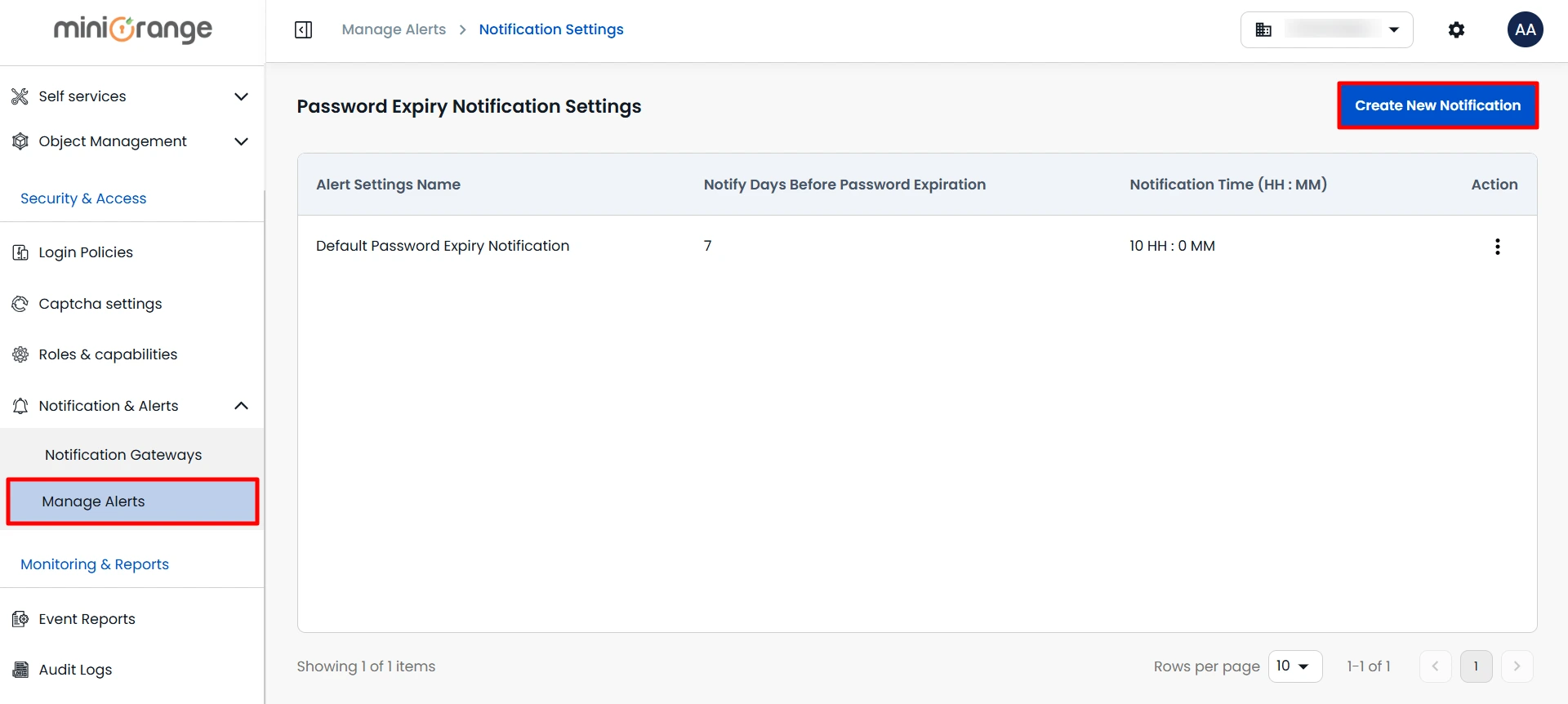
- Navigate to Notification & Alerts > Manage Alerts in the left-hand menu.
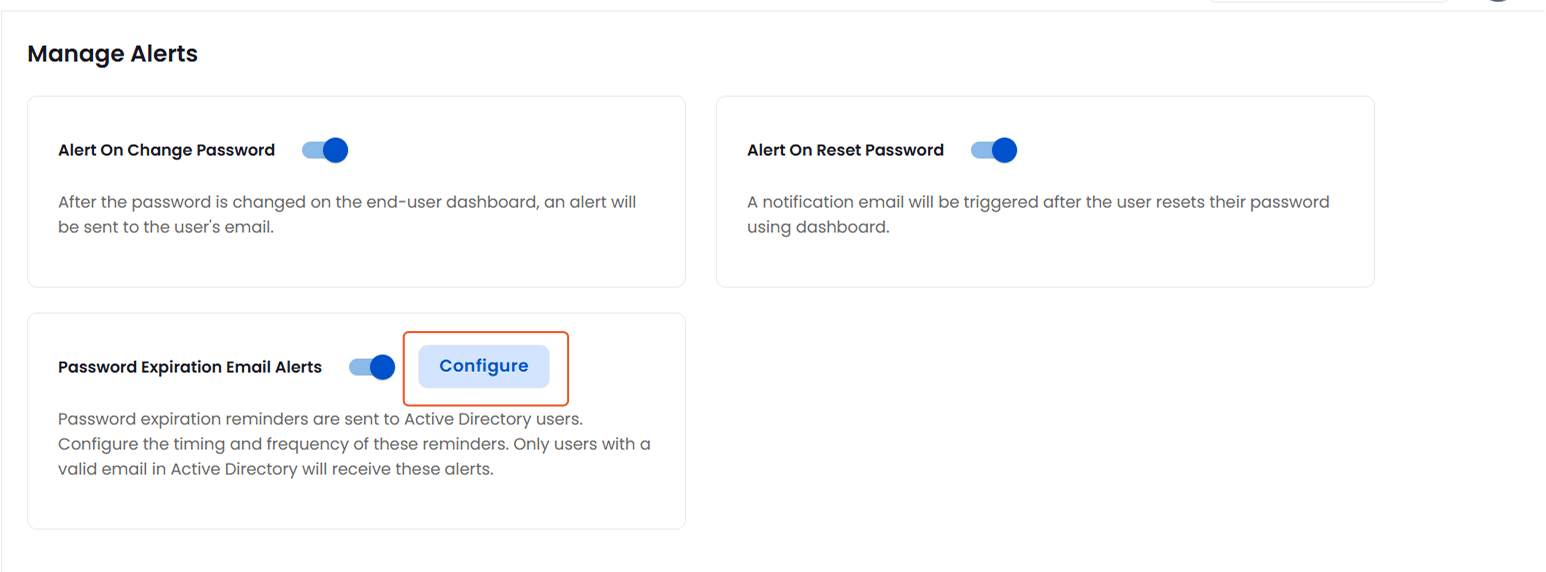
- Under the Event alerts tab, enable the Password Expiration Alerts option.
- Once enabled, a Configure button will appear next to the option.
- Click on the Configure button to create a new password expiration notification policy.
This will allow you to define when and how often users receive reminders before their Active Directory password expires.
To create a new notification:
- Click on the Create New Notification button in the Password Expiry Notification Settings window.
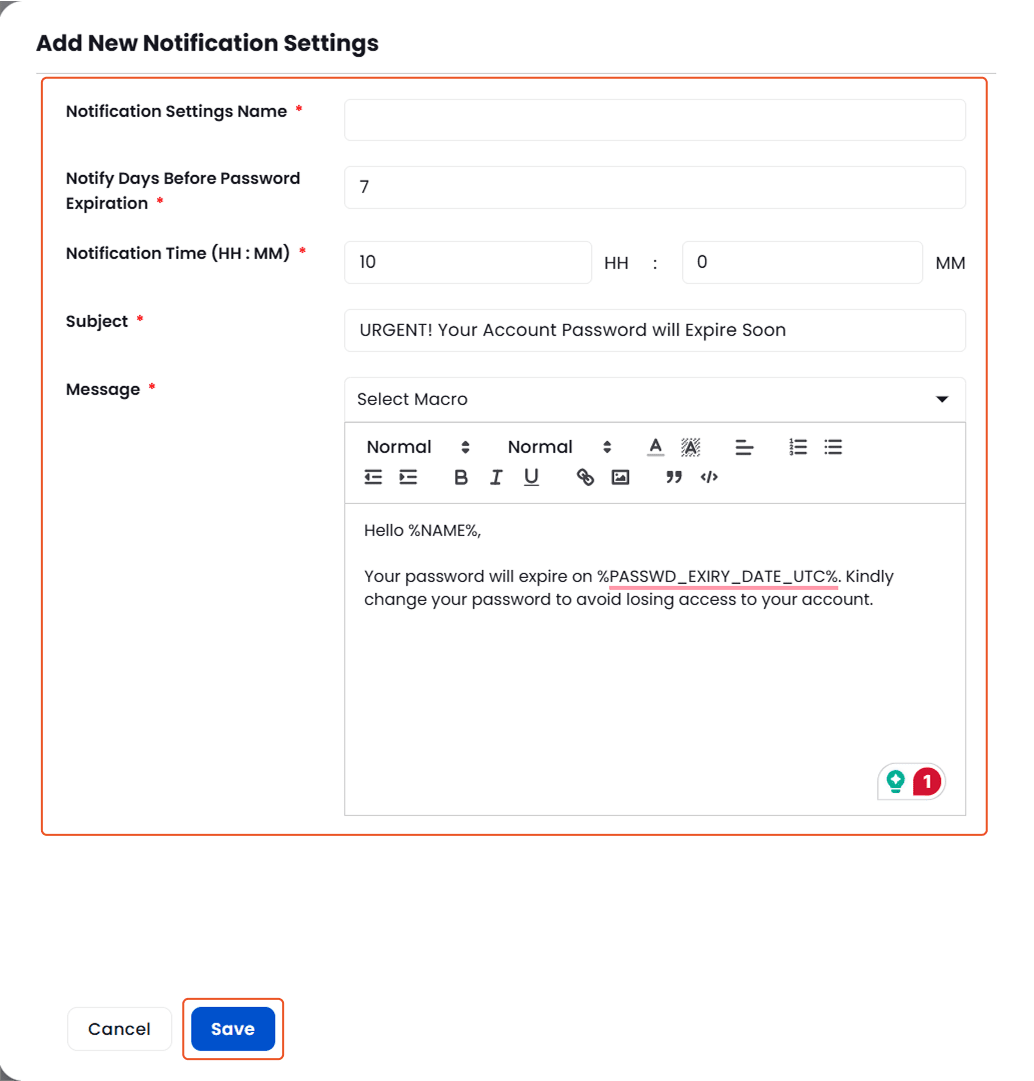
- A form will appear. Fill in the following fields:
- Notification Setting Name:
Enter a descriptive name for the notification (e.g., 7-Day Reminder, Final Alert, etc.).
- Notify Days Before Password Expiration:
Specify how many days in advance the alert should be sent before the password expires.
- Notification Time:
Enter the time of day (in 24-hour format) when the notification should be sent.
- Subject: Enter the subject for the email.
- Message: Enter the message here, that you want to display in the email.
- Once you've completed the form, click on the Save button to proceed.
Edit and Update Existing Password Expiry Notification:
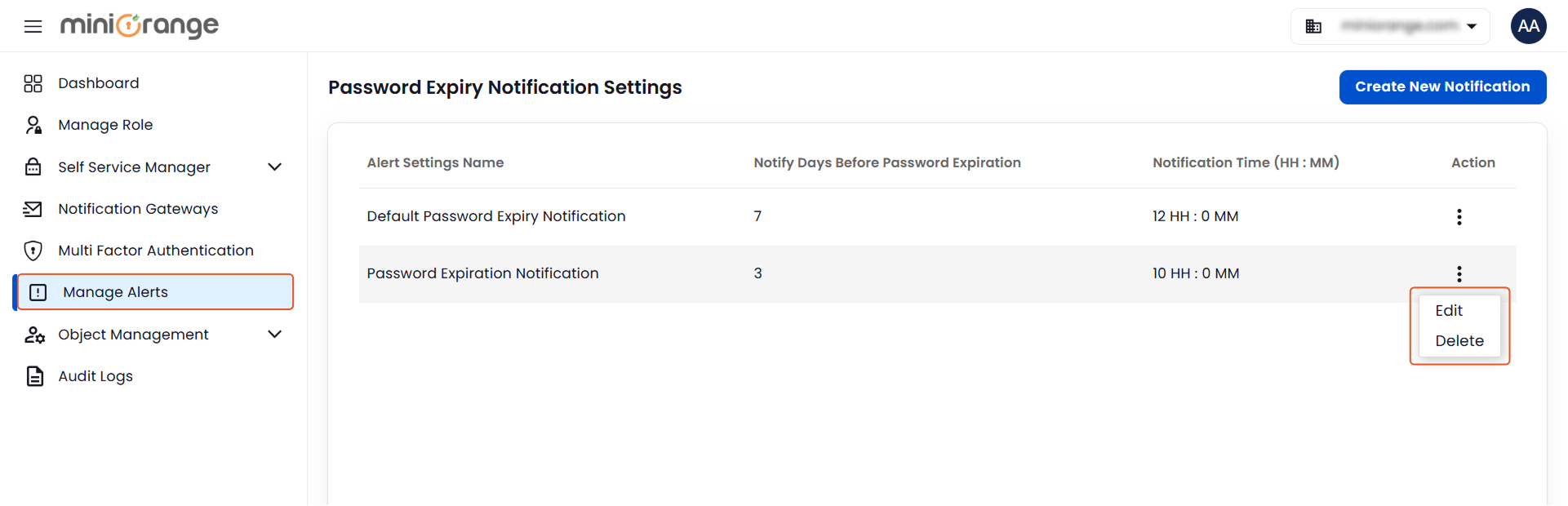
- Once the notification is created you can see it here in the Password Expiry Notification Settings.
- You can add multiple password expiry notifications and they will notify the users as per the configuration.
- Here you can also edit the notification settings, just click on the icon in the action column in front of the particular notification. And click on the edit option.
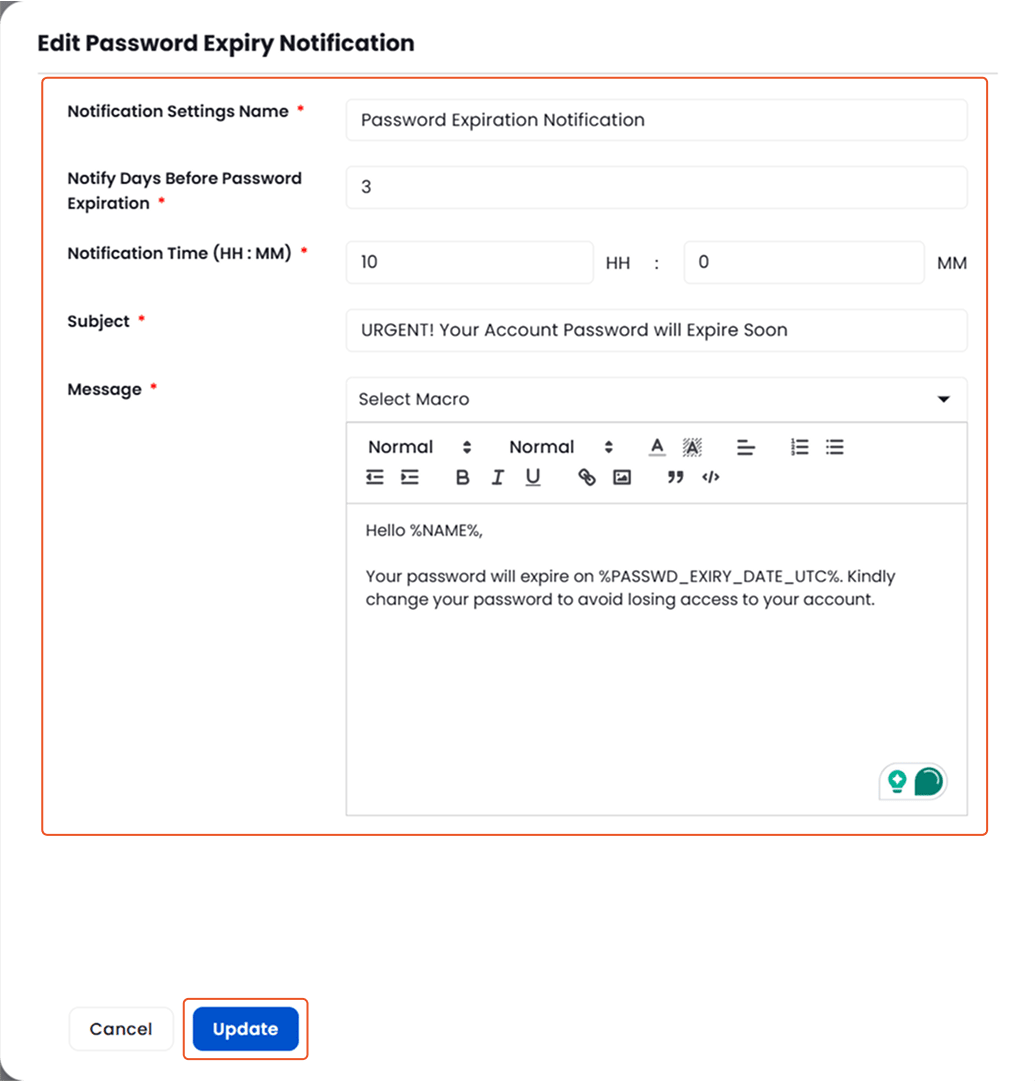
- While editing the password expiry notification, You can see the template name that you are currently editing.
- You can update the following:
- Notification Settings Name
- Notify days before password expiration
- Notification time
- Subject
- Message
- Once done with it, click on the Update button to update the template.