Password Filter
The Password Filter feature allows administrators to define password restrictions and prevent users from using weak, commonly used, or restricted passwords.
Key functions include:
- Blacklist Passwords:
Add specific passwords to the blacklist, remove existing blacklisted passwords, and check whether a password is currently blocked.
- Pattern Restrictions:
Define specific patterns that should not be allowed in passwords.
- Custom Regex Restriction:
Define custom regular expression patterns to enforce advanced password restrictions.
This feature helps administrators enforce stronger password policies and prevent users from choosing weak or restricted passwords in Active Directory.
Blacklist Passwords
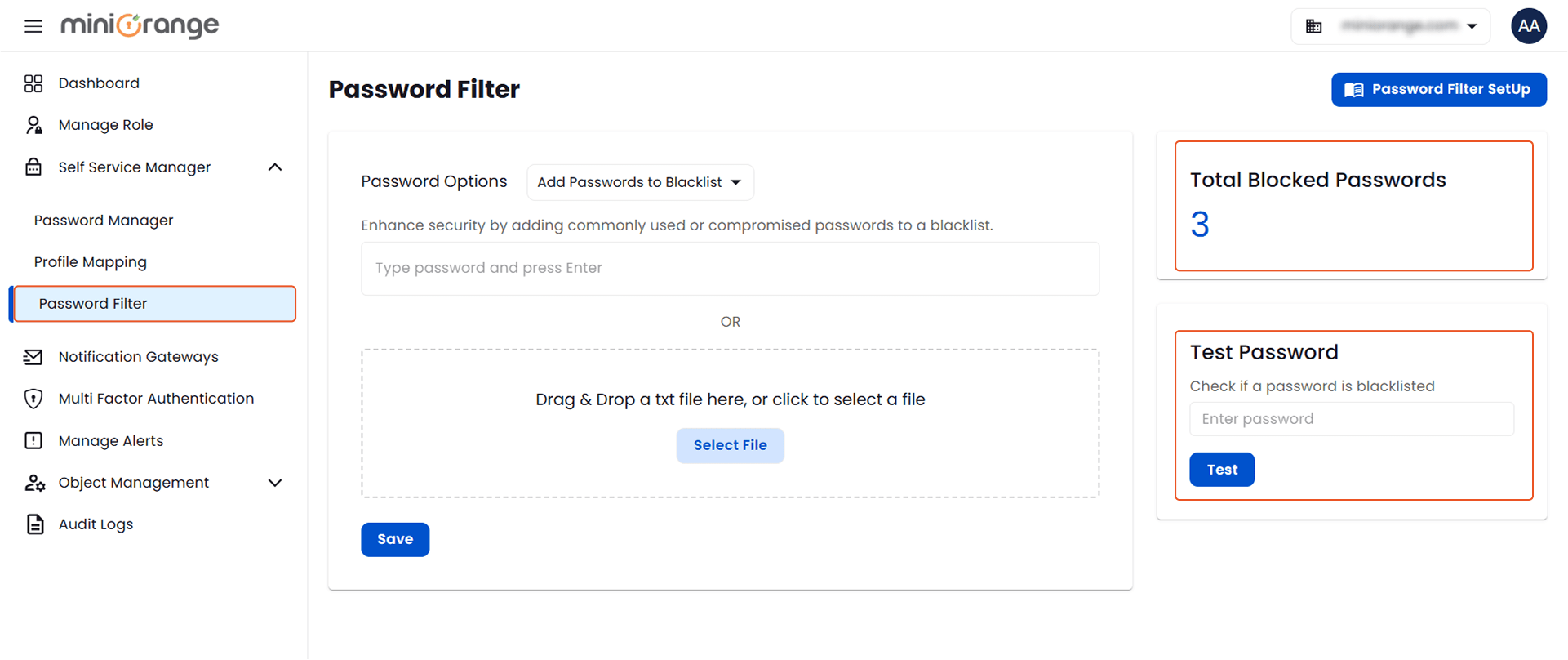
To manage passwords that should not be allowed, follow these steps:
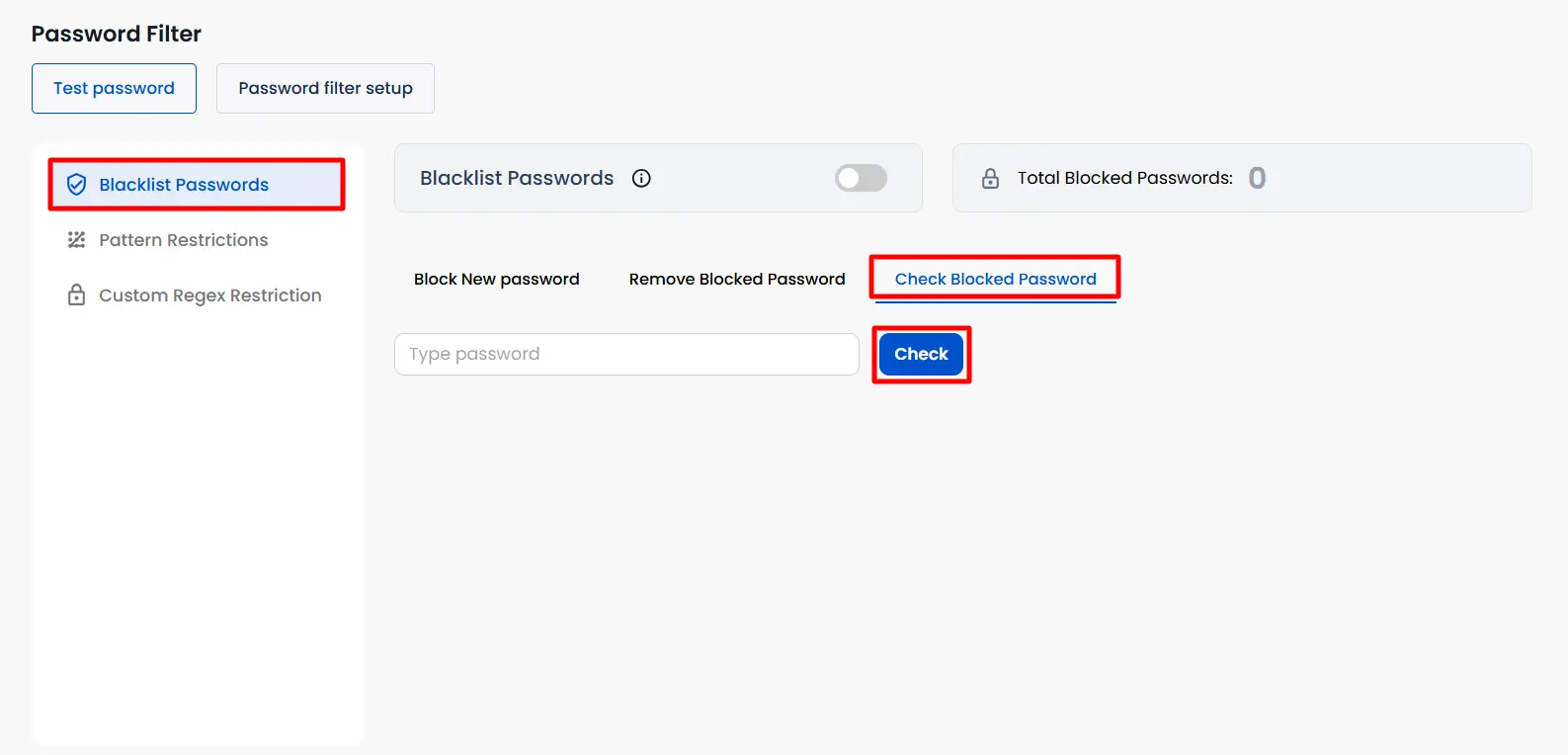
- In the Password Filter page, select Blacklist Passwords.
- Enable the Blacklist Passwords toggle to activate the blacklist restriction.
- Under the Block New password tab, enter the password you want to block in the input field.
- Click Add to add the password to the blacklist.
- Alternatively, use the Bulk Upload option to upload multiple passwords at once. You can choose a file or drag and drop it into the designated area.
Remove Passwords from the Blacklist
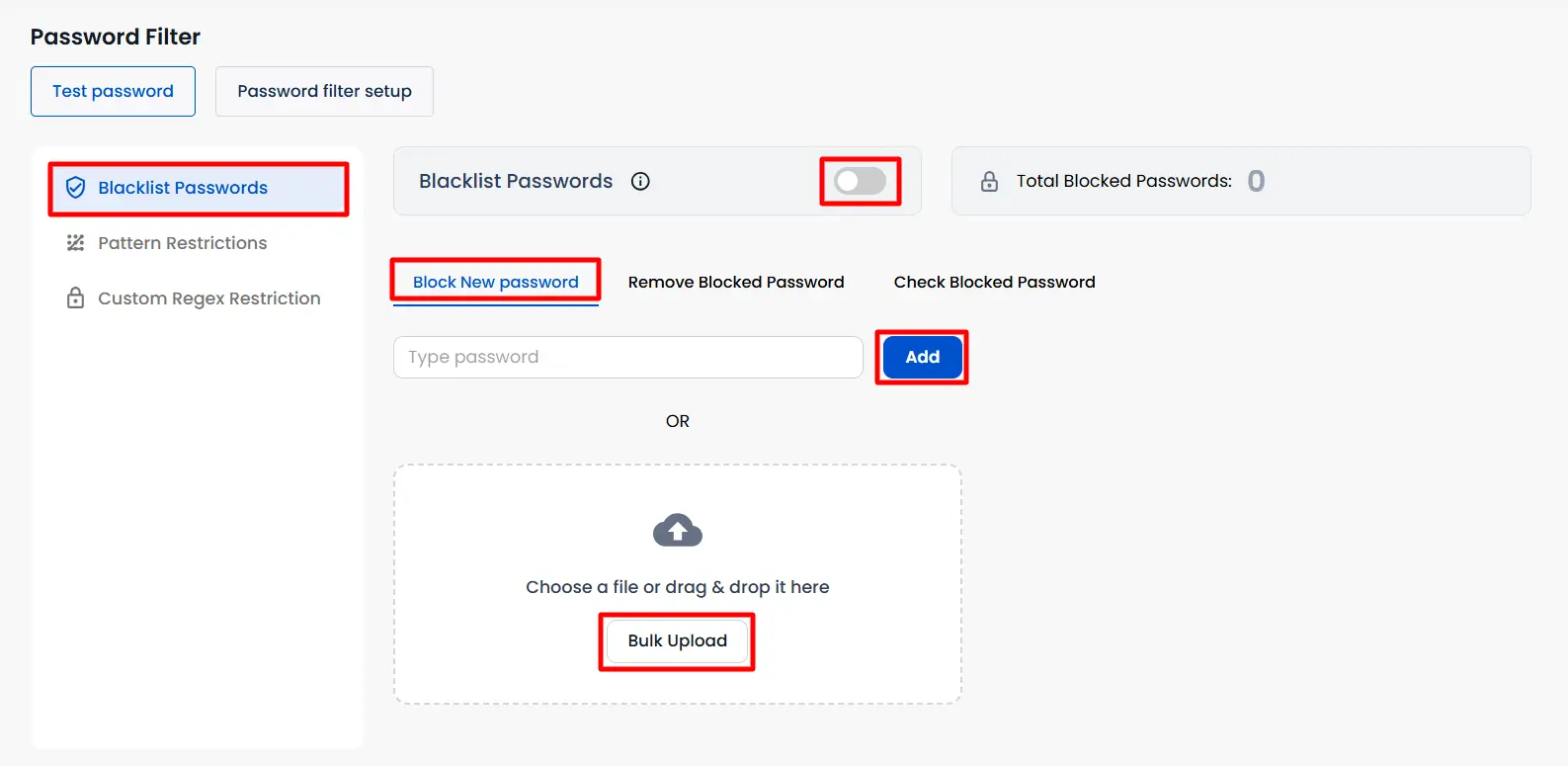
To remove a password from the blacklist:
- Select the Remove Blocked Password tab.
- Enter the password you want to remove from the blacklist.
- Click Remove to remove the password from the blacklist.
- You can also use the bulk upload option to remove multiple blocked passwords.
Check Blocked Password
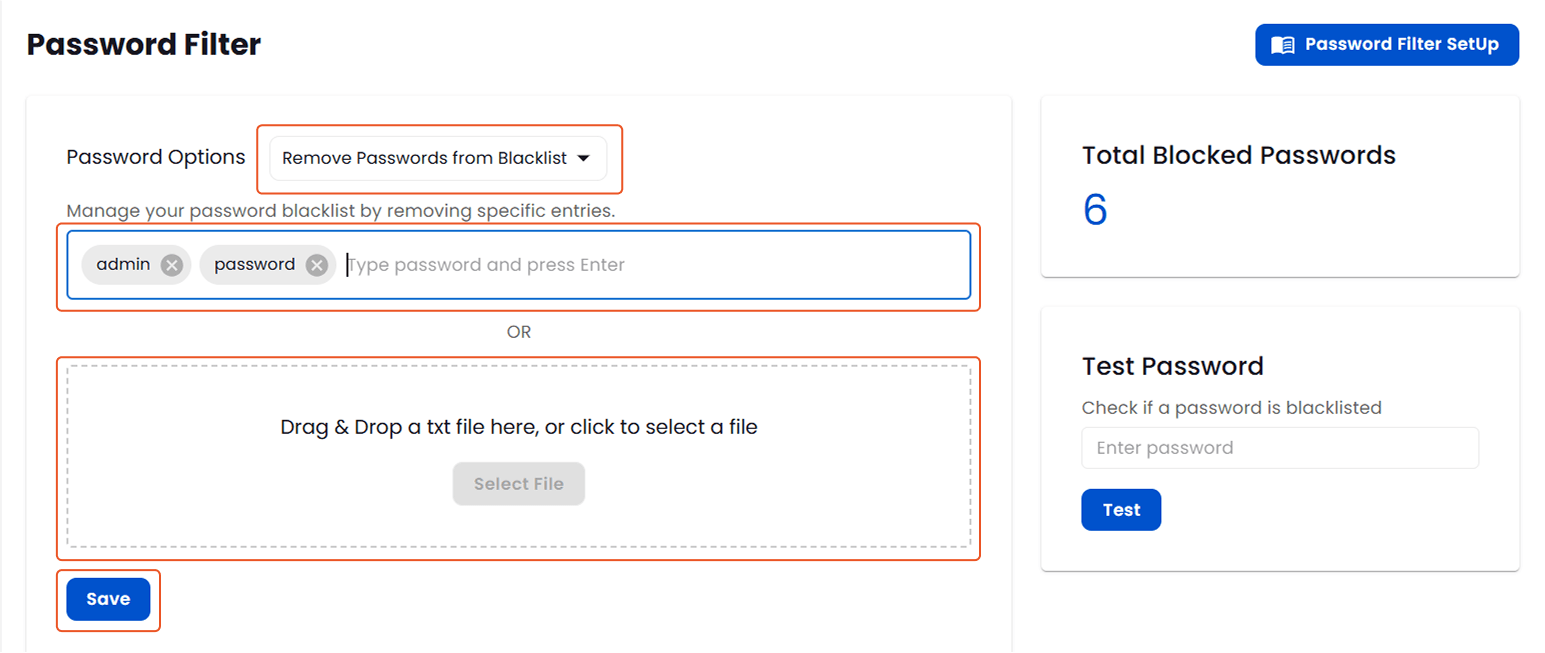
To check whether a password is currently blocked:
- Select the Check Blocked Password tab.
- Enter the password you want to check in the input field.
- Click Check to verify the password's blacklist status.
- The Total Blocked Passwords section displays the total number of passwords currently blocked.
Pattern Restrictions
Pattern Restrictions allow administrators to block passwords containing specific patterns.
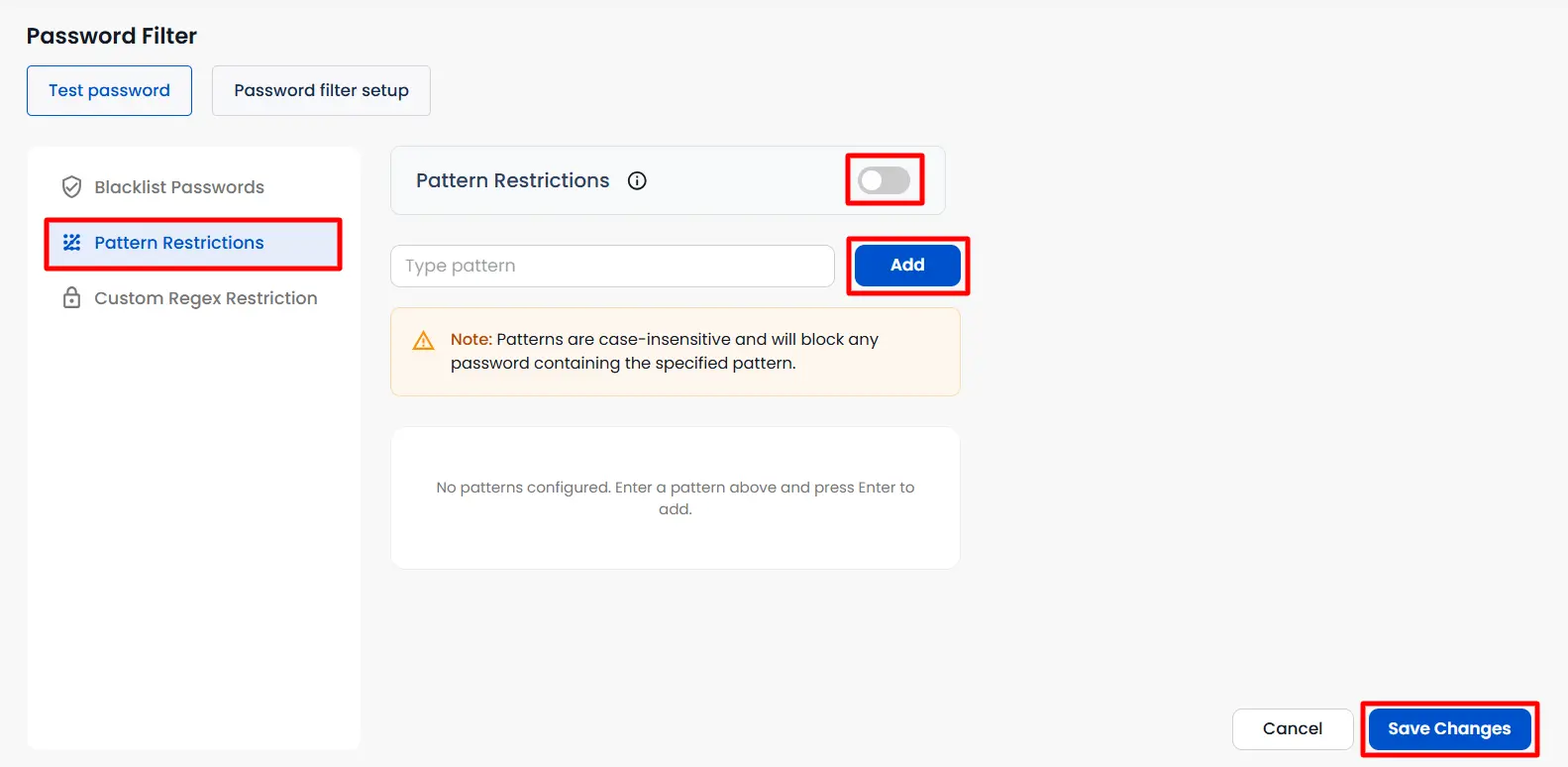
- Select Pattern Restrictions from the Password Filter options.
- Enable the Pattern Restrictions toggle to activate the restriction.
- Enter the pattern you want to restrict in the Type pattern field.
- Click Add to add the pattern to the restricted list.
- You can add multiple patterns as required.
- Patterns are case-insensitive and will block any password containing the specified pattern.
- Click Save Changes to apply the configured pattern restrictions.
Custom Regex Restriction
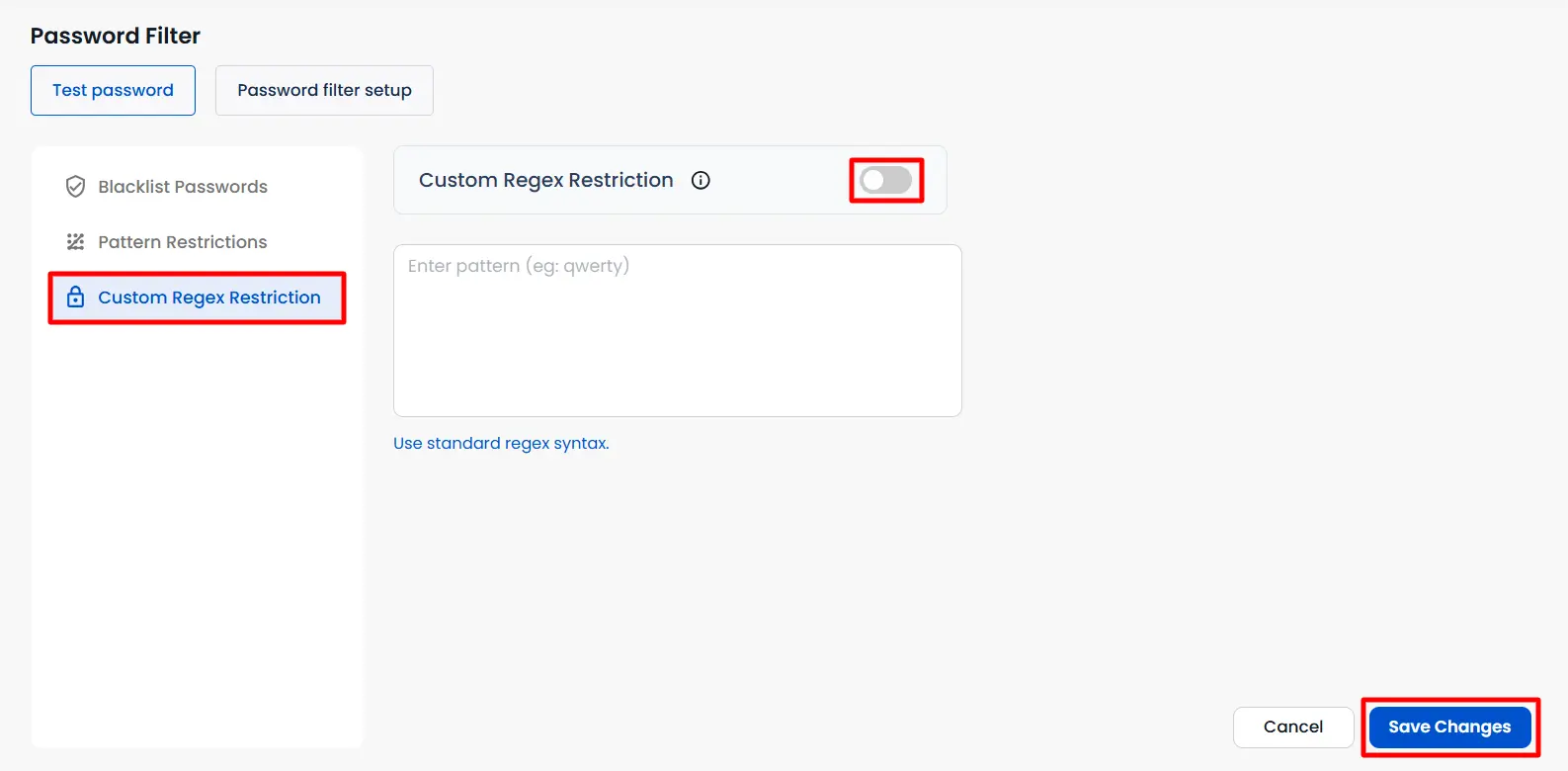
Custom Regex Restriction allows administrators to define advanced password restrictions using standard regular expression syntax.
- Select Custom Regex Restriction from the Password Filter options.
- Enable the Custom Regex Restriction toggle to activate the restriction.
- Enter the required regular expression in the Enter pattern field.
- Use standard regex syntax to define the required password restriction.
- Click Save Changes to apply the custom regex restriction.