Hello there!

Need Help? We are right here!

miniorange Support~
miniOrange Email Support
success

Thanks for your Enquiry.

If you don't hear from us within 24 hours, please feel free to send a follow-up email to info@xecurify.com

Search Results:

×

User Management


To manage Active Directory users:

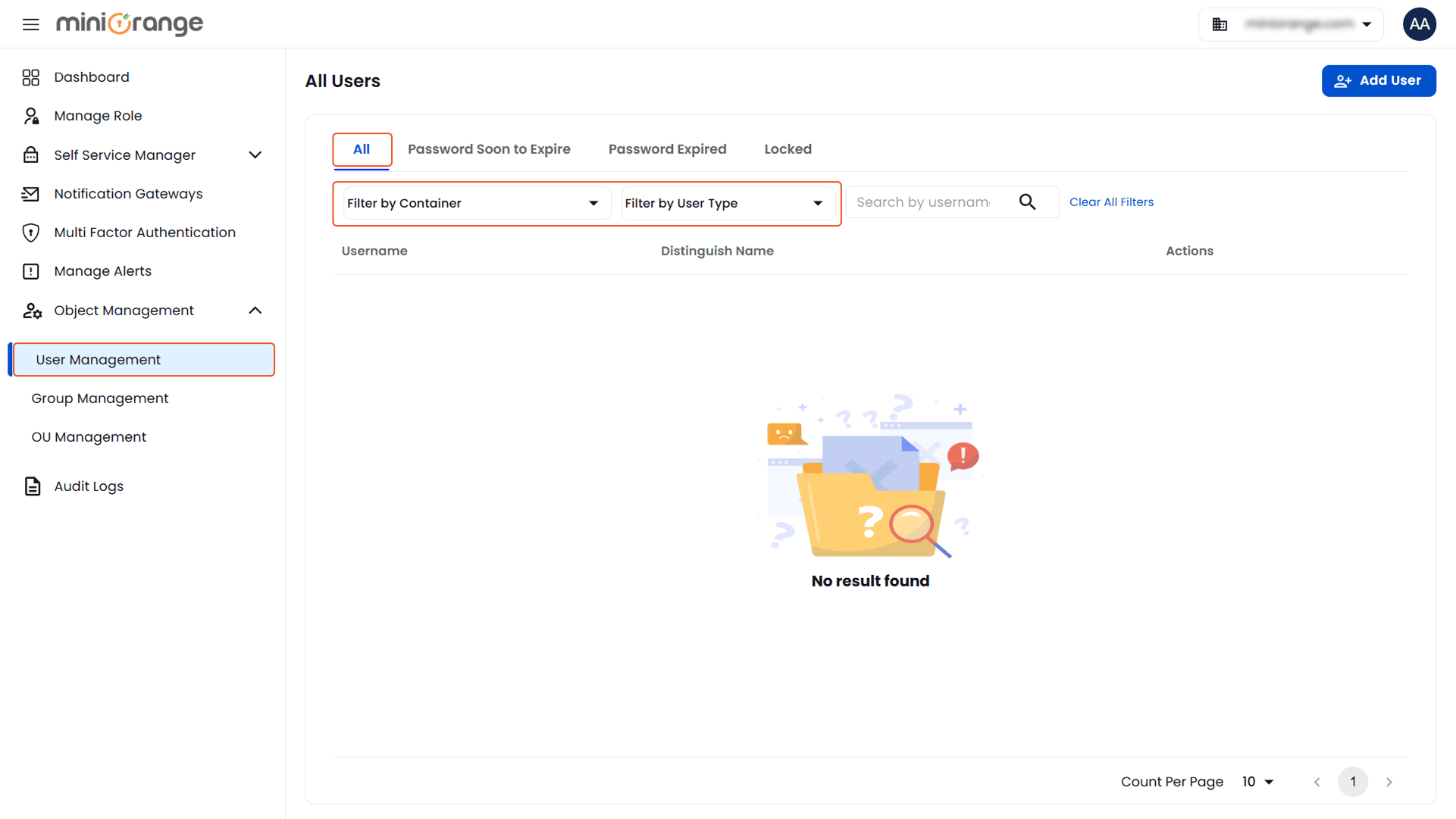
  • Navigate to Object Management > User Management.
  • Select the required directory from the Select first directory dropdown.
  • Click Show Users to display the users in the selected directory.
  • You can refine the list by selecting a user attribute and entering the relevant value in the search bar.
Search All users | Object Management | User Management

  • After performing the search, a list of users will appear along with their Username, Distinguished Name, and an Actions column.

Available Actions for Each User:

  • Modify: Edit user details and settings.
  • Delete: Permanently remove the user from Active Directory.
  • Enable: Activate a previously disabled user account.
  • Reset Password: Reset the user's password.
  • Reset Password Link: Generate a password reset link for the user.
  • View Groups: View the groups to which the user belongs.

These actions help administrators efficiently manage user lifecycles from a single interface.
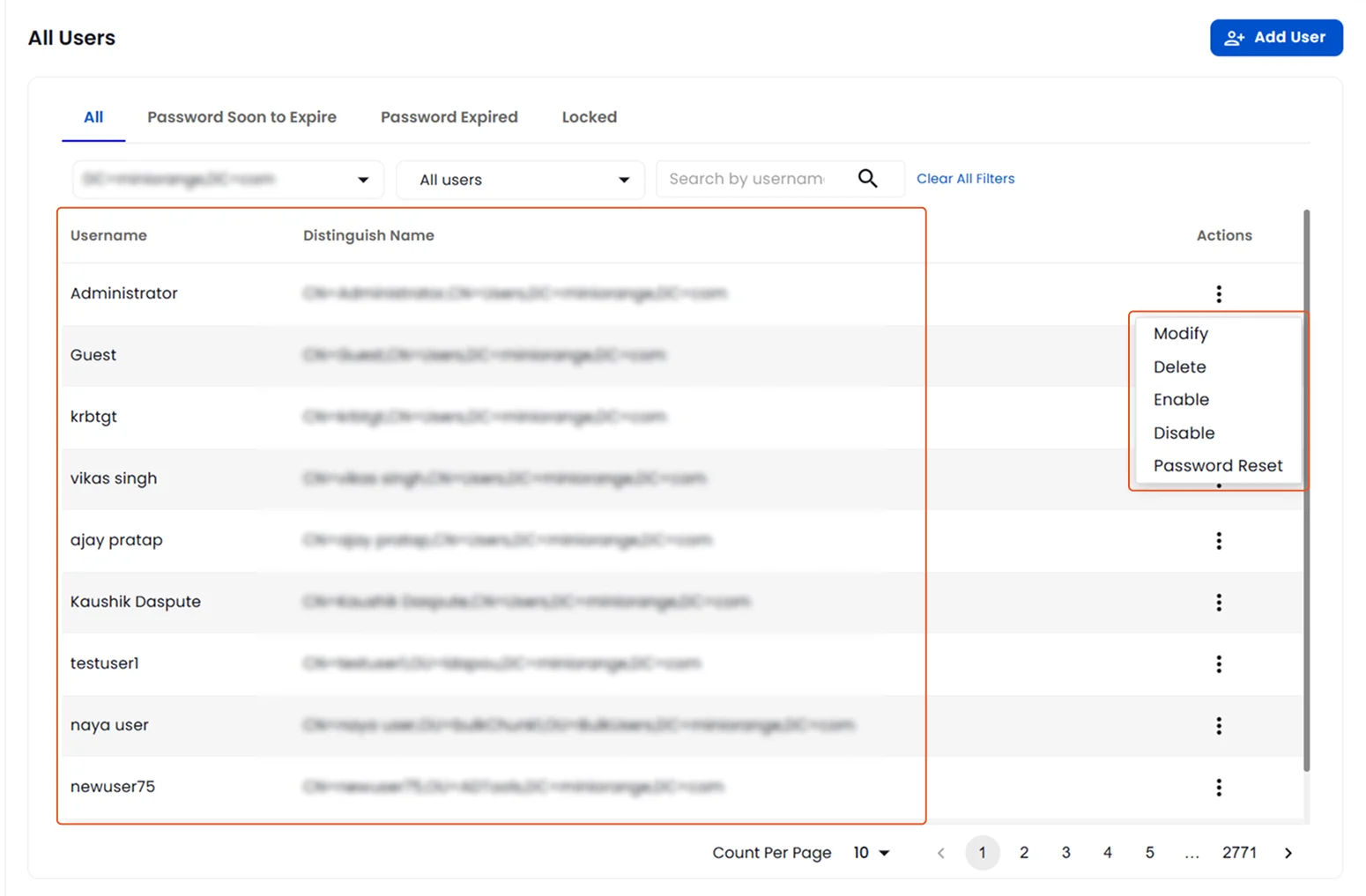
List of users with their DN and actions that can be performed | User Management

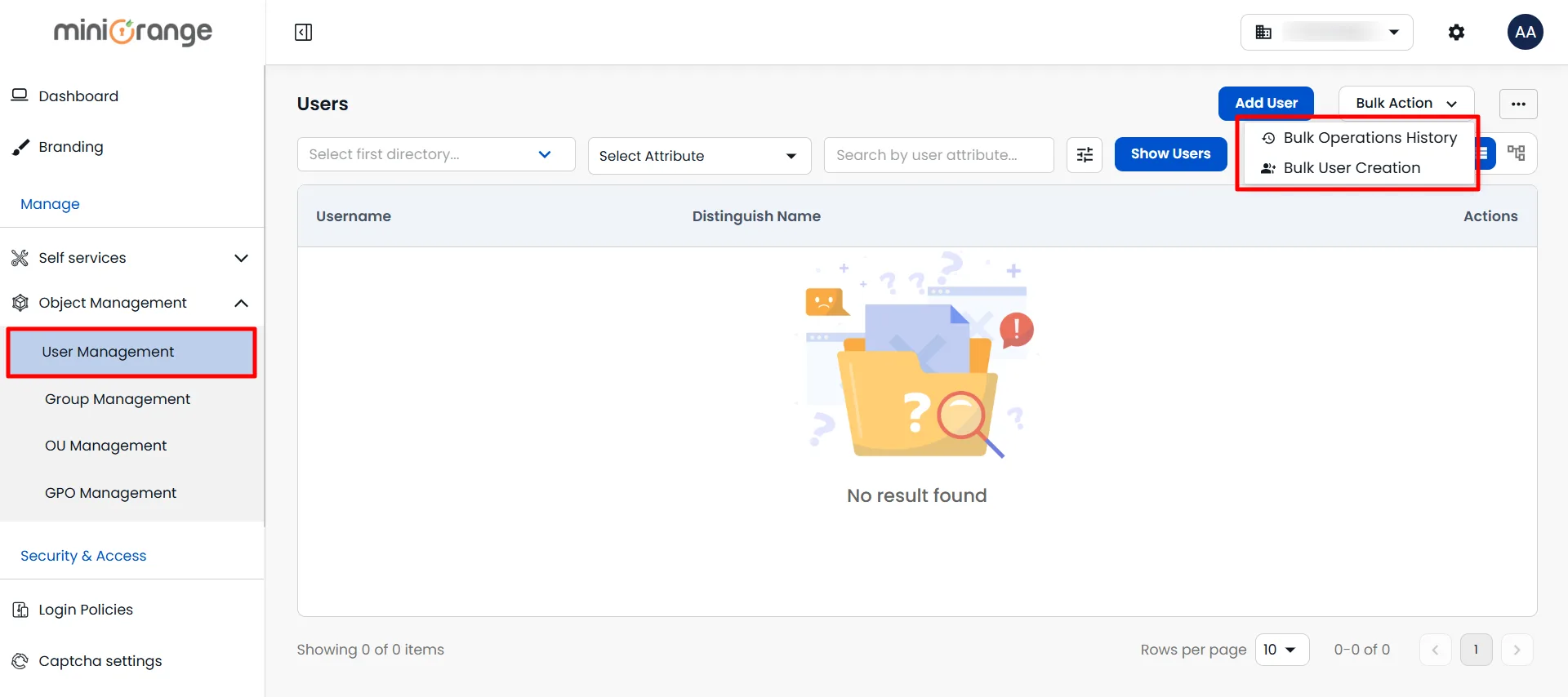
  • Click the Bulk Action dropdown to access bulk user management options.
  • From the dropdown, select Bulk Operations History to view the history of bulk operations performed on users.
  • Select Bulk User Creation to create multiple users by importing their details from a CSV file.
Bulk User Creation and Bulk Operations History | User Management

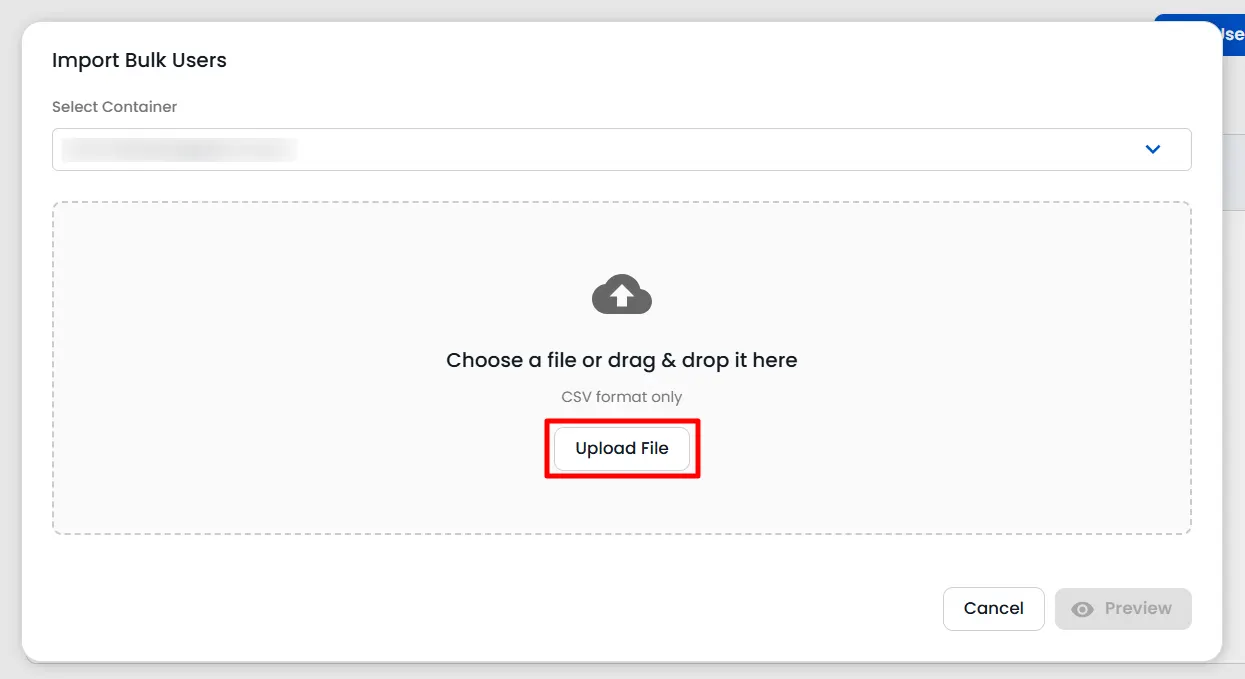
  • In the Import Bulk Users window, select the required container from the Select Container dropdown.
  • Click Upload File and upload the user details in CSV format.
  • Once the file is uploaded, click Preview to preview the users before importing them.
Import Bulk Users using CSV File | User Management

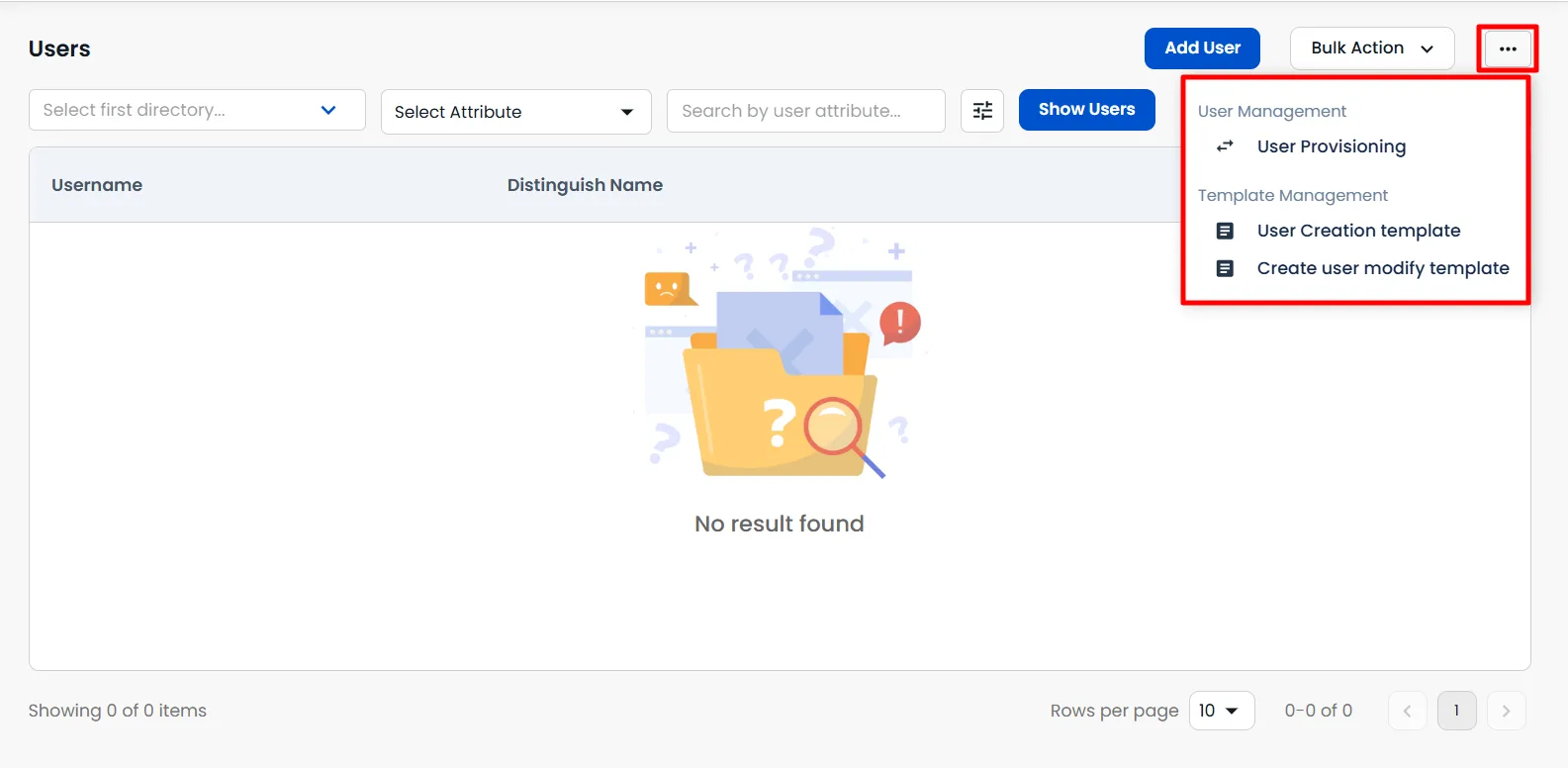
  • Click the More Options menu to access user provisioning and template management options.
  • Click User Creation template to create and manage templates for user creation.
User Creation and User Modification Template Options | User Management

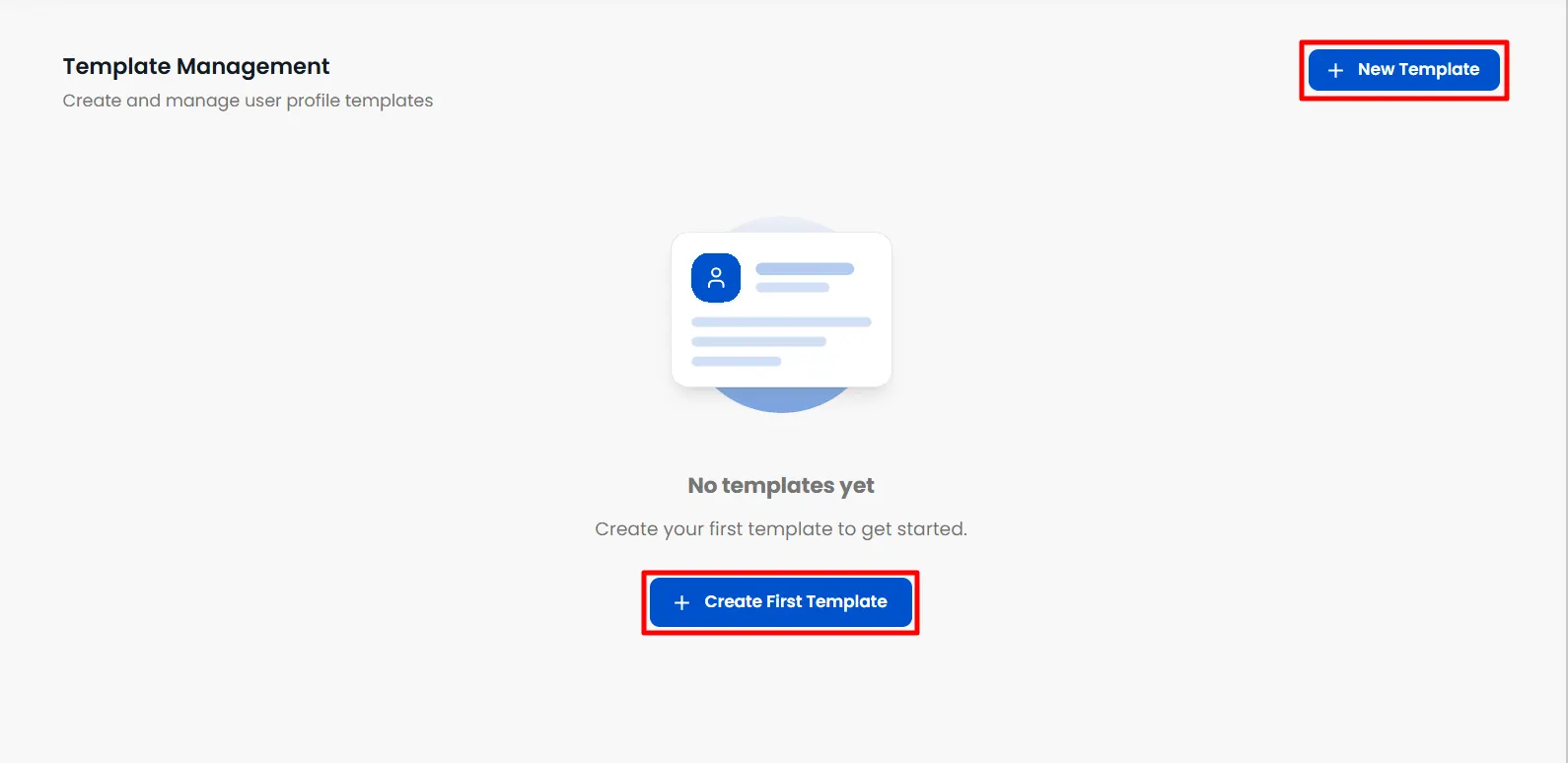
  • On the User Creation Template page, create a template by entering the required template details and configuring the user fields.
Create User Creation Template | User Management

  • From the More Options menu, click Create user modify template to create and manage templates for modifying users.
Create User Modification Template | User Management

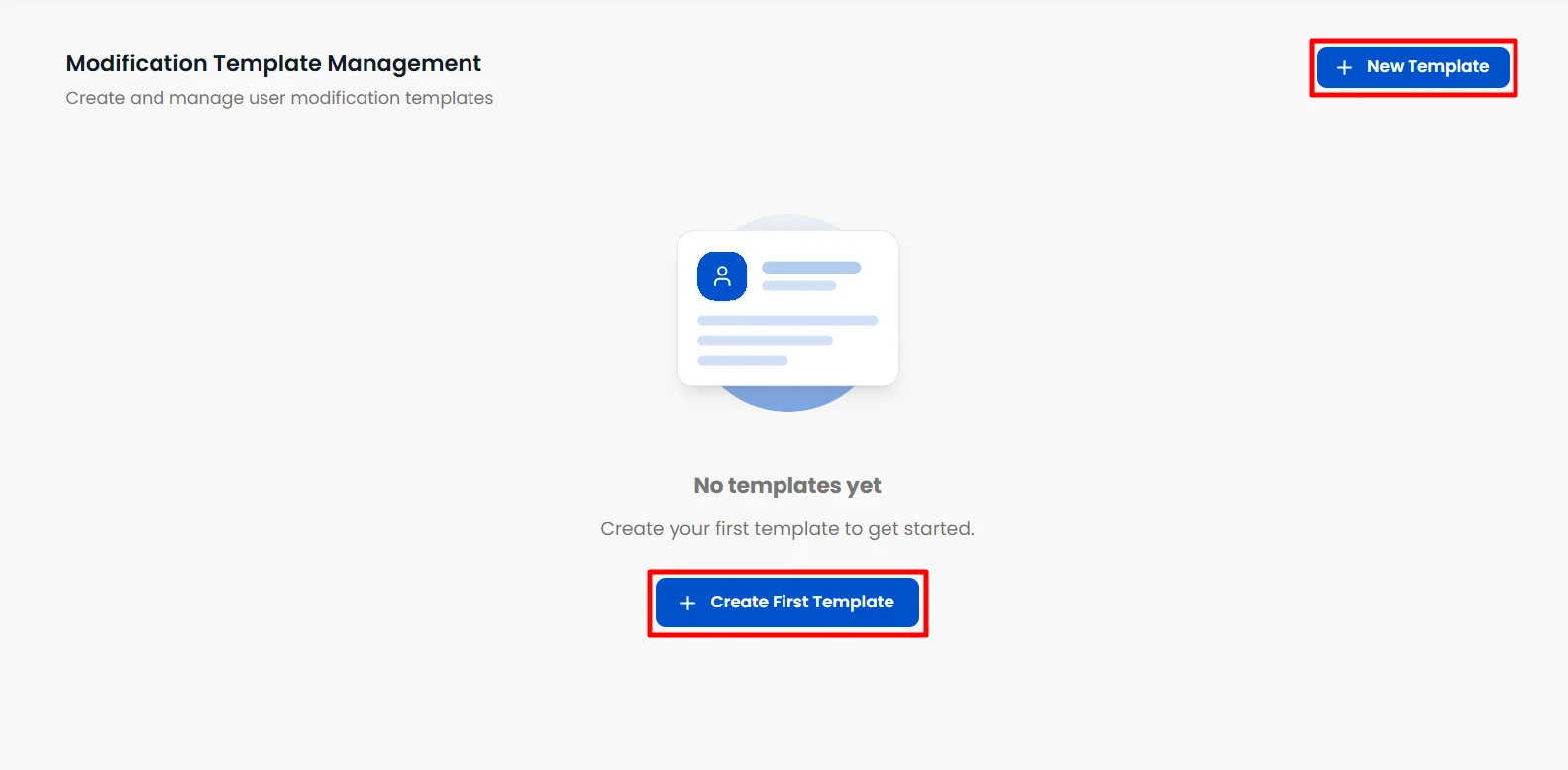
  • On the Modification Template Management page, click Create First Template to create a new user modification template.
Create First User Modification Template | User Management

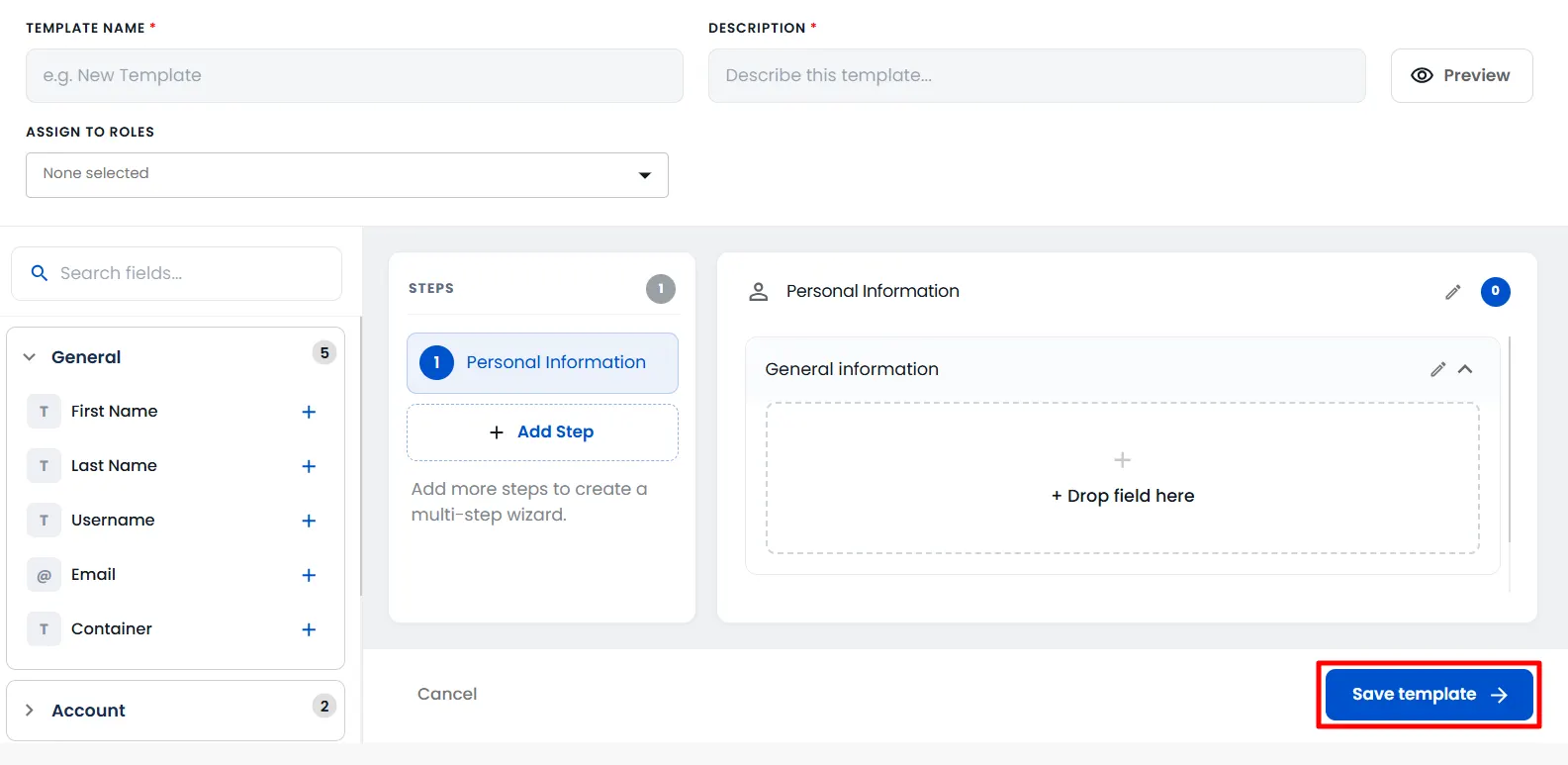
  • Enter the Template Name and Description.
  • Select the required roles from the Assign to Roles dropdown.
  • Add the required fields to the template and organize them into the desired steps.
  • Click Save template to save the user modification template.