Hello there!

Need Help? We are right here!

miniOrange Support Chat - Get Help and Support
miniOrange Email Support
Success Checkmark - Form Submitted Successfully

Thanks for your Enquiry.

If you don't hear from us within 24 hours, please feel free to send a follow-up email to uemsupport@xecurify.com

Search Results:

×

How to Renew APNs (Apple Push Notification Service) Certificate


The Apple Push Notification service (APNs) certificate allows secure communication between your MDM server and managed Apple devices. Follow these steps to renew an expired or soon-to-expire certificate, maintaining uninterrupted device management.
Follow the Step-by-Step Guide given below to Renew APNs (Apple Push Notification Service) Certificate using MDM


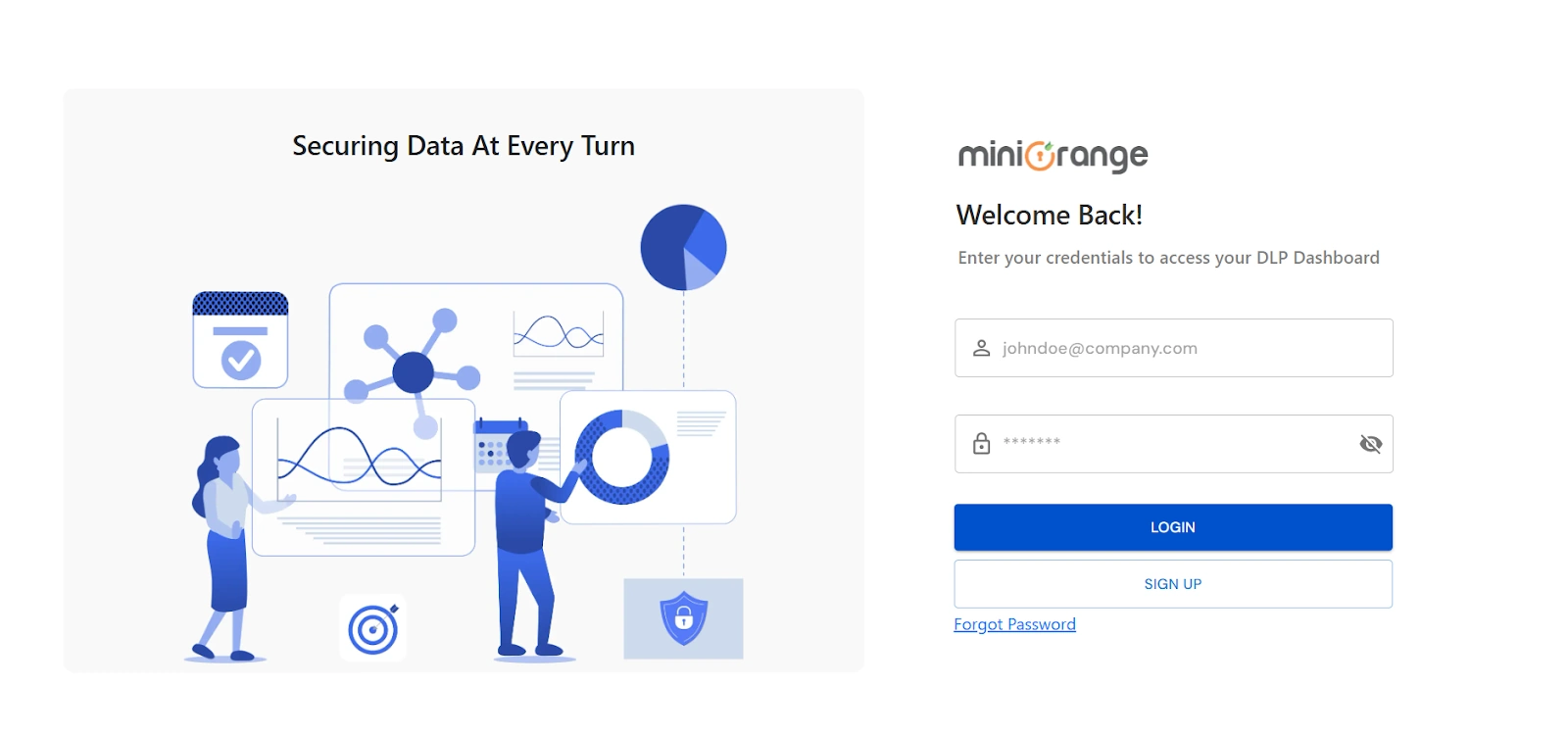
Step 1: Login with miniOrange

Step 2: Renew the APNs

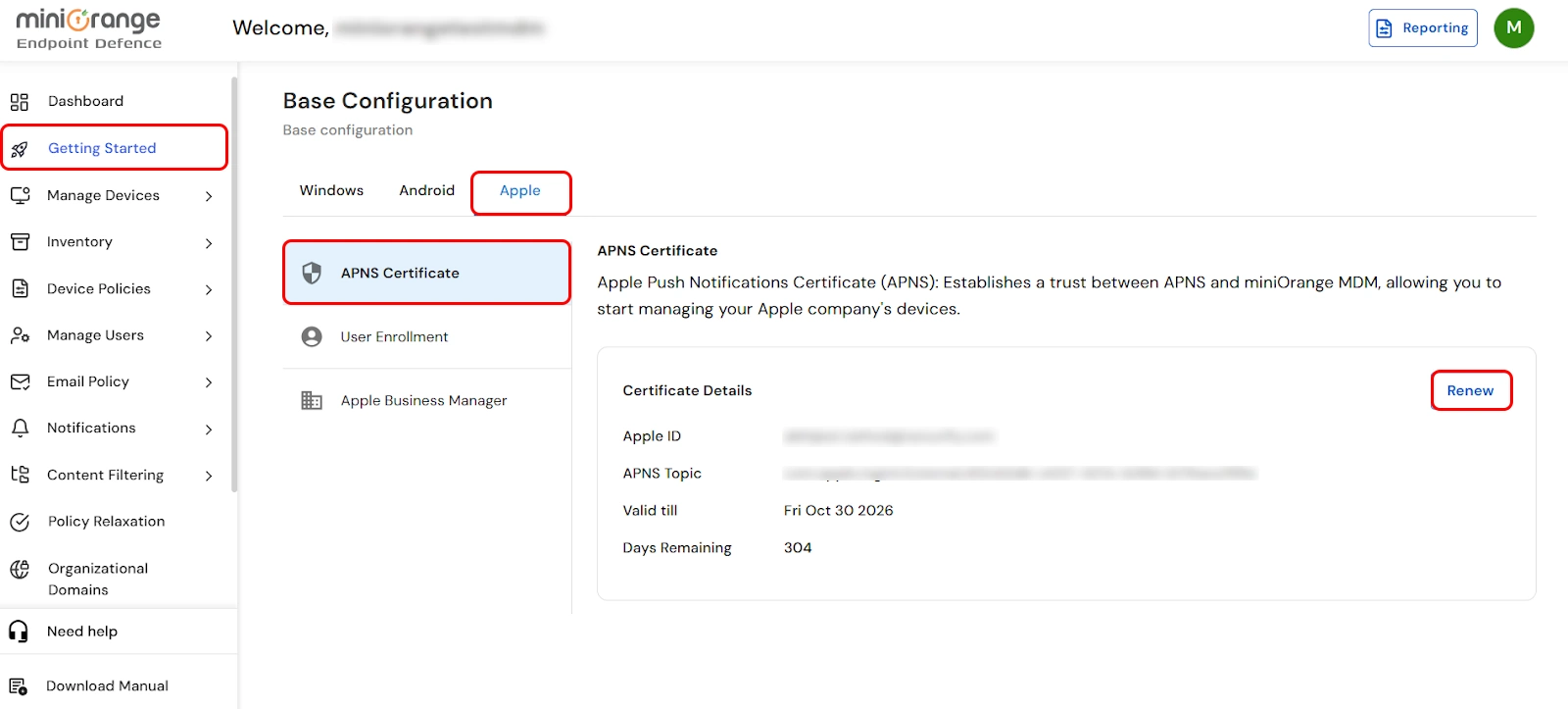
  • Once logged in, Navigate to Getting Started -> Apple -> APNS Certificate and click on Renew.
  • Renew APNS Certificate -click renew

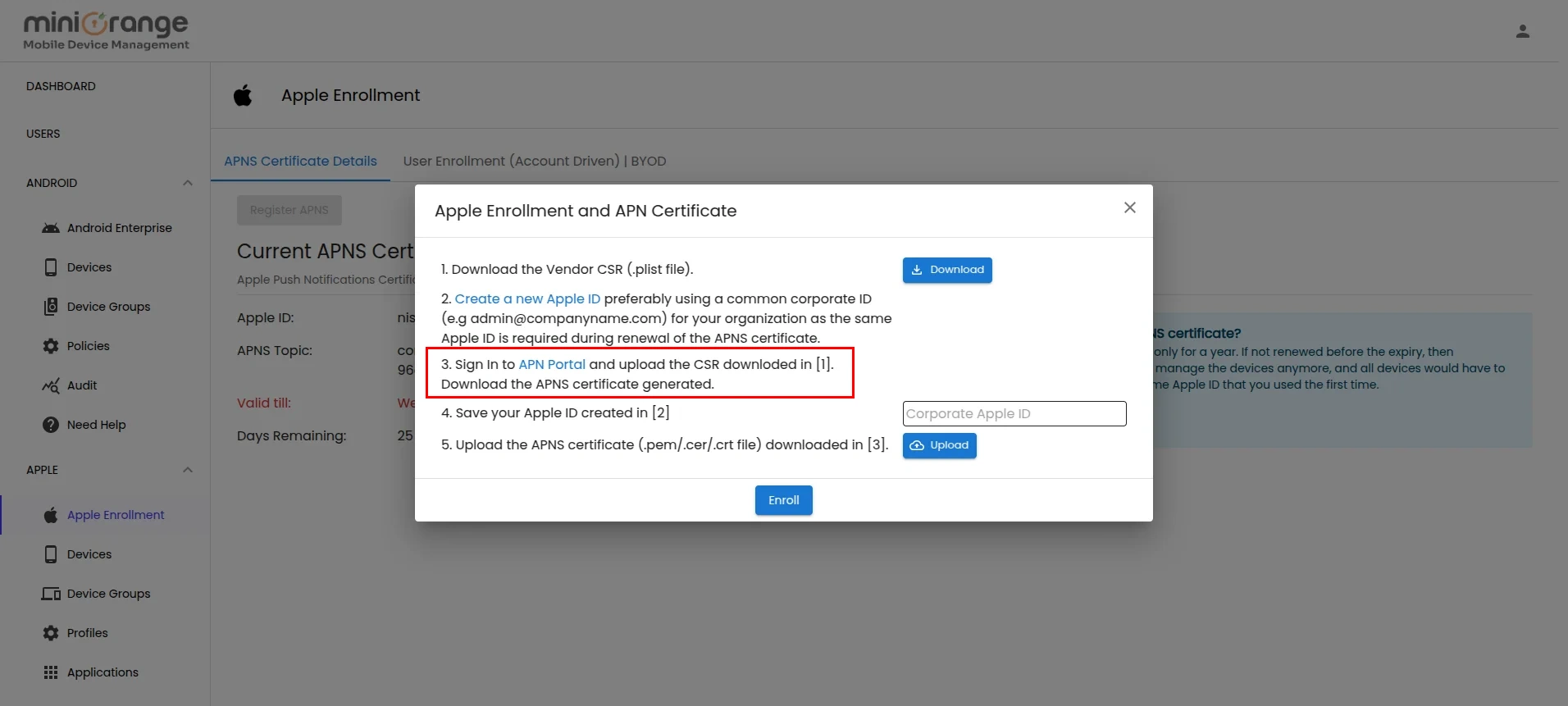
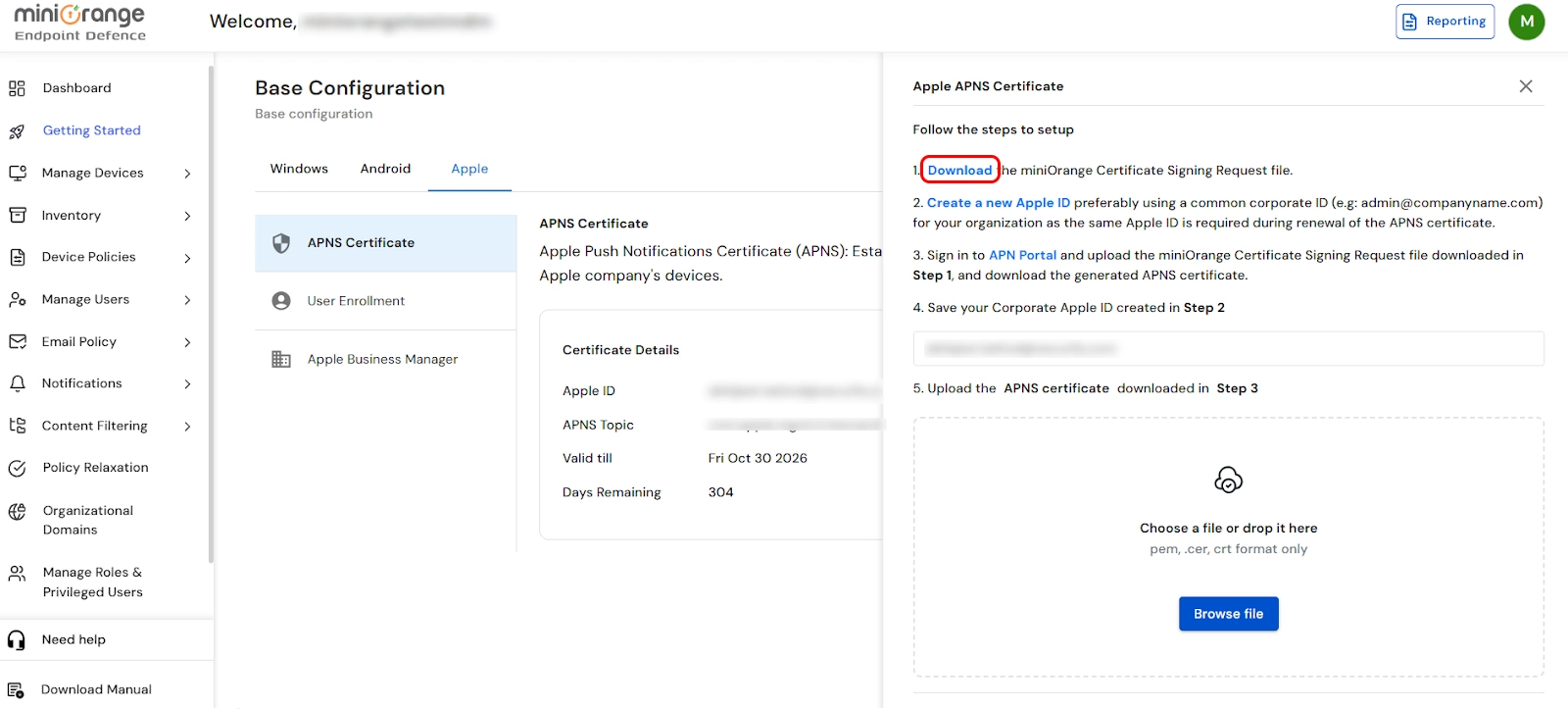
  • Now, click on the Download option to download the miniOrange Certificate Signing Request file.
  • Renew APNs certificate -Go to apple enrollment

  • Click on APN Portal to access the Apple Push Certificates Portal.
  • Renew APNs certificate - click on apple apns portal

Step 3: Renew the Certificate in APN Portal

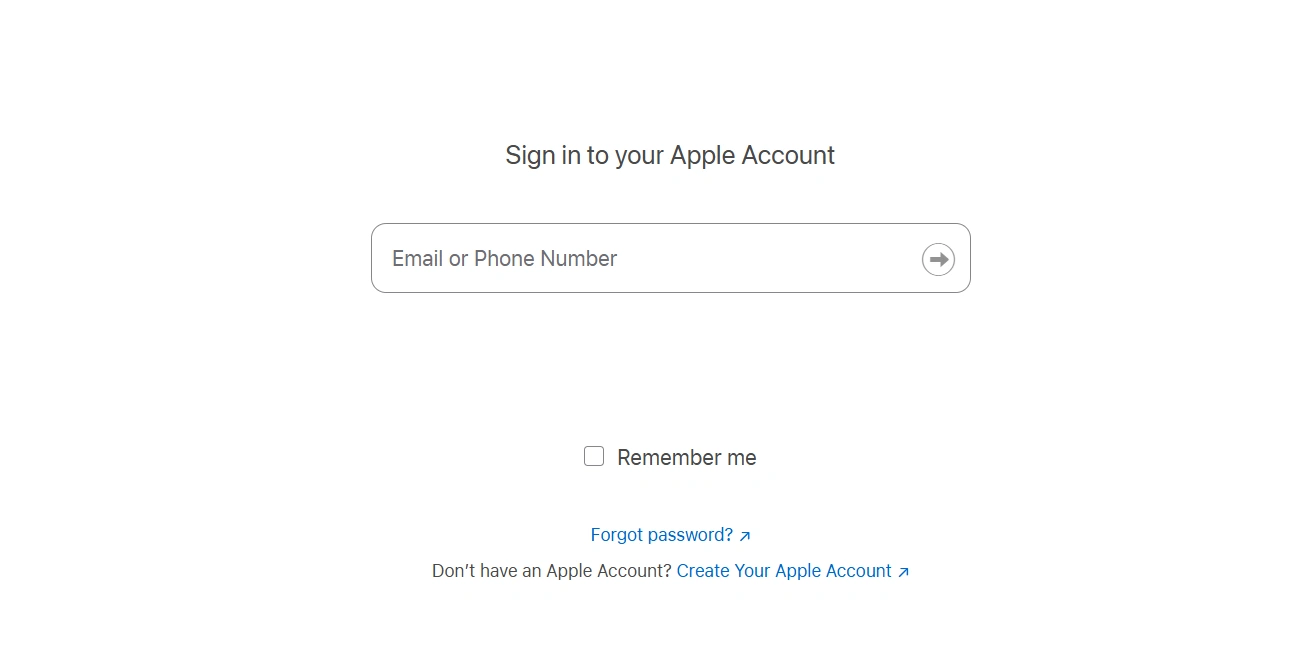
  • Log in to the APN Portal using the Apple ID that was originally used to generate the certificate.
    Note: Ensure that the certificate is associated with the same Apple ID.
  • Renew APNs certificate - login to apns portal

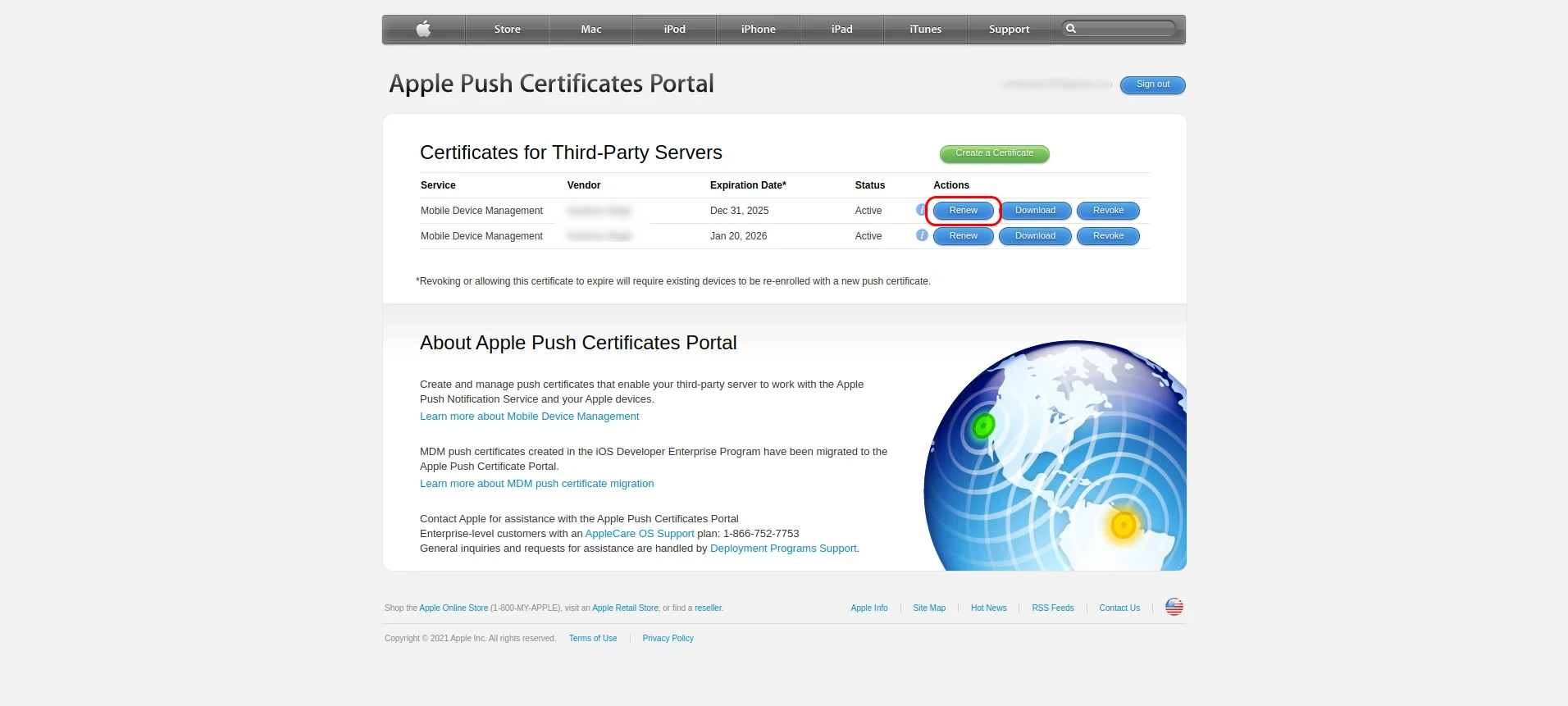
  • Click on the Renew button next to your existing certificate.
  • Renew APNs certificate - click on renew

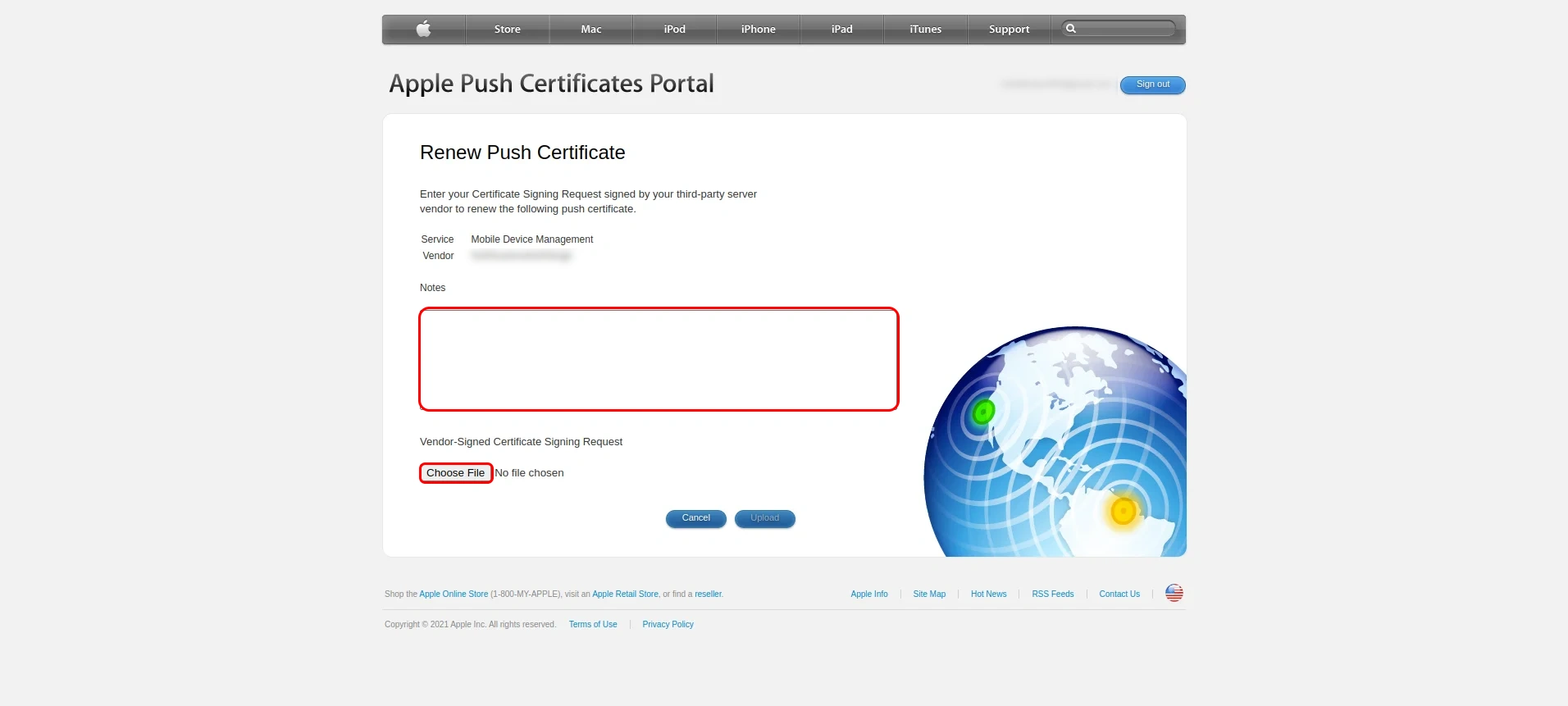
  • Add a short note (avoid special characters) and click Choose File and upload the previously downloaded miniOrangeVendorSignCSR.plist file.
  • Now, click the Upload button.
  • Renew APNs certificate - choose a file

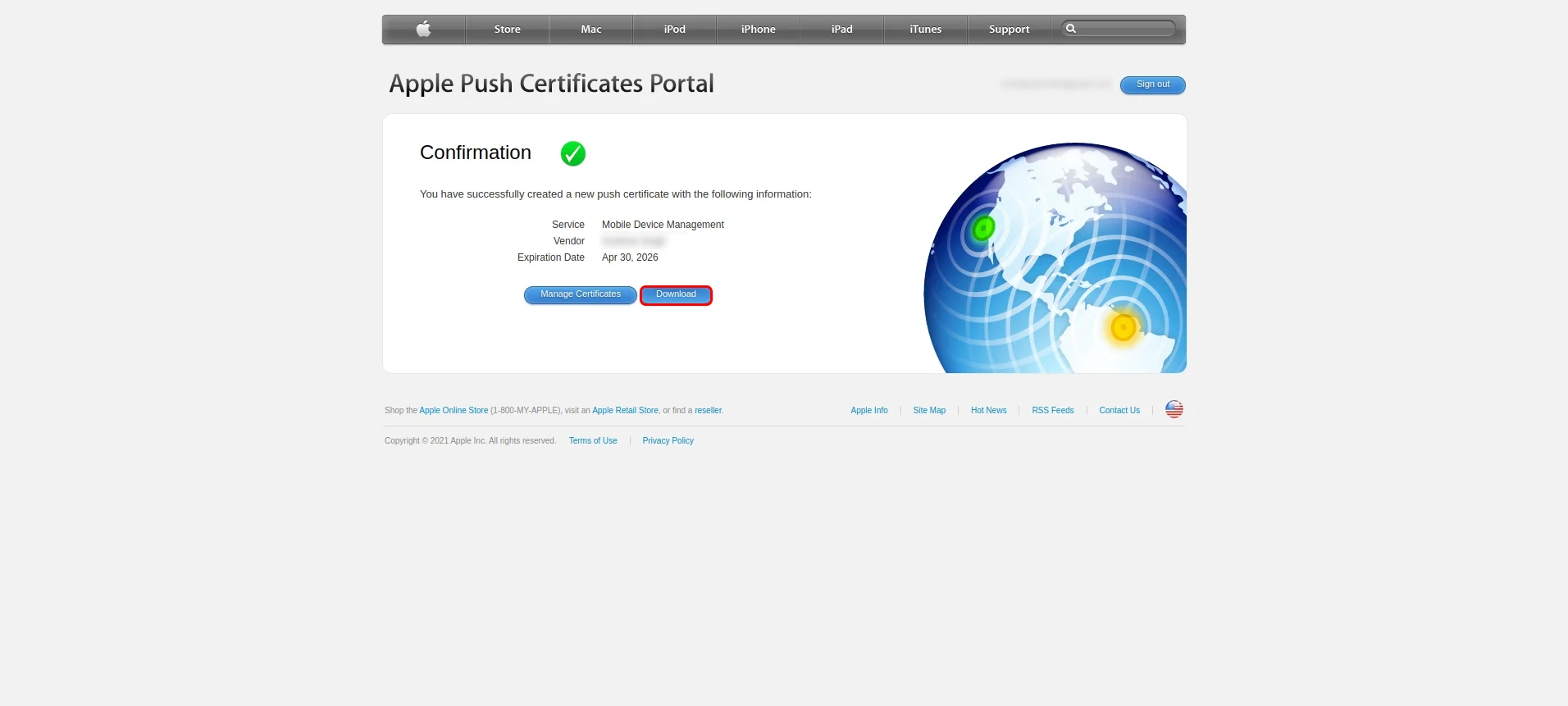
  • Once the renewal is complete, click Download to get the renewed APNs certificate file (.pem format).
  • Renew APNs certificate - click on download

Step 4: Upload the Certificate

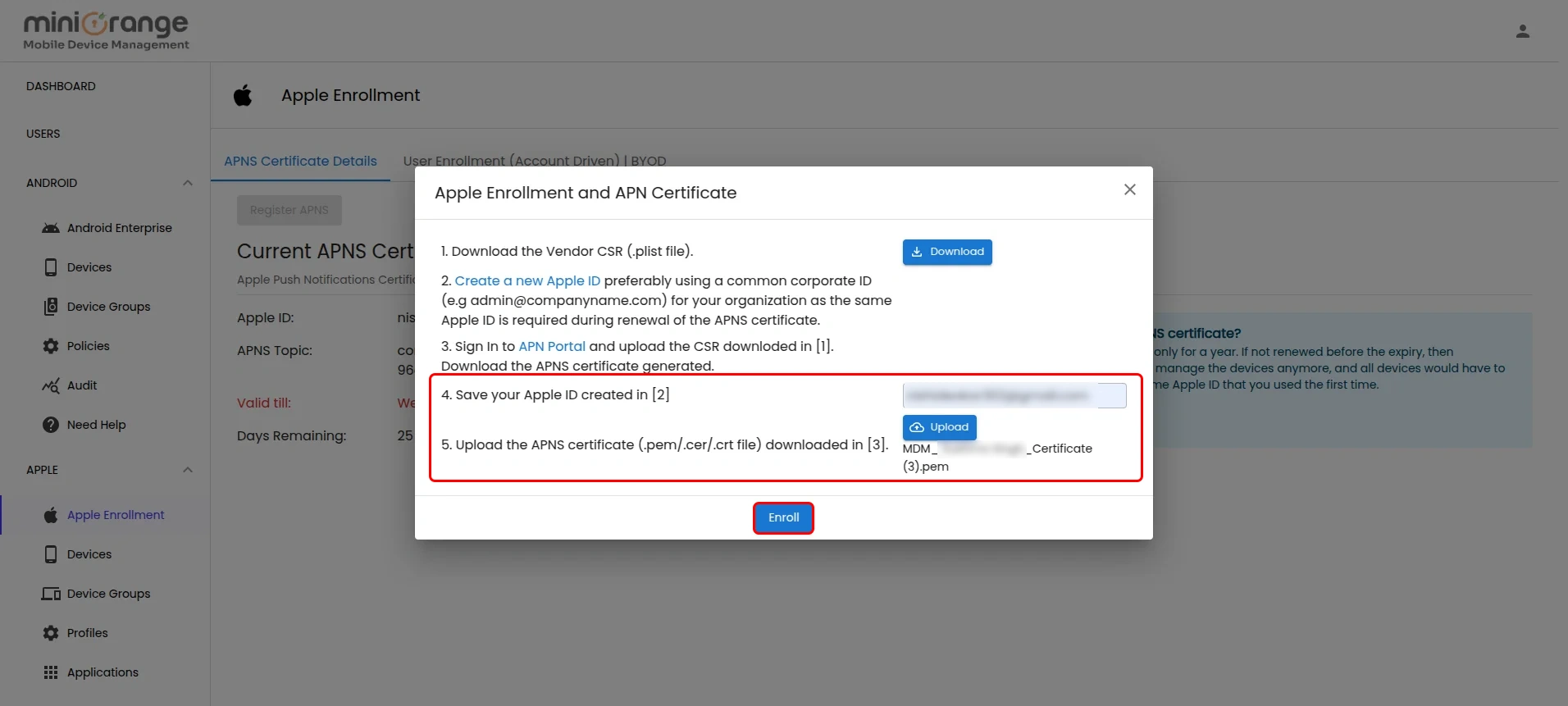
  • Go to the UEM dashboard and enter the Apple ID used for certificate renewal. This will ensure you receive future renewal reminders.
  • Click the Browse file button, select the downloaded .pem certificate, and then click Enroll.
  • Renew APNs certificate - click on browse file

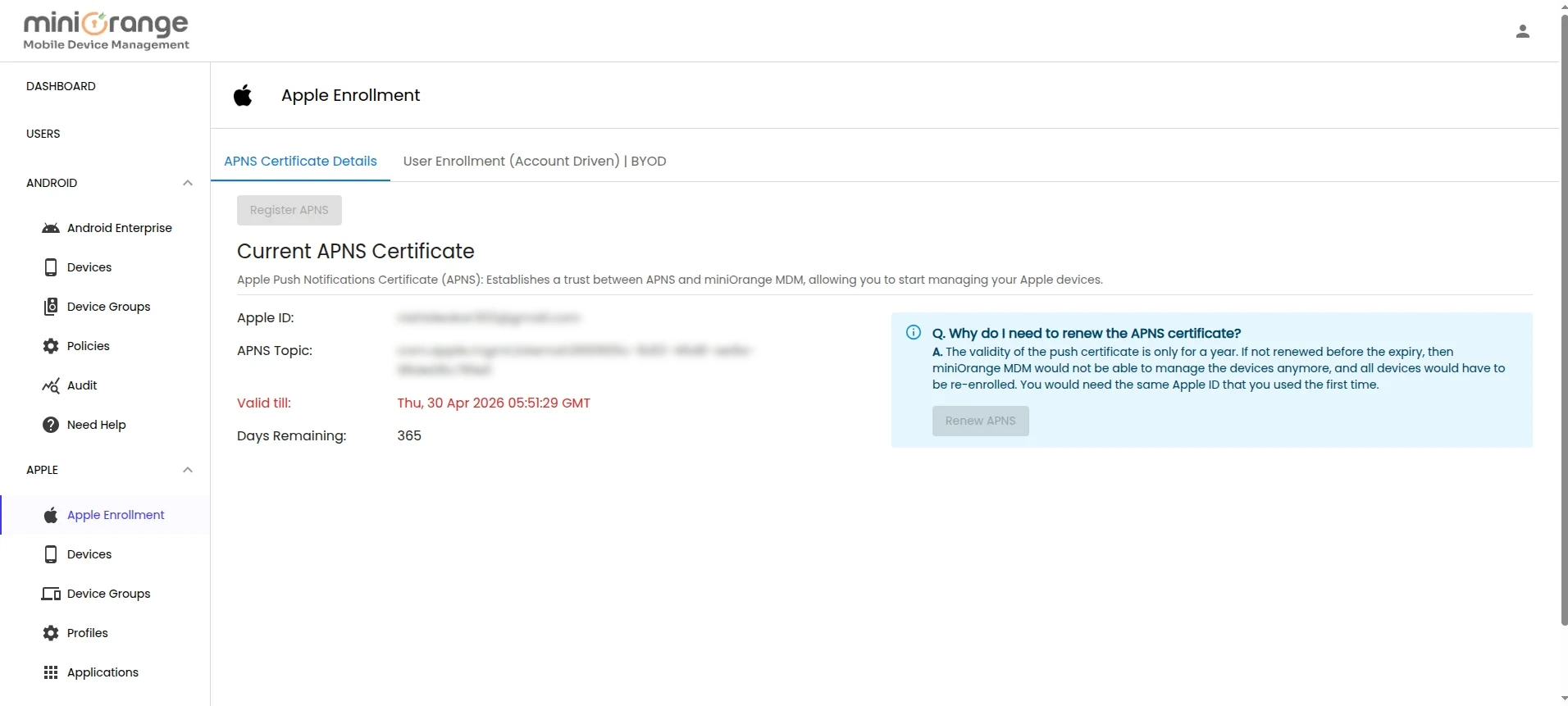
  • Congratulations! Your APNS certificate is renewed. Continue managing your Apple device fleet.

  • Renew APNs certificate - Your APNS certificate is renewed

Need help to configure or renew APNs?
Contact us or email us at uemsupport@xecurify.com and we'll help you setting it up in no time.


External References


Want To Schedule A Demo?

Request a Demo