
You built a WordPress site. That part is done. Getting people to actually find it is where most site owners get stuck.
Search engines look for specific signals: speed, structure, clarity, and usefulness. If your site isn't sending those signals clearly, it doesn't matter how good your content is. It stays invisible. This SEO guide for WordPress shows you how to fix that, step by step, without a web developer or an SEO agency.
- Before anything else, make sure Google can actually find and crawl your site. Technical issues block everything else.
- Pick the right keywords. Write for what people search, not just what you want to talk about.
- Write content that matches what searchers expect to find, not just content that contains the keyword.
- Every page needs a proper title, meta description, clear headings, optimized images, and internal links.
- Add schema markup. It helps your listing stand out in search results and earns more clicks.
- Set up Google Search Console and Google Analytics 4 from day one. You can't fix what you can't see.
- Results don't come fast. But every small improvement you make stacks on top of the last one.
What Is SEO for WordPress?
SEO for WordPress is the work you do so Google can find your site, understand what it's about, and decide it's worth showing to people.
Here's how Google processes your site before showing it to anyone:
- Crawling: Google's bot, Googlebot, visits your site and follows links to discover your pages.
- Indexing: Google saves those pages in its database so they can appear in search results.
- Ranking: Google decides which pages are most relevant and useful for a given search, then sorts them.
If any of these break, your content just sits there. It exists, but nobody sees it.
And unlike paid ads, which stop the moment you stop paying, organic search builds over time. The digital marketing efforts you put in today keep working months from now. Plus, with tools like ChatGPT and Perplexity now pulling answers straight from websites, getting your content structured well gives it even more places to show up.
Why Most WordPress Sites Don't Rank
Most ranking issues aren't mysterious. They come from the same handful of mistakes.
1. Targeting the Wrong Keywords
A lot of sites write about topics they care about rather than terms people actually type into Google. Others go after keywords like "SEO" or "WordPress" and end up competing with huge sites that have been building authority for years. You won't win that fight early on.
The smarter move is to go specific. A keyword like "SEO checklist for WordPress for beginners" or "how to fix broken links in WordPress" is easier to rank for and brings in visitors who are looking for exactly what you offer.
Pro Tip: After searching your keyword, scroll to the bottom of the Google results page. Check 'People also ask' and the related searches section. These give you the exact phrases your audience uses and make great secondary keywords for the same page.
2. Content That Doesn't Match Search Intent
Here's something a lot of people miss. Even if you have the right keyword, your content needs to match what people actually expect to find. If someone searches "how to speed up WordPress," they want a step-by-step guide, not a product page.
Before you write, look at the top five results for your keyword. What format are they using? How long are they? What angle do they take? Your content needs to match that pattern, because Google already knows what satisfies that search.
Pro Tip: Study the top results before you write anything. Align your format, depth, and structure with what is already ranking. If four out of five top results are how-to guides, write a how-to guide.
3. Weak Technical SEO
Slow pages, missing sitemaps, pages Google can't index, broken links. None of these show up as obvious errors. They just quietly stop your pages from appearing. Run a full audit before doing anything else. Section 3 covers how.
4. Incomplete On-Page SEO
A title like "SEO Tips" tells Google almost nothing. "SEO Tips for WordPress for Faster Ranking" is specific and clear. The same logic applies to your headings, URLs, image alt text, and meta descriptions. These are the signals Google reads to understand each page. When they're missing or vague, your page has a much harder time ranking.
Getting Your Technical Foundation Right
Think of technical SEO as the base that everything else sits on. You can have great content, a good design, and solid keywords and still not rank if Google can't crawl and index your pages properly. Fix this layer first.
1. Run a Full SEO Audit First
Don't start making changes randomly. Run an audit first, so you know exactly what's broken and what to prioritize.
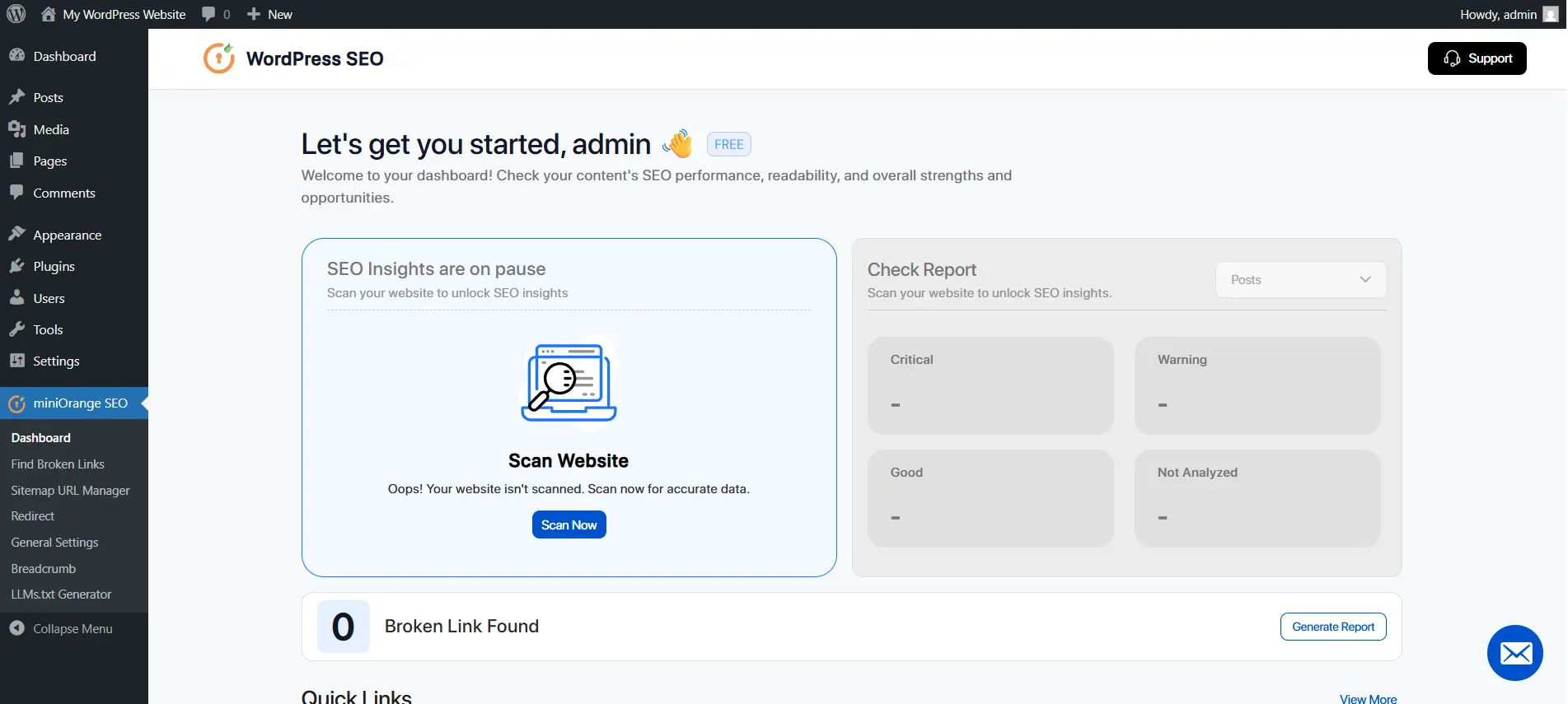
The miniOrange SEO plugin for WordPress runs your audit from the SEO Score tab in your dashboard . Every finding gets sorted into three buckets: Critical Issues (things actively stopping your pages from ranking), Warnings (things holding you back), and Good (things already working). Start with Critical Issues. Everything else can wait.
2. Verify Your Site Is Indexed
Go to Settings → Reading in WordPress. If the box next to "Discourage search engines from indexing this site" is checked, Google is blocked from your entire site. This setting often gets left on after development, and nobody notices until traffic is suspiciously low.
Quick Check: Type site:yourdomain.com into Google. If your pages come up, indexing is working. If nothing comes up, that's the first thing to fix.
3. Generate and Submit an XML Sitemap
A sitemap is just a file that lists all your important pages in one place. It gives Google a direct path to your content instead of relying on following links, which means new pages get discovered much faster.
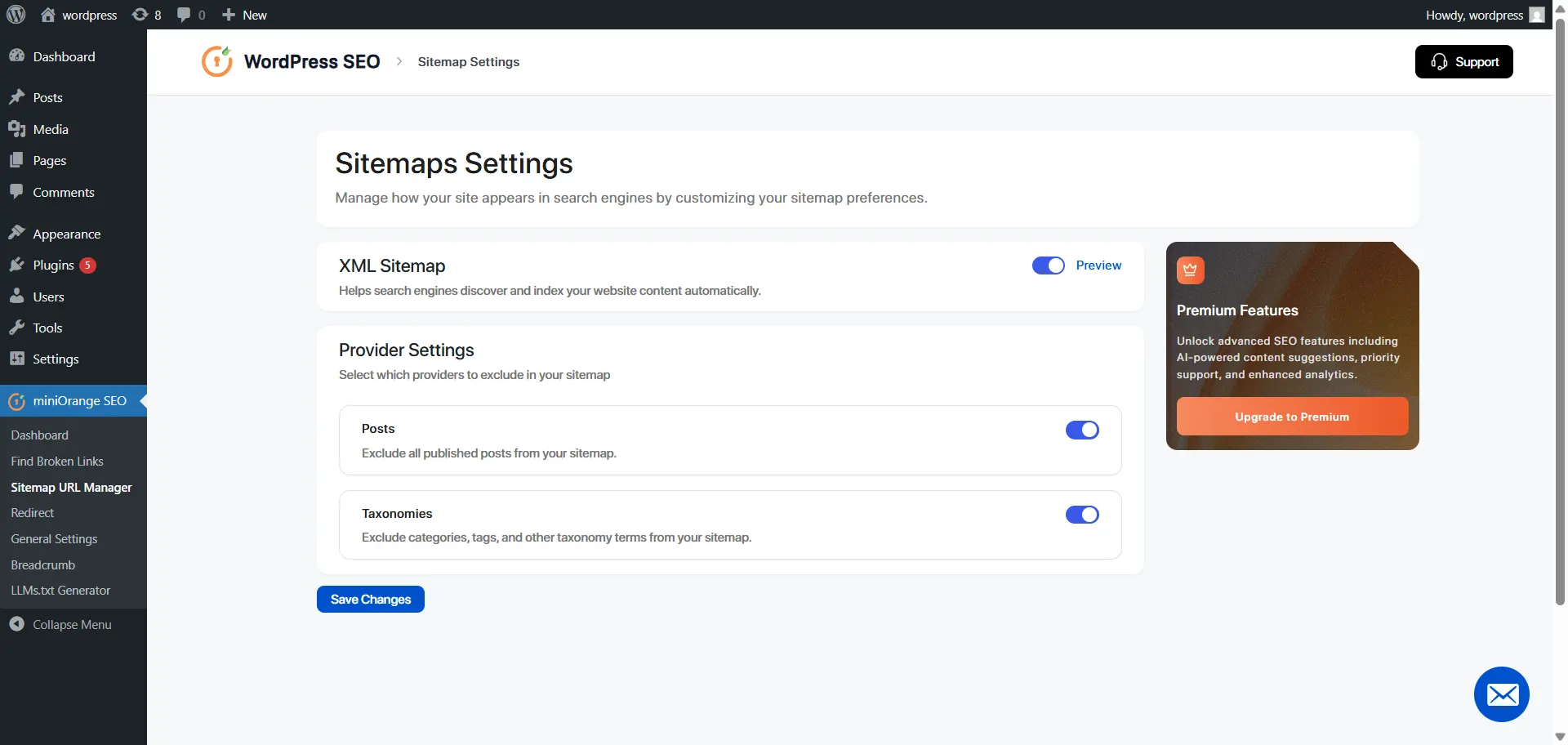
The miniOrange SEO plugin for WordPress handles this automatically. Go to Sitemaps Settings, enable the XML Sitemap, and click Preview to confirm it's live. Use Provider Settings to exclude pages Google doesn't need to crawl, like login pages and cart pages. Once it's ready, submit it in Google Search Console under Indexing → Sitemaps → Add a new sitemap.
Pro Tip: Only include pages in your sitemap that are worth ranking. Thin pages, duplicate archives, and admin pages waste crawl budget and slow down how quickly Google discovers your real content.
4. Fix Your Permalink Structure
By default, WordPress gives pages URLs like yoursite.com/?p=1234. That tells Google absolutely nothing. Go to Settings → Permalinks → Post Name to switch to clean, readable URLs that include your page title.
Do this before you publish any content. Changing URLs on a live site without redirects creates broken links.
- Keep URLs short; for example, three to five words is ideal.
- Include your primary keyword in the URL slug.
- Use hyphens between words, not underscores.
Pro Tip: Set your permalink structure before publishing your first post. Changing it on a live site means setting up 301 redirects for every existing URL. Get it right from the start.
5. Configure Your robots.txt File
Your robots.txt file tells Google which pages to crawl and which to skip. Google doesn't have unlimited time on your site. If it wastes crawl budget on admin pages and cart pages, it has less time for your actual content.
The one mistake to avoid: never add "Disallow: /" to this file. That single line tells Google not to crawl anything on your site. It happens most often on sites moving from a staging environment to live, where someone forgets to remove the rule.
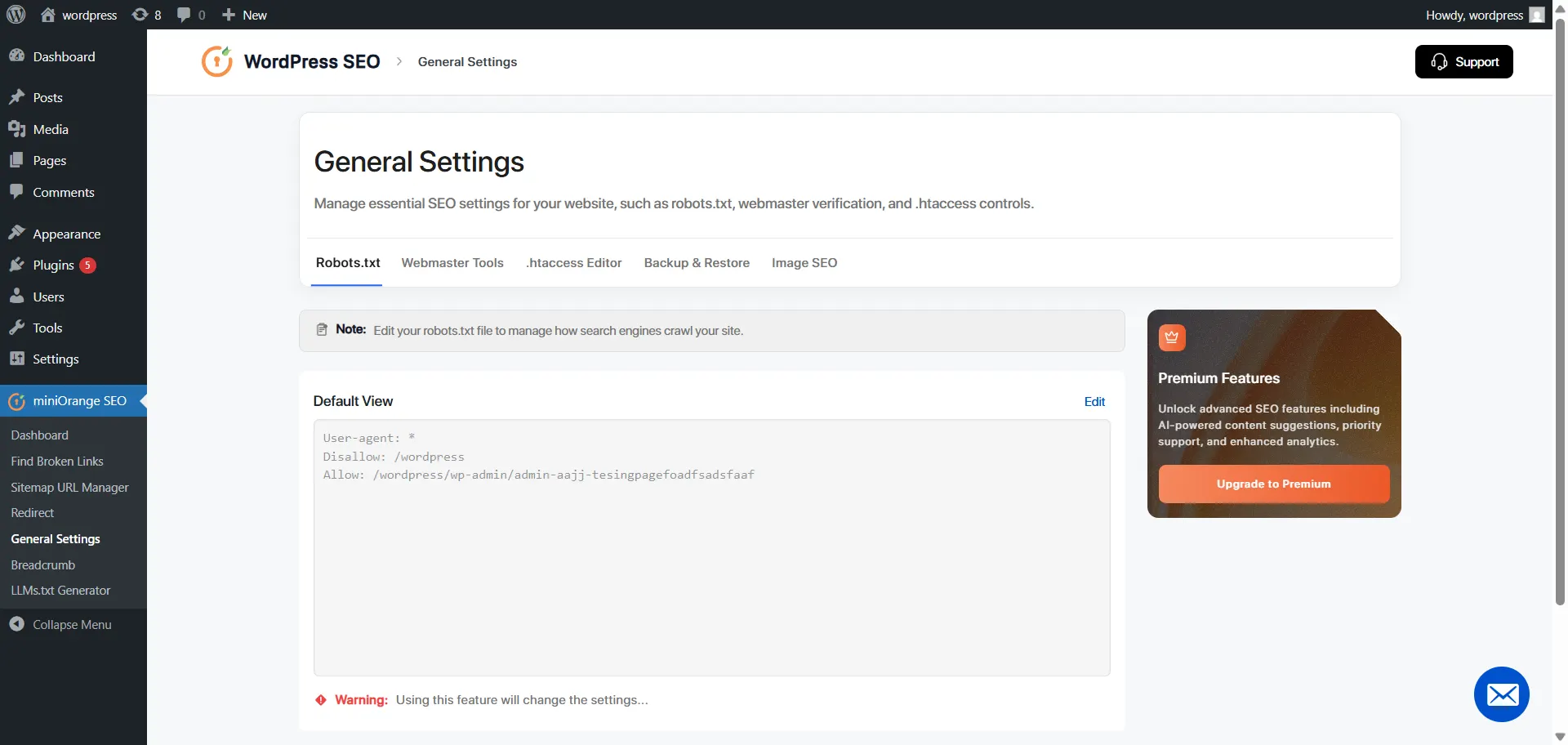
The miniOrange SEO plugin for WordPress manages this for you. Go to General Settings → robots.txt. The plugin already has safe defaults filled in. You only need to make changes if there's a specific page you want to exclude.
6. Fix Broken Links and Set Up Redirects
A 404 error is a dead end. For visitors and for Google. When a page keeps returning a 404, Google eventually drops it from results, and whatever authority it had built up disappears with it.
Whenever you change a URL or delete a page, set up a 301 redirect from the old URL to the new one. A 301 tells Google the move is permanent and passes the page's ranking value across to the new destination.
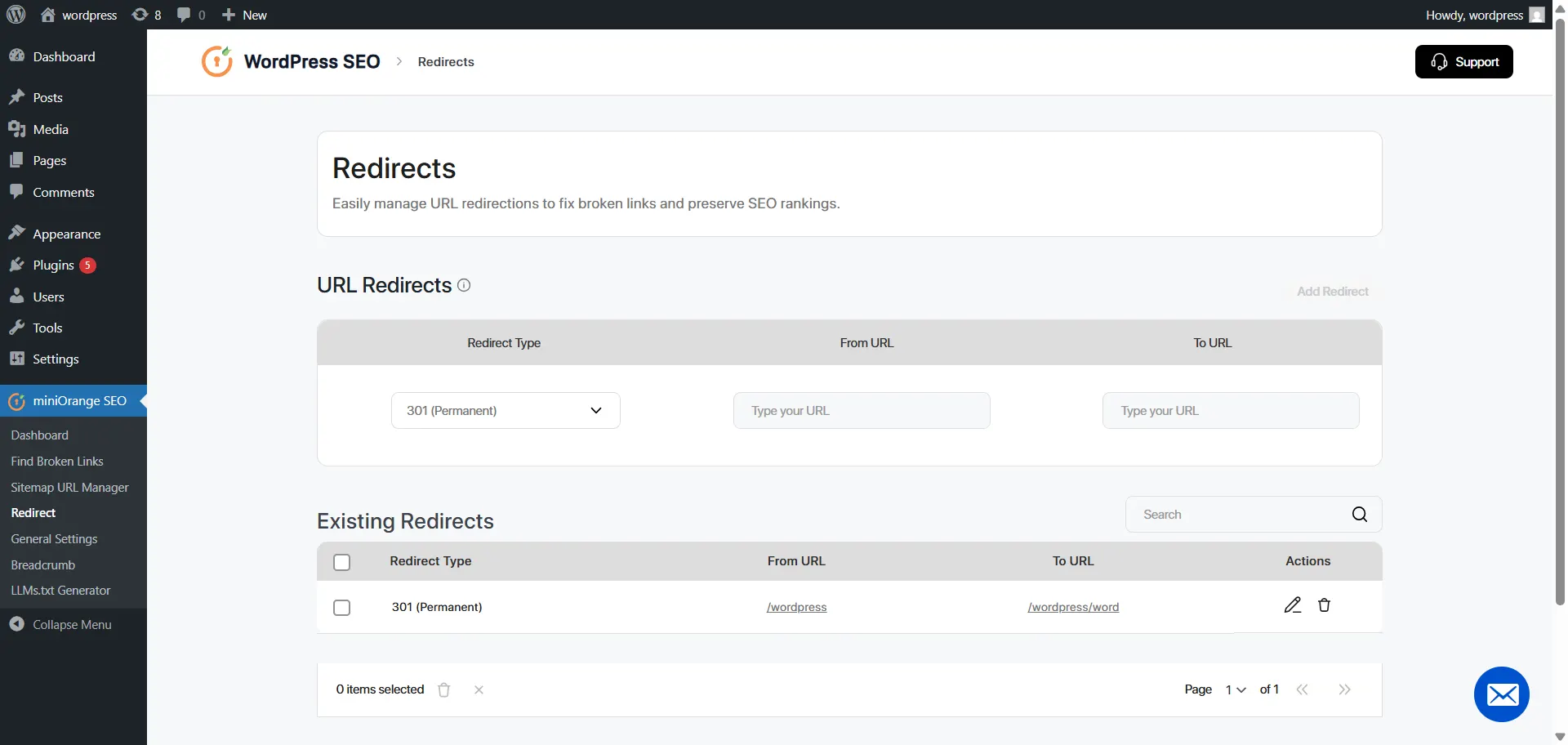
The miniOrange SEO plugin for WordPress makes this straightforward. Go to Quick Links → Find Broken Links to scan your site. Then go to Redirects → Add Redirect (301 Permanent) and map each old URL to its new destination.
7. Install SSL and Use HTTPS
Google treats HTTPS as a ranking signal. Browsers flag non-HTTPS sites with a security warning, and most visitors leave the moment they see it. Most hosting providers include a free SSL certificate. Once installed, go to Settings → General and make sure your site address starts with https:// on every page, not just the homepage.
On-Page SEO: Optimizing Every Post and Page
On-page SEO is how you help Google understand what each page is actually about. These aren't one-time settings. Every page you publish needs to go through these steps.
1. Keyword Research
Before you write anything, figure out what your audience is searching for. A good keyword is one that matches your page, has enough searches to be worth targeting, and isn't so competitive that you have no chance of ranking.
Good free tools to start with:
- Google Keyword Planner: free inside Google Ads. Shows real search volume data from Google itself.
- Google autocomplete and 'People also ask': type your topic into Google and see what real searches come up.
- Google Trends: shows whether interest in a keyword is growing or dropping over time.
- Ubersuggest: has a free tier with keyword difficulty scores and content ideas.
If you want deeper data, Ahrefs and Semrush are the tools most SEOs rely on. Both show keyword difficulty, monthly search volume, and what your competitors are ranking for. Both have limited free access, which is worth trying before you pay.
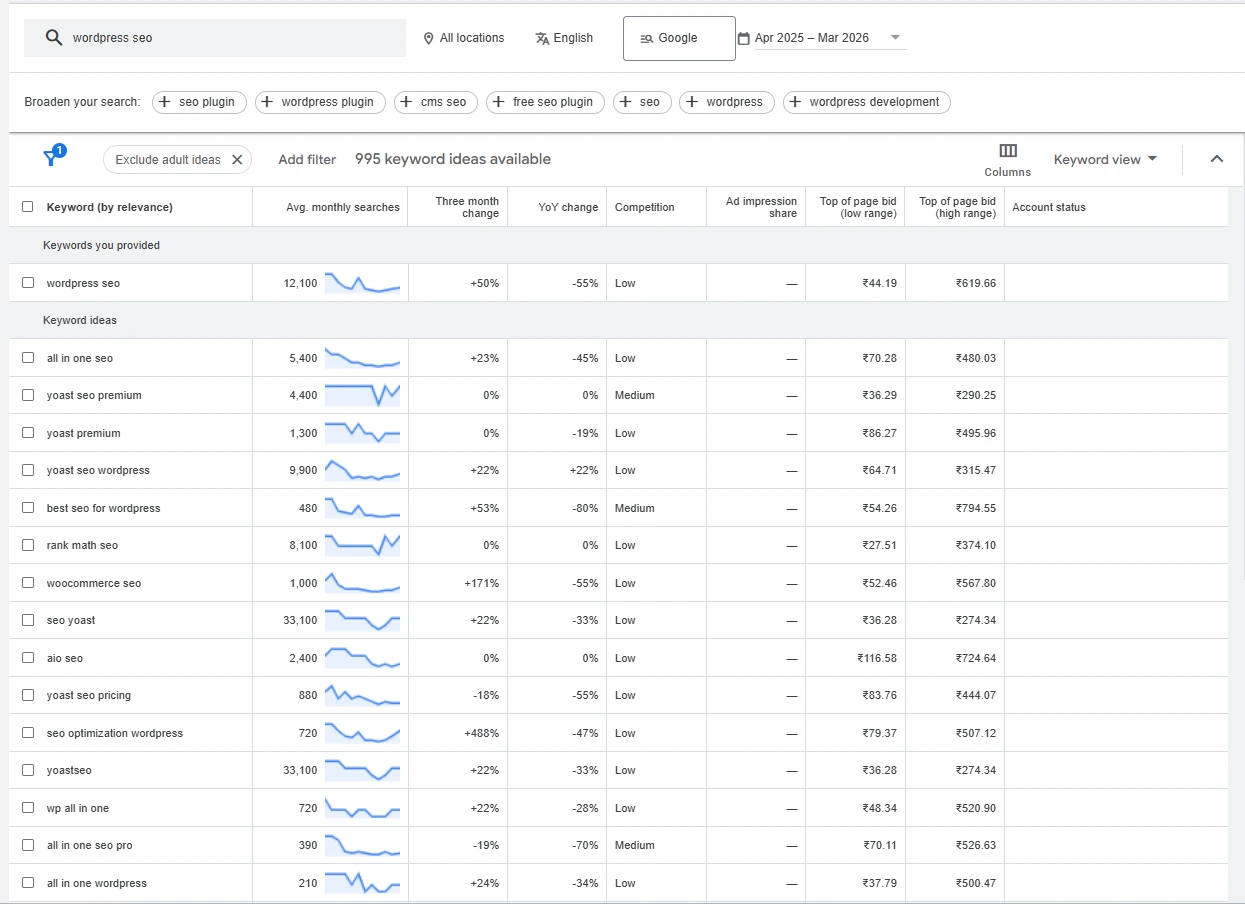
Aim for one primary keyword per page, with two or three secondary keywords supporting it. This gives Google more context and more ways to find your content.
2. Title Tags
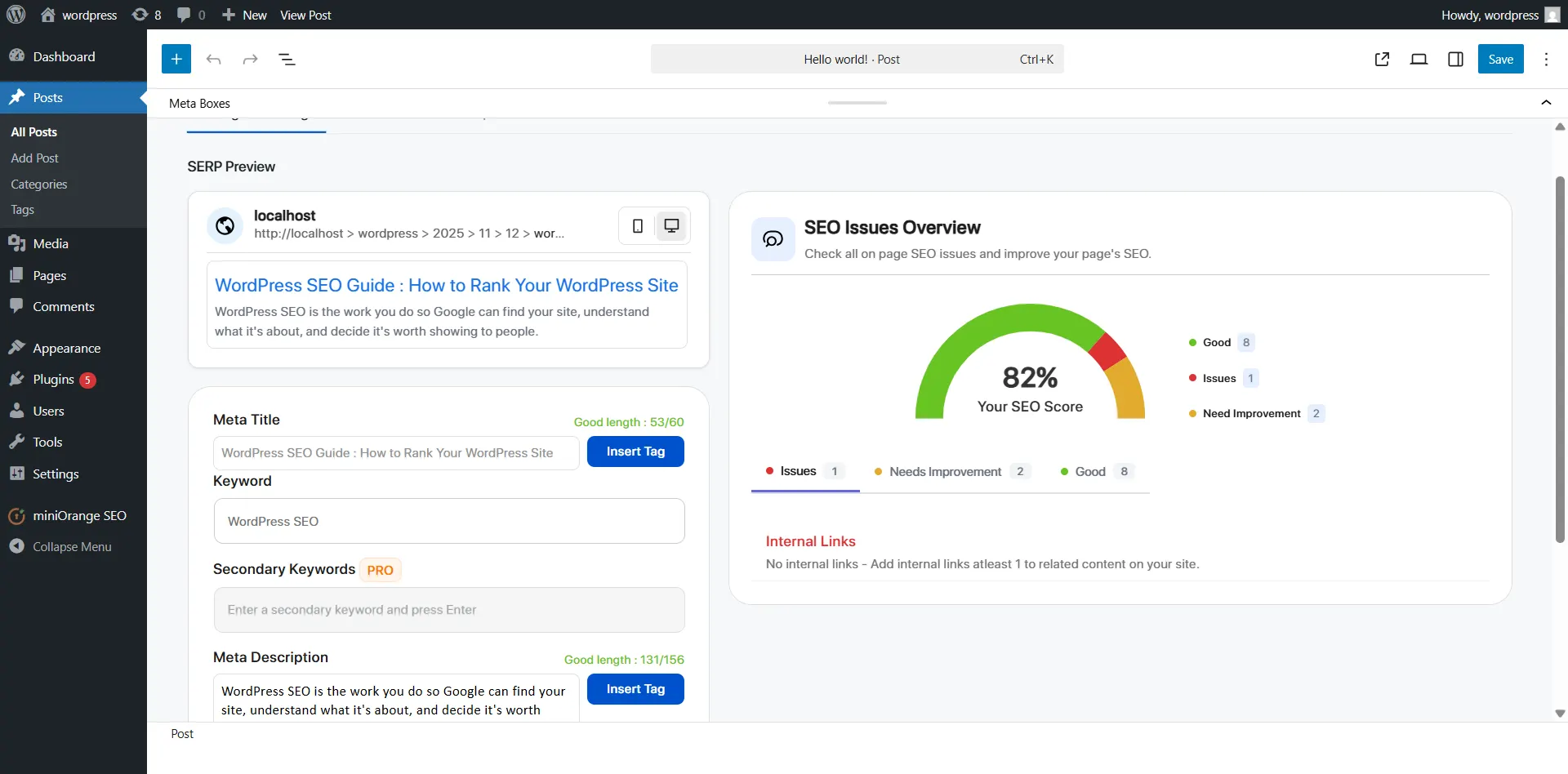
Your title tag is what shows up as the clickable headline in Google results. It's often the first and only thing someone reads before deciding to click. Get this right, and you get more traffic from the same ranking position.
Good title structure: Primary Keyword: Clear Benefit | Brand Name
Example: "7 Best SEO Plugins in 2026 for Higher Rankings | miniOrange"
The miniOrange SEO plugin for WordPress shows a live search result preview as you type your title. The character counter turns red the moment you go over the recommended length, so you always know what your title looks like in Google before it goes live.
3. Meta Descriptions
Your meta description is the short paragraph under your title in search results. It doesn't change where you rank, but it does change whether people click. A well-written meta description gets you more traffic from the same position.
Keep it between 150 and 160 characters, include your keyword naturally, and make it clear what the reader gets from clicking. Write a unique one for every page, and never leave it blank.
Good to Know: Google sometimes rewrites your meta description based on the search query. That's normal. Writing your own still gives you more control most of the time, and an empty field gives you none at all.
4. Heading Structure
Headings aren't just for making your content look organized. They tell Google what your page covers and how the topics relate to each other.
- H1: One per page, used as the main title.
- H2: Major sections throughout the page.
- H3: Subsections within those sections.
- Never skip heading levels: Don't jump from H1 directly to H4.
The miniOrange SEO plugin for WP flags missing or duplicate H1 tags as Critical Issues in your audit, so heading mistakes never slip through to a published page.
5. Image Optimization
Large, unoptimized images are the most common reason WordPress sites load slowly. And since Google can't actually read images, every image without proper alt text is a missed signal.
- Compress before uploading: Use Squoosh or TinyPNG (both free) and aim for under 100KB. ShortPixel is a plugin for WordPress that does this automatically on upload.
- Use descriptive filenames: "wordpress-seo-audit-screenshot.jpg" tells Google something. "IMG_4521.jpg" tells Google nothing. Rename before uploading.
- Write alt text for every image: Describe what's in the image and include your keyword where it fits naturally. This also matters for accessibility.
- Switch to WebP: WebP files are noticeably smaller than JPEGs at the same quality. WordPress has supported WebP natively since version 5.8.
The miniOrange SEO plugin for WordPress handles image SEO at scale. Go to General Settings → Image SEO to set default alt text and title formats that auto-fill based on your post title and focus keyword. Enable the Image Sitemap so your images also show up in Google Image Search.
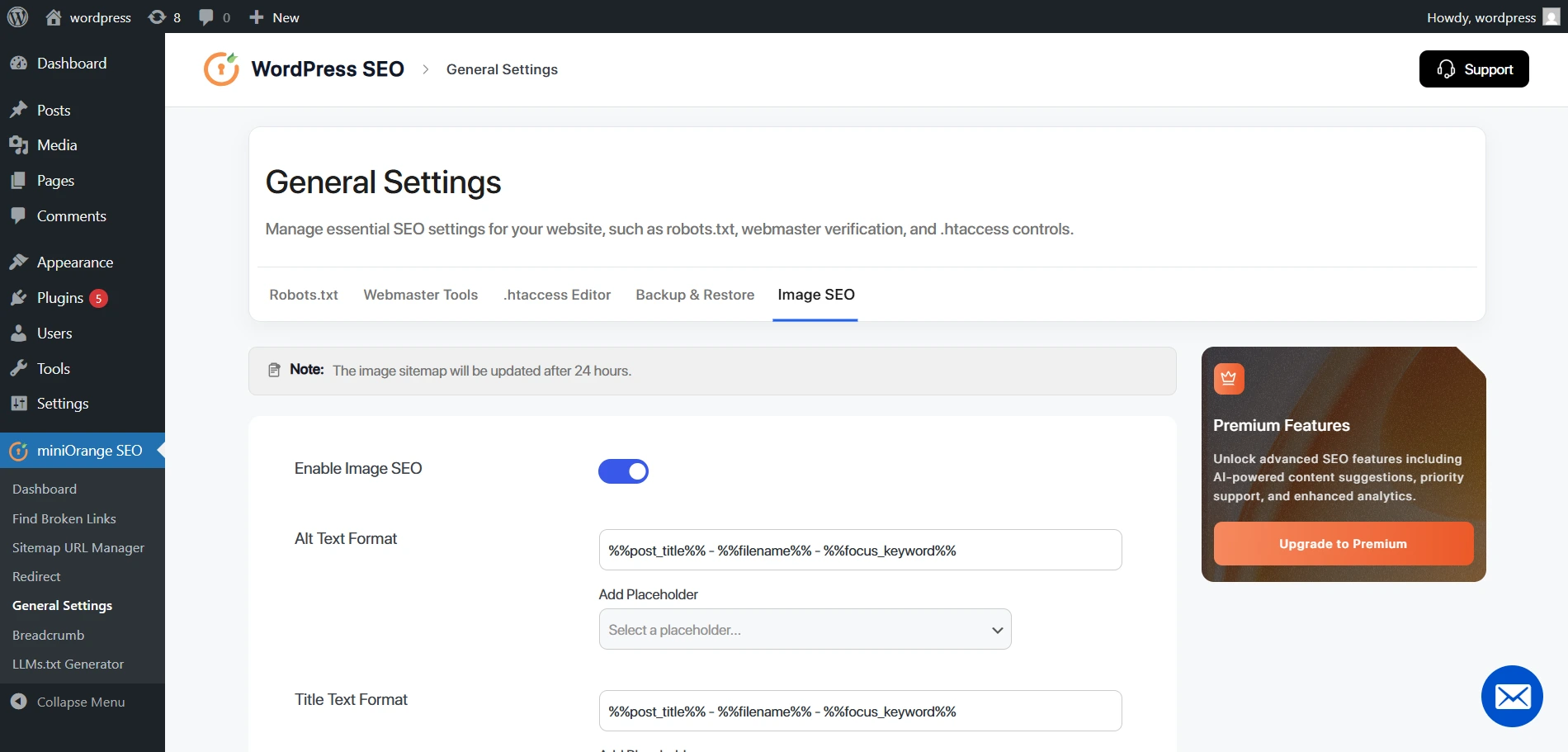
Pro Tip: Check the alt text on images in your last five posts. Most new WordPress sites have hundreds of images uploaded with no alt text at all. The miniOrange SEO plugin for WP audit flags all of these in one go, so you can clean them up quickly.
6. Internal Linking
Internal links connect your pages to each other. They help Google discover your content, pass authority from your stronger pages to your weaker ones, and keep readers on your site longer. And unlike getting backlinks from other sites, you have complete control over internal linking.
Add three to five internal links to related content in every new post you publish. Go back to older posts and add links to new content after you publish it. Use anchor text that describes where the link is going, not just 'click here.'
The miniOrange SEO plugin for WP flags every orphan page right in your dashboard. An orphan page is a page with no inbound links from anywhere on your site. Google rarely finds or ranks these. Use the list to connect each one to at least one relevant existing post.
Best Practice: When you publish a new post, go back to two or three existing posts on related topics and add a link from them pointing to your new page. This builds the connection in both directions and gives Google a much clearer picture of how your content fits together.
7. Optimizing for AI Search
Google's AI Overviews, ChatGPT, and Perplexity pull answers from websites just like yours. Your page can rank well in Google and still be completely invisible inside AI-generated answers if the content isn't structured the right way.
The key habit to build is answer-first writing. Start each section with the direct answer, then explain it. AI tools look for the clearest, most direct response near the top of a page, not buried in a long introduction. Use question-based headings, add FAQ sections, and keep your content up to date.
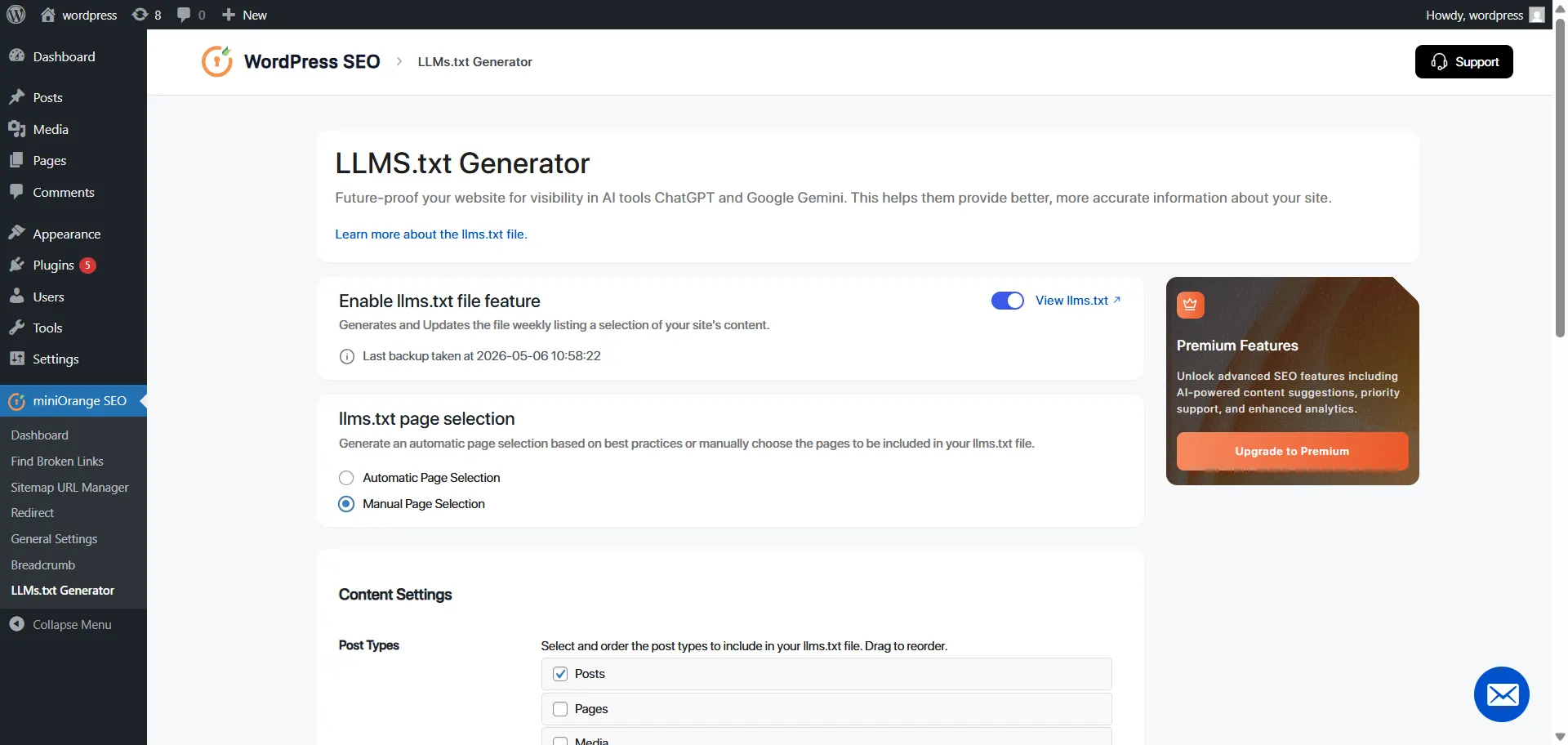
The miniOrange SEO plugin for WP generates your llms.txt file automatically. This file tells AI crawlers exactly which pages on your site matter and how your content is organized. Go to General Settings → llms.txt and the plugin handles the rest. More on this in section llms.txt: Getting Cited by AI Tools.
Pro Tip: Go to ChatGPT or Perplexity and ask a question your content answers. If your site isn't being cited, look at what sources are being cited and study how those pages are structured. Usually, it's a short, direct answer right at the top, followed by clearly labeled sections. Replicate that and check again in a few weeks.
Site Structure
How you organize your site tells Google which pages matter most. A well-structured site also makes it easier for visitors to find what they need, which keeps them around longer.
1. Keep It Simple and Shallow
Every page on your site should be reachable within three clicks from the homepage. The deeper a page is buried, the less importance Google assigns to it. Keep things flat.
- Homepage: The most important page on your site. Most internal links should point here.
- Category or pillar pages: Broad topic hubs that group related content together.
- Individual posts: Specific pieces of content that link back to their parent category.
2. Build Topic Clusters
A topic cluster is a group of related posts all connected to one central pillar page. The pillar covers the main topic broadly. Each subtopic post goes deeper on one specific aspect and links back to the pillar.
Together, they show Google that your site has real depth on a subject, and the whole cluster tends to rank better than any single page would alone.
Pro Tip: After setting up a topic cluster, go back to your pillar page and check that every subtopic links back to it. Use anchor text that includes the pillar's main keyword. This reinforces the topical connection for Google and makes navigation clearer for readers, too.
3. Manage Categories and Tags
WordPress automatically creates an archive page for every category and tag you use. If you're not careful, these become thin, low-quality pages that compete with your actual content and eat up crawl budget. Keep your categories broad (five to ten is enough for most sites), use tags sparingly, and set low-value tag archives to "noindex" in the miniOrange SEO plugin for WordPress.
Page Speed and Core Web Vitals
You've probably closed a tab because a page took too long to load. Your visitors do the same thing. Google tracks this behavior and uses it as a ranking signal. Slow pages rank lower and lose visitors before they even read anything.
Google measures speed through three specific metrics called Core Web Vitals.
| Metric | What It Measures | Good Score |
|---|---|---|
| LCP (Largest Contentful Paint) | How fast the main content loads on screen | Under 2.5 seconds |
| INP (Interaction to Next Paint) | How fast the page responds after you tap or click | Under 200 milliseconds |
| CLS (Cumulative Layout Shift) | How stable the layout stays as the page loads | Under 0.1 |
Test your site at PageSpeed Insights (pagespeed.web.dev). It shows your scores and tells you exactly what to fix. GTmetrix is a strong free alternative that adds a waterfall chart so you can see which specific element is slowing things down.
Pro Tip: A failing LCP score almost always comes from a large, uncompressed hero image. Compress it, convert it to WebP, and retest. That one change fixes LCP for most WordPress sites.
Here are the most effective speed improvements for WordPress:
- Install a caching plugin: WP Rocket (paid) and W3 Total Cache (free) stores ready-to-serve versions of your pages so WordPress doesn't rebuild them from scratch on every visit. LiteSpeed Cache is another solid free option.
- Compress images before uploading: Large images are the biggest avoidable cause of slow pages.
- Remove unused plugins: Every active plugin adds load time. Even plugins you're not actively using.
- Upgrade your hosting: Shared hosting is the most common bottleneck. Managed hosts like Kinsta, WP Engine, or Cloudways handle server-level optimization for you.
- Add a CDN: Cloudflare's free tier stores copies of your site on servers closer to your visitors, cutting load time for users far from your server.
Mobile SEO
Since 2019, Google evaluates your site based on how it performs on mobile, not desktop. This is called mobile-first indexing. Most searches happen on phones now. If your site falls apart on a small screen, your rankings suffer for everyone, including desktop users.
- Use a responsive theme: It adjusts the layout automatically for any screen size.
- Test with Google's Mobile-Friendly Test: At search.google.com/test/mobile-friendly. It flags the most common mobile issues in seconds.
- Test on a real device: Browser emulators miss things that real hardware catches, especially on older or slower phones.
- Remove intrusive pop-ups: Pop-ups covering content on mobile get a specific Google ranking penalty. Show them on desktop only, or switch to slide-in banners.
- Keep robots.txt rules consistent: Your rules for mobile and desktop crawlers need to match. Inconsistencies cause silent ranking losses.
E-E-A-T: Building Trust Signals Google Rewards
E-E-A-T stands for Experience, Expertise, Authoritativeness, and Trustworthiness. It's how Google evaluates whether your content is credible. Strong E-E-A-T helps you rank in search and get cited by AI tools.
- Experience: Has the author actually done what they're writing about?
- Expertise: Do they have real knowledge of the subject?
- Authoritativeness: Does the broader web treat your site as a reliable source on this topic?
- Trustworthiness: Is your content accurate, transparent, and reliable?
1. Add Author Bios
Anonymous content is low-trust content. When Google sees no author information, it has no way to evaluate whether the person writing knows what they're talking about. Add a bio to every post with the author's name, photo, relevant credentials, and a link to their author archive page.
This matters most for health, finance, and legal content. Google holds these topics to a much higher standard and looks at author credentials closely before deciding to rank the content.
Pro Tip: Link your author bio to your LinkedIn profile and any relevant professional pages. Google cross-references author information across the web, and a matching external profile adds real weight to your authoritativeness signal.
2. Schema Markup
Schema markup is code you add to your pages that tells Google what type of content it's reading. When you get this right, Google rewards you with rich results in search: star ratings, expandable FAQ dropdowns, numbered how-to steps. These take up more space in results and earn noticeably more clicks than plain listings.
| Schema Type | Best For | What Shows Up in Google |
|---|---|---|
| Article | Blog posts and news | Author name, publish date, and publisher |
| FAQ | Q&A sections on any page | Expandable questions drop right below your listing |
| HowTo | Step-by-step tutorials | Numbered steps appear directly in search results |
| LocalBusiness | Local service businesses | Map listing, phone number, and opening hours |
| Review / AggregateRating | Product or service reviews | Star ratings appear in results and lift click-through rates |
The miniOrange SEO plugin for WP makes schema completely code-free. Open any post or page, select the right schema type from the dropdown in the plugin panel, fill in the fields, and the plugin will generate the correct JSON-LD output automatically.
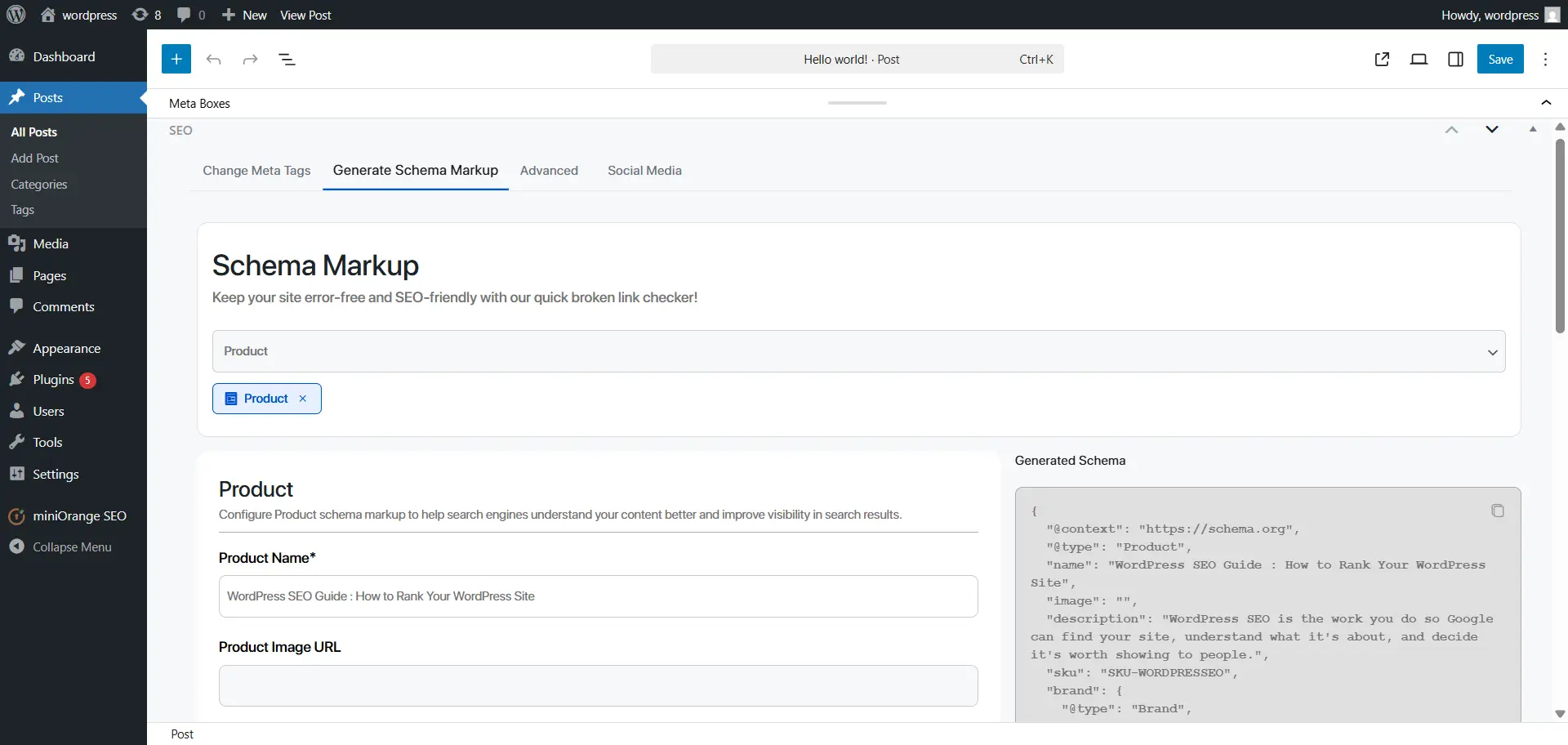
Pro Tip: Add FAQ schema to any page with a Q&A section, even a short one. The FAQ schema creates expandable questions right below your listing in Google results, giving your result more visual space than competitors without it. This consistently improves CTRs for question-based searches.
3. Breadcrumbs
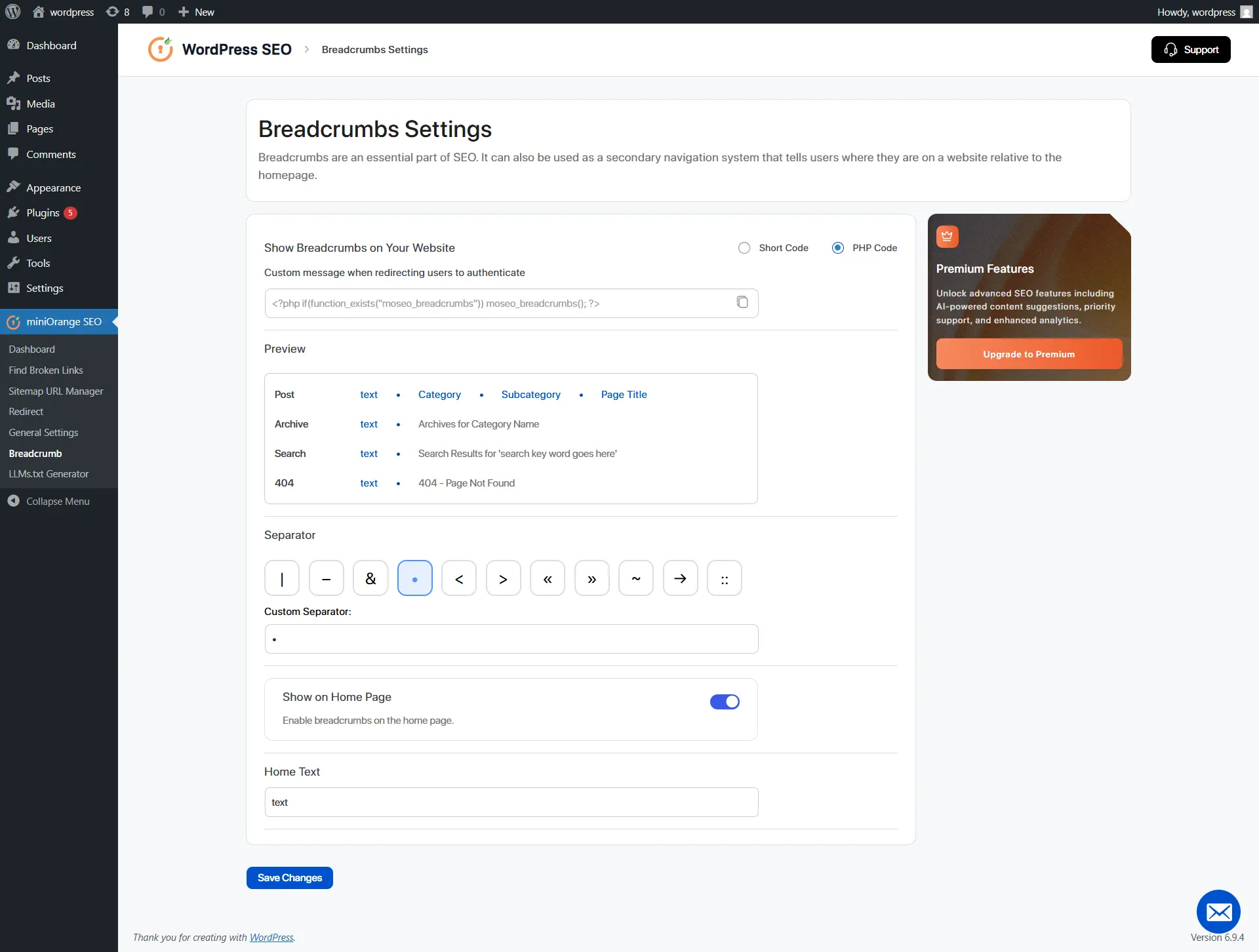
Breadcrumbs show visitors where they are on your site (Home > Blog > WordPress SEO) and help Google understand how your content is organized. Google also displays them in results instead of the full URL, which makes your listing look cleaner.
The miniOrange SEO plugin for WP enables breadcrumbs with one toggle. Go to Breadcrumbs Settings, switch them on, and paste the shortcode into your theme's post template. They show up automatically across all content pages from that point forward.
4. llms.txt: Getting Cited by AI Tools
Most WordPress sites are invisible to AI tools because there's nothing telling those tools which pages matter or how the content is organized. Without an llms.txt file, ChatGPT and Perplexity crawl your site with no guidance. They might cite a competitor instead.
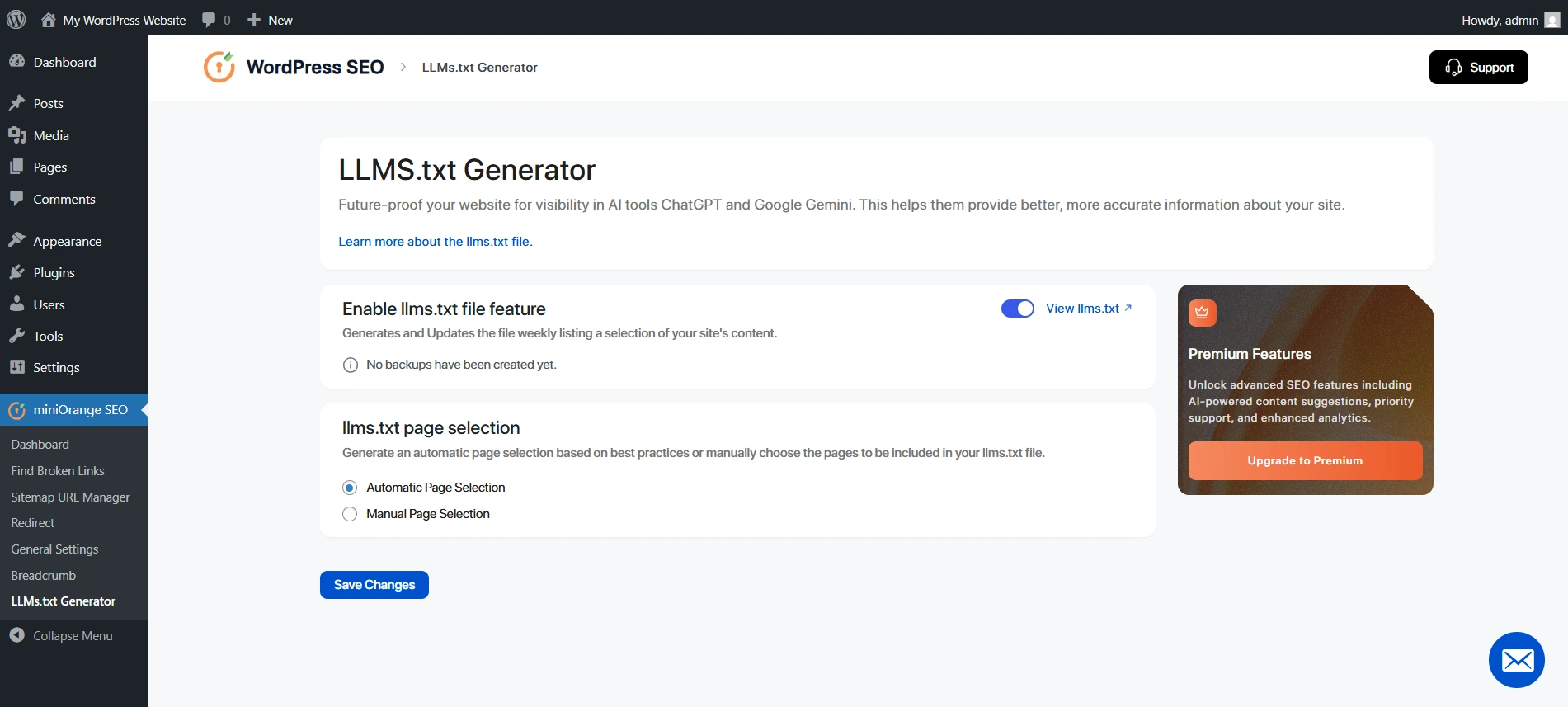
Your llms.txt file changes that. It works like robots.txt but for AI crawlers, giving tools like ChatGPT and Perplexity a clear guide to your most important content.
The miniOrange SEO plugin for WordPress is one of the very few plugins for WordPress that generate and manage llms.txt automatically. Go to General Settings → llms.txt, and the plugin builds the complete file based on your site structure. It updates as you publish new content. Most sites have no llms.txt file at all, which means setting this up today gives you an immediate edge.
Link Building
A backlink is a link from another website pointing to yours. Google treats these as votes of confidence. Sites with strong backlink profiles consistently outrank comparable content with fewer external links. One link from a well-respected site in your niche is worth more than dozens from random directories.
One thing to be clear on: buying links is risky. Google penalties for manipulative link building take months to recover from. Focus on earning links the honest way.
1. Guest Posting
Guest posting means writing content for another site in your niche in exchange for a backlink. It's one of the most reliable ways to build links, and it introduces your brand to a new audience at the same time.
To find opportunities, search Google for your topic plus 'write for us' or 'guest post guidelines.' Use Ahrefs or Moz Link Explorer to see where your competitors have been published. Those sites are already open to contributions in your space. Use Hunter.io (free tier available) to find the right editorial contact at each site you want to pitch.
Social Media, Voice Search, and Online Communities
1. Social Media
Social media doesn't directly change where you rank on Google. But it supports your SEO in ways that add up. Your social profiles show up when someone searches your brand name. Widely shared content earns organic backlinks because more people see it. Social traffic contributes behavioral signals to Google. And posts on LinkedIn and Twitter/X get indexed on their own, giving your content more places to show up beyond Google.
Share new posts within 24 hours of publishing. Write captions that explain the main takeaway, not just the title. Use Buffer (free for up to three accounts) or Meta Business Suite (free for Facebook and Instagram) to stay consistent without spending time on it daily.
2. Voice Search
Voice queries are longer and more conversational than typed searches. "Best SEO plugin" becomes "What's the best SEO plugin for WordPress?" To show up in voice results, write the way people actually talk when asking questions.
- Use question-based headings: Voice searches almost always start with who, what, where, when, why, or how.
- Answer immediately after the heading: Keep it to two or three sentences. Voice assistants read one answer, not a paragraph of context.
- Build FAQ sections: Apply the FAQPage schema through the miniOrange SEO plugin for WP so the structure is machine-readable.
- Aim for featured snippets: The boxed answers above search results are where most voice answers come from.
- Don't ignore local voice search: Keep your Google Business Profile complete if you serve local customers.
3. Reddit, Quora, and Online Communities
These are places where your audience is already asking questions every day. Showing up with genuinely helpful answers builds name recognition, earns referral traffic, and creates the kind of authentic brand mentions that both Google and AI tools respond to over time.
On Reddit, contribute genuinely before sharing links. Only post your content when it directly answers what someone asked. Never post the same link across multiple subreddits; Reddit catches it quickly. On Quora, detailed answers often rank in Google for question-based queries. On LinkedIn, posts rank in professional searches and reach people who may never find you through Google.
Tracking SEO Performance
You can't improve what you don't measure. Without data, you're guessing. Here's what to set up from day one.
1. Google Search Console
Search Console is the most direct data you'll get on how Google sees your site. It shows which queries bring impressions and clicks, where each page ranks, which pages have indexing issues, and your real Core Web Vitals numbers from actual visitors.
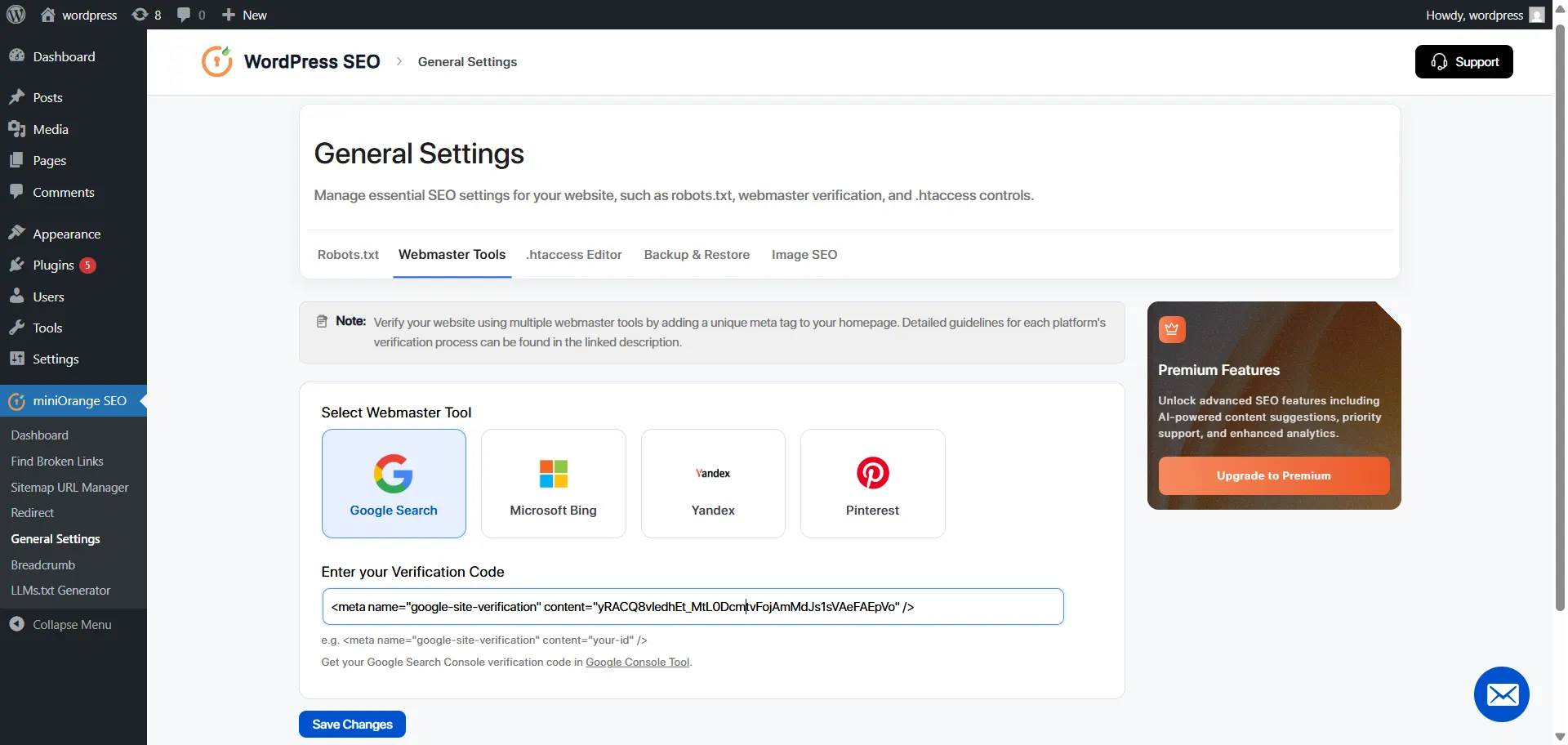
The miniOrange SEO plugin for WP makes Search Console verification instant. Go to General Settings → Webmaster Tools, paste your verification code, and the plugin adds the tag to your site automatically. No theme file editing needed. Once verified, submit your sitemap under Indexing → Sitemaps.
2. Google Analytics 4
Search Console tells you how you appear in results. GA4 tells you what happens after people land on your site: traffic by channel, bounce rates, conversions, and what devices your audience uses. Add it to WordPress through our SEO plugin for WP, which connects GA4 without any code changes.
Pro Tip: Set up a custom AI referral channel in GA4 to track visits coming from ChatGPT and Perplexity. As these sources grow, knowing which pages earn AI referrals tells you which formats to replicate across your site.
3. Keyword Rank Tracking
Search Console averages your position across devices and time periods, which makes it hard to track precise weekly movement. For that, use a dedicated rank tracker. Ahrefs, Semrush, and Mangools all track specific keywords with daily or weekly updates. Check your rankings every one to two weeks. Rising positions confirm your work is paying off. Falling positions are your signal to investigate before traffic drops.
SEO Checklist for WordPress
1. Technical SEO
- SSL installed. Site loads over HTTPS on every page.
- Settings → Reading: 'Discourage search engines from indexing this site' is unchecked.
- XML sitemap generated and submitted to Google Search Console.
- Permalink structure set to Post Name.
- Robots.txt configured correctly with no important pages blocked.
- No broken links. 301 redirects in place for every changed URL.
- Core Web Vitals pass on PageSpeed Insights.
- Site tested on a real mobile device and passes Google's Mobile-Friendly Test.
2. On-Page SEO
- Unique title tag, 50 to 60 characters, primary keyword near the beginning.
- Unique meta description, 150 to 160 characters, includes keyword and states the benefit.
- Clean, keyword-rich URL slug.
- One H1 tag matching the page topic. Logical H2 and H3 structure throughout.
- Primary keyword in the title, first paragraph, one H2, and the meta description.
- All images compressed with descriptive filenames and alt text.
- Three to five internal links per post. No orphan pages.
- FAQ section with FAQPage schema applied.
3. E-E-A-T and Trust
- Author bio with credentials on all posts.
- Schema markup applied: Article, FAQ, or HowTo as appropriate.
- Breadcrumbs enabled.
- LLMS.txt enabled for AI crawler visibility.
4. Link Building
- At least one guest post pitched or published this month.
- Connectively alerts set up for relevant topic categories.
- Competitor backlink sources reviewed using Moz Link Explorer or Ahrefs.
5. Tracking
- Google Search Console verified with sitemap submitted.
- Google Analytics 4 installed and tracking.
- Baseline keyword rankings recorded for your main target keywords.
Start Optimizing Your SEO for WordPress Today
You've got everything you need. Now it's time to act on it.
Most of what holds WordPress sites back comes down to fixable issues. Some take ten minutes. Others, like building content consistently and earning backlinks, take longer but pay off in ways that keep compounding.
You don't need ten different tools for this. The miniOrange SEO plugin for WP handles your audit, on-page checks, sitemaps, schema, redirects, breadcrumbs, and llms.txt, all from one dashboard. Install it, run your first audit, and you'll know exactly where to start.
Frequently Asked Questions
1. What is the best SEO plugin for WordPress?
miniOrange SEO plugin for WP handles audits, meta tags, sitemaps, schema, redirects, and AI visibility in one dashboard. No coding needed, no juggling multiple tools. It's built for WordPress sites of any size.
2. Does WordPress need a dedicated SEO plugin?
Yes. WordPress doesn't come with meta tag control, schema markup, redirect management, or SEO auditing. Without a plugin, you're publishing pages without the signals Google needs to rank them, and you have no easy way to find what's missing.
3. How long before I see results?
New sites usually take three to six months before meaningful ranking changes show up. Technical fixes on existing sites can show up in Search Console within a few weeks. SEO is slow at first. Then it compounds.
4. Why isn't my site showing up on Google?
Check Settings → Reading first and make sure search engines aren't blocked. If that's fine, run a free audit in the miniOrange SEO plugin for WP. The Critical Issues section will tell you exactly what's wrong.
5. What is E-E-A-T?
Experience, Expertise, Authoritativeness, and Trustworthiness. It's how Google decides whether your content is credible. Strong E-E-A-T helps you rank better and makes AI tools more likely to cite your site.
6. How do I get cited in AI search results?
Write direct answers at the start of each section, add FAQ sections with FAQPage schema, keep content updated, and enable your llms.txt file through the miniOrange SEO plugin for WP. AI tools favor content that's structured, current, and easy to extract.
7. What's the difference between on-page and technical SEO?
Technical SEO helps Google find and access your pages. On-page SEO helps Google understand what those pages are about. You need both. One without the other only gets you halfway.
8. How do I check if my site is indexed?
Type site:yourdomain.com into Google. If your pages show up, you're indexed. If nothing appears, check the Coverage report in Google Search Console to find out why.
About the Author

Content Writer
Alankrita Shrivastava is a B2B technical content writer specializing in SaaS, cybersecurity, and WordPress security. She translates complex security concepts into clear, practical insights that support both technical decision-making and business outcomes. At miniOrange, she develops content on IAM, including SSO, MFA, and User Lifecycle Management, along with WordPress Plugin Security. She also covers broader security areas such as UEM, MDM, CASB, and DLP. Her work focuses on real-world use cases, security best practices, and solution-driven guidance that helps organizations assess risks, improve access control, and strengthen their overall IT security posture.
Leave a Comment