
As ARM-based Windows devices gain traction in enterprise environments, organizations are adopting them for improved performance, power efficiency, and mobility. But for IT and security teams, this raises an important question: Can existing authentication controls protect ARM-based Windows devices as effectively as traditional x86/x64 systems?
MFA adds an extra layer of protection to Windows access, but its effectiveness depends on compatibility across the authentication component, Windows version, device architecture, and deployment environment. This guide explains why ARM compatibility matters and how organizations can secure Windows Logon, RDP, privileged access, and offline authentication with a centralized MFA Software strategy.
What Is Windows on ARM?
ARM is a processor architecture designed for efficiency and lower power consumption, unlike the traditional x86/x64 architecture used in many Windows PCs. Windows on ARM brings the Windows operating system to ARM64-powered devices, offering a familiar Windows experience with benefits such as improved battery life and power efficiency.
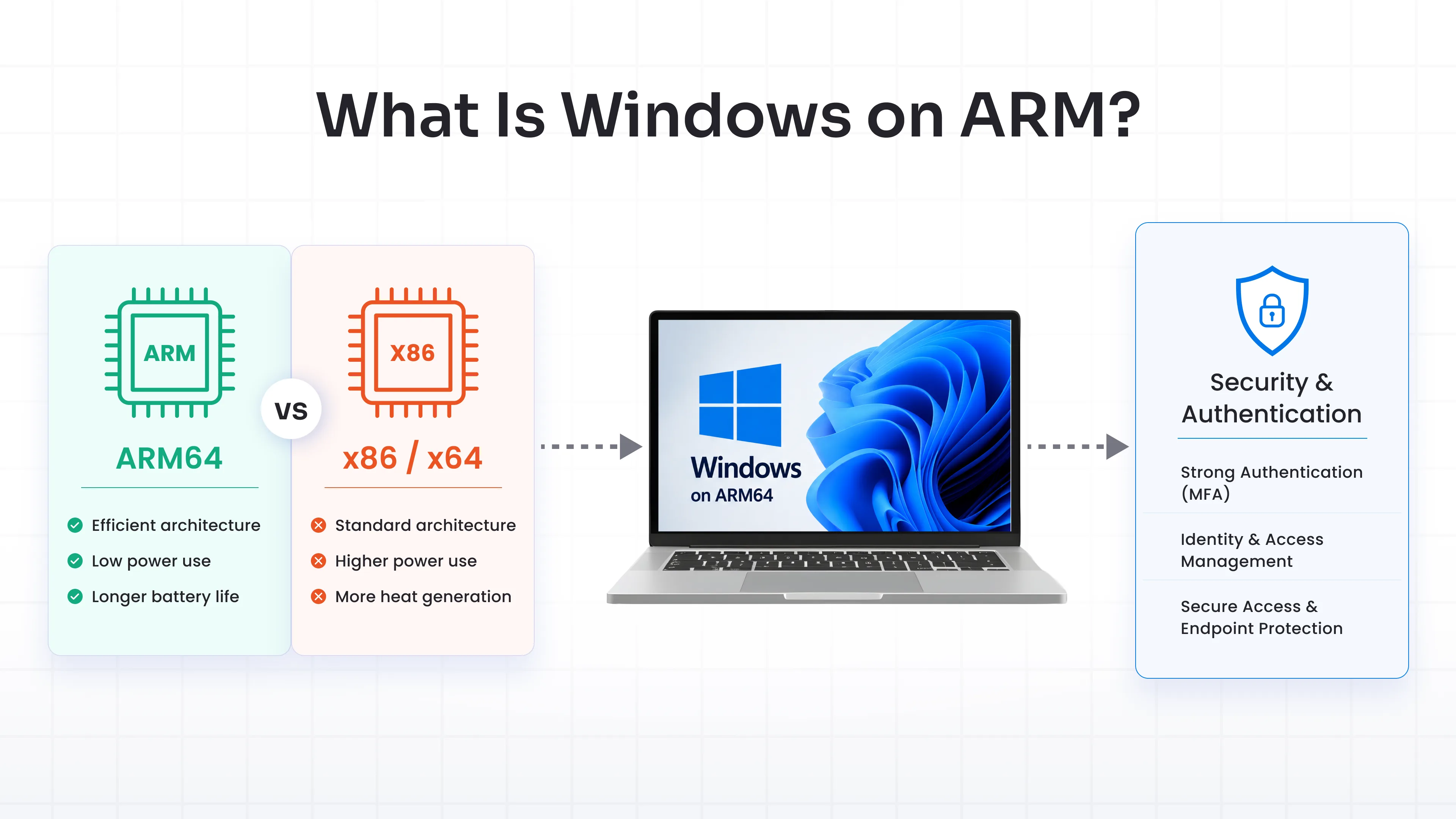
For IT teams, however, the underlying architecture matters because security agents, authentication components, and other endpoint software may have specific compatibility requirements. Organizations deploying ARM64 Windows devices should therefore ensure their existing security and MFA solutions support the target environment.
Why Does MFA Compatibility Matter on ARM Devices?
MFA should provide consistent protection across an organization's Windows environment. If some endpoints cannot use the same authentication controls as the rest of the fleet, security teams may have to maintain different security policies for different device architectures.
This can affect:
- Windows Logon
- Domain and local account authentication
- Remote Desktop Protocol (RDP)
- User Account Control (UAC) elevation
- Administrator and privileged access
- Remote workforce access
- Offline Windows authentication
A centralized MFA strategy helps organizations standardize authentication policies across users, machines, and access scenarios.
For ARM-based Windows deployments, the important consideration is therefore not whether MFA is required. It is whether the Windows MFA component can operate correctly within the ARM64 environment while protecting the authentication paths the organization depends on.
Does ARM Affect Windows MFA?
ARM does not change the need for MFA, but it can affect compatibility at the Windows authentication layer. Since Windows MFA relies on components that interact with the sign-in process, IT teams should ensure that the MFA agent, Windows version, endpoint architecture, authentication method, and deployment model work together.
miniOrange Windows MFA secures Windows Logon and RDP across local and domain environments, with Active Directory and LDAP integration and centralized Group Policy deployment. For ARM64 environments, organizations should validate compatibility with their specific Windows version and hardware configuration before production deployment.
How Does MFA Secure Windows ARM Devices?
A Windows MFA deployment adds an additional identity verification step to the existing Windows authentication process.
A typical flow looks like this:
Windows credentials → MFA challenge → Additional verification → Access granted
Organizations can select authentication methods based on their security requirements, user roles, and existing identity workflows.
miniOrange supports multiple authentication methods, including authenticator apps, push notifications, OTPs, biometrics, hardware tokens, and WebAuthn/FIDO2 security keys.
For organizations moving toward passwordless authentication or seeking a phishing-resistant MFA solution,FIDO2 Authentication provides a stronger alternative to password-based access.
For users who need a convenient approval-based experience, a Push notification solution can provide fast second-factor verification.
Secure Windows Logon, RDP, UAC, and Offline Access
Enterprise Windows environments expose systems through multiple authentication paths. MFA should therefore extend beyond the initial desktop login.
Windows Logon
Protect local and domain-joined Windows logins with Windows MFA, adding an additional authentication factor beyond passwords. miniOrange integrates with Active Directory and LDAP environments to help organizations strengthen and centrally manage Windows authentication.
Remote Desktop Protocol (RDP)
RDP is widely used by IT administrators, remote employees, and infrastructure teams. Adding MFA to RDP provides an additional verification step before users gain access to remote Windows resources.
miniOrange supports MFA for Windows RDP and remote desktop environments, including supported RD Gateway scenarios.
UAC and Privileged Access
Administrative operations can provide access to sensitive system functions. miniOrange supports MFA for User Account Control (UAC) elevation requests, helping organizations add another authentication checkpoint to privileged actions.
Offline Login
Windows endpoints may not always have continuous access to the authentication server or internet. This can be particularly relevant for remote employees, traveling users, field teams, restricted environments, or temporary network outages.
miniOrange Offline MFA allows users to authenticate locally using pre-enrolled methods such as TOTP, hardware tokens, and supported backup mechanisms. Initial enrollment and configuration are performed while the device is online; subsequent authentication can be validated locally when the device is offline.
How to Deploy Windows MFA Across ARM Environments?
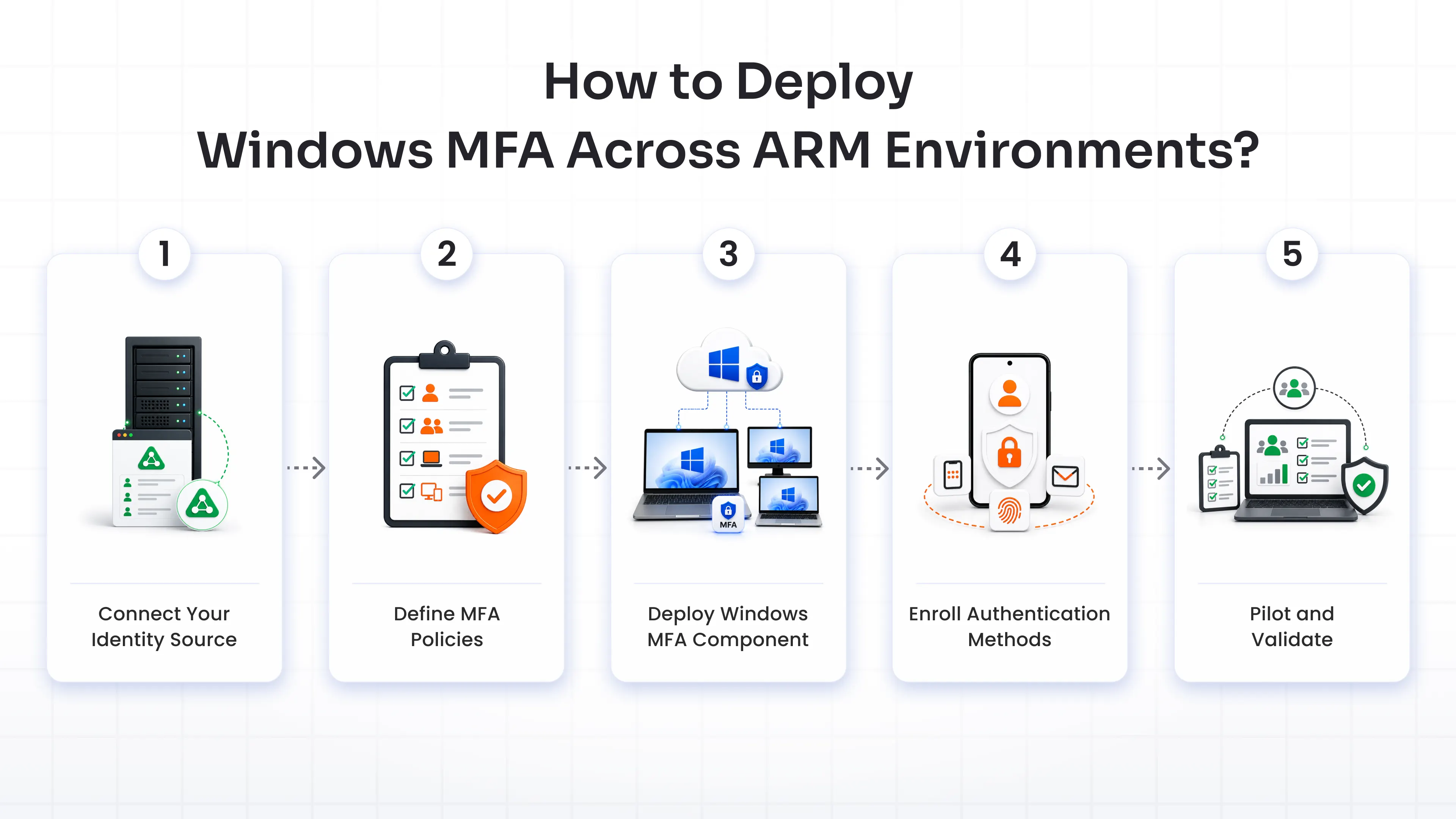
A Windows MFA deployment should fit into the organization's existing identity and endpoint-management workflows.
Step 1: Connect Your Identity Source
Integrate your existing Active Directory or LDAP environment to centralize user identities and authentication policies. miniOrange supports AD/LDAP integration for Windows MFA.
Step 2: Define MFA Policies
Determine which users, groups, machines, and authentication scenarios require MFA. Policies can be configured around organizational roles and access requirements.
Step 3: Deploy the Windows MFA Component
Deploy the Windows MFA component to the required endpoints. For managed Windows environments, Group Policy can help administrators distribute configuration and authentication components across multiple machines.
Step 4: Enroll Authentication Methods
Configure the authentication methods appropriate for each user or group, such as push notifications, authenticator apps, FIDO2 security keys, biometrics, or OTP.
Step 5: Pilot and Validate
Before organization-wide deployment, test the authentication flow on representative ARM64 devices. Validate Windows Logon, RDP, UAC, and offline scenarios, then expand the deployment after confirming the required configuration.
Key Takeaways:
- Verify ARM64 compatibility: Ensure your Windows MFA component, Windows version, and endpoint architecture are compatible before deployment.
- Protect every access point: Extend MFA beyond Windows Logon to RDP, UAC, privileged access, and offline authentication.
- Centralize MFA management: Apply consistent authentication policies across ARM64 and mixed Windows environments using your existing identity infrastructure.
Integrate Windows MFA With Your Existing Security Infrastructure
Windows MFA should not become an isolated security control.
A centralized authentication solution can help organizations apply consistent MFA policies across Windows endpoints, remote access, VPNs, applications, and other enterprise resources.
miniOrange integrates Windows MFA with Active Directory and LDAP and supports broader authentication use cases across enterprise infrastructure. Its platform also supports MFA for VPNs, network devices, legacy applications, and cloud environments.
This allows security teams to build a consistent authentication strategy instead of managing separate MFA tools for individual access points.
Why Choose miniOrange for Windows MFA?
For enterprise IT and security teams, Windows MFA needs to balance security, deployment flexibility, and user experience.
miniOrange provides:
- MFA for Windows Logon and RDP
- Active Directory and LDAP integration
- Group Policy-based deployment
- UAC MFA protection
- Machine-based MFA
- Cross-domain authentication
- Passwordless authentication options
- FIDO2/WebAuthn security keys
- Push notifications and authenticator apps
- Offline MFA
- Customizable MFA policies
- Centralized authentication management
miniOrange also supports authentication methods including push notifications, TOTP, RSA MFA, biometrics, WebAuthn/FIDO2 security keys, and backup codes.
Organizations evaluating broader identity and access requirements can also explore miniOrange security software for additional authentication and security capabilities.
Secure Your ARM64 Windows Environment With MFA
As ARM-based Windows devices become more common across enterprise environments, organizations need consistent protection across every Windows login, remote session, and privileged operation. A strong Windows MFA strategy combines architecture compatibility, centralized identity management, flexible authentication, remote access protection, and offline authentication.
Whether you're managing ARM64 or mixed Windows environments, miniOrange can help centralize MFA across Windows Logon, RDP, and other enterprise access points. Explore the MFA Datasheet or Book a Demo to discuss your Windows MFA requirements.
FAQs
Does Windows MFA work on ARM64 devices?
MFA can secure Windows authentication on ARM-based devices, but compatibility depends on the specific Windows MFA component, Windows version, endpoint architecture, and deployment configuration. Organizations should validate ARM64 compatibility before production deployment.
Can I use MFA for Windows RDP?
Yes. miniOrange supports MFA for Windows Logon and RDP, including supported remote desktop and RD Gateway scenarios.
Can Windows MFA work without an internet connection?
Yes. miniOrange supports Offline MFA for Windows using pre-enrolled authentication methods such as TOTP and hardware tokens, with authentication data stored locally for offline validation.
Can I use FIDO2 for Windows MFA?
miniOrange supports passwordless authentication options including FIDO2/WebAuthn security keys for supported Windows MFA deployments.
Can I deploy Windows MFA across multiple machines?
Yes. Group Policy can be used to help deploy Windows MFA configuration across managed Windows environments.
Can MFA be applied to administrators or specific user groups?
Yes. miniOrange supports customizable MFA policies that can be tailored to users, groups, roles, machines, and authentication scenarios.
About the Author

Engineering Director
Kshitij Ratnaparkhi is an Engineering Director at miniOrange, leading product engineering in Identity and Access Management (IAM), Identity Governance & Administration (IGA), Privileged Access Management (PAM), Mobile Device Management (MDM), and Data Loss Prevention (DLP). He leads multiple product engineering teams, driving scalable architecture, delivery excellence, and high-impact outcomes. His focus lies in building strong engineering cultures, improving quality, and accelerating execution through AI-driven practices.
Leave a Comment