
If your organization uses a Mac, you’ve probably heard of FileVault. But what is it, exactly? And more importantly, do you actually need it?
A lost Mac can become much more than an expensive replacement if you have sensitive business data in it.
FileVault is one of the simplest ways to protect it. Apple provides it by default with macOS. It encrypts your startup disk, so your files stay unreadable if someone gets access to your Mac without your login.
Here's everything you need to know about FileVault, how it works, and why it matters for your organization's Mac security.
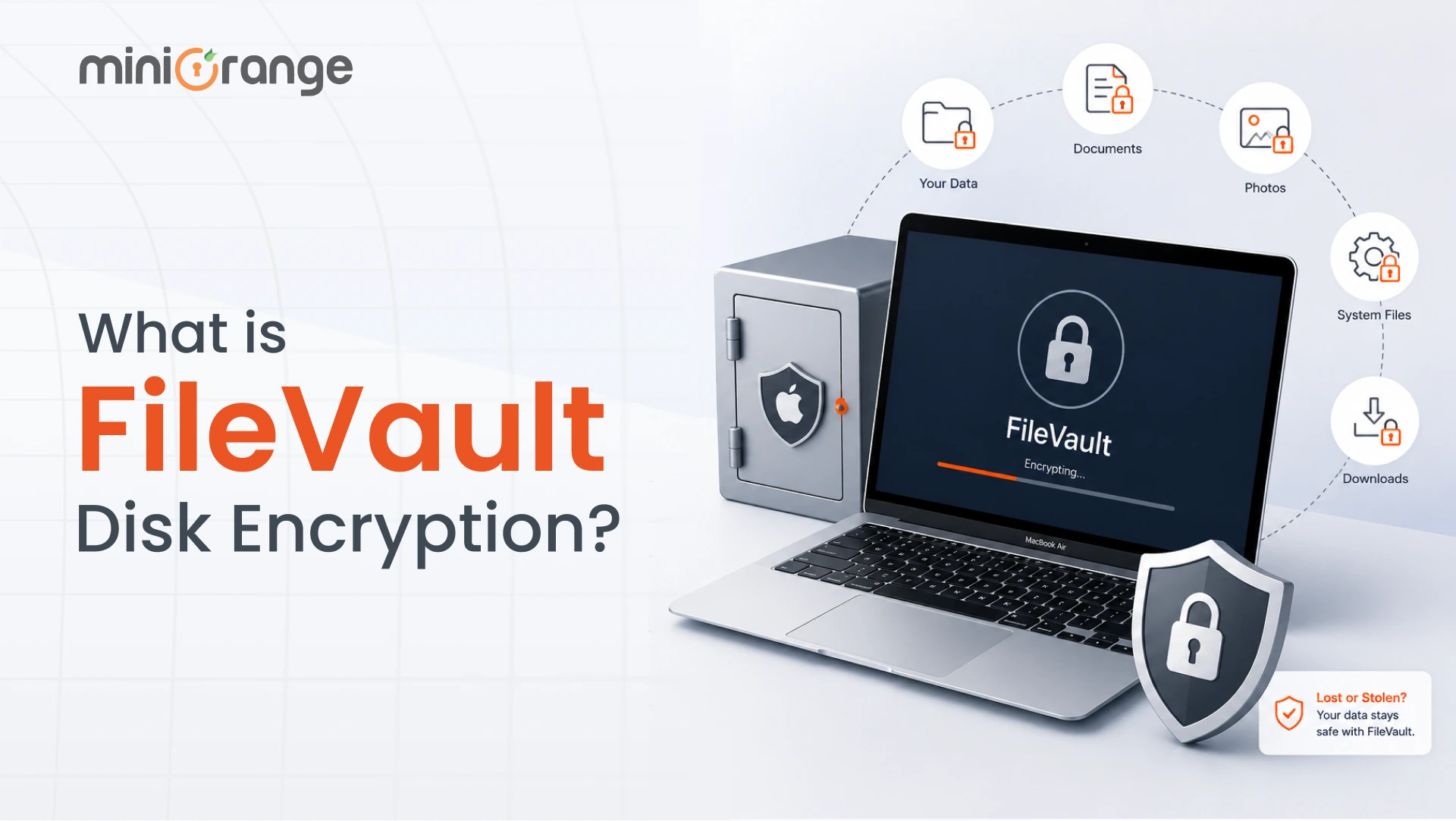
What Is FileVault Disk Encryption?
Put simply, FileVault is Apple's built-in full disk encryption feature for macOS. It scrambles the data on your Mac’s startup disk. Without your login password, your files are unreadable. If someone steals your Mac, they can't access your business documents, intellectual property, or other sensitive data. It’s your first line of defense against physical data theft.
Unlike file-level encryption, FileVault protects the entire startup disk, including:
- User documents
- Downloads
- Photos and videos
- Application data
- Cached files
- System files stored on the startup volume
Encryption and decryption happen automatically in the background. When you sign back in, you can continue to use your Mac normally.
Who Should Use FileVault?
Any organization that manages Macs should enable FileVault.
If employees use Macs outside the office, whether at home, while traveling, or on customer sites, you are at risk of theft. FileVault adds an important layer of protection.
Enforcing encryption is also a compliance requirement in most cases.
FileVault works with your broader Apple device management strategy and gives you a stronger starting point for protecting endpoints, especially when devices leave the office or change hands.
Apple also provides built-in options for recovery and management, which makes FileVault practical for IT teams as well.
How Does FileVault Disk Encryption Work?
On modern Macs, your drive is already hardware-encrypted. When you enable FileVault full disk encryption, it simply ties that encryption to your user password. Your Mac uses XTS-AES-128 encryption with a 256-bit key.
The data is decrypted only after an authorized user successfully authenticates.
Here's a simplified view of the process:
- You enable FileVault.
- macOS begins encrypting the startup disk in the background.
- Every file written to the disk is encrypted automatically.
- When you start your Mac, authorized users must authenticate before the startup disk unlocks.
- Once authenticated, macOS decrypts data transparently as you use the device.
Why Is FileVault Important?
Without encryption, anyone with some basic tech knowledge can pull the hard drive out of your Mac, plug it into another computer, and read your files.
FileVault reduces that risk. Even if someone gains physical possession of your Mac, they can't access the stored data without the correct credentials or a valid recovery key.
1. Protects Lost Devices
Losing your Mac in a cab or airport terminal is unfortunate. But replacing hardware is far cheaper than dealing with a data breach. FileVault ensures your data remains safe by scrambling your entire startup drive. Without your login password, a thief holds an expensive paperweight, not your private data.
2. Prevents Unauthorized Access
A login password alone doesn't protect data stored on an unencrypted startup disk from certain offline attacks.
FileVault stops unauthorized access at the disk level. Before macOS loads, an authorized user must authenticate to unlock the encrypted volume. Without the correct credentials or recovery key, the data remains inaccessible.
3. Compliance Support
Many security frameworks and industry regulations expect organizations to protect sensitive data stored on endpoint devices.
While FileVault alone doesn't make your organization compliant, it helps satisfy encryption requirements that commonly appear in frameworks such as HIPAA, PCI DSS, GDPR, and ISO 27001 when used as part of a broader security program.
You can pair FileVault with miniOrange Mobile Device Management solution (MDM) to enforce encryption across your fleet and generate audit-ready reports.
4. Remote Workforce Security
As remote employees work outside your office premises, their Macs have a higher risk of theft.
FileVault helps ensure that the data stored on the startup disk remains protected even if their devices are stolen or misplaced.
5. Business Data Protection
Most organizations store client data, financial sheets, and proprietary code on employee devices.
A single stolen laptop with unencrypted files can trigger a devastating breach and destroy your brand's reputation. FileVault provides round-the-clock business data protection. It locks down every gigabyte on your storage drive and protects your intellectual property.
Key Features of Apple FileVault
One of FileVault's biggest advantages is that it's built into macOS. You don’t need to install additional software to encrypt your drive. Some of the other important Apple FileVault features include:
1. Full Disk Encryption
FileVault encrypts your Mac's startup volume instead of individual files. Every new file written to the encrypted disk is protected automatically.
2. Strong Cryptography
FileVault uses XTS-AES-128 encryption with a 256-bit key to protect data stored on your startup disk.
3. On-The-Fly Encryption
Your Mac encrypts and decrypts data in the background as you work. You can continue using your Mac while the initial encryption process completes.
4. Recovery Options
If you forget your password, you can regain access using a recovery key or, depending on your configuration, your Apple Account.
Organizations commonly use managed recovery key escrow through their MDM solution to simplify recovery.
5. Multiple Authorized Users
You can allow multiple local users to unlock the encrypted startup disk. Each authorized user can sign in using their own account credentials.
How to Enable FileVault on Mac
It only takes a few clicks to turn on FileVault disk encryption.
- Open System Settings (or System Preferences on older versions of macOS).
- Go to Privacy & Security.
- Select FileVault.
- Click Turn On FileVault.
- Authenticate using an administrator account.
- Choose how you want to recover access if you forget your password.
- Allow macOS to begin encrypting the startup disk.
How to Turn Off FileVault on Mac
There may be situations where you need to turn off FileVault Mac encryption, such as troubleshooting, repurposing a device, or following your organization's IT policies.
To disable FileVault:
- Open System Settings.
- Navigate to Privacy & Security.
- Select FileVault.
- Click Turn Off FileVault.
- Authenticate with an administrator account.
- Confirm that you want to disable FileVault.
Your Mac will decrypt your drive in the background while you continue working.
What Is a FileVault Recovery Key?
If you forget your Mac password, the recovery key in MacBook or other Mac models can unlock the encrypted startup disk and help you regain access. You can use this key at the login screen to unlock your drive and reset your password.
For organizations, securely escrowing recovery keys through an MDM solution helps IT administrators recover managed devices while reducing the risk of permanent data loss.
Common FileVault Problems and Solutions
FileVault is reliable, but like any security feature, it can start acting up. Most issues are easy to resolve if you know what's causing them. Let’s go over some of them:
Encryption Isn't Enabled on All Devices
Users tend to postpone or skip enabling FileVault. Enforce FileVault through your MDM solution instead of relying on users to enable it manually.
Encryption is Paused
FileVault won't encrypt on battery power. So make sure your Mac is plugged into a power source.
Forgot the Password and Lost the Key
Unfortunately, this problem can only be prevented, not solved. Your data cannot be recovered. Apple cannot recover it for you. Ensure recovery keys are securely escrowed through your MDM solution.
Authorized User Can't Unlock the Mac
The account hasn't been enabled to unlock the encrypted startup disk. An administrator can authorize additional users to unlock the startup disk through FileVault settings.
Longer Startup Time
This is completely normal. Your Mac needs your password to unlock the drive before it can load the rest of the operating system.
Employees Disable FileVault
Local administrators may disable encryption if policies don't prevent it. Use device management policies to enforce FileVault where appropriate.
Best Practices for Using FileVault
Follow these best practices to get the most value from FileVault.
- Configure FileVault as part of your Mac provisioning process rather than leaving encryption to end users.
- Store recovery keys securely through an MDM solution.
- Regularly verify which devices have FileVault enabled and investigate systems that fall out of compliance.
- Only trusted administrators should have permission to modify FileVault settings or encryption policies.
Secure Every Mac with FileVault and miniOrange Apple MDM
FileVault is one of the most effective ways to protect the data stored on your organization's Macs. By encrypting the startup disk, it helps safeguard sensitive business information if a device is lost or stolen.
However, enabling FileVault is only the first step. As your Mac fleet grows, managing encryption manually becomes difficult. IT teams need a centralized way to enforce FileVault policies, securely manage recovery keys, monitor encryption status, and demonstrate compliance across every device.
Enforce FileVault across your Mac fleet, securely escrow recovery keys, monitor encryption status, and simplify compliance with miniOrange Apple Device Management, all from a centralized management console.
FAQs
1. What does FileVault do?
FileVault encrypts your Mac's startup disk to protect data stored on the device. If the Mac is lost or stolen, unauthorized users can't access the encrypted data without valid authentication or a recovery key.
2. What is FileVault disk encryption on Mac?
FileVault is Apple's built-in full disk encryption technology for macOS. It encrypts the startup volume using XTS-AES-128 encryption with a 256-bit key, helping protect data stored on managed and personal Macs.
3. Is FileVault safe?
Yes. FileVault is Apple's native full disk encryption solution and is designed to protect data stored on the startup disk. When deployed and managed properly, it provides strong protection against unauthorized offline access to business data.
4. Should I use FileVault disk encryption?
For most organizations, yes. If your employees use Macs to access corporate resources or store sensitive business information, FileVault should be part of your endpoint security strategy. It helps protect company data if a device is lost or stolen.
5. Does FileVault slow down Mac?
On modern Macs, especially those with Apple silicon or the Apple T2 Security Chip, most users notice little to no impact during everyday use. The initial encryption process may take time, but normal work can continue while encryption completes.
6. Can FileVault be hacked?
No security technology can guarantee absolute protection.
However, when FileVault is configured correctly and strong authentication practices are followed, it provides strong protection against unauthorized offline access to data stored on the startup disk. The greatest risks often come from compromised user credentials, weak passwords, or poor recovery key management rather than weaknesses in FileVault itself.
7. Is FileVault enough to secure a Mac?
No. FileVault protects data at rest, but it doesn't secure every aspect of a Mac. Organizations should combine FileVault with identity management, MFA, endpoint protection, patch management, device compliance policies, and continuous monitoring as part of a broader security strategy.
8. What happens if I forget my password?
If FileVault is enabled, you can recover access using your recovery key or another approved recovery method configured when FileVault was enabled. In managed environments, IT administrators can often assist using recovery keys securely escrowed through the organization's MDM solution.
9. Can IT administrators manage FileVault?
Yes. Organizations commonly use Apple Mobile Device Management (MDM) solutions to deploy FileVault, enforce encryption policies, escrow recovery keys, and monitor encryption status across managed Macs. This enables centralized management without requiring users to configure FileVault themselves.
About the Author

Senior Content Writer
Chinmay has extensive experience in writing thought leadership and marketing content for B2B IT companies. He specializes in cybersecurity, AI, ERP, CRM, and custom software development, creating content that not just informs, but sells.
Leave a Comment